Have you ever encountered a situation where adding just a few images to a report required you to revise all the scattered image numbers within the text?
You're likely tired of manually adjusting when the table of contents page numbers differ from their actual positions.
This guide provides a step-by-step explanation of how to effectively use the cross-referencing feature in Hangeul files, covering everything from its mechanics to practical applications and troubleshooting common errors. Setting up cross-references ensures that when images or tables are added, all numbering updates automatically, eliminating unnecessary repetition and reducing your work time.
Learn how to leverage the cross-referencing function in Hangeul files to enhance your work efficiency and maximize productivity in your document tasks starting today.
Understanding Hangeul Cross-Referencing Function
Concept and Principle of Hangeul File Cross-Referencing
While working on documents, have you ever typed “refer to Table 3” only to find that after adding more tables, Table 3 became Table 5, requiring you to manually locate and change every instance?
By utilizing the cross-reference function, these issues can be mitigated, allowing real-time linkage between the original and reference points, similar to cell references in Excel.
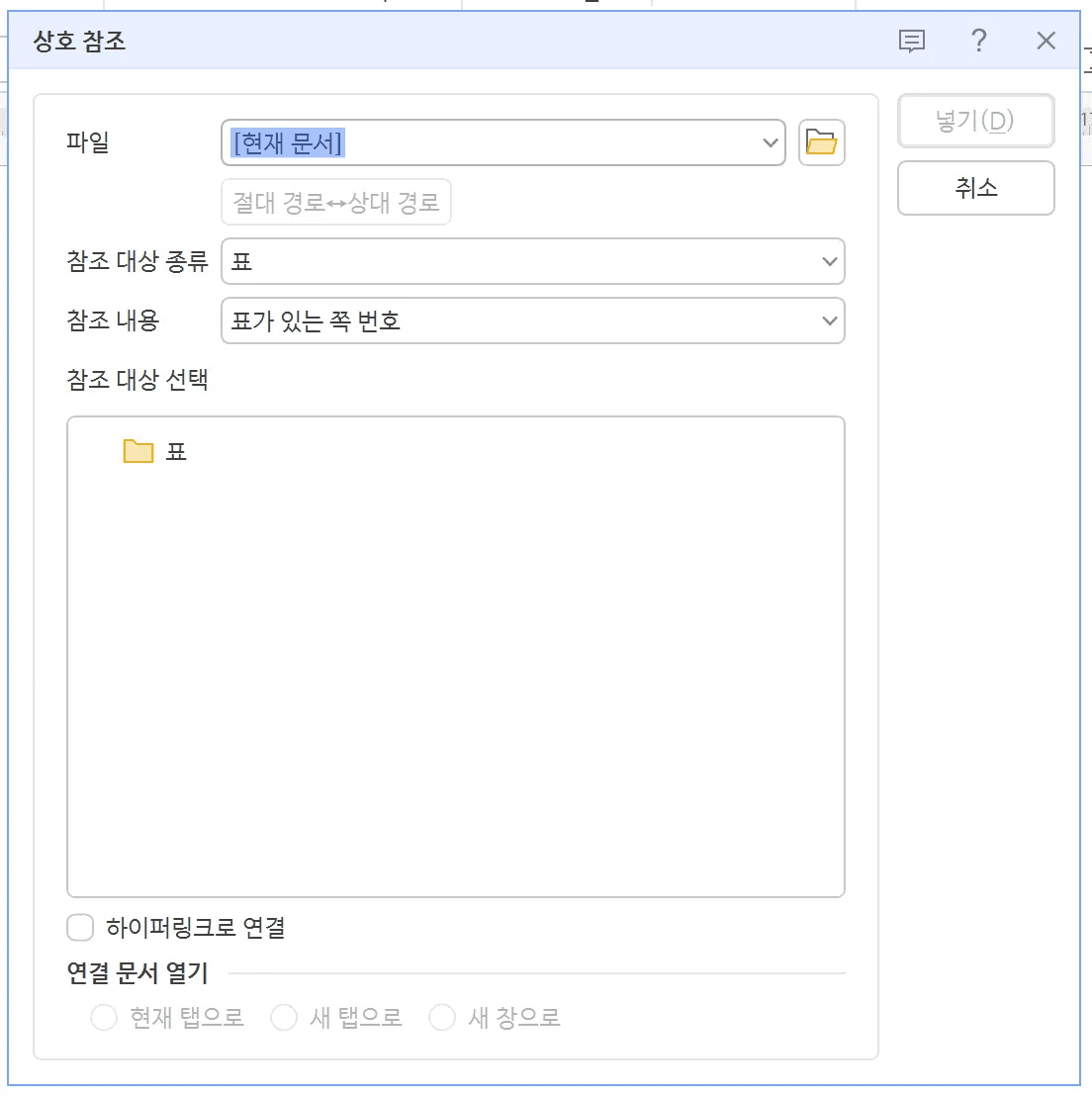
Automatic Linkage of Images, Tables, and Outlines with Cross-Referencing
Did you know that the cross-referencing function not only automatically manages images but also tables and headings?
Once configured, whenever you add or remove objects, all following numbers are automatically adjusted. This saves time as revisions are completed with a single save action.
Impact of Cross-Reference Linkage on Document Work
The automatic linkage of cross-references enables efficient management of constantly changing content during the document review process. Refer to the following guide to reduce revision time.
Step-by-Step Guide to Inserting Cross-References in Hangeul
Designating a Position for Cross-References in the Text
To specify where to insert a cross-reference, place the cursor where you want the reference number, making it easier by marking the spot as ‘[Insert Cross-Reference Here]’.
Utilizing the Cross-Reference from the Input Menu
Using the cross-reference function requires a simple click. After designating the cursor position, insert a cross-reference or use a shortcut key to insert it.
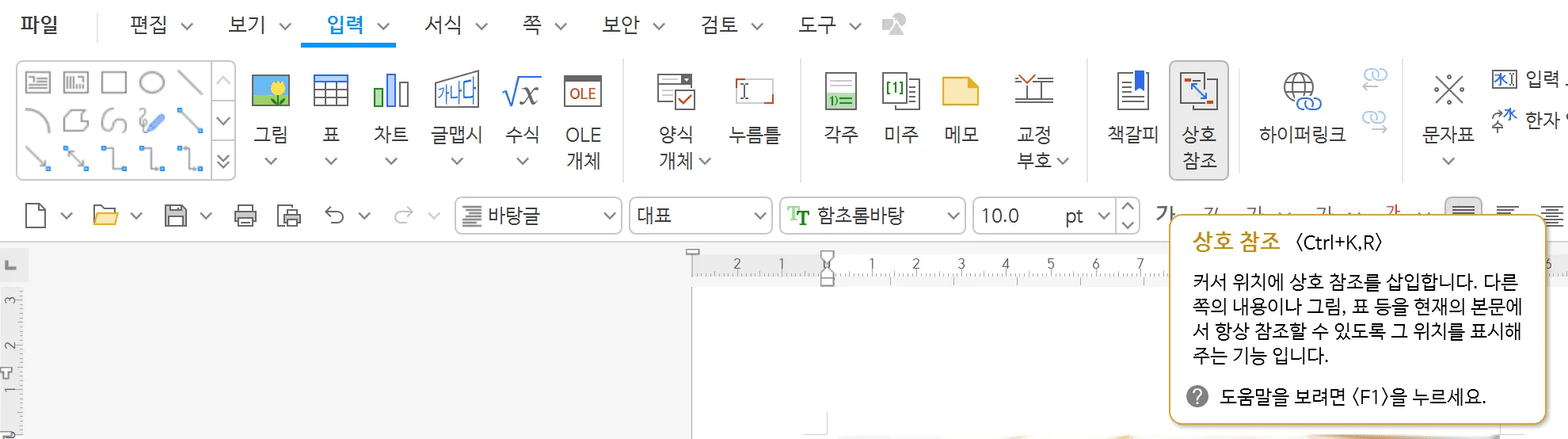
Select [Cross-Reference] from [Input] or press the shortcut key Ctrl+K, R.
Select 'Type of Reference': Choose images.
Click on the list of images to reference.
'Reference Content': Choose either numbers only or the entire caption.
Click 'Insert'.
How to Update Cross-References in Hangeul
Automatically Update with Addition/Deletion of Images in Hangeul Files
Cross-references automatically detect changes when images are added or deleted, adjusting all following numbers accordingly. When you hit save or refresh the fields, all related references are updated to reflect the latest state.
Update Cross-References by Saving with ‘Ctrl+S’
Updating cross-references occurs automatically by pressing ‘Ctrl+S’ to save. When Hangeul reviews the entire document, it can update all cross-reference numbers to the latest state. (Develop the habit of pressing ‘Ctrl+S’ frequently during work to prevent disordered numbers.)
Force Refresh when Cross-Reference Update Errors Occur
If cross-references are not applied even after saving, try force refreshing the fields. Refreshing is useful for updating all auto-calculation items at once.
Press Ctrl+A (Select All).
Click F9 (Force Update All Fields).
Cross-references, table of contents, page numbers, etc., are updated collectively.
Troubleshooting Hangeul Cross-Reference Errors
Causes of 'Cannot Find Linked Bookmark or Object' Error
Have you seen the message ‘Cannot find linked bookmark or object’ while using the cross-reference function?
This message relates to a disconnection with the original object. It may occur if the referenced image or table was deleted, if captions were removed, or if reference links were broken during copy-paste operations.
The usual causes of this message error are as listed below:
The error message appears when the referenced image/table is deleted.
Errors occur when a caption is removed.
The issue may arise from a broken link during copy-paste operations.
Restoring Cross-Reference with Bookmark Reassignment
Reassigning bookmarks can restore broken cross-reference links. Follow these steps to resolve errors.

Select the image/table to reference.
Click [Bookmark] from [Input].
Enter an intuitively understandable name. (e.g., "Image_Research Results")
At the error location, select [Input] → [Cross-Reference] to reset.
Select 'Bookmark' and connect it.
Limits of Cross-Referencing in Managing Large Files
The limitations of the cross-referencing function are particularly evident in large documents.
Issues such as breaking connections can make tracking errors difficult when merging parts written by different persons or restructuring the entire document.
Merging sections written by different people may result in broken links.
Repeated copy-pasting can lead to tangled references.
It can be challenging to trace the original source of errors, making corrections elusive.
Make Hangeul Document Tasks Easier with Inline AI
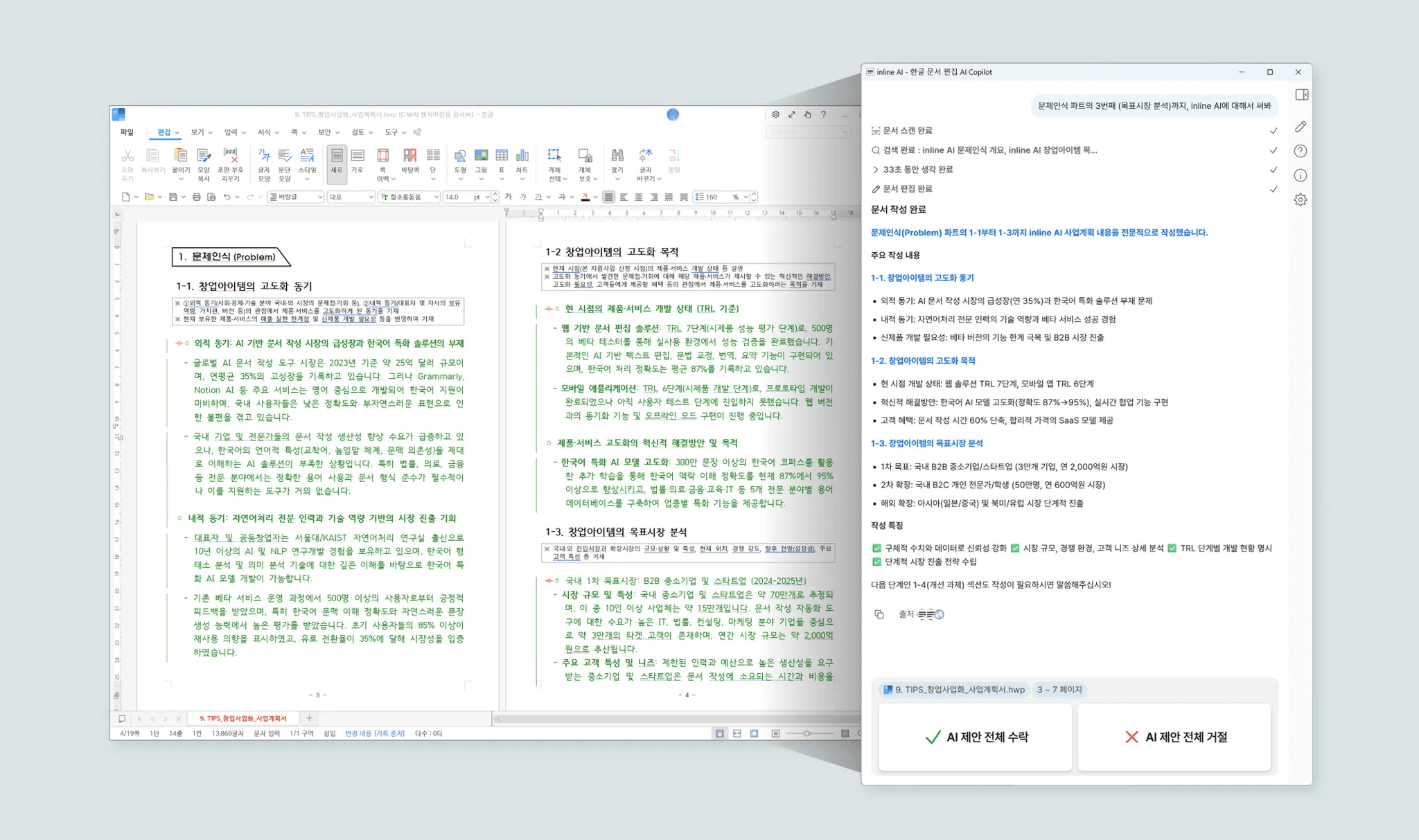
Inline AI is a service that allows you to communicate with AI and draft documents directly within Hangeul (HWP) files.
Automatically Complete Hangeul Documents with Inline AI, an AI Agent Exclusive to Hangeul
Feed prompts into the system, and AI will automatically enter and complete content, including complex tables.
If you frequently work on Hangeul documents, you can reduce repetitive setup and verification tasks and focus on writing essential content.
Start revolutionizing your document work with inline AI from now.