Have you ever been concerned about the inconsistent input formats in new employee application forms distributed by the company?
Some candidates write their names as 'Kim Min-su', while others use different spacing like 'Kim Min Su'. Similarly, with identification numbers, some include hyphens, some omit them, and others only write the first six digits.
The most common issues encountered in form work are mismatched input formats, missing required fields, and aggregation errors arising from freely typed responses. When surveys allow open-text responses for options, typos and unclear answers can make data organization challenging.
To prevent these errors, it is essential to set input guidelines using placeholders and checkboxes during the form creation stage.
This article provides a practical guide on creating placeholders in Hangul, three methods of inserting Hangul checkboxes, and utilizing Hangul form objects—six key features you must know to create forms like a pro.
It also explains step-by-step how to create Hangul input fields and activate Hangul checkboxes.

Which features should you use for form creation?
Different features are required depending on the document type, such as applications, surveys, and consent forms. You need to leverage Hangul placeholders and checkboxes appropriately.
If uniform input format is needed, set up placeholders first, and if option limitations are required, place checkboxes. Enhance completeness using form object properties.
Resumes, Applications
Guidance on input format using Hangul placeholders is crucial. Provide concrete instructions, like 'Enter your name spaced between family and given name' or 'Enter only six digits in the 123456 format'. Use Hangul checkboxes to clearly present employment form options.
Surveys, Questionnaires
Inserting multiple choice Hangul checkboxes is essential. Options ranging from 'Very satisfied' to 'Very dissatisfied' can be made into checkboxes for easy response aggregation. When creating Hangul survey formats, you can set default selection items with Value settings.
Consent forms, Contracts
Implement mandatory agreement items with Hangul checkboxes, and set the Value to 1 for default checked status. Use Hangul placeholders to guide the format in contract party information input fields.
Applications, Receipts
Combine Hangul placeholders and checkboxes. Guide format for dates using placeholders, and enable application type selection with checkboxes.
👉 Perfect Guide for Hangul Report Forms - From Templates to Design, Free Download
Creating Hangul Placeholders - Setting Up Input Fields and Guidance Text
What are the main features of Hangul placeholders?
The main features of Hangul placeholders are text color, disappearing when clicked, and non-printability.
Hangul placeholders are displayed in red to distinguish from regular text, clearly indicating where input is needed.
Once the user clicks in the specified location, the guidance text disappears, allowing direct input.
When printing the completed form, the placeholder content is not printed, resulting in a clean final copy.
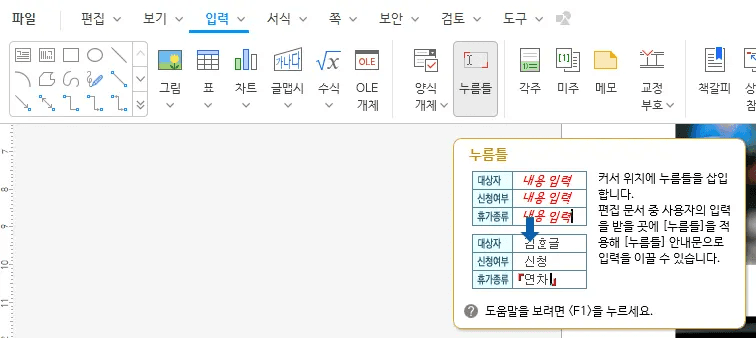
Click the mouse cursor at the location where the placeholder is to be applied.
Click the Input tab in the top ribbon menu.
Select the placeholder icon.
The default guiding text ‘Click here with the mouse and enter the content’ is inserted in red.
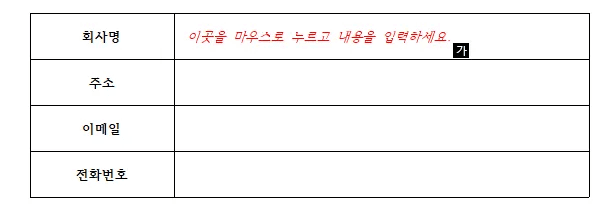
Creating Hangul Input Fields - Modifying Placeholder Text
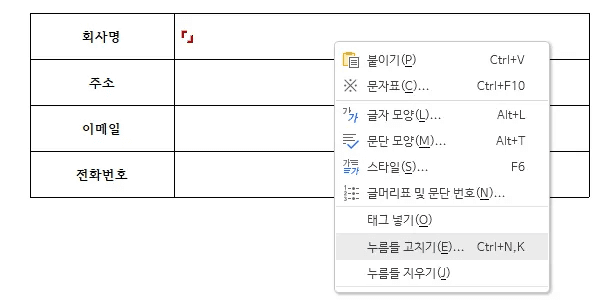
Right-click over the red text.
Select Edit Placeholder.
Erase the existing guidance text in the Edit Field Input window.
Enter the desired message.
e.g., ‘Enter name and surname separately’, ‘Input only the first 6 digits in the format 123456’, ‘Include your English name’
Click the Edit button.
What to do if you've incorrectly entered a Hangul placeholder?
If placeholders have been redundantly entered or incorrectly inserted, you can simply delete them by positioning the cursor over the placeholders and pressing the backspace key. If multiple placeholders are overlapped, select and remove them individually.
Comparison of Three Methods for Inserting Hangul Checkboxes
There are three main methods for creating checkboxes in Hangul. Each method has different purposes and functions, so choose wisely according to your needs.
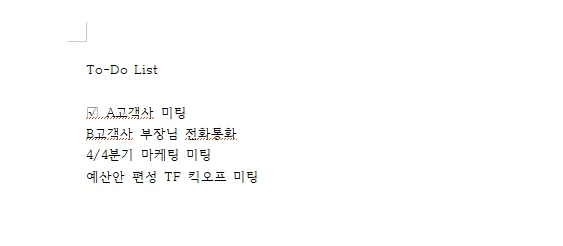
Method 1: Inserting Checkbox Symbols with Character Table
This method simply inserts a symbol of a checkbox, and cannot be clicked to actually check. Use when you need only a visual check symbol in a document.
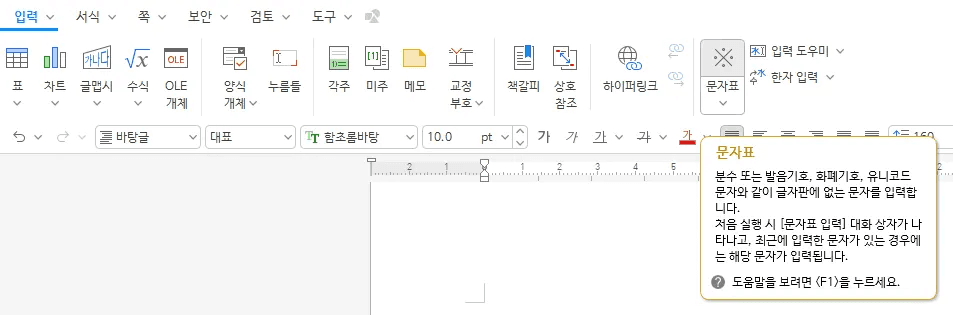
Place the cursor where you want to add a checkbox.
Select the character table from the top input menu or press Ctrl+F10.
Select special symbols and dingbat symbols from the user character table.
Click the checkbox symbol.
Click the Insert button.
Method 2: Creating a Custom Checkbox with Overlapping Text
This method is also just a visual element and does not have an actual check function, but the design is clean.
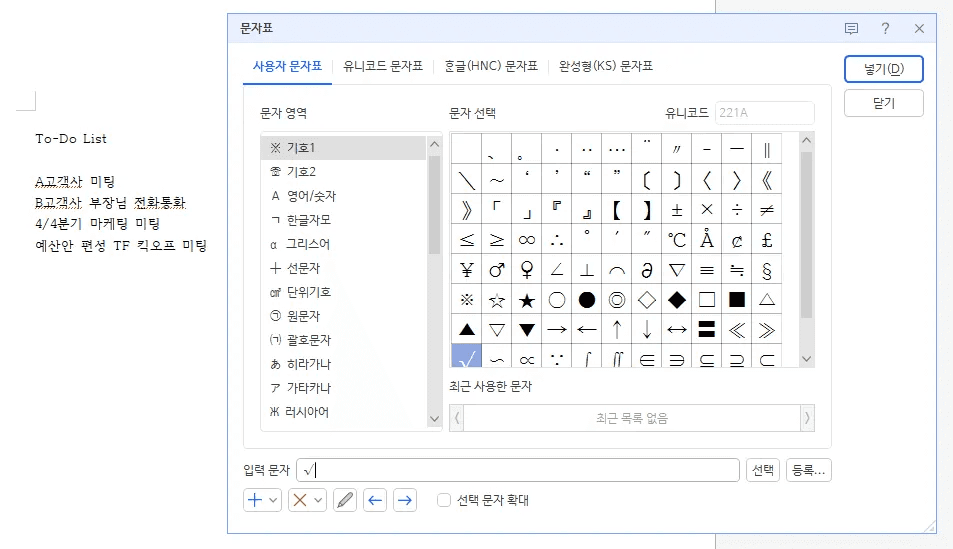
Select Symbol 1 from the character table in the input tab.
Insert ✔ symbol and click Insert.
Drag the ✔ symbol.
Click Assist Input.
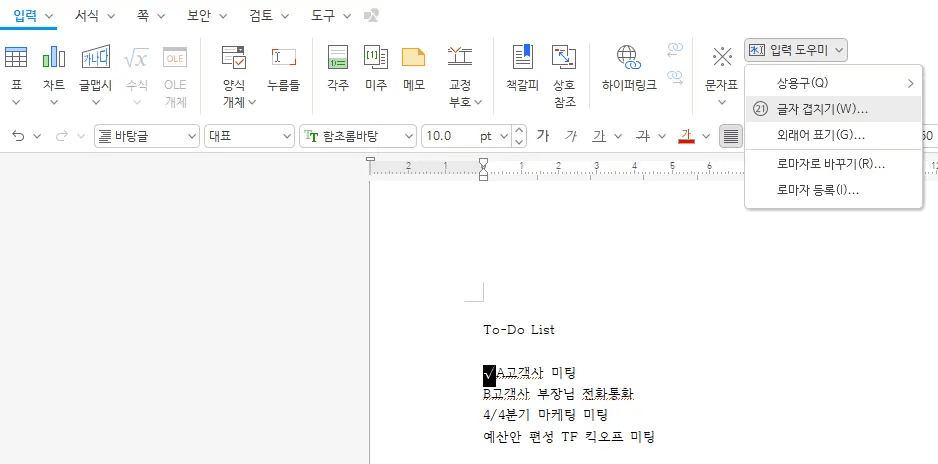
Select Overlapping Text.
Click the □ square symbol in the popup window.
Click Insert.
You may also like to read
👉 Perfect Guide for Hangul Title Bars - Repeating, Setting, Designing, Decorating
Method 3: Creating a Checkable Box with Form Object Selection Box (Recommended)

Click the arrow next to the input tab.
Enter the object menu.
Select the selection box from the form object.
The selection box is inserted at the desired location.
The Hangul checkbox inserted this way can be actually clicked to toggle the check mark, making it most suitable for forms requiring user selection, such as applications or surveys.
Utilizing Hangul Form Objects - Detailed Checkbox Settings
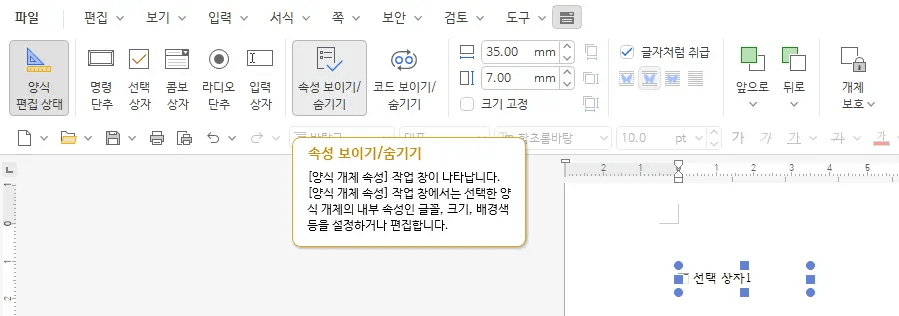
Click the inserted selection box.
The form edit tab activates at the top.
Click the Show/Hide Properties button.
The form object property window opens on the right.
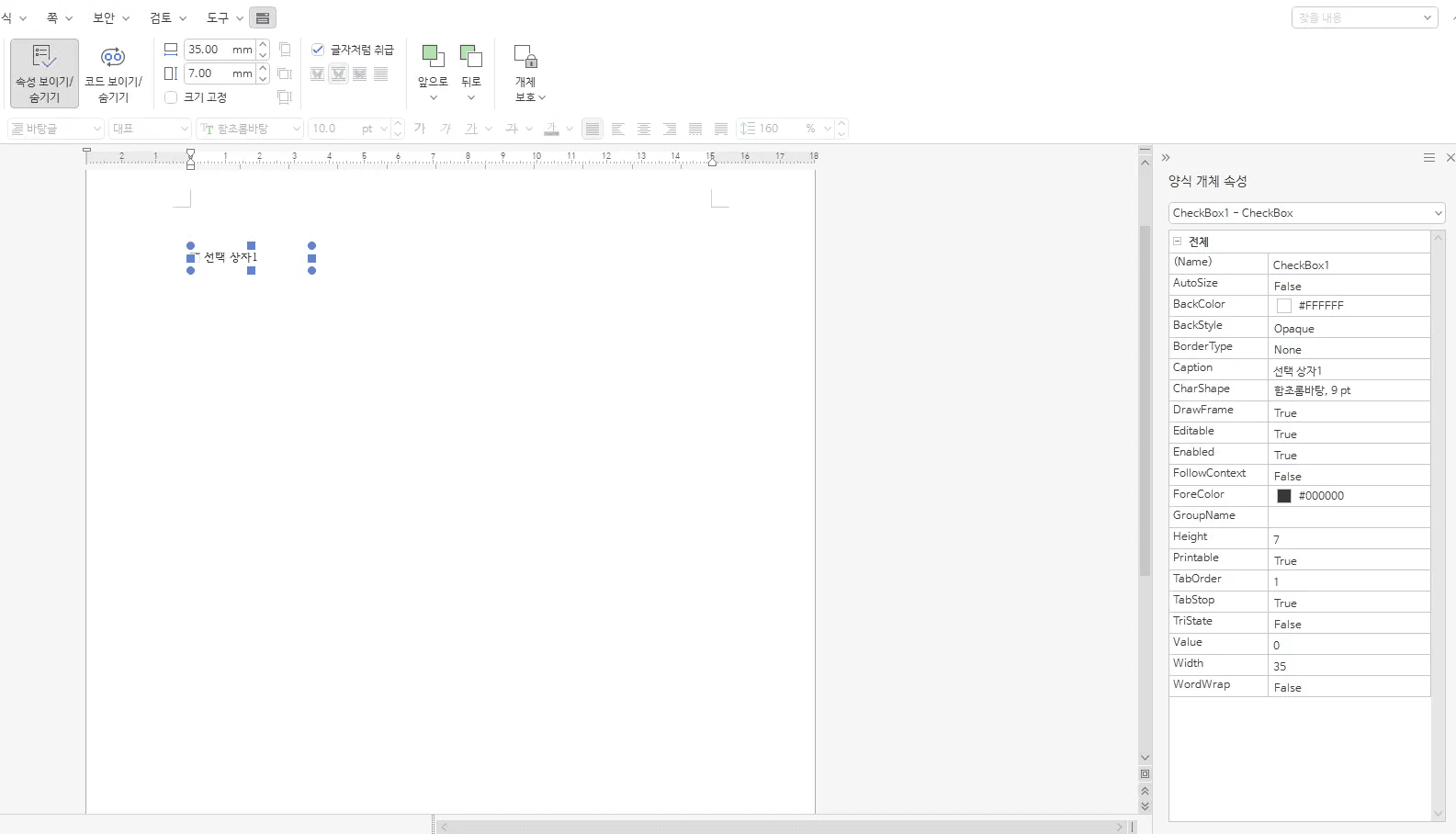
Modifying the Caption(Name)
Find the Caption item in the property window.
Change the default 'Selection Box 1' to the actual option name. e.g., 'Full-time', 'Contract', 'Freelancer'

Turning Off Treat as Text to Move Freely
Select the checkbox.
Check Treat As Text in the form edit tab at the top.
If enabled, click to disable.
Drag to place it in the desired location.
If the Treat As Text option is enabled, the checkbox is fixed like text, making it difficult to adjust the position. Disabling it allows free movement.
Setting Hangul Form Edit State - Activating Checkboxes
After completing all the settings, check the tool menu at the top.
Find the form edit state button next to the form object.
If activated, click to deactivate it.
When the form edit state is on, clicking the checkboxes will not select them; only the property window will open. To activate Hangul checkboxes, ensure the form edit state is turned off so users can click and select the checkbox.
Use Cases of Placeholders and Checkboxes in Practical Forms
Case 1: Creating Hangul Placeholders - Guidance on Resume Input Format
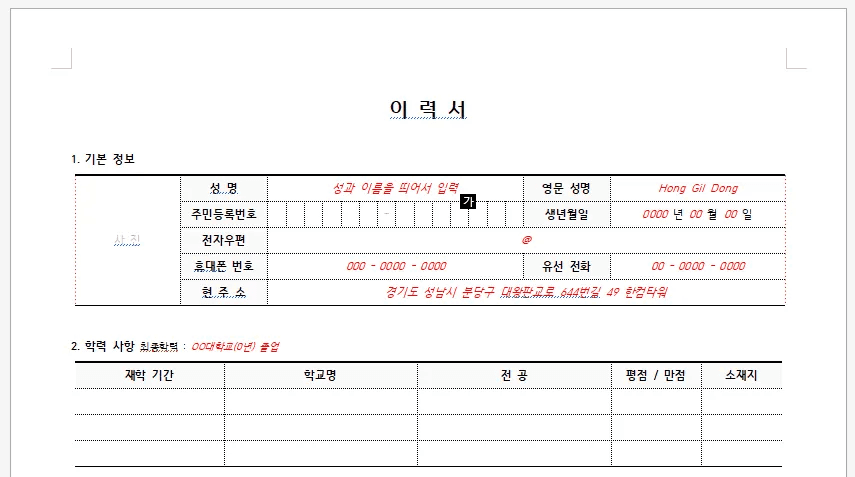
Place the cursor on the name field and insert a placeholder.
In Edit Placeholder, change it to ‘Enter name and surname with space’.
Insert a placeholder in the identification number field.
Modify the guidance to ‘Enter only the first 6 digits in the format 123456’.
On the address line, add guidance to ‘Enter postal code in parentheses and write in road name address’.
When the applicant clicks on the field, the guidance text disappears, allowing actual input, and when printing the completed resume, the placeholder text is not printed, resulting in a clean final copy. By utilizing Hangul input field creation methods, consistent format applications can be received.
Case 2: Inserting Hangul Checkboxes - Creating Work Application Options
Place the cursor on the desired work type field.
Continuously insert three selection boxes in accordance with the Hangul form object utilization method.
Change the Caption of the first selection box to 'Full-time'.
Set the second to 'Contract', and the third to 'Freelancer'.
Unify the font to Malgun Gothic 8 points.
Disable Treat As Text and arrange with appropriate spacing.
Disable Hangul form edit state settings.
Applicants can select the desired condition with a mouse click, and administrators can receive responses in a uniform format, facilitating easy aggregation. Inserting Hangul checkboxes can prevent input errors in advance.
Common Problems and Solutions
Creating Hangul Placeholders - Solutions for Printing Issues
Normally, the red guidance text of placeholders does not print, but if users attempt to print without entering content, the guidance text may be printed.
Click Print Preview in the File menu.
Check the status of placeholders.
Instruct users to fill in all fields before printing.
Creating Hangul Input Fields - When Placeholders are Duplicately Entered
There may be cases where multiple placeholders are inadvertently overlapped.
Place the cursor over the respective placeholder.
Press the backspace key.
Remove them one by one.
To modify guidance text, right-click and select Edit Placeholder.
When Hangul Checkboxes Do Not Activate
If checkboxes do not activate when clicked, it is often because the form edit state is active. Hangul checkbox activation issues can be immediately resolved by deactivating the form edit state settings.
Check the tool menu at the top.
Find the form edit state button next to the form object.
If it is on, click to turn it off.
Check again to see if the checkbox functions correctly.
When Recipients Cannot Enter or Select After Distribution
This could be due to the document being saved as read-only or an issue with Hangul form edit state settings.
Check read-only status in the file properties.
Resave in an editable format.
Ensure that Hangul form edit state settings are deactivated.
Redistribute.

Six-Item Final Checklist for Form Creation
Creating Hangul Placeholders - Is the guidance clear and specific?
Inserting Hangul Checkboxes - Are the captions set to correct options?
Is the Treat as Text option properly configured?
Are the initial checked states correctly specified with Value values?
Hangul form edit state settings - Can Hangul checkboxes be activated?
Have you checked the final output of placeholders with Print Preview?
Easier Document Work with Inline AI
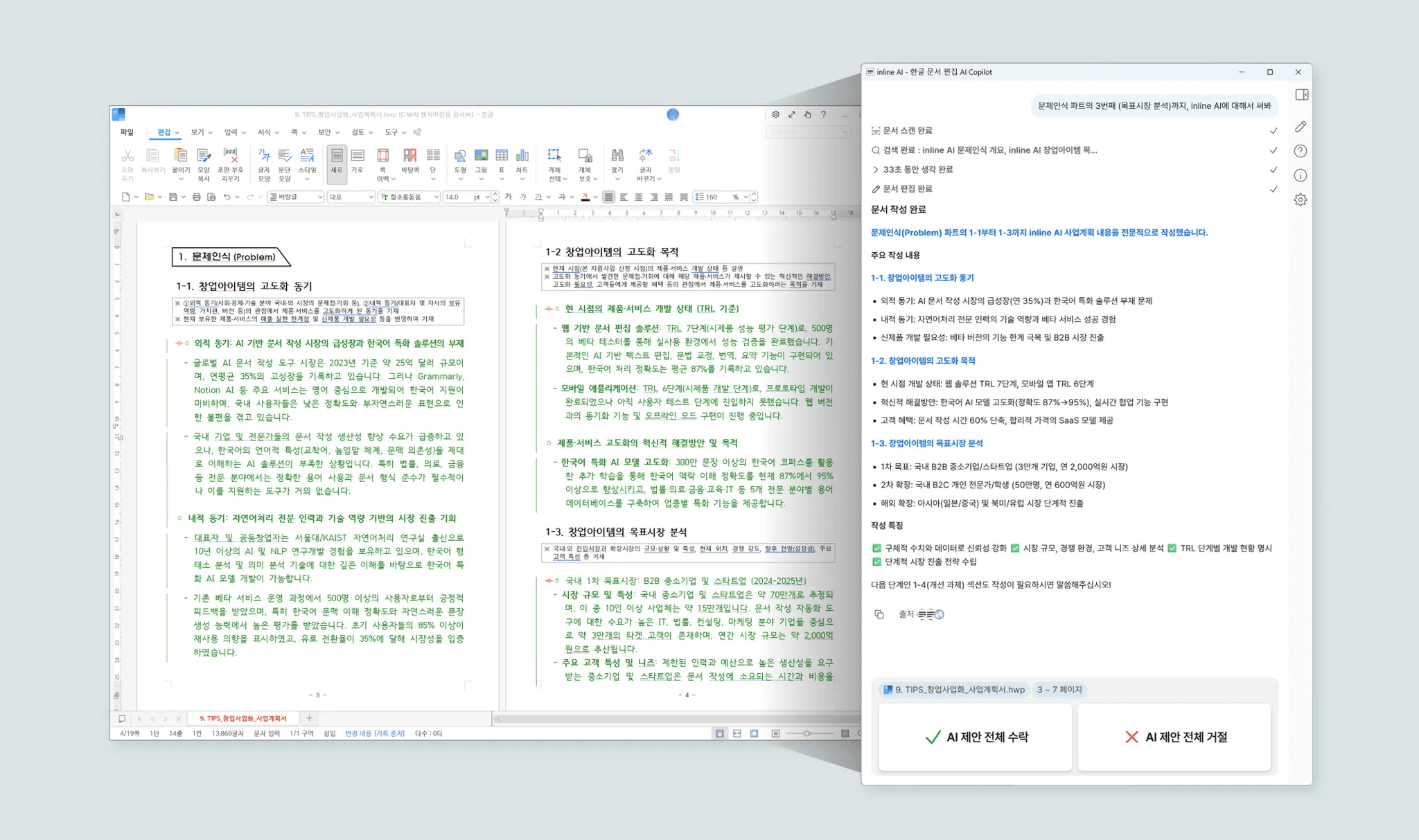
Checking form creation checklists every time is good, but how about getting AI assistance from the document creation stage?
Inline AI is a service that allows you to converse with AI directly within Hangul (HWP) files to create documents.
Hangul-Specific AI Agent, Seamlessly Complete Hangul Documents with Inline AI
By inserting prompts, AI automatically inputs and completes content, including complex tables.
Those of you who frequently work with Hangul documents can reduce repetitive setup and verification tasks, and focus more on crafting core content.
Start the innovation of Hangul document work with Inline AI now.