

Blog
How to Make a Histogram in Excel: Bins, Overflow, FREQUENCY

To make a histogram in Excel, select one column of numbers and choose Insert → Insert Statistic Chart → Histogram. Excel groups the values into ranges, called bins, and draws a bar for how many values fall in each. That answers a different question from a bar chart: not which item is biggest, but how the values are spread. An average order-to-ship time of 1.8 days sounds fine until the histogram shows a long tail of orders that took ten days or more, which is exactly what the customers calling about late deliveries are experiencing.
This guide covers the three ways to build one, how to choose bins, which bin a boundary value falls into, and a lead-time analysis from raw dates to a decision.
Histogram or bar chart?
A bar chart compares named categories such as customers or products. A histogram groups continuous numbers, such as lead time, order value or defect count, into intervals. That's why histogram bars touch and can't be reordered. Reading the shape is simple. A tall middle with low sides means values cluster around the average. A long tail to the right means a few large values are pulling the average up. Two peaks usually mean two different groups mixed together: two channels, two warehouses or two carriers.
Method 1: the built-in Histogram chart (Excel 2016 and later)
- Select one column of numbers, including the header.
- Choose Insert → Insert Statistic Chart → Histogram. The same menu has Pareto and Box and Whisker charts.
- Excel picks the bins automatically and draws the chart.
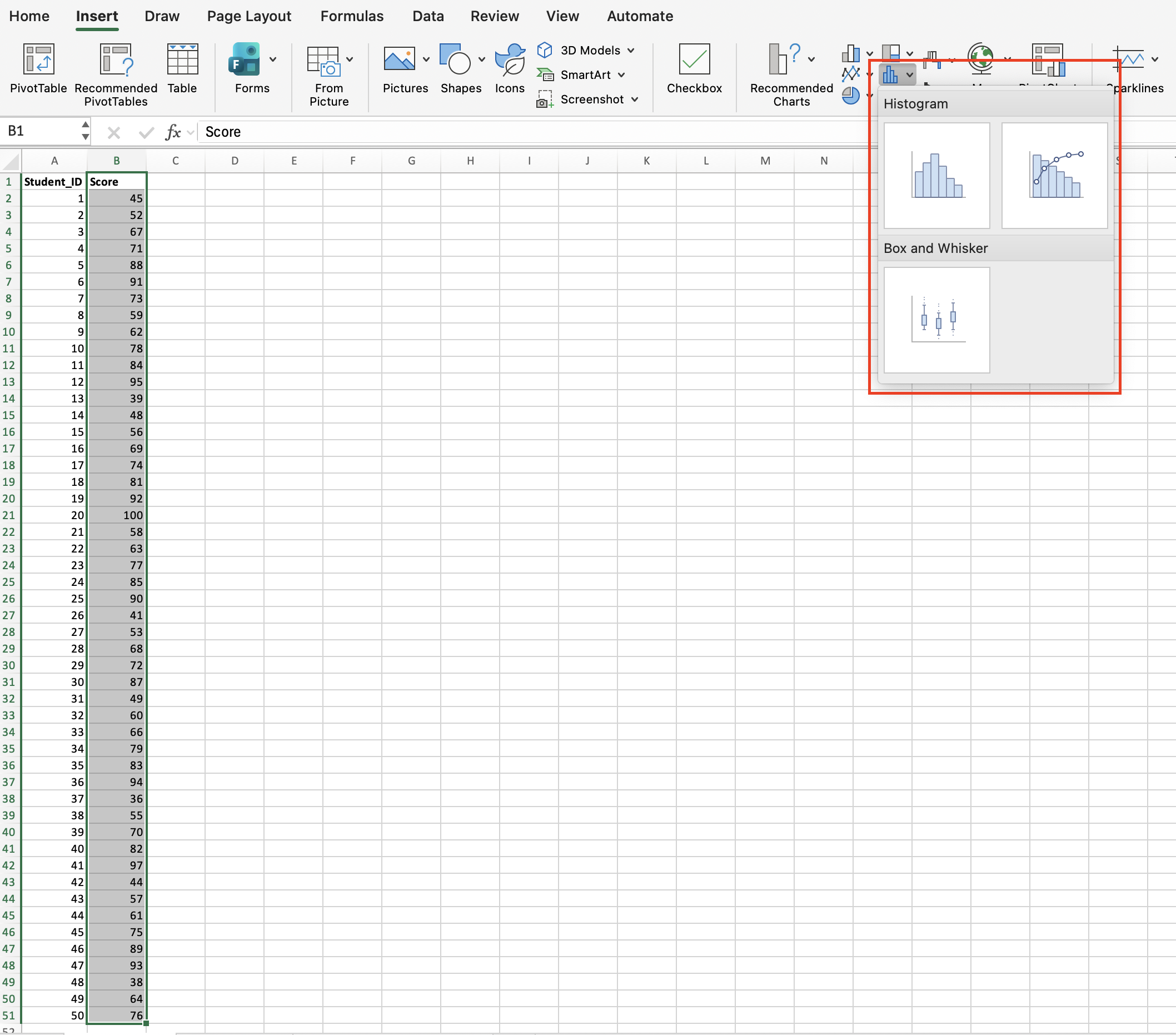
The automatic bins are a starting point. Double-click the horizontal axis to open Format Axis → Axis Options:
- Bin width: how wide each bar is. Use the unit your business thinks in: one day for lead times, $100 for order values.
- Number of bins: set the count and Excel works out the width.
- Overflow bin: groups everything above a threshold into one last bar, for example "more than 10 days".
- Underflow bin: groups everything at or below a threshold into the first bar.
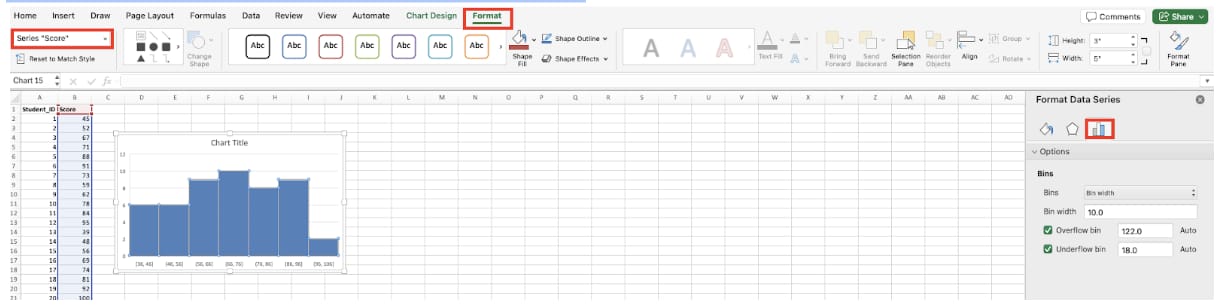
The axis labels read like [36, 46] and (46, 56]. A square bracket includes the boundary and a round bracket excludes it, so after the first bin each bin excludes its lower boundary and includes its upper one. A value of exactly 46 lands in the first bin. The chart redraws whenever the source changes, which is its strength. Its weakness is that it doesn't put the bin counts in cells, so if you need a frequency table, use method 2 or 3.
Method 2: the Analysis ToolPak
The ToolPak is an add-in that's off by default. Go to File → Options → Add-ins, make sure Manage shows Excel Add-ins, click Go and tick Analysis ToolPak. On a Mac, use Tools → Excel Add-ins. A Data Analysis button then appears at the right of the Data tab.
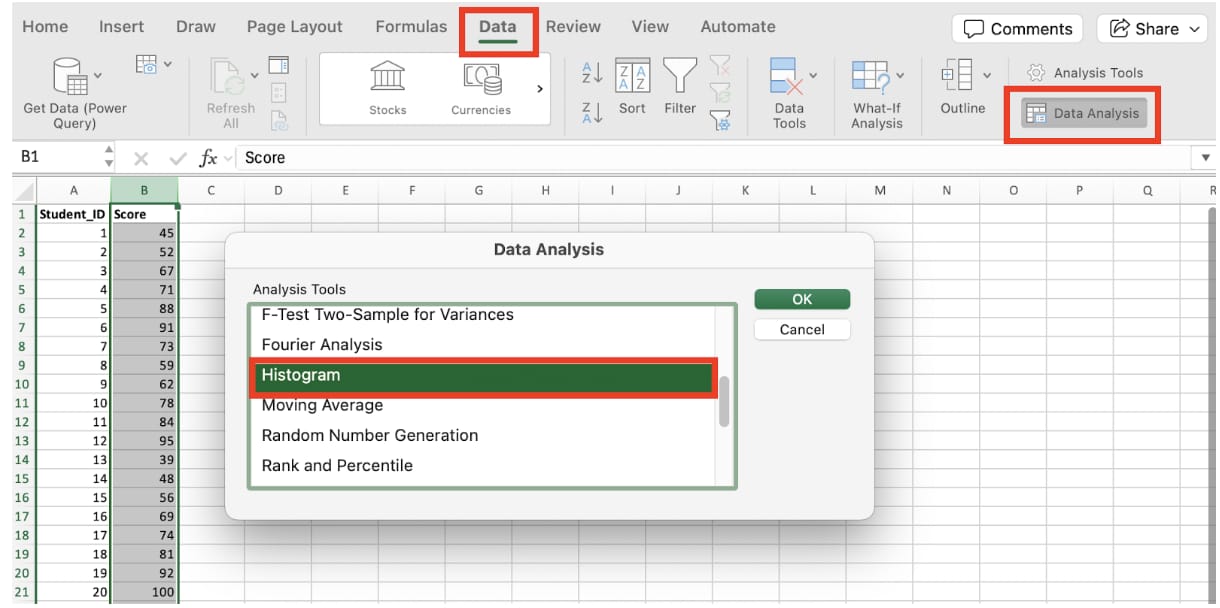
First type the upper boundary of each bin in a spare column, for example 0, 1, 2 up to 9. Then open Data → Data Analysis → Histogram, set the Input Range to your values and the Bin Range to the boundaries, choose where to put the output and tick Chart Output. Ticking Cumulative Percentage adds a running percentage, so you can read "what share shipped within two days" straight off the table.
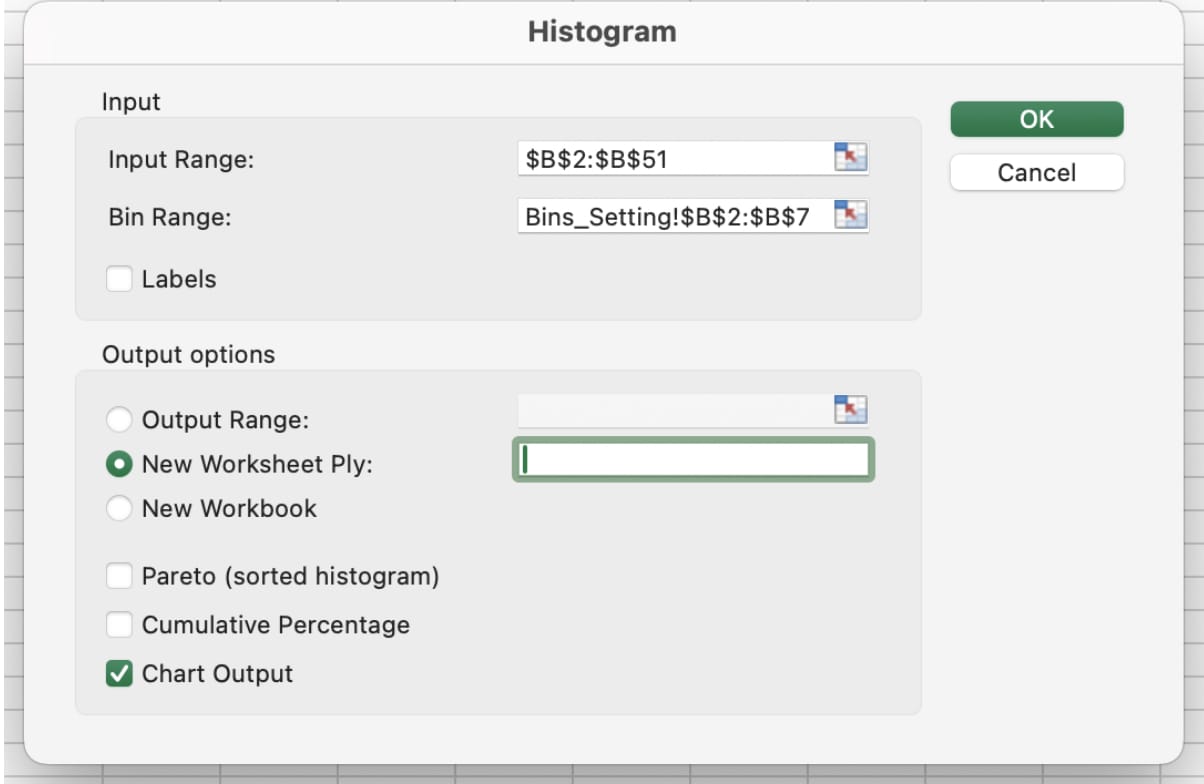
Each row of the output counts values at or below that boundary and above the previous one; anything above the last boundary goes into a row labeled More. The catch is that the output is static values, not formulas. Change the source and the table and chart stay as they were, so for a report you refresh every month, method 3 is better.
Method 3: the FREQUENCY function
FREQUENCY(data_array, bins_array) returns the count for each bin. According to Microsoft's FREQUENCY reference, it returns one more element than there are bins, and that extra element counts values above the highest bin. It ignores blank cells and text. Nine bins need ten result cells.
In Microsoft 365 and Excel 2021, type =FREQUENCY(B2:B51,D6:D13) in the first cell and the results spill down automatically. In older versions, select the result cells first (bins plus one), type the formula and press Ctrl + Shift + Enter to enter it as an array formula. Each bin value is an upper boundary and is included in its own bin.
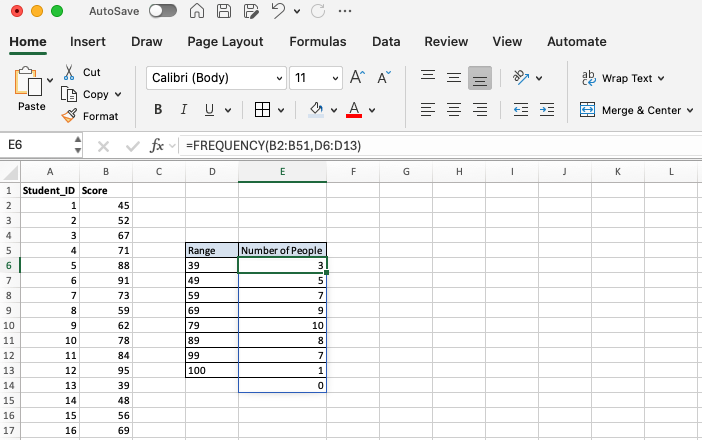
To chart it, add a column of readable labels such as "30–39", select labels and counts, and insert a clustered column chart. Right-click a bar, choose Format Data Series and set Gap Width to 0–5% so the bars touch. Because the counts are formulas, the chart updates with the data. You can also count each bin with COUNTIFS(range,">=30",range,"<40"), but with many bins it's easy to get a boundary wrong, so FREQUENCY is safer.
Worked example: order-to-ship lead time at Lakeview Distribution
Lakeview Distribution's sales team tells customers that orders ship "within two days on average", yet complaints about late orders kept coming. The operations manager pulled every third-quarter order, 1,849 in all, with order and ship dates.
- Clean up. 37 orders had no ship date yet; she listed them separately as open orders. Ship dates stored as text were converted with Data → Text to Columns. That left 1,812 shipped orders.
- Calculate lead time. A helper column,
=C2-B2, formatted as General. Two rows came out negative because of mistyped ship dates, which she corrected. - Choose bins. The minimum was 0 days and the maximum 23. She typed boundaries 0 through 9 for one-day bins and let FREQUENCY's extra cell collect everything above 9 as "10 days or more".
- Count and chart. 380 orders shipped the same day, 700 in one day, 470 in two days, 213 in three to nine days and 49 in ten days or more. She charted them as columns with zero gap width.
- Summary figures.
=AVERAGEgave 1.8 days,=MEDIAN1 day, and=COUNTIF(D2:D1813,"<=2")/COUNT(D2:D1813)showed 85.5% shipped within two days.
The average matched what sales was saying, but the chart showed a long right tail: 262 orders, 14.5%, took three days or more. Filtering the 49 slowest showed that most contained one imported component and had arrived on days it was out of stock, then waited for the next inbound container. She raised that item's safety stock, changed the customer promise to "85% of orders ship within two days", and set the 10-day count as the number to watch next quarter.
👉 Standard Deviation in Excel: STDEV.S vs STDEV.P
Numbers to report alongside the chart
- Median,
=MEDIAN(range): the middle value. With a long tail, it describes a typical order better than the average. - 90th percentile,
=PERCENTILE.INC(range,0.9): 90% of orders ship at or below this. It's a promise you can actually keep. - Maximum and tail count,
=MAX(range)and=COUNTIF(range,">=10"): the slowest order and how many slow ones there are. Track the tail count month to month. - Standard deviation,
=STDEV.S(range): how spread out the values are, useful for comparing warehouses or carriers.
Common bin mistakes
- Overlapping bins. With COUNTIFS, "50 to 60" and "60 to 70" both count 60. Make every bin include one boundary only.
- A missing maximum. If the last boundary is below the maximum, the largest values vanish. Check that FREQUENCY's extra cell or the chart's overflow bin catches them.
- Bins too wide or too narrow. Too wide and the tail disappears into the first bar; too narrow and the chart turns into noise. Start from a business unit and aim for roughly 7 to 15 bars.
- Uneven widths. Bins of 0–1, 2–5 and 6–30 days make the wide bin look bigger than it is. Keep equal widths and use an overflow bin for the tail.
- Text values. Text numbers and text dates aren't counted. Convert them first.
Version differences
The Histogram, Pareto and Box and Whisker charts arrived in Excel 2016 on Windows and Mac, and Microsoft's chart type reference lists Histogram and Pareto as chart types of their own. In Excel 2013 and earlier, use the ToolPak or FREQUENCY. FREQUENCY spills automatically in Microsoft 365 and Excel 2021; older versions need an array formula. The Analysis ToolPak isn't available in Excel for the web, so use the Histogram chart or FREQUENCY there.
FAQ
Q. I can't find the Histogram chart. Where is it?
It's under Insert → Insert Statistic Chart in Excel 2016 and later. In older versions, use the Analysis ToolPak or FREQUENCY and a column chart.
Q. The automatic bins have odd boundaries like 23.5 and 47.0. How do I fix them?
Set Bin width to a round business unit (1, 10, 100) under Format Axis. Set an underflow bin as well if you want the first bin to start at a specific value.
Q. Can I make a histogram from dates?
Use the difference between two dates, in days, rather than the dates themselves: lead time, days in inventory, days a receivable has been outstanding.
Q. How do I compare the spread for two groups?
Run FREQUENCY for each group with the same bins and chart them side by side, or use a Box and Whisker chart to compare medians and spread in one view.
How inline AI handles distribution analysis
Building the chart is the easy part; cleaning the dates, choosing bins and tracing the slow orders back to a cause is where the time goes. inline AI calculates lead times in the workbook you have open, builds the histogram and summary figures, and groups the slowest orders by item and customer so the cause shows up quickly. With orders and shipments in ARP, the distribution is ready without exporting a quarter of data first.
Hand your documents and your company’s work to inline AI.
Keep a file open, say what you need, and AI edits it or drafts a new one. Add the company AI OS and AI runs the rest of the work, ERP included.
Book a demo