
Blog
How to Make a Graph in Excel: Bar, Line and Pie Charts

To make a graph in Excel, select your data with its headers, go to the Insert tab and pick a chart, or press Alt + F1 for an instant column chart. The harder part is choosing the chart that answers the question in the room. Comparing items calls for a bar chart, change over time for a line graph, share of a total for a pie chart, and two values in different units for a combo chart. Pick the wrong one and the meeting spends ten minutes working out whether sales went up or down.
This guide covers which chart to use when, how to build one step by step, the two mistakes that quietly break monthly report charts, and how to set axes so the chart doesn't exaggerate.
Excel chart types and when to use them
Excel offers dozens of chart types; Microsoft's chart type reference (XlChartType) lists everything from column, bar, line, pie, doughnut, area, scatter, bubble, stock and radar to histogram, Pareto, box and whisker, waterfall, funnel, treemap, sunburst and map charts. Most business reports need only these seven:
| What you want to show | Chart | Example |
|---|---|---|
| Compare items | Clustered column or bar | Units sold by product, revenue by customer |
| Change over time | Line | Monthly sales, weekly inventory |
| Share of a total | Pie or doughnut | Revenue mix by channel |
| Total and its parts | Stacked column | Monthly revenue stacked by channel |
| Two values, different units | Combo (column + line, secondary axis) | Revenue and percent of target |
| Relationship between two numbers | Scatter | Order size versus discount |
| Distribution of values | Histogram | Orders by delivery days |
Bar and column charts
Use horizontal bars when labels are long or there are more than about ten items. Bar length carries the comparison, so the value axis must start at zero; an axis starting at 900 makes 950 look half the size of 1,000. Sort the source data largest to smallest so the bars step down and the ranking reads at a glance.
Line graphs
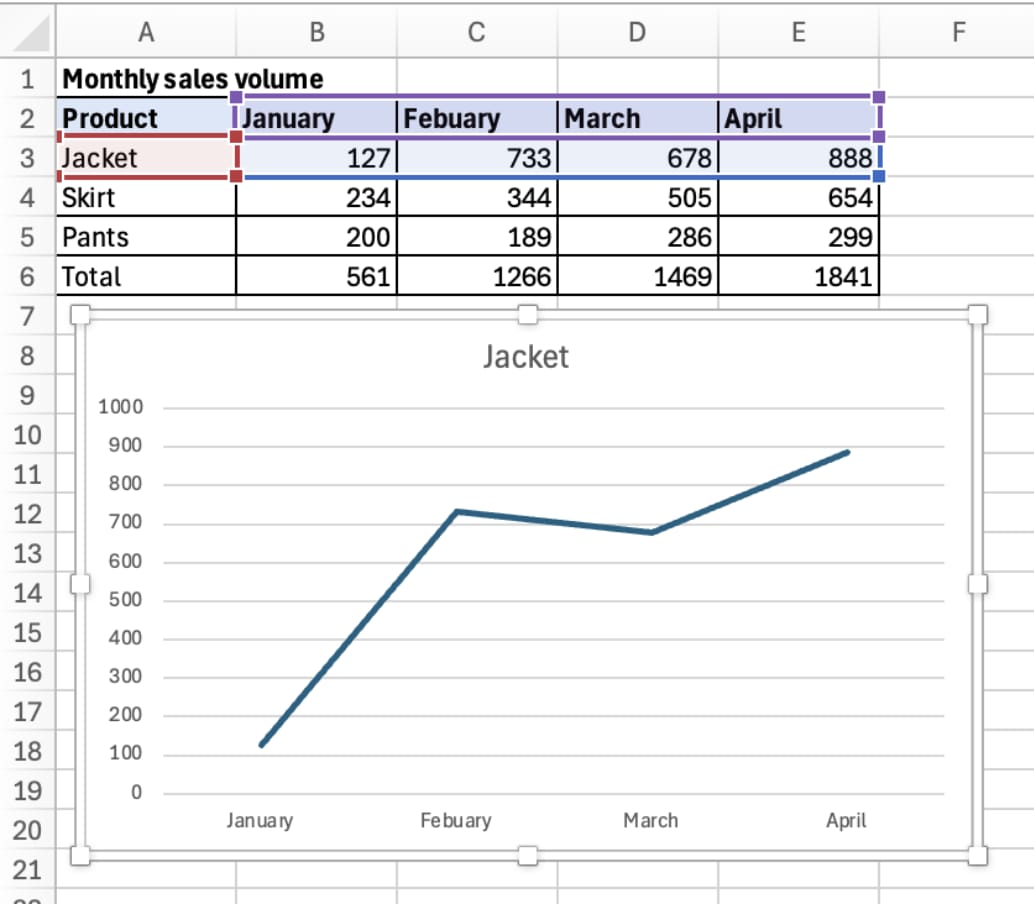
Use them when the horizontal axis has an order: months, weeks, dates. More than four or five lines turn into spaghetti, so keep the lines that matter and group the rest as Other. A line chart shows slope, so its axis doesn't have to start at zero, but keep the axis labels visible when it doesn't.
Pie charts
A pie shows one series only, and beyond about five slices similar sizes become impossible to tell apart. Merge small items into Other and label slices with percentages. To compare the mix at two points in time, a 100% stacked column works better than two pies.
How to make a graph in Excel, step by step
1. Arrange the data
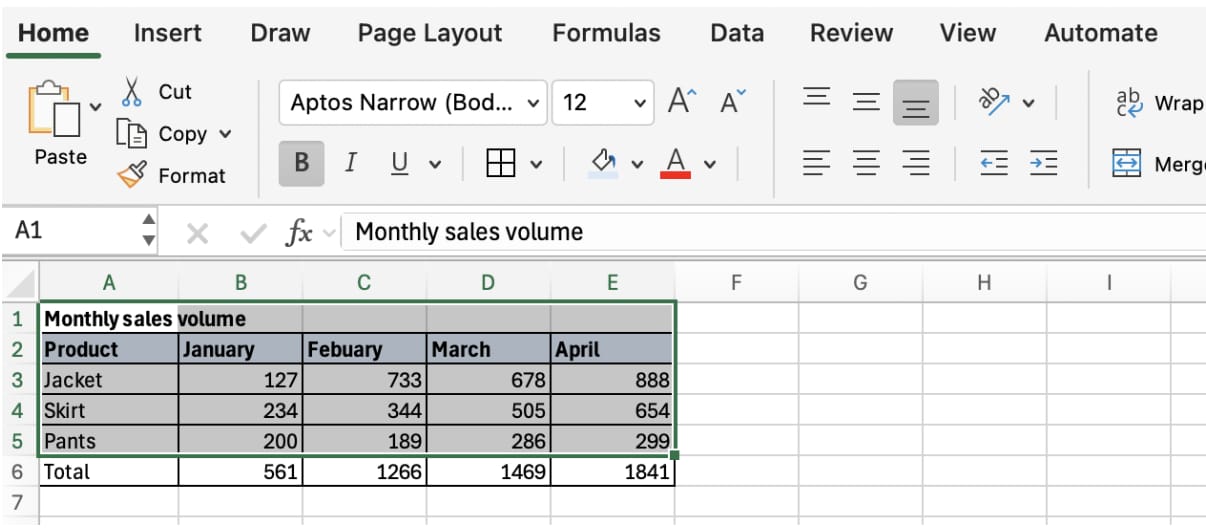
Series names (months or products) across the first row, item labels down the first column, numbers stored as numbers. Blank rows and merged cells break the range. Most important: keep the total row separate from the data you'll chart.
2. Select the range and insert the chart
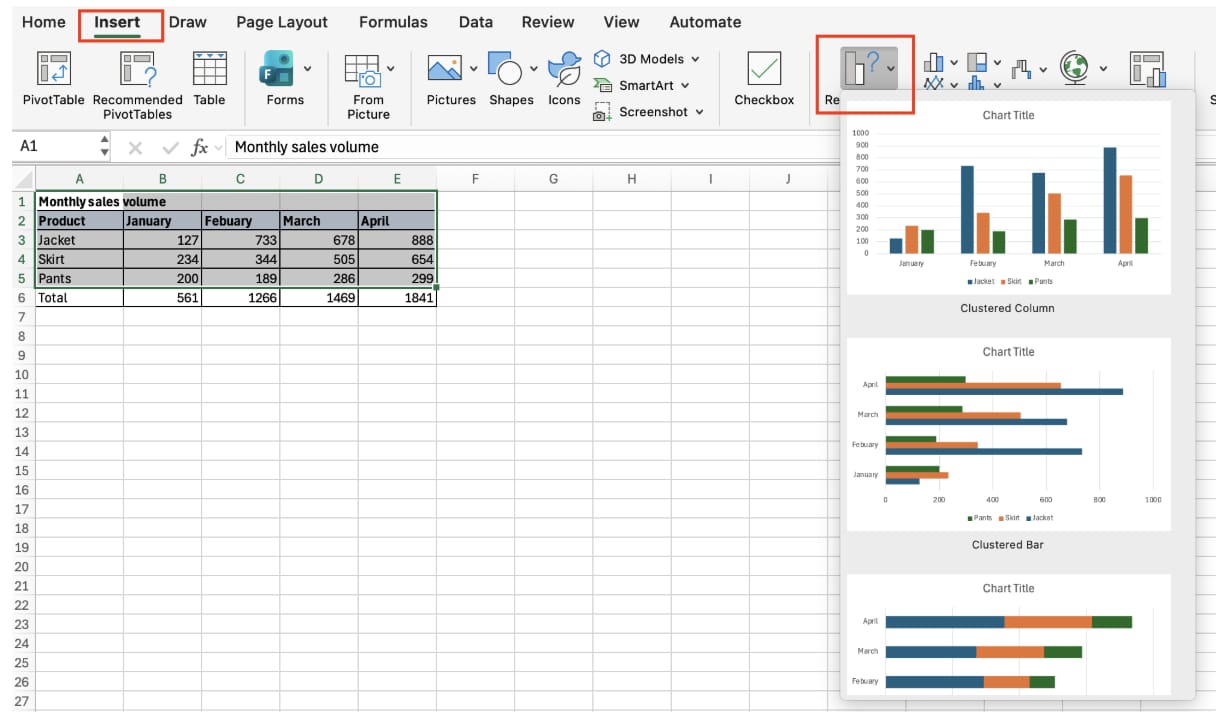
Select the range and choose Insert → Recommended Charts to see a few options based on your data's shape, or go straight to the column, line or pie buttons in the Charts group. Alt + F1 drops a default clustered column chart onto the current sheet.
3. Tidy the elements
Click the chart and three buttons appear at its top right: Chart Elements (+), Chart Styles (brush) and Chart Filters (funnel). The ribbon gains Chart Design and Format tabs. Use Chart Elements to turn titles, axis titles, data labels and the legend on or off. If months ended up in the legend and products on the axis, click Chart Design → Switch Row/Column. To change the range, use Chart Design → Select Data.
Worked example: three charts for the monthly sales meeting
The sales operations analyst at Ridgeline Manufacturing builds three charts before each monthly meeting. The source sheet has January to September revenue for four product lines (sensors, connectors, cable assemblies and wire harnesses) plus a monthly target.
- September revenue by product line. She selected the September column and the product names, inserted a clustered bar chart and sorted the source largest first. She removed the value axis and added data labels at the bar ends.
- Revenue trend, January to September. Nine months by four product lines as a line chart. Wire harnesses dropped this month, so she kept that line dark and turned the other three gray.
- Monthly revenue and percent of target. Revenue in $ thousands and attainment in percent don't share a scale; on one axis the percent line lies flat along the bottom. Insert → Combo Chart → Create Custom Combo Chart lets her set revenue as clustered columns and attainment as a line with Secondary Axis ticked. She fixed the secondary axis maximum at 120% so the scale doesn't jump from month to month.
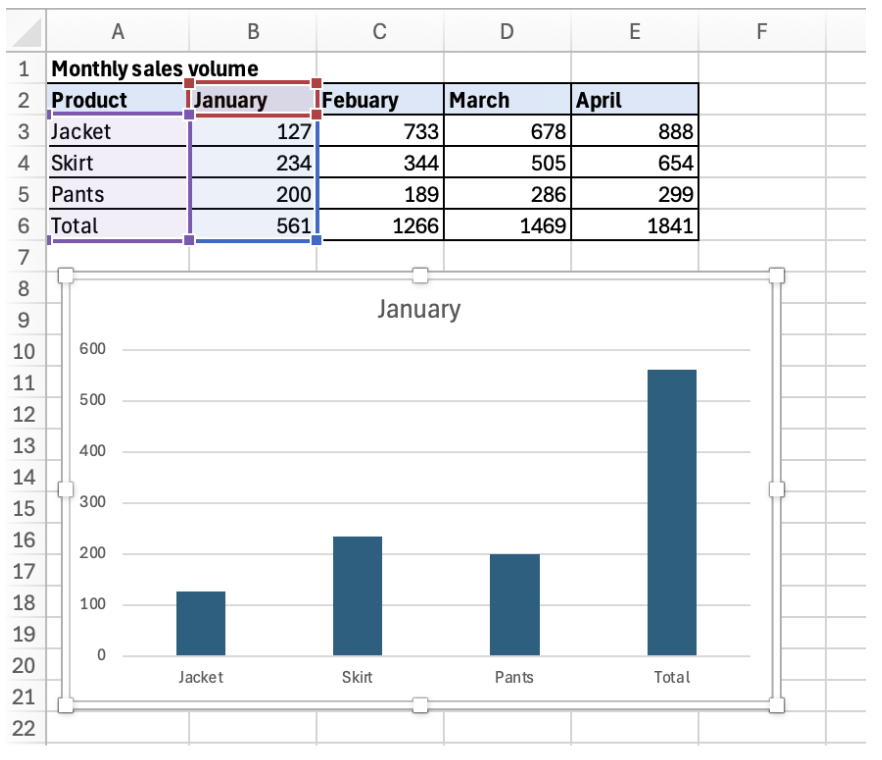
On the first try, the bar chart had a lone "Total" bar towering over everything else, because the selection had been dragged down through the total row. Shrinking the range in Select Data to stop above the total fixed it.
To reuse the charts next month, she converted the source to a table with Ctrl + T. A new October row typed below the table extends the chart ranges automatically, so Select Data never needs touching.
👉 How to Create a Chart in Excel: Types, Editing, Combo Charts
Mistakes that break report charts
New data doesn't appear
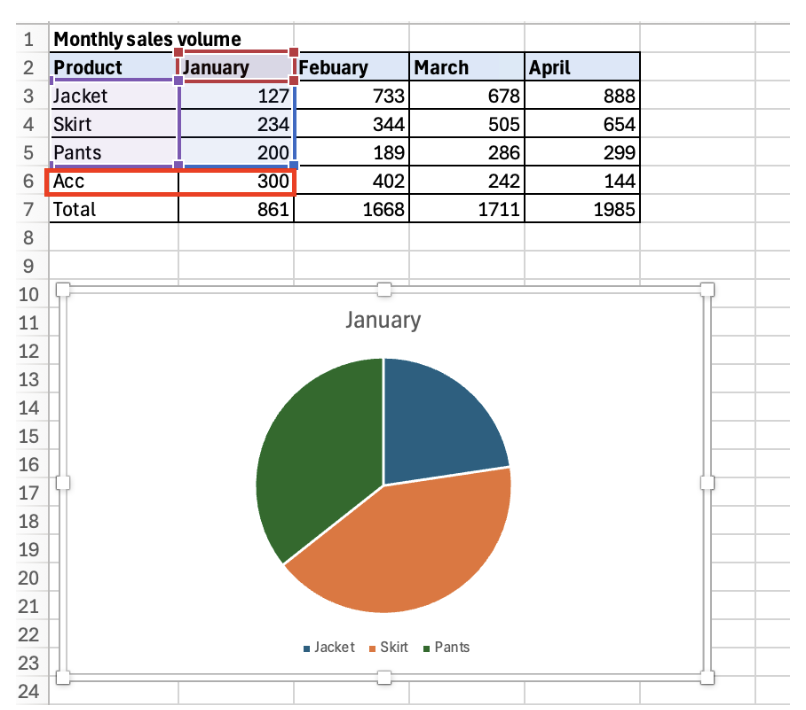
A chart plots the range it was created with. Rows added below that range are ignored. Click the chart to see the source outlined in color, then drag the outline's corner or reset the range in Select Data. For any recurring report, convert the source to a table so the chart grows with it.
The axis exaggerates the difference
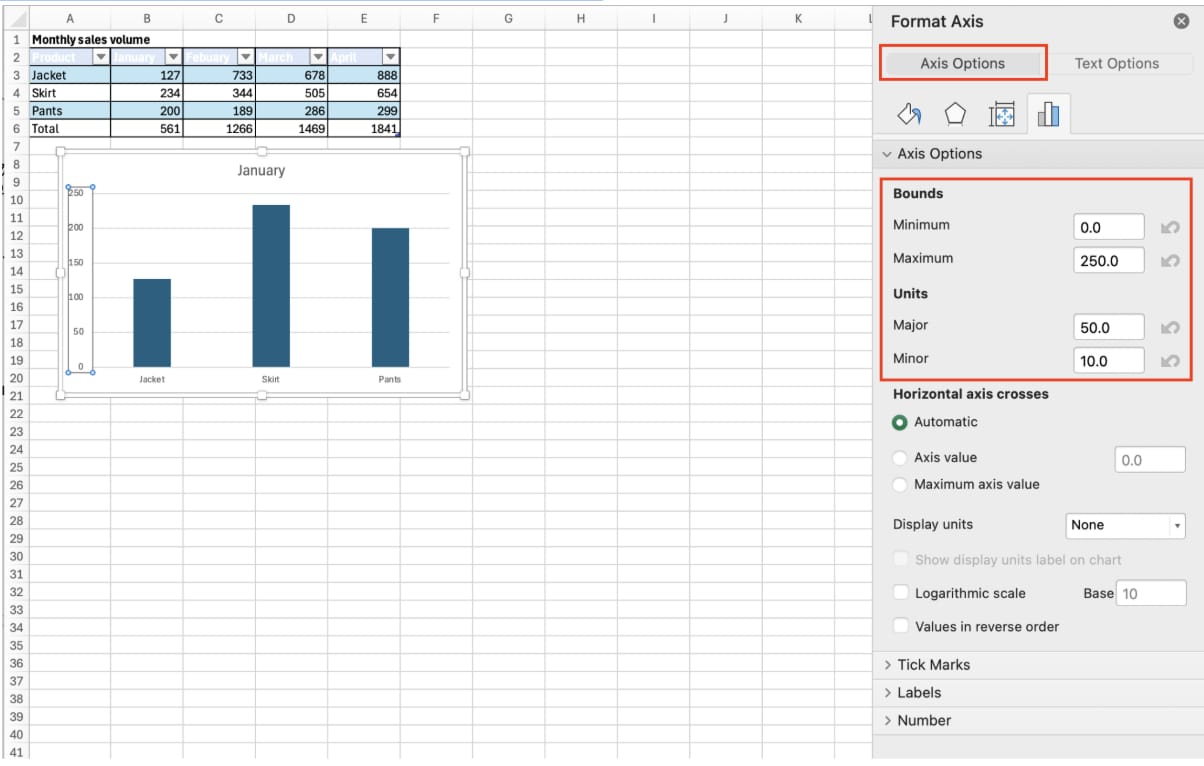
Excel sometimes starts a column chart's axis above zero. Double-click the axis and, under Format Axis → Axis Options → Bounds, type 0 as the Minimum. When several charts sit side by side in a deck, give them the same Maximum and Major unit so heights can be compared. For large figures, set Display units to thousands or millions and put the unit in the axis title. Microsoft's Excel charts documentation gives the same advice: use the axis title to explain what the categories represent and the display unit to make large values easier to scan.
Too much decoration
3-D columns and tilted pies make whatever is in front look bigger. Keep report charts 2-D, gridlines light, and delete the legend when there is only one series. Color one bar you want people to notice and leave the rest gray.
Before the chart goes into the deck
Write the title as the takeaway. "September revenue by product line" describes the chart; "Wire harness revenue fell 22% in September" tells the reader what to take from it. Click the title, type = in the formula bar and click a cell holding that sentence, and the title updates with the data.
Format numbers at the source. Data labels follow the number format of the source cells, so set #,##0 or 0.0% there.
Choose how to paste into PowerPoint. Use Destination Theme & Link Data keeps the slide chart connected to the workbook so it can be refreshed; Picture freezes the numbers. Use a picture for final figures and a link for decks you refresh monthly.
Change type without starting over. Chart Design → Change Chart Type swaps the chart type while keeping the range, title and axis titles.
Version differences
Column, bar, line, pie, scatter and combo charts work in Microsoft 365, Excel 2021, 2019 and 2016, Excel for Mac and Excel for the web. Histogram, Pareto, box and whisker, waterfall, treemap and sunburst charts arrived in Excel 2016; funnel and map charts in Excel 2019 and Microsoft 365. Those newer charts don't display in Excel 2013 and earlier. Excel for the web can create charts and edit titles, axes and labels, while the full set of formatting options is in desktop Excel. In Microsoft 365, a chart built on a dynamic array spill range follows the result as it grows or shrinks.
FAQ
Q. What's the difference between a bar chart and a histogram?
A bar chart compares named items such as customers or products. A histogram groups continuous numbers, such as delivery days or order values, into ranges and counts how many fall in each.
Q. Can I move a chart to its own sheet?
Yes. Chart Design → Move Chart moves it to another sheet or a dedicated chart sheet, and the link to the source data stays intact.
Q. Do I have to rebuild the same chart every month?
No. Right-click the chart and choose Save as Template. Next time, pick it from Change Chart Type → Templates and the colors, fonts and axis settings come with it.
Q. My line drops to zero for months with no data yet. How do I fix it?
In Select Data → Hidden and Empty Cells, show empty cells as Gaps, or connect the points with a line, so unfinished months don't plunge to zero.
How inline AI builds report charts
Inserting a chart takes seconds; choosing the type, leaving out the total, fixing the axes and keeping the source current is the work that repeats every month. inline AI takes the chart you describe in plain words, builds it in the open workbook with the right range, type and axes, and turns the result into the meeting deck. When revenue and targets already live in ARP, the source sheet doesn't need preparing at all.
Hand your documents and your company’s work to inline AI.
Keep a file open, say what you need, and AI edits it or drafts a new one. Add the company AI OS and AI runs the rest of the work, ERP included.
Book a demo