

Blog
How to Create a Table in Excel: Ctrl+T, Totals, References

To create a table in Excel, click any cell in your data and press Ctrl + T, confirm the range and that your data has headers, and click OK. That's the whole procedure, and it changes more than the look of the range. A table grows when you add rows, fills formulas down on its own and lets formulas, charts and pivot tables follow the new data. In a plain range, a =SUM(F2:F250) written in spring stops at row 250, the pivot table built on it misses everything after that, and nobody notices until a month-end total comes up short.
This guide covers creating and naming a table, calculated columns, structured references, the total row, converting an existing log without breaking the formulas that use it, and what to check when a table refuses to expand.
Table versus range
A range is just a block of cells. Add a row below it and every formula, chart and pivot table that points at it keeps its old address. An Excel table is an object Excel manages as a unit, which changes four things:
- It expands. Type in the row directly below or the column directly to the right, and the table grows to include it.
- Calculated columns. Enter a formula in one cell of a column and Excel fills it down the whole column.
- Structured references. Formulas can refer to
Receipts[Total Cost]instead ofF2:F250. - Filters and banding. Every header gets a filter button, and banded formatting stays consistent as the table grows.
Expansion and calculated columns are AutoCorrect features. Microsoft's reference for AutoExpandListRange describes how typing in an empty row or column next to a table expands the table to include it, and AutoFillFormulasInLists controls the fill-down that creates calculated columns. In the interface they are File → Options → Proofing → AutoCorrect Options → AutoFormat As You Type, under Include new rows and columns in table and Fill formulas in tables to create calculated columns. If a table won't grow, check these first.
How to create a table in Excel
1. Clean up the data
You need a single row of headers at the top. Unmerge any two-row headers, delete blank rows (Excel stops the table at the first blank row it meets) and move any hand-typed total row away from the data. You'll replace it with the table's own Total Row.
2. Press Ctrl + T or use Format as Table
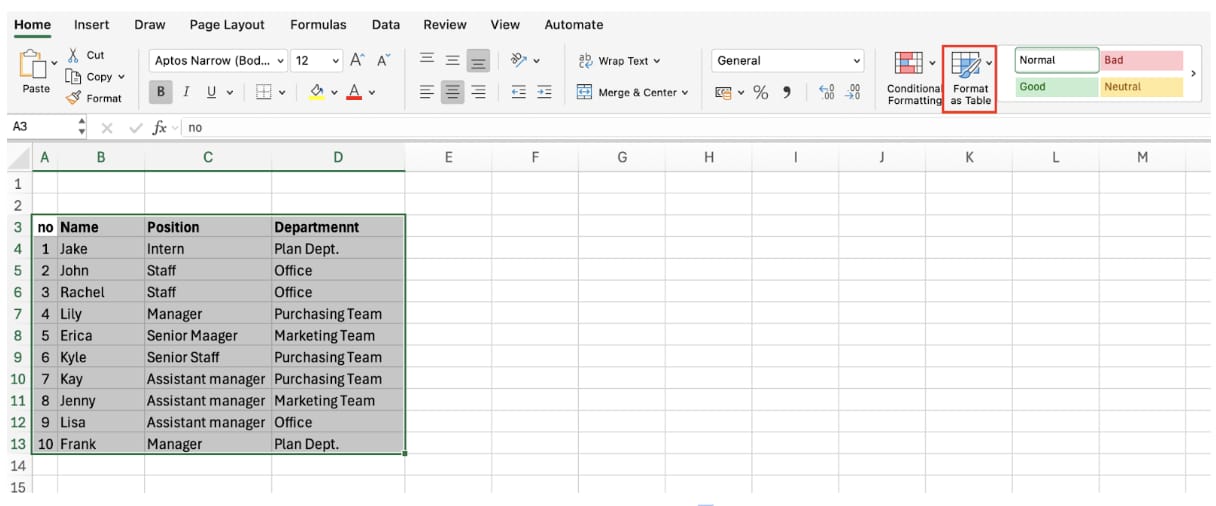
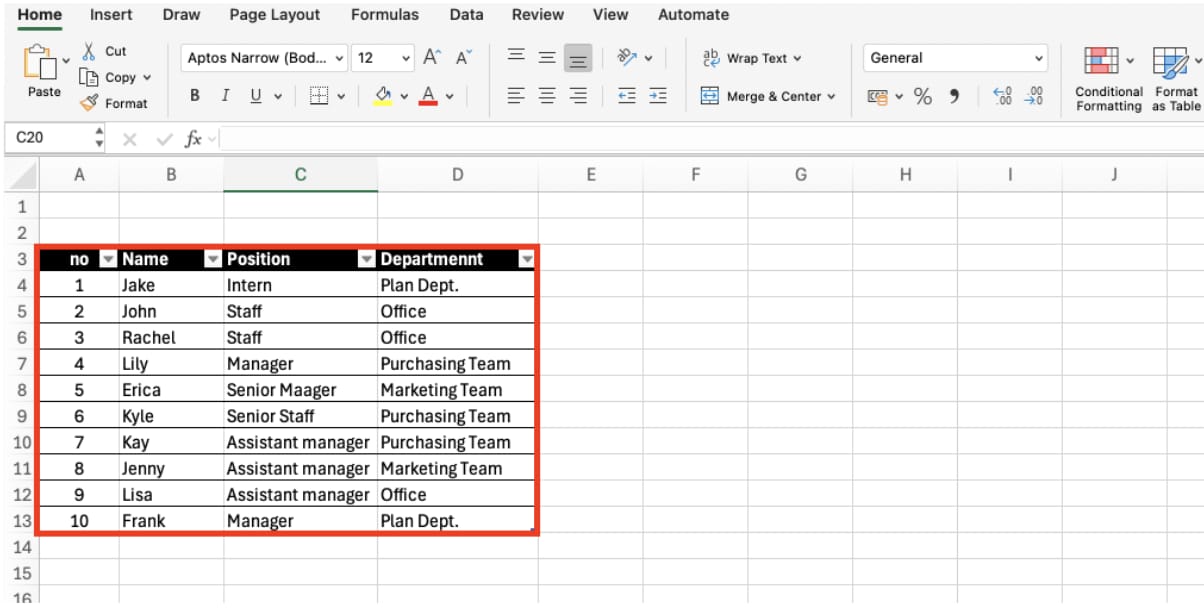
Click any cell in the data and press Ctrl + T (Ctrl + L also works), or choose Insert → Table. If you want to pick a style first, use Home → Format as Table. In the Create Table dialog, check the range and make sure My table has headers is ticked, then click OK. If you untick it, Excel inserts a new header row with names like Column1 and Column2.
3. Name the table
Click inside the table and the Table Design tab appears (on a Mac it is called Table). Replace the default name, such as Table1, in the Table Name box with something readable like Receipts or Orders. Names can't contain spaces, so use Receipts_2026 rather than Receipts 2026. You'll see this name in formulas, pivot table sources and data validation lists, so it is worth doing straight away.
4. Turn on the Total Row
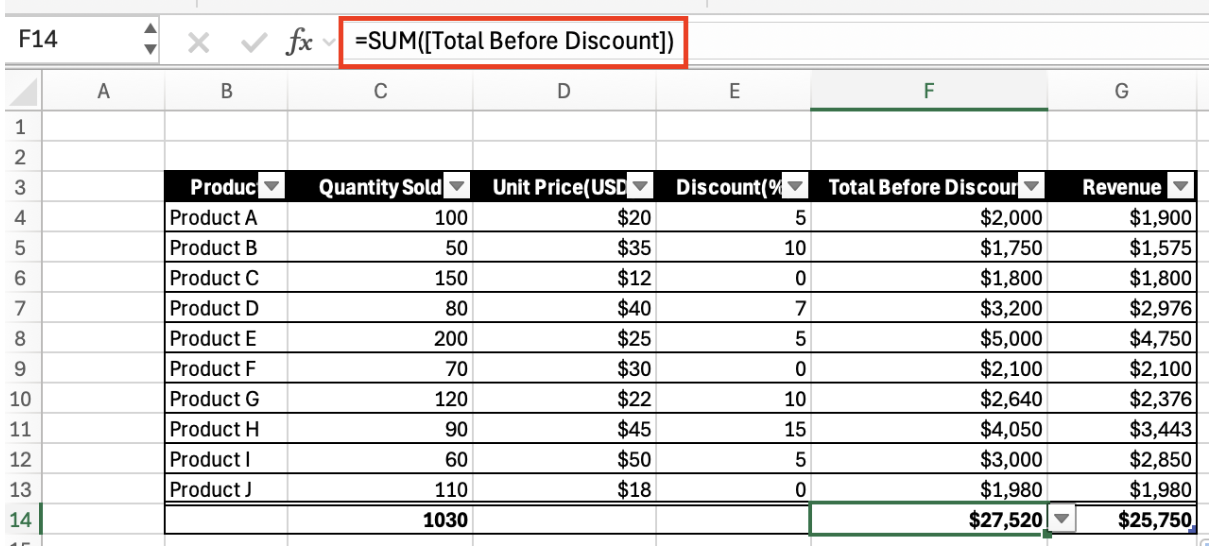
Tick Table Design → Total Row and a totals row appears under the table. Each cell has a drop-down for Sum, Average, Count, Max and others, and Excel fills it with a SUBTOTAL function. That means a filtered table totals only the visible rows: filter to one supplier and the total shows that supplier. A hand-typed SUM row keeps showing the grand total whatever the filter, which is a common source of confusion in meetings.
Expansion, calculated columns and structured references
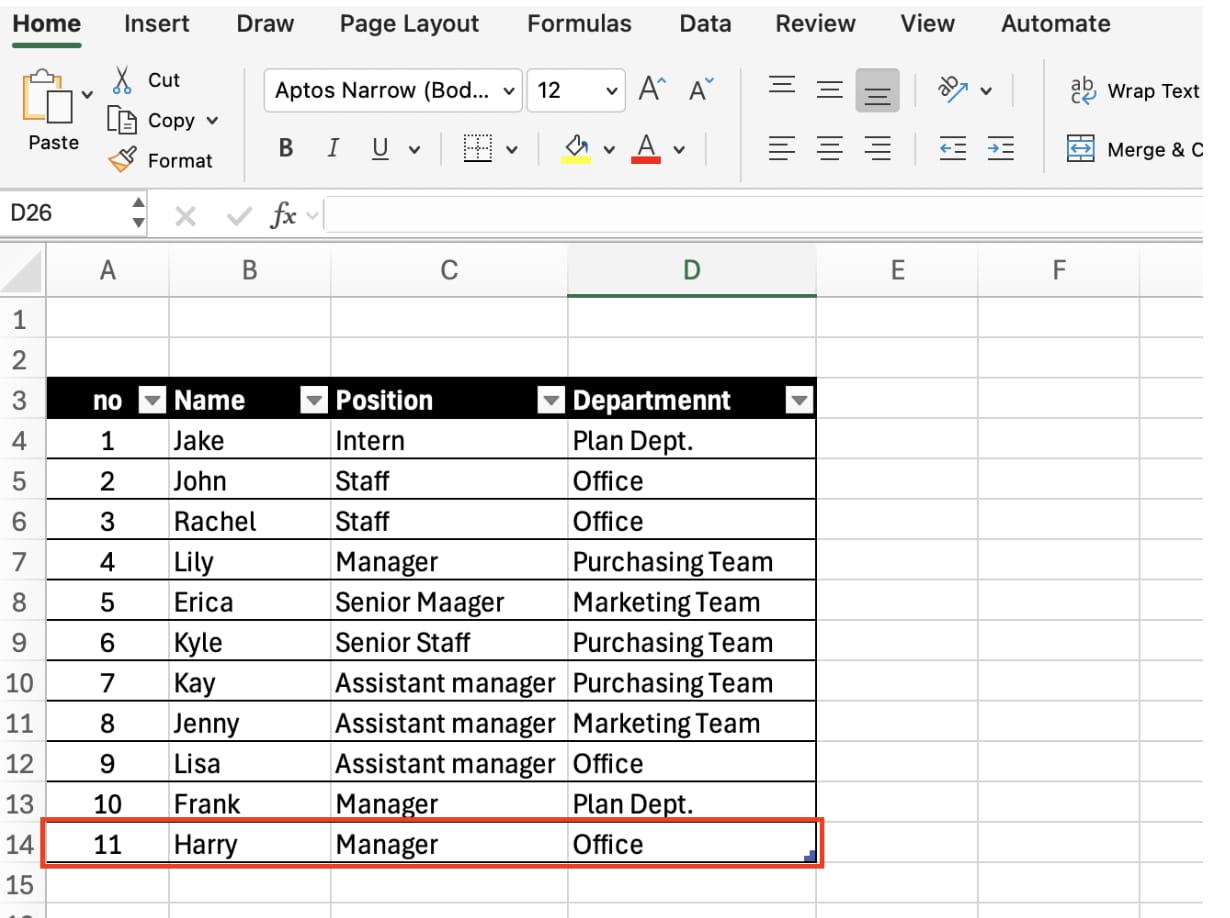
Type a new record in the row directly below the table and the table grows by one row, carrying formats and calculated-column formulas with it. Skip a row and the new data stays outside.
To create a calculated column, type a formula in the first cell of an empty column. In a table with Quantity and Unit Cost columns, =[@Quantity]*[@[Unit Cost]] fills the whole column. [@Quantity] means "Quantity in this row". The extra brackets around Unit Cost are needed because the name contains a space. Seeing names instead of cell addresses in a formula is normal; that's a structured reference, not an error.
From outside the table, put the table name first. =SUM(Receipts[Total Cost]) sums the whole Total Cost column, and =SUMIFS(Receipts[Total Cost],Receipts[Supplier],"Northgate Supply") sums one supplier. Both keep working at 50 rows or 50,000. Receipts[#Totals] points at the total row and Receipts[#Headers] at the header row.
Worked example: converting a receiving log
The receiving clerk at Ridgeline Manufacturing has logged every delivery since January in a plain range: date, supplier, item, quantity, unit cost and total cost. By the end of September it had 338 rows. A Summary sheet totaled cost by supplier with formulas like =SUMIFS(Log!$F$2:$F$250,Log!$B$2:$B$250,A5), and a pivot table fed the weekly purchasing meeting. In October the purchasing lead noticed that August and September deliveries from Northgate Supply and Crestview Foods were missing. The formulas stopped at row 250.
Here is what the clerk did:
- Unmerged the two-row header and deleted a blank row at 212.
- Deleted the hand-typed total row, pressed Ctrl + T and renamed the table
Receipts. - Cleared the Total Cost column and typed
=[@Quantity]*[@[Unit Cost]]in the first cell to make it a calculated column. Three cells where someone had typed over the formula with a number showed up immediately. - Rewrote the twelve SUMIFS on the Summary sheet as
=SUMIFS(Receipts[Total Cost],Receipts[Supplier],A5). - Pointed the pivot table at
Receiptsthrough PivotTable Analyze → Change Data Source, then refreshed. - Compared the new Summary with a copy saved before the change. Only the two suppliers' August and September totals had moved.
From now on, new deliveries typed below the table flow into the Summary and the pivot table. One thing still needs a click: pivot tables don't refresh themselves, so press Refresh before the meeting.
👉 How to Create a Pivot Table in Excel, Step by Step
What tables make easier
- Renaming a column updates formulas. Change the header
Unit CosttoLanded Costand every structured reference to it changes too. - Remove Duplicates and Summarize with PivotTable sit right on the Table Design tab, scoped to the table.
- Slicers. Table Design → Insert Slicer adds clickable buttons for, say, Supplier, which is handy when you filter live in a meeting.
- Headers that stay visible. Scroll down inside a table and its headers replace the A, B, C column letters, without freezing panes.
- Drop-down sources. A customer or item list kept as a table makes a data validation list that grows when you add entries.
Tables suit record-per-row data that keeps growing: receipts, shipments, orders, customer and item lists. Fixed-layout documents such as quotes and invoices, with merged cells and blank spacers, are better left as ranges.
Converting a table back to a range
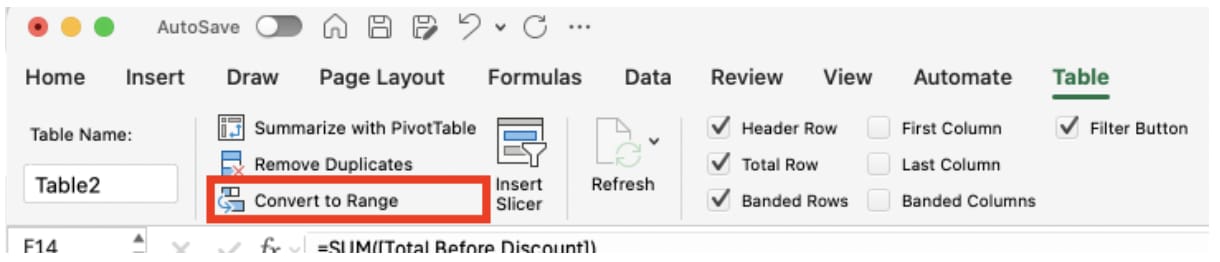
Choose Table Design → Convert to Range when you no longer need table behavior. The banding stays, the filter buttons and auto-expansion go, and structured references in formulas become ordinary cell addresses that keep calculating. To remove the styling too, pick Clear in the Table Styles gallery before converting.
Common problems
- Merged cells. Tables can't contain merged cells; unmerge first.
- Duplicate or numeric headers. Headers become text, and a repeated name gets a number added (Amount2). Use unique, readable names.
- New rows don't join the table. You skipped a row, or the AutoCorrect option is off. You can also drag the sizing handle at the bottom-right corner or use Table Design → Resize Table.
- One formula needs to be different. Editing a single cell in a calculated column flags it with a green triangle. A separate column for exceptions is easier to trace later.
- Formulas elsewhere still use the old range. Converting doesn't rewrite them. Search with Ctrl + F for the sheet name to find them.
Version differences
Tables have been in Excel since 2007 and work in Microsoft 365, Excel 2021 and 2019, Excel for Mac and Excel for the web. Slicers for tables arrived in Excel 2013. Excel for the web can create tables, add a total row and convert to range, but custom default table styles are set in desktop Excel. In Microsoft 365, dynamic array functions take a table name directly, so =FILTER(Receipts,Receipts[Supplier]="Northgate Supply") lists one supplier's deliveries with a single formula.
FAQ
Q. What's the difference between a table and a range with borders?
Borders and fill are only formatting; the range still won't grow. If the Table Design tab appears when you click inside, it's a table.
Q. Will converting to a table change my data?
No. The values stay the same; the range gains a name, filters and a style, and headers become text. Formulas outside the table that use fixed ranges need updating separately.
Q. Can I have several tables on one sheet?
Yes. Leave at least one empty column or row between them so one can grow without running into the other, and give each a distinct name.
Q. Why use a table as a pivot table source?
New rows are included automatically, so a refresh is all it takes. You never have to reset the source range.
How inline AI handles growing logs
Ctrl + T takes a second; untangling merged headers, blank rows, hand-typed totals and every formula and pivot table that still points at the old range is the part that gets skipped. inline AI opens the workbook, clears those obstacles, converts the range, repoints everything that depends on it and shows the totals before and after side by side. Teams that move receiving and inventory into ARP stop maintaining these logs in Excel at all.
Hand your documents and your company’s work to inline AI.
Keep a file open, say what you need, and AI edits it or drafts a new one. Add the company AI OS and AI runs the rest of the work, ERP included.
Book a demo