

Blog
How to Make a Scatter Plot in Excel With a Trendline

To make a scatter plot in Excel, select two columns of numbers with their headers and choose Insert → Insert Scatter (X, Y) or Bubble Chart → Scatter. The left column becomes the horizontal X axis, the right column the vertical Y axis, and each row becomes one point. A scatter plot answers one question: when X goes up, does Y move too? In a plant or a warehouse that question is concrete. Does a faster line produce more defects? Do bigger batches yield less? Do heavier shipments cost more per pound? Averages hide the answer; a scatter plot shows the trend and the handful of points that break it.
This guide covers building the chart, fixing the most common mistake (an X axis that counts 1, 2, 3), adding a trendline with R², reading the trendline equation and flagging outliers, followed by a packaging-line example from start to finish.
Scatter plot or line chart?
Both axes of a scatter plot are numeric. A line chart treats the horizontal axis as categories spaced evenly, so X values of 1, 2 and 10 would be drawn the same distance apart, which distorts any relationship. Use a scatter plot to ask whether two measures are related, and a line chart to show change over time. If you want a third value, such as order volume, shown as point size, choose a bubble chart from the same menu.
How to make a scatter plot in Excel
1. Put the data in two columns
Put the value you think drives the other (the independent variable) in the left column and the result (the dependent variable) in the right column. For a packaging line, that's line speed on the left and defect rate on the right. Both must be stored as numbers: rows with text numbers, blanks or errors simply don't plot.
2. Select only the two number columns and insert the chart
Select the two columns including headers, then on the Insert tab open Insert Scatter (X, Y) or Bubble Chart and choose the first option, markers only. The versions with lines connect the points in row order, which makes relationships harder to read.
This is where the most common mistake happens. If the selection includes a text column, such as a batch or campaign name, or more than two number columns, Excel puts row numbers 1, 2, 3 on the X axis and plots each number column as its own series. An X axis running 0 to 25 with two series in the legend is the giveaway.
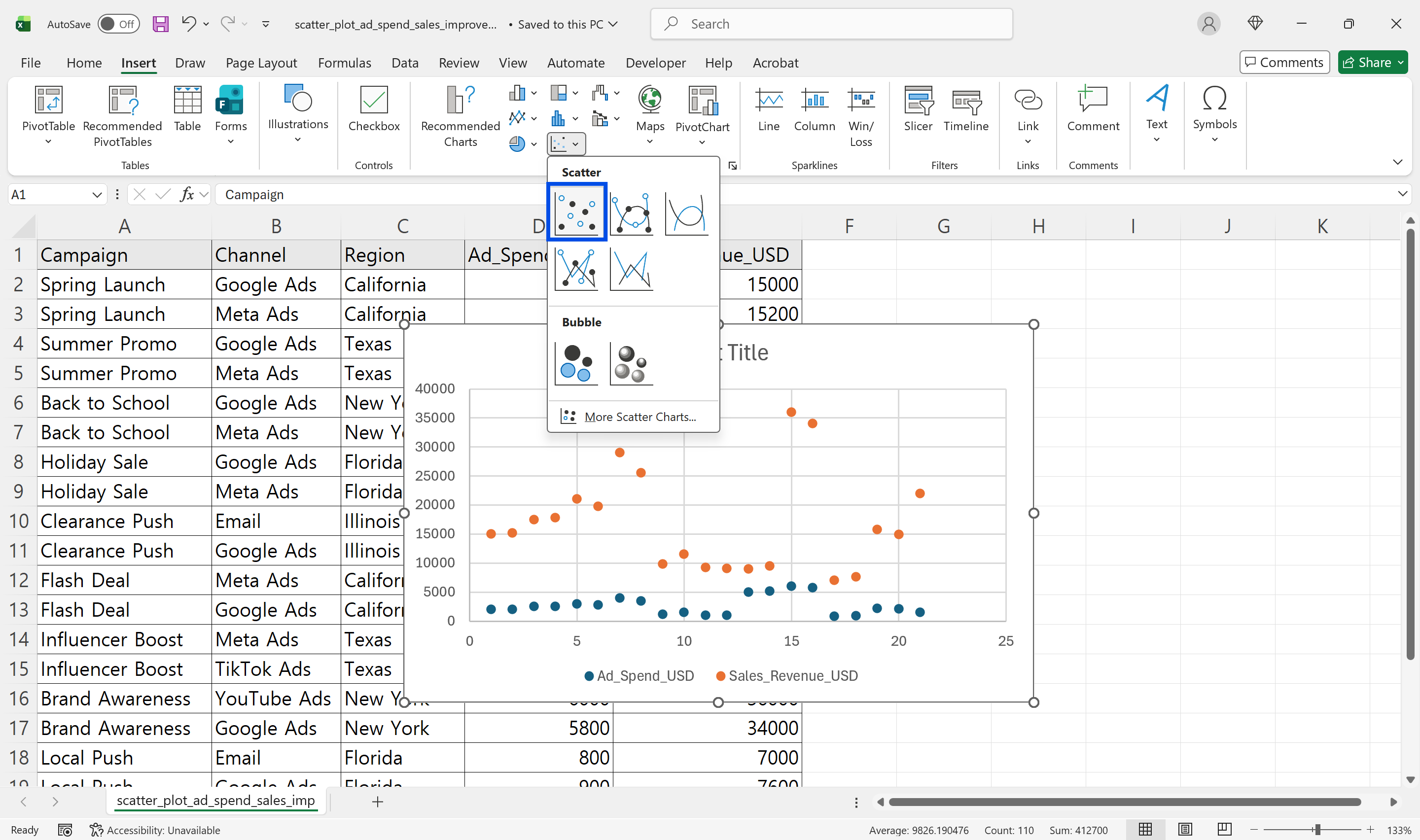
To fix it, right-click the chart, choose Select Data, remove the extra series and Edit the remaining one so Series X values point at the X column and Series Y values at the Y column. Often it's faster to reselect just the two number columns and insert the chart again.
3. Label the axes
Under Chart Elements (+), turn on Axis Titles and write the variable and unit, for example "Line speed (packs/min)" and "Defect rate (%)". If the points are crowded into a corner, double-click an axis and set Bounds to fit the data. Unlike a bar chart, a scatter plot's axes don't need to start at zero. With hundreds of points, set marker fill transparency to 40–60% under Format Data Series → Marker → Fill so dense clusters show up darker.
Adding a trendline and reading R²
Insert the trendline
Select the chart and tick Chart Elements (+) → Trendline for a linear trendline. Choose More Options to open the Format Trendline pane, where you can change the type and tick Display Equation on chart and Display R-squared value on chart.
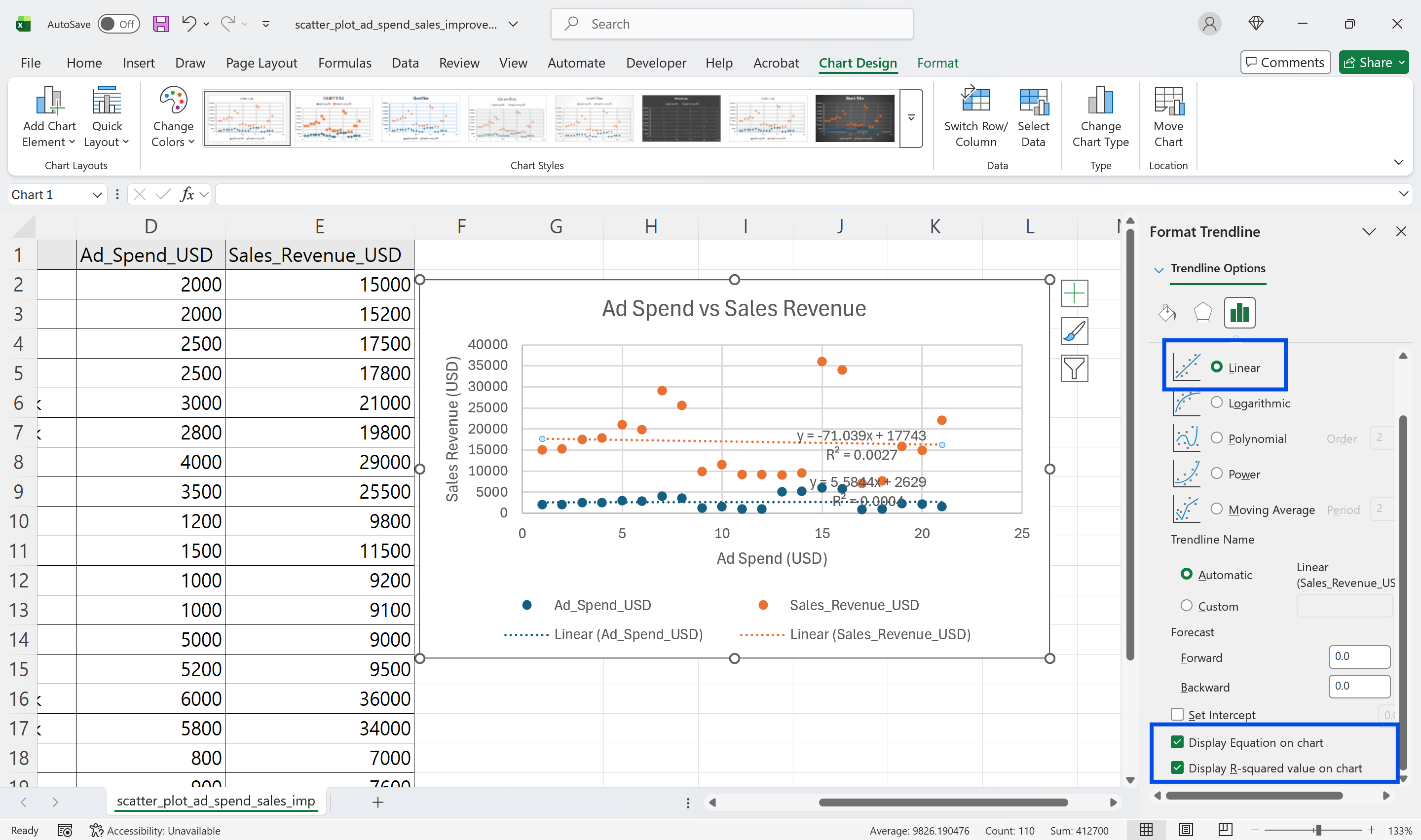
Microsoft's Trendlines.Add reference lists the six trendline types: exponential, linear, logarithmic, polynomial, power and moving average. A polynomial's order must be between 2 and 6, and a moving average period must be greater than 1 and less than the number of points. Start with linear; try logarithmic or polynomial only if the points visibly curve. Exponential and power trendlines aren't available when the data includes zero or negative values.
What R² tells you
R² runs from 0 to 1. Microsoft's RSQ function reference describes it as the proportion of the variance in y attributable to the variance in x. To get the numbers in cells instead of on the chart, use =RSQ(y_range,x_range), =CORREL(x_range,y_range) for the correlation coefficient, and =SLOPE(y_range,x_range) and =INTERCEPT(y_range,x_range) for the trendline itself. These functions skip text and empty cells but include zeros, so filling blanks with 0 changes the result.
Three cautions. A high R² doesn't prove cause: speed and defects may both rise because of a third factor, such as a particular shift or material lot. A trendline equation is unreliable outside the range of the data. And with fewer than about ten points, R² can look strong by chance, so look at the shape before the number.
Reading the trendline equation
If the chart shows y = 0.021x - 0.9, the defect rate rises 0.021 percentage points for each extra pack per minute. At 120 packs per minute the expected rate is 0.021 × 120 − 0.9 = 1.62%. A batch at that speed with a 3.5% defect rate sits far above the line and is worth a closer look. A negative slope means Y falls as X rises.
Worked example: line speed versus leaking packs
The quality engineer at Crestview Foods' packaging plant suspects that running the pouch sealer faster causes more leaking packs. She has 96 batches from the third quarter: batch number, line (A or B), speed in packs per minute and defect rate.

- She sorted the data by line and built one scatter plot with two series, Line A and Line B, using Select Data → Add to set each series' X and Y ranges.
- The first attempt included the batch number column, and the X axis ran 1 to 96. Pointing the X values at the speed column fixed it.
- Two defect rates were stored as text and one batch had no speed recorded. She converted the text values and left the incomplete batch out.
- She added a linear trendline to each series with R². Line A's R² was 0.11, Line B's 0.38: speed alone explains little on A and somewhat more on B.
- With SLOPE and INTERCEPT in helper columns she calculated each batch's expected defect rate and flagged batches more than 1.5 points above it. Six batches qualified. She moved them to a third series with large red markers and labeled them with Data Labels → Value From Cells using the batch numbers.
Four of the six red points were Line B batches run in the same week, and all four used film from one supplier lot. The investigation moved from line speed to the film, which is what a single chart had pointed to. Next quarter she pastes in new batches and the trendlines and flags recalculate.
👉 How to Make a Histogram in Excel: Bins, Overflow, FREQUENCY
Groups and outliers
When the data has groups, such as lines, shifts or suppliers, give each its own series so color and marker shape separate them, and add a trendline per group to see whether the pattern differs. Don't delete outliers from the source; move them to their own series. Removing them flatters R², and an outlier is often the exact thing you need to investigate. To label points with names, use Format Data Labels → Label Options → Value From Cells (Excel 2013 and later).
Version differences
Scatter charts, trendlines and the R² display work the same way in Microsoft 365, Excel 2021, 2019 and 2016, and Excel for Mac. Data labels from cell values arrived in Excel 2013. Excel for the web can create scatter charts, but the detailed trendline options are in desktop Excel, so use the desktop app when you need trendlines and R². RSQ, CORREL, SLOPE and INTERCEPT return the same results in every version.
FAQ
Q. Why are my X and Y swapped?
Excel uses the left of the two selected columns as X. Swap the ranges under Select Data → Edit, or reorder the columns and rebuild.
Q. Some points are missing. Why?
Rows with text numbers, blanks or error values don't plot. Use Convert to Number on the green triangle, or leave the error rows out of the range.
Q. What R² counts as a real relationship?
There's no fixed cutoff. An R² of 0.4 across 300 points is a meaningful pattern; across 8 points it may be chance. Read it together with the shape and the outliers.
Q. Can I add average lines to split the chart into quadrants?
Yes. Calculate the X and Y averages, add each as a two-point series, and change those series to scatter with straight lines. The quadrants make groups such as "fast and high-defect" easy to pick out.
How inline AI finds the pattern
A scatter plot reveals what a table hides, but cleaning the data, splitting series and flagging points against a trendline takes longer than the analysis itself. inline AI builds the chart, trendlines and flagged outliers from the workbook you have open, explains what the R² does and doesn't show, and lists the batches that stand out with their dates and lots. With production records in ARP, the quarter's batch data doesn't need collecting by hand.
Hand your documents and your company’s work to inline AI.
Keep a file open, say what you need, and AI edits it or drafts a new one. Add the company AI OS and AI runs the rest of the work, ERP included.
Book a demo