

Blog
How to Sum a Column in Excel and Fix a Wrong Total

The fastest way to sum a column in Excel is to click the empty cell under the numbers and press Alt + =. Excel selects the numbers above, writes a SUM formula, and Enter gives you the total. The harder part comes later: a total of 0, a total that ignores your filter, or a total that's a few hundred dollars off the figure a colleague or a marketplace report shows. Almost always, the formula is fine and the data is the problem, and each data problem has a specific fix.
Below are five ways to total a column, conditional totals with SUMIF and SUMIFS, the six causes of wrong totals, a trick for narrowing down a variance from its amount, and a month-end walkthrough reconciling three sales channels.
Five ways to sum a column
1. AutoSum and Alt + =
Click the cell below the column and choose Home > Editing > AutoSum, or press Alt + = (Command + Shift + T on a Mac). Excel outlines the range it plans to add; press Enter if it's right. To total several columns at once, select the empty cells under each of them and press Alt + = once.
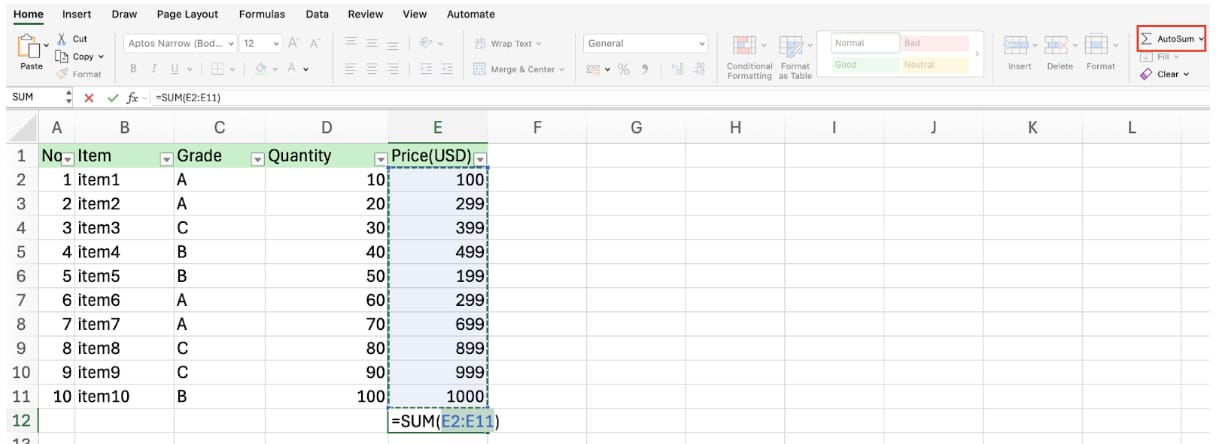
AutoSum stops at the first blank cell going up. If the column has gaps, the outlined range is too short; check it before pressing Enter and drag to correct it.
2. Type SUM yourself
Write =SUM(D2:D500). For a ledger that keeps growing, =SUM(D:D) covers the whole column, but put that formula in a different column or sheet; inside column D it would include itself and create a circular reference.
3. Check the status bar
To see a total without writing a formula, select the numbers and look at the bottom-right of the Excel window: Average, Count and Sum appear there. If Sum is missing, right-click the status bar and tick it. The status bar counts only visible cells, which makes it a quick check on filtered data.
4. A table Total Row
Convert the range to a table (Insert > Table or Ctrl + T) and tick Table Design > Total Row. Choose Sum in the new bottom row and Excel inserts a SUBTOTAL(109, …) formula. The total extends as rows are added and follows any filter you apply.
5. Totals by condition: SUMIF and SUMIFS
For a total per customer or channel, use =SUMIF(range, criteria, sum_range). For example, =SUMIF(B2:B500, "Amazon", D2:D500) adds column D only where column B says Amazon. With two or more conditions, use SUMIFS, which puts the sum range first: =SUMIFS(D2:D500, B2:B500, "Amazon", C2:C500, "October").
One quirk is worth knowing. The SUMIF reference on Microsoft Learn explains that sum_range doesn't have to match the size of range: Excel starts at sum_range's top-left cell and extends it to the same size as range. That means no error appears when the ranges differ, and a sum_range that starts one row off quietly adds the wrong cells. Always start both ranges on the same row and make them the same size.
Why the total is wrong: six causes
Cause 1: Numbers stored as text
The most common cause by far. The SUM reference states that in a range, only numbers are counted and text is ignored. Numbers stored as text drop out of the total with no error. Watch for a green triangle in the corner of the cell or numbers aligned to the left.
Select the range and choose Convert to Number from the warning button. If no button appears, open Data > Text to Columns and click Finish immediately, which converts the column in place. Values copied from web pages may still refuse because of a non-breaking space; =VALUE(SUBSTITUTE(D2, CHAR(160), "")) in a helper column fixes them, then paste the results back as values.
Cause 2: The total cell is formatted as text
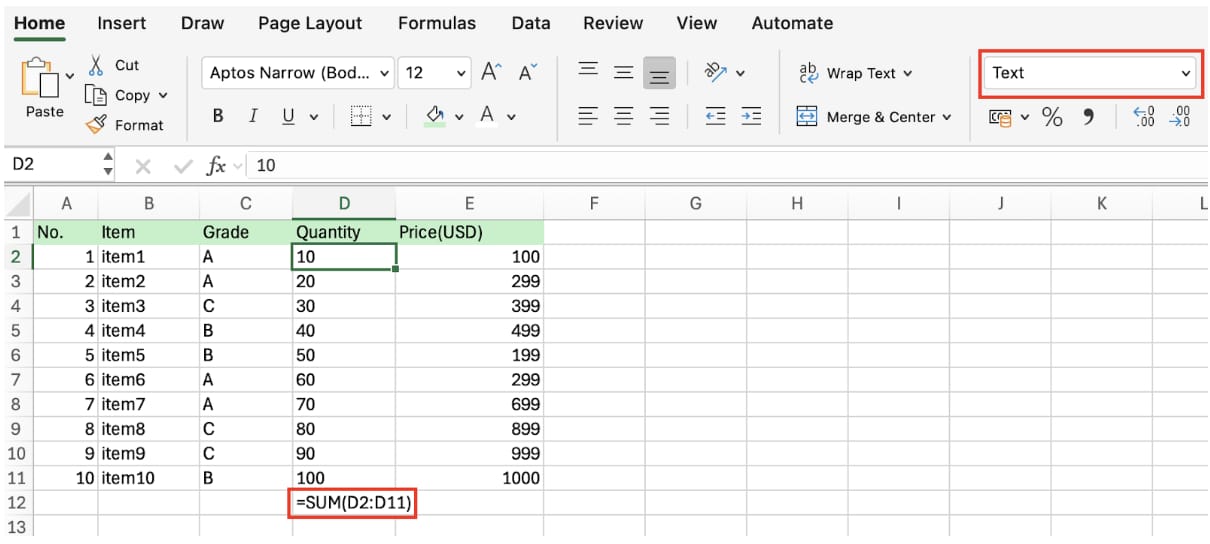
If the total cell shows =SUM(D2:D11) as literal text, that cell is formatted as Text, and formulas typed into text-formatted cells aren't calculated. Change the format to General, double-click the cell and press Enter.
Cause 3: Filtered or hidden rows
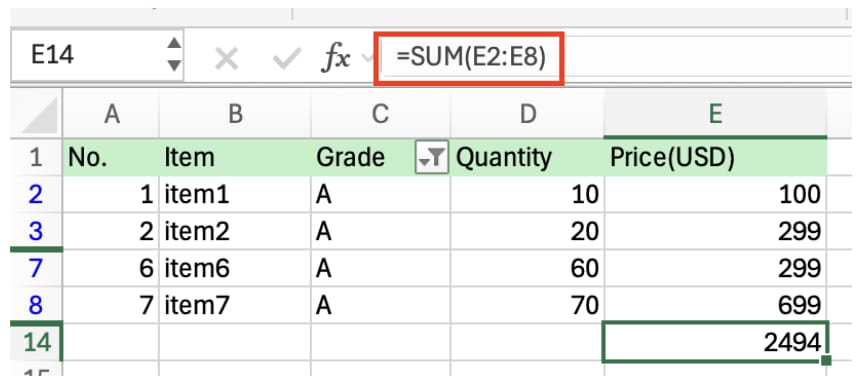
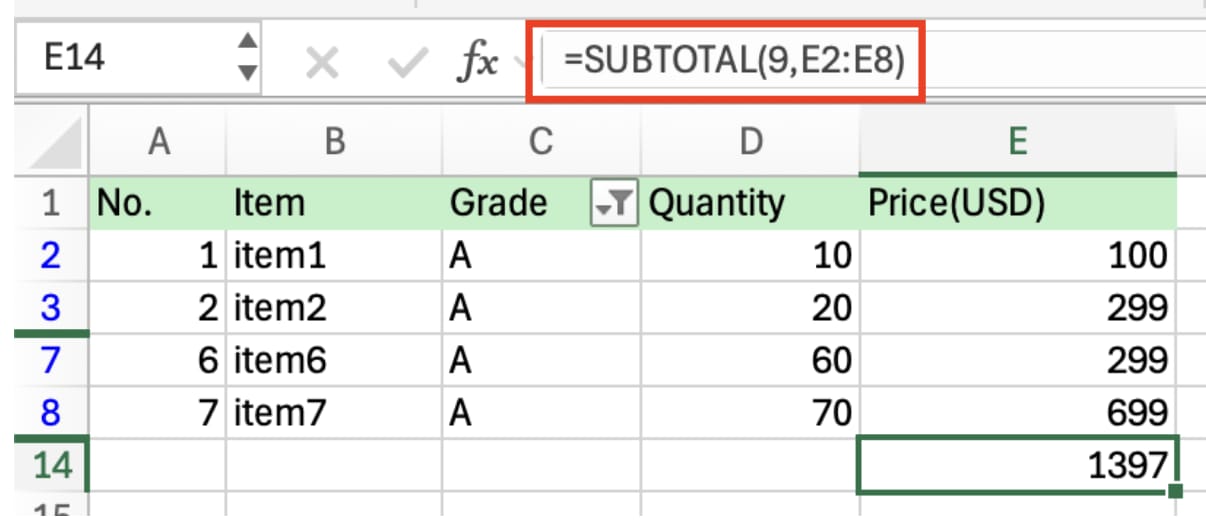
SUM adds filtered-out and hidden rows. You see four rows, but the total covers all of them. Use =SUBTOTAL(9, range) to add visible rows only, or =SUBTOTAL(109, range) to also exclude rows hidden with the Hide command.
👉 How to Hide and Unhide Rows and Columns in Excel
Cause 4: Error values in the range
One #N/A or #VALUE! makes the whole SUM an error. According to the option table in the AGGREGATE reference, =AGGREGATE(9, 6, range) ignores error values, and =AGGREGATE(9, 7, range) ignores hidden rows and errors. An error still means a missing amount, so after getting a total, go back and find the real value.
Cause 5: Manual calculation
If you change values and the total doesn't move, calculation is set to manual. Go to Formulas > Calculation Options > Automatic. Opening a workbook saved in manual mode first switches the whole session to manual, which is why it shows up with shared files. F9 recalculates on demand, and "Calculate" in the status bar means formulas are waiting to update.
Cause 6: Displayed values versus stored values
A line amount calculated as price times quantity and displayed without cents still stores the cents. Add the displayed figures on a calculator and you get a different total from SUM. Calculate the line with =ROUND(B2*C2, 2) so stored and displayed values match.
Quick diagnosis table
| What you see | Check first | Fix |
|---|---|---|
| Total is 0 or rows are missing | Numbers stored as text | Convert to Number, strip CHAR(160) |
| Formula shows as text | Cell formatted as Text | Set General and re-enter |
| Filter doesn't change the total | SUM includes hidden rows | SUBTOTAL 9 or 109 |
| Total shows #N/A or #VALUE! | Errors in the range | AGGREGATE 9, 6, then fix the source |
| Total doesn't update | Manual calculation | Set to Automatic |
| Off by cents | Display versus stored value | ROUND the line amounts |
Use the variance to find the problem
When your total disagrees with a statement or report, the size of the difference is a clue. Bookkeepers have used these checks for decades:
- The difference equals one transaction. That line is missing on one side or entered twice. Search for the amount with Ctrl + F.
- Half the difference equals one transaction. That line has the wrong sign; returns and discounts entered as positive amounts are typical.
- The difference divides evenly by 9. Two digits were probably transposed: entering 5,400 instead of 4,500 creates a difference of 900.
- The difference equals the sum of text-number rows. It's Cause 1; add up just those rows to confirm.
Sorting the variance this way saves scanning thousands of rows from the top.
Common mistakes
- Subtotal rows included in the total. Summing a column that already contains region subtotals double-counts them. Build both the subtotals and the grand total with SUBTOTAL; it skips other SUBTOTAL results inside its range.
- The total cell inside its own range.
=SUM(D2:D12)in D12 triggers a circular reference warning. End the range one row above. - Copied totals shifting. Relative references move when copied. Lock a fixed range with
$D$2:$D$500.
Walkthrough: month-end channel reconciliation
The staff accountant at Crestview Foods totals October net sales from three files, Amazon, Shopify and wholesale, and compares them with the figures the sales team reported.
- Total each file. Alt + = under each net sales column. Shopify matches. Amazon is $18,420 short. Wholesale is over.
- Amazon. 312 of 1,284 amount cells show green triangles: the settlement export added a leading space, turning amounts into text. Converting them brings the total in line.
- Wholesale. A filter hides return lines, but the total uses SUM, so the returns are included. Excluding returns is correct here, so the total becomes
SUBTOTAL(9, …). - Errors. Two
#N/Acells in the wholesale file break SUBTOTAL too. They are SKUs missing from the price list; adding them fills the values. - Prove the change. The difference before and after equals exactly the 312 text rows plus the return lines.
- Summary sheet. The three totals go on one sheet, each with the source file name and formula next to it.
Three files, three different causes, about an hour and a half. With a dozen channels, reconciliation takes most of the day before close.
Frequently asked questions (FAQ)
Q. I converted to numbers, but some cells still don't add.
They likely contain a non-breaking space, CHAR(160). Remove it with SUBSTITUTE and convert with VALUE.
Q. How do I add the same cell across many sheets?
=SUM('Jan:Dec'!D20) adds D20 on every sheet from Jan to Dec, including those in between.
Q. My total shows a dash instead of 0.
Accounting format displays zero as a dash. The value is 0, so check whether text numbers (Cause 1) are behind it.
Q. Can I sum only colored cells?
No built-in function uses color as a condition. Filter by color and use SUBTOTAL(9, range) to total the visible, colored rows.
How inline AI finds why totals don't match
For finance teams that reconcile channel and customer files every month, inline AI opens the files together, checks for text numbers, filters, errors and calculation mode, fixes them, and shows the totals before and after along with the rows that caused the difference. With IDP connected, channel settlements arrive in one consistent format, so the totals are right from the start.
Hand your documents and your company’s work to inline AI.
Keep a file open, say what you need, and AI edits it or drafts a new one. Add the company AI OS and AI runs the rest of the work, ERP included.
Book a demo