
Learn
How to Split Cells in Excel: Complete Guide | Text to Columns, Delimiter Split, and Flash Fill

When organizing data in Excel, it is common to find multiple pieces of information stored in a single cell. For example, a full name may contain both first and last names in one cell, or an email address may need to be separated into the username and domain.
However, Excel does not provide a feature to physically split a cell like Microsoft Word does. Instead, Excel splits the data inside a cell into multiple columns.
In this guide, you will learn how to split cells in Excel using practical methods such as Text to Columns, Flash Fill, and unmerging cells, all explained with real workflow examples.
Why You Can't Directly Split Cells in Excel
The reason you can't directly divide a cell in Excel is because Excel does not support physically splitting cells. Instead, Excel separates the data inside a cell into multiple columns.
Understanding the Difference Between Merged Cells and Normal Cells
Merged cells combine multiple cells into one visible cell. For example, if cells A1 and B1 are merged, the actual data is stored only in cell A1.
Because of this structure, you cannot split data while the cells are still merged.
Why Excel Doesn't Have a "Split Cell" Feature
Excel is a spreadsheet program designed to manage data in rows and columns. For this reason, instead of dividing a single cell, Excel organizes data by separating it into different columns.
Why Data Should Be Structured by Columns
In data analysis, the ideal structure is one piece of information per column.
For example, if first and last names are stored in the same cell, sorting or filtering becomes difficult. Splitting the data into separate columns makes the dataset easier to analyze and manage.
How to Unmerge Cells Before Splitting Data
If cells are merged, you must unmerge them before splitting the data. After unmerging the cells, you can use Text to Columns or Flash Fill to organize the data.
How to Unmerge Cells in Excel
Follow these steps to unmerge cells.
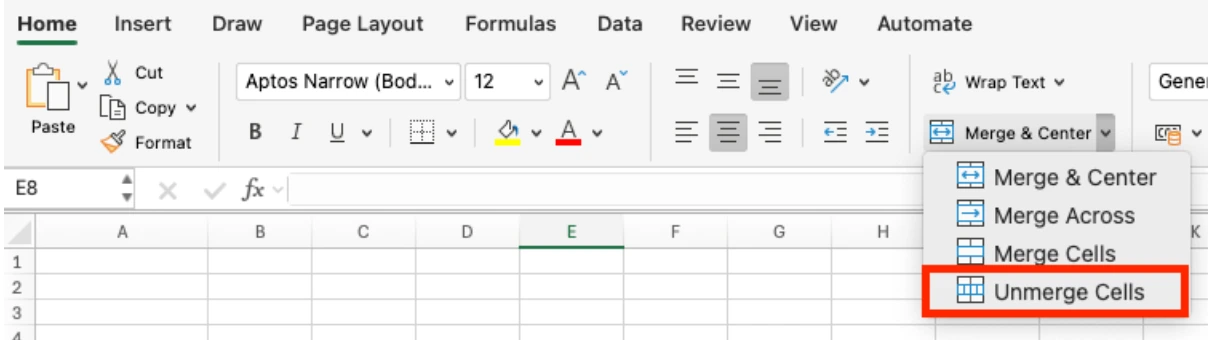
- Select the merged cells.
- Click the Merge & Center button in the Home tab.
- Choose Unmerge Cells.
After doing this, the merged cells will return to individual cells.
Why Data Remains in Only One Cell After Unmerging
When you unmerge cells, the data remains only in the top-left cell. This happens because even when cells are merged, Excel stores the actual data in only one cell.
How to Reorganize Data After Unmerging
After unmerging cells, you can organize the data using several methods.
Common methods include Text to Columns, Flash Fill, and text formulas.
How to Split Cells into Multiple Columns Using Text to Columns
Text to Columns is an Excel feature that splits text in one cell into multiple columns based on spaces or specific delimiters.
How to Split Cells Using a Delimiter
The basic process is simple.
Steps to Use Text to Columns
- Select the data you want to split.
- Go to the Data tab and click Text to Columns.
- Choose the delimiter.
- Click Finish.
Common Delimiters Used in Excel
In real workflows, these delimiters are commonly used.
| Character | Meaning |
|---|---|
| Space | Space |
, | Comma |
/ | Slash |
- | Hyphen |
For example, phone numbers can be split using a hyphen, while full names can be split using spaces.
Example: Splitting Email Addresses Using a Delimiter
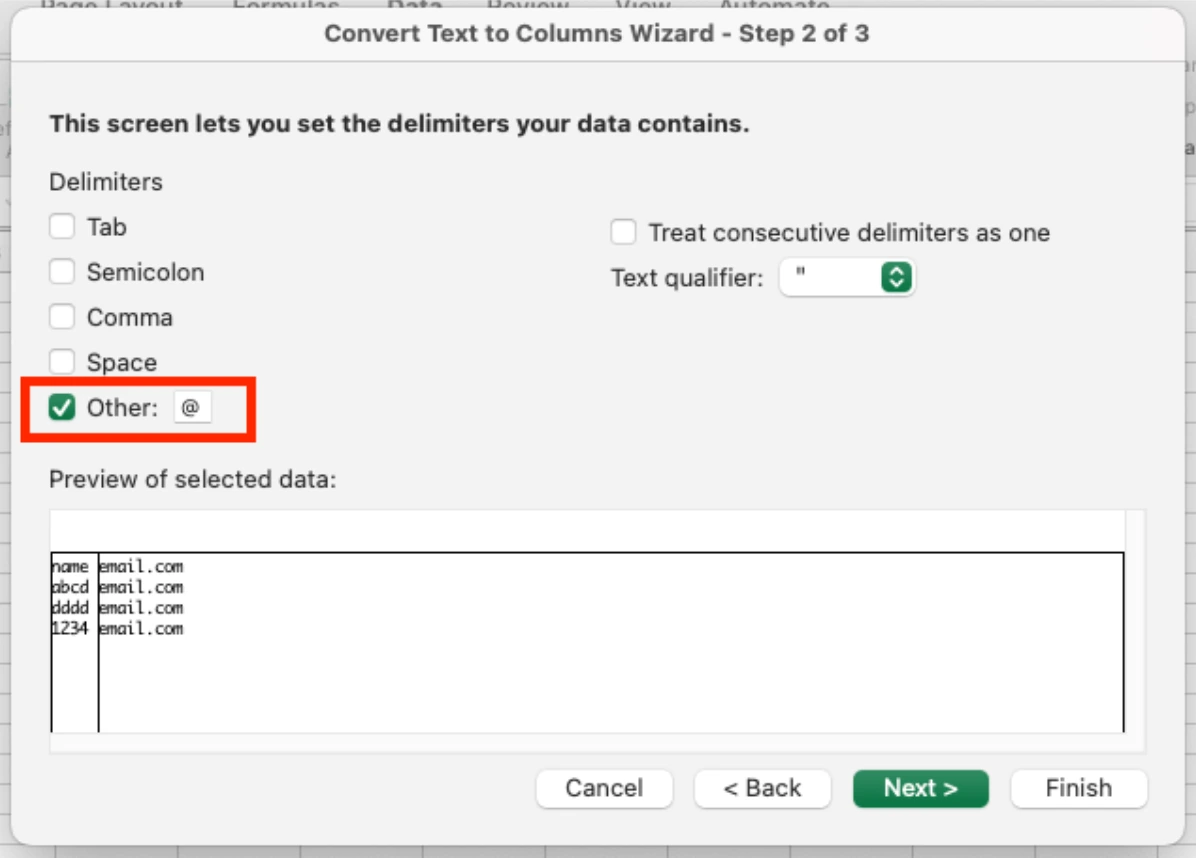
If you have an email like name@email.com, you can split it into the username and domain using the @ symbol.
How to Split an Email Address
- Select the cells containing email addresses.
- Go to Data -> Text to Columns.
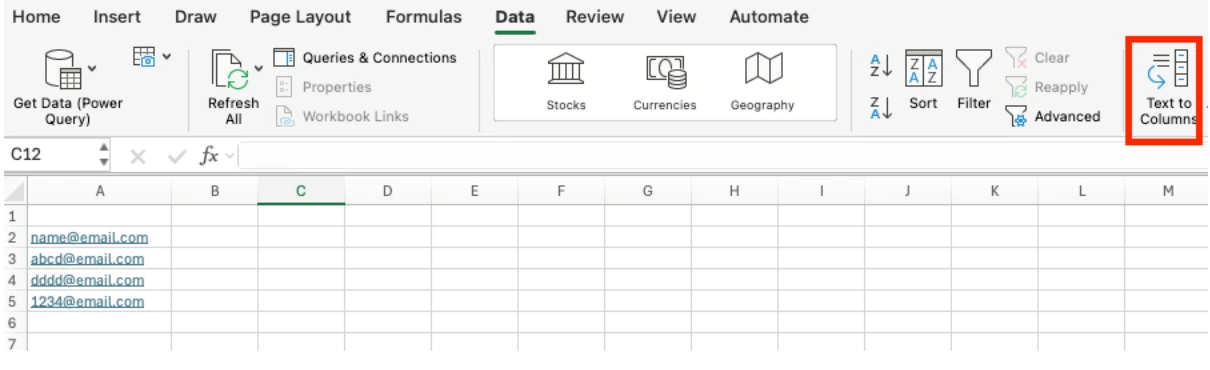
- Choose Other under delimiters and type
@.
- Select where the new data should be placed.
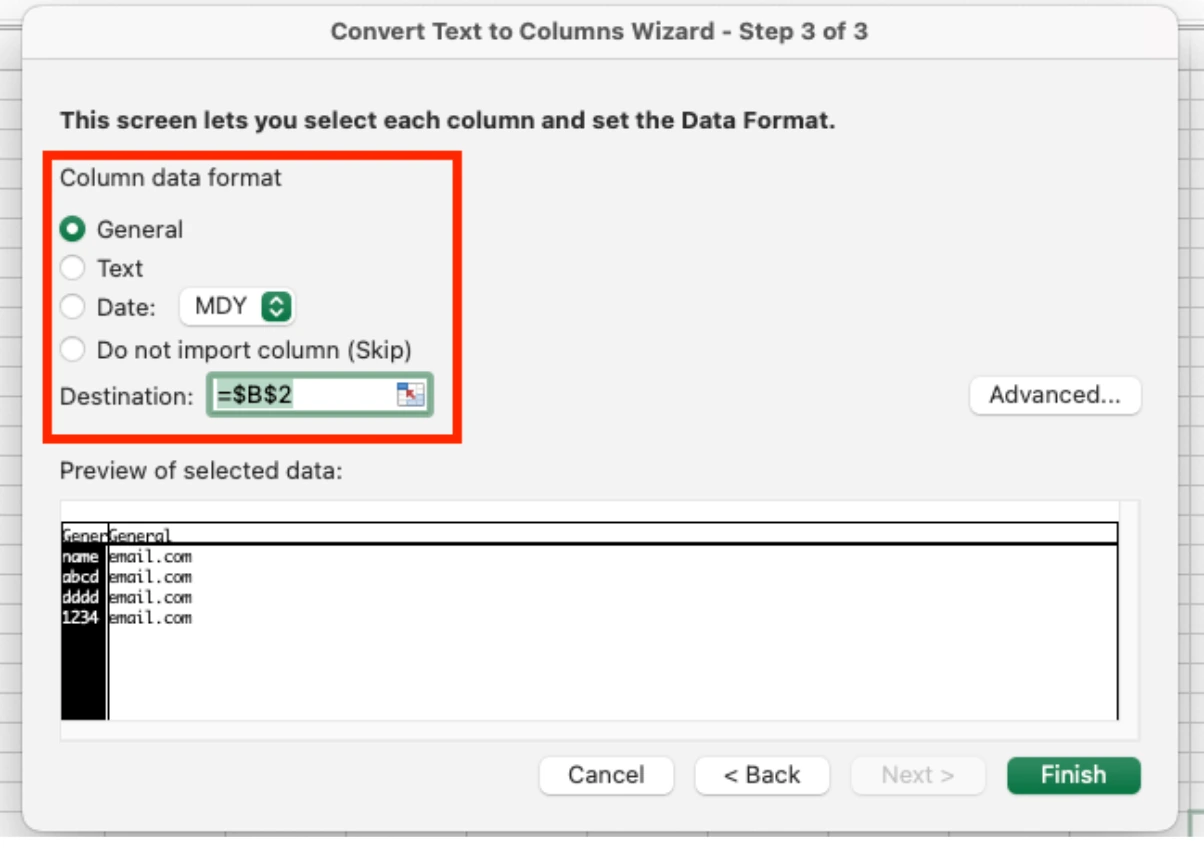
- Click Finish.
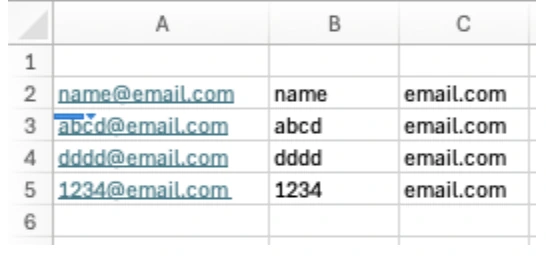
Excel will automatically split the email into two columns.
Automatically Splitting Data Using Flash Fill
Flash Fill automatically recognizes patterns in the data you enter and fills the remaining rows accordingly.
This feature is especially useful when dealing with structured data such as names, emails, and addresses.
How Flash Fill Works
Flash Fill analyzes examples you provide and applies the same pattern to the rest of the dataset. For example, it can extract specific text from a column or split parts of a string based on position.
How to Use Flash Fill
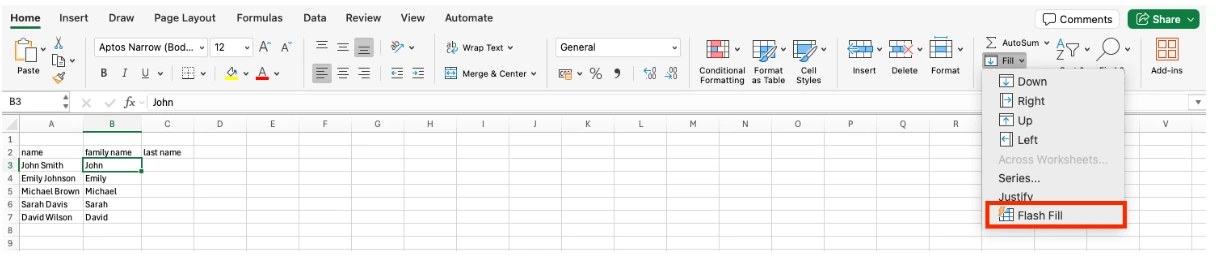
- Enter the desired result in the adjacent column.
- Press Ctrl + E or select Flash Fill from the Data menu.
Excel will automatically detect the pattern and complete the rest of the rows.
If you enter only the last name next to a column containing full names, Excel can automatically extract the last name from the rest of the rows.
Difference Between Text to Columns and Flash Fill
| Feature | How it splits data |
|---|---|
| Text to Columns | Splits data based on delimiters |
| Flash Fill | Splits data based on pattern recognition |
How to Fix Data Shifting After Splitting Cells
When splitting cell data, you may encounter issues where data disappears or columns become misaligned.
Why Data Gets Overwritten
When using Text to Columns, Excel places the split data in the columns to the right. If those columns already contain data, the new values may overwrite them.
Why You Should Leave Empty Columns Before Splitting
To prevent this issue, it is best to leave empty columns to the right before splitting the data.
How to Recover Misaligned Data
If the data is split incorrectly, the safest solution is to use Undo and redo the process.
FAQ: Splitting Cells in Excel
How do you split a single cell into two in Excel?
Excel does not allow you to physically divide a single cell. Instead, you can split the data into multiple columns using Text to Columns.
For example, if a cell contains both a name and an address, you can separate them into different columns using a space or another delimiter.
How do you split text into multiple columns in Excel?
Select the column you want to split, then go to Data -> Text to Columns. Choose a delimiter such as a space, comma, slash, or another symbol to separate the data.
Why doesn't Flash Fill (Ctrl + E) work in Excel?
Flash Fill may not work if Excel cannot recognize a clear pattern or if the feature is disabled.
Try entering one or two example results next to the data before pressing Ctrl + E.
If it still doesn't work, check whether Enable Automatic Flash Fill is turned on in File -> Options -> Advanced.
Flash Fill also works best when the data contains consistent patterns such as spaces or symbols.
Why does data shift when splitting cells in Excel?
Text to Columns automatically places the split data into the columns on the right. If those columns already contain data, Excel may overwrite them. To prevent this issue, make sure there are empty columns available before splitting the data.
Automating Excel Data Splitting with inline AI

Once you understand how to split cells in Excel, the next step is reducing repetitive data cleaning tasks.
If data is frequently imported from external systems or updated regularly, you may need to repeat the same splitting process many times.
inline AI is a desktop-native AI coworker designed specifically for Excel workflows. By using natural language instructions, it can read Excel files and automatically split and organize data.
For example, inline AI can quickly separate cells containing names and phone numbers or restructure text data into a proper column-based format.
inline AI ranked on SpreadsheetBench with 100% accuracy. It also runs locally on your PC without uploading data to the cloud, making it a secure option for companies handling sensitive information.
If you are repeatedly spending time splitting cells and organizing data, use inline AI to reduce your workload and handle everything from data cleaning to analysis in one go.
Let inline AI handle your documents. Start on the Windows PC you already use.