

Blog
Excel AVERAGE Function: AVERAGEIF and Weighted Averages

The Excel AVERAGE function, =AVERAGE(range), adds up the numbers in a range and divides by how many there are. It rarely returns a wrong number; it returns the right answer to a question you didn't mean to ask. A blank cell is skipped, a zero is counted, a number stored as text disappears, and an average of four regional averages ignores that one region placed six times as many orders as another. In a monthly report that difference can move average order value by hundreds of dollars, and nobody can reconcile it. Here is how AVERAGE treats your data, which variant to use when, and a worked example you can copy.
Three quick ways to get an average
Read the status bar. Select a range of numbers and Excel shows Average, Count and Sum in the status bar at the bottom right. It is the fastest check when you don't need a formula. If Average is missing, right-click the status bar and tick it.
Use the AutoSum menu. Select the cell below or beside your numbers, click the arrow next to Home → AutoSum (Σ) and choose Average. Excel guesses the range and writes the AVERAGE formula; check the range and press Enter.
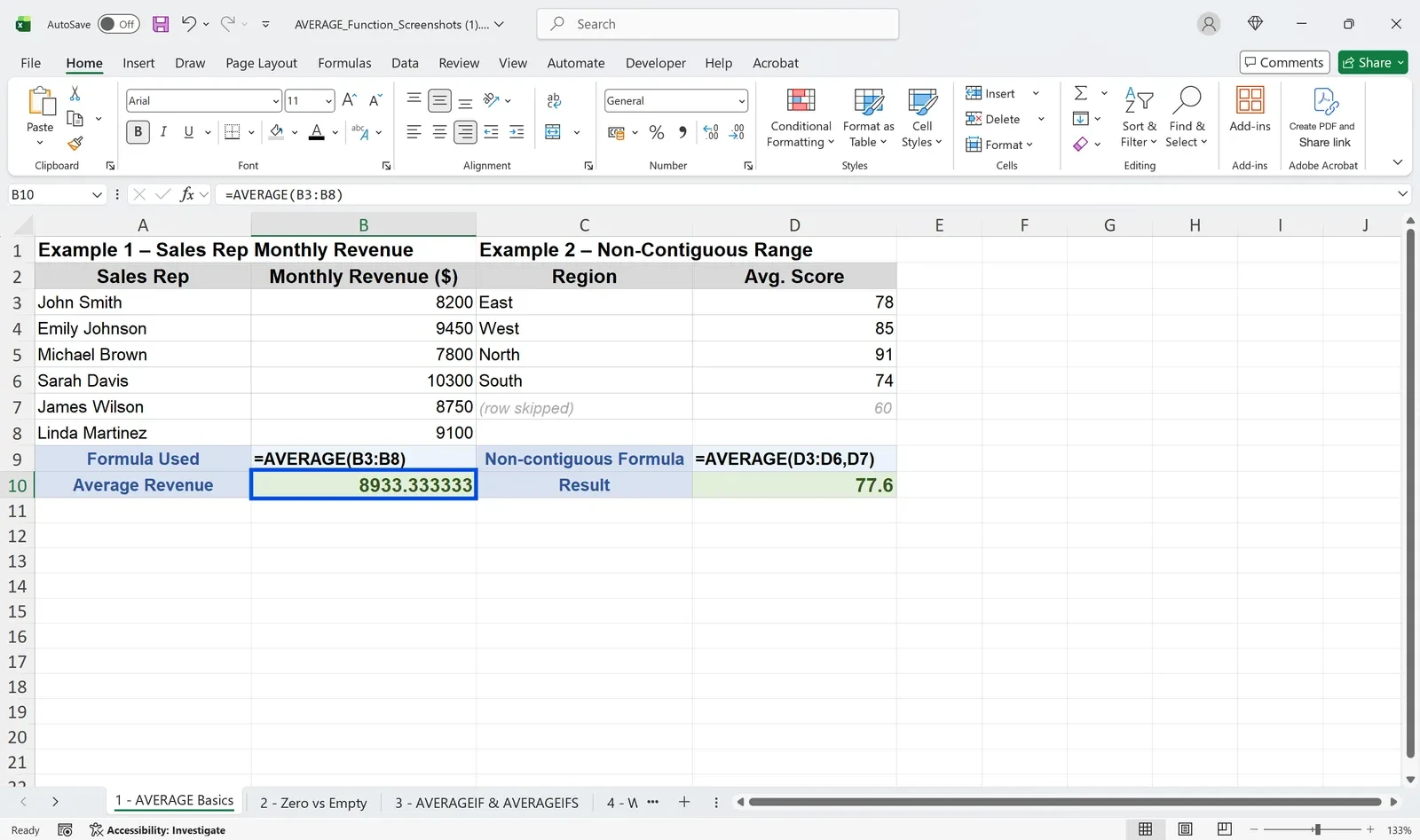
Type the formula. =AVERAGE(B3:B8) averages one range, and you can list separate ranges with commas. The screenshot shows the monthly revenue average of six sales reps, 8,933.33, and an average of 77.6 from a range plus one extra cell.
Blank cells are skipped, zeros are counted
According to Microsoft's AVERAGE function reference, text, logical values and empty cells inside a range or cell reference are ignored, but cells containing zero are included. The function accepts up to 255 arguments. This rule explains most averages that "look wrong."
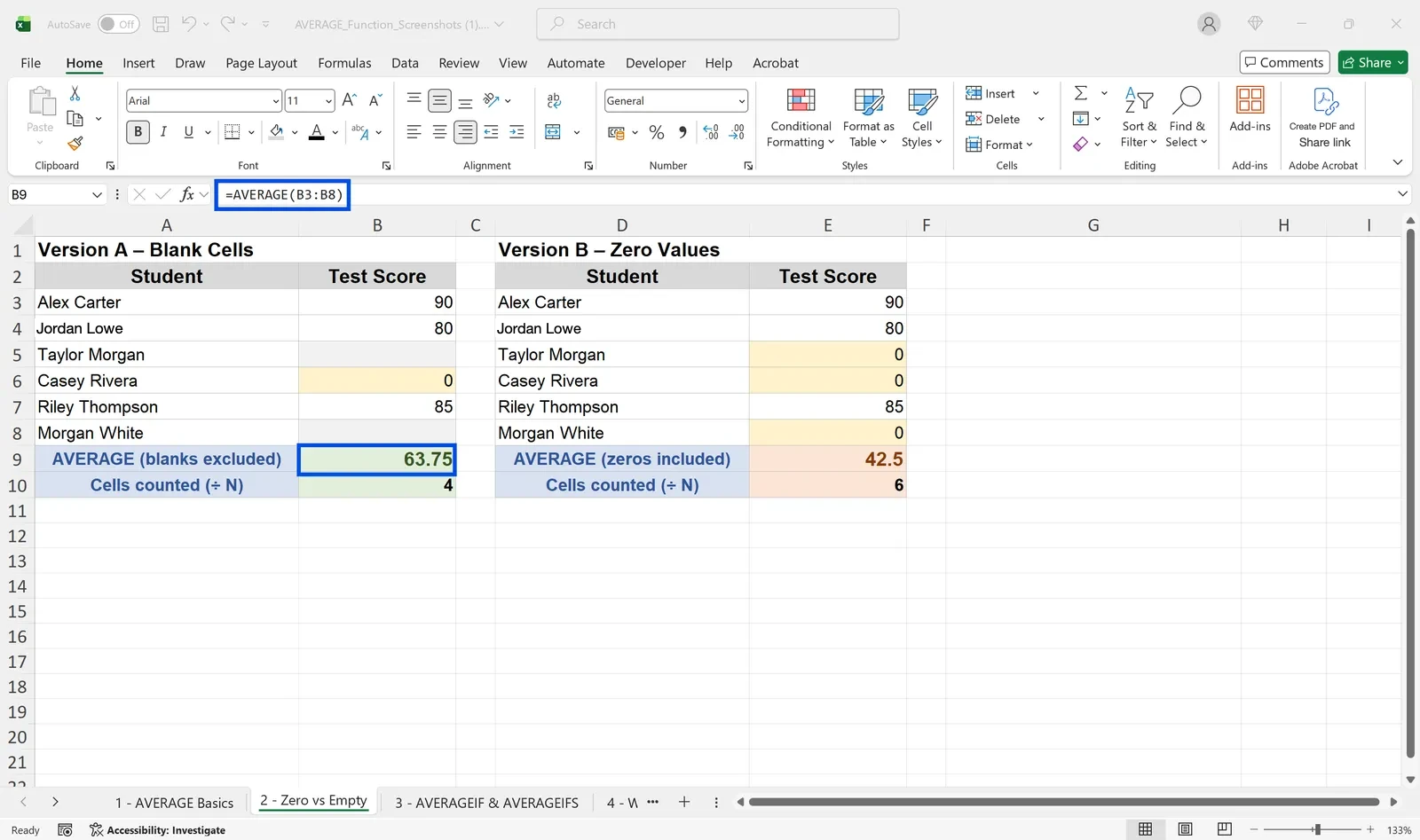
In the example, the left table leaves two untested students blank and the right table enters 0 for them. Same people, different answers: the left side averages four numbers and returns 63.75; the right side divides by six and returns 42.5.
Which is right depends on meaning. "Not entered yet" should be blank; "actually zero" should be 0. If your data already mixes the two and you want to leave out zeros, use =AVERAGEIF(B3:B8,">0"), which skips both zeros and blanks.
AVERAGEA works the other way: it counts text in the range as 0 and TRUE as 1. A column with a few "n/a" entries averages much lower with AVERAGEA, so plain AVERAGE is the right choice for most business data.
AVERAGEIF and AVERAGEIFS
Use AVERAGEIF for one condition and AVERAGEIFS for several. Their argument orders differ, which is a common source of errors.
AVERAGEIF takes the range to test, the condition, then the range to average: =AVERAGEIF(B3:B12,"Sales",C3:C12) averages column C where column B says Sales. Microsoft's AVERAGEIFS reference puts the range to average first, followed by pairs of criteria ranges and criteria: =AVERAGEIFS(C3:C12,B3:B12,"Sales",C3:C12,">=80") averages Sales scores of 80 or more.
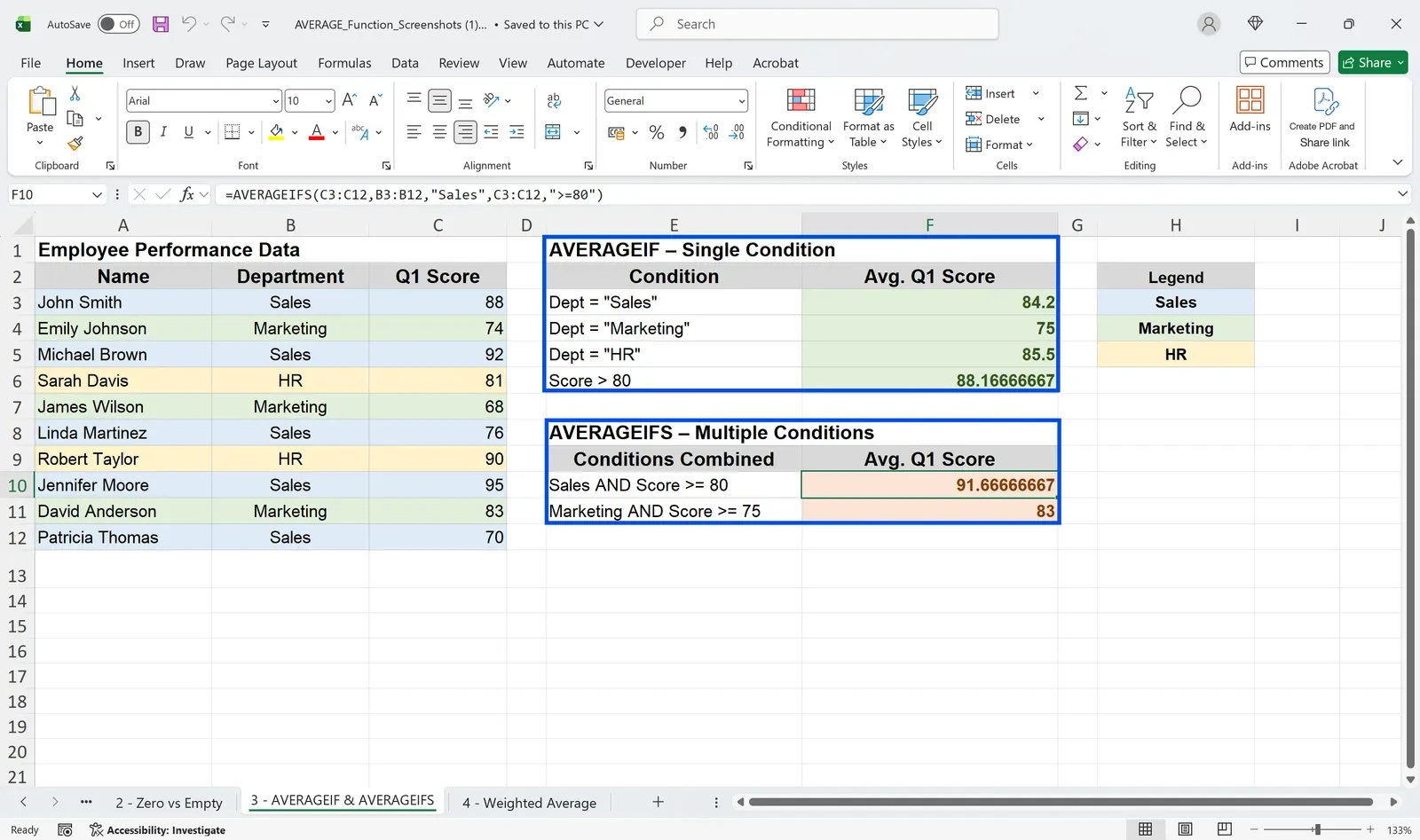
The Sales scores in the example are 88, 92, 76, 95 and 70, which average 84.2. Only 88, 92 and 95 are 80 or more, so the AVERAGEIFS result is 91.67. If no row matches, both functions return #DIV/0!. Criteria text must match the cell exactly; "Sales " with a trailing space is a different value.
Weighted averages: the average-of-averages trap
When groups are different sizes, averaging their averages gives the wrong overall figure. The example lists four regional teams with their headcount and average deal size. The plain average of the four averages is 7,875, which treats the 30-person East Coast team and the 5-person Southwest team as equals. Weighting by headcount with =SUMPRODUCT(B3:B6,C3:C6)/SUM(B3:B6) returns 7,930.77, the true average across all 65 reps.
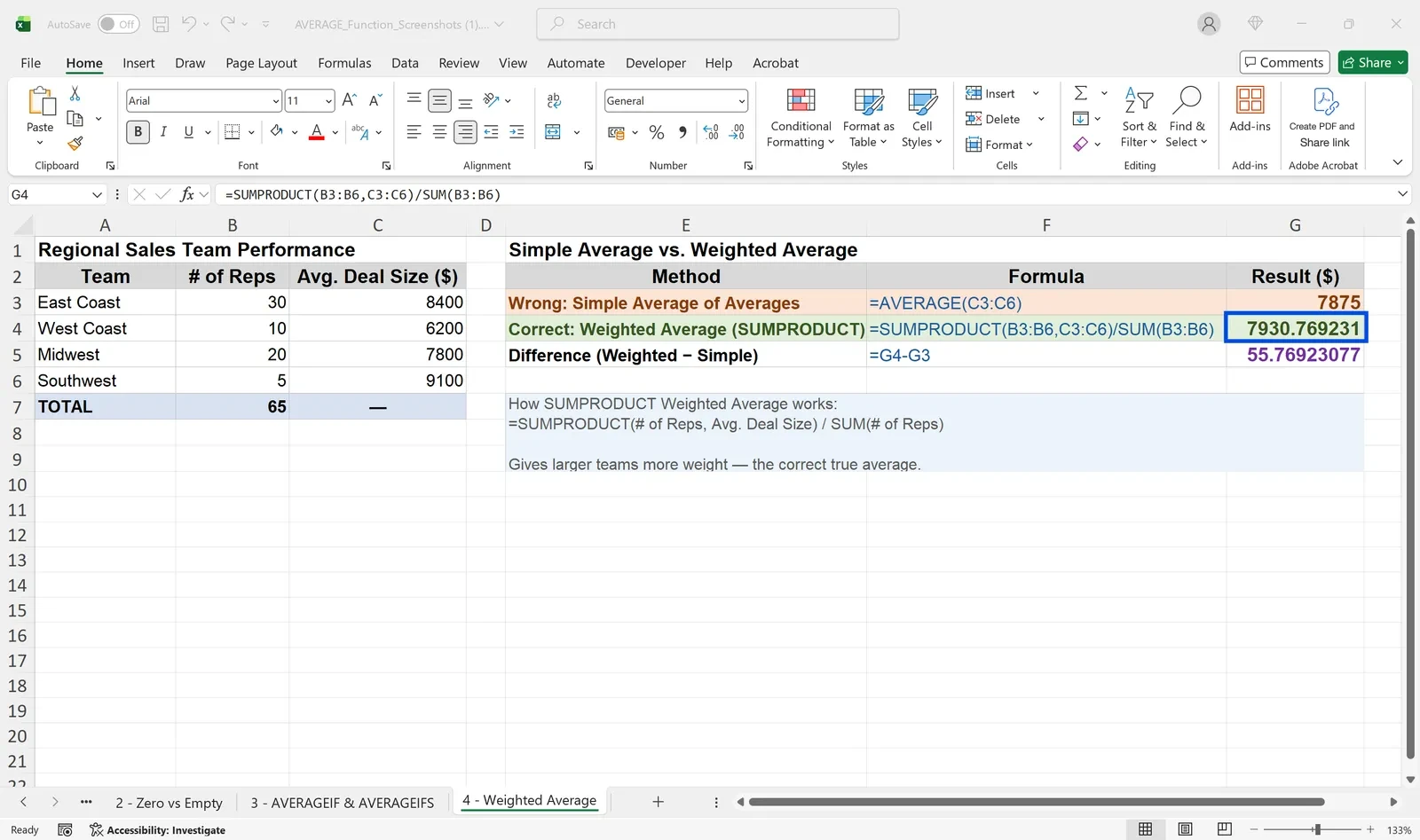
SUMPRODUCT multiplies the two ranges row by row and adds the products. Divide by the total weight and you have a weighted average. For unit costs, the values are prices and the weights are quantities.
Worked example: average order value by channel
The controller at Northgate Supply reports average order value by sales channel every month, plus one company-wide figure. September's numbers, after removing cancelled orders and zero-value replacement shipments, look like this: the distributor portal had 420 orders averaging $1,850, EDI had 180 orders averaging $4,200, phone and email had 95 orders averaging $960, and the online marketplace had 610 orders averaging $310.
Each channel's figure comes from one formula per channel sheet: =AVERAGEIFS(D:D,E:E,"<>Cancelled",D:D,">0"), where D holds the order amount and E the status. The ">0" condition removes replacement shipments booked at zero, which would otherwise drag the average down.
For the company-wide number, last month's report had used =AVERAGE over the four channel averages and printed $1,830. That treats 95 phone orders the same as 610 marketplace orders. The weighted version, =SUMPRODUCT(order counts, channel averages)/SUM(order counts), divides total revenue of $1,813,300 by 1,305 orders and returns $1,389.50. The report was overstating average order value by more than $440 because the large, low-value marketplace channel was underweighted.
She now keeps both numbers side by side with a note stating what each average includes and excludes, so next month's report uses the same definition no matter who builds it.

👉 How to Calculate Percentage in Excel: Change, Share, Markup
When outliers distort the average: TRIMMEAN and MEDIAN
One rush order at a premium price or one huge bulk deal can pull an average far from typical. TRIMMEAN drops a percentage of values from the top and bottom before averaging: =TRIMMEAN(range,0.2) excludes 20% of the data points, half from each end. MEDIAN returns the middle value when the data is sorted. If the average and the median are far apart, an outlier is at work, and the median usually describes the typical order better.
Moving averages for trends
For purchasing and demand planning, the average of the last few months is often more useful than the all-time average. With monthly usage in B2:B7 of 1,000, 1,200, 900, 1,300, 1,100 and 1,400 units, enter =AVERAGE(B2:B4) in C4 and fill down. The relative reference shifts one month at a time and returns 1,033.3, 1,133.3, 1,100 and 1,266.7. Month to month the numbers bounce, but the three-month moving average is clearly rising. On a line chart, Chart Elements → Trendline → More Options → Moving Average with a period of 3 draws the same line.
Version differences
AVERAGE, AVERAGEA, AVERAGEIF, AVERAGEIFS, SUMPRODUCT, TRIMMEAN and MEDIAN work the same in Excel 2007 and later, Microsoft 365, Excel for Mac and Excel for the web. AVERAGEIF and AVERAGEIFS can't take a list of separate ranges the way AVERAGE can, so keep the data you need to filter in one block. Combining FILTER with SUMPRODUCT for conditional weighted averages requires Microsoft 365 or Excel 2021 and later.
Fixing common AVERAGE problems
#DIV/0! There are no numbers to average: the range is empty, the "numbers" are text, or no row meets the condition. Find the cause first; to change only the display, wrap the formula in IFERROR, as in =IFERROR(AVERAGEIF(...),"N/A").
The average looks too high. Small values stored as text may be missing. Run =COUNT(range) and compare it with the number of rows you expected.
Rounded results don't add up. Formatting fewer decimals only changes the display. If other calculations need the rounded value, use =ROUND(AVERAGE(range),2).
FAQ
Q. My average doesn't match my manual calculation. Where do I start?
Check blanks, zeros and text. Select the range and compare Count with Numerical Count in the status bar; the gap shows how many cells were left out.
Q. How do I average and ignore zeros?
Use =AVERAGEIF(range,">0"). If the data can be negative, use =AVERAGEIF(range,"<>0") to drop only zeros.
Q. Can a PivotTable show averages?
Yes. In Value Field Settings, change Summarize value field by to Average. It is a simple average of the source rows, so for a weighted figure, divide a sum of amounts by a sum of quantities instead.
Q. How do I average the same cell across many sheets?
Use a 3D reference such as =AVERAGE(Jan:Dec!B5), which averages B5 on every sheet from Jan to Dec.
How inline AI calculates the average you meant
inline AI checks the workbook you have open for blanks, zero-value rows and numbers stored as text, then writes the AVERAGEIFS or weighted formula and shows how many rows went into each result. With ARP, orders, receipts and costs share one system, so channel and unit-cost averages come from the same records every month.
Hand your documents and your company’s work to inline AI.
Keep a file open, say what you need, and AI edits it or drafts a new one. Add the company AI OS and AI runs the rest of the work, ERP included.
Book a demo