

Blog
How to Copy Formulas in Excel Without Breaking References

To copy formulas in Excel, drag the fill handle, press Ctrl + D, or copy and paste. When the copied results turn into zeros or nonsense, the copy method is rarely the problem. Excel uses relative references by default, so every cell address in the formula shifts along with it. That is exactly right for the price on each row and exactly wrong for the one discount rate or exchange rate every row should use. One unlocked reference on a promotion price sheet means every row after the first shows the full price, and a wrong price list goes to the stores. Below are the fast ways to copy, how to lock references, and what to check when copied formulas still look wrong.
Five ways to copy a formula
Drag or double-click the fill handle. Select the formula cell and grab the small square at its bottom-right corner. Drag it down or across to copy. Double-click it and Excel fills down as far as the data in the neighboring column goes. If that column has a gap, the fill stops there, so check the last row on long sheets.
Ctrl + D and Ctrl + R. Select the formula cell plus the cells to fill, then press Ctrl + D to fill down or Ctrl + R to fill right. On the ribbon it is Home → Fill → Down / Right. It is more precise than dragging on long tables.
Select first, then Ctrl + Enter. Select D3:D500, type the formula, and press Ctrl + Enter instead of Enter. Every selected cell gets the formula, adjusted row by row.
Copy and paste only the formula. Ctrl + C and Ctrl + V paste the formula with its formatting. To keep the destination's formatting, click the Paste Options button that appears and choose Formulas, or press Ctrl + Alt + V for Paste Special and pick Formulas.
Use a table's calculated column. Turn the range into a table with Ctrl + T. Type a formula in one cell of a column and Excel fills the entire column, including rows you add later. For a sales log or receiving log that grows every week, this is the lowest-maintenance option.
Microsoft's guide to moving or copying a formula explains the key difference: when you move a formula, its cell references don't change; when you copy it, relative references adjust to the new location. Nearly every copied-formula problem comes from that rule.
Why copied formulas change
A relative reference is stored as a position, not an address. =B3*C3 in D3 really means "the cell two to my left times the cell one to my left." Copied one row down, it becomes =B4*C4. When the rate lives in one cell, B3, every copy after the first reads an empty cell and returns 0.
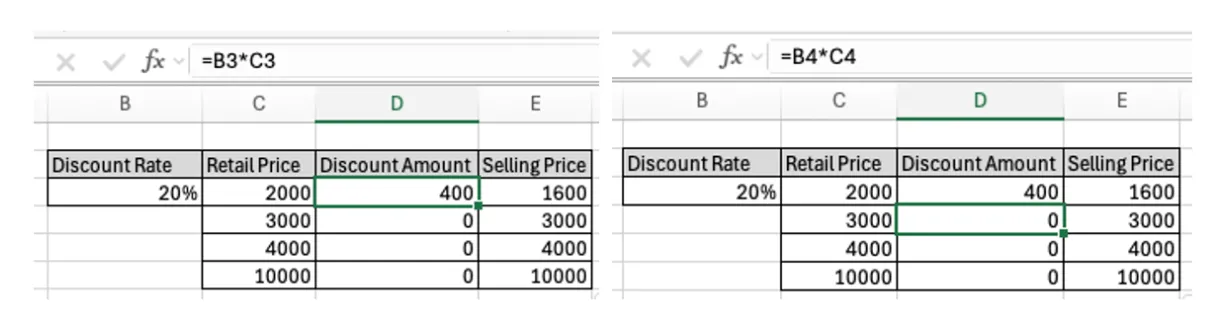
Lock it as =$B$3*C3, and every copy keeps pointing at B3 while the price reference still moves row by row.
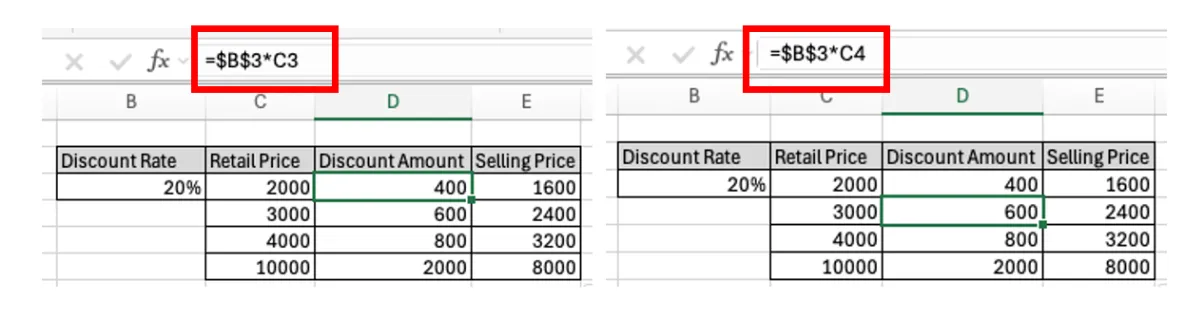
Absolute and mixed references, and F4
The $ can lock the column, the row, or both. Put it in front of whatever should stay fixed.
| Reference | When copied | Typical use |
|---|---|---|
| A1 | Row and column both change | A value on each row |
| $A$1 | Nothing changes | One rate, tax or exchange rate cell |
| $A1 | Column fixed, row changes | A value in a left-hand column, copied across |
| A$1 | Row fixed, column changes | A value in a header row, copied down |
Mixed references are for grids that copy both down and across. In the example, sales amounts sit in column C and incentive rates of 5%, 10% and 15% sit in row 13. Enter =$C14*D$13 in D14 and fill right and down: the sales amount always comes from column C and the rate always comes from row 13. A sales amount of 450 gives 22.5 at 5% and 67.5 at 15%, all from one formula.
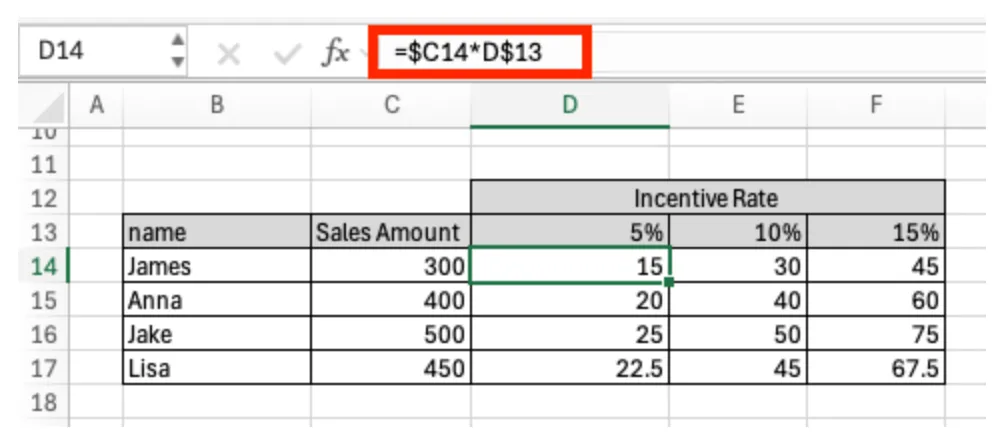
You don't have to type the dollar signs. While editing a formula, put the cursor in a reference and press F4: it cycles A1 → $A$1 → A$1 → $A1 → A1. Microsoft's article on relative, absolute and mixed references shows what each type becomes when a formula is copied two cells down and two cells right: $A$1 stays $A$1, A$1 becomes C$1, $A1 becomes $A3, and A1 becomes C3. On laptops where F4 controls brightness or volume, press Fn + F4. On a Mac, press Command + T.
Copy a formula without changing its references
Sometimes you want the exact same formula somewhere else, addresses untouched. For one cell, select the text of the formula in the formula bar, copy it, press Esc, then paste it into the formula bar of the destination. You copied text, not a cell, so nothing shifts.
For a block of formulas, use Find and Replace. Select the range, press Ctrl + H and replace = with something that never appears in your formulas, such as #=. The formulas become plain text. Copy and paste the block, then replace #= back to = in both places. If you want to relocate the formulas rather than duplicate them, cut (Ctrl + X) and paste; moved formulas keep their references.
Worked example: a promotion price sheet
Brightway Retail is running a 20% promotion on one sales channel. The merchandising assistant sets up a sheet with the discount rate in B3, retail prices of 2,000, 3,000, 4,000 and 10,000 in column C, the discount amount in column D and the selling price in column E.
She writes =B3*C3 in D3 and =C3-D3 in E3 and drags both down. Only the first row shows a discount; the others show 0 and a selling price equal to the retail price. She clicks into D3, puts the cursor on B3, presses F4 once to get =$B$3*C3, and fills down again. The discounts now read 400, 600, 800 and 2,000, and the selling prices 1,600, 2,400, 3,200 and 8,000. Column E needs no lock because it subtracts cells on the same row.
Next she needs the same sheet for a second channel at 15%. Ctrl-dragging the sheet tab copies it within the workbook, and every reference follows to the new sheet, so she only changes B3. If she had copied column D into a different workbook instead, Excel would have written an external reference such as ='[Promo_Channel_A.xlsx]Prices'!$B$3, tying the new file to the old one.
Before handing the prices to the person who loads them into the store system, she copies the item, retail price and selling price columns and pastes them as Values into a clean sheet, so nothing depends on another file. Data → Workbook Links (called Edit Links in older versions) confirms that no external links remain.
As a last check, she turns on Formulas → Show Formulas (shortcut: Ctrl plus the grave accent key, left of the 1 key). Every cell shows its formula instead of its result, and a row with a different formula from its neighbors stands out immediately.

👉 Multiply, Divide and Subtract in Excel: Formulas and Fixes
Dynamic arrays: no copying needed
Microsoft 365 and Excel 2021 or later support dynamic array formulas. In the promotion example, entering =$B$3*C3:C6 once in D3 spills the results down to D6 automatically. The formula lives only in D3, so no row can be skipped or overwritten with a different formula. If something already occupies the spill range, you get a #SPILL! error until you clear it. Older versions open these formulas as legacy array formulas, which are awkward to edit, so for files you exchange with customers and suppliers, a regular formula copied down each row is the safer choice.
Excel for the web supports the fill handle, Ctrl + D and F4 in the same way; for formulas only, use Home → Paste → Paste Formulas.
When copied formulas look wrong
Every row shows the same value as the first. Calculation is set to Manual. Go to Formulas → Calculation Options → Automatic, or press F9 to recalculate. Excel takes the calculation mode from the first workbook you open in a session, so one workbook saved in Manual mode can switch the others.
The formula shows as text. The destination cells were formatted as Text before you pasted. Change the format to General, then press F2 and Enter in each cell, or re-enter the formula.
#REF! appears. The copied reference fell off the edge of the sheet, or it pointed at a row or column that was deleted. Copy again from the original formula and lock what should stay fixed.
Double-clicking the fill handle stops early. The neighboring column has a blank cell. Fill with Ctrl + D over the full range, or convert the range to a table.
FAQ
Q. Why do my formulas change when I copy them?
Excel uses relative references by default, so addresses move with the formula. Lock the cells that should stay fixed with $, or press F4 on the reference while editing.
Q. How do I copy a formula without its formatting?
Paste, then choose Formulas from the Paste Options button, or use Ctrl + Alt + V and pick Formulas. Choose Values if you only want the results.
Q. What is the Mac shortcut for F4?
Command + T toggles between relative, absolute and mixed references in Excel for Mac.
Q. Why does a file name appear inside my copied formula?
The formula referred to a cell in another workbook. Paste the results as values, or break the link under Data → Workbook Links.
How inline AI keeps copied formulas right
inline AI finds references in the workbook you have open that should point at a fixed rate cell but have drifted, locks them, and marks the cells it changed. With ARP, quotes go out from customer emails and incoming purchase orders become sales orders, so you stop copying and patching a price sheet for every customer.
Hand your documents and your company’s work to inline AI.
Keep a file open, say what you need, and AI edits it or drafts a new one. Add the company AI OS and AI runs the rest of the work, ERP included.
Book a demo