

Blog
How to Calculate Percentage in Excel: Change, Share, Markup

To calculate a percentage in Excel, divide the part by the whole, for example =C2/B2, and apply Percent Style to show the result as a percentage. That is the easy half. The hard half is everything around it: a column that shows 0.8 when it should show 80%, a growth rate that divides by the wrong year, a share-of-total formula that breaks when copied down. Divide by the wrong number and a supplier's 92% fill rate turns into 108%, and the next purchasing decision rests on it. Here are the formulas for each kind of percentage, the formatting rule behind most mistakes, and a supplier review you can rebuild step by step.
The basic formula: part ÷ whole
A percentage answers "how much of the whole is this part, if the whole is 100?" In Excel you calculate the decimal and let formatting show it as a percent. Microsoft's guide to calculating percentages walks through exactly that: =42/50 returns 0.84, and Percent Style displays it as 84.00%.
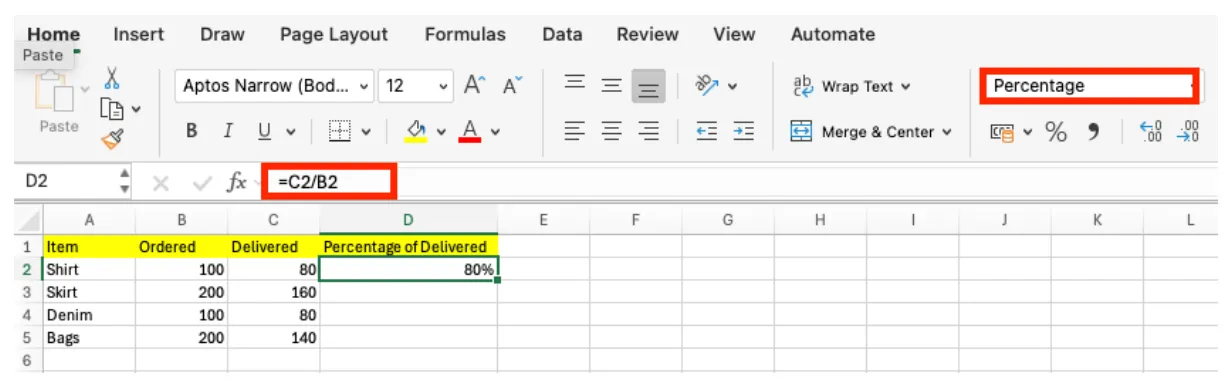
In the example below, 80 of 100 units ordered were delivered. =C2/B2 in D2 returns 0.8. Click Home → Percent Style (%) in the Number group, or press Ctrl + Shift + %, and it shows as 80%. Use Increase Decimal and Decrease Decimal next to it to set the decimal places.
Percent format changes the display, not the value
Percent Style multiplies the stored value by 100 for display and adds a % sign. A cell showing 80% still holds 0.8, and any formula that uses it multiplies by 0.8.
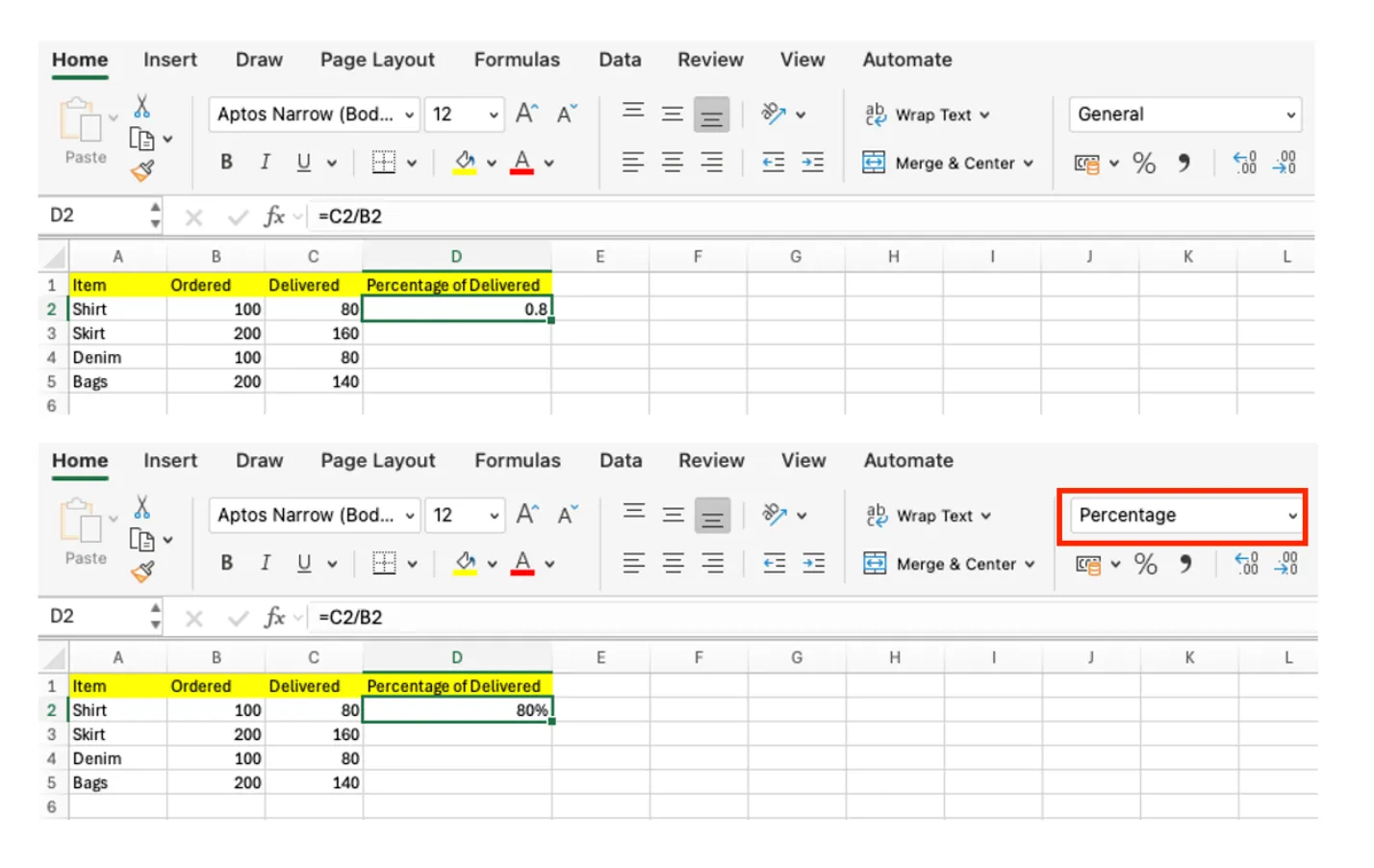
Forgetting this causes the most common percentage error. If your formula is =C2/B2*100, it returns 80, and Percent Style turns that into 8000%. Microsoft's article on formatting numbers as percentages describes the same effect: applying percentage format to a cell that already contains a number multiplies that number by 100. The rule is simple: calculate in decimals, display with formatting. The reverse also works in your favor: format empty cells as Percentage first, and typing 80 stores 0.8 and shows 80%.
Percentage formulas for everyday work
Percent change: (new − old) ÷ old. Month over month and year over year use the same formula. With this year in B and last year in C, it's =(B2-C2)/C2, or equivalently =B2/C2-1. Always divide by the old value. Going from 100 to 120 is a 20% increase; dividing by 120 by mistake gives 16.7%. When the old value is 0, there is no percent change, and Excel returns #DIV/0!.
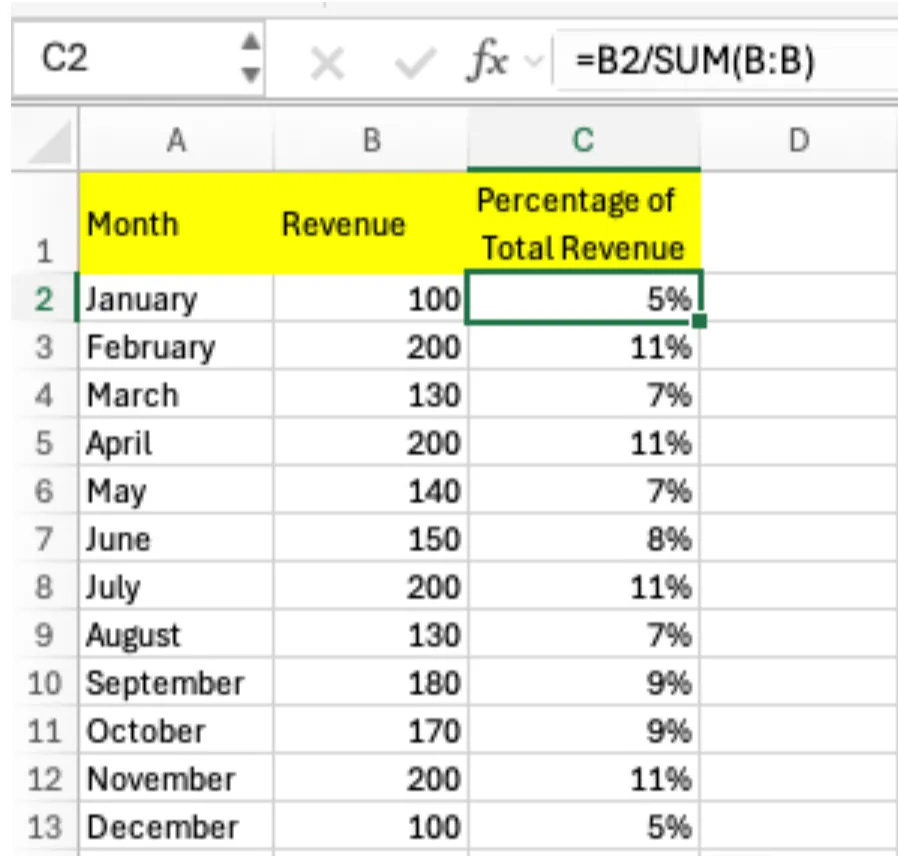
Share of total: value ÷ total. =B2/SUM($B$2:$B$13) locks the total range with $ so it doesn't shift when copied down. The screenshot uses =B2/SUM(B:B), which also survives copying, but if you later add a total row in column B, every share drops by roughly half because the total gets counted twice.
Increase or decrease by a percent: amount × (1 ± rate). A 5% price increase is =B2*(1+5%); a 15% discount is =B2*(1-15%).
Markup vs. margin. They are not the same number. If an item costs $40 and sells for $50, markup is profit over cost, =(50-40)/40, or 25%. Margin is profit over price, =(50-40)/50, or 20%. Label which one a column shows; mixing them up in a pricing sheet sets prices too low.
Sales tax. To add tax, multiply by one plus the rate: $50 at a 7% rate is =50*(1+7%), or $53.50. To back out the pre-tax price from a tax-inclusive total, divide: =53.5/(1+7%) returns $50.
👉 Excel AVERAGE Function: AVERAGEIF and Weighted Averages
Worked example: a monthly supplier review
The purchasing lead at Crestview Foods reviews three suppliers every month. Her sheet has supplier (A), units ordered (B), units delivered (C), this year's spend (D) and last year's spend for the same period (E).
This month: Northgate Supply delivered 2,280 of 2,400 units ordered, with spend of $184,000 against $160,000 last year. Lakeview Distribution delivered 1,350 of 1,500, with $96,000 against $120,000. Ridgeline Manufacturing delivered 832 of 800, with $72,000 against $64,000.
Fill rate. =C2/B2 in F2, filled down: Northgate 95.0%, Lakeview 90.0%, Ridgeline 104.0%. The 104% isn't an error. Ridgeline shipped more than was ordered, which is worth raising because over-deliveries tie up cash and warehouse space.
Spend growth. =IF(E2=0,"New",(D2-E2)/E2) in G2. Northgate is up 15.0%, Lakeview down 20.0%, Ridgeline up 12.5%. The IF handles any supplier with no spend last year, which would otherwise return #DIV/0!.
Share of spend. =D2/SUM($D$2:$D$4) in H2. Total spend is $352,000, so Northgate is 52.3%, Lakeview 27.3% and Ridgeline 20.5%. Those three add to 100.1% because each is rounded to one decimal; the stored values sum to exactly 100%. A footnote saves a question in the meeting.
Flag the outliers. Select the fill-rate column, then Home → Conditional Formatting → Highlight Cells Rules → Less Than and enter 92%. Lakeview turns red. Add a second rule, Greater Than 100%, in a different color for Ridgeline. The meeting now starts with the two suppliers that need a conversation instead of a scan through every row.

Percent vs. percentage points
If the fill rate moves from 80% to 88%, it rose by 8 percentage points, and the rate itself grew by (88 − 80) ÷ 80 = 10%. Both are correct, but they answer different questions. Put the unit in the column header, such as "Fill rate change (pts)" or "Spend growth (%)", so nobody argues about a number that was never in dispute.
Version differences and shortcuts
Every formula here works the same in Excel 2010 and later, Microsoft 365, Excel for Mac and Excel for the web. On a Mac, Percent Style is Command + Shift + %. In Excel for the web, pick Percentage from the number format list on the Home tab. For precise control over decimals, use Format Cells (Ctrl + 1) → Number → Percentage and type the number of decimal places.
When percentages look wrong
Far above 100%. The numerator and denominator are swapped, a percent change divides by the new value, or a share formula's total range shifted when copied. Check the denominator in the formula bar first. Sometimes over 100% is real, as with an over-delivery.
8000% instead of 80%. The formula multiplies by 100 and the format does it again, or the cell already held 80 when the format was applied. Remove *100, or divide the values by 100.
#DIV/0!. The denominator is zero or blank. Decide what to show and wrap the formula in IF or =IFERROR(formula,"-").
0% for small values. The cell shows zero decimals, so 0.4% rounds to 0%. Click Increase Decimal.
FAQ
Q. Can I type the percent sign inside a formula?
Yes. =B2*15% is the same as =B2*0.15. If the rate might change, put it in its own cell and reference it, such as =B2*$F$1.
Q. How do I convert numbers like 80 and 90 into 80% and 90%?
Type 100 in an empty cell and copy it. Select the numbers, open Paste Special, choose Divide under Operation, and click OK. The values become 0.8 and 0.9; then apply Percent Style.
Q. How do I show percent change when the old value was negative?
The formula still runs, but the sign can point the wrong way. For metrics that cross zero, such as a loss turning into a profit, report the dollar change or a label like "turned profitable" instead of a percent.
Q. How do I round a percentage for use in other formulas?
Formatting only rounds the display. To round the stored value, use ROUND: =ROUND(C2/B2,3) keeps three decimals, which is one decimal place as a percentage.
How inline AI handles percentage columns
inline AI adds fill rate, growth and share columns to the workbook you have open, divides each by the right base, and flags rows that would divide by zero or show double-formatted percentages. With ARP, orders, receipts and supplier spend sit in one system, so the monthly review starts from current numbers instead of a fresh spreadsheet.
Hand your documents and your company’s work to inline AI.
Keep a file open, say what you need, and AI edits it or drafts a new one. Add the company AI OS and AI runs the rest of the work, ERP included.
Book a demo