
학습 센터
엑셀 퍼센트 계산 완벽 정리 | 증가율·비율·오류 해결까지 한 번에

엑셀 퍼센트 계산은 가장 기본적인 기능이지만, 실제 업무에서는 가장 자주 실수하는 영역이기도 합니다. 단순히 값을 나누는 것처럼 보이지만, 서식 설정과 계산 방식이 다르기 때문에 결과가 틀어지는 경우가 많습니다. 특히 증가율, 전년 대비, 점유율 같은 실무 계산에서는 더 자주 문제가 발생합니다.
이 글에서는 엑셀 퍼센트 계산 공식부터 증가율 계산, 전체 대비 비율, 그리고 실무에서 자주 발생하는 오류까지 한 번에 정리해드립니다.
엑셀 퍼센트 계산 기본 공식과 표시 방법
엑셀에서 퍼센트를 계산하는 가장 기본적인 방법은 전체 값 대비 일부 값을 나누는 것입니다.
예를 들어 전체가 100이고 일부가 80라면, 80를 100으로 나누면 0.8가 나오고 이를 퍼센트로 표시하면 80%가 됩니다.
이처럼 엑셀에서는 먼저 계산을 하고, 이후 퍼센트 서식을 적용하는 구조로 이해하는 것이 중요합니다.
엑셀 퍼센트 계산 공식 (기본 % 구하기)
기본 퍼센트 계산 공식은 다음과 같습니다.
값 ÷ 전체 값
엑셀에서는
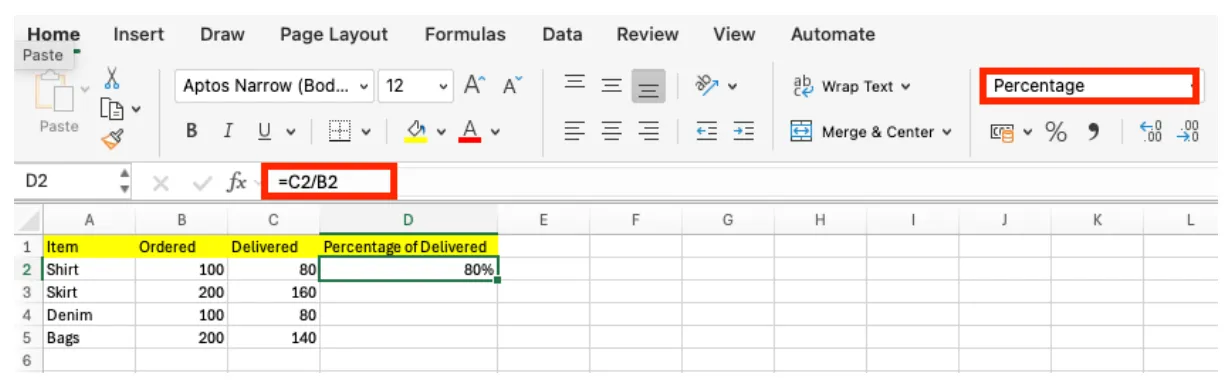
= C2 / B2
형태로 입력하면 됩니다.
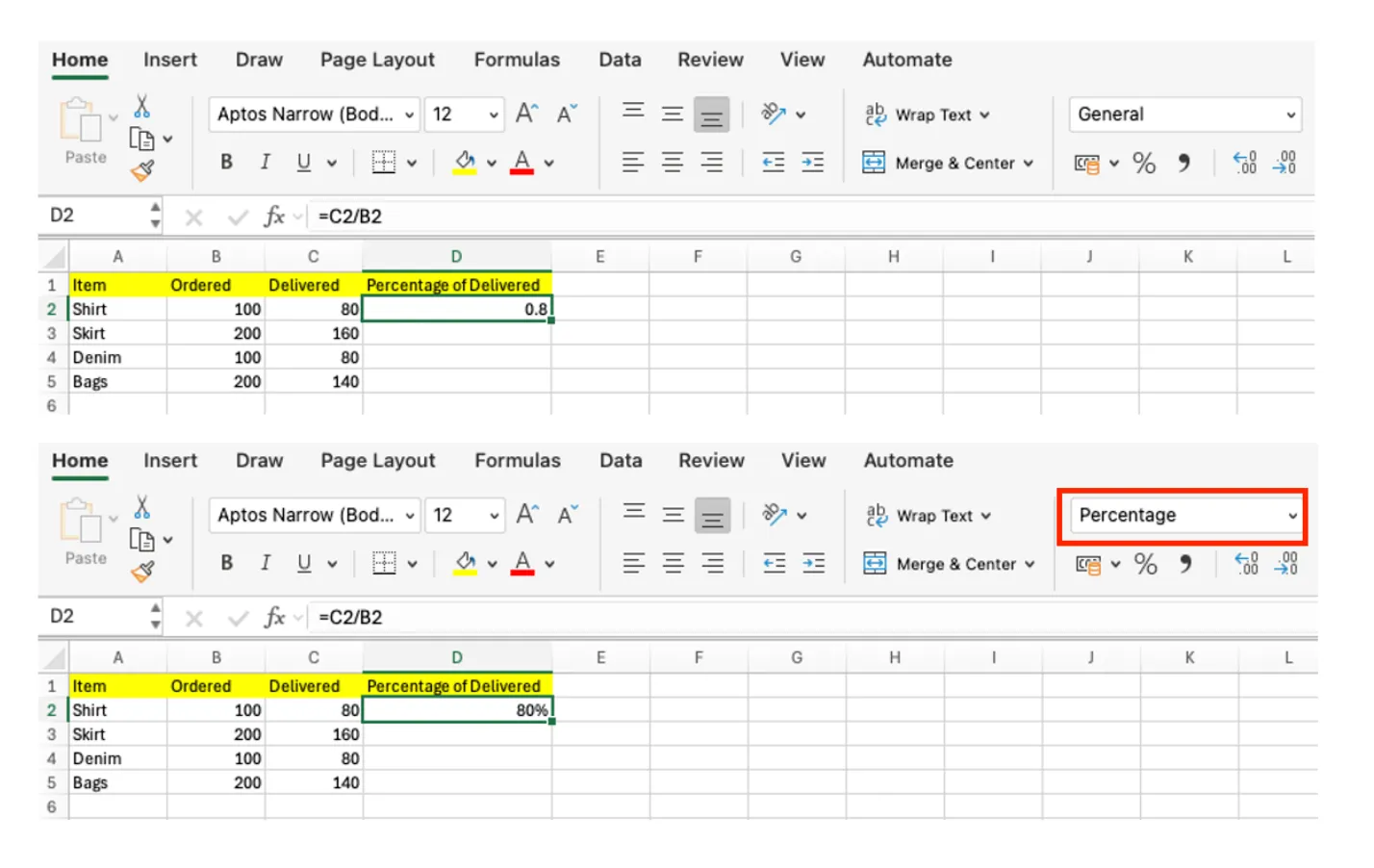
이때 결과는 0.8처럼 소수로 나오는데, 여기에 퍼센트 서식을 적용하면 80%로 표시됩니다.
엑셀 퍼센트 표시 방법 (셀 서식 설정)
계산 결과를 퍼센트로 표시하려면 셀 서식을 변경해야 합니다. 상단 메뉴에서 퍼센트 버튼을 클릭하거나, 셀 서식에서 퍼센트를 선택하면 됩니다.
중요한 점은 퍼센트는 “표시 방식”이라는 것입니다. 값 자체가 바뀌는 것이 아니라, 같은 값을 다른 방식으로 보여주는 것뿐입니다.
예를 들어 0.8에 퍼센트 서식을 적용하면 80%로 보이지만, 실제 값은 여전히 0.8입니다
엑셀 퍼센트 계산이 헷갈리는 이유
많은 사람들이 퍼센트 계산에서 헷갈리는 이유는 “값”과 “서식”을 혼동하기 때문입니다. 이미 퍼센트 서식이 적용된 값에 다시 100을 곱하거나, 반대로 나누기를 해야 하는 상황을 잘못 이해하면 결과가 크게 틀어집니다.
이 개념을 정확히 이해해야 이후 증가율이나 비율 계산에서도 오류를 줄일 수 있습니다.
엑셀 증감율 계산 방법 (전년 대비, 전월 대비)
실무에서 가장 많이 사용하는 퍼센트 계산은 증감율입니다. 특히 전년 대비, 전월 대비 같은 비교 분석에서 필수적으로 사용됩니다.
엑셀 증감율 계산 공식
증감율 계산 공식은 다음과 같습니다.
(현재 값 - 이전 값) ÷ 이전 값
엑셀에서는
= (B1 - A1) / A1
형태로 입력하면 됩니다.
이 공식을 사용하면 값이 얼마나 증가했는지를 퍼센트로 확인할 수 있습니다.
엑셀 전년 대비 / 전월 대비 계산하는 방법
전년 대비나 전월 대비 계산도 동일한 방식입니다.
기준이 되는 값이 무엇인지에 따라 이전 값만 정확히 설정하면 됩니다.
예를 들어 2024년 매출이 C열, 2025년 매출이 B열이라면
= (B2 - C2) / C2
로 계산하면 전년 대비 증감율이 됩니다.
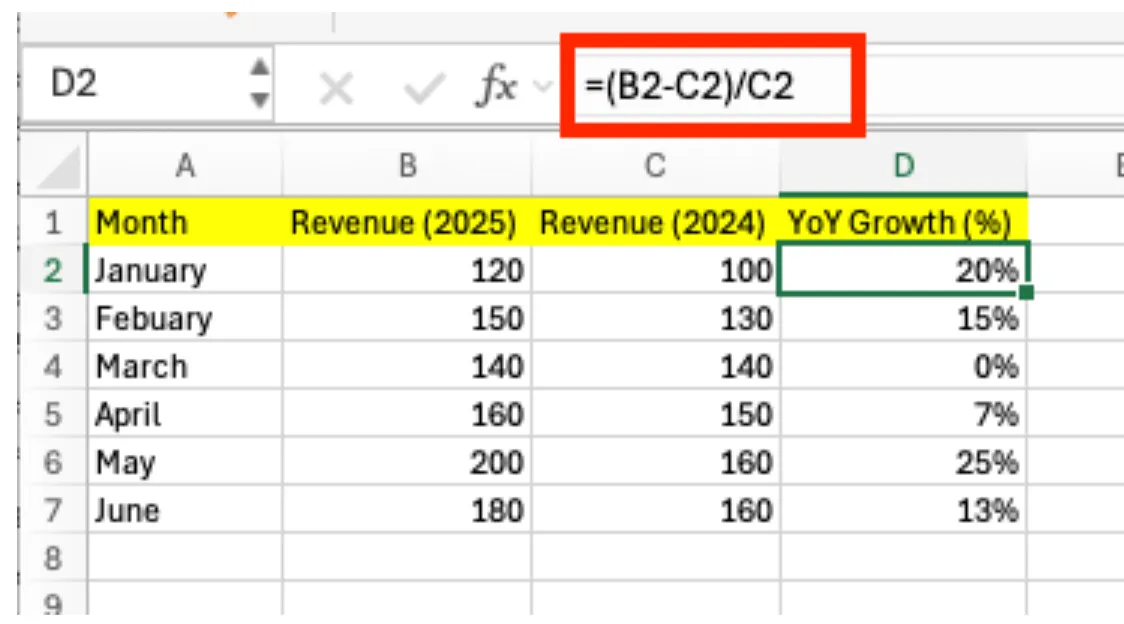
이때 기준값을 잘못 선택하면 결과가 완전히 달라지기 때문에.
반드시 “나누는 값은 이전 값”이라는 점을 기억해야 합니다.
엑셀 증감률 계산 시 자주 틀리는 케이스
증감률 계산에서 가장 많이 발생하는 실수는 기준값을 반대로 설정하는 경우입니다.
현재 값을 기준으로 나누면 완전히 다른 결과가 나오게 됩니다.
또한 음수 값이 포함된 경우에는 증가율이 직관과 다르게 보일 수 있기 때문에 해석에도 주의가 필요합니다.
엑셀 전체 대비 비율 계산 (점유율 구하기)
전체 대비 비율, 즉 점유율 계산도 퍼센트 계산의 중요한 활용입니다.
부서별 매출 비중이나 카테고리별 점유율을 분석할 때 자주 사용됩니다.
엑셀 비율 계산 공식 (전체 대비 퍼센트)
전체 대비 비율은 다음과 같이 계산합니다.
개별 값 ÷ 전체 합계
엑셀에서는
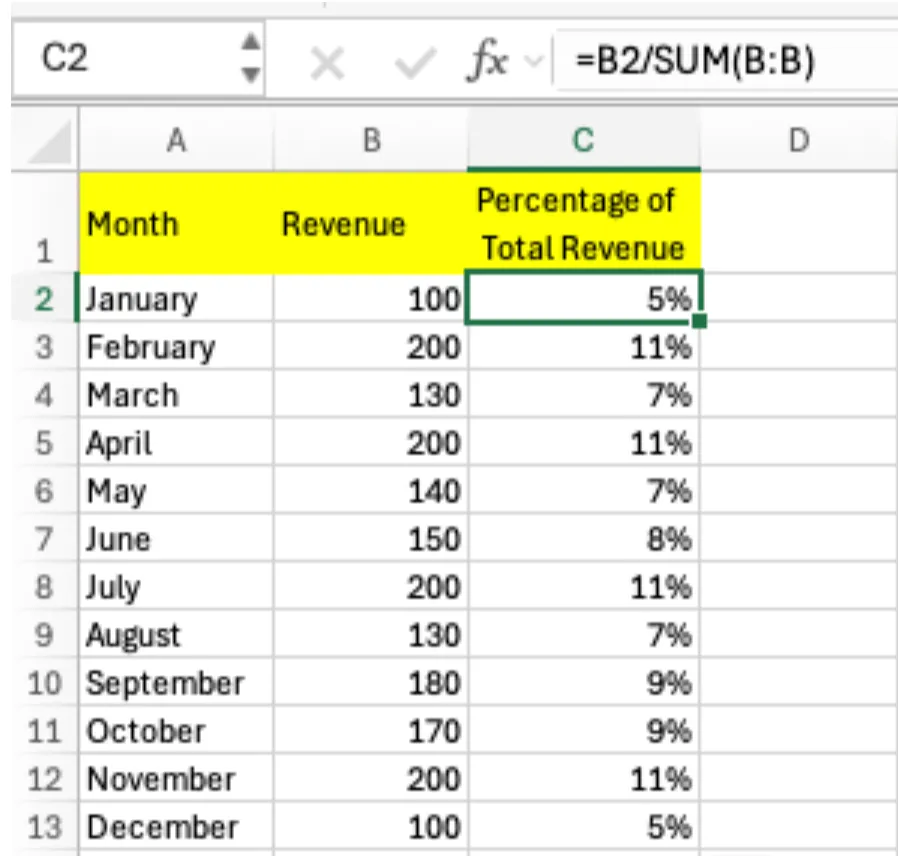
= A1 / SUM(A:A)
형태로 사용할 수 있습니다.
이렇게 계산하면 각 값이 전체에서 차지하는 비율을 퍼센트로 확인할 수 있습니다.
엑셀 점유율 계산 실무 예시
예를 들어 상품별 매출 데이터가 있다면, 각 상품 매출을 전체 매출로 나누면 점유율을 구할 수 있습니다. 이 값을 퍼센트로 표시하면 직관적인 비교가 가능합니다.
이 방식은 마케팅, 영업, 재무 등 거의 모든 부서에서 활용되는 핵심 계산 방식입니다.
엑셀 퍼센트 계산이 틀리는 이유 (실무에서 가장 많이 막히는 부분)
엑셀 퍼센트 계산이 틀리는 대부분의 이유는 계산식 자체가 아니라 설정과 개념에서 발생합니다.
엑셀 퍼센트 계산 안될 때 확인할 것
퍼센트가 이상하게 나올 때는 먼저 수식이 아니라 셀 서식을 확인해야 합니다.
이미 퍼센트 서식이 적용된 상태에서 계산을 진행하면 값이 예상과 다르게 보일 수 있습니다.
서식만 바꾸고 값은 안 바뀌는 문제
퍼센트 서식은 단순히 표시만 바꾸는 기능입니다.
값 자체를 변경하지 않기 때문에 계산 결과가 틀린 것처럼 보일 수 있습니다.
이 부분을 이해하지 못하면 퍼센트 계산 오류가 반복적으로 발생합니다.
퍼센트가 100% 넘거나 이상하게 나오는 이유
퍼센트가 100%를 넘는 경우는 대부분 기준값 설정이 잘못된 경우입니다.
특히 증가율 계산에서 나누는 값을 잘못 입력하면 비정상적으로 큰 값이 나오게 됩니다.
이 문제는 계산 공식보다 “기준값”을 다시 확인하는 것이 핵심입니다.
엑셀 퍼센트 계산, 반복 작업이 문제라면
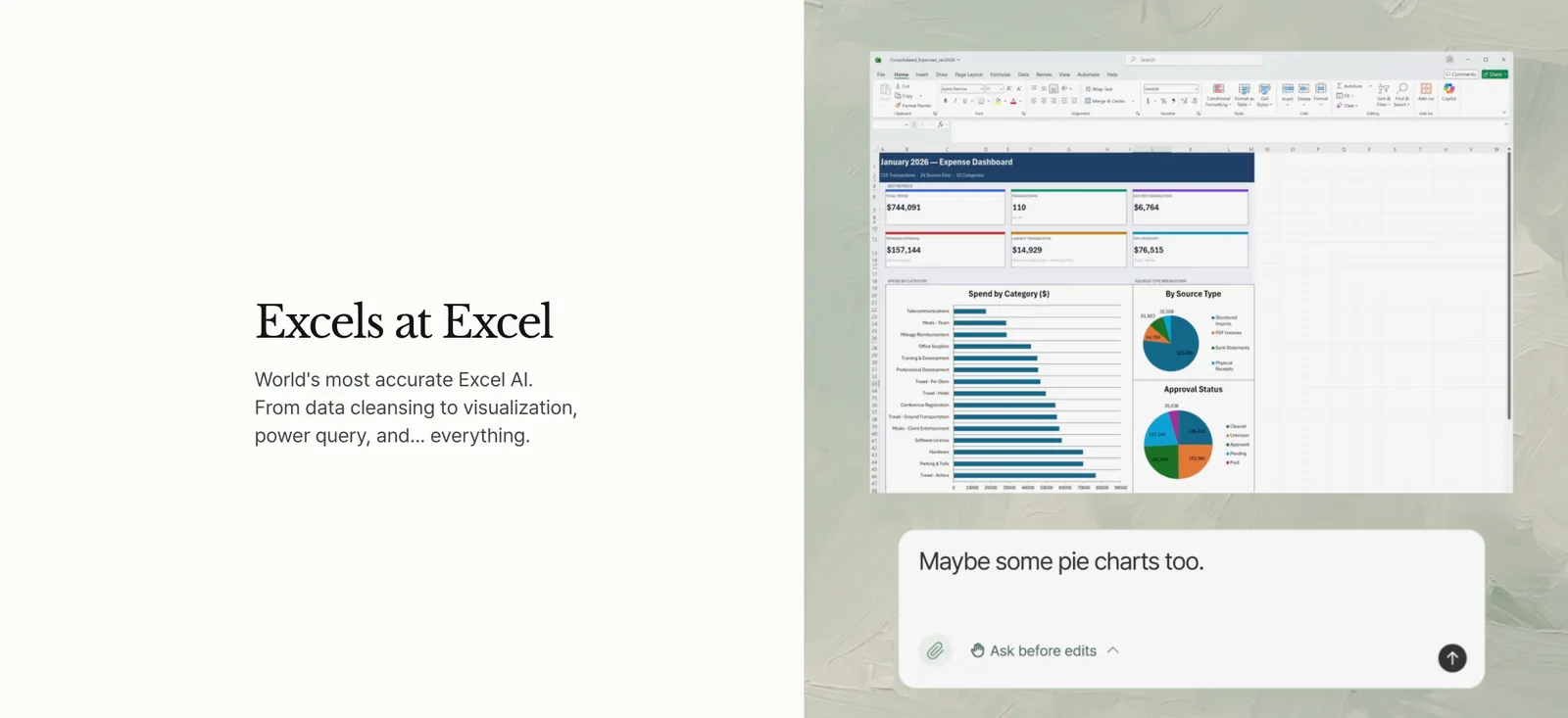
퍼센트 공식을 이해했더라도, 실제 업무에서는 수십 개의 셀에 동일한 수식을 반복 입력하고 서식까지 하나하나 설정해야 하는 경우가 많습니다. 데이터가 많아질수록 이 반복 작업이 쌓여 생각보다 많은 시간을 소모하게 됩니다.
이런 반복 작업을 줄이고 싶다면 inline AI 활용을 고려해볼 수 있습니다. 표 구조를 자동으로 인식해 퍼센트 계산, 증감률, 점유율 수식을 자동으로 생성해주기 때문에 직접 공식을 입력할 필요가 없습니다.
매출 데이터 정리처럼 반복적인 작업이 많은 경우에도 데이터 구조 기반으로 비율과 증감률을 자동 계산해줘 작업 속도와 정확도를 동시에 높일 수 있습니다.
엑셀 퍼센트 계산에 매번 시간을 쏟고 있다면, inline AI로 반복 작업을 줄이고 더 중요한 업무에 집중해보세요.
우리 회사에서 에이전트가 맡을 업무, 30분 상담으로 확인하세요.