

블로그
엑셀 평균 구하기, AVERAGE부터 가중평균까지

엑셀 평균 구하기는 =AVERAGE(범위) 하나로 시작하지만, 평균이 틀리는 원인은 함수보다 데이터에 있는 경우가 대부분입니다. 빈 칸은 빠지고 0은 들어가며, 텍스트로 저장된 숫자는 조용히 무시되고, 수량이 다른 입고 건의 단가를 그냥 평균 내면 실제 매입단가보다 10% 가까이 높게 나오기도 합니다. 이 숫자가 원가 계산과 견적에 그대로 들어가면 한 품목에서만 연간 수백만 원의 차이가 납니다. 상황별로 맞는 평균 함수와, 평균 매입단가를 처음부터 끝까지 계산하는 예시를 따라 할 수 있습니다.
엑셀 평균 구하는 가장 빠른 방법 세 가지
상태 표시줄 보기. 숫자가 든 범위를 선택하면 화면 오른쪽 아래 상태 표시줄에 평균, 개수, 합계가 바로 나옵니다. 수식을 넣지 않고 숫자만 확인할 때 가장 빠릅니다. 평균이 보이지 않으면 상태 표시줄을 마우스 오른쪽 단추로 눌러 평균을 체크합니다.
자동 합계 메뉴. 평균을 넣을 칸을 선택하고 홈 탭 편집 그룹의 자동 합계(Σ) 옆 화살표를 눌러 평균을 고르면, 엑셀이 위쪽이나 왼쪽 숫자 범위를 잡아 AVERAGE 수식을 넣어 줍니다. 잡힌 범위가 맞는지 확인하고 Enter를 누릅니다.
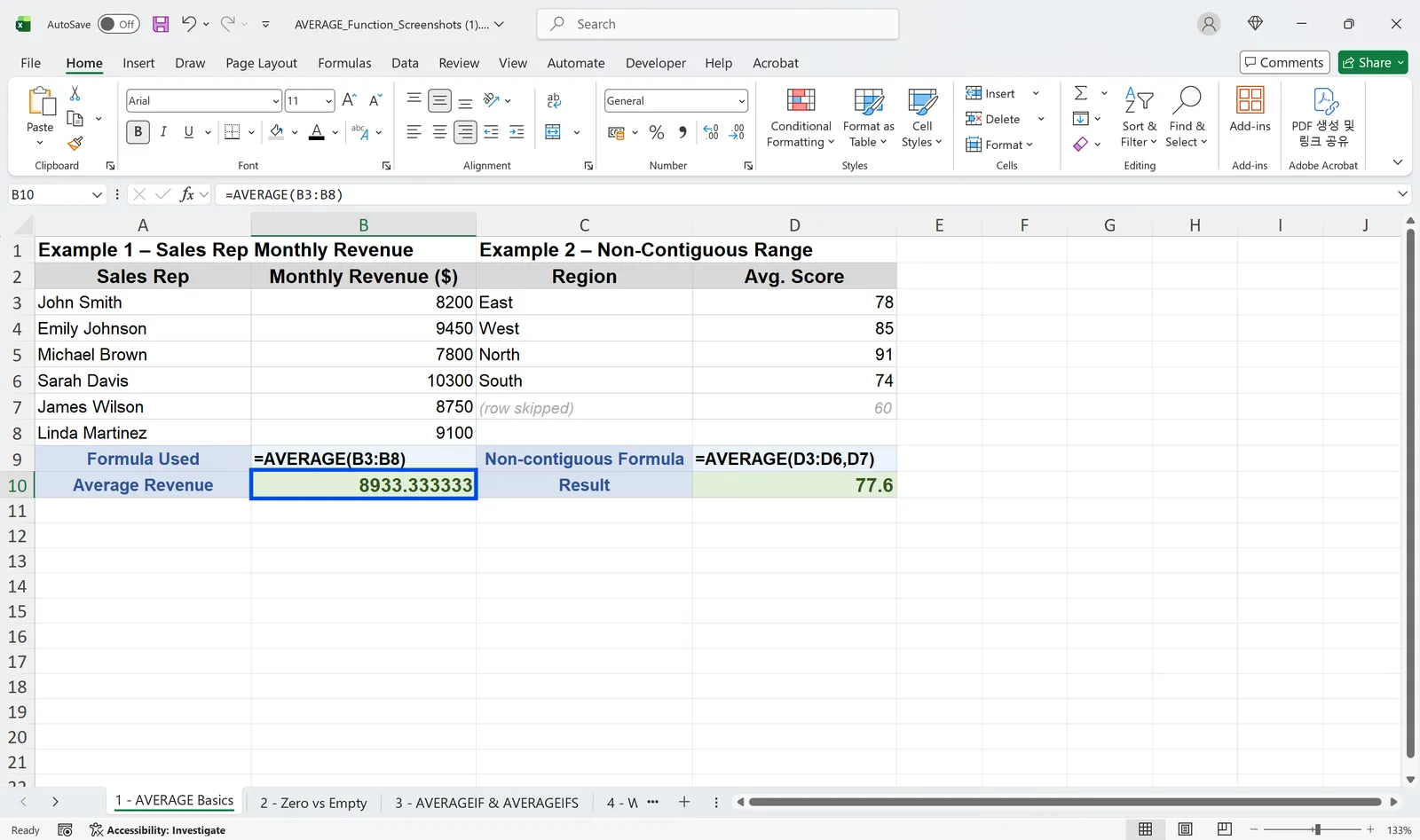
AVERAGE 함수 직접 입력. =AVERAGE(B3:B8)처럼 범위를 넣습니다. 떨어진 범위도 쉼표로 이어 넣을 수 있습니다. 아래 화면은 영업 담당자 6명의 월 매출 평균 8,933.33과, 다섯 지역 점수 중 네 칸과 한 칸을 나눠 넣은 평균 77.6을 구한 예입니다.
빈 칸은 빠지고 0은 들어갑니다
Microsoft의 AVERAGE 함수 도움말에 따르면 범위나 셀 참조 안의 텍스트, 논리값, 빈 셀은 계산에서 무시되지만 값이 0인 셀은 포함됩니다. 인수는 최대 255개까지 넣을 수 있습니다. 실무에서 평균이 이상하게 나오는 가장 흔한 이유가 이 규칙입니다.
아래 화면에서 왼쪽 표는 시험을 보지 않은 두 사람을 빈 칸으로 두었고, 오른쪽 표는 0을 넣었습니다. 같은 사람들인데 왼쪽은 네 칸만 세어 평균 63.75, 오른쪽은 여섯 칸을 세어 42.5가 나옵니다.
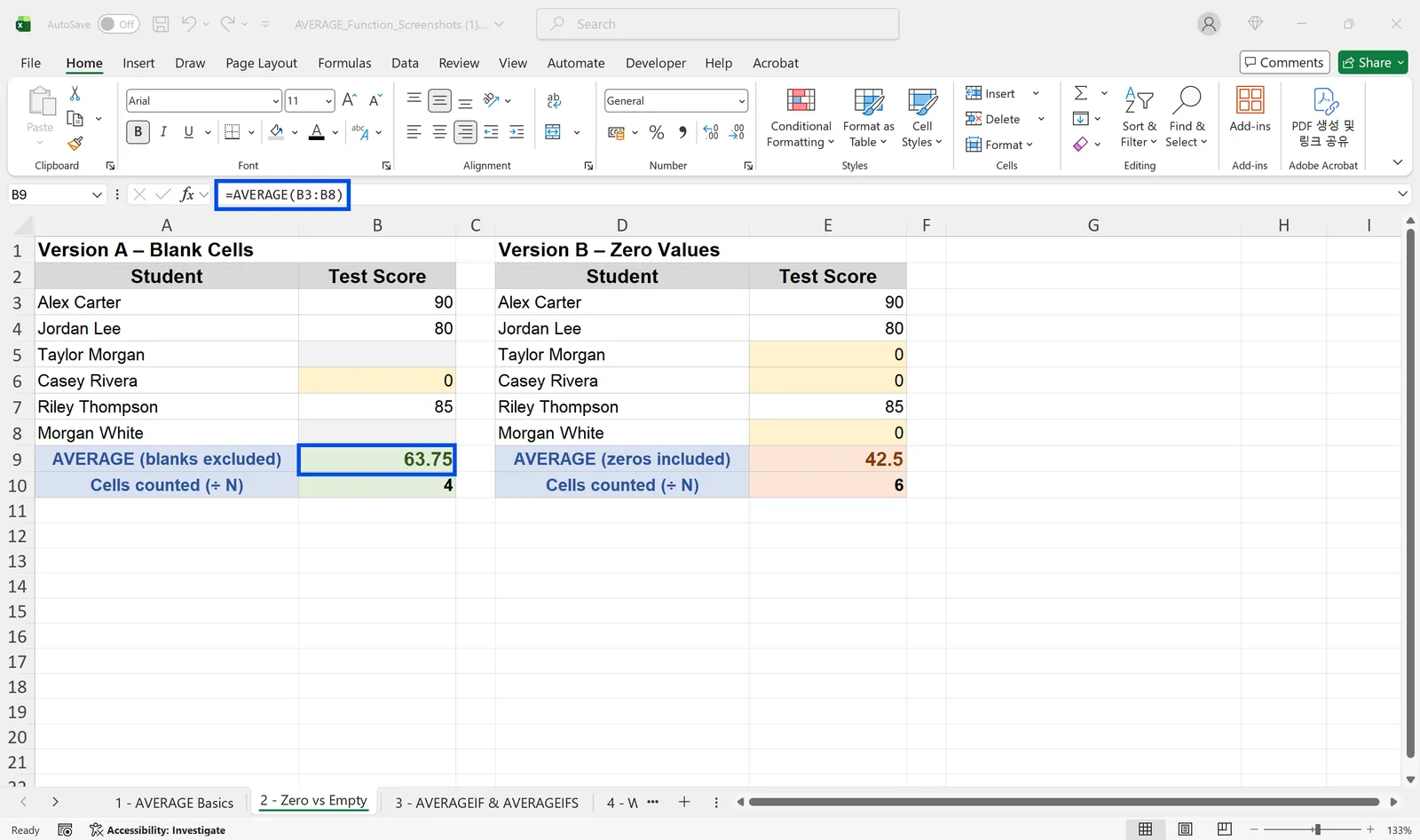
어느 쪽이 맞는지는 데이터의 뜻에 달려 있습니다. "아직 입력 안 함"은 빈 칸으로, "실제로 0"은 0으로 입력하는 것이 원칙입니다. 이미 섞여 있는 데이터에서 0을 빼고 평균을 내려면 =AVERAGEIF(B3:B8,">0")을 씁니다. 빈 칸과 0을 모두 빼는 결과가 됩니다.
AVERAGEA는 반대로 동작합니다. 범위 안의 텍스트를 0, TRUE를 1로 세어 넣으므로, "미입고"나 "해당 없음" 같은 글자가 섞인 열에 쓰면 평균이 크게 낮아집니다. 대부분의 업무 데이터에는 AVERAGE가 맞습니다.
조건부 평균: AVERAGEIF와 AVERAGEIFS
조건이 하나면 AVERAGEIF, 둘 이상이면 AVERAGEIFS를 씁니다. 두 함수는 인수 순서가 다르니 주의합니다.
AVERAGEIF는 조건 범위, 조건, 평균 낼 범위 순서입니다. 부서(B열)가 영업인 사람의 점수(C열) 평균은 =AVERAGEIF(B3:B12,"Sales",C3:C12)입니다. AVERAGEIFS 함수 도움말에 나오는 구문처럼 AVERAGEIFS는 평균 낼 범위가 맨 앞에 오고, 그 뒤에 조건 범위와 조건이 짝을 지어 이어집니다. 영업팀이면서 점수가 80 이상인 사람의 평균은 =AVERAGEIFS(C3:C12,B3:B12,"Sales",C3:C12,">=80")입니다.
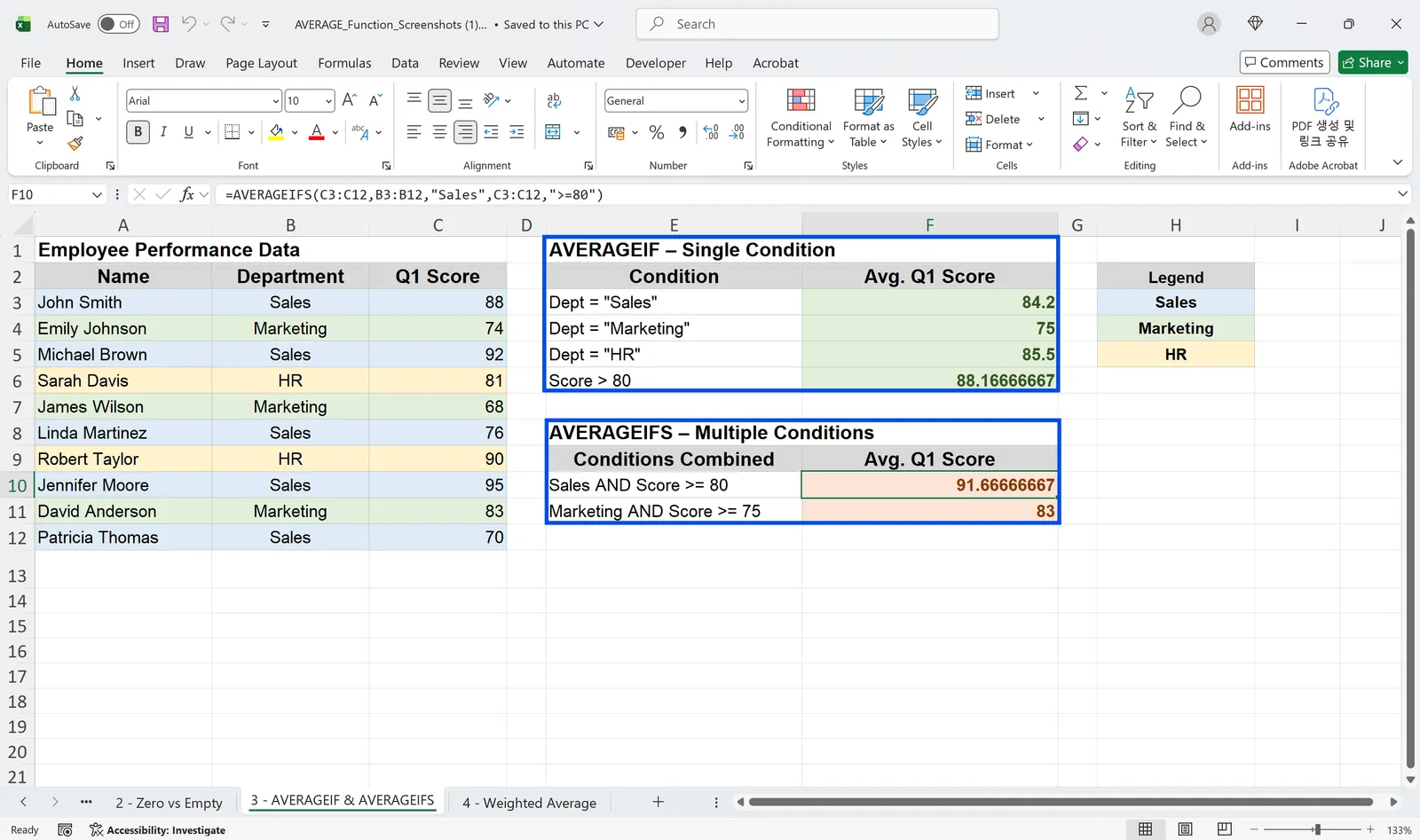
화면의 영업팀 점수는 88, 92, 76, 95, 70이라 평균이 84.2이고, 이 중 80점 이상인 88, 92, 95만 평균 내면 91.67입니다. 조건에 맞는 값이 하나도 없으면 두 함수 모두 #DIV/0! 오류를 냅니다. 조건 글자는 셀에 적힌 값과 정확히 같아야 하고, 앞뒤에 공백이 섞인 "영업팀 "은 다른 값으로 취급됩니다.
가중평균: 평균의 평균은 틀립니다
인원이나 수량이 다른 그룹의 평균을 다시 평균 내면 전체 평균과 어긋납니다. 아래 화면은 네 지역 팀의 인원과 1인당 평균 거래액입니다. 네 팀 평균을 그냥 평균 내면 7,875가 나오지만, 인원이 30명인 동부 팀과 5명인 남서부 팀을 같은 무게로 센 숫자입니다. 인원을 가중치로 쓴 =SUMPRODUCT(B3:B6,C3:C6)/SUM(B3:B6)은 7,930.77로, 이것이 65명 전체의 실제 평균입니다.
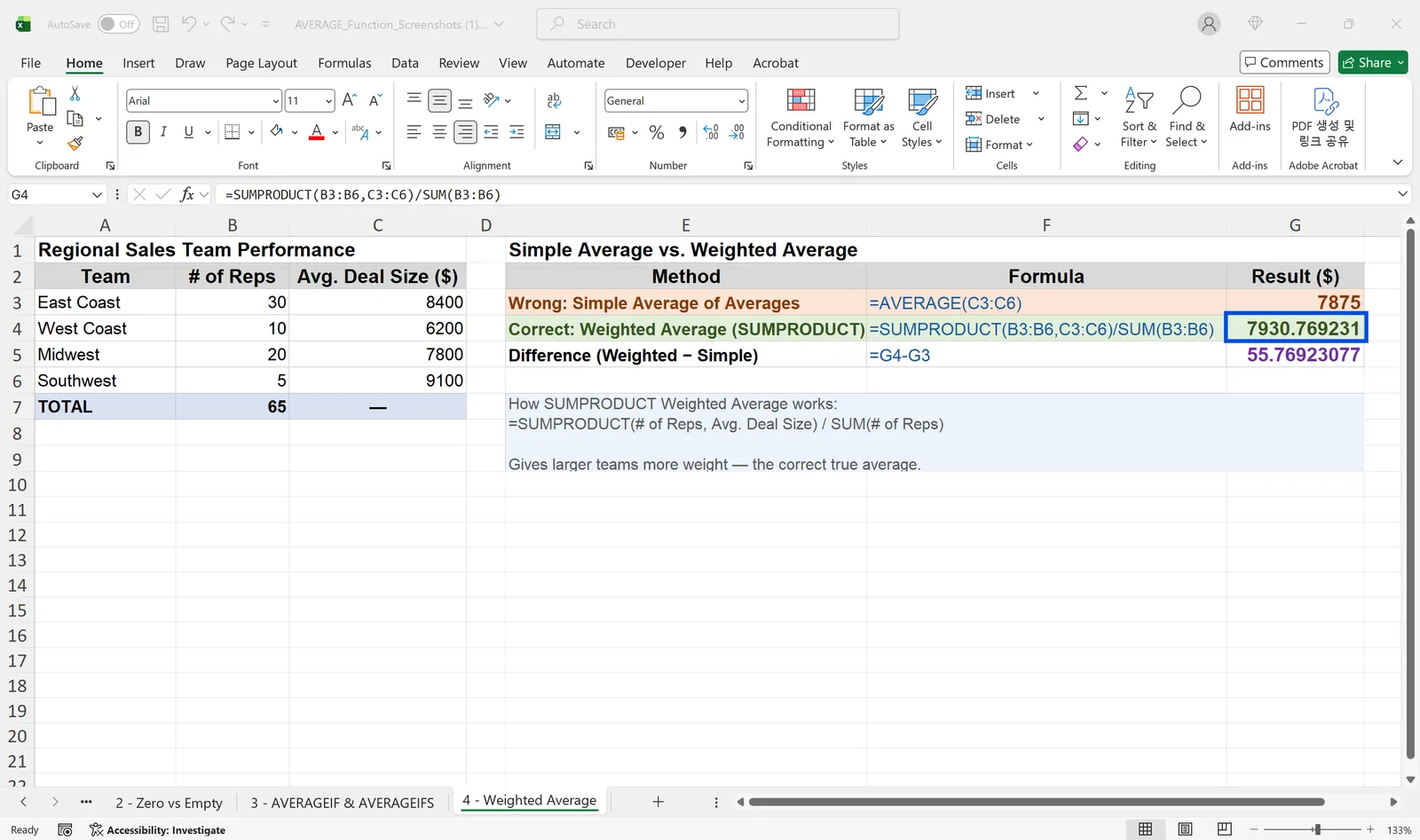
SUMPRODUCT는 두 범위를 행마다 곱해 모두 더합니다. 이것을 가중치 합계로 나누면 가중평균이 됩니다. 매입단가라면 값은 단가, 가중치는 수량입니다.
따라 하기: 3분기 평균 매입단가 계산
우진테크 구매 담당자가 원가 검토를 위해 베어링 6204의 3분기 평균 매입단가를 구하는 경우입니다. 입고 내역 시트에는 입고일, 공급처, 수량, 단가가 건마다 한 줄씩 있습니다. 3분기 입고는 네 건입니다. 세진물산에서 100개를 1,200원에, 500개를 1,050원에, 급하게 다른 공급처에서 50개를 1,500원에, 다시 세진물산에서 350개를 1,100원에 받았습니다. 여기에 무상 샘플 20개가 단가 0원으로 한 줄 더 있습니다.
먼저 =AVERAGE(단가 범위)를 넣으면 970원이 나옵니다. 무상 샘플의 0원이 다섯 번째 값으로 들어갔기 때문입니다. 샘플은 매입이 아니므로 =AVERAGEIF(단가 범위,">0")으로 바꾸면 1,212.5원이 됩니다.
그런데 이 1,212.5원도 실제 매입단가가 아닙니다. 50개만 산 1,500원짜리 건이 500개를 산 1,050원짜리 건과 같은 무게로 들어갔기 때문입니다. 실제로 쓴 돈은 120,000원, 525,000원, 75,000원, 385,000원을 더한 1,105,000원이고, 받은 수량은 1,000개입니다. =SUMPRODUCT(수량 범위,단가 범위)/SUMIF(단가 범위,">0",수량 범위)로 계산하면 1,105원이 나옵니다. 분모에 SUMIF를 쓴 이유는 무상 샘플 20개를 수량 합계에서 빼기 위해서입니다. 샘플 행의 단가가 0이므로 분자에는 영향이 없습니다.
단순 평균 1,212.5원과 가중평균 1,105원의 차이는 107.5원, 약 9.7%입니다. 이 품목을 1년에 12,000개 쓴다면 단순 평균으로 원가를 잡을 때 연간 1,290,000원을 더 높게 잡는 셈이고, 그만큼 견적 경쟁력이 떨어집니다. 담당자는 검토표에 가중평균을 쓰고, 옆 열에 단순 평균을 함께 두어 급구매 건이 단가를 얼마나 흔들었는지 보여 줍니다.
👉 엑셀 표준편차 구하기, STDEV.S와 STDEV.P 차이
튀는 값이 있을 때: 절사평균과 중앙값
급구매 한 건이나 대량 특가 한 건처럼 튀는 값이 평균을 끌고 갈 때는 다른 대표값을 함께 봅니다. TRIMMEAN은 위아래 끝의 일정 비율을 잘라 내고 평균을 냅니다. =TRIMMEAN(범위,0.2)는 데이터 중 20%를 위아래 절반씩 빼고 나머지로 평균을 냅니다. MEDIAN은 값을 크기순으로 세웠을 때 한가운데 값입니다. 앞 예시의 단가 네 개(1,050, 1,100, 1,200, 1,500원)의 중앙값은 1,150원입니다. 평균과 중앙값의 차이가 크면 튀는 값이 있다는 신호입니다.
이동 평균으로 사용량 추세 보기
발주량을 정할 때는 전체 기간 평균보다 최근 몇 달의 평균이 더 쓸모 있습니다. 이동 평균은 기간을 한 칸씩 밀면서 같은 길이의 평균을 내는 방법입니다. 월별 사용량이 B2부터 1,000, 1,200, 900, 1,300, 1,100, 1,400개라면 C4에 =AVERAGE(B2:B4)를 넣고 아래로 채웁니다. 상대참조라 범위가 한 칸씩 내려가면서 1,033.3, 1,133.3, 1,100, 1,266.7개가 나옵니다. 월별 숫자는 오르내리지만 3개월 이동 평균은 꾸준히 오르고 있어, 다음 달 발주를 1,300개 안팎으로 잡을 근거가 됩니다.
차트로 보고 싶다면 꺾은선 차트를 선택하고 차트 요소에서 추세선 → 기타 옵션을 연 뒤 이동 평균을 고르고 구간을 3으로 정합니다. 데이터 분석 도구의 이동 평균 메뉴도 같은 계산을 하지만 결과가 값으로 들어가므로, 매달 갱신할 표라면 수식이 편합니다.
버전별 차이
AVERAGE, AVERAGEA, AVERAGEIF, SUMPRODUCT, TRIMMEAN, MEDIAN은 Excel 2007 이후 모든 버전과 Mac용, 웹용 Excel에서 같은 이름으로 동작합니다. AVERAGEIFS도 Excel 2007부터 있습니다. 조건에 맞는 행만 골라 가중평균을 내는 식을 더 짧게 쓰고 싶다면 Microsoft 365와 Excel 2021 이후의 FILTER 함수를 SUMPRODUCT 안에 넣을 수 있지만, 거래처와 주고받는 파일에는 SUMIFS와 SUMPRODUCT 조합이 무난합니다.
평균 결과를 다듬을 때
소수점 정리. 셀 서식으로 소수 자릿수를 줄이면 화면에만 반올림되고 실제 값은 그대로 남습니다. 다른 계산에 반올림한 값을 써야 한다면 =ROUND(AVERAGE(범위),0)처럼 ROUND로 감쌉니다.
#DIV/0! 오류. 평균 낼 숫자가 하나도 없을 때 납니다. 범위가 비었거나, 숫자가 모두 텍스트로 저장되었거나, 조건에 맞는 행이 없는 경우입니다. 원인을 확인한 뒤 화면 표시만 바꾸려면 =IFERROR(AVERAGEIF(...),"해당 없음")처럼 감쌉니다.
평균이 생각보다 높습니다. 텍스트로 저장된 작은 값이 빠졌을 수 있습니다. 상태 표시줄에 숫자 셀 수를 체크해 두고 범위를 선택해 개수와 비교하면 몇 칸이 빠졌는지 바로 보입니다.
범위에 #N/A 같은 오류가 섞여 있습니다. AVERAGE는 범위 안에 오류가 하나라도 있으면 그 오류를 그대로 돌려줍니다. 오류 행을 고치기 어렵다면 =AGGREGATE(1,6,범위)를 씁니다. 첫 인수 1은 평균, 두 번째 인수 6은 오류 값을 무시하라는 뜻입니다. 다만 오류가 생긴 원인(조회 실패, 0으로 나누기)은 따로 확인해 두어야 평균에서 빠진 건이 무엇인지 설명할 수 있습니다.
필터로 걸러 낸 행만 평균 내고 싶습니다. AVERAGE는 숨겨진 행까지 계산합니다. 보이는 행만 평균 내려면 =SUBTOTAL(101,범위)를 씁니다. 101은 숨긴 행을 빼고 평균을 내라는 뜻입니다. 공급처를 바꿔 가며 필터를 걸 때마다 그 공급처의 평균이 바로 바뀝니다. 상태 표시줄의 평균도 보이는 셀만 계산하므로, 함수 결과와 상태 표시줄 값이 다르면 숨겨진 행부터 확인합니다.
엑셀 평균 구하기 자주 묻는 질문 (FAQ)
Q. AVERAGE 결과와 손으로 계산한 값이 다르면 무엇부터 보나요?
빈 칸, 0, 텍스트로 저장된 숫자를 확인합니다. =COUNT(범위)로 실제 계산에 들어간 숫자 개수를 보고, 손으로 센 개수와 비교하면 원인이 바로 나옵니다.
Q. 0을 빼고 평균을 내려면 어떻게 하나요?
=AVERAGEIF(범위,">0")을 씁니다. 음수가 있는 데이터라면 =AVERAGEIF(범위,"<>0")으로 0만 뺍니다.
Q. 피벗 테이블에서도 평균을 낼 수 있나요?
있습니다. 값 영역의 필드를 누르고 값 필드 설정에서 값 요약 기준을 평균으로 바꿉니다. 이 평균은 원본 행 기준 단순 평균이므로 가중평균이 필요하면 금액 합계를 수량 합계로 나누는 계산 필드나 별도 수식을 씁니다.
Q. 여러 시트에 걸친 같은 칸의 평균을 내려면요?
=AVERAGE(1월:12월!B5)처럼 첫 시트와 마지막 시트 이름을 콜론으로 이으면, 그 사이 모든 시트의 B5 평균을 구합니다.
inline AI로 평균 매입단가 계산하기
inline AI는 열어 둔 입고 내역에서 무상 건과 빈 단가를 먼저 찾아 빼고, 수량 가중평균 매입단가를 품목별로 계산해 단순 평균과 나란히 보여 줍니다. ARP를 함께 쓰면 입고 단가가 원가와 BOM 계산으로 이어져, 제품 구성이 바뀌어도 사야 할 자재와 원가가 바로 나옵니다.
inline AI에게 문서 작업부터 회사 업무까지 맡기세요.
회사 파일을 연 채 말로 맡기면 AI가 문서를 바로 고치고 새로 만듭니다. 회사용 AI OS까지 함께 쓰면 ERP를 비롯한 회사 업무 전체를 AI가 처리합니다.
도입 상담