
학습 센터
엑셀 조건부 서식이란? 기본 개념과 설정 방법

엑셀 작업이 방대해져서 데이터가 수백 행을 넘어가면 중요한 값을 눈으로 찾는 것만으로도 시간이 걸립니다.
엑셀 조건부 서식(Conditional Formatting)은 셀의 값이나 수식 결과에 따라 색, 글꼴, 아이콘 등 서식을 자동으로 바꿔 주는 기능입니다. 기준만 한 번 정해 두면 값이 바뀔 때마다 실시간으로 갱신됩니다.
이 글에서는 엑셀 조건부 서식의 기본 개념과 작동 방식, 사용 방법 등을 총정리합니다.
엑셀 조건부 서식 메뉴 여는 법
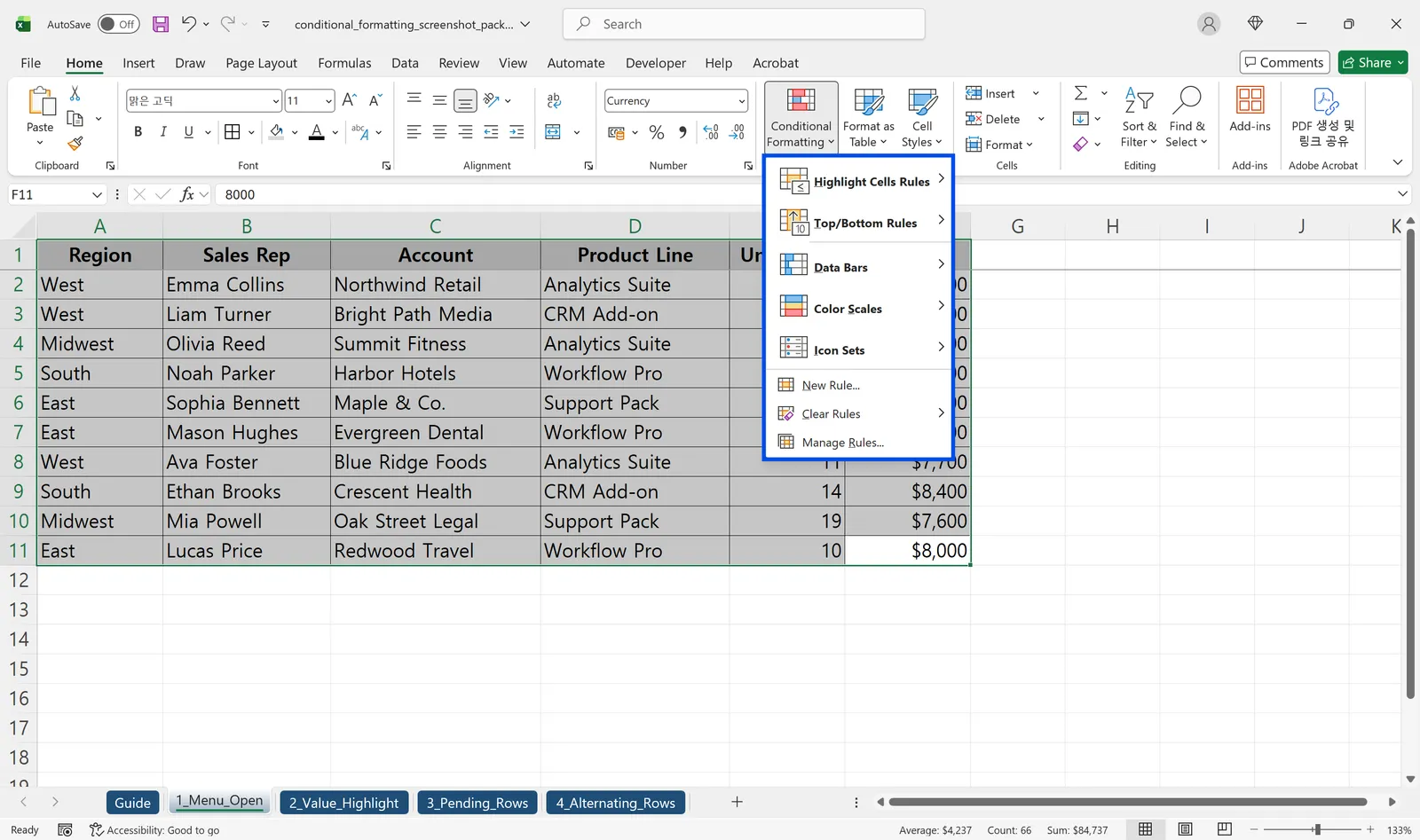
- 서식을 적용할 셀 범위를 드래그해 선택합니다.
- [홈] 탭 → [스타일] 그룹 → [조건부 서식] 버튼을 클릭합니다.
- 세밀한 설정이 필요하다면 [새 규칙]을 눌러 '새 서식 규칙' 대화상자를 엽니다.
엑셀 조건부 서식 규칙 유형에는 무엇이 있나요?
기본 제공 엑셀 서식 규칙은 셀 강조 규칙(크다/작다/텍스트 포함 등), 상위/하위 규칙, 데이터 막대, 색조, 아이콘 집합, 수식 사용으로 나뉩니다. 처음에는 셀 강조 규칙부터 익히고, 수식 사용 옵션은 기본에 익숙해진 뒤 도전하는 것을 추천합니다.
특정 값, 텍스트, 날짜로 엑셀 셀 강조하기
엑셀 셀 강조를 위한 가장 기본적인 방법은 [조건부 서식] → [셀 강조 규칙] 메뉴를 활용하는 것입니다. 숫자라면 '보다 큼/작음', 텍스트라면 '텍스트 포함', 날짜라면 '발생 날짜' 옵션을 선택한 뒤 기준값만 입력하면 됩니다.
숫자 조건으로 셀 강조하기 (예: 100 이상이면 빨간색)
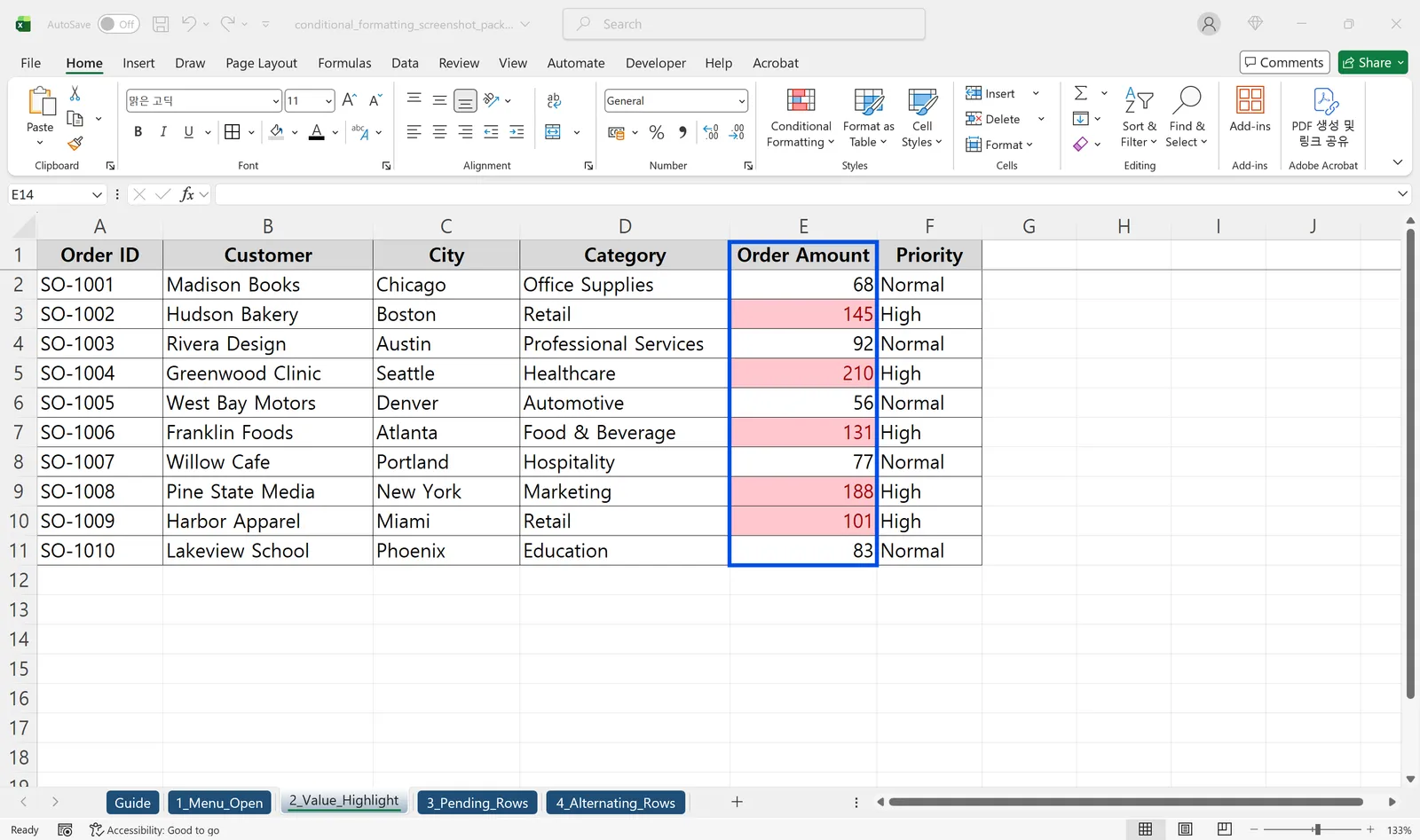
[조건부 서식] → [셀 강조 규칙] → [보다 큼]을 클릭한 뒤, 대화상자에 기준값 '100'을 입력하고 서식을 지정합니다. 기준값 자리에 셀 참조(예: $C$1)를 넣으면 기준 셀의 값이 바뀔 때마다 강조 기준도 함께 업데이트됩니다. 엑셀 셀 강조 방법 중 엑셀 특정 값 색 변경을 반복 작업 없이 처리하는 가장 간단한 방법입니다.
특정 텍스트가 포함된 셀 강조하기
[조건부 서식] → [셀 강조 규칙] → [텍스트 포함]을 클릭한 뒤 '긴급', '오류', 'VIP' 같은 키워드를 입력합니다. 셀 전체가 아닌 텍스트 안에 포함만 되어 있으면 조건을 만족해 자동으로 강조됩니다. 메모나 상태 열 관리에 특히 유용합니다.
날짜 조건 강조 (오늘 기준, 지난 7일 등)
[조건부 서식] → [셀 강조 규칙] → [발생 날짜]를 클릭하면 '어제', '오늘', '지난 7일', '이번 주' 등 미리 정의된 옵션을 바로 쓸 수 있습니다. 오늘 날짜 기준으로 자동 계산됩니다. 더 복잡한 조건은 =AND($B2<TODAY(),$C2<>"완료")처럼 수식으로 구현할 수 있습니다.
수식으로 행 전체를 조건에 따라 색칠하는 법
엑셀 조건부 서식으로 행 전체에 색을 입히려면 [새 규칙] → '수식을 사용하여 서식을 지정할 셀 결정' 옵션을 사용해야 합니다. 엑셀 조건부 서식 수식이 TRUE를 반환하는 행 전체에 서식이 적용되는 방식입니다.
적용 범위 설정이 핵심: 절대참조와 혼합참조
- 헤더를 제외한 데이터 전체(예: A2:F100)를 먼저 선택합니다.
- 수식을 입력할 때 기준 열 앞에는 $를 붙여 고정하고, 행 번호는 상대참조로 둡니다. D열 기준이라면
=$D2="완료"처럼 씁니다. $D$2처럼 행까지 고정하면 모든 행이 D2 하나만 보게 되어 의도와 다르게 동작하니 주의하세요.
실전 예제: 상태 열이 'Pending'이면 행 전체 강조
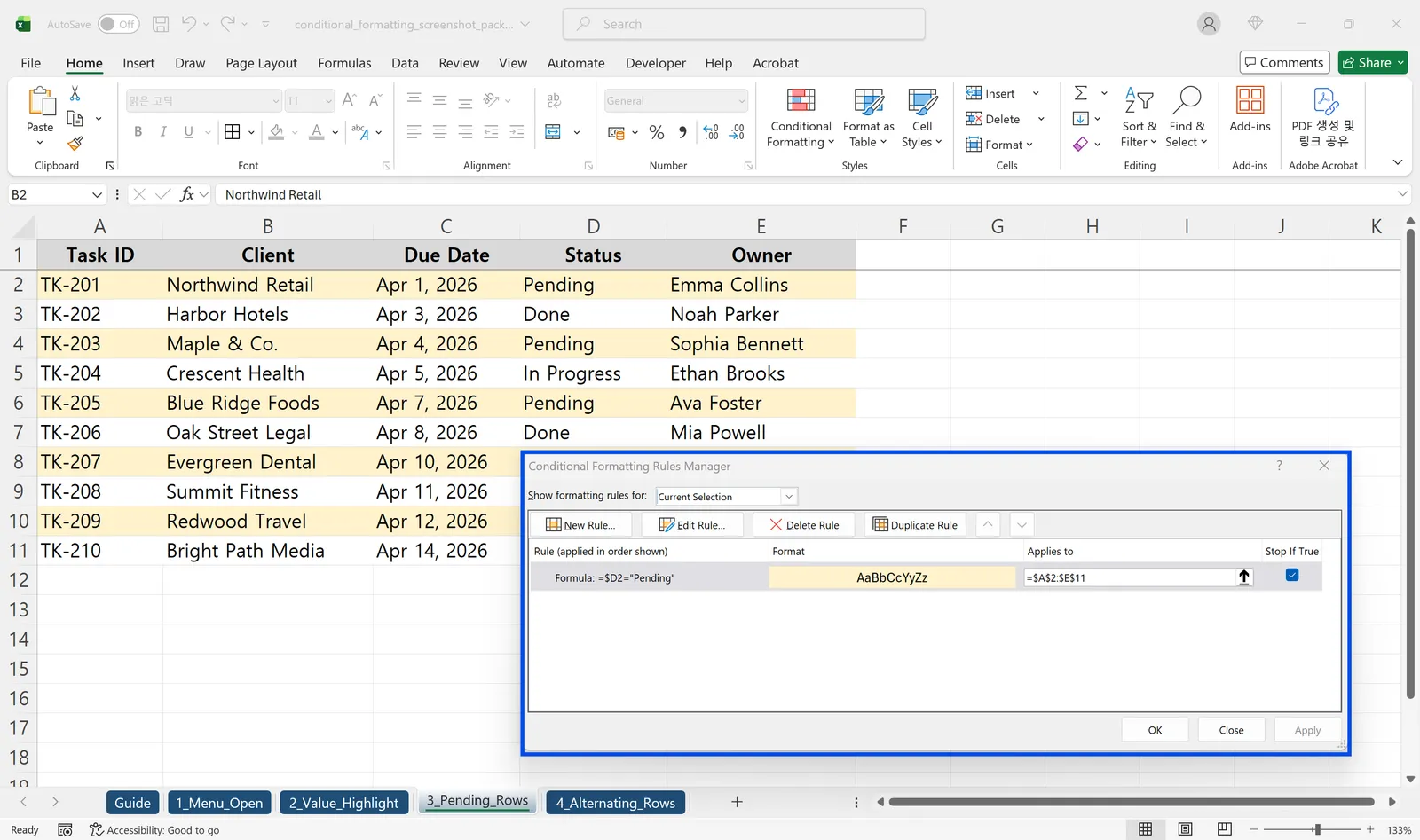
A열 ID, B열 이름, C열 날짜, D열 상태(Status)로 구성된 표를 예로 들겠습니다.
- A2:D100 범위를 선택합니다.
- [홈] → [조건부 서식] → [새 규칙] → '수식을 사용하여 서식을 지정할 셀 결정'을 클릭합니다.
- 수식 입력 칸에
=$D2="Pending"을 입력합니다. - [서식] → [채우기] 탭에서 원하는 색을 선택하고 확인을 누릅니다.
D열이 'Pending'인 행 전체에 색이 적용되고, 값이 'Done'으로 바뀌면 자동으로 강조도 해제됩니다. =AND($D2="지연",$C2<TODAY())처럼 조건을 조합하면 지연 업무만 따로 강조하는 것도 가능합니다.
격행 색칠하기 MOD 함수 활용법
엑셀 행 색칠을 줄무늬 패턴으로 적용하면 표 가독성이 높아집니다. 수동 엑셀 행 색칠은 행을 추가할 때마다 다시 작업해야 하지만, MOD와 ROW 함수를 조합한 엑셀 조건부 서식 수식을 쓰면 자동으로 유지됩니다.
=MOD(ROW(),2)=0 수식 설명
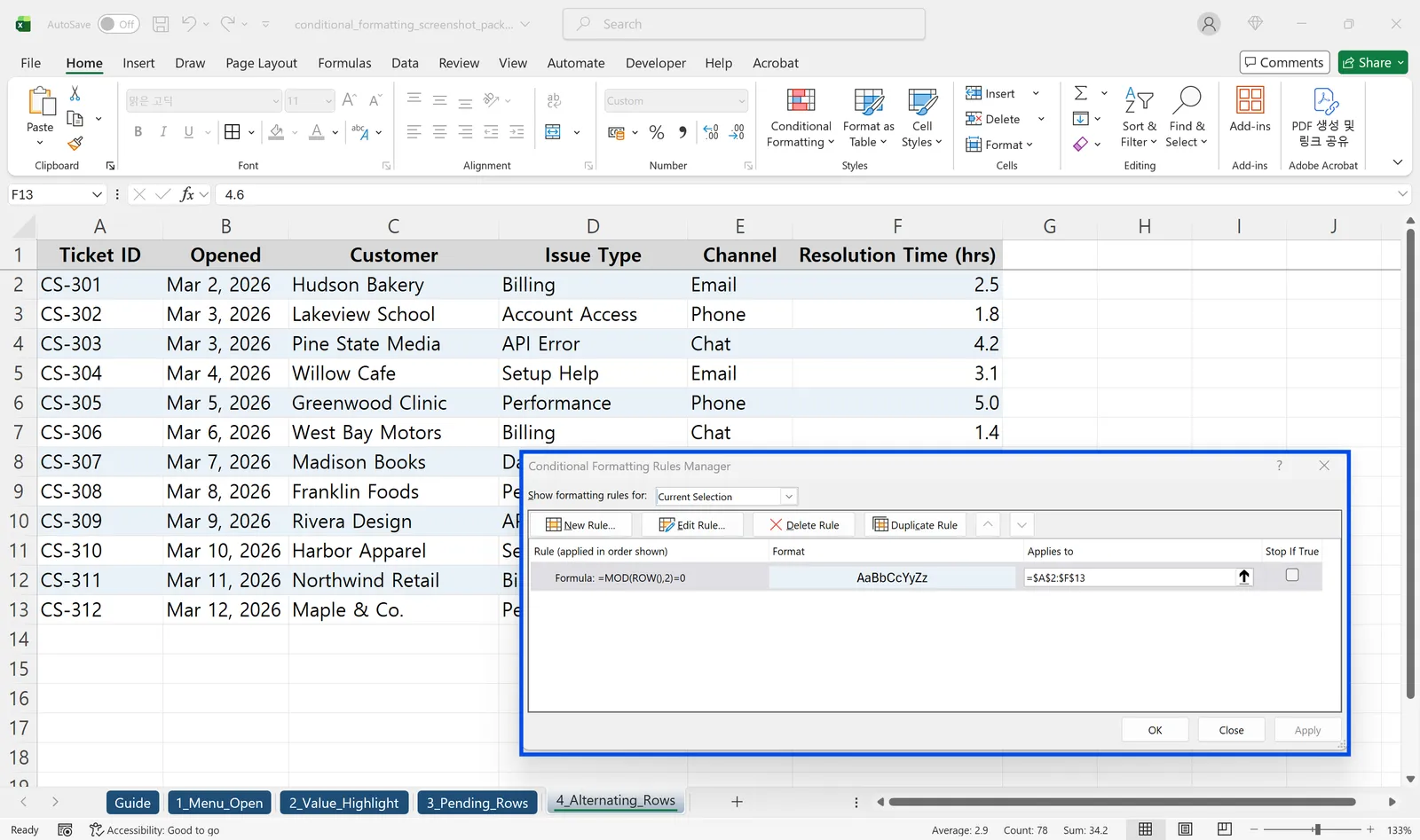
ROW()는 현재 행 번호를, MOD(행번호, 2)는 2로 나눈 나머지를 반환합니다. 짝수 행은 나머지가 0이므로 =MOD(ROW(),2)=0은 '짝수 행일 때 TRUE'가 됩니다.
- 표 범위를 선택합니다.
- [조건부 서식] → [새 규칙] → '수식을 사용하여 서식을 지정할 셀 결정'을 선택합니다.
- 수식 입력 → 채우기 색 지정 순서로 설정합니다.
3행 단위, 색상 2가지 응용
=MOD(ROW()-2,3)=0을 쓰면 3행마다 한 번씩 서식이 적용됩니다. 두 가지 색을 번갈아 쓰려면 규칙을 두 개 만들어 각각 다른 나머지값(0, 1)을 조건으로 지정하면 됩니다. 행을 추가하거나 삭제해도 패턴이 자동으로 재계산됩니다.
엑셀 조건부 서식이 의도대로 안 될 때 체크포인트
엑셀 서식 규칙이 맞게 설정된 것 같은데 색이 안 나오거나 엉뚱한 셀에 적용된다면, 아래 세 가지를 순서대로 확인하세요.
조건부 수식 규칙 우선순위 확인하기
같은 범위에 규칙이 겹쳐 있으면 맨 위 규칙이 아래를 덮어씁니다. [조건부 서식] → [규칙 관리]에서 순서를 확인하고 강조 우선도가 높은 규칙을 위로 올리세요. '다음 규칙 중지(Stop if True)' 옵션으로 이후 규칙을 무시할 수도 있습니다.
참조 방식($) 오류 체크
행 전체 강조 수식이라면 =$D2="값"처럼 열만 고정하고 행 번호는 상대참조로 두는 것이 기본입니다. $D$2처럼 완전 절대참조를 쓰면 모든 행이 D2 하나만 참조하게 되어 의도와 다르게 동작합니다.
적용 범위가 잘못 설정된 경우
[규칙 관리]의 '적용 범위(Applies to)' 항목에서 필요한 전체 범위가 포함되어 있는지 확인하세요. 헤더 행이 포함되지 않도록 범위를 데이터 시작 행부터 잡고, 데이터가 늘어날 것을 고려해 여유 있게 설정하는 것이 좋습니다.
👉 엑셀 셀 잠금 방법 총정리 | 특정 셀만 보호하고 시트 보호까지 제대로 설정하기
자주 묻는 질문 (FAQ)
Q. 조건부 서식은 몇 개까지 설정할 수 있나요?
버전마다 다르지만 시트당 수십~수백 개까지 동작합니다. 규칙이 많아지면 재계산 속도가 느려질 수 있으므로, 같은 패턴은 하나로 통합하고 범위를 넓게 잡아 규칙 수를 줄이는 것이 좋습니다.
Q. 조건부 서식을 다른 셀에 복사할 수 있나요?
네. 서식이 설정된 셀을 선택한 뒤 [홈] 탭의 '서식 복사'(페인트 브러시 아이콘)를 클릭하고 범위를 드래그하면 규칙까지 함께 복사됩니다. [규칙 관리]에서 '적용 범위'를 직접 수정하는 방법도 있습니다.
Q. 인쇄할 때도 색상이 유지되나요?
네, 채우기 색과 글꼴 색은 일반 서식과 동일하게 인쇄에 반영됩니다. 흑백이나 회색조 인쇄 환경에서는 색 구분이 명암 차이로만 나타날 수 있으니 인쇄 전 미리 보기로 확인하세요.
👉 엑셀 데이터 필터 제대로 사용하는 방법 | 자동 필터·고급 필터 완벽 정리
inline AI로 조건부 서식 작업이 더 쉬워집니다
엑셀 조건부 서식에 익숙해졌다면, 이제 반복 작업을 자동화할 차례입니다.
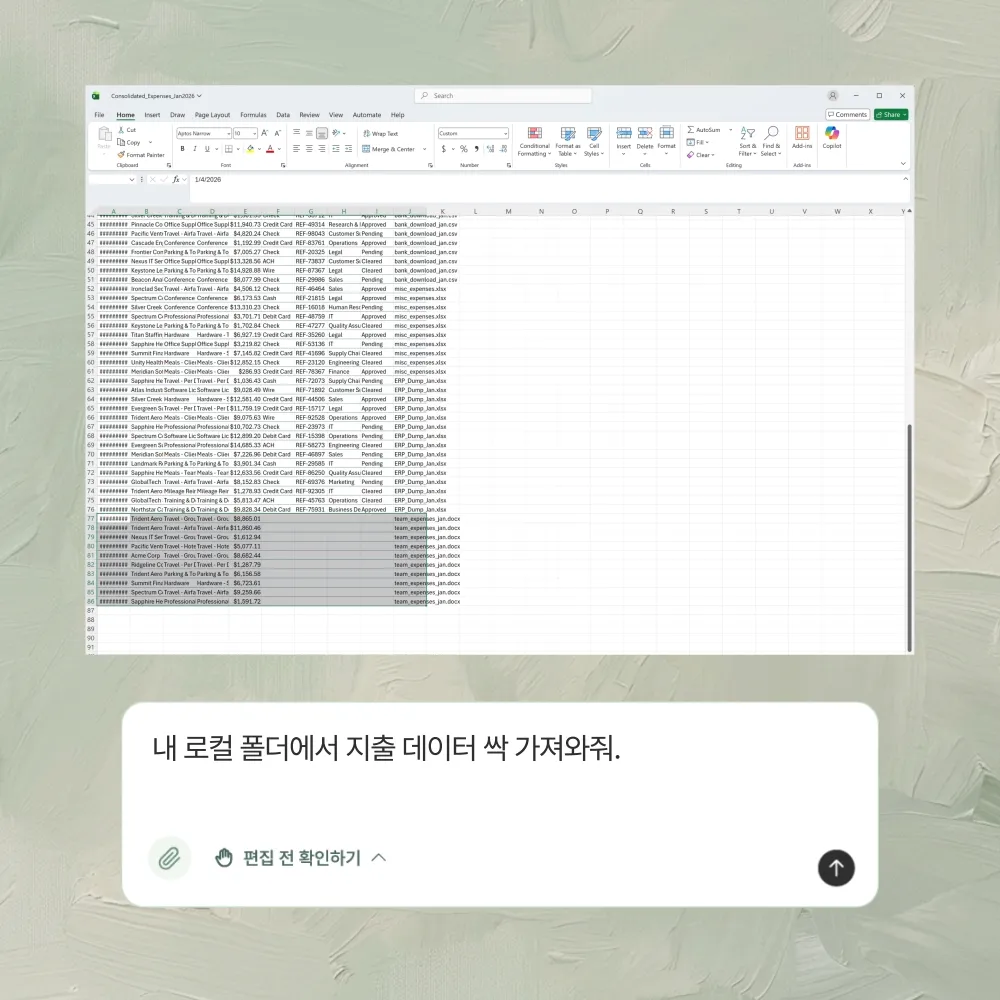
inline AI는 엑셀과 한글 문서 위에서 작업하는 최초의 로컬 에이전트입니다. ‘엑셀 표준편차 구해줘’처럼 자연어로 요청하면 Excel 파일을 직접 읽고 실시간으로 편집합니다.
데이터를 클라우드에 올리지 않고 PC에서 로컬로 작동해 민감한 데이터도 안전하게 처리합니다. 지금 바로 다운로드하고 엑셀 작업의 미래를 직접 경험해보세요.
우리 회사에서 에이전트가 맡을 업무, 30분 상담으로 확인하세요.