Learn
Turn Off Autofit Text in PowerPoint: Stop Fonts Shrinking

Setting the font size back to 24pt is not the same thing as learning to turn off autofit text in a PowerPoint placeholder. If two extra lines of body copy just shrank every sentence above them, retyping 24 into the font size box only holds until you press Enter again. The size isn't drifting on its own; a feature is actively resizing it, and that feature stays on until you switch it off. This guide walks through turning autofit off, turning it back on when shrinking is actually what you want, and rolling the setting out across an entire deck at once.
Why PowerPoint Shrinks Your Text by Itself
What autofit actually does
Autofit is PowerPoint's response to text that no longer fits its frame: it quietly steps the font size and line spacing down until everything is back inside the placeholder. There are only three settings behind it — Do not Autofit, which leaves the text alone; Shrink text on overflow, which reduces the type; and Resize shape to fit text, which grows the box instead. The same paragraph produces three completely different slides depending on which one is active.
The awkward part is that autofit works slide by slide. A light slide keeps its 24pt body while a dense one drops to 17pt, and after thirty slides the deck has no consistent text size at all.
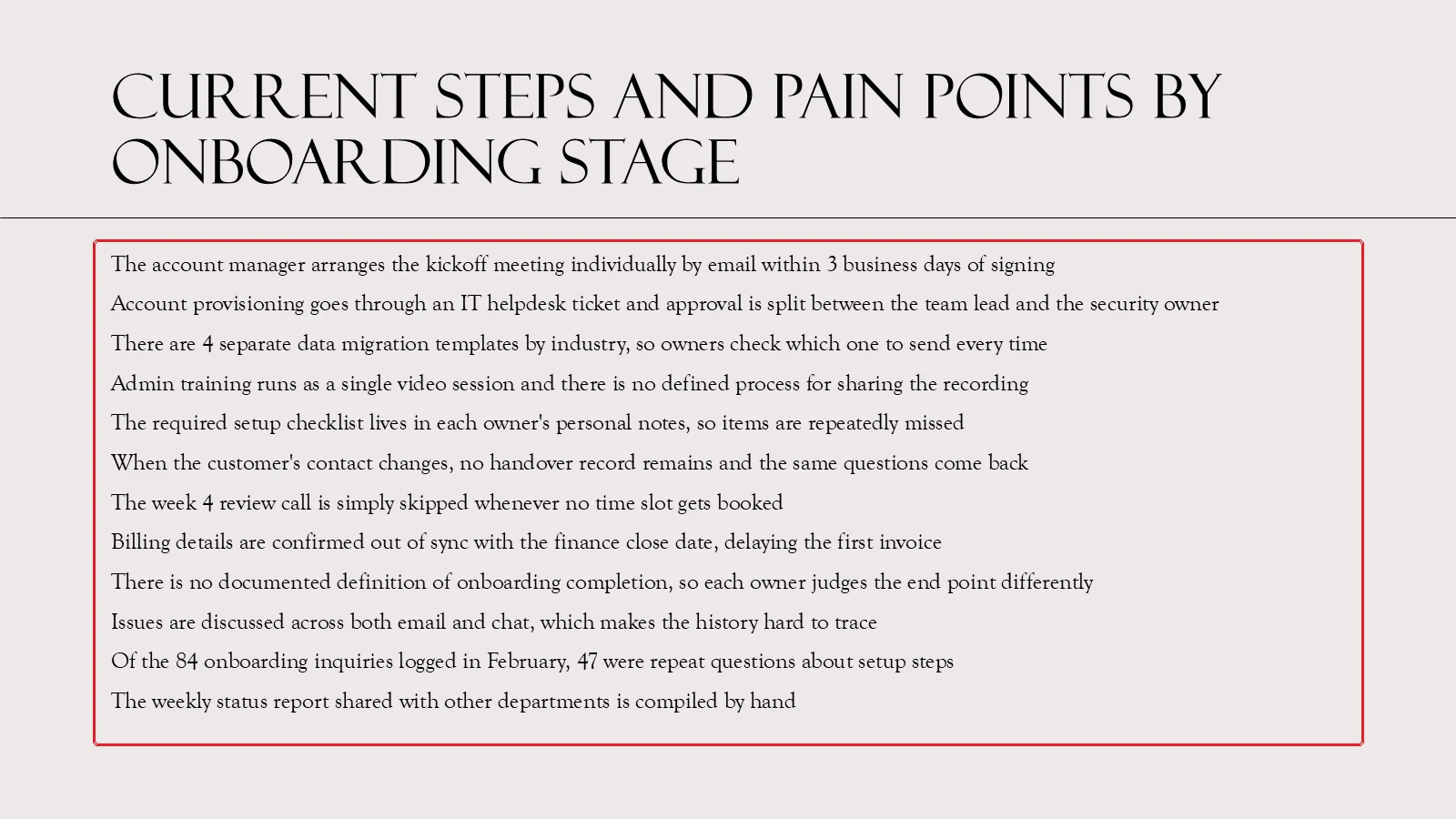
On the slide above the title is still at its intended size, but the body placeholder marked in red has collapsed to something much smaller. That mismatch between title and body is usually the first visible symptom.
Why it only happens inside placeholders
Autofit is tied to placeholders — the frames that come down from the slide layout with a defined job, such as "the title goes here" or "the body goes here." Because PowerPoint knows what those frames are for, it treats overflowing text as a broken layout and corrects it. A shape you drew yourself in the margin, or text sitting inside a table, is outside that logic and gets left alone.
Read the real size in the Font Size box
You can tell whether what you're looking at is the result of autofit without guessing. Select the body text and check the Font Size box on the Home tab.
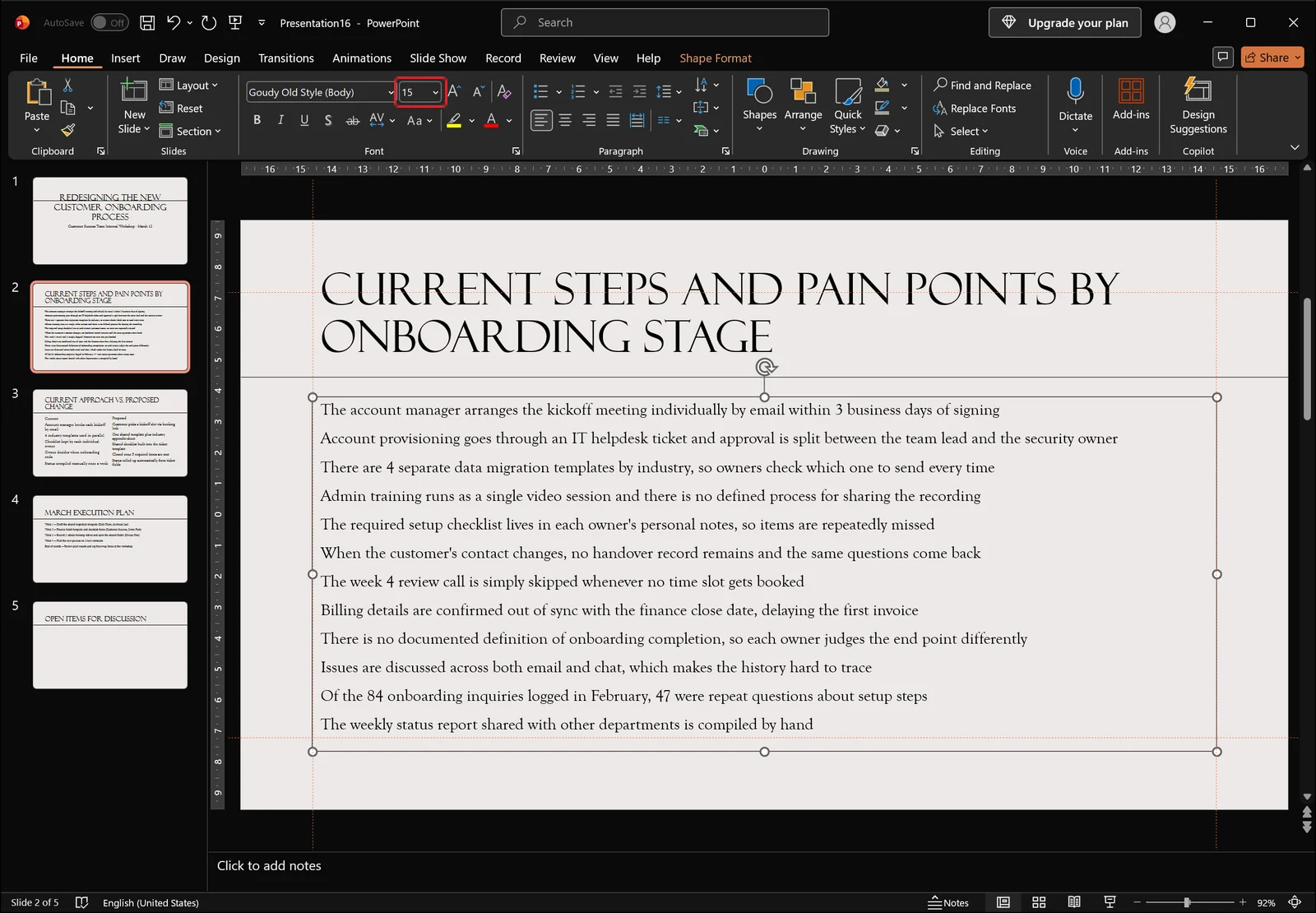
Whatever appears in that box is the size currently applied. If the value keeps changing as you click through slides, the problem isn't that someone set the fonts inconsistently — autofit is behaving differently on each slide. A decimal value is an especially reliable tell. Nobody types 16.8pt on purpose, so seeing it there means PowerPoint calculated the number for you.
Placeholder or Text Box? Check This First
Confirm a placeholder through the Layout gallery
Where you change the setting depends on what kind of object you're dealing with, so identify it before anything else. The quickest test is to empty the frame: delete all the text, and if prompt text like "Click to add text" remains, it's a placeholder. If the frame simply disappears and leaves nothing behind, it's a text box you inserted yourself.
To see which frame arrangement the current slide is built on, open Layout on the Home tab.
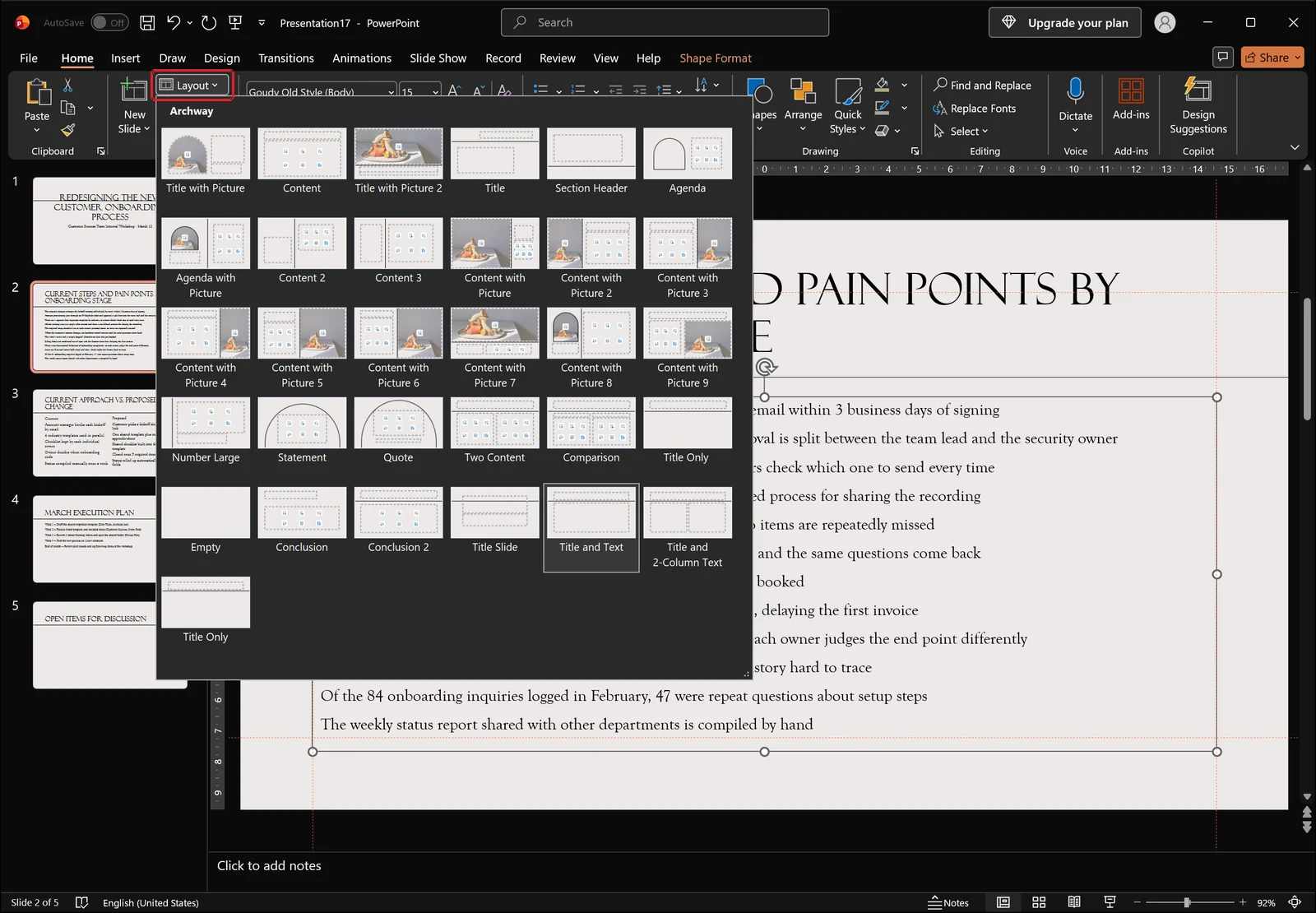
If the highlighted thumbnail is something like Title and Text, the frames that layout defines are placeholders. Autofit is stored separately on each of them, which is why fixing only the body often leaves the title still misbehaving.
How a text box you drew behaves instead
Text boxes follow different defaults. A box created from the Insert tab with Text Box doesn't shrink type as you write — it stretches downward instead.
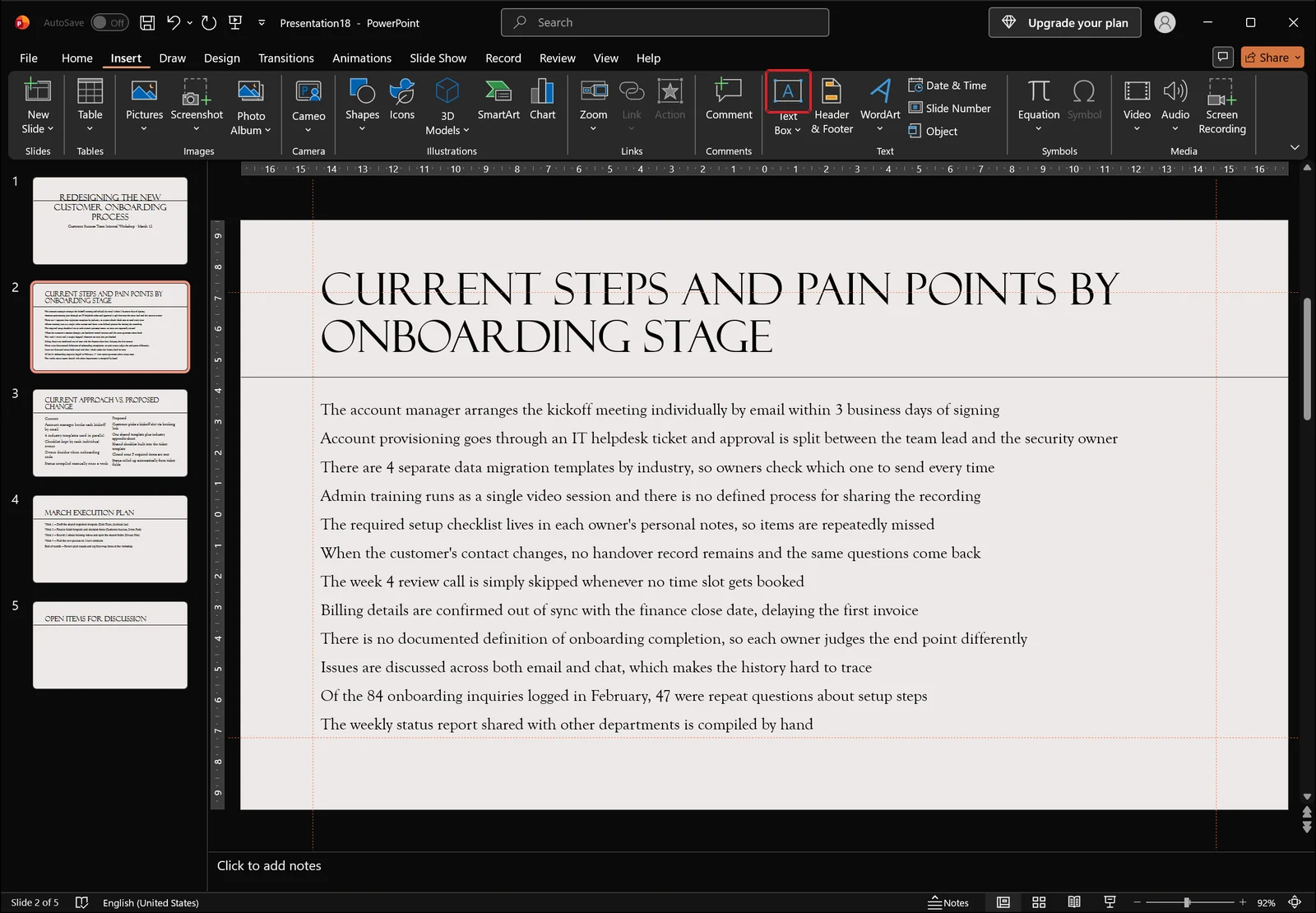
That's the source of the opposite complaint you'll hear: "the text stays the same size, but the box keeps growing."
The default each one starts with
So the split is simple. Placeholders default to Shrink text on overflow; text boxes you draw default to Resize shape to fit text. Two different symptoms, but both come from the same list of three options in the same dialog. Whichever object you have, choosing Do not Autofit there locks the size in place.
Turn Off Autofit for a Single Placeholder
Select the object and open the format dialog
Start by clicking the object's border to select it. You want the selection handles visible around the frame, not a blinking cursor inside the text. Then click the small launcher at the bottom-right corner of the Drawing group on the Home tab.
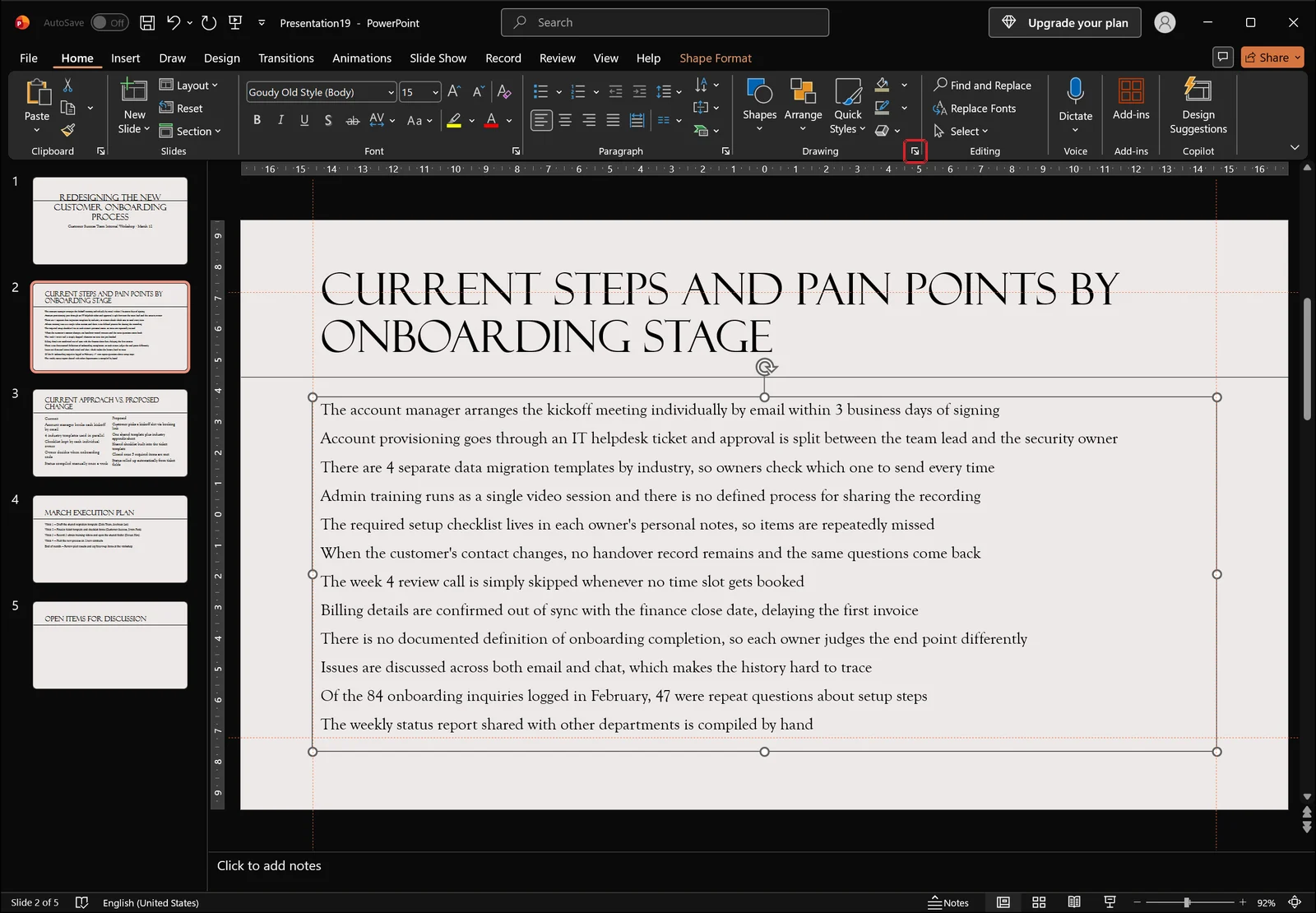
Right-clicking the object and choosing the format command opens the same thing.
Choose Do not Autofit under Text Options
The Format Shape pane opens along the right edge of the window. At the top of the pane are two tabs, Shape Options and Text Options. Switch to Text Options, expand the Text Box category, and the three autofit choices appear together. Pick Do not Autofit and close the pane.
One thing to expect: turning autofit off does not restore whatever size the text had before it was shrunk. If you saw a decimal value in the Font Size box earlier, set the size you actually want — 24pt, say — after changing the setting.
You may also notice a small button appear briefly near the bottom-left corner of a placeholder as text overflows. That's the AutoFit Options button, and it offers the same choices on the spot, which is handy for reacting the moment your text jumps down a size.
What happens once the text overflows
With autofit off, the size is genuinely locked — and the extra lines spill straight past the bottom of the frame. PowerPoint no longer intervenes at all, so overflow is now yours to solve: drop the size a step, tighten line spacing, or cut the sentence down. Turning autofit off is really a decision to take that judgment back from PowerPoint.
Apply the Setting to the Whole Deck with Slide Master
Open Slide Master from the View tab
Thirty slides is thirty repetitions of the steps above, which nobody wants. Set it once in the master instead.
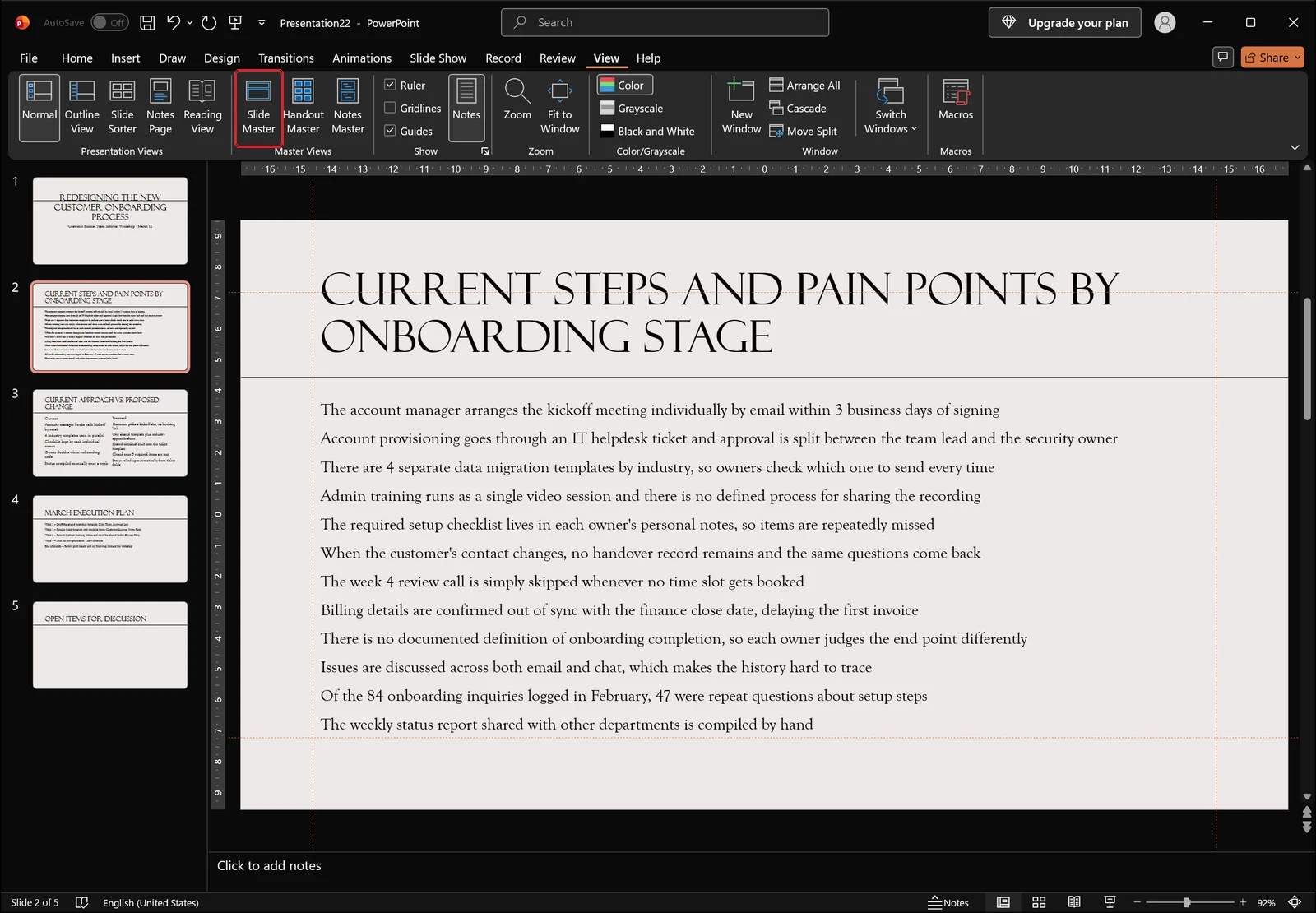
Click Slide Master on the View tab and the editing window switches into master view.
Set Do not Autofit on the master frames
In master view, select the title frame and the body frame in turn and apply Do not Autofit exactly as described above. Title and body carry separate settings, so both need doing. If the problem only shows up on one layout, you can set it on that layout's frames specifically rather than on the master. Close master view when you're finished and every slide using those layouts picks the change up.
The exception is slides someone has already reformatted by hand. Once an object has been moved or resized on a slide, it stops inheriting cleanly from the master, and you'll need the Reset button covered further down to bring it back in line.
👉 How to Use Slide Master in PowerPoint: Format Every Slide
Stop it in new files with AutoCorrect options
To keep autofit from ever engaging in decks you build from here on, change it at the application level. Go to File > Options > Proofing > AutoCorrect Options, open the AutoFormat As You Type tab, and clear AutoFit title text to placeholder and AutoFit body text to placeholder. This is a PowerPoint-wide preference, so it governs new content only — it won't reach into placeholder settings inside files you've already saved.
When You Actually Want Text to Shrink
Switching Shrink text on overflow back on
For a slide whose length you can't predict — a notice, an agenda that grows as items come in — automatic shrinking is genuinely useful. Select the overflowing box and go back to the same place in the format pane.
Under Text Options > Text Box, choose Shrink text on overflow. The font size now steps down as text accumulates, while the box keeps its position and dimensions.
How it differs from Resize shape to fit text
The two option names sound similar and do opposite things. Shrink text on overflow holds the box still and reduces the type; Resize shape to fit text holds the type still and grows the box. Use the first when the slide layout has to be respected, the second when the object is free-floating and a taller box does no harm. It's also why the text box you drew keeps stretching vertically: the second option is its default.
Set yourself a floor on font size
Autofit has no lower limit. Keep adding content and it will happily take you to 12pt or 10pt. For anything projected, body text below about 18pt is unreadable from the back of the room, so once you're approaching that point, split the slide in two rather than letting autofit absorb the problem.
Also worth knowing: autofit reduces line spacing alongside font size. Advance from a shrunken slide to an untouched one and the top and bottom margins shift, giving the deck a slight flicker as you present. If overall consistency matters more than convenience, turn autofit off and manage the volume of text yourself.
👉 Replace All Fonts in PowerPoint: Unify Every Slide at Once
Fixing Common Autofit Problems
Use Reset to return to the layout formatting
After enough experimenting, it becomes impossible to tell which settings are still sitting on an object. The fastest recovery is to snap the frame back to its layout.
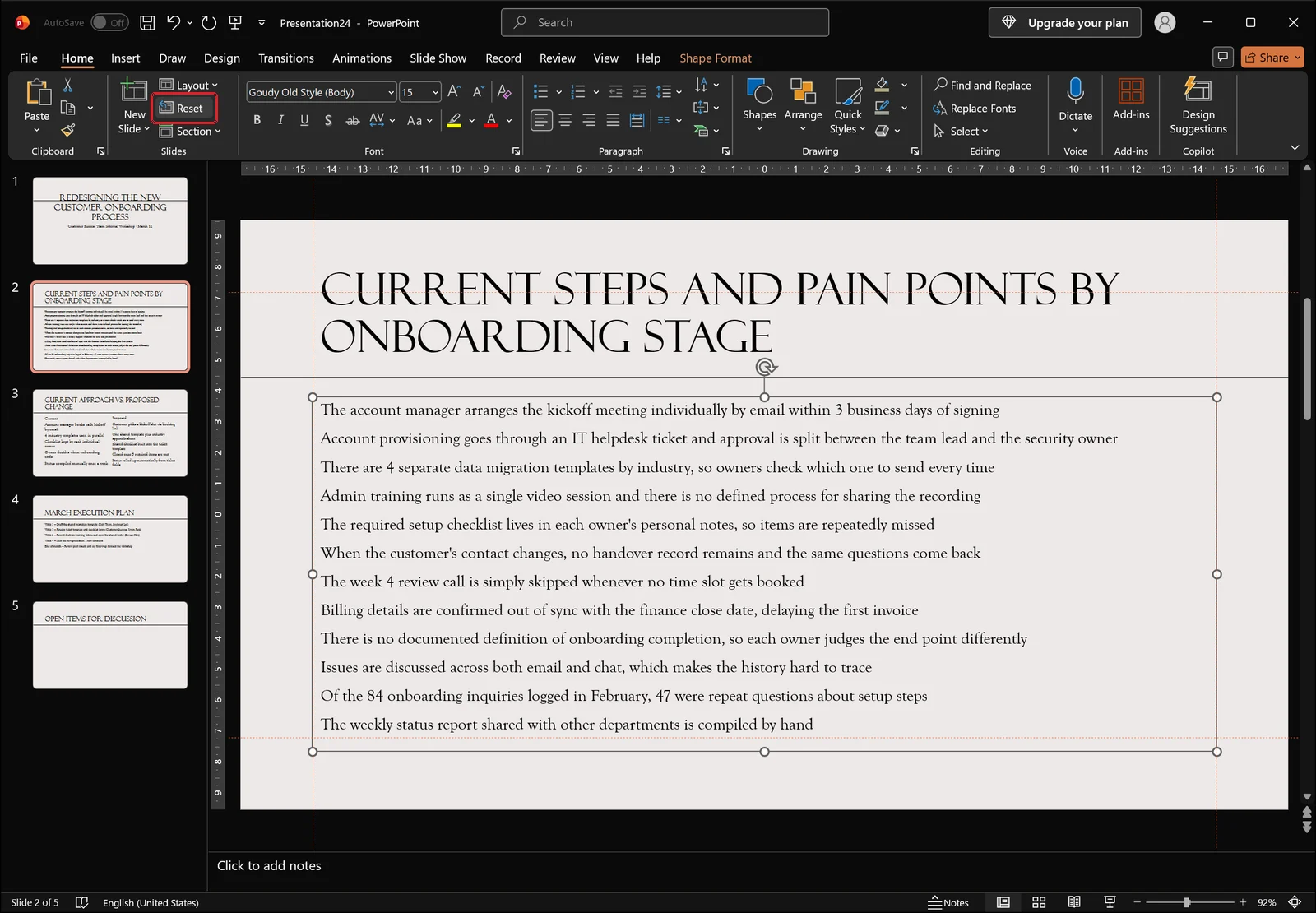
Reset returns the selected placeholder's position, size, and text formatting to what the layout specifies. If one stubborn slide still shows small text after you've turned autofit off in the master, this button is the answer. Be aware that hand-applied colors and fonts go with it, so on a slide you've carefully styled, press it knowing what you're giving up.
Text drifting to the top or middle? Check Align Text
If the text seems to jump vertically after you change an autofit setting, the culprit is usually vertical alignment rather than autofit itself.
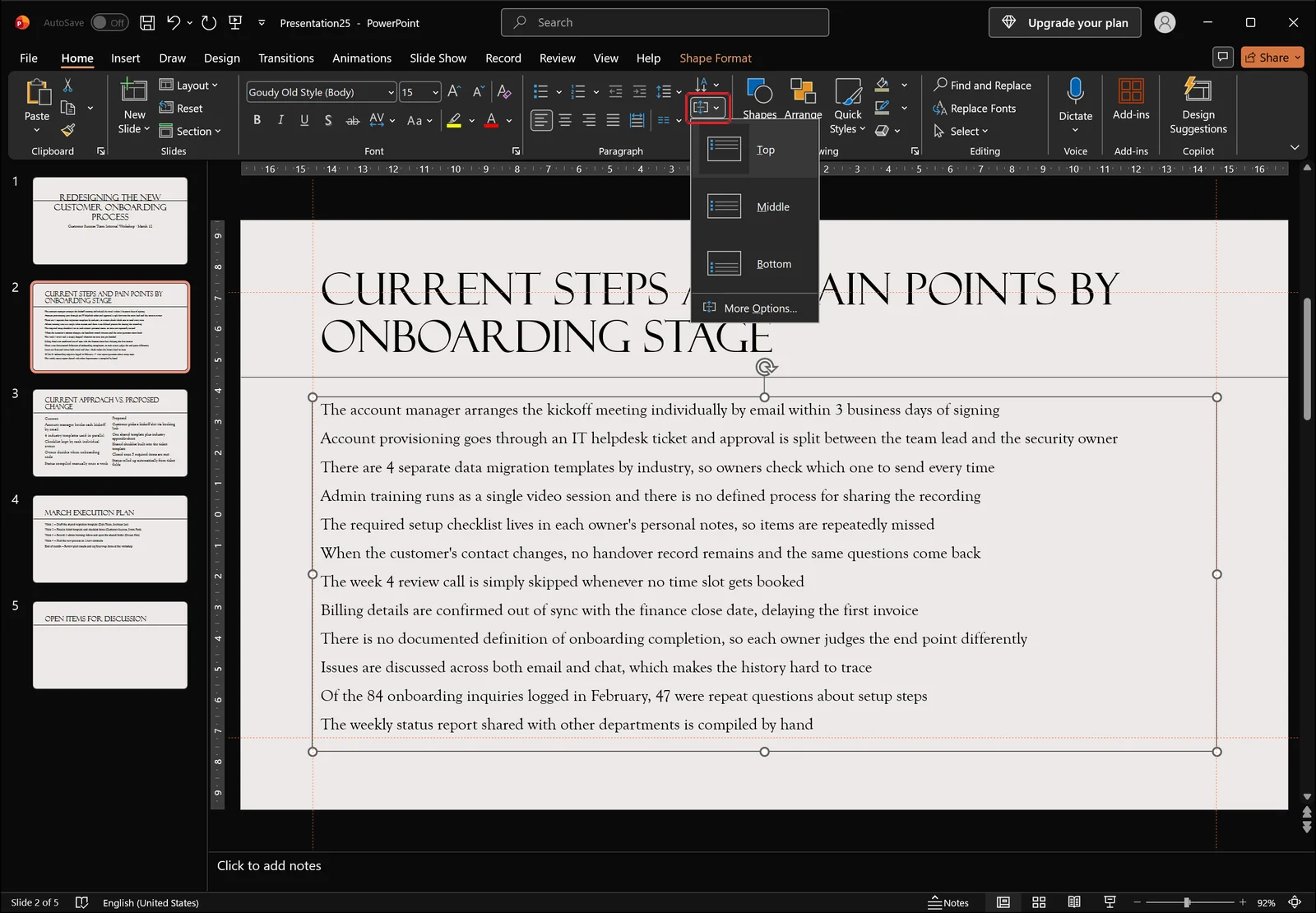
Open Align Text in the Paragraph group. With Middle selected, the whole block of text slides up and down every time the font size changes. When you want title lines to sit at the same height across many slides, standardizing on Top is far easier to keep under control.
Only the pasted slides look different
Slides copied in from another file bring their original placeholder settings with them. That's why a deck you've cleaned up through the master can still have three or four slides with small text. Either choose Use Destination Theme in the paste options when you bring them in, or, if they're already there, select the affected slides and click Reset so they follow the current master.
There's also a smaller fix for the moment it happens: if the text shrinks as you're typing, press Ctrl+Z immediately. The characters you typed stay, only the autofit action is undone, and the text remains at full size while overflowing.
PowerPoint Autofit FAQ
Q. Can I lock a font size in PowerPoint completely?
Yes. Select the object, then choose Do not Autofit under Text Options > Text Box in the Format Shape pane. The point size you set holds regardless of how much text you type. The trade-off is that overflowing text runs outside the frame, so you have to manage length yourself.
Q. Can I turn autofit off for every slide at once?
Go to View > Slide Master and set both the title frame and the body frame to Do not Autofit. Every slide using those layouts picks it up. Slides that were already reformatted individually need the Reset button on the Home tab to fall back in line. To prevent it in new files as well, clear the two placeholder autofit checkboxes on the AutoFormat As You Type tab under File > Options > Proofing > AutoCorrect Options.
Q. I turned autofit off and the text still shrinks. Why?
Check three things. First, title and body are configured separately, so you may have only changed one of them. Second, slides pasted in from another file keep their original settings. Third, the setting may be overridden at the individual layout level rather than on the master. In all three cases, clicking Reset on the problem slide narrows the cause down quickly.
Q. Why does my text box grow instead of the text getting smaller?
A text box drawn from the Insert tab defaults to Resize shape to fit text. Switch it to Shrink text on overflow in the same place if you want the type to shrink, or to Do not Autofit if you want the size fixed outright.
Cleaning Up Slide Formatting with inline AI
Changing an autofit setting takes seconds; the work that remains is clicking through every slide to find out which setting is on where. In a deck of forty slides assembled from several sources, that audit takes longer than the fixes do.
inline AI is an AI agent that opens and edits PPTX files on your PC directly. Ask it in plain language — "turn off autofit on all body placeholders and set the font size to 24pt" — and it locates the affected slides and makes the change, showing you what it intends to modify before it applies anything. Everything is processed on your own machine, so internal decks and coursework never get uploaded to an outside server.
See what an agent could take over at your company in a 30-minute call.