Blog
Convert Excel to PDF Without Cut-Off Tables, Using AI

Converting Excel to PDF goes wrong for a structural reason: a worksheet is an endless grid, and Excel has no idea where a page should end until you tell it. Left alone, it splits the table wherever it likes, so the Amount column lands on page two, the bottom of wrapped text gets clipped and a few stray cells add a dozen blank pages. That is a nuisance for one report and a real cost for a company that sends PDFs out of Excel every week: customer statements, delivery notes, price lists, month-end summaries for the bank.
Fixing it means setting a print area, scaling and page breaks on each sheet before exporting. In the AI Browser, the employee keeps the workbook open in a tab and asks the AI beside it to prepare every sheet and produce the PDF.
Exporting clean PDFs in the AI Browser
The scene: month-end statements for twelve customers
At Green Farm, the accounts team keeps Customer_Statements_Sep.xlsx with one sheet per wholesale customer. Each sheet lists deliveries, returns and payments, and a Notes column on the far right. Exported as is, half of the sheets push Notes onto a second page and three of them trail off into blank pages.
The accounts assistant opens the workbook in one tab of the AI Browser and types:
"For every customer sheet, set the print area to the used range, fit it to one page wide, repeat the header row on each page, and save each sheet as its own PDF named after the customer."
What the AI does, step by step
- Reads each sheet's used range and notices where stray formatting or a forgotten note far below the table would create blank pages.
- Sets the print area and scaling sheet by sheet: one page wide, height automatic, header row repeated.
- Checks the result in page-break terms and reports which sheets still need attention, for example a sheet so wide that one-page scaling would make the text too small, where landscape orientation is the better fix.
- Exports the PDFs once the assistant confirms, one per customer, named as requested.
What the employee checks
She opens two or three of the PDFs at 100% zoom, confirms the Notes column and totals are on the page, and reads the AI's list of sheets it changed. If one sheet looked different from the rest, the AI says so instead of quietly shrinking it.
How it stays safe
The AI reads and changes only the sheets the assistant can open. It can draft the covering emails, but nothing leaves the company until she sends it, and the changed sheets and generated PDFs are recorded.
Next month's statements
The print settings stay with the workbook, so next month the assistant opens the new file and asks the AI to check the same things again: new rows outside the print area, a sheet that has grown too wide, a stray note far below the table. She reviews the list, then exports.
👉 Excel Print on One Page: Fit Every Sheet with the AI Browser
Why Excel PDFs get cut off
Word is built around fixed pages; Excel is built around data. Unless you define where a page starts and ends, the export splits the grid wherever it runs out of paper. The three common results:
- The right-hand column moves to the next page, usually Notes or Amount.
- Text is clipped at the bottom of rows, because print fonts render slightly larger than screen fonts.
- Blank pages appear, because empty but formatted cells are included in the print area.
Doing it by hand
Set the print area
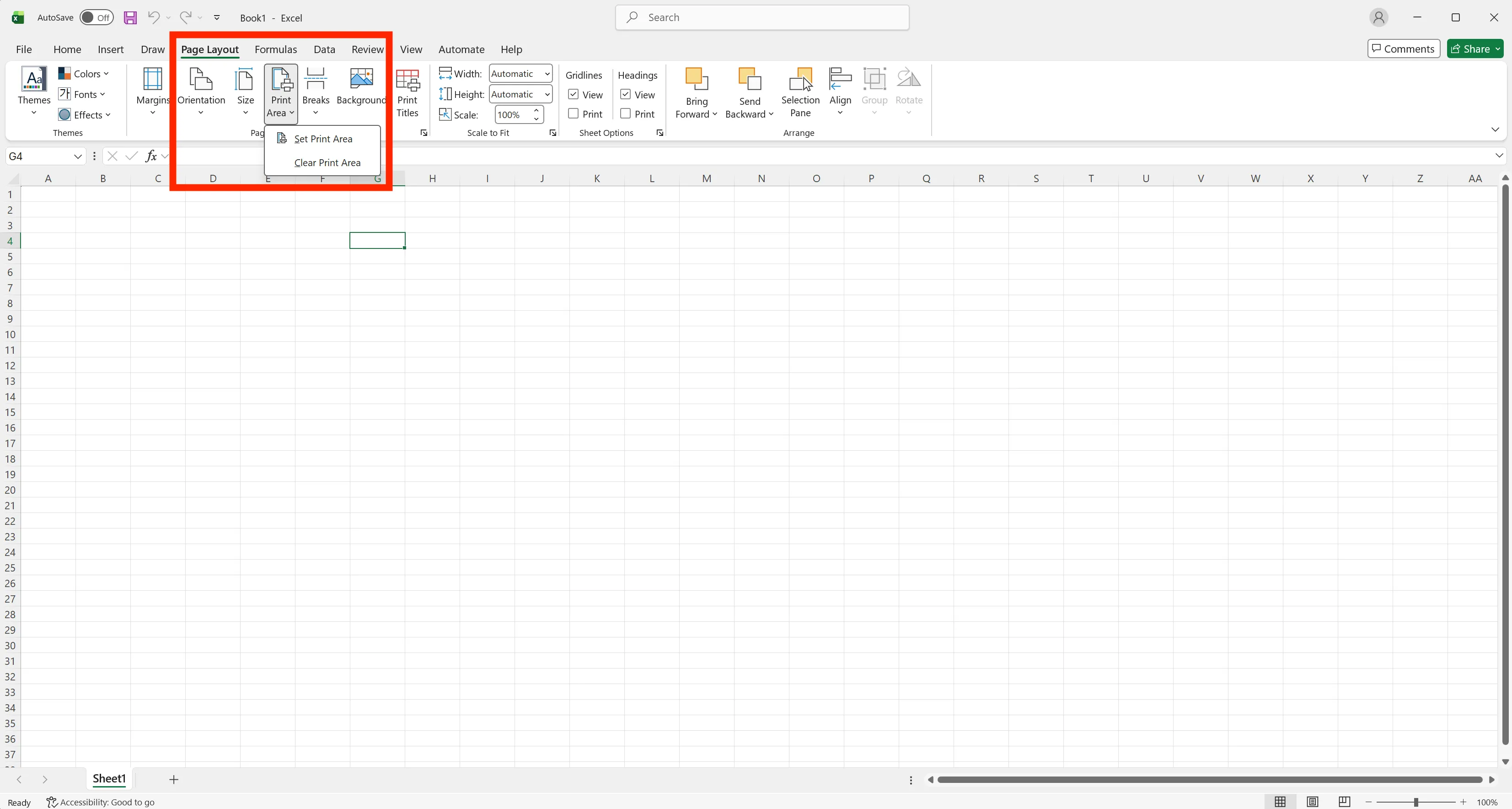
Select the table, then go to Page Layout → Print Area → Set Print Area. Only the selection goes into the PDF.
Scale to one page wide
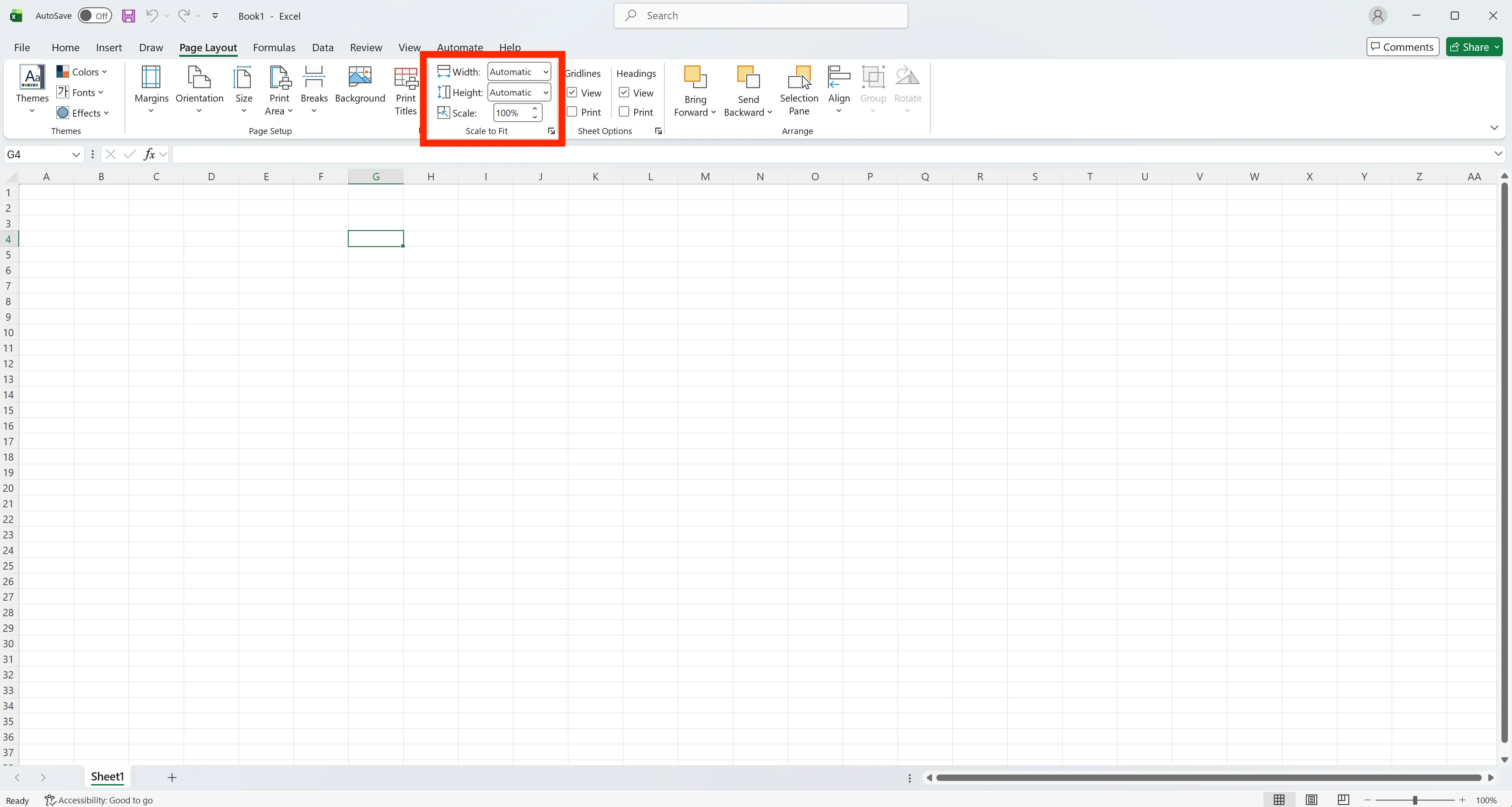
In Page Layout → Scale to Fit, set Width to 1 page and leave Height on Automatic.
Keep text from being clipped
Turn on Wrap Text for long cells and add 10–20% to the row height of wrapped rows. What fits on screen can still be clipped in print.
Export several sheets at once
Click the first sheet tab, Shift-click the last one (or Ctrl-click the ones you want), then go to File → Save As, choose PDF, open Options and select Selected sheets.
Use Microsoft Print to PDF
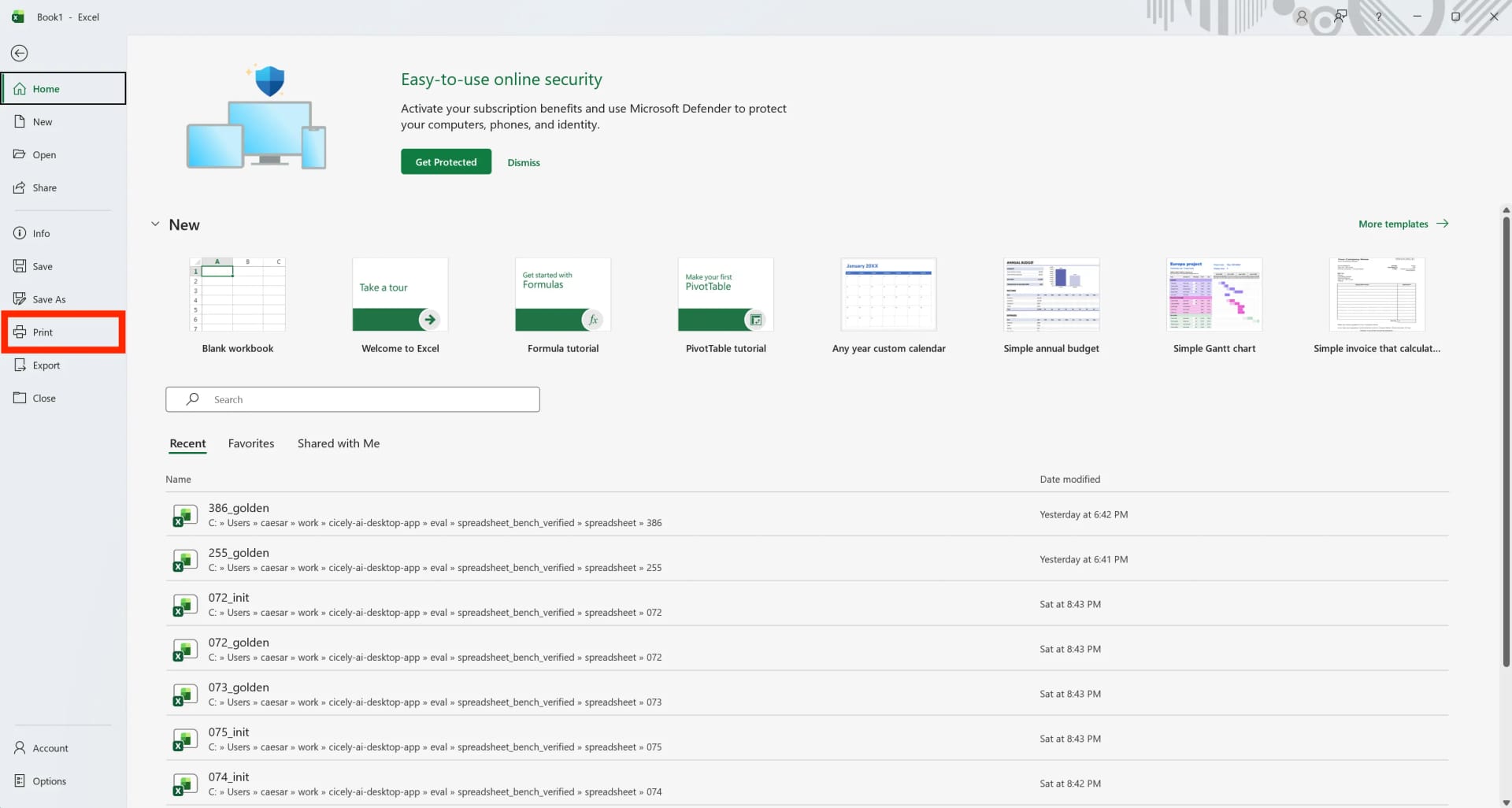
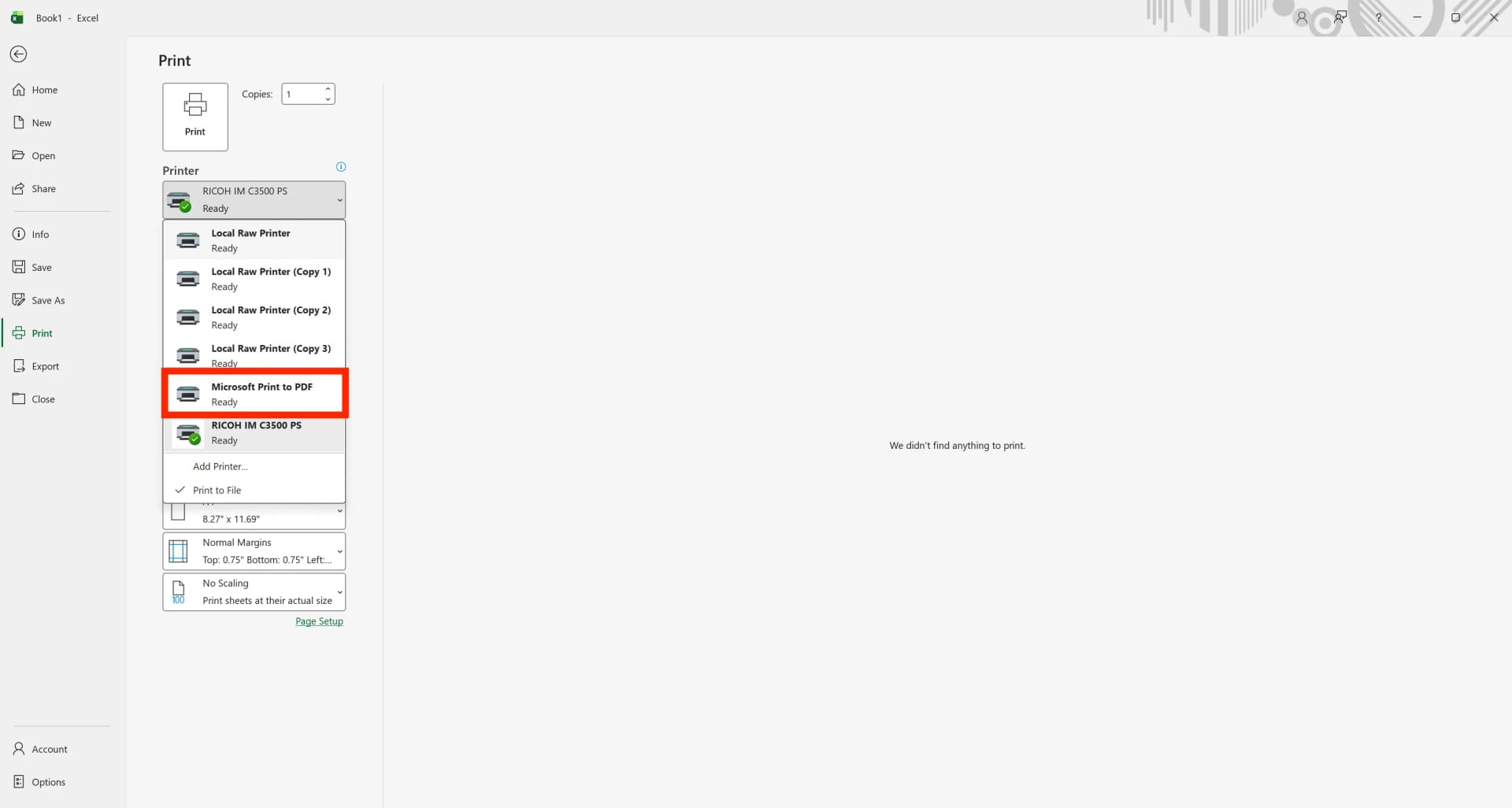
If Save As does not offer PDF, go to File → Print (Ctrl + P) and choose Microsoft Print to PDF as the printer. Avoid uploading customer statements to free online converters; the file leaves your company's control the moment you do.
Check before you send
- View → Page Break Preview: all content should sit inside the solid blue lines.
- Headers and footers: page numbers and dates should not overlap the table.
- Hidden rows and columns: totals should still make sense in the printed version.
- Open the PDF at 100% before sending, not just the preview.
Excel to PDF: frequently asked questions (FAQ)
Q. Why does my PDF have so many blank pages?
Formatted but empty cells outside the table are part of the print range. Set the print area to just the table and the blank pages go away.
Q. Can the AI send the PDFs to customers for me?
It can draft the emails with the PDFs attached. A person sends them, and if the company requires approval for outgoing documents, the send waits for that approval.
Q. What if the AI scales a sheet so small it can't be read?
It reports sheets where one-page scaling would shrink text too far and suggests landscape or two pages instead. You choose before anything is exported.
Q. Where are the workbook and the PDFs stored?
Company data is stored on AWS and is not used to train AI models. An eZDR agreement means the model provider keeps neither prompts nor files.
Producing PDFs from Excel with inline AI
Print areas and scaling are quick for one sheet and slow for twelve, and the mistakes only show up after the PDF has gone out. In the AI Browser, the employee keeps the workbook open and asks the AI beside it to prepare each sheet and export the files, then checks the PDFs before anything is sent. The work runs inside the company's accounts, permissions and approval policies, and every action is recorded in the audit log.
In the AI Browser, this takes one request
inline AI OS is a work browser where your team keeps company files open and hands the task to the AI beside them. Book a free consultation to see how it fits your operations.
Book a free consultation