
Blog
How to Print an Excel Sheet on One Page Without Cut-Offs

To print an Excel sheet on one page, you set four things on the Page Layout tab: the print area, the orientation, how many pages wide and tall, and the scale. The fastest shortcut is File > Print > Fit Sheet on One Page, but forcing a wide report onto one sheet can shrink the text to 6 or 7 points, which nobody can read across a meeting table. The opposite problem is just as common: one last column spills onto a second page, and a 12-page packet turns into 24.
Here's the standard sequence, the one-click options on the Print screen, how to fine-tune with Page Break Preview, how to set up a dozen sheets at once, and what to check when the fit still doesn't work.
Fit to one page from the Page Layout tab
Print settings live in two groups on the Page Layout tab. Page Setup holds Margins, Orientation, Size, Print Area and Print Titles. Scale to Fit holds Width, Height and Scale.
Step 1: Set the print area
Notes under the table or helper columns off to the right get printed too, and every extra column shrinks the scale. Select only what you want on paper and choose Print Area > Set Print Area. Clear Print Area removes it. Microsoft's guide to scaling a worksheet recommends trimming the print area before you scale, and the print area is saved per sheet.
Step 2: Switch to landscape
For a wide table, shrinking the scale first only makes the text smaller. Letter paper in portrait gives you roughly 7.5 inches of printable width; landscape gives you about 10. Turning the page usually fits two or three more columns, and a monthly report with ten or so columns often fits in one page width from this step alone.
Step 3: Set Width to 1 page
In Scale to Fit, set Width to 1 page and leave Height on Automatic. All columns fit across one page, and long tables continue down onto additional pages. Only set Height to 1 page too when the whole sheet truly has to be on one sheet of paper; Excel then shrinks rows and columns together, and long tables get very small.
Step 4: Check the scale
Once Width or Height is set to a page count, Excel calculates the scale and shows it in the Scale box. Below about 70%, treat it as too small for a meeting handout and go back to orientation, print area and column widths. To type a scale yourself, set both Width and Height to Automatic first; until then the Scale box is grayed out. If a couple of rows barely spill over, typing 95% often keeps the text larger than fitting to 1 page.
One-click fit on the Print screen
Press Ctrl+P and the last list under Settings controls scaling. No Scaling is the default. Fit Sheet on One Page sets width and height to one page, Fit All Columns on One Page sets width only, and Fit All Rows on One Page sets height only. The preview shows the total page count below it, so you can see immediately whether the choice did what you wanted.
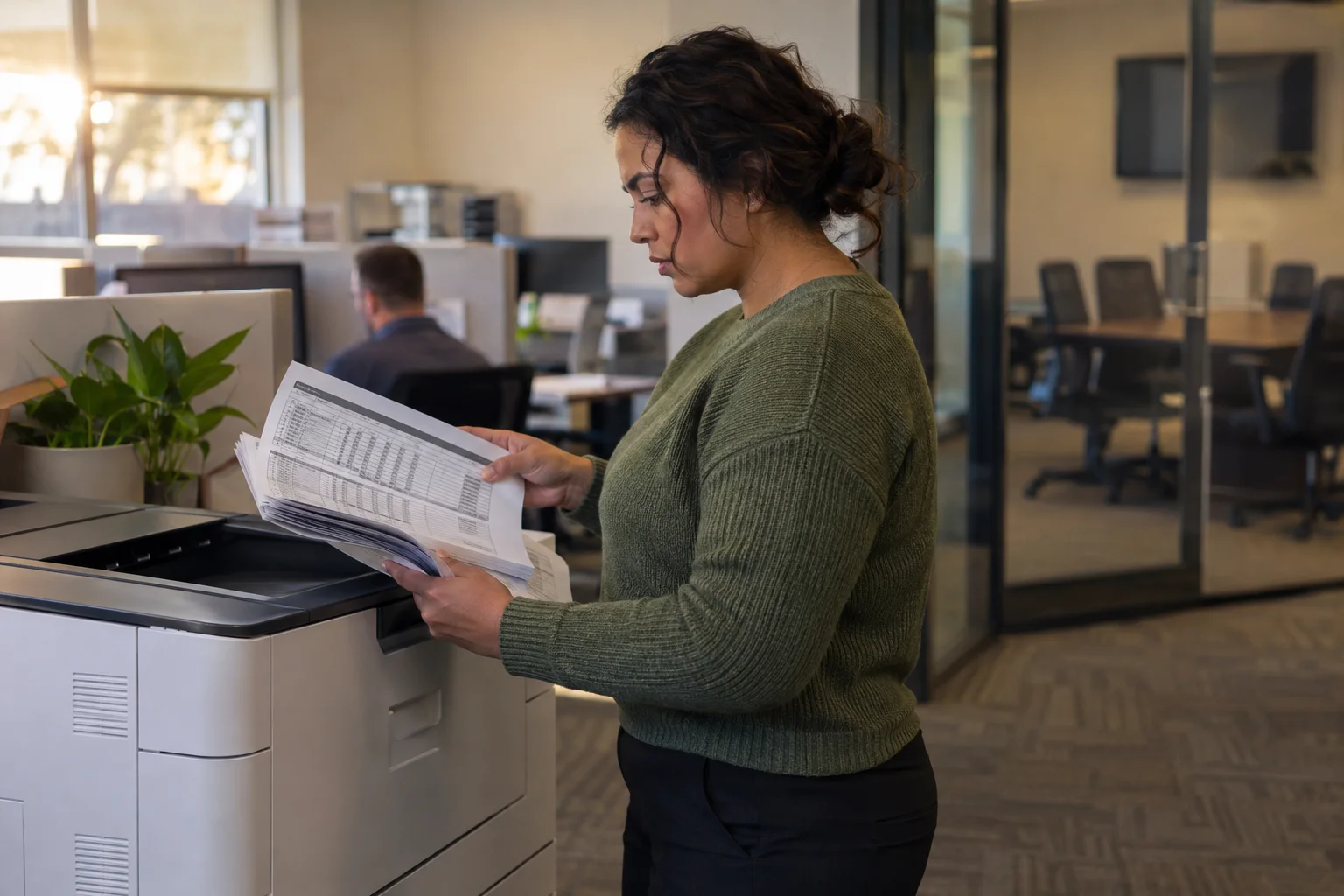
These are the same settings as the Page Layout tab, saved with the file. If a workbook keeps printing tiny for no obvious reason, check whether this list was left on a fit option. Microsoft also notes that Excel ignores manual page breaks when a fit option is on, and that it won't enlarge a small table to fill the page; type a scale above 100% if you want it bigger.
Fine-tune with Page Break Preview
Choose View > Page Break Preview. The print area gets a solid blue border, page edges show as dashed blue lines, and each page is labeled Page 1, Page 2 in the background. Drag a dashed line to the outer border and Excel reduces the scale so that range fits on one page; the Scale box shows the new percentage. To start a new page at each customer group, select the row and choose Page Layout > Breaks > Insert Page Break. View > Normal takes you back.
Fit more without shrinking
Narrowing the table often beats lowering the scale. Wrap long headers with Home > Wrap Text and narrow the column; "First Half Total" on two lines takes half the width. Show amounts in thousands with the custom format #,##0, and note "(in thousands)" above the table, which drops three digits from every money column without changing the values. Hide code columns and helper columns nobody reads in the meeting; hidden columns don't print.
Margins matter more than people expect. Normal margins are 0.7 inch left and right; Margins > Narrow cuts them to 0.25 inch, which is often one more column in landscape. If you don't use headers or footers, reduce top and bottom margins too under Custom Margins.
Worked example: printing 12 branch reports for a sales meeting
Before the monthly sales meeting, Brightway Retail's sales operations lead prints first-half results for 12 branches, one sheet each. Every sheet has the branch in column A, January to June in columns B through G, and a first-half total in H, with an "internal draft" note row under the table. Printed as-is, column H falls onto a second page and 12 pages become 24. The meeting is at 2 p.m.
Step 1: Group the sheets for shared settings
Click the first sheet tab, hold Shift, and click the last. All 12 sheets are grouped and the title bar shows "[Group]". Set landscape, Width 1 page, Height Automatic and Narrow margins now and they apply to every sheet. In the Page Setup dialog, the Margins tab has Center on page: Horizontally, which centers each table on the paper.
Step 2: Ungroup, then set print areas and titles
Print Area and Print Titles are unavailable while sheets are grouped. Right-click any tab, choose Ungroup Sheets, and set each sheet's print area to exclude the note row. For a branch long enough to run onto a second page, open Print Titles and enter $1:$1 under Rows to repeat at top so the headers print on every page. Microsoft's article on repeating rows confirms this is also a per-sheet setting.
Step 3: Preview the whole workbook
Press Ctrl+P and change the first list under Settings to Print Entire Workbook. The preview runs through all 12 sheets; the page count should read 12. One sheet, the head office with more product lines, comes in at 62%. Dropping its notes column from the print area brings it up to 79%. Flip through the first and last pages to confirm the branch name and total column share a page.
Step 4: Save a PDF too
Switch the printer to Microsoft Print to PDF, or use File > Export > Create PDF/XPS, and the copy for people joining remotely is ready at the same time.

👉 How to Convert Excel to PDF Without Cutting Off Columns
Page numbers when a sheet runs long
When a table has to span several pages, add page numbers so the stack can't get shuffled. Open the Page Setup dialog, go to Header/Footer, and pick Page 1 of ? from the footer list. Putting the sheet name in the header identifies each branch when you print the whole workbook in one go.
Version differences
The Page Layout tab and the Print screen options are the same in Microsoft 365, Excel 2021, 2019 and 2016 for Windows. Excel for Mac has the same Width, Height and Scale boxes on its Page Layout tab. Excel for the web offers the scaling list in File > Print; set detailed options such as print titles in the desktop app.
When it still won't fit
If the Scale box is grayed out, Width or Height is set to a page count; set both back to Automatic. If an extra blank page appears on the right, an empty column that once had formatting or borders is inside the print range; reset the print area or delete that column. If old manual breaks split pages in strange places, use Page Layout > Breaks > Reset All Page Breaks and fit again. If breaks you inserted on purpose disappear, a fit option is overriding them; switch to No Scaling and set the scale by hand.
If the preview shows one page but the printout is cut off, Excel's paper size doesn't match the printer's. A sheet set to Letter on a printer set to A4, or the reverse, prints differently from the preview, so match them. And if gridlines you see on screen don't print, tick Print under Gridlines in Sheet Options, or add borders to the table.
FAQ
Q. The text is too small after fitting to one page. What now?
Set Height back to Automatic so only the columns are fitted, remove unused columns from the print area, or narrow the columns. If it's still small, print on legal or tabloid paper.
Q. How do I apply the same print settings to every sheet?
Select the sheet tabs together with Ctrl or Shift and set orientation, width, height and margins once; they apply to every grouped sheet. Print area and print titles have to be set one sheet at a time after ungrouping.
Q. Why don't my headers print on page 2?
Freeze Panes only affects the screen. Use Page Layout > Print Titles and enter the header row, such as $1:$1, in Rows to repeat at top.
Q. Can I print just a selected range?
Yes. Select it, press Ctrl+P, and choose Print Selection in the first Settings list. The saved print area stays as it is.
How inline AI handles print setup
With the branch workbook open, you tell inline AI "landscape, one page wide for every sheet, leave out the note rows," and it sets each sheet's print area, orientation and width, then points out any sheet whose scale drops too low to read. With AWP's AI dashboard, branch results come from live data, so there are far fewer sheets to print before a meeting.
Hand your documents and your company’s work to inline AI.
Keep a file open, say what you need, and AI edits it or drafts a new one. Add the company AI OS and AI runs the rest of the work, ERP included.
Book a demo