
Blog
Line Breaks in Excel: Add or Remove Them with AI

A line break in an Excel cell is a hidden character, and it behaves differently depending on where the data goes next. In a printed report, a line break with Wrap Text keeps a long note readable. In a file headed for another system, the same character splits one address across two rows of a shipping label upload, or makes an order import reject the line. Companies that take orders from several channels see both cases every day: order exports full of multi-line addresses, and internal reports that need neat multi-line notes.
Fixing a column of them by hand means Find and Replace tricks, formulas and row-height adjustments. In the AI Browser, the employee keeps the file open in a tab and asks the AI beside it to clean the column, then checks the result before the file moves on.
Fixing line breaks in the AI Browser
The scene: an order export the carrier won't accept
Bluebell Market sells through its own online store and two marketplaces. Every afternoon, the fulfillment coordinator receives an order export, Orders_0915.xlsx, and passes the shipping columns to the carrier. Customers type their addresses over two or three lines, so the Address column is full of line breaks, and the carrier's upload rejects those rows.
She opens the export in a tab of the AI Browser and types into the AI panel:
"In column F, Address, replace every line break with a comma and a space and remove any double spaces left behind. Don't touch the Gift Message column; keep its line breaks, turn on Wrap Text there, and auto-fit the row heights."
What the AI does, step by step
- Finds the line breaks. It counts the cells in column F that contain them, for example 37 of 212 rows, and shows a few before-and-after examples.
- Replaces them in the Address column only, cleaning up stray spaces and trailing commas.
- Formats the Gift Message column with Wrap Text and auto-fit row height, so the messages remain readable when the packing list is printed.
- Reports anything unusual, such as an address that becomes suspiciously long or a cell that contained only a line break.
What the employee checks
She looks at the examples the AI shows, sorts the Address column to scan for oddities, and confirms the Gift Message column still breaks where customers intended. Then she sends the carrier file.
How it stays safe
The AI edits only files she can edit and leaves the gift messages' wording alone. The request and every cell it changed are recorded, so if a parcel goes to the wrong address, the history shows exactly what was done to the file.
The same export tomorrow
The export arrives every afternoon with the same problem. She opens the new file in a tab and repeats the request; the AI shows the same before-and-after examples, so the check is a quick read rather than a scan of the whole column.
👉 Wrap Text in Excel and Fix Row Height, With AI
Doing it by hand
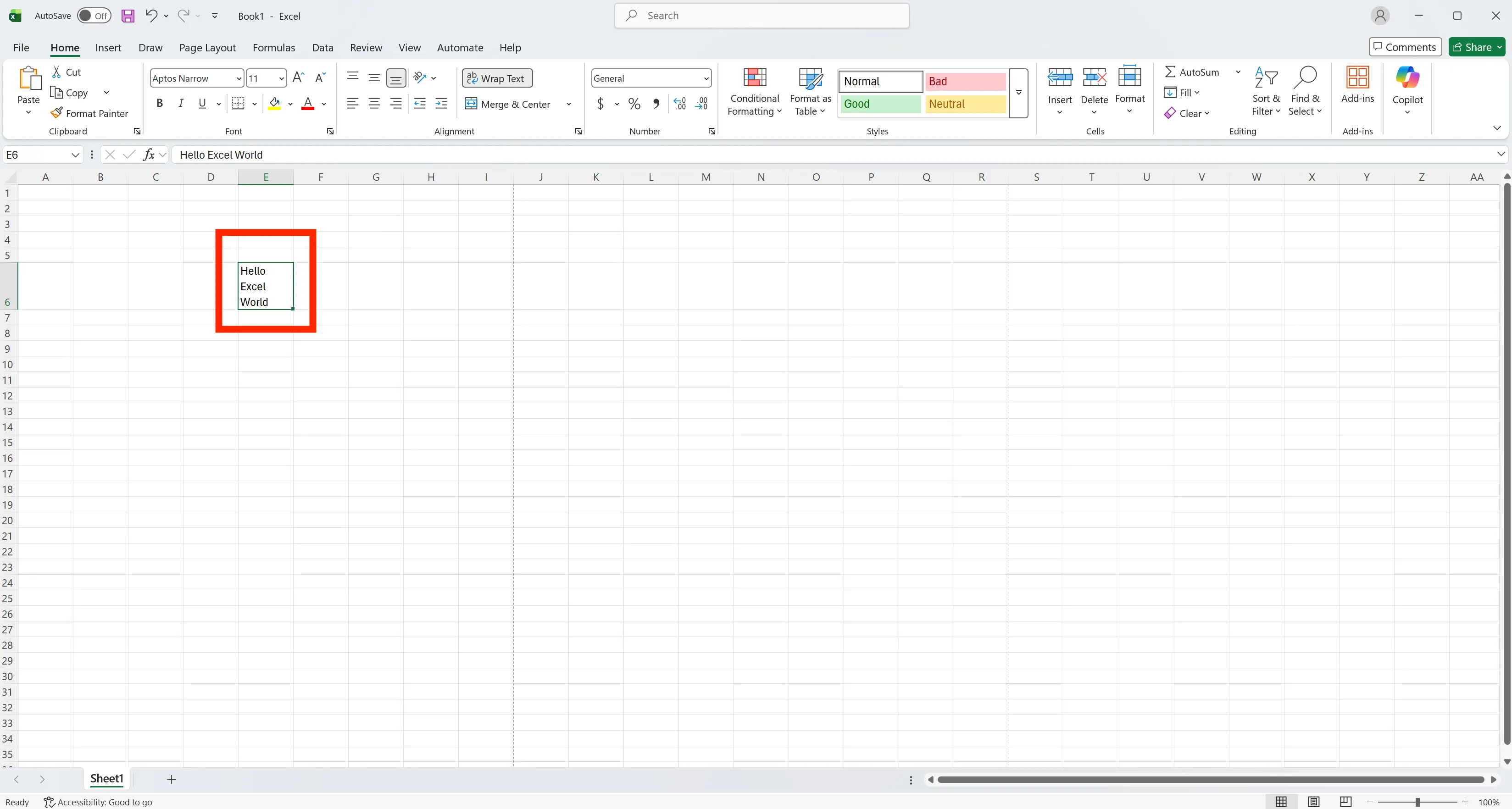
Add a manual line break with Alt + Enter
Double-click the cell, place the cursor where the break should go and press Alt + Enter.
Let Wrap Text break lines automatically
Select the range and click Home → Wrap Text. Text moves to the next line whenever it reaches the column edge.
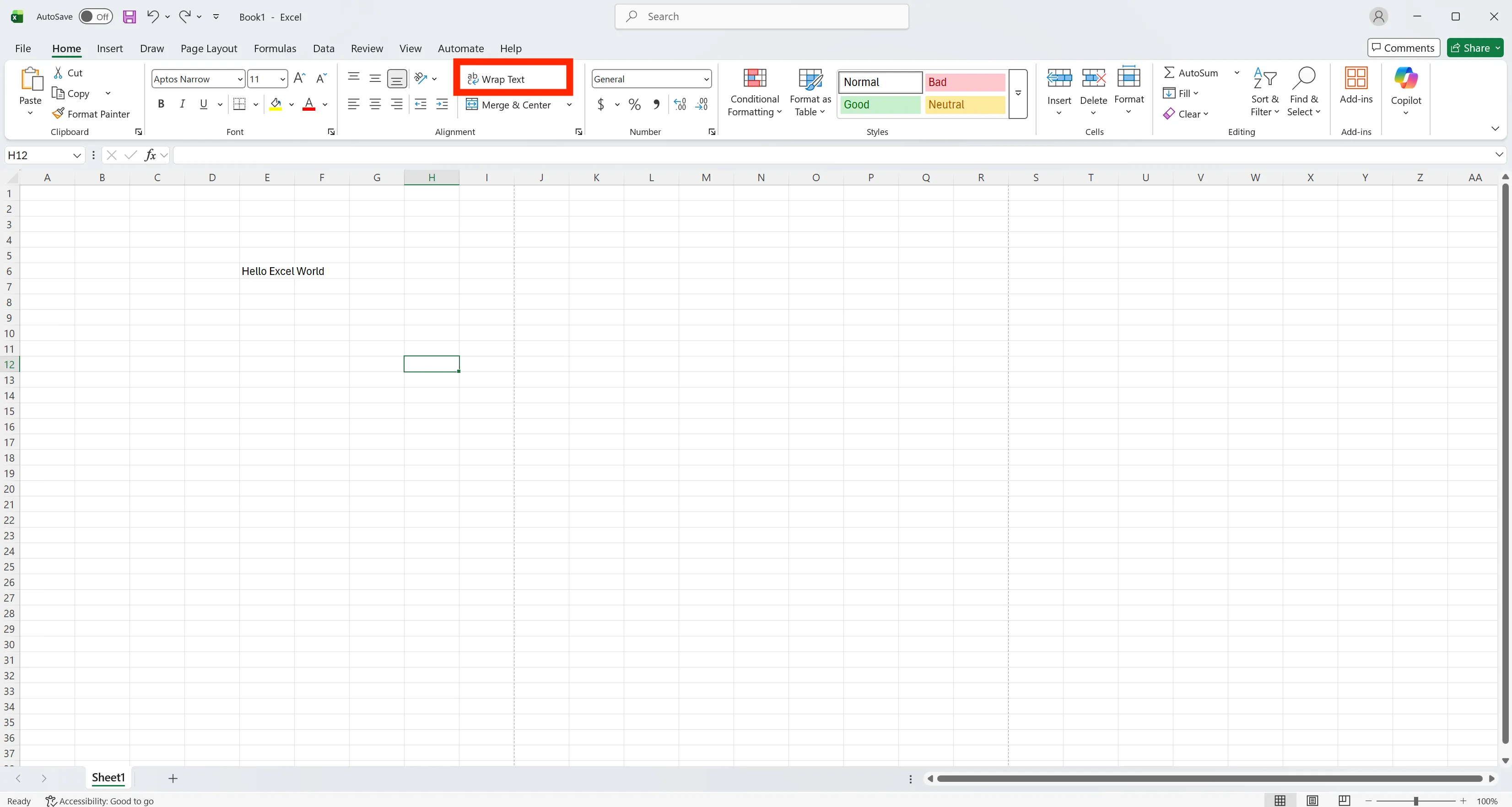
If line breaks seem to do nothing, check three things: Wrap Text must be on, Shrink to Fit must be off, and the row height must not be fixed. Double-clicking the row border auto-fits the height.
Build a line break with a formula
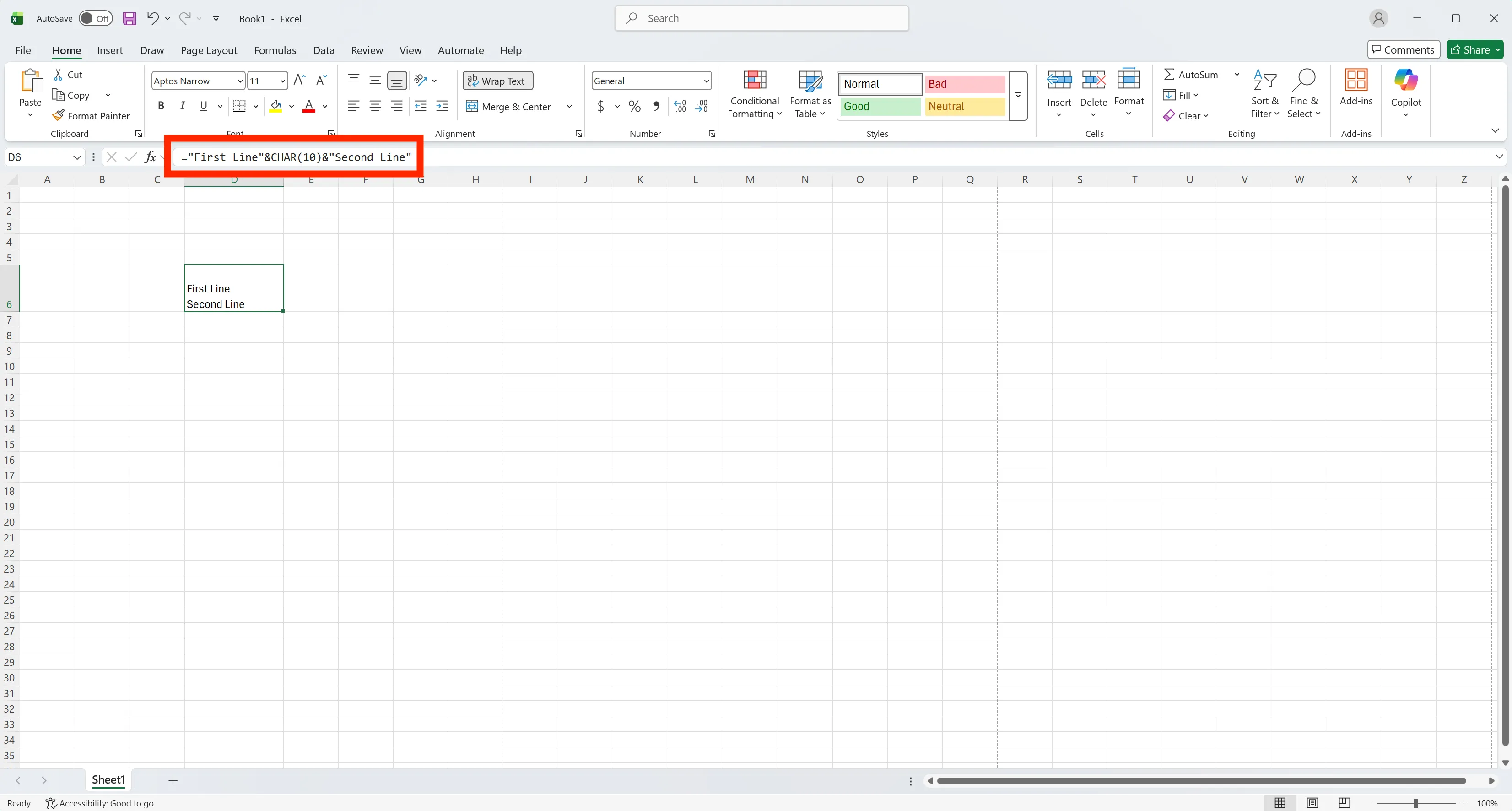
Use CHAR(10) where the break should go, for example ="First Line"&CHAR(10)&"Second Line", and turn on Wrap Text for the cell. On a Mac, some setups use CHAR(13) instead.
Remove every line break at once
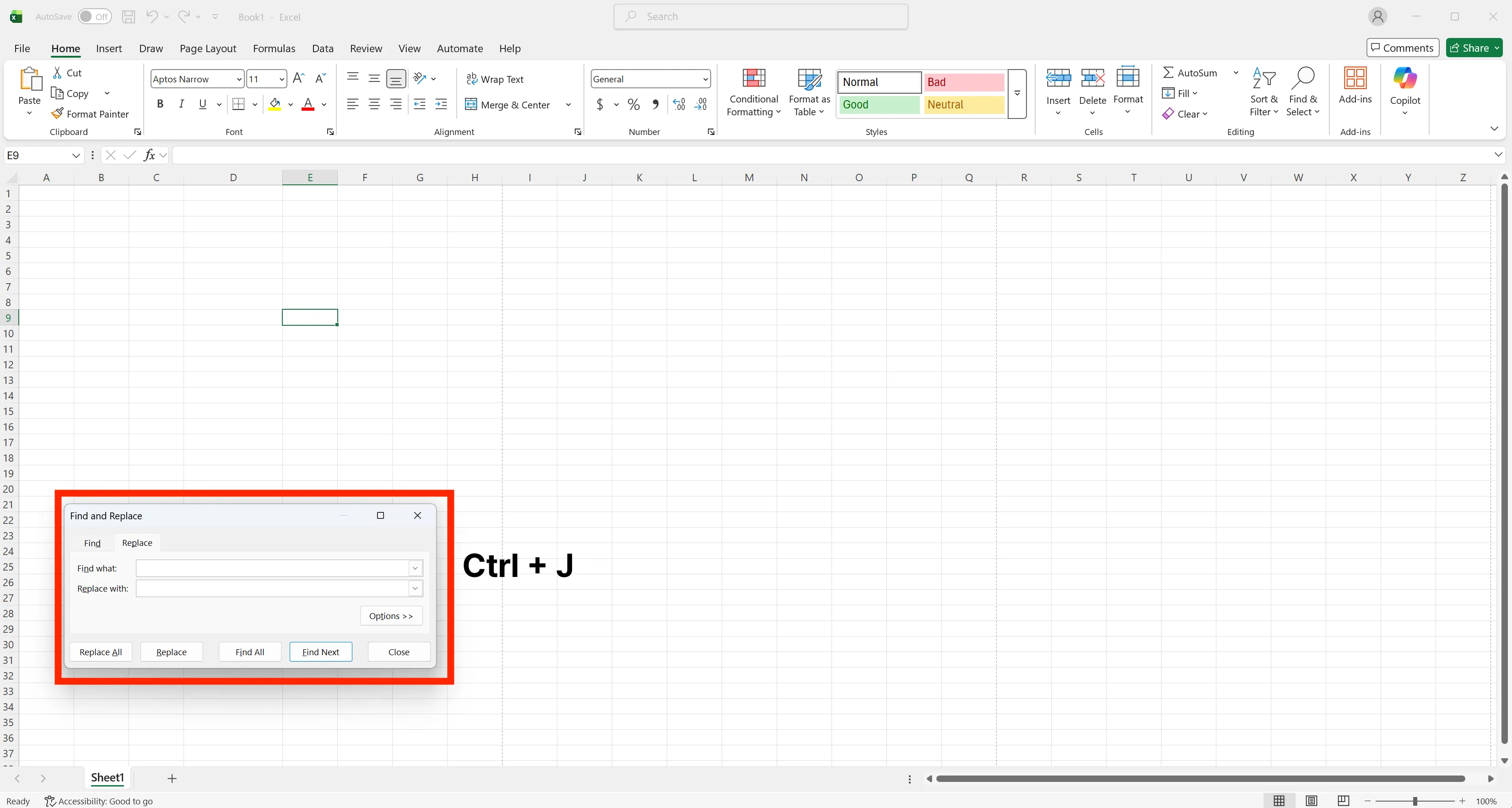
Press Ctrl + H, click in the Find what box and press Ctrl + J (the box looks empty, but it now holds a line break). Type a comma and space in Replace with, or leave it empty, and click Replace All. Select the column first so the replacement stays inside it.
When wrapped text gets cut off in print
Wrapped text that fits on screen can still be clipped on paper. Give wrapped rows some extra height, set the print area to the table with Page Layout → Print Area → Set Print Area, and check Print Preview before printing.
Excel line breaks: frequently asked questions (FAQ)
Q. Why doesn't Alt + Enter show a new line?
Wrap Text is probably off, Shrink to Fit is on, or the row height is fixed. Fix those three and the break appears.
Q. What if the AI removes line breaks I wanted to keep?
Name the columns it may change, as in the example above, and check the before-and-after samples it shows. The change is recorded, so a mistake can be traced and reversed.
Q. Can the AI read order files from a channel I don't have access to?
No. It works with your permissions, so files and data your role cannot open are closed to it too.
Q. Where is our order data stored?
Company data is stored on AWS and is not used to train AI models. An eZDR agreement means the model provider keeps neither prompts nor files.
Handling line breaks with inline AI
Alt + Enter and Find and Replace work, but cleaning the same column in a fresh export every day is repetitive and easy to get slightly wrong. In the AI Browser, the employee keeps the file open and asks the AI beside it to remove, add or format line breaks in the columns that need it, then checks the samples it shows. The work runs inside the company's accounts, permissions and approval policies, and every change is recorded in the audit log.
In the AI Browser, this takes one request
inline AI OS is a work browser where your team keeps company files open and hands the task to the AI beside them. Book a free consultation to see how it fits your operations.
Book a free consultation