
Blog
Wrap Text in Excel and Fix Row Height, With AI

Wrap Text in Excel breaks long text onto several lines inside a cell, but it does not make the row taller. That is why "wrap text not working" is almost always a row height problem: a row that someone once resized by hand, or a merged cell that AutoFit cannot measure. Files built around written notes suffer most. Quality inspection logs, customer complaint registers and supplier evaluations all have a column where people write full sentences, and that column is the one that ends up clipped on screen and cut off when printed for the weekly meeting.
Fixing it by hand means wrapping, unmerging, resizing and checking row by row. In the AI Browser, the employee keeps the log open in a tab and asks the AI beside it to make the notes readable, then looks over the result.
Wrapping text in the AI Browser
The scene: a defect log for the weekly quality meeting
At Green Farm's packing plant, the quality lead keeps Defect_Log_Q3.xlsx. Inspectors type what they found in the Inspector Notes column, and the supervisor adds a Corrective Action. Some notes are merged across two columns, some rows were squeezed to a fixed height last quarter, and the printout for Thursday's meeting shows only the first line of each note.
She opens the log in a tab of the AI Browser and types:
"Make Inspector Notes and Corrective Action readable: unmerge any merged cells there, set both columns to about 45 characters wide, wrap text, align to the top, and fit every row's height to its content. Don't change any other columns."
What the AI does, step by step
- Finds what blocks AutoFit: merged cells in the notes columns and rows with a manually fixed height.
- Unmerges the notes, keeping the text in the left cell, and lists the rows it touched.
- Sets width, wrapping and top alignment on the two columns only.
- Fits the row heights to the wrapped text and reports any note so long it would fill most of a printed page, so the lead can decide whether to shorten it.
What the employee checks
She scrolls through the log, opens Print Preview to confirm the notes print in full, and reads the AI's list of rows that were unmerged. If an inspector's note is now on two lines where it used to be cut off, nothing in the text has changed; only the layout has.
How it stays safe
The AI changes the log because the quality lead can; someone with read-only access gets a read-only AI. It touches formatting only, and the request and the changes are recorded, so nobody wonders why the log suddenly looks different.
Preparing the meeting copy
Before Thursday, she can ask the AI to create a meeting copy with only this week's rows, the notes columns wrapped and the page set to landscape, then export it as a PDF. She checks the preview and shares it.
👉 Line Breaks in Excel: Add or Remove Them with AI
Doing it by hand
Turn on Wrap Text

Select the cells and click Home → Alignment → Wrap Text. To break a line at a specific point, press Alt + Enter while editing the cell.
Fit the row height
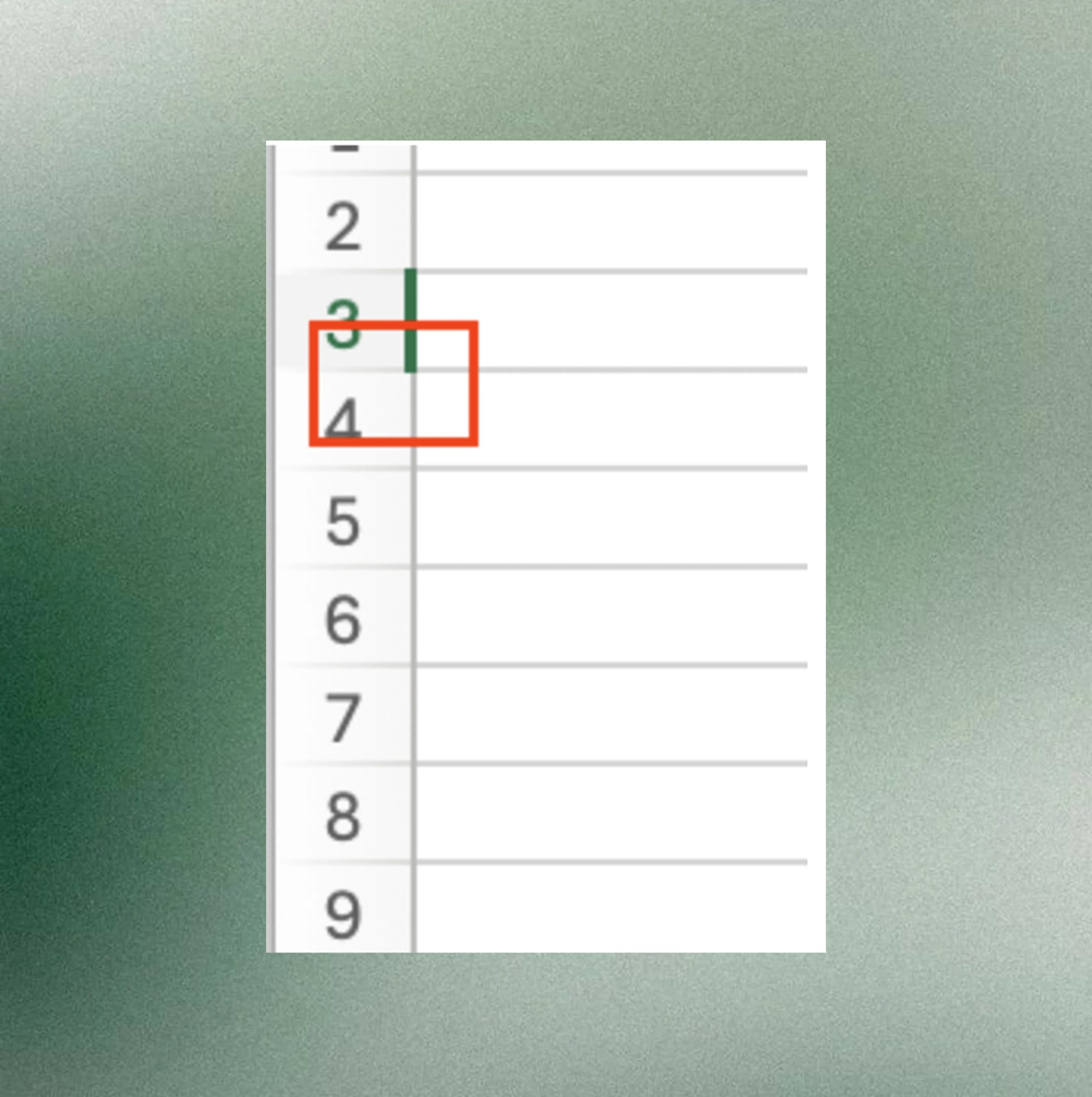
Double-click the boundary below the row number, or select several rows and double-click any boundary between them. Excel resizes each row to its wrapped text.
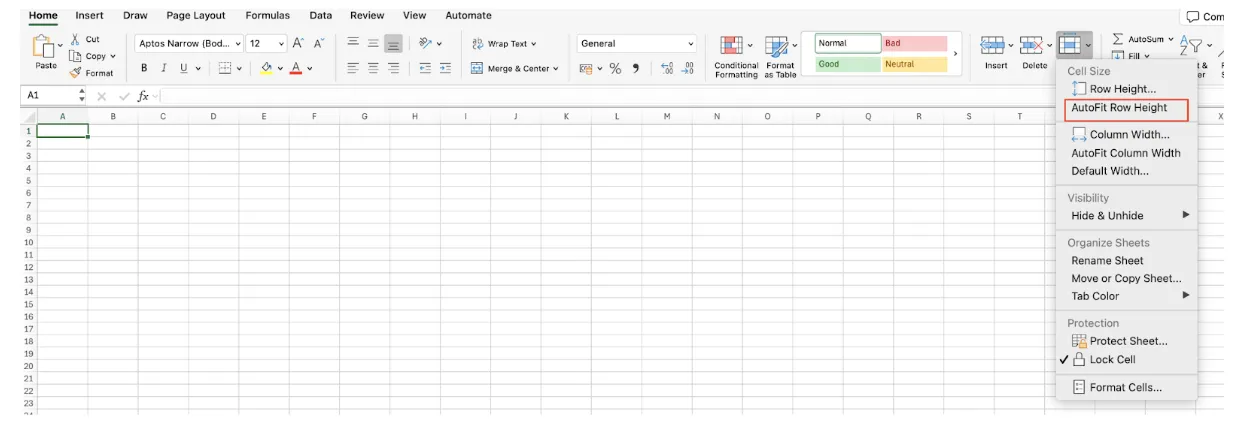
Or use Home → Format → AutoFit Row Height, which is easier on long sheets.
Why AutoFit sometimes does nothing
- The row height was set by hand. Excel stops recalculating it. AutoFit Row Height resets it.
- The cell is merged. Excel cannot measure merged cells, so AutoFit ignores them. Unmerge, or use Center Across Selection for layout instead.
- Copied formatting brought a fixed height or alignment with it. Paste Values, then reapply Wrap Text and AutoFit.
Check alignment and column width
Top or center vertical alignment usually reads better than bottom. Too narrow a column makes text wrap into a tall, thin block; too wide and nothing wraps at all. Adjust width and height together.
Excel wrap text: frequently asked questions (FAQ)
Q. Wrap Text is on, but the text is still on one line. Why?
The row height is fixed. Double-click the row boundary or use AutoFit Row Height, and check that the cell is not merged.
Q. Will the AI change what inspectors wrote?
No. The request was about layout, and the AI changes only formatting unless you ask for something else. If it unmerges a cell, it keeps the text and lists the rows it touched.
Q. What if I don't have edit access to the log?
Then the AI can't edit it either. It works with your permissions, so you would ask the owner or work on a copy.
Q. Where is the log stored when the AI works on it?
Company data is stored on AWS and is not used to train AI models. An eZDR agreement means the model provider keeps neither prompts nor files.
Making notes readable with inline AI
Wrap Text, AutoFit and unmerging are each one click; the time goes into finding which rows and cells are blocking them. In the AI Browser, the employee keeps the file open and asks the AI beside it to format the columns that matter, then checks the result in Print Preview. The work runs inside the company's accounts, permissions and approval policies, and every change is recorded in the audit log.
In the AI Browser, this takes one request
inline AI OS is a work browser where your team keeps company files open and hands the task to the AI beside them. Book a free consultation to see how it fits your operations.
Book a free consultation