

Blog
How to Alphabetize in Excel Without Scrambling Rows

To alphabetize in Excel, click any cell in the column you want to sort by and choose Data > Sort A to Z. Excel treats each row as one record and moves the whole row together, so names stay next to their balances and phone numbers. Rows get scrambled when that assumption breaks: one column selected on its own, merged cells, a blank row in the middle, or a filter left on. Then a customer name moves and its balance doesn't, and the file pairs one customer with someone else's money. Once it's saved, there is usually no clean way back.
This guide covers the one-click sort, multi-level sorts, custom orders and sorting by last name, the SORT function, and the six causes of scrambled rows with a fix for each.
Alphabetize a column in one click
Click a single cell in the column to sort by, such as Customer, then Data > Sort A to Z (or Z to A for reverse order). The same buttons are under Home > Editing > Sort & Filter.
With one cell selected, Excel detects the surrounding block of data, bounded by blank rows and columns, and sorts all of it. That detection stops at the first fully blank row, which is why tables with gaps need the full range selected by hand.
The warning when one column is selected
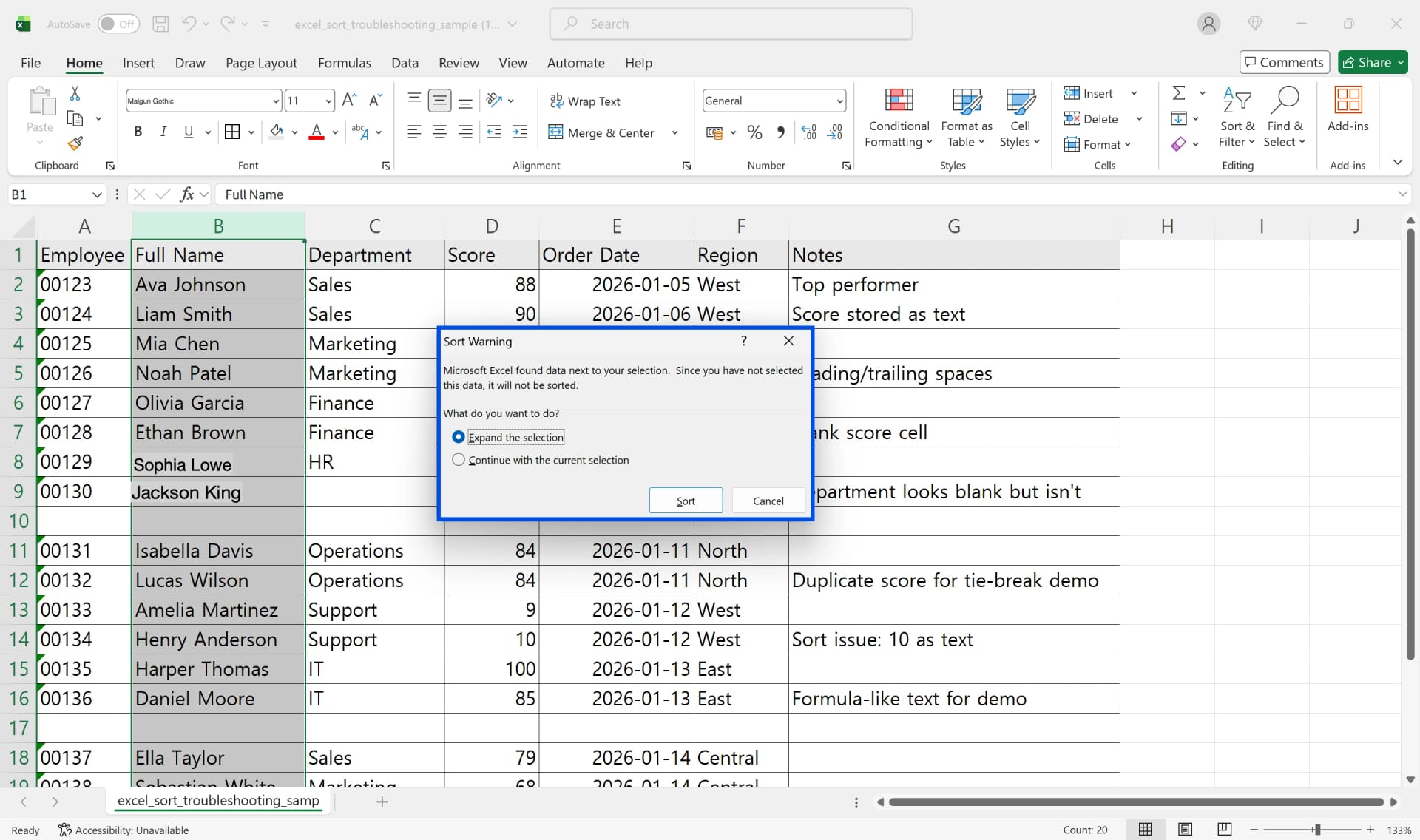
If you select a column letter and click Sort, Excel shows a Sort Warning. Expand the selection sorts the neighbouring columns along with it. Continue with the current selection moves only that column, breaking every row. Choose Expand.
Sort by more than one column
To alphabetize by customer and then by invoice date within each customer, use the Sort dialog:
- Click a cell in the data and choose Data > Sort.
- Check that My data has headers is ticked. If it isn't, the header row gets sorted into the data.
- Set the first level: column, Sort On (Cell Values), Order (A to Z).
- Click Add Level for the next key. Levels apply from top to bottom.
- Click OK.
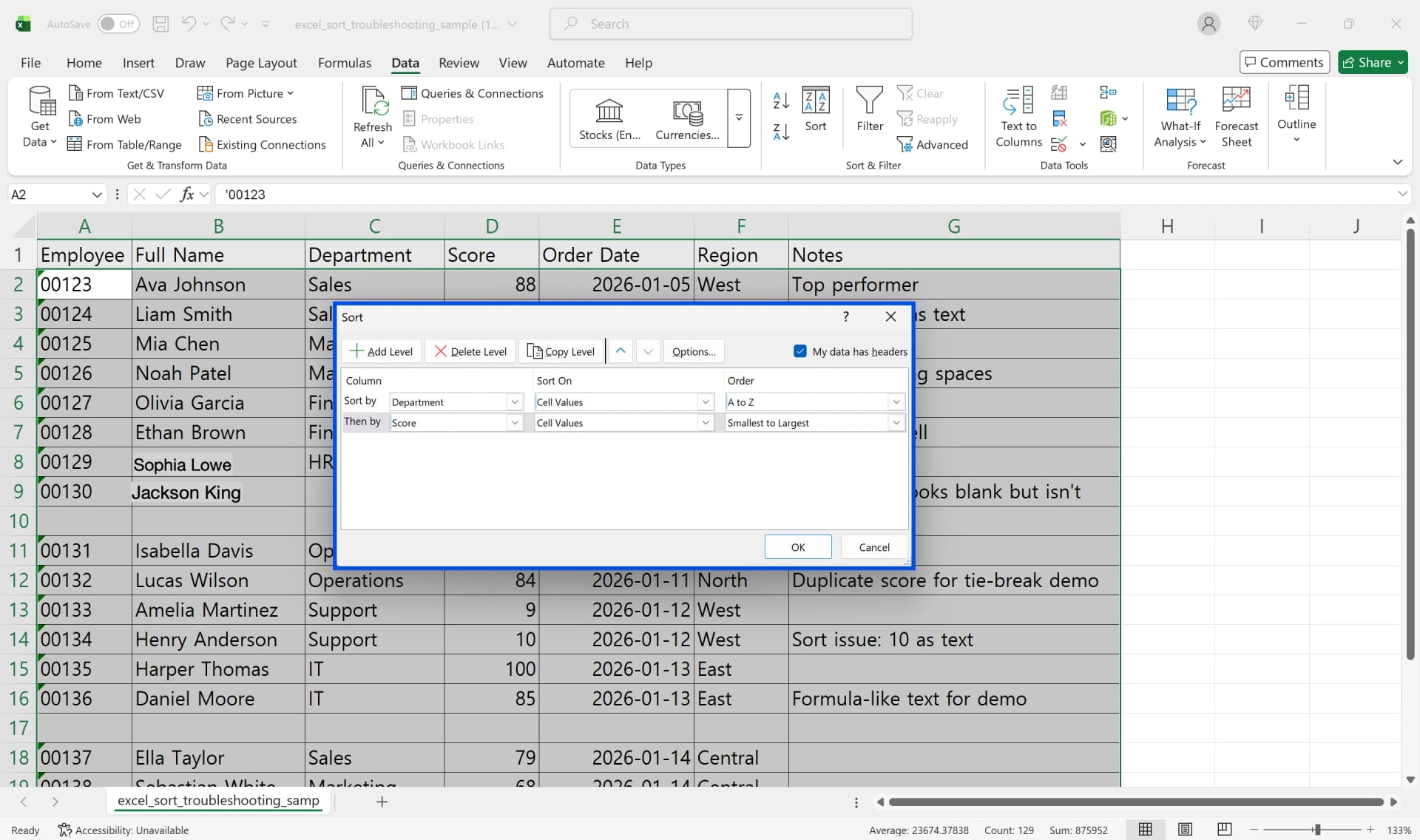
The Range.Sort reference on Microsoft Learn lists the options behind this dialog: header detection, a custom sort order, case-sensitive sorting and orientation (top to bottom or left to right). In the dialog, they sit under Options.
Sort by color or icon
If overdue customers are highlighted red, choose Cell Color, Font Color or Conditional Formatting Icon under Sort On and pick the color to put on top. Add a level per color to control the order. Colors applied by conditional formatting sort the same way.
Custom order instead of A to Z
Regions, priority levels or month names often need a fixed order rather than alphabetical. In the Order list choose Custom List, type the entries in the order you want (East, Central, West) and click Add. The list is saved and available in every workbook; you can also manage lists under File > Options > Advanced > Edit Custom Lists.
How Excel orders mixed values
Ascending order puts numbers first, then text, then logical values (FALSE before TRUE), then errors. Blank cells always go last, in either direction. A leading space sorts before letters, so " Brightway" jumps to the top; if the order looks wrong, clean the column with TRIM first. Sorting ignores case unless you turn on Case sensitive under Options.
Alphabetize by last name
When "First Last" sits in one cell, sorting uses the whole text, so it orders by first name. Add a helper column with the last name and sort by that. In Microsoft 365, =TEXTAFTER(B2, " ", -1) returns the text after the last space. In older versions, type the first two last names by hand in the helper column and press Ctrl + E for Flash Fill, or use Data > Text to Columns on a copy of the column. Sort by the helper column, then by first name as a second level.
Six reasons a sort scrambles your rows
1. Continue with the current selection
Only one column moved. Undo immediately with Ctrl + Z. If the file is saved, go back to the original. If no warning appeared at all, a blank column separated the data, so Excel saw two tables; delete the blank column.
2. Merged cells
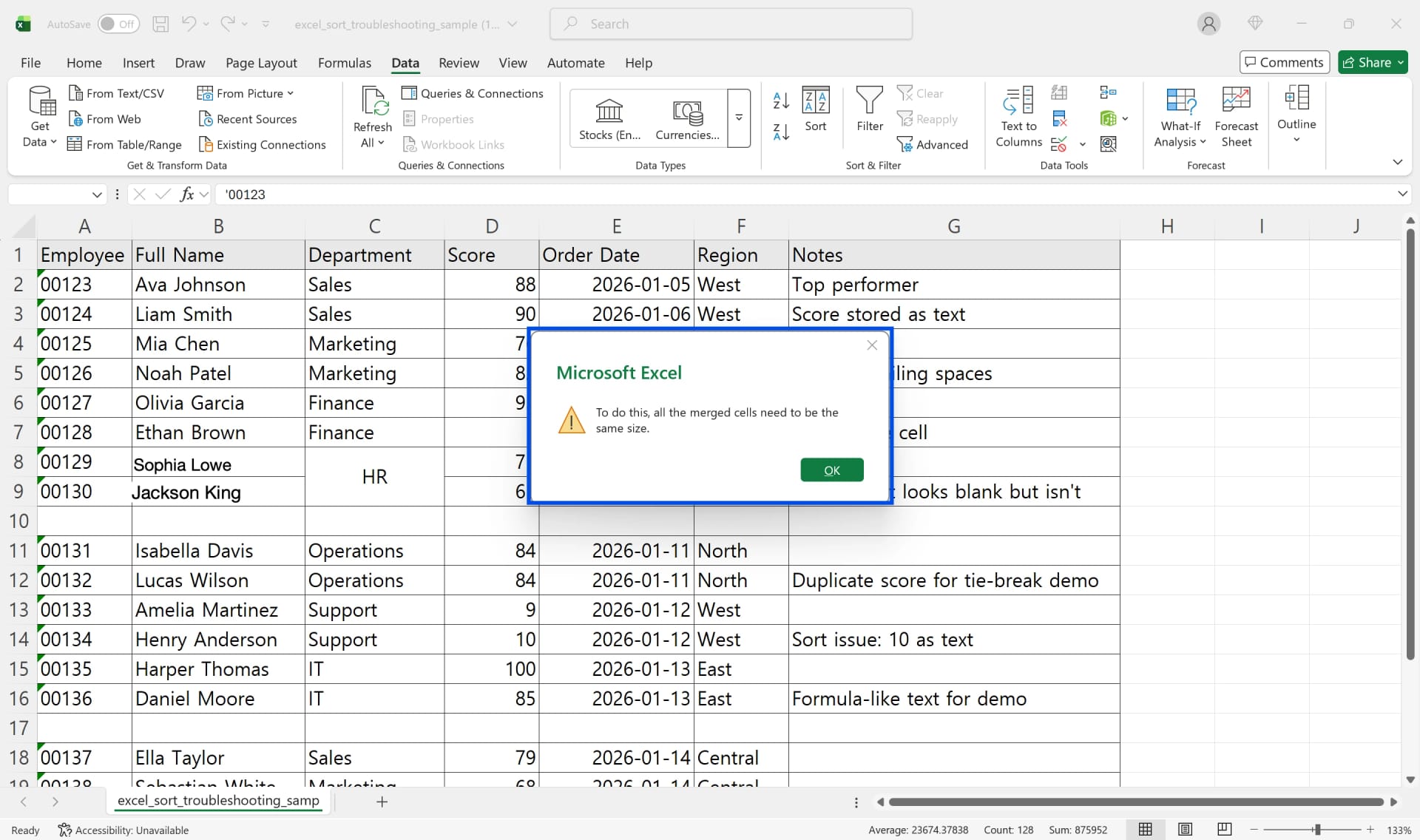
A range with merged cells of different sizes won't sort. Excel shows an error that merged cells need to be the same size. Microsoft's troubleshooting article gives two fixes: unmerge every merged cell in the range, or make all merged cells the same size. In practice, unmerge, fill the blanks with the value from above, and sort. Apply merges for presentation on a separate report sheet afterwards.
3. A blank row in the middle
With one cell selected, Excel stops at the blank row and leaves everything below it unsorted. Delete blank rows first, or select the range from header to last row before sorting.
4. A filter left on
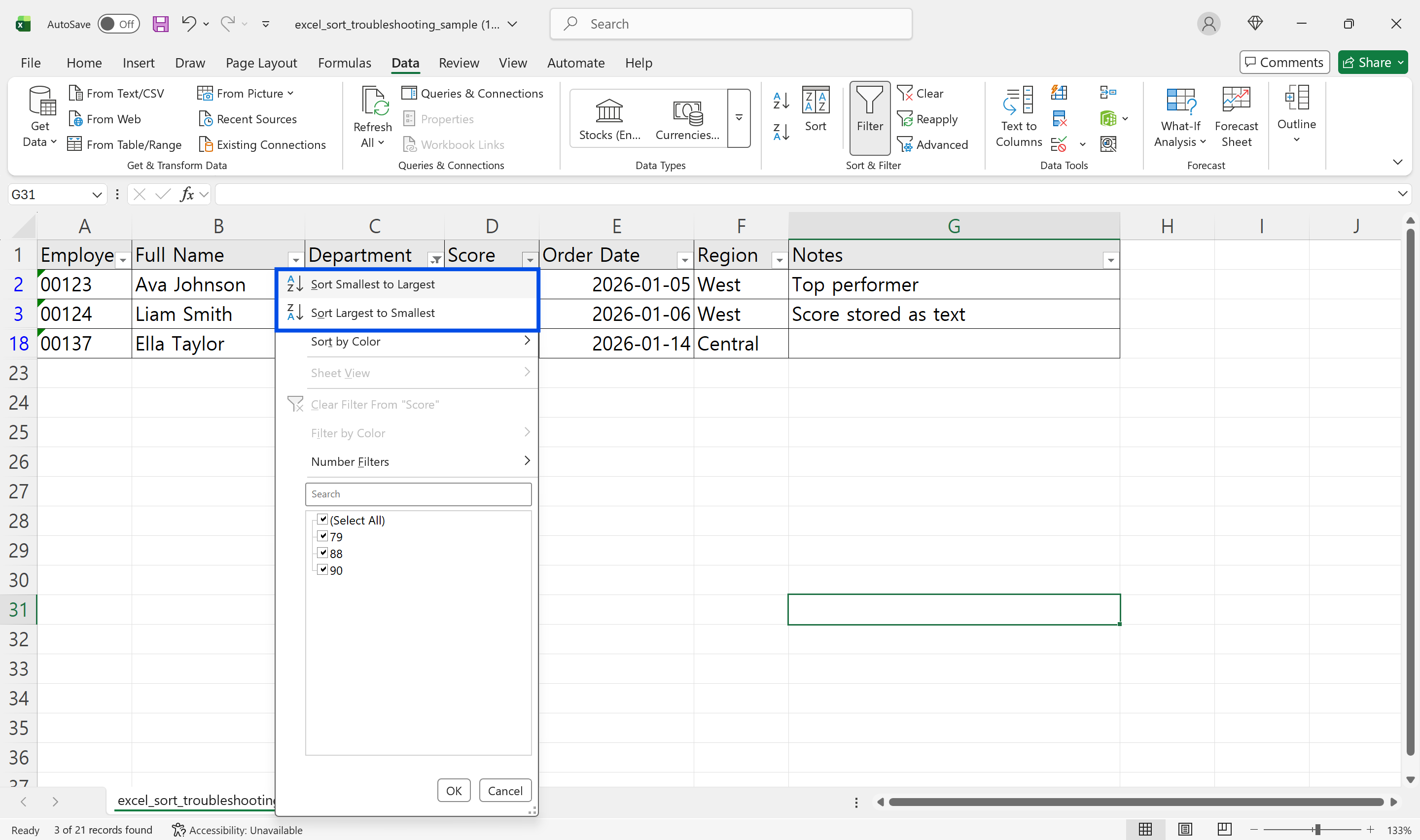
With a filter applied, sorting rearranges only the visible rows; filtered-out rows stay where they were. Clear the filter and the order is mixed up. Use Data > Clear before sorting the full list. Manually hidden rows also stay put during a sort, so unhide them too.
5. Numbers stored as text
Codes and amounts that mix real numbers with numbers stored as text sort as two groups, so 10 can land before 9. The XlSortDataOption reference confirms that the default "sorts numeric and text data separately". The Sort dialog shows a warning for such columns; choose Sort anything that looks like a number, as a number. Better still, convert the text to numbers before sorting.
6. Headers sorted into the data
If headers like "Customer" and "Balance" end up in the middle of the list, My data has headers was off. Excel guesses headers poorly when the header row contains numbers or looks like the data. Undo, tick the box and sort again. Bold headers or a formatted table help Excel recognise them.
👉 How to Sort in Excel: Multiple Columns, Custom Order, Fixes
SORT and SORTBY: alphabetize without touching the source
In Microsoft 365 and Excel 2021 or later, a formula can return a sorted copy. =SORT(A2:F200, 2, 1) sorts the range by its second column ascending, and the source stays in entry order. For several keys, =SORTBY(A2:F200, B2:B200, 1, E2:E200, -1) sorts by column B ascending, then E descending. The result updates with the source, which suits shared files where people want different views. Paste as values before sending to someone on an older version.
Tables make sorting safer
Format frequently sorted lists as a table (Insert > Table or Ctrl + T). Each header gets a filter button with sort options, the range is detected automatically, and one-column sorts can't happen. Add rows at the bottom and Data > Reapply re-runs the last sort including them. In files shared through OneDrive or SharePoint, View > Sheet View lets you sort for yourself without changing the order for others.
Pre-sort checklist
- Original saved, and an index column (1, 2, 3…) added at the left.
- Range covers the whole table, headers included.
- My data has headers is set correctly.
- No merged cells, hidden rows or hidden columns.
- No blank rows, no numbers stored as text in number columns.
- All filters cleared.
The index column is your only way back to the original order. Sorting by it once before saving confirms you can return.
Worked example: an aging report for collections
The credit controller at Northgate Supply sorts the receivables aging report every Monday for collection calls: customer A to Z, and within each customer, oldest invoice first. The sheet has 412 rows with customer, invoice number, invoice date, amount, days overdue and sales rep.
- Index column. Save the original and insert an index column.
- Clear obstacles. Customer cells in rows 88 to 90 are merged; unmerge and fill down. Row 205 is blank between two halves of the same list; delete it.
- Fix text numbers. Seven amounts show the green triangle; convert them to numbers.
- Clear the filter left on the Sales Rep column.
- Two-level sort. Customer A to Z, then Invoice Date oldest to newest.
- Check pairs. Pick five random rows, find each by index in the original, and confirm customer, invoice and amount are still together. The amount total should be unchanged.
The sort took one second; steps 2 to 4 took about fifteen minutes. Skipping them would have put the merged rows' balances next to the wrong customers, and the calls would have gone out with the wrong numbers.
Frequently asked questions (FAQ)
Q. How do I undo a sort after saving?
Sort by the index column you added beforehand. Without one, restore from the original file or a previous version.
Q. Can I alphabetize sheet tabs?
Not with a built-in command. Drag tabs into order by hand, or use a short VBA macro if you do it often.
Q. Why is the Sort button greyed out?
The sheet is protected, you're still editing a cell, or several sheets are grouped. Unprotect, press Esc, or click a single sheet tab to ungroup.
Q. Can I sort left to right instead of top to bottom?
Yes. In the Sort dialog choose Options > Sort left to right, then sort by a row instead of a column.
How inline AI sorts without breaking records
For teams where several people sort the same customer and pricing lists, inline AI opens the file, clears merged cells, blank rows, filters and text numbers, sorts by the keys you name, and checks against an index that every customer is still paired with the right balance. In ARP, receivables and prices live as records in the first place, so sorting a view never splits a customer from its amount.
Hand your documents and your company’s work to inline AI.
Keep a file open, say what you need, and AI edits it or drafts a new one. Add the company AI OS and AI runs the rest of the work, ERP included.
Book a demo