
Blog
Combine Two Columns in Excel Without Losing Data, With AI

To combine two columns in Excel, you use a formula, not Merge & Center. Merging keeps only the top-left value and throws the rest away; a formula such as =A2&" "&B2 or TEXTJOIN joins the values in a new column and leaves the originals untouched. In company files the joining is rarely just first and last names. It is street, unit and city turned into one ship-to line, or item family, size and color turned into an item code with its leading zeros intact, often for a file that will feed the master data everyone else relies on.
That is where small mistakes cost the most: a double comma, a lost zero, a date that turns into 45123. In the AI Browser, the employee keeps the file open in a tab and asks the AI beside it to build the combined column, then checks it before anything is imported.
Combining columns in the AI Browser
The scene: preparing new customers and items for the master data
Harbor Foods is adding forty new wholesale customers and a new product line. The master data coordinator has New_Partners_Items.xlsx: one sheet with customer addresses split into Street, Unit and City/State/ZIP, and another with Item Family, Size and Color codes that need to become a single item code such as SAU-0250-RD.
She opens the file in a tab of the AI Browser and types:
"On the Customers sheet, add a Ship-to column that joins Street, Unit and City/State/ZIP with commas, skipping Unit when it's empty. On the Items sheet, add an Item Code column as Family-Size-Color, with Size padded to four digits. Keep the original columns. Then tell me if any new item code repeats or looks like a near-duplicate of another."
What the AI does, step by step
- Inspects the source columns for things that break joins: stray spaces, empty-looking cells that contain a space, sizes stored as numbers that would lose their leading zeros.
- Writes the formulas in new columns, for example
=TEXTJOIN(", ",TRUE,TRIM(A2),TRIM(B2),TRIM(C2))for the address and=A2&"-"&TEXT(B2,"0000")&"-"&C2for the code. - Checks the new codes against each other and lists any that repeat or look like near-duplicates.
- Summarizes what it found: rows with missing parts, codes that collide, and addresses that look incomplete.
What the employee checks
The coordinator reads a handful of combined addresses, checks that sizes like 0250 kept their zeros, and decides what to do with the codes the AI flagged. Nothing has been imported yet; the original columns are still there if a formula needs to change.
How it stays safe
The AI edits the file only within the coordinator's permissions. It does not add anything to the company's master data; loading the records stays a separate step for the person with that role. The request and the formulas added are recorded.
Handing the file on
When the columns are checked, the coordinator can ask the AI to create a clean copy with the combined Ship-to and Item Code columns pasted as values, ready for whoever loads the master data, plus a short list of the rows she held back and why.
👉 Concatenate in Excel: CONCAT and TEXTJOIN Built by AI
Doing it by hand
Always combine into a new column. The originals stay intact, so you can change the formula or start over.
The & operator
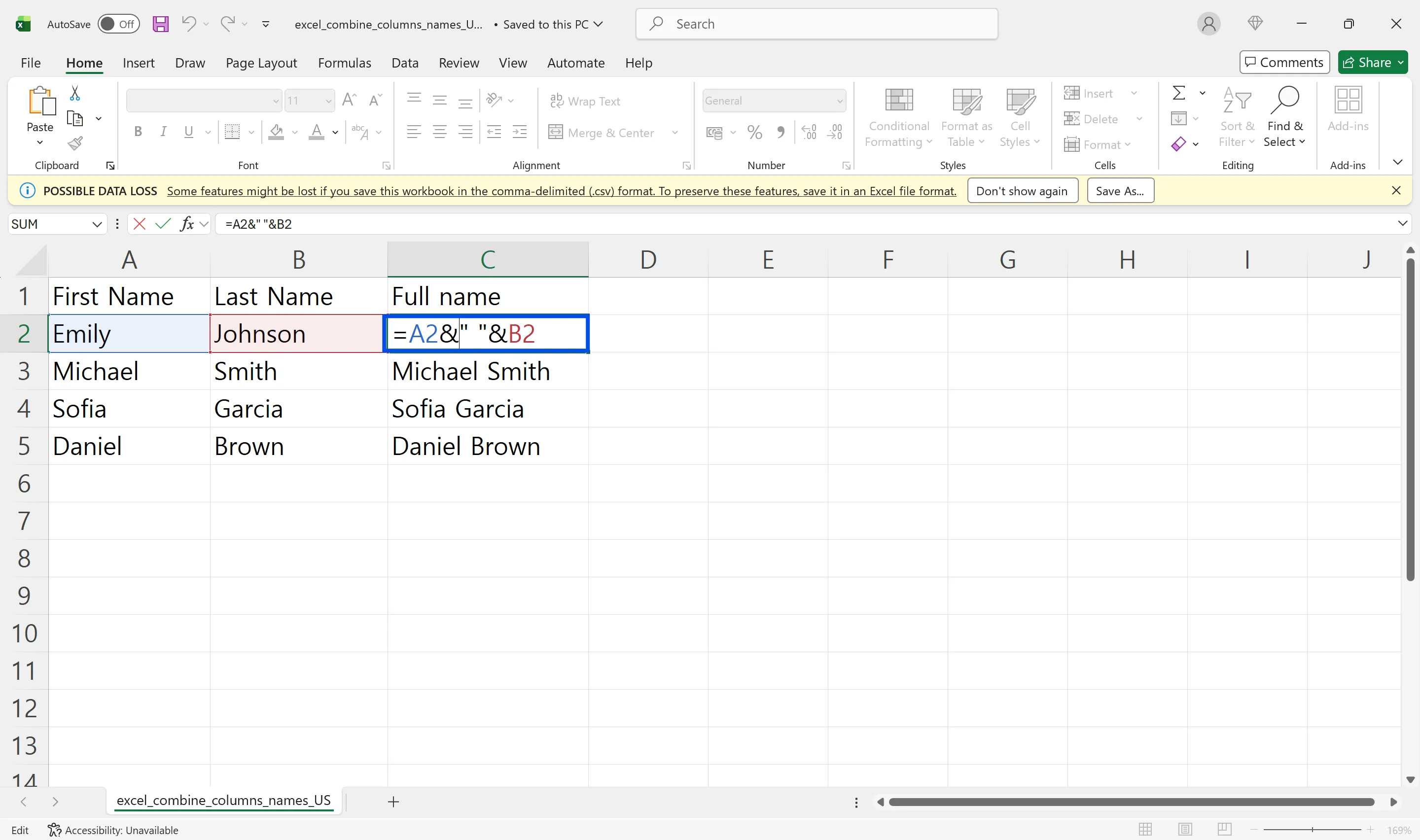
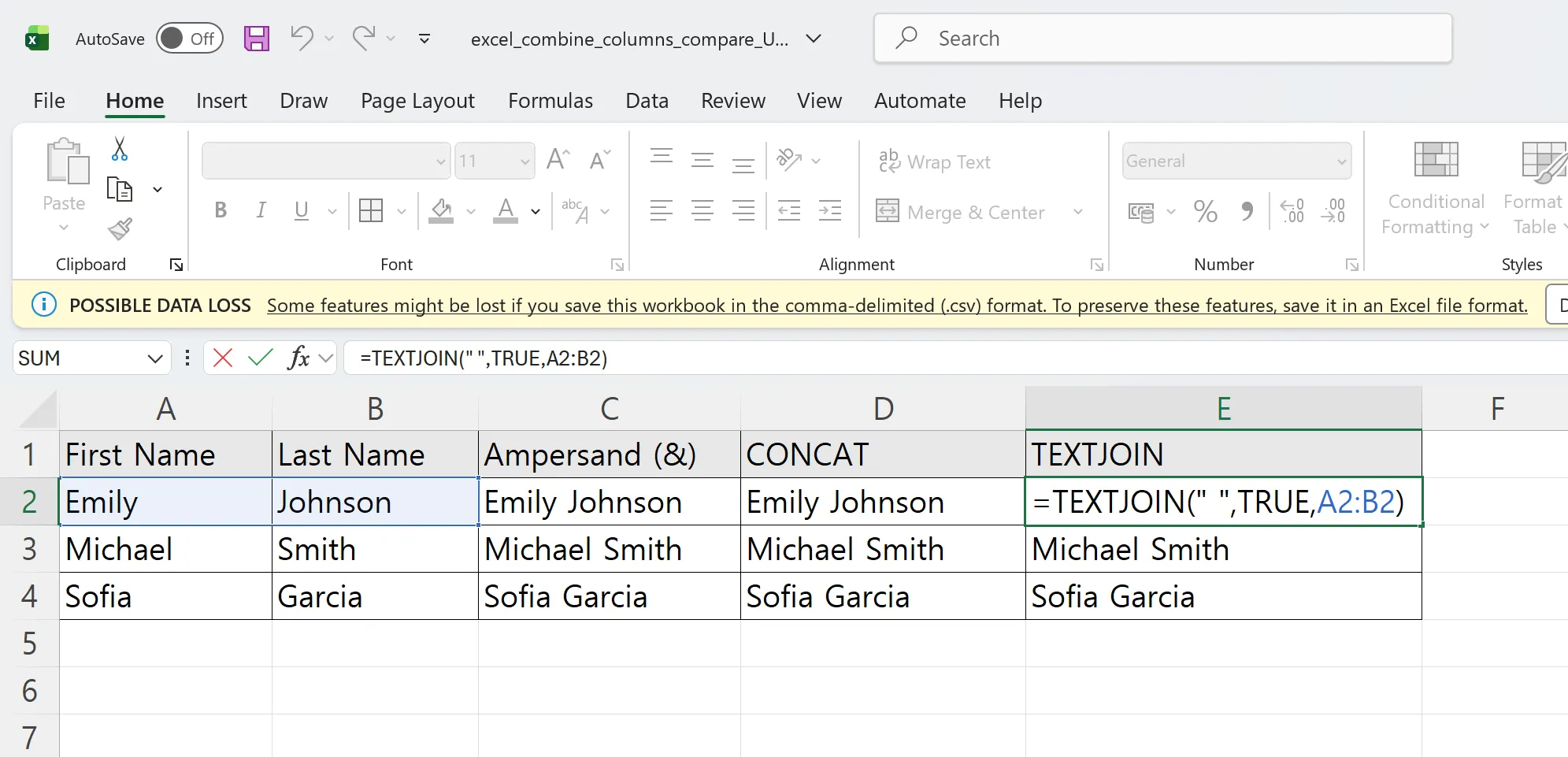
=A2&B2 joins two cells with nothing in between. Add a separator inside quotes: =A2&" "&B2 for a space, =A2&", "&B2 for a comma. Double-click the fill handle to copy it down.
| First Name (A) | Last Name (B) | Formula | Result (C) |
|---|---|---|---|
| Emily | Johnson | =A2&" "&B2 | Emily Johnson |
| Michael | Smith | =A3&" "&B3 | Michael Smith |
CONCAT
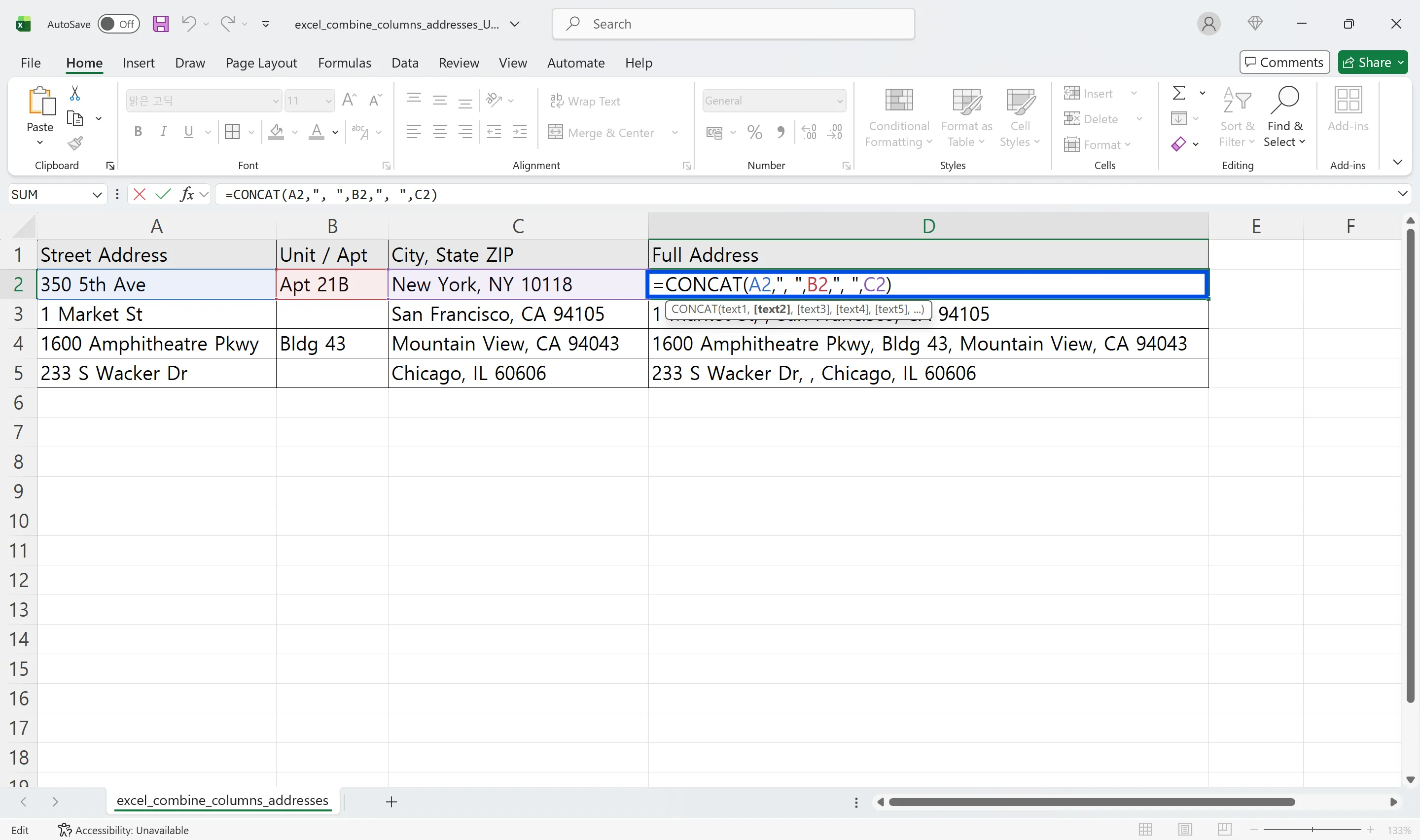
=CONCAT(A2,", ",B2,", ",C2) joins several cells, and =CONCAT(B2:D2) accepts a range. Separators still have to be typed between every argument.
TEXTJOIN
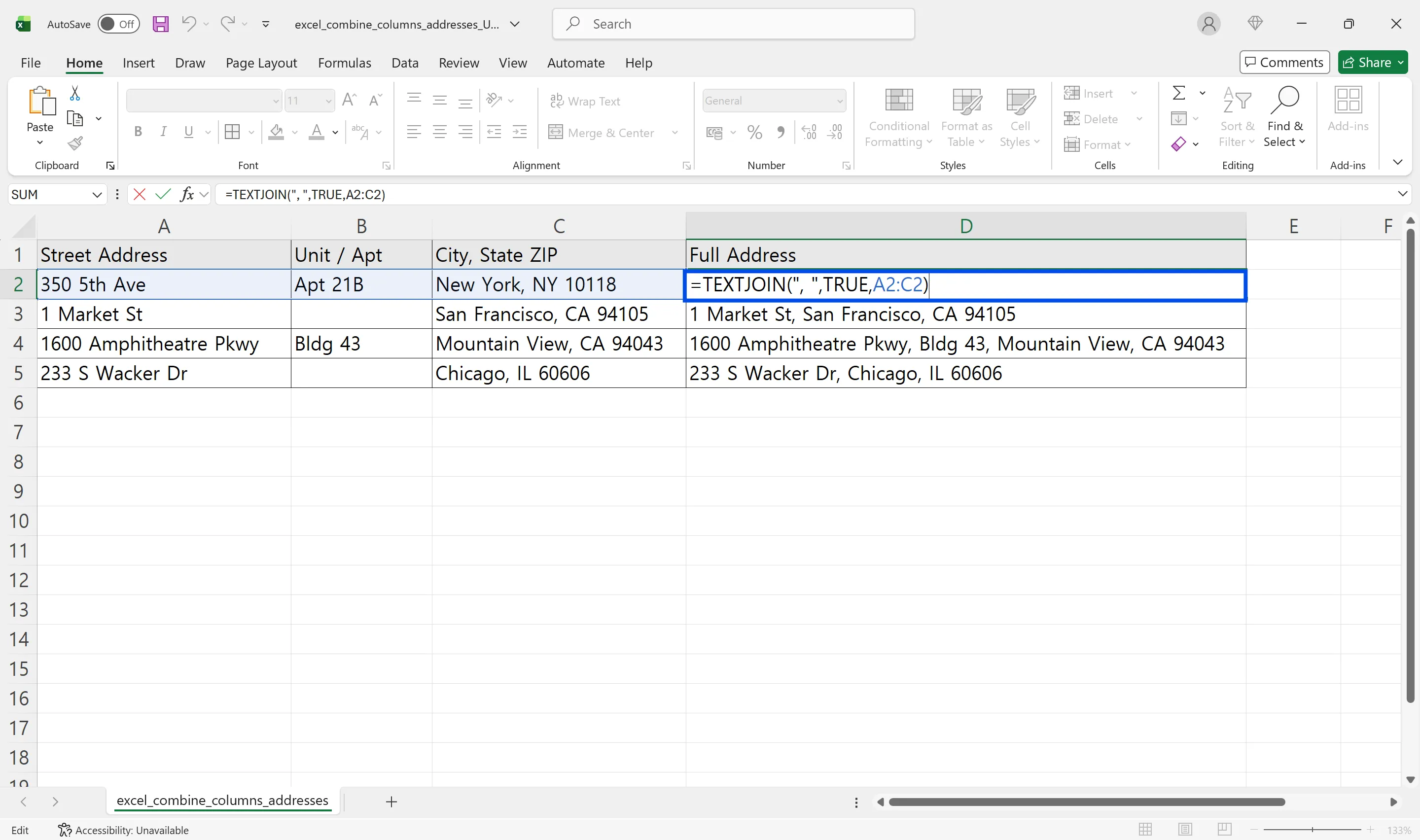
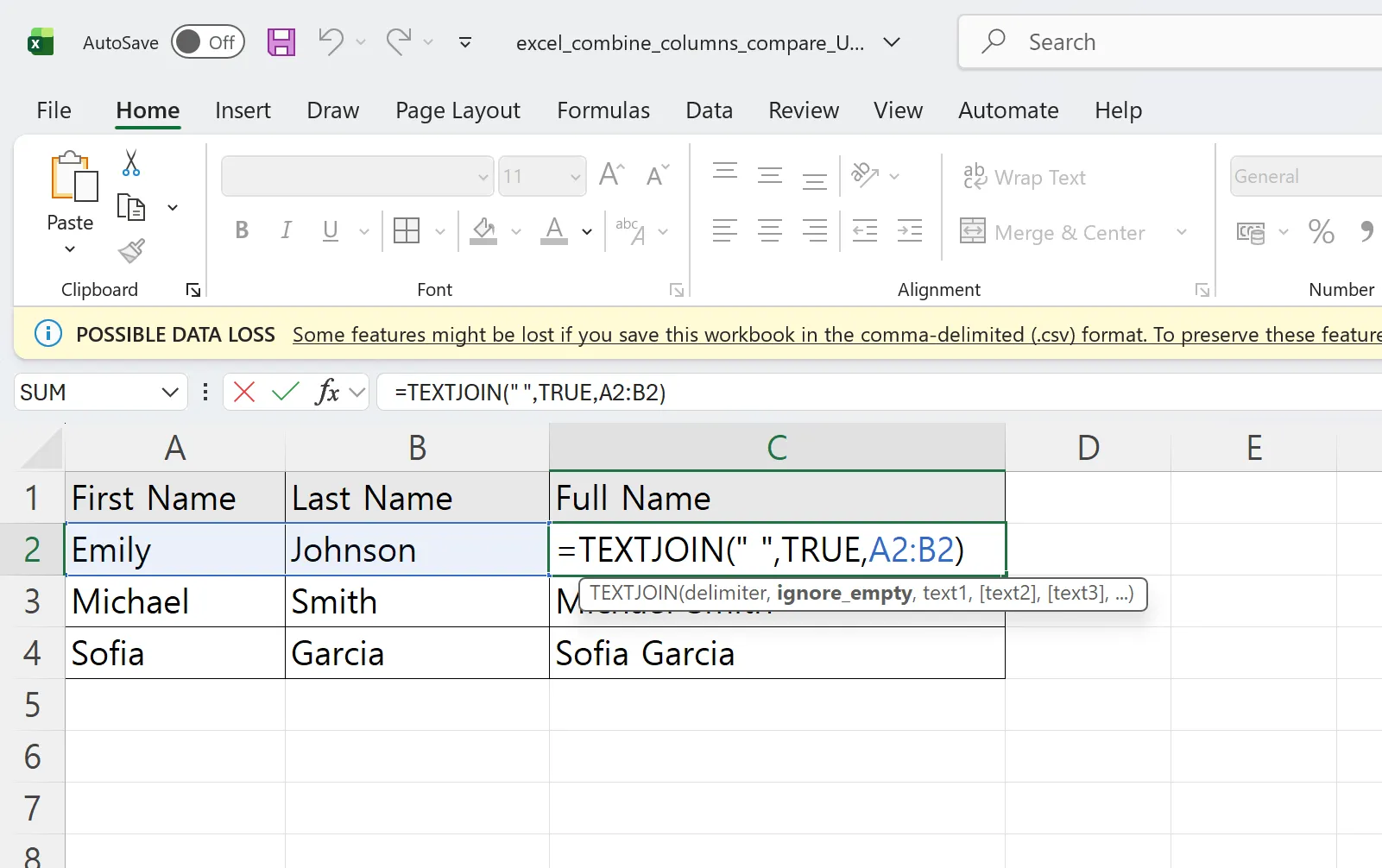
=TEXTJOIN(", ",TRUE,A2:C2) uses one separator for all cells, and TRUE skips blanks, so a missing unit number doesn't leave a double comma. TEXTJOIN is available in Excel 2019 and Microsoft 365.
Common mistakes
- Missing or double spaces:
=A2&B2runs words together; a trailing space in the source doubles the gap. TRIM the inputs. - Separators around empty cells: if TEXTJOIN still shows ", ," the "empty" cell probably contains a space.
- Dates and numbers lose their format: joined results are text, so wrap them in TEXT, for example
TEXT(A2,"yyyy-mm-dd")orTEXT(B2,"0000")to keep leading zeros.
Turn formulas into values before moving the data
When the combined column is final, copy it and use Paste Values, so it doesn't turn into #REF! when moved to another file.
Combining columns in Excel: frequently asked questions (FAQ)
Q. Should I use the & operator or TEXTJOIN?
For two or three fields, & is simplest. For many fields or data with blanks, TEXTJOIN is cleaner.
Q. What if the AI joins the columns in the wrong order?
The formulas sit in a new column next to the originals, so you can see and correct them. Nothing in the source columns is overwritten.
Q. Can the AI add the new items to the master data directly?
No. It prepares the file in the AI Browser; adding records to the master data is done by the person with that role, and changes there need confirmation.
Q. Is our customer data used to train AI models?
No. Company data is stored on AWS and is not used for training, and an eZDR agreement means the model provider stores neither prompts nor files.
Combining columns with inline AI
The formulas are short, but checking spaces, blanks, zeros and duplicates across a few hundred rows is where the time goes. In the AI Browser, the employee keeps the file open and asks the AI beside it to build the combined columns and flag the rows that need a decision, then reviews them before anything reaches the master data. The work runs inside the company's accounts, permissions and approval policies, and every action is recorded in the audit log.
In the AI Browser, this takes one request
inline AI OS is a work browser where your team keeps company files open and hands the task to the AI beside them. Book a free consultation to see how it fits your operations.
Book a free consultation