

Blog
Concatenate in Excel: CONCAT, TEXTJOIN and &

To concatenate in Excel is to join the contents of several cells into one, and you can do it with the & operator or the CONCATENATE, CONCAT and TEXTJOIN functions. The joining itself is easy. What goes wrong is everything around it: a date that turns into 46310, a batch number that loses its leading zero, a double comma where a cell was empty. In production and warehouse sheets those strings aren't decoration. They are lot codes, label lines and reference numbers that other people scan, file and search for, so one malformed code can send the wrong case to the wrong customer. Here is which method to use and how to keep every joined value readable.
Concatenate vs. merge
Searching for "combine cells" mixes two different jobs. Merge & Center on the Home tab makes several cells look like one. If more than one of them holds a value, Excel warns that merging keeps only the upper-left value, and the rest is discarded when you click OK. Concatenating joins the values into a new cell and leaves the source cells intact. This article is about concatenating.
If you only merge to center a title over a table, use Ctrl + 1 → Alignment → Horizontal → Center Across Selection instead. It looks the same, but the cells stay separate, so sorting, filtering and copying still work.
Four ways to concatenate in Excel
| Method | Example | Takes a range | Skips blanks | Available in |
|---|---|---|---|---|
| & operator | =A2&" "&B2 | No | No | All versions |
| CONCATENATE | =CONCATENATE(A2," ",B2) | No | No | All versions |
| CONCAT | =CONCAT(A2:C2) | Yes | No | Excel 2019 and later, Microsoft 365 |
| TEXTJOIN | =TEXTJOIN(" ",TRUE,A2:C2) | Yes | Yes | Excel 2019 and later, Microsoft 365 |
According to Microsoft's CONCAT function page, CONCAT replaces CONCATENATE, which remains available for compatibility with earlier versions. CONCAT and TEXTJOIN both return #VALUE! if the result exceeds 32,767 characters, the limit for a single cell.
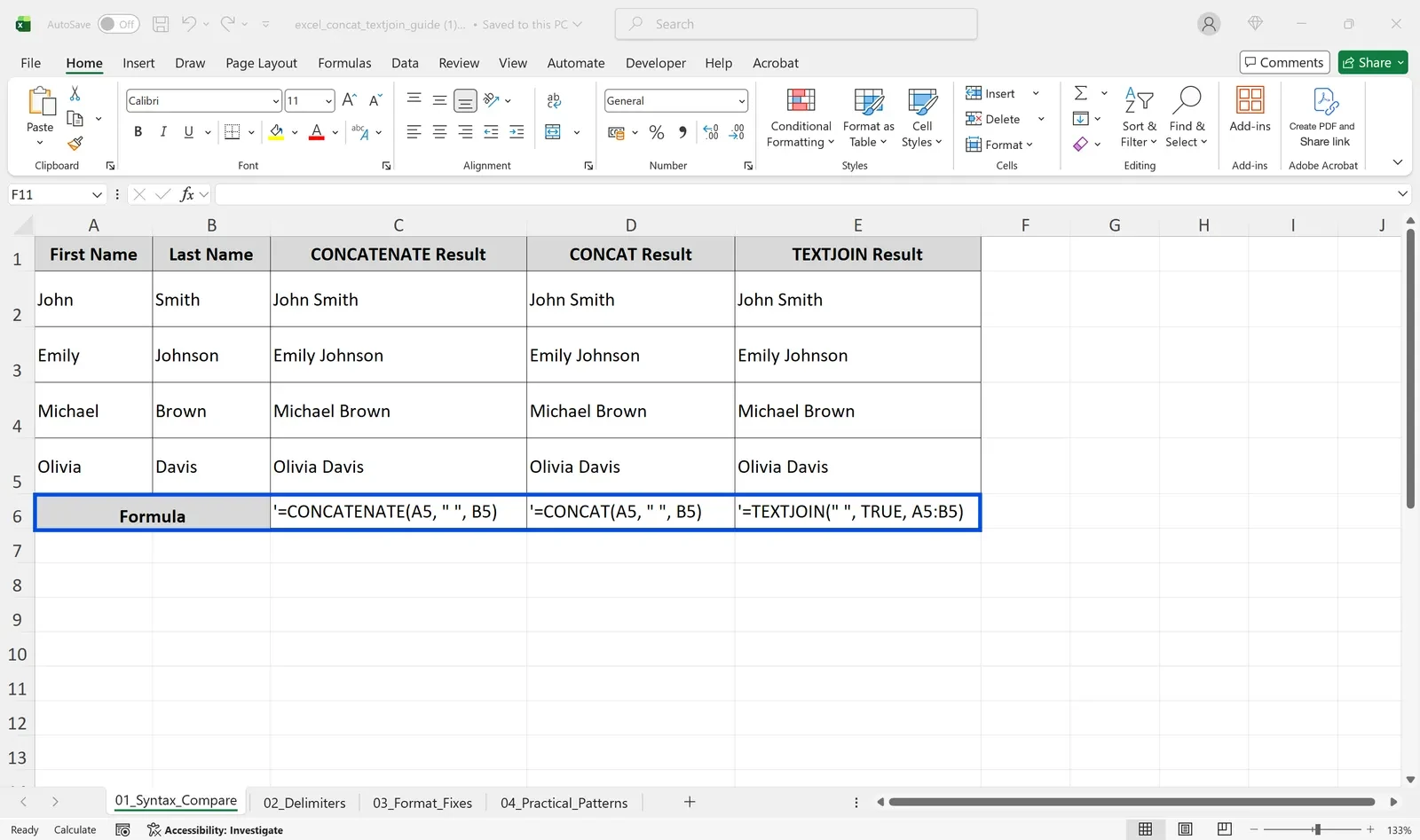
How to choose: for two or three cells, & is shortest and easiest to read. For many cells or a whole range, use CONCAT. When the same separator repeats, or empty cells should be skipped, use TEXTJOIN. If the file goes to someone on Excel 2016 or earlier, CONCAT and TEXTJOIN show #NAME?, so stick with & or CONCATENATE.
Separators and line breaks
With & and CONCAT you type the separator between every argument, as in =A2&", "&B2&", "&C2, and the quotes multiply as the list grows. TEXTJOIN takes the separator once. Microsoft's TEXTJOIN page gives the syntax as TEXTJOIN(delimiter, ignore_empty, text1, ...); set the second argument to TRUE and empty cells are skipped, so you never get ", , " in the middle of an address.
For one item per line inside a cell, use the line-break character CHAR(10) as the separator: =TEXTJOIN(CHAR(10),TRUE,A2:C2). Then turn on Home → Wrap Text for that cell. Without Wrap Text the line breaks are in the value but the cell still shows one long line.
Keep dates and numbers readable with TEXT
Join a date, percentage or currency cell directly and you get the stored value, not what you see on screen. Excel stores dates as serial numbers counted from January 1, 1900, so March 1, 2024 joins as 45352. Forty percent joins as 0.4, and $12,500 joins as 12500.
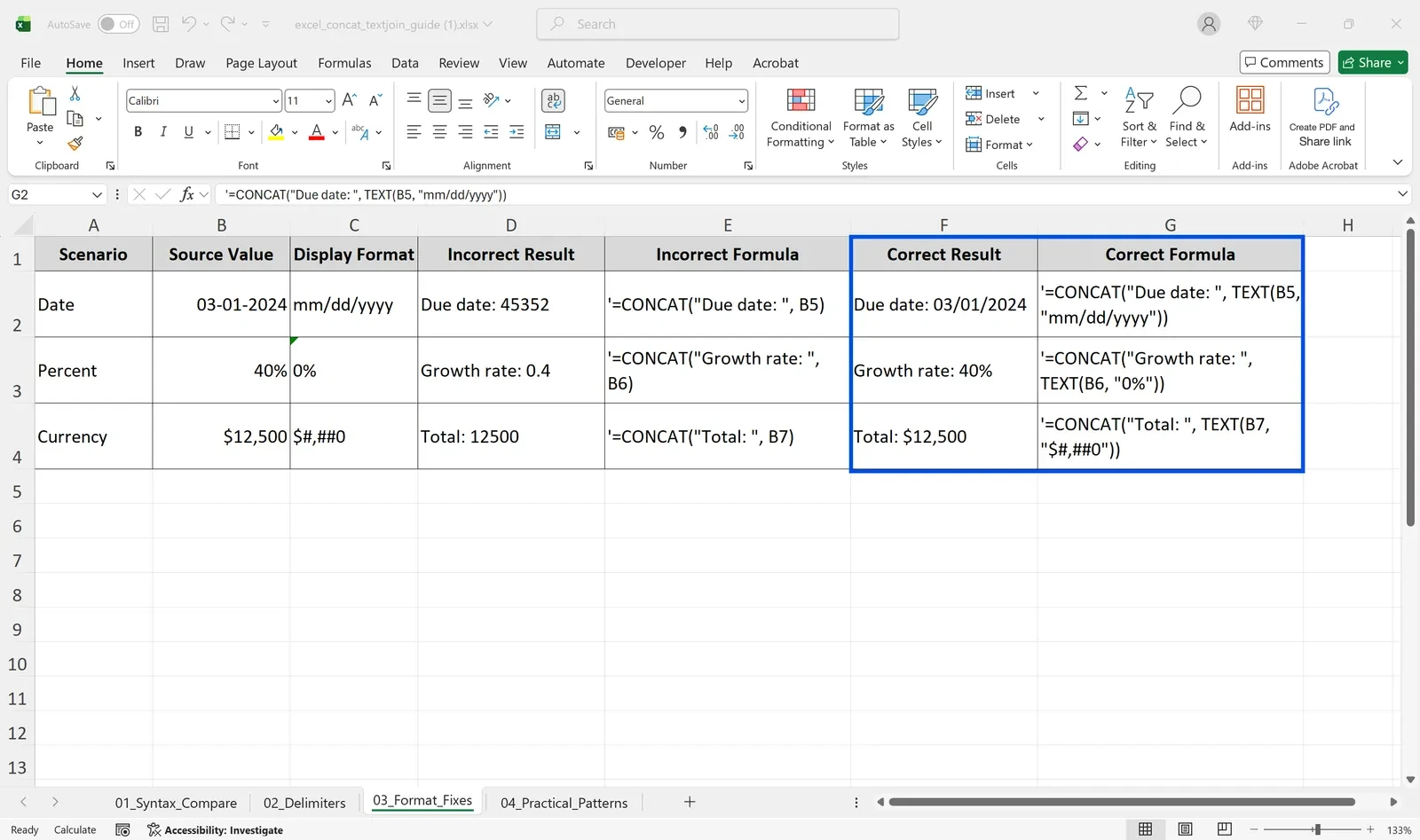
Convert the value to formatted text with the TEXT function before joining:
- Date:
="Ship date: "&TEXT(F2,"mm/dd/yyyy")returns Ship date: 10/23/2026 - Percentage:
="Discount: "&TEXT(B2,"0%")returns Discount: 15% - Currency:
="Total: "&TEXT(C2,"$#,##0.00")returns Total: $1,250.00 - Fixed width:
=TEXT(E2,"00")turns 3 into 03
TEXT uses the same codes as custom number formats. Build the look you want in Format Cells → Custom first, then copy that code into the quotes.
👉 How to Combine Two Columns in Excel Without Losing Data
Worked example: lot codes and label lines
Crestview Foods runs several sauce batches a day. The production clerk keeps a sheet with item code (A), product name (B), pack size (C), production date (D), batch number (E) and best-before date (F). The packing team needs two strings for every batch: a lot code like SAU-261015-03 and a label line like Tomato Sauce, 12 x 500g, Best before 04/15/2027.
Her first try is =A2&"-"&D2&"-"&E2. It returns SAU-46310-3: the date came through as a serial number and the batch number lost its two-digit format. Lot codes that sort and scan correctly need both fixed.
The corrected lot code formula:
=TEXTJOIN("-",TRUE,A2,TEXT(D2,"yymmdd"),TEXT(E2,"00"))
For October 15, 2026, batch 3 of SAU, this returns SAU-261015-03. The label line:
=TEXTJOIN(", ",TRUE,B2,C2,"Best before "&TEXT(F2,"mm/dd/yyyy"))
Two products have no pack size. Because ignore_empty is TRUE, their labels read Garlic Paste, Best before 05/02/2027 with no double comma.
Before printing, she runs two checks. Duplicate lot codes would be a real traceability problem, so =COUNTIF($G$2:$G$200,G2)>1 in a helper column flags any code that appears twice. Then she copies the code and label columns and pastes them as Values into the label template, so the printed labels don't depend on the production sheet.
Joining a list from many rows
Sometimes you need the reverse: one cell per customer that lists every item on its order, for a driver's manifest or a pick summary. TEXTJOIN accepts a vertical range, so =TEXTJOIN(", ",TRUE,D2:D50) joins a whole column. In Microsoft 365 or Excel 2021 and later, wrap the range in FILTER to join only matching rows: =TEXTJOIN(", ",TRUE,FILTER(D2:D200,A2:A200=H2)) lists every item code for the customer named in H2. UNIQUE builds that customer list without duplicates. In older versions, sort by customer and join each block separately.
Version differences
The & operator and CONCATENATE work in every version. CONCAT and TEXTJOIN need Excel 2019, 2021, 2024, Microsoft 365, Excel for the web, or Excel 2019 for Mac and later. FILTER and UNIQUE need Microsoft 365 or Excel 2021 and later. If your company runs mixed versions, keep shared templates on & and use TEXTJOIN in your own working files, so nobody opens a template full of #NAME? errors.
Mistakes that break joined text
CONCAT with a range gives no spaces. =CONCAT(A2:C2) only glues values together. Use TEXTJOIN for a separator.
#NAME? appears. The file was opened in a version without CONCAT or TEXTJOIN, or the function name has a typo. Rewrite with & if you don't know the recipient's version.
Editing the joined cell doesn't change the source. The joined cell is a result. Fix the source cells, and remember that once you paste as values, the link to the source is gone.
Leading zeros vanish. Numeric codes join without their zeros. Use TEXT(A2,"00000") or keep code columns formatted as Text from the start.
FAQ
Q. Should I use CONCATENATE or CONCAT?
Use CONCAT in Excel 2019 and later or Microsoft 365. Keep CONCATENATE or & only for files shared with Excel 2016 or earlier. The results are identical.
Q. Why does my date turn into a number when I join it?
Excel stores dates as serial numbers, and joining uses the stored value. Wrap the date in TEXT(cell,"mm/dd/yyyy") or any other date format first.
Q. Can I merge cells and keep the text from both?
Merging keeps only the upper-left value. Join the values first in another cell with &, paste the result as values, then merge or use Center Across Selection.
Q. Can I concatenate without a formula?
Yes, with Flash Fill. Type the combined result for the first row or two in the next column and press Ctrl + E. The results are values and won't update when the source changes.
How inline AI builds codes and labels for you
inline AI builds the joined columns in the workbook you have open, keeping dates, leading zeros and separators in the format you ask for, and flags duplicate codes and rows with missing parts. With ARP, production, inventory and shipping run in one system, so every lot can be traced from batch to customer without a separate spreadsheet.
Hand your documents and your company’s work to inline AI.
Keep a file open, say what you need, and AI edits it or drafts a new one. Add the company AI OS and AI runs the rest of the work, ERP included.
Book a demo