
Blog
Compare Two Excel Sheets: Find Changes by Asking the AI

Comparing two Excel sheets is easy for twenty rows and unreliable for two thousand. Eyes skip lines, rows drift out of alignment, and a price that changed from 12.40 to 12.04 looks the same at a glance. In a distribution company this comes up constantly: a supplier sends a new price list, a customer sends a revised order, two people keep separate versions of the same stock count. In the AI Browser, you open both files in tabs and ask the AI beside them what changed, and it gives you a list you can act on instead of a sheet full of colors.
Comparing Two Sheets in the AI Browser
The scene
At Harbor Foods, a supplier emails a new price list for the next quarter. In the AI Browser the email is open in one tab, the attached price_list_Q1.xlsx is open in a second tab, and the team's current price sheet is in a third. The purchasing manager needs to know which items changed price, by how much, and whether anything was added or dropped.
You type into the AI panel:
"Compare the supplier's new price list with our current prices. Match items by supplier item code. List items whose price changed with old price, new price and % change, plus items that appear in only one of the two files."
What the AI does
The AI reads both sheets and checks the key column first. Item codes that look the same but differ, such as a code stored as a number in one file and as text in the other, or with a trailing space, are normalized before matching, and the AI tells you it did so. It then matches every row by code, not by row position, so a re-sorted price list doesn't produce false differences.
The result goes on a new sheet with three blocks: changed prices with the percentage change, items only in the new list, and items only in the current list. Where a supplier code can't be matched with confidence, for example a renamed item with a new code, the AI lists it separately and asks rather than guessing.
What you check
Start with the "only in one file" blocks, because a dropped item affects open orders more than a small price change. Then sort the changed prices by % change and look at the largest movements. If a change looks like a typo in the supplier's file, you can ask the AI to draft a reply to the supplier from the same email thread.
How it stays safe
Reading the attachment and writing a comparison sheet happen with your permissions. Changing the company's purchase prices is a different kind of action: it waits for the approver your company has set for price changes. Every step, including who approved, is recorded in the audit log.
Replying to the Supplier
Once you have the comparison sheet, ask the AI to draft the reply in the same email thread: confirm the changes you accept, question the ones that look wrong, and ask about the dropped items. It writes the draft from the comparison sheet, so the item codes and prices match; you edit it and send it.
👉 VLOOKUP Not Working? Fix #N/A, #REF!, #VALUE! with AI
Doing It by Hand
The = operator
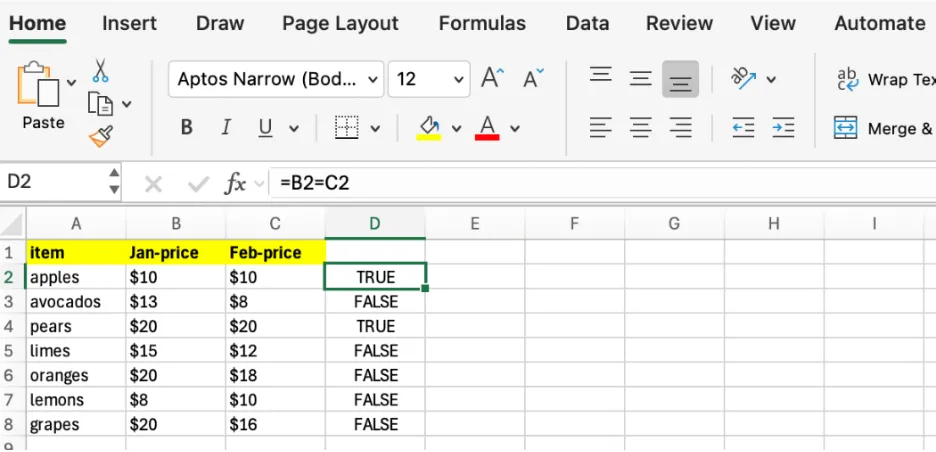
With values in columns B and C, =B2=C2 returns TRUE when they match and FALSE when they don't.
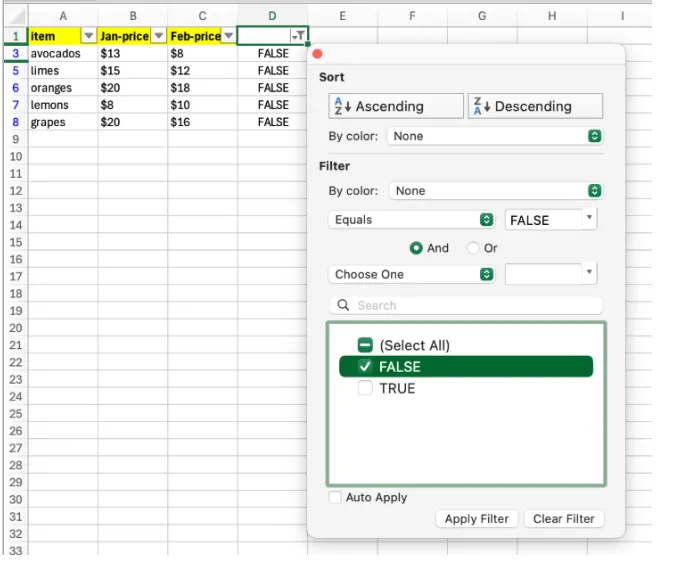
Filter the result column to FALSE to keep only the rows that changed.
The = operator ignores case; use =EXACT(A2,B2) for a case-sensitive check. Numbers stored as text will return FALSE against real numbers, so normalize types first.
Conditional formatting
Select the range, go to Home > Conditional Formatting > New Rule, choose Use a formula to determine which cells to format, and enter =B2<>C2.
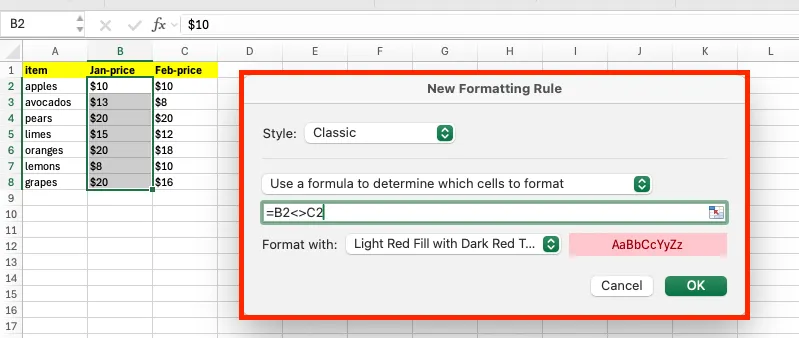
To compare against another sheet, include its name: =B2<>Sheet2!B2.
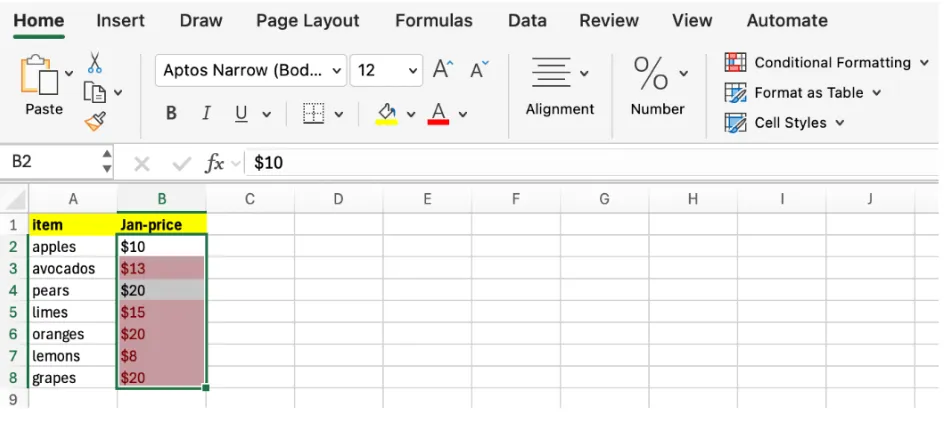
This works only if both sheets are in the same order. It shows differences but doesn't list them.
VLOOKUP and MATCH for missing rows
=VLOOKUP(A6,'2026'!$A$2:$C$11,3,0) looks up each ID in the other sheet and returns #N/A if it isn't there.
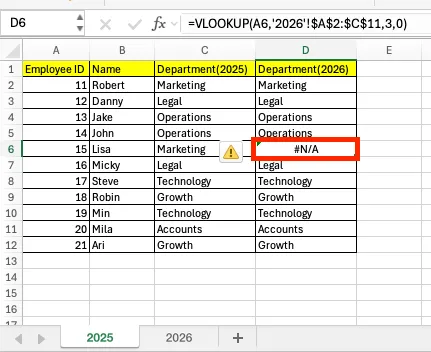
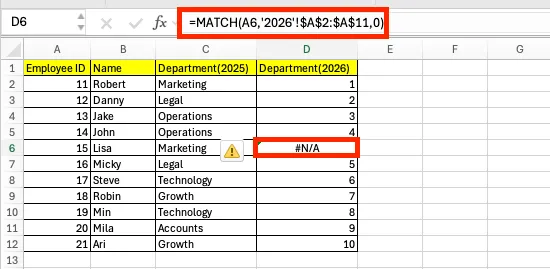
Wrap it in IFERROR to label the result: =IFERROR(VLOOKUP(A6,'2026'!$A$2:$C$11,3,0),"Missing"). =MATCH(lookup_value, lookup_range, 0) does the same existence check without needing a column number, which is handy when columns move.
For large datasets
Sort both sheets by the same key, clean types and spaces with TRIM and CLEAN, and compare the key column first to find added or missing rows before comparing values. Unexpected #N/A results almost always come from text-versus-number keys, hidden spaces, or a lookup range that doesn't cover the data.
Frequently Asked Questions
Q. The two files are sorted differently. Does that matter?
For the = operator and conditional formatting, yes: they compare by position. VLOOKUP, MATCH and the AI's comparison match by key, so order doesn't matter.
Q. What if the AI matches two items that aren't the same?
It matches on the key you name and lists uncertain matches separately instead of merging them. You see the result sheet before anything else happens, and the company's prices don't change without approval.
Q. Can the AI compare a file I received by email with our own price sheet?
Yes, as long as your account can open both. It reads the attachment and the sheet you have access to; it doesn't widen your access.
Q. Are supplier files kept by the AI model provider?
No. Company data is stored on AWS and isn't used for training, and under an eZDR agreement the model provider stores neither prompts nor files.
Comparing Sheets with inline AI
Formulas and highlights work, but they depend on both sheets being sorted and cleaned the same way, and they show differences without listing them. In the AI Browser, the AI beside the open files matches rows by key, normalizes the codes, and gives you a list of changed, added and missing items; updating the company's prices from that list goes through approval. It works within your company account, permissions and approval policies, and every action is recorded in the audit log.
In the AI Browser, this takes one request
inline AI OS is a work browser where your team keeps company files open and hands the task to the AI beside them. Book a free consultation to see how it fits your operations.
Book a free consultation