
Blog
VLOOKUP Not Working? Fix #N/A, #REF!, #VALUE! with AI

When VLOOKUP returns #N/A, #REF! or #VALUE!, the formula is usually fine and the data isn't. A trailing space, an item code stored as text, a range that slid down when the formula was copied. On a purchasing team that pulls unit prices from a supplier's price list into the weekly order sheet, those small mismatches multiply: every new price file from every supplier is formatted a little differently, and someone spends the morning fixing lookups instead of placing orders. In the AI Browser, the order sheet and the price list stay open in their tabs, and the AI beside them finds which rows fail, says why, and fixes the formulas you approve.
How VLOOKUP Works, Briefly
VLOOKUP searches the leftmost column of a range for a value and returns something from another column in the same row.
=VLOOKUP(Lookup_value, Table_array, Col_index_num, [Range_lookup])
| Argument | What it does | Example |
|---|---|---|
| Lookup_value | The value Excel searches for | A2 |
| Table_array | The range containing your data | $A$1:$C$500 |
| Col_index_num | Which column to return (from left) | 3 |
| Range_lookup | Match type | FALSE (exact), TRUE (approximate) |
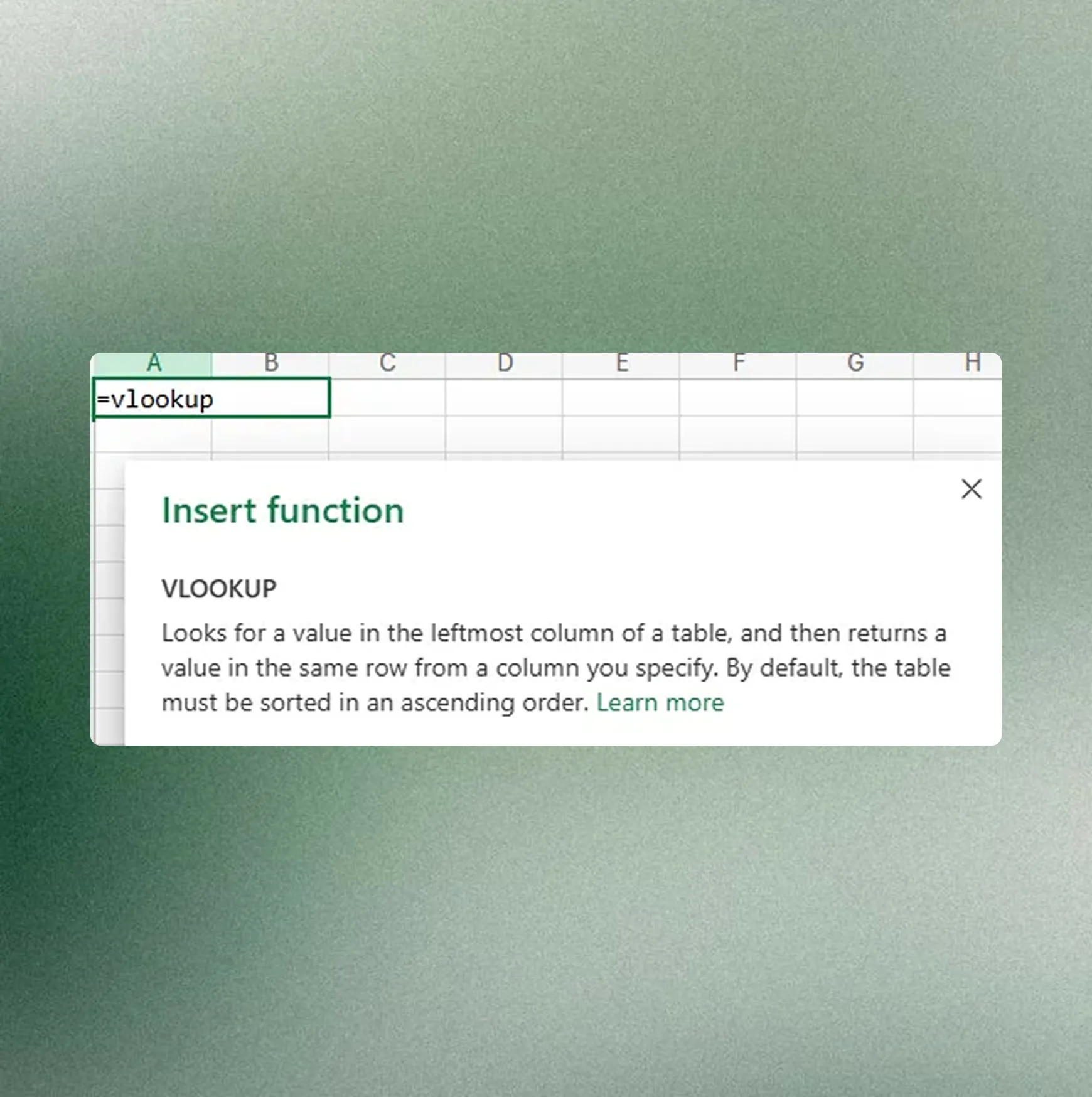
The lookup value has to be in the first column of the range, and VLOOKUP only returns values to its right. Most errors come from breaking one of those assumptions without noticing.
Fixing VLOOKUP Errors in the AI Browser
The setup
A buyer at a food distributor, Summit Trading, has two tabs open: the weekly order sheet, where column F pulls each item's unit price with VLOOKUP, and the supplier's new price list, which arrived as an Excel attachment that morning. About a third of column F shows #N/A, and a few rows show #REF!.
The buyer types into the AI panel:
"Find out why the unit price lookups in column F return errors and fix them. Don't change the supplier's price list. List any items that really aren't on it."
What the AI does
- Groups the errors by cause. It checks each failing lookup value against the first column of the price list. Some codes have a trailing space from the supplier's export; some item codes are numbers in the order sheet but text in the price list; and the #REF! rows have a column number larger than the range.
- Explains before fixing. For each group, it shows two or three example rows and the fix it plans: wrap the lookup value in
TRIM(), convert the codes to the same type, lock the range with absolute references, correct the column number. - Fixes the formulas in the order sheet only. The price list stays untouched, as asked.
- Separates real misses from broken formulas. The items that still don't match after cleanup are listed separately. These are new items or codes the supplier changed, and they need a person's decision, not an
IFERRORthat hides them. - Looks for near matches. For the unmatched items, it searches the price list for similar codes and descriptions and points out likely candidates, so the buyer can see whether it's a renamed product or a genuinely new one.
What the buyer checks
The buyer reads the list of causes and spot-checks a few corrected rows against the price list. The unmatched items go back to the supplier with a short query, and the AI can draft that email in the AI email Inbox for the buyer to edit and send. Nothing is sent automatically.
How it stays safe
The AI edits only files the buyer is allowed to edit, using the buyer's permissions. Fixing formulas in a working order sheet runs immediately; sending the order to the supplier asks the buyer to confirm first. Every request and every formula change is recorded in the audit log.
Making the order sheet sturdier
Once the errors are fixed, a follow-up request can keep them from coming back: "Rewrite the lookups with XLOOKUP, trim the codes inside the formula, and add a column that flags any item missing from the price list." The AI rewrites the formulas in the open sheet and explains what changed, so next week's price list drops in without a new round of #N/A.
👉 How to Use VLOOKUP in Excel: Exact Match, Ranges and AI Help
Doing It by Hand
#N/A: the value isn't found
| Issue | Why it happens | Quick fix |
|---|---|---|
| Value not found | Lookup value isn't in the first column | Check spelling and column order |
| Extra spaces | Hidden spaces break exact matches | Use TRIM() |
| Data type mismatch | Text vs number | Convert so both sides match |
#REF!: the range or column is wrong
When you copy a formula down without absolute references, the table array shifts with it. Lock it as $A$1:$C$100; pressing F4 adds the $ signs. #REF! also appears when Col_index_num is larger than the number of columns in the range.
#VALUE!: the formula itself is malformed
A column number below 1, or a broken reference to another sheet or file, causes #VALUE!. When you reference another workbook, the formula includes its path:
=VLOOKUP(A2, '[FileName.xlsx]SheetName'!$A:$C, 2, 0)
The formula keeps working while that file is closed, but breaks if it's moved or renamed.
Matching on two criteria
VLOOKUP matches one value. To match item code and warehouse together, add a helper column on the far left that joins them (=B2&C2) and search for the joined value.
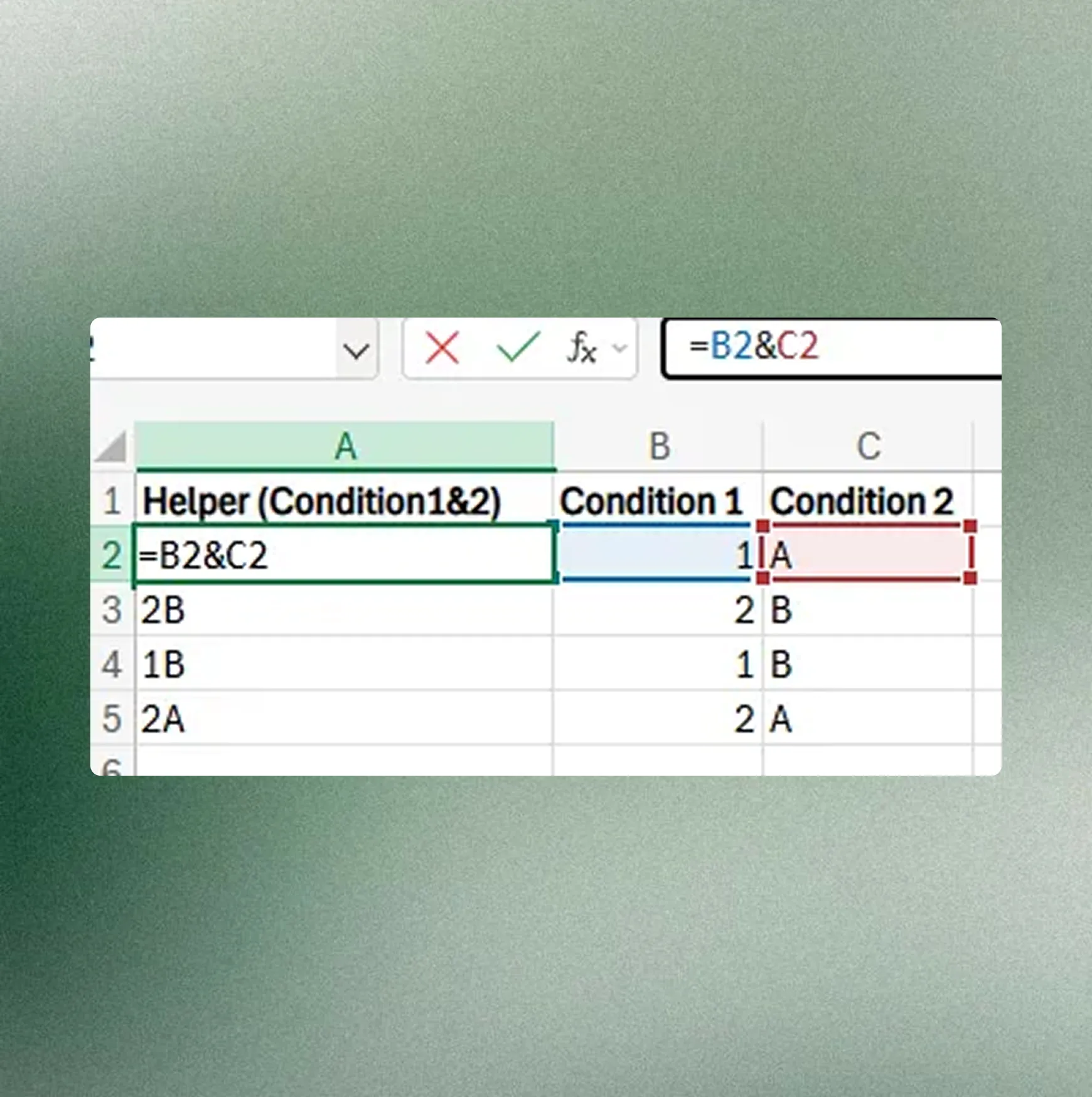
=VLOOKUP(Value1&Value2, $A:$D, 4, FALSE)
The join order must match on both sides.
IFERROR and INDEX/MATCH
=IFERROR(VLOOKUP(...), "Not on list") replaces the error with text, which is tidy in a report but hides real misses, so use it only after you've checked why rows fail. When you need to return a value to the left of the lookup column, or the table's column order changes often, use INDEX/MATCH:
=INDEX(ReturnRange, MATCH(LookupValue, LookupRange, 0))
VLOOKUP Errors FAQ
Q. Should I just wrap everything in IFERROR?
Not before you know the cause. IFERROR turns a missing item and a broken formula into the same blank, and the missing item is usually the one you need to act on. Fix the formula problems first, then decide how to display genuine misses.
Q. What if the AI "fixes" a row that was actually correct?
It lists the changes by cause before you keep them, and each change can be undone. Edits are recorded in the audit log with who requested them, so a wrong change can be traced and reversed.
Q. Can the AI read files I don't have access to?
No. The AI uses your permissions. If you can't open a file, it can't either; it will tell you the check needs someone with that access.
Q. Does the supplier's price list leave our company's systems?
Company data is stored on AWS and isn't used for AI training. inline AI has an eZDR agreement with its model provider, which stores neither the prompts nor the files.
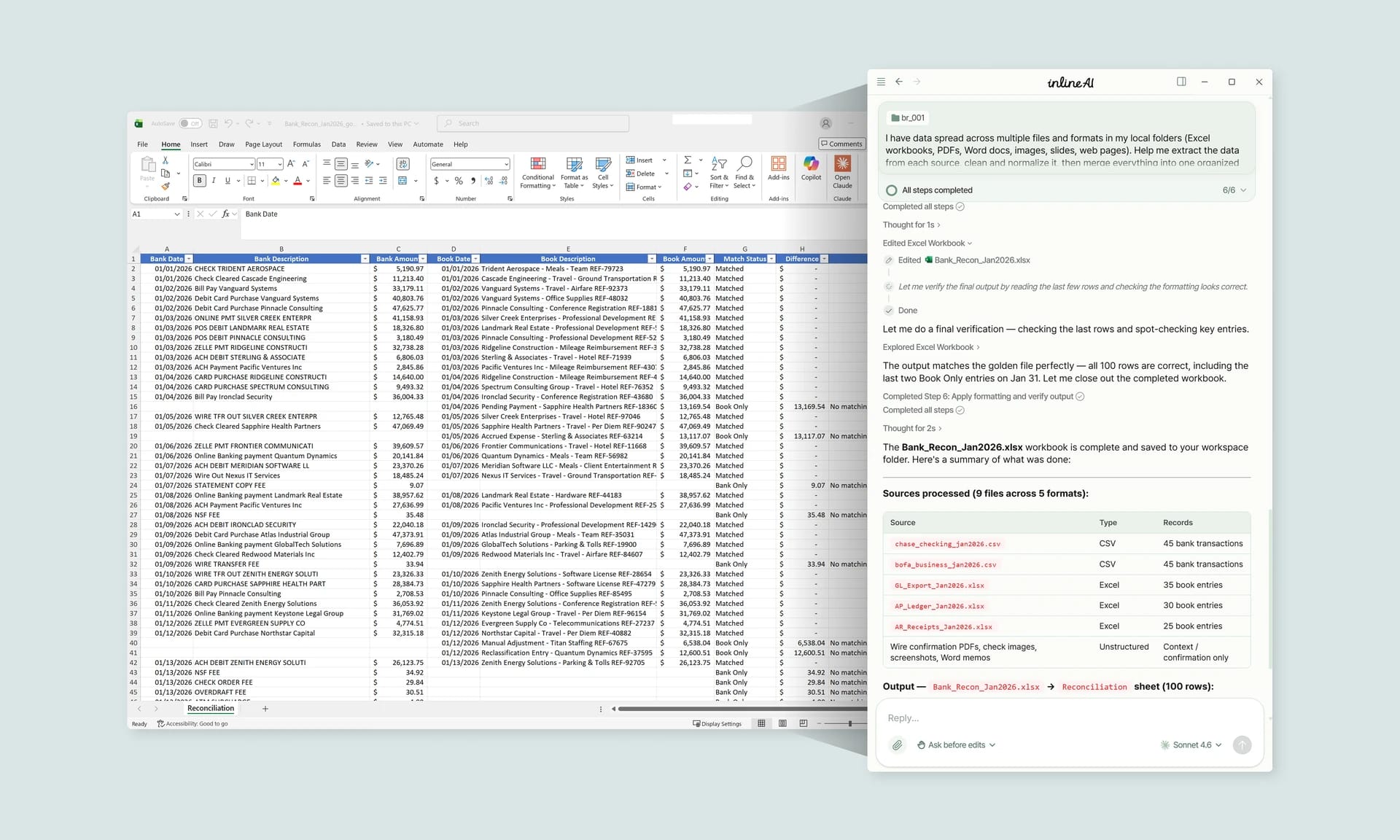
Fixing Lookups with inline AI
Fixing one #N/A takes a minute; tracing every failing lookup across an order sheet and a new supplier file is where the morning goes. In the AI Browser, you keep both files open and ask the AI beside them to find the causes and fix the formulas, and it hands back the items that really need a decision. It works inside your company account and permissions, sends anything above the risk threshold to approval, and records every change in the audit log.
In the AI Browser, this takes one request
inline AI OS is a work browser where your team keeps company files open and hands the task to the AI beside them. Book a free consultation to see how it fits your operations.
Book a free consultation