
Blog
Convert PDF to Excel Without Broken Tables: AI Reads the PDF

Tables break when you convert PDF to Excel because a PDF doesn't store rows and columns. It stores instructions to draw characters at positions on a page, and converters guess which characters belong together. When the guess fails, columns shift, cells merge, and numbers arrive as text. For an order desk, this isn't an occasional annoyance: customers send purchase orders as PDFs every day, some generated by their systems and some scanned from paper, and each one has to become order lines before anything can ship. In the AI Browser, the PDF opens in one tab and the AI beside it reads the table into clean rows in the next, checks the totals, and flags what it couldn't read.
Why Conversion Goes Wrong
- Coordinates, not cells. "10,000 in row 2, column 3" is stored as characters placed at X and Y positions. Converters infer the grid from spacing.
- Hidden characters. Non-breaking spaces, tabs and odd line breaks from the generating system make numbers read as text and cause #VALUE! errors.
- Text PDF vs. scanned PDF. If you can select text and search with Ctrl+F, it's a text PDF and converts reasonably well. If you can't, it's an image and needs OCR, whose accuracy decides the result.
The three usual symptoms: columns shifted where cells were empty, dozens of merged cells, and amounts with commas or currency symbols stored as text.
Reading PDFs in the AI Browser
The setup: purchase orders from customers
An order coordinator at Summit Trading, an industrial supplies distributor, receives purchase orders by email. A large customer's system sends clean PDFs; a smaller customer prints, signs and scans theirs. Each PO lists the customer's part numbers, descriptions, quantities, unit prices and a requested delivery date.
The coordinator opens this morning's two PO attachments in the AI email Inbox, each in its own AI Browser tab, and types:
"Read the line items from both purchase orders into one Excel sheet: PO number, customer part number, description, quantity, unit price, line total, delivery date. Check that the line totals add up to each PO total. Match the customer part numbers to our item codes, and list anything you couldn't read or match."
What the AI does
- Reads each PDF the right way. The system-generated PDF is read as text; the scanned one is read as an image. Both end up as rows, not as a picture of a table.
- Builds clean rows. One row per line item, amounts as numbers without currency symbols, dates as real dates, no merged cells.
- Checks the arithmetic. It recomputes quantity × unit price and compares the sum with the PO total. On the scanned PO, one quantity is smudged; the totals don't reconcile, and the AI flags that line rather than guessing.
- Matches part numbers. It maps the customer's part numbers to the company's item codes using the company's item list open in another tab, and lists lines with unknown part numbers or prices that differ from the agreed price.
- Keeps the original. The PDF stays attached to the email; the sheet links each row back to its page.
What the coordinator checks
The coordinator reads the smudged line against the scan, confirms the quantity with the customer, and resolves the two unmatched part numbers. Only then does the order go further.
How it stays safe
The AI acts with the coordinator's permissions. Reading the PDFs and building a sheet runs immediately, and the originals stay untouched. Registering the orders is a step a person approves; nothing from a PDF goes straight into the order ledger. Every request, every extraction and every change is recorded in the audit log.
When POs arrive every day
The same request works on tomorrow's POs. Open them in tabs and ask the AI to add their lines to the same sheet in the same columns, with the same arithmetic check and the same list of unmatched part numbers. The coordinator reviews the flagged lines instead of retyping every PO.
👉 How to Sort Data in Excel: Multi-Level Sorts and Fixes with AI
Doing It by Hand
Beginner: Word as a bridge
Open the PDF in Microsoft Word, accept the prompt to convert it to an editable document, then copy the tables into Excel. Word's reflow is fairly good at rebuilding table structure for text PDFs.
Intermediate: Google Docs OCR for scanned PDFs
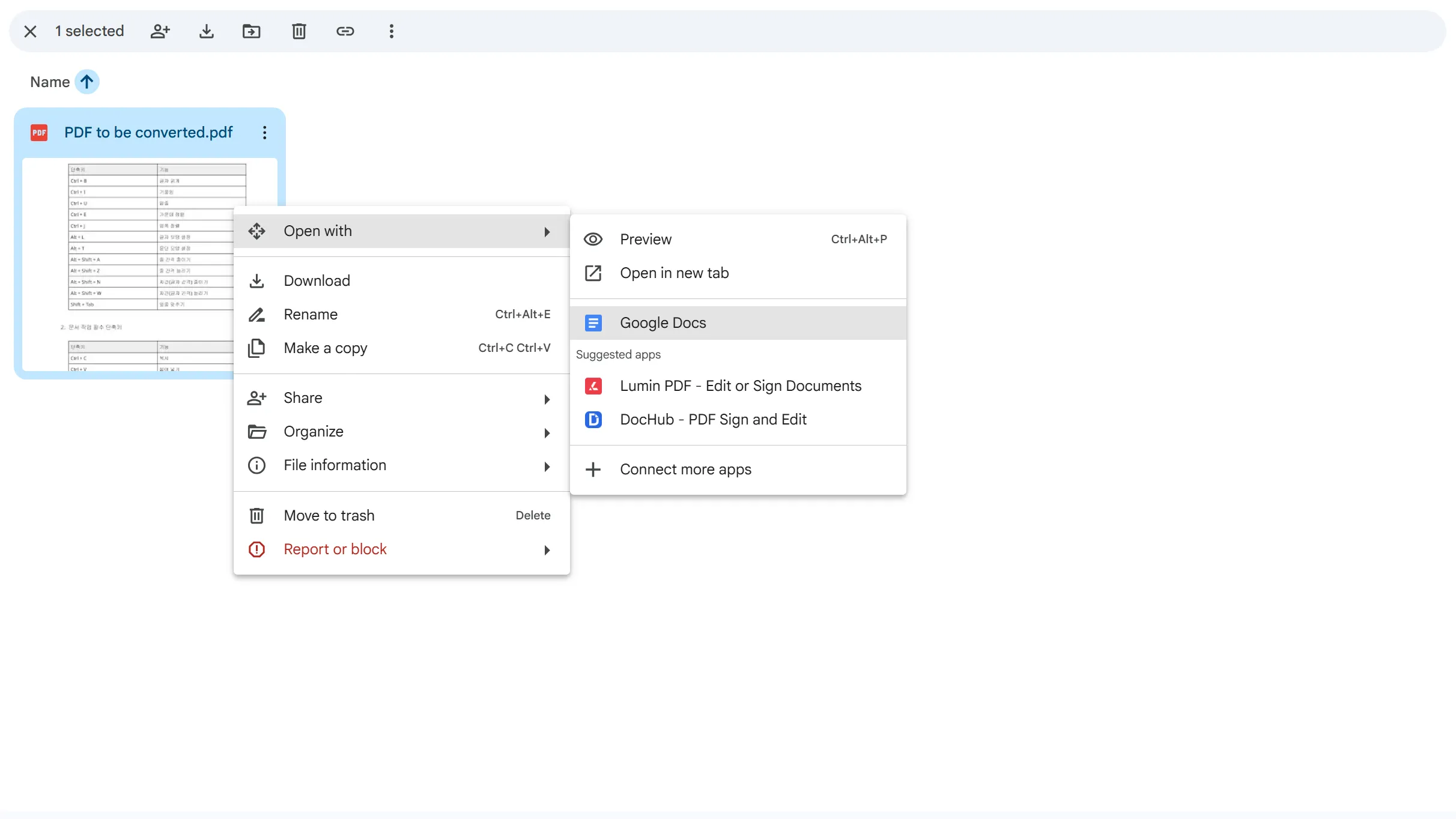
Upload the PDF to Google Drive, right-click it, choose Open with > Google Docs, then copy the recognized text into Excel for cleanup. Treat the result as a starting point.
Advanced: Power Query
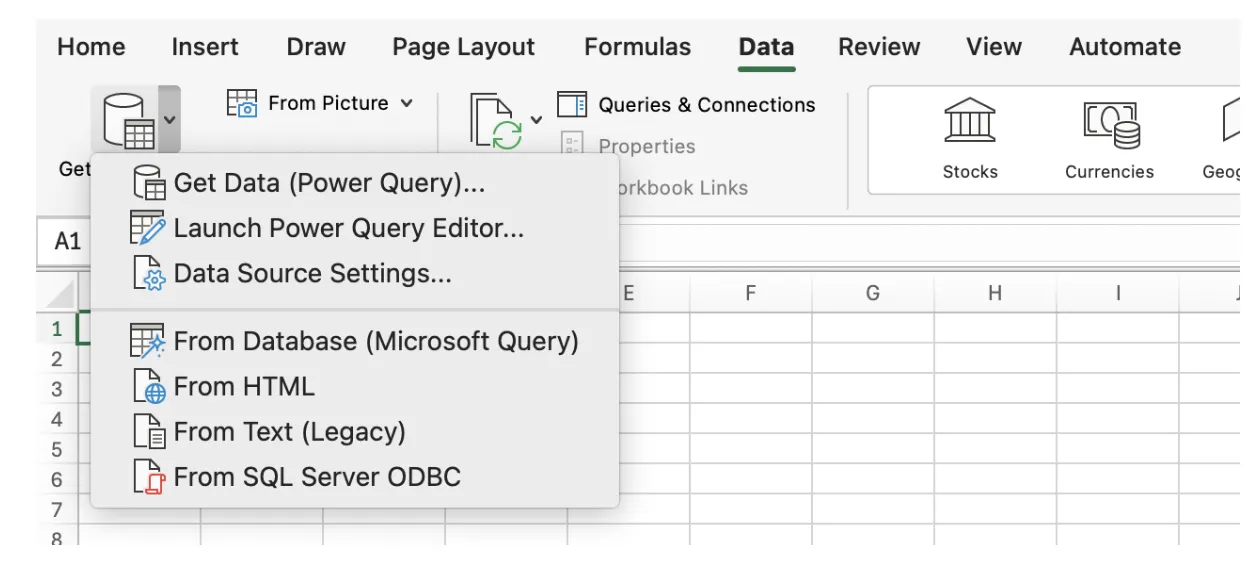
In Excel 2016 and later: Data > Get Data > From File > From PDF, pick the tables you need, click Transform Data, split columns, set data types and trim spaces, then Close & Load. The steps are saved and can be reused on next month's file.
Integrity checklist
- Numbers aren't stored as text.
- TRIM and CLEAN remove invisible characters.
- Merged cells are unmerged and blanks filled.
- Totals match the original PDF.
Frequently Asked Questions
Q. Why does my converted table have shifted columns?
Empty cells in the PDF were skipped and later values pulled left. Check rows with blanks against the original, or use Power Query and set the columns explicitly.
Q. Can scanned PDFs be converted accurately?
They need OCR, and accuracy depends on the scan. Always compare totals with the original; the AI flags lines where the arithmetic doesn't reconcile.
Q. What if the AI misreads a quantity?
It checks every line against the document's own totals and flags lines that don't add up. Nothing goes into the order ledger without a person's approval, and the audit log links each row to its source.
Q. Are customer POs stored by the AI provider?
No. Company data is stored on AWS and isn't used for training. inline AI has an eZDR agreement with its model provider, which stores neither prompts nor files.
PDF Tables with inline AI
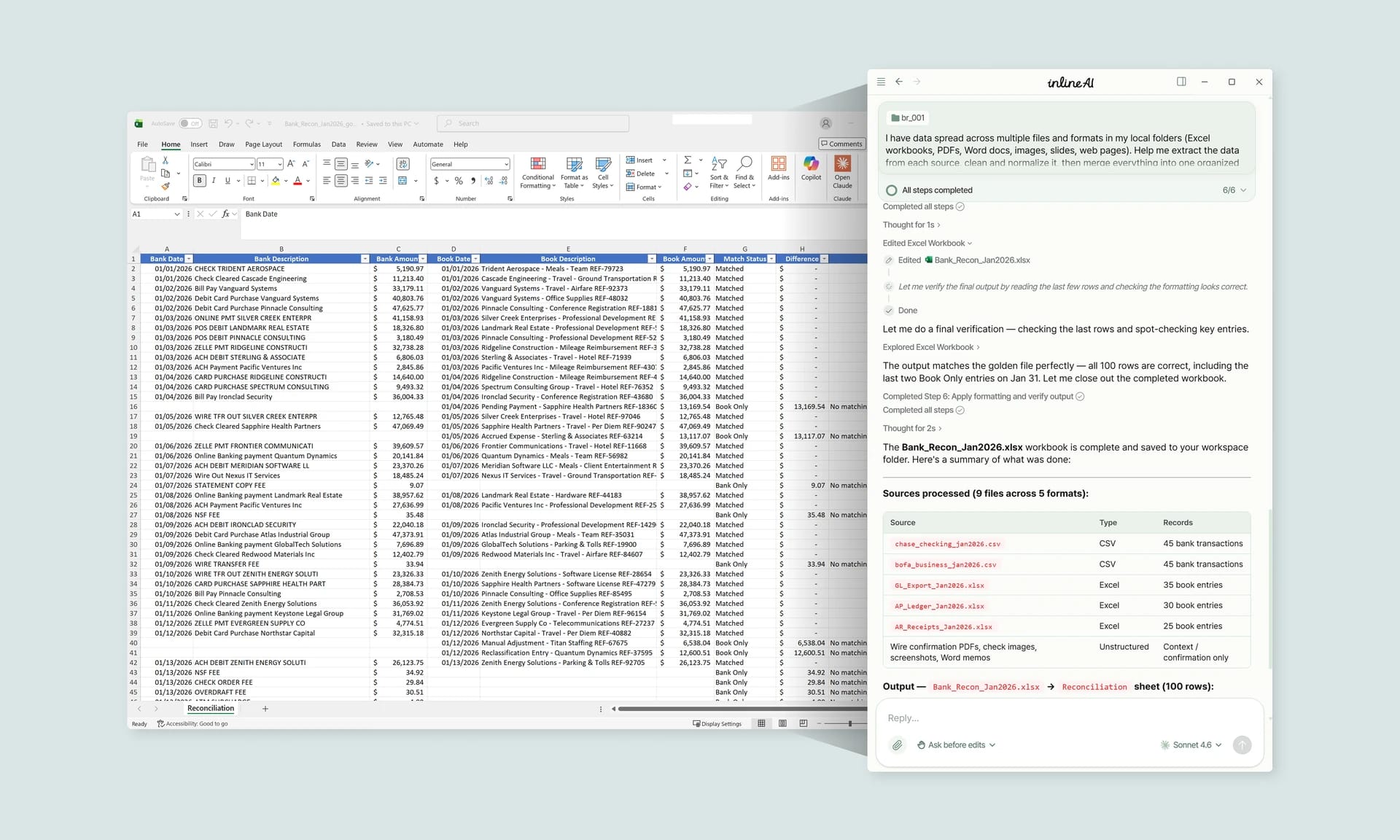
Word, OCR and Power Query get the data out of a PDF; the cleanup and checking afterwards is where the time goes, and where errors slip into orders. In the AI Browser, you keep the PDF open and ask the AI beside it for clean rows; it checks the totals, matches items to your item list, and flags what it couldn't read. It works inside your company account and permissions, sends actions above the risk threshold to approval, and records every change in the audit log.
In the AI Browser, this takes one request
inline AI OS is a work browser where your team keeps company files open and hands the task to the AI beside them. Book a free consultation to see how it fits your operations.
Book a free consultation