

Blog
Multiply, Divide and Subtract in Excel: Formulas and Fixes

To multiply in Excel, type =B2*C2. To divide, type =B2/C2. To subtract, type =B2-C2. Every formula starts with an equals sign, and Excel has no separate DIVIDE or SUBTRACT function; the operators do the work. The arithmetic is easy. What costs money is a quote, purchase order or landed-cost sheet where one rate reference slid down a row or one price carries hidden decimals, because the wrong number goes out to a customer before anyone sees it.
This guide covers the formulas, how to apply one rate to a whole column, a full quote worked from start to finish, and the five reasons a correct-looking formula returns a wrong answer.
The basic formulas
You can type numbers straight into a formula, =5*10 returns 50 and =10/5 returns 2, but in real sheets you almost always point at cells so the result updates when a price or quantity changes.
- Multiply:
=B2*C2(unit price times quantity) - Divide:
=D2/C2(line total divided by quantity gives the unit price) - Subtract:
=E2-F2(revenue minus cost gives the profit) - Multiply many cells:
=PRODUCT(B2:D2)multiplies everything in the range and accepts up to 255 arguments. - Subtract several values at once:
=A2-SUM(B2:D2)
Excel follows the usual order of operations: multiplication and division happen before addition and subtraction. =B2*C2-D2 multiplies first, while =B2*(C2-D2) subtracts first. A discount written as =B2*C2*1-E2 instead of =B2*C2*(1-E2) gives a completely different number, so check the parentheses before anything else.
If you leave out the equals sign and type 7/30, Excel does not divide; it turns the entry into a date (July 30). A division that displays as a date means the = is missing or the cell is formatted as a date.
Multiply a whole column by one rate
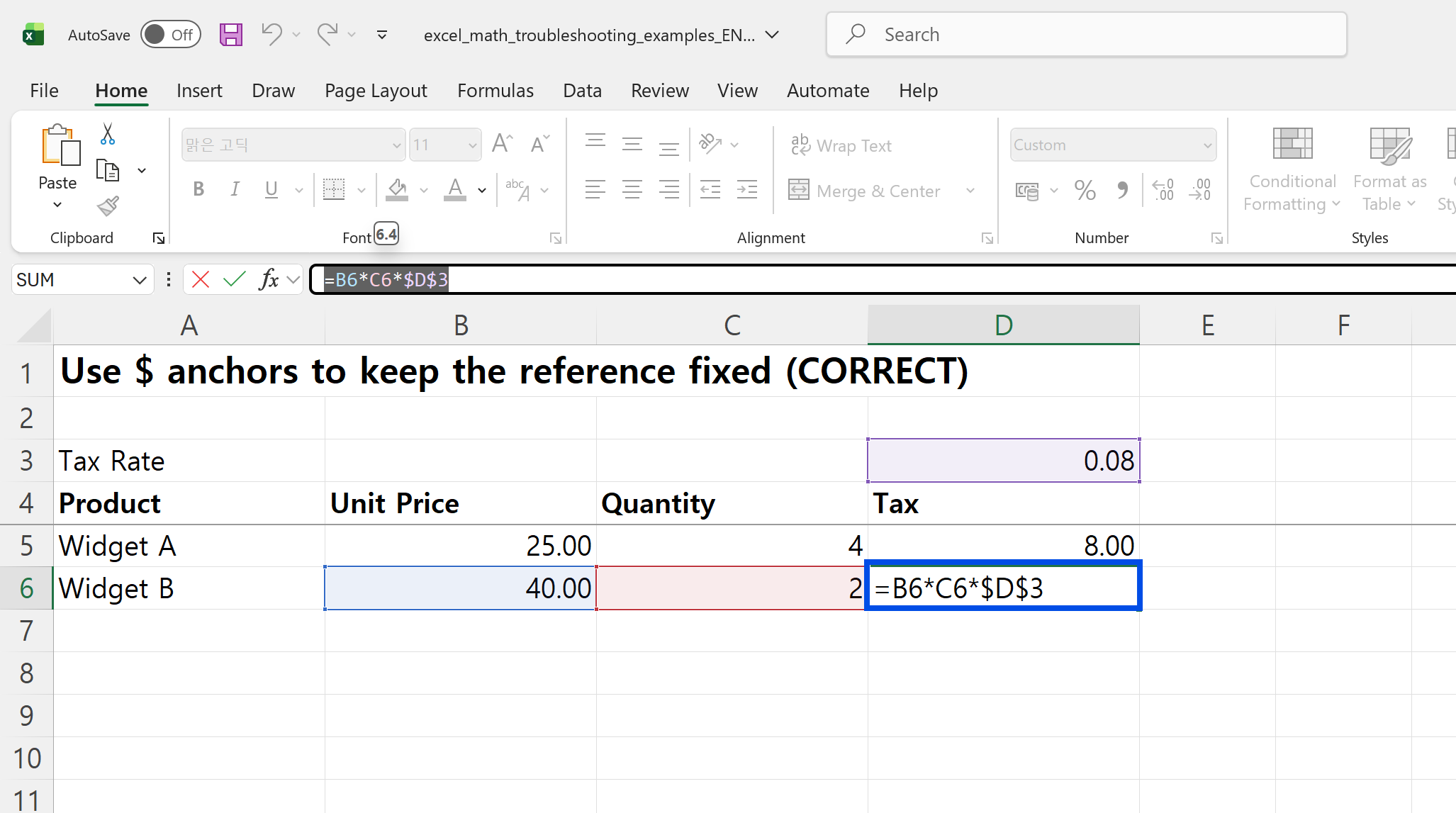
Discount rates, exchange rates and sales tax rates live in one cell that every row needs. Lock that cell with dollar signs. If the discount is in F2, type =B2*C2*(1-$F$2) in the first row, then double-click the fill handle (the small square at the bottom-right of the cell) to copy it down. Without the $, the reference moves to F3, F4 and so on as the formula is copied.
While editing, put the cursor on a reference and press F4 to cycle through $F$2, F$2, $F2 and F2. F$2 locks only the row and $F2 only the column. On a Mac, use Command + T.
Sometimes you want to change the numbers themselves rather than add a formula, for example raising every price in a list by 5%. Type 1.05 in an empty cell and copy it, select the prices, then go to Home → Paste → Paste Special and choose Multiply under Operation. Divide, Add and Subtract are in the same place. This overwrites the original values, so work on a copy of the sheet.
Worked example: one quote, start to finish
A sales coordinator at Northgate Supply is pricing an order for Lakeview Distribution: three items with a 3% discount on everything, plus 8.25% sales tax. The discount sits in F2 and the tax rate in H2.
| Item | Qty | Unit price | Line total formula | Line total |
|---|---|---|---|---|
| Nitrile gloves, case | 120 | $18.50 | =B5*C5*(1-$F$2) | $2,153.40 |
| Cable ties, 12 in, bag | 400 | $2.35 | =B6*C6*(1-$F$2) | $911.80 |
| Safety boots, size 10 | 30 | $42.00 | =B7*C7*(1-$F$2) | $1,222.20 |
The subtotal, =SUM(E5:E7), is $4,287.40. Sales tax, =ROUND(E8*$H$2,2), is $353.71, and the total, =E8+E9, is $4,641.11. The ROUND keeps the tax at whole cents, so the figure stored in the cell is the figure printed on the quote.
The first draft of this quote came to a subtotal of $4,353.40, $66.00 too high. Only the first row had been typed as =B5*C5*(1-F2); copied down, the next rows pointed at F3 and F4, which are empty. An empty cell counts as zero, so the gloves were discounted and the cable ties and boots were not. The $66.00 gap is exactly 3% of those two lines ($2,200.00). The fix was to lock the rate as $F$2 and copy the formula again. Because neither mistake produces an error message, the only warning sign is a total that doesn't match what you expected.
The second problem was the unit count. The 400 for cable ties had been pasted from the customer's email and was stored as text. Multiplication converts text that looks like a number, so the line total was right, but =SUM(B5:B7) skips text and reported 150 units instead of 550. Clicking the green triangle in the corner of the cell and choosing Convert to Number fixed it. A habit worth keeping: before sending a quote, check that both the quantity total and the dollar total look right.

👉 How to Sum a Column in Excel and Fix a Wrong Total
Five reasons a right formula gives a wrong answer
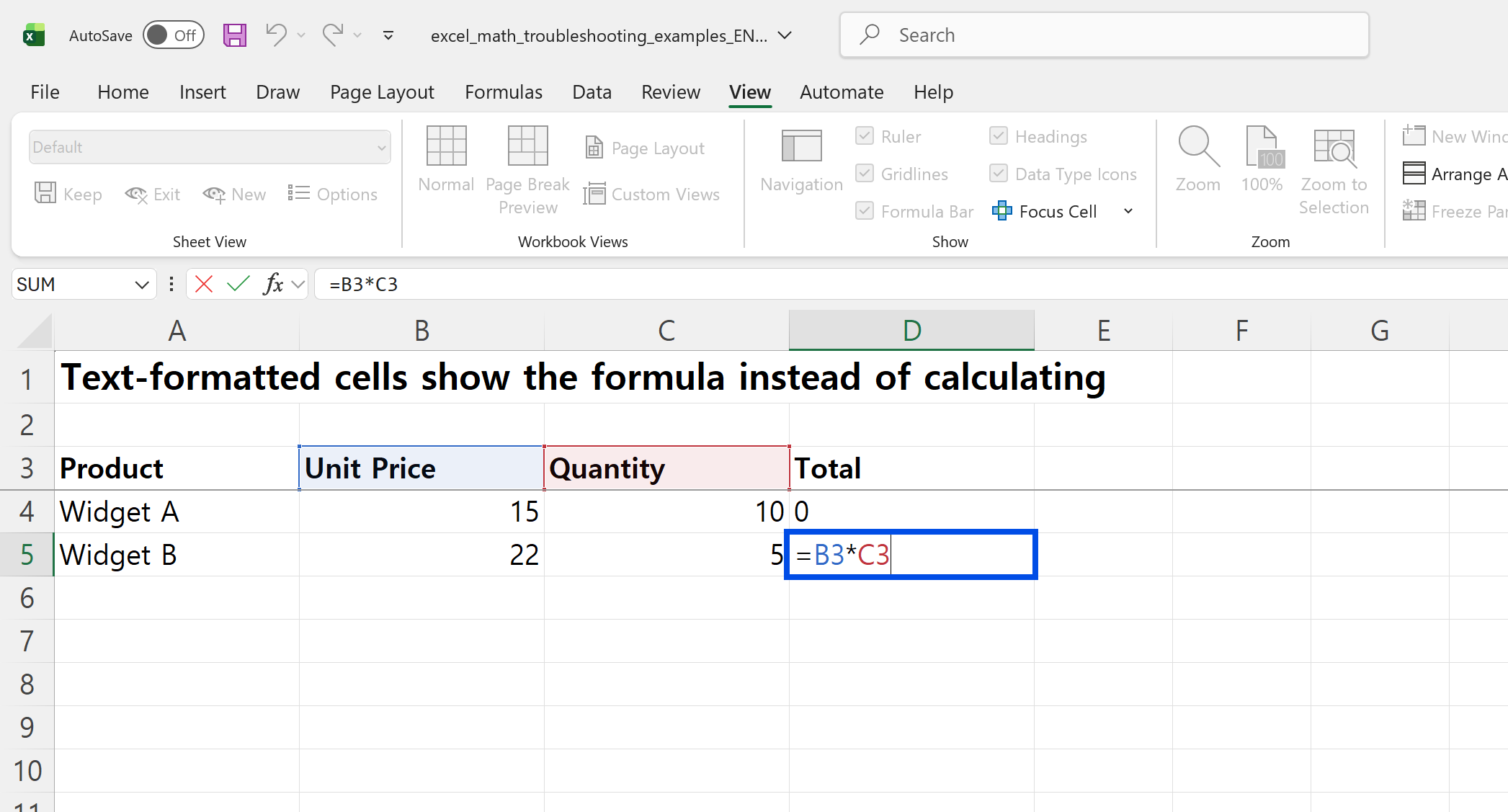
1. The cell is formatted as Text
A formula typed into a Text-formatted cell stays as text: you see =B3*C3 instead of a result. Change the format to General, select the cell, then press F2 and Enter. For a block of text numbers, copy a cell containing 1, select the block and use Paste Special → Multiply.
2. The displayed value is not the stored value
A price formatted with no decimals can show 50 while holding 49.9999, and the calculation uses the stored value. That is how totals drift by a cent or a dollar after an exchange rate or percentage is applied. Microsoft's article on floating-point arithmetic in Excel explains that Excel stores 15 significant digits and recommends two remedies: the ROUND function, or the Set precision as displayed workbook option. For money, put ROUND(…,2) inside the formula. Precision as displayed permanently cuts every number in the workbook to its displayed digits, and that loss cannot be undone.
3. Calculation is set to Manual
If results don't change when inputs do, go to Formulas → Calculation Options and choose Automatic. The mode belongs to the Excel session, not to one file, so opening a large workbook that was saved in Manual mode can switch every workbook you have open. According to Microsoft's Excel recalculation documentation, F9 recalculates all open workbooks and Shift + F9 recalculates only the active sheet.
4. A reference that should be locked is not
As in the quote above, copying a formula without $ shifts the rate reference. An empty cell counts as zero, so the total is quietly wrong. A cell containing a heading gives #VALUE!.
5. Invisible characters in pasted numbers
Numbers copied from a web page or an email can carry a non-breaking space (CHAR(160)). Multiplying or dividing them returns #VALUE!, and TRIM does not remove that character. Use =SUBSTITUTE(B2,CHAR(160),"")*1, or replace it with nothing in Find & Replace.
To spot inconsistent formulas quickly, turn on Formulas → Show Formulas and scan each column for a row where the pattern changes.
Everyday division in distribution and manufacturing
Cases and loose units. 550 units at 24 per case is =550/24, or 22.92 cases, which nobody can ship. =ROUNDUP(B2/C2,0) gives the 23 cases you need, =QUOTIENT(B2,C2) the 22 full cases, and =MOD(B2,C2) the 22 loose units left over.
Margin versus markup. An item that sells for $12.00 and costs $9.00 makes $3.00. Margin, =(B2-C2)/B2, is 25%. Markup, =(B2-C2)/C2, is 33.3%. To price for a 25% margin, divide: =C2/(1-25%) gives $12.00. Multiplying by 1.25 gives $11.25, which is only a 20% margin.
Backing out a unit price. When an invoice shows only a line total, =D2/C2 gives the unit price. If the result has more than two decimals, the supplier priced in fractions of a cent, which is worth knowing before you load the price into your own system.
Dividing by zero
A zero or empty divisor returns #DIV/0!. For calculations where the divisor may be blank, use =IF(C2=0,"",D2/C2). IFERROR also works, but it hides every error, including a broken #REF!, so IF is the safer choice when only zero is expected.
Version differences
The operators and the PRODUCT and ROUND functions behave the same in Microsoft 365, Excel 2021 and 2019, Excel for Mac and Excel for the web. The difference is multiplying whole ranges. In Microsoft 365 and Excel 2021, =B5:B7*C5:C7 spills the results into the cells below. In older versions you enter it as an array formula with Ctrl + Shift + Enter, or use =SUMPRODUCT(B5:B7,C5:C7) when you only need the total. SUMPRODUCT works the same in every version, which makes it a good fit for files shared across mixed versions.
FAQ
Q. My cell shows the formula instead of a result. Why?
The cell is formatted as Text. Change it to General and re-enter the formula with F2 and Enter. If every formula on the sheet is showing, Show Formulas is on; click it again to turn it off.
Q. How do I multiply by a percentage?
=B2*10% and =B2*0.1 are the same. Put the rate in its own cell, such as F1, and use =B2*$F$1 so you can change it without editing formulas.
Q. My subtraction returns 0.0000001 instead of 0.
That's floating-point storage. =ROUND(A2-B2,2) returns 0, and rounding before you compare two values makes the comparison exact.
Q. How do I multiply a whole column by the same number?
Put the number in one cell, type =A2*$D$1, and double-click the fill handle. To change the original values instead, use Paste Special → Multiply.
Checking quotes with inline AI
The causes are always the same five, but checking every quote and cost sheet for them is a daily job for a sales or purchasing team. inline AI opens the workbook, finds unlocked rates, text numbers and hidden decimals, fixes them, and flags any price that differs from the customer's agreed price in ARP. The next quote in the same format is one request away.
Hand your documents and your company’s work to inline AI.
Keep a file open, say what you need, and AI edits it or drafts a new one. Add the company AI OS and AI runs the rest of the work, ERP included.
Book a demo