
Blog
How to Create a Chart in Excel by Asking the AI Beside It

Creating a chart in Excel takes a few clicks; creating one you can put in front of the leadership team takes longer. The total row sneaks into the range and dwarfs every other bar, the legend reads "Series1, Series2", the axis has no units, and next month someone adds a column and the chart stops updating. In a company, the same monthly chart gets rebuilt by whoever prepares the report that month. In the AI Browser, you keep the workbook open and tell the AI beside it what the chart should show, and it builds it from the right range and labels it properly.

Creating a Chart in the AI Browser
The scene
At Bluebell Market, the finance lead prepares the monthly management pack. mgmt_pack_sept.xlsx is open in one tab, with a Monthly sheet listing sales and cost of goods for January through September and a Total row at the bottom. The managing director wants one chart: sales as columns, cost as a line, so the gap between them is visible.
You type into the AI panel:
"Make a combo chart from the Monthly sheet: Sales as columns, Cost as a line, January to September only, no Total row. Title it 'Sales vs Cost, Jan–Sep', add an axis title in thousands of dollars, and put the legend at the bottom."
What the AI does
The AI reads the sheet and identifies the header row, the month labels and the Total row, which it leaves out of the range. It checks that the values are numbers, not text, because text cells are plotted as zeros. Then it converts the source to a table so next month's row is picked up automatically, inserts the combo chart, sets the series names from the headers, adds the title and axis title, and moves the legend.
If the request is ambiguous, it asks instead of guessing. For example, if the sheet holds both "Cost" and "Cost (adjusted)", it asks which one you mean.
What you check
Read the chart against the sheet once: the last month on the axis should be the last month in the data, and the highest column should match the largest sales figure. Then look at the axis scale. If the AI started the vertical axis at a value other than zero to fit the data, decide whether that's appropriate for this audience; you can ask it to reset the axis.
How it stays safe
The AI edits the workbook with your permissions only. If the management pack is filed as a company document, review and submission follow your company's process. Every step is recorded in the audit log, so the team can see who changed the chart and when.
When the Chart Is the Same Every Month
Because the source is a table, October's row joins the chart as soon as it is added. When the pack goes out, ask the AI to create the report document with the chart and a short commentary on the month, then save it as a PDF. You read the commentary and adjust it before it goes to the managing director.
👉 Make a Graph in Excel by Asking AI: Charts That Stay Current
Doing It by Hand
Select the range and choose a type
Put field names in the first row and data below. Select contiguous data by dragging or with Ctrl+Shift+Down Arrow; hold Ctrl to add non-adjacent columns. Leave total rows out.
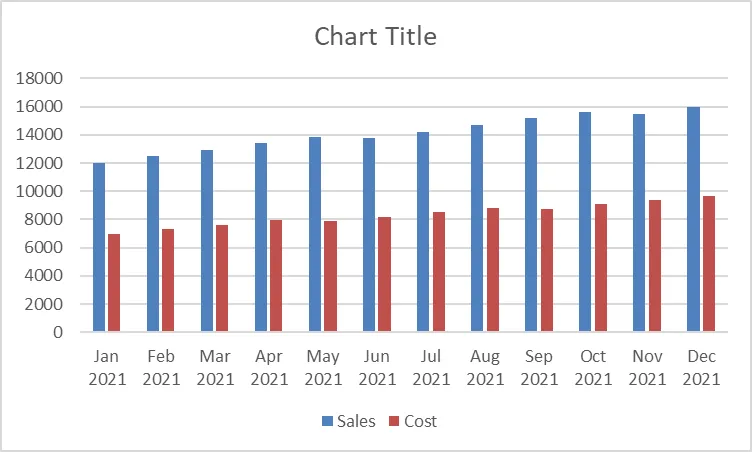
Column charts compare categories, bar charts suit long category names, line charts show change over time, and pie charts show proportions of five items or fewer. Insert > Recommended Charts previews options for your selection.
Insert the chart
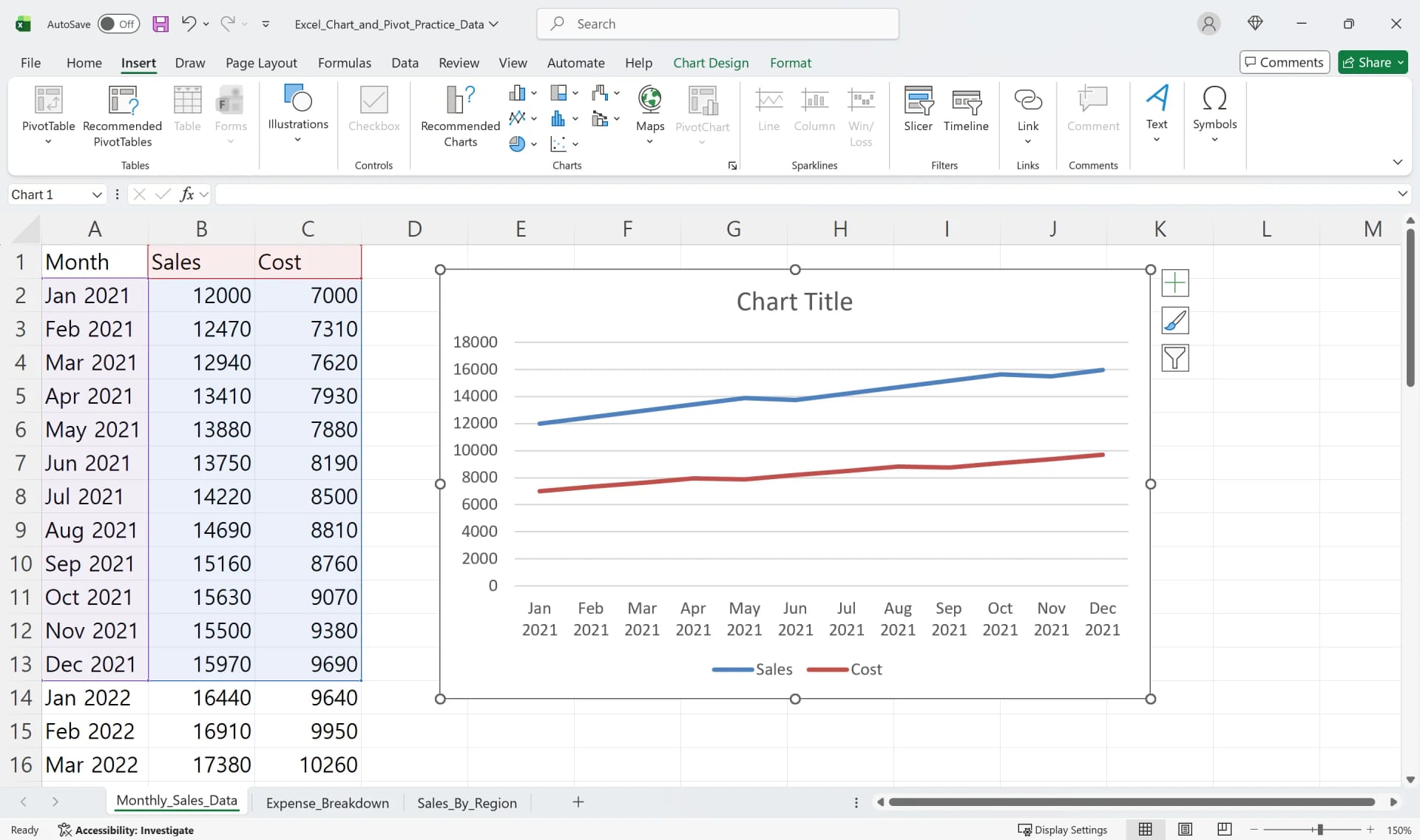
- Select the data, for example
A1:C13. - On the Insert tab, choose a chart in the Charts group and pick a subtype.
- Drag the border to move it and the corners to resize; hold Shift to keep proportions.
Styles, layouts and chart type
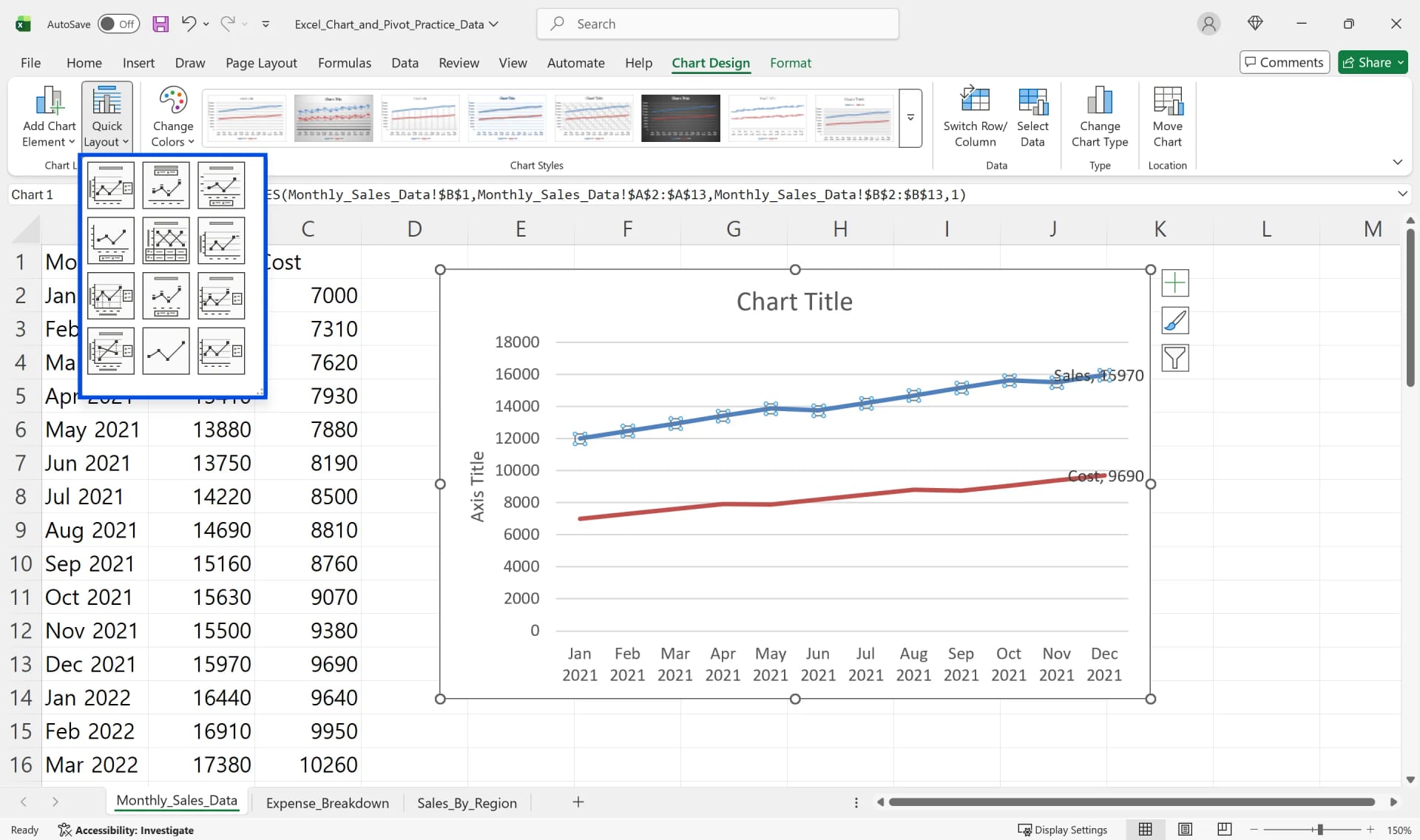
Click the chart to open Chart Design. Pick a style, use Quick Layout to place the title, legend and labels, and use Change Chart Type to switch types or build a combo chart.
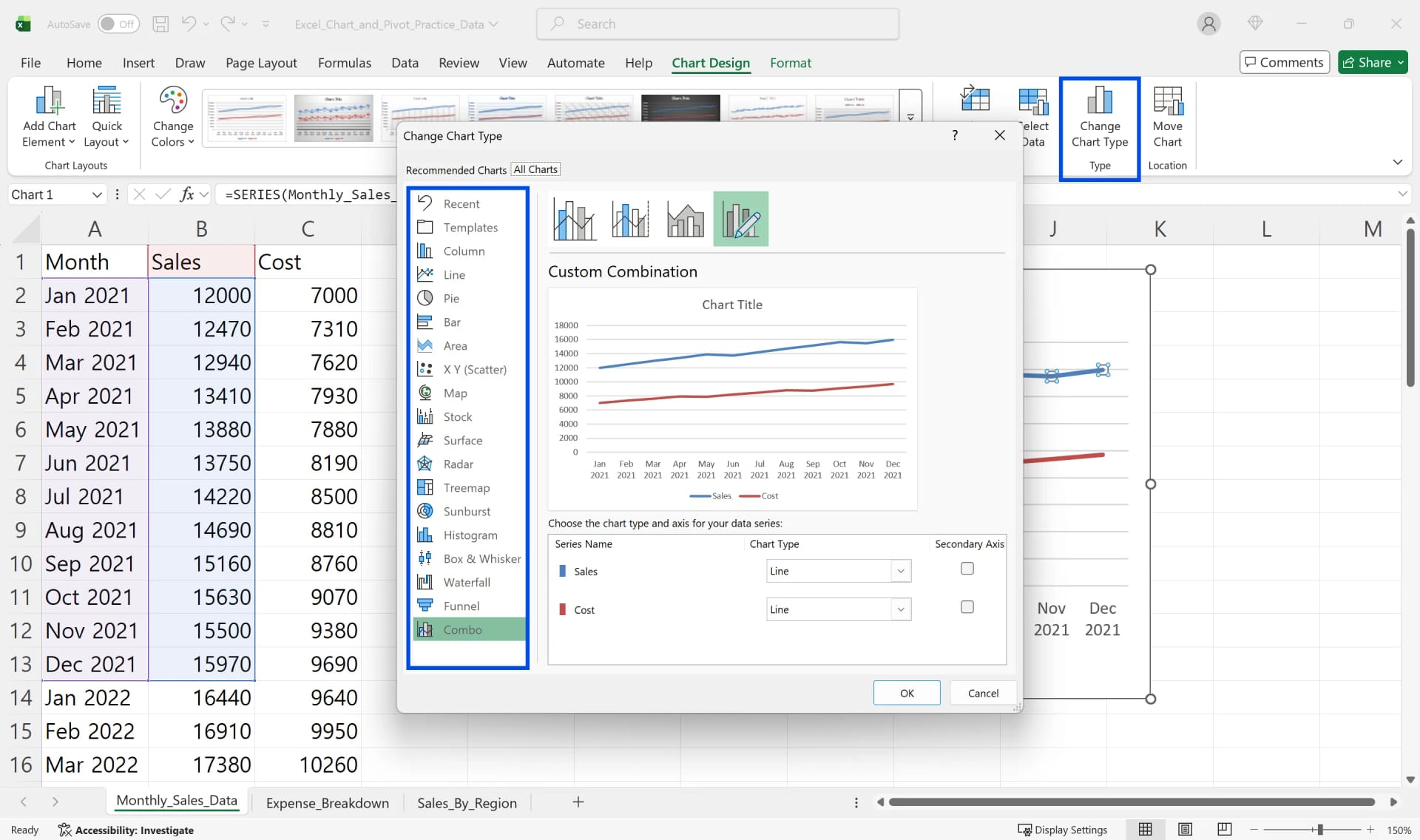
Titles, axes and legends
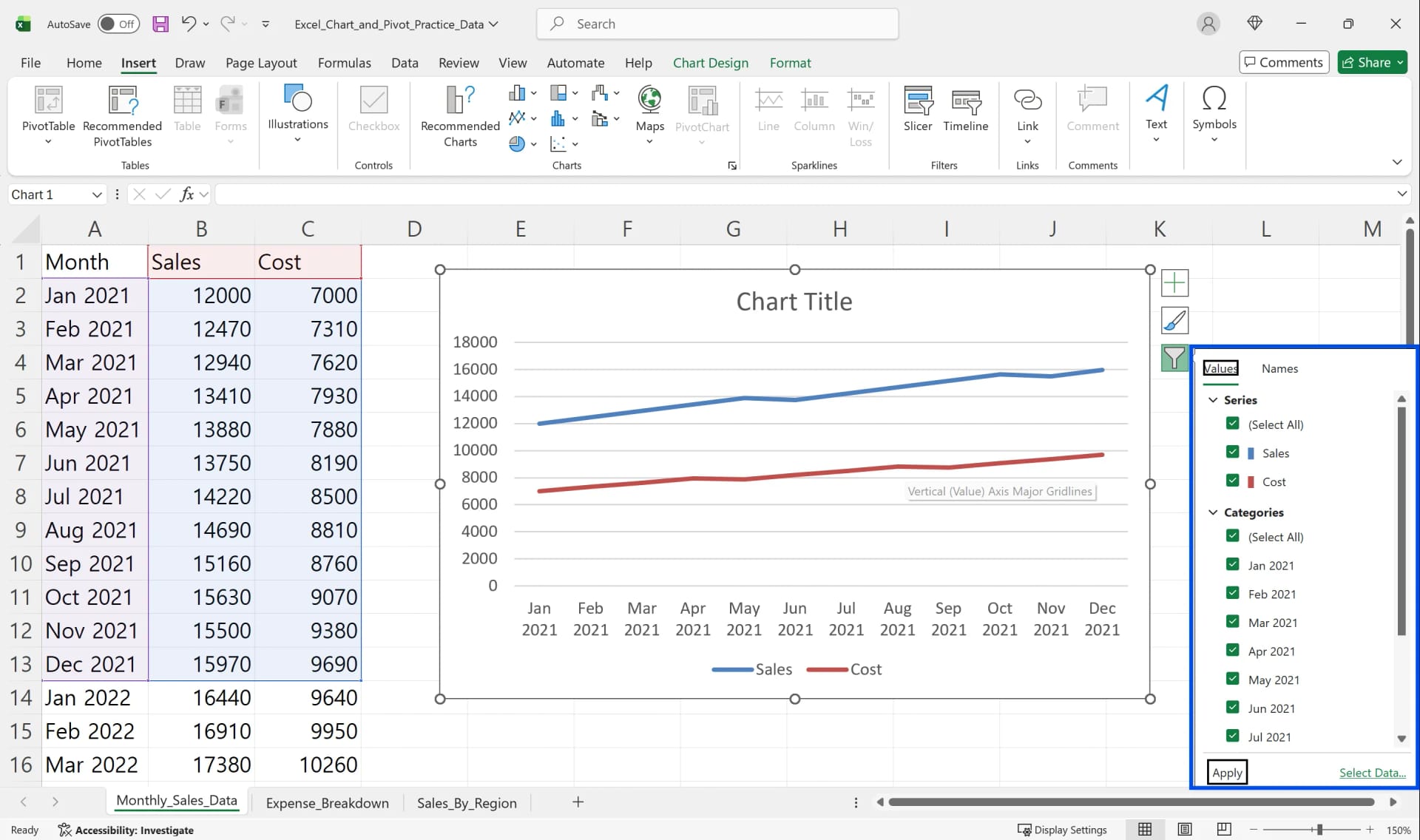
Use the Chart Elements (+) button to add a Chart Title, Axis Titles (include units, such as "Sales ($1000s)"), Data Labels, and to set the Legend position. Legend names come from the header cells, so rename the headers to rename the series.
Changing the data range
Chart Design > Select Data adds or removes series without rebuilding the chart. Move Chart places it on another sheet.
Common mistakes
- Including the total row, which distorts every other value.
- Leaving out the header row, which produces "Series1, Series2".
- Pie charts with ten or more slices.
- 3D effects that make values hard to read.
Frequently Asked Questions
Q. I added data but the chart didn't change.
A chart references the range it was built on. Convert the source to a table with Ctrl+T so the range grows with new rows, or adjust it under Select Data.
Q. How do I fix the vertical axis scale?
Double-click the axis to open Format Axis and set the minimum, maximum and major unit. Or ask the AI to adjust it in the open file.
Q. What if the AI picks the wrong series?
You see the chart in the workbook right away and can ask for a correction ("use Net Sales, not Gross Sales"). Changes are recorded in the audit log, so edits to a shared file are traceable.
Q. Is our financial data used to train AI models?
No. Company data is stored on AWS and is not used for training, and under an eZDR agreement the model provider stores neither prompts nor files.
Charts with inline AI
Building a chart by hand is quick; getting the range, labels and axis right in every month's file is the part that slips. In the AI Browser, the AI beside the workbook builds the chart you describe, leaves totals out, labels series and axes, and sets the source to grow with the data. It works within your company account, permissions and approval policies, and every action is recorded in the audit log.
In the AI Browser, this takes one request
inline AI OS is a work browser where your team keeps company files open and hands the task to the AI beside them. Book a free consultation to see how it fits your operations.
Book a free consultation