
Blog
Create a Drop-Down List in Excel With AI, Plus Dependent Lists

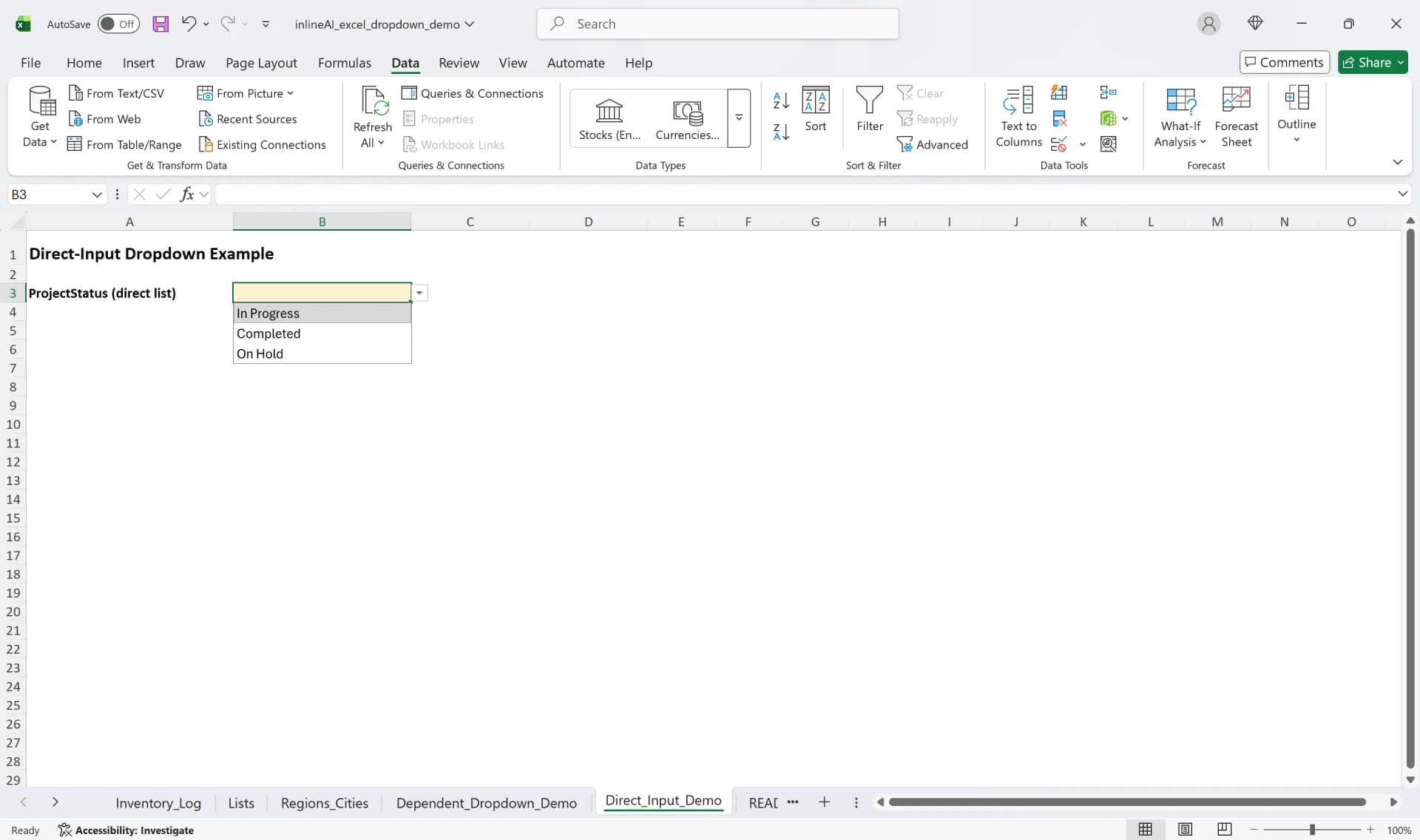
A drop-down list in Excel limits a cell to a fixed set of values, and that is what keeps a shared sheet usable. Without one, the same status shows up as "Received", "received" and "Rcvd", the same warehouse as "East" and "East WH", and every filter, pivot table and SUMIF that depends on those columns quietly undercounts. In a company the sheets that need this most are the ones many people type into: purchase request forms, stock count sheets, delivery checklists.
Setting it up by hand means Data Validation dialogs, named ranges, INDIRECT for dependent lists and then cleaning up the values people typed before the lists existed. In the AI Browser, the employee keeps the sheet open in a tab and asks the AI beside it to do all of that.
Creating drop-down lists in the AI Browser
The scene: a purchase request sheet with twenty spellings
At Summit Trading, department heads add rows to Purchase_Requests.xlsx when they need supplies. The purchasing coordinator then sorts through Status values typed six different ways, warehouse names that don't match the warehouse list, and items entered under the wrong category.
She opens the sheet in a tab of the AI Browser and types:
"Add drop-downs to the Requests sheet: Status with Requested, Approved, Ordered, Received; Warehouse from the list on the Lists sheet; and Item that depends on the Category chosen in column C. Use tables so new items appear automatically. Then list every existing row whose values don't match these lists."
What the AI does, step by step
- Builds the source lists on the Lists sheet as named tables: one for statuses, one for warehouses, and one table per category holding its items, named to match the category values.
- Applies data validation to the Status, Warehouse and Item columns, using
=INDIRECT(C2)style references so the Item list changes with the category. - Checks existing data against the new lists and returns the rows that don't fit, such as "Rcvd" in Status or an item that is not in its category's list, with a suggested correction for each.
- Waits before correcting. The coordinator decides which suggestions to accept; the AI changes only those rows.
What the employee checks
She tries each drop-down, adds a new item to a category table to confirm it appears, and works through the list of mismatched rows. An item that is missing from the company's item list is a question for purchasing, not something the AI should invent.
How it stays safe
The AI edits the sheet within the coordinator's permissions and changes existing rows only after she picks which corrections to accept. The validation rules added and the rows corrected are recorded, so department heads can see why their entries changed.
Telling the department heads
Once the drop-downs are in place, she can ask the AI to draft a short note for the department heads: what each list contains, how to ask for a new item, and which of their earlier rows were corrected. She edits the draft and sends it.
👉 Insert Checkboxes in Excel for a Shipping Checklist, With AI
Doing it by hand
Create a list by typing the values
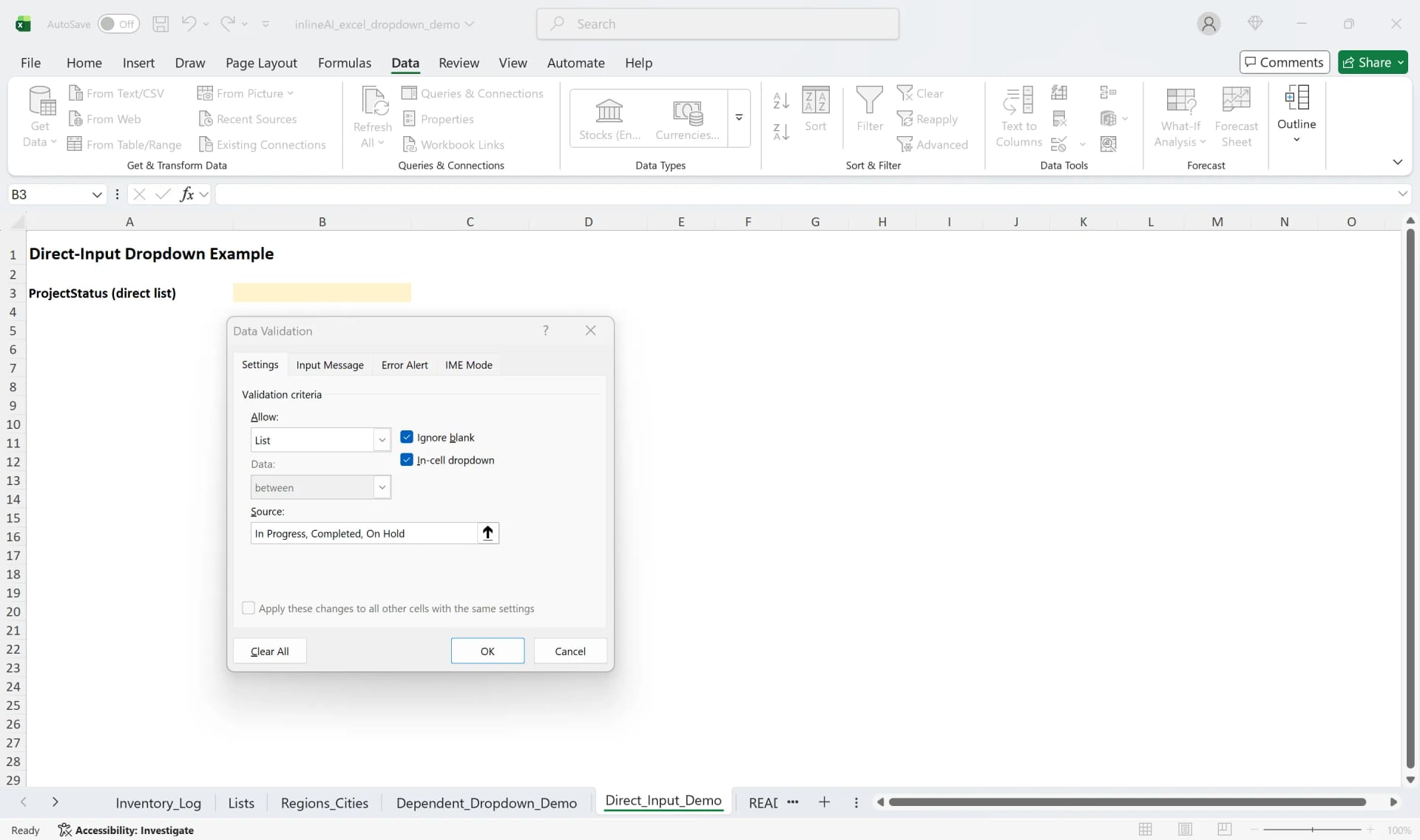
- Select the cells and click Data → Data Validation.
- Under Allow, choose List.
- In Source, type the values separated by commas, for example
Requested, Approved, Ordered, Received. - Keep In-cell dropdown checked and click OK.
Create a list from a range
Instead of typing values, point Source at cells that hold the list, with absolute references such as =$G$2:$G$6. Changing those cells updates every drop-down that uses them.
Edit or remove a list
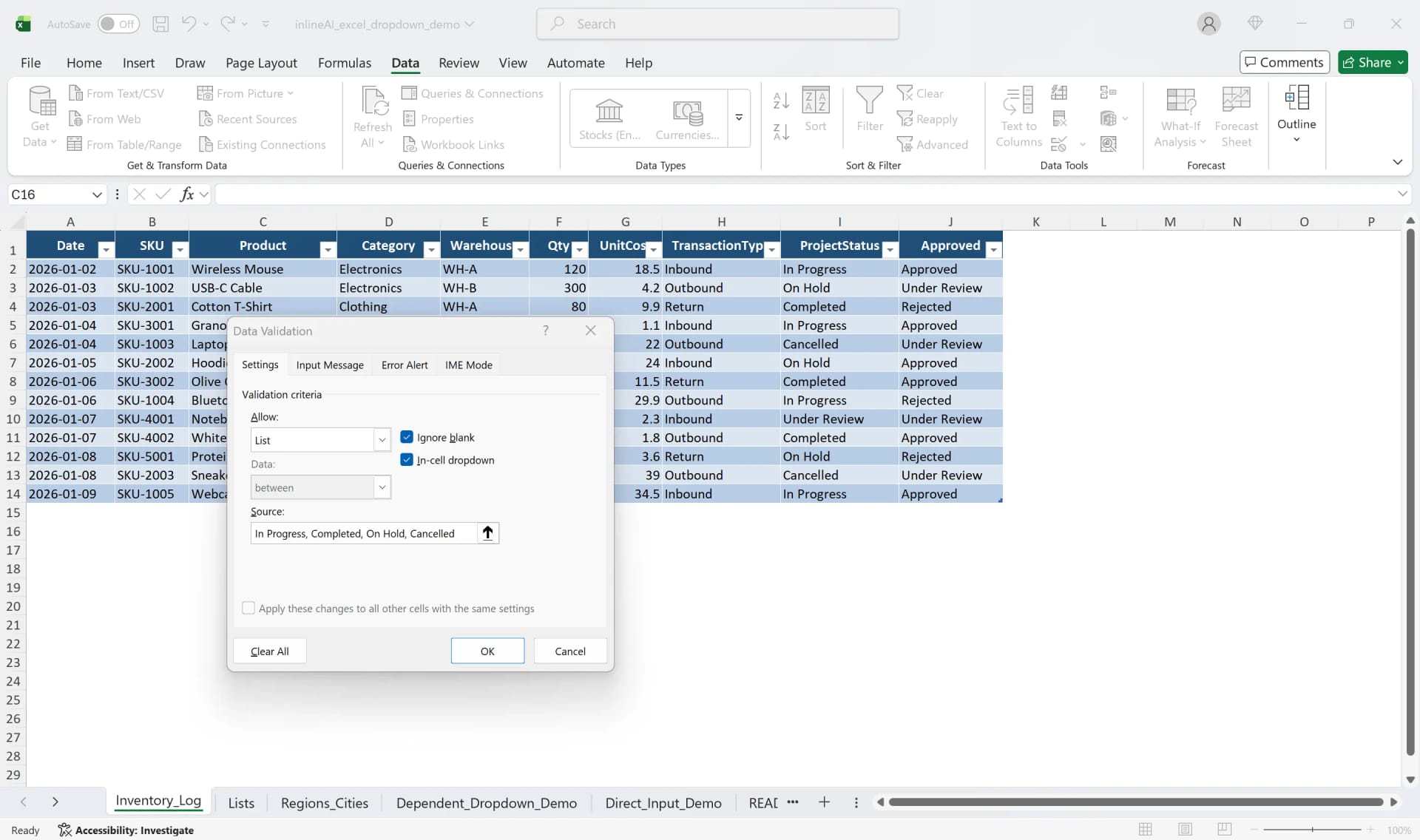
Open Data Validation again and change Source. Check Apply these changes to all other cells with the same settings to update every cell at once. To remove a list, click Clear All in the same dialog; values already entered stay.
Make the list grow automatically
Convert the list to a table with Ctrl + T, give it a name on the Table Design tab (for example Warehouses), and use =INDIRECT("Warehouses") as the Source. New rows in the table appear in the drop-down without touching the validation.
Build a dependent list
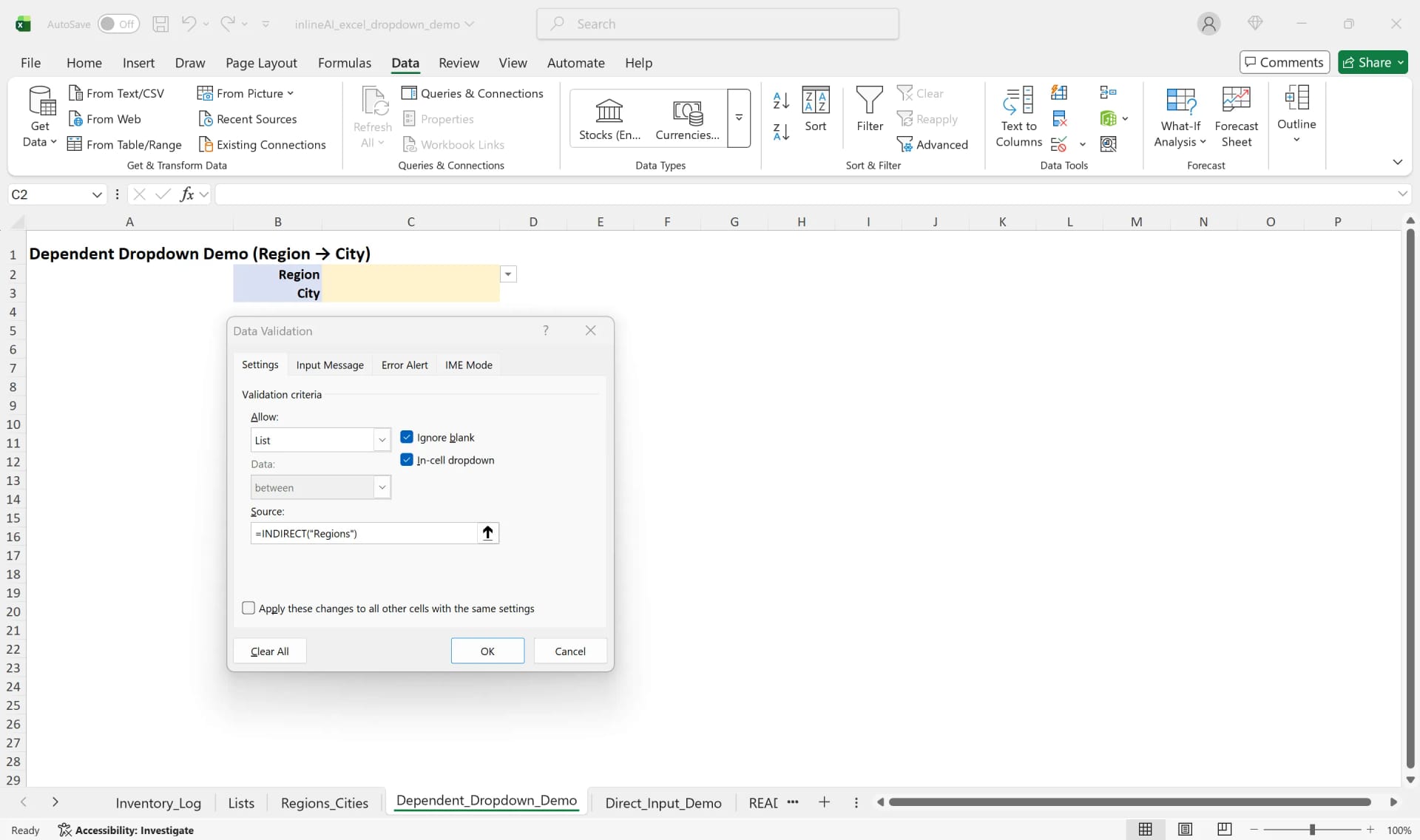
Create one table per first-level choice, named exactly like that choice (Packaging, Office, Cleaning). In the second column, use =INDIRECT(C2) as the Source, where C2 holds the first choice. Table names cannot contain spaces, so keep category values space-free or map them.
Excel drop-down lists: frequently asked questions (FAQ)
Q. Can a drop-down allow several selections?
Not with Data Validation alone; that needs VBA. Usually it is cleaner to use separate columns or checkboxes.
Q. Does copying a cell copy its drop-down?
Yes. Use Paste Special → Values to copy only the value.
Q. What if the AI suggests the wrong correction for a mismatched value?
It only suggests; you choose which corrections to apply. Each change is recorded, so a wrong one can be found and reversed.
Q. Is our item list used to train AI models?
No. Company data is stored on AWS and is not used for training, and an eZDR agreement means the model provider stores neither prompts nor files.
Building drop-down lists with inline AI
One drop-down takes a minute; a set of linked lists plus cleaning up what people typed before them takes an afternoon. In the AI Browser, the employee keeps the sheet open and asks the AI beside it to set up the lists and find the entries that don't fit, then decides how each one should be corrected. The work runs inside the company's accounts, permissions and approval policies, and every change is recorded in the audit log.
In the AI Browser, this takes one request
inline AI OS is a work browser where your team keeps company files open and hands the task to the AI beside them. Book a free consultation to see how it fits your operations.
Book a free consultation