

Blog
How to Insert a Checkbox in Excel: In-Cell and Form Controls

There are two ways to insert a checkbox in Excel. In Microsoft 365, select a range and choose Insert → Checkbox: every selected cell becomes a checkbox whose value is TRUE when ticked and FALSE when not. In versions without that button, you use a Form Control checkbox from the Developer tab, which floats over the sheet and has to be linked to a cell before formulas can read it. The difference matters at scale. A shipping checklist with 46 orders and three stages is 138 Form Controls placed and linked one by one, or a single click with in-cell checkboxes.
This guide covers both methods, when to use which, the formulas that turn ticks into a status, a count and a dollar total, and a shipping desk example from start to finish.
In-cell checkboxes versus Form Controls
| In-cell checkbox (Insert → Checkbox) | Form Control checkbox (Developer tab) | |
|---|---|---|
| Available in | Microsoft 365 on Windows, Mac, web and mobile | Desktop Excel on Windows and Mac, all versions |
| Where it lives | In the cell itself | An object floating over the cells |
| Value | The cell is TRUE or FALSE | TRUE or FALSE in a linked cell you choose |
| Making many | Select a range, one click | Copy each one and fix its link |
| Sorting and filtering | Moves with its row | Can end up next to the wrong row |
If you're on Microsoft 365, in-cell checkboxes are the better choice almost every time. Form Controls are for files that must work in Excel 2021 or earlier, or for printed-style forms where each box needs a text label beside it.
Method 1: Insert → Checkbox (Microsoft 365)
- Select the cells that should hold checkboxes, for example F2:H47.
- Choose Insert → Checkbox. Every selected cell gets an empty box.
- Click a box to tick it, or select one or more cells and press the Spacebar to toggle them all.
- To remove checkboxes, press Delete. If any were ticked, the first Delete clears the ticks and the second removes the boxes.
These are the steps in the Excel team's announcement of checkboxes. Its January 2026 update says the feature has fully rolled out on Windows and Mac desktop for Current Channel, Monthly Enterprise Channel and Semi-Annual Channel, and to the web and the iPad, iOS and Android apps. If the button is missing, update Office from File → Account first.
An in-cell checkbox behaves like cell formatting. Drag the fill handle and the checkboxes copy down; sort or filter and each tick stays with its row. Make the box bigger with the font size and change its color with the font color. The formula bar shows TRUE or FALSE, so any formula can read it like an ordinary value. Open the file in an older Excel and you see the words TRUE and FALSE instead of boxes.
Method 2: Form Control checkboxes from the Developer tab
Show the Developer tab
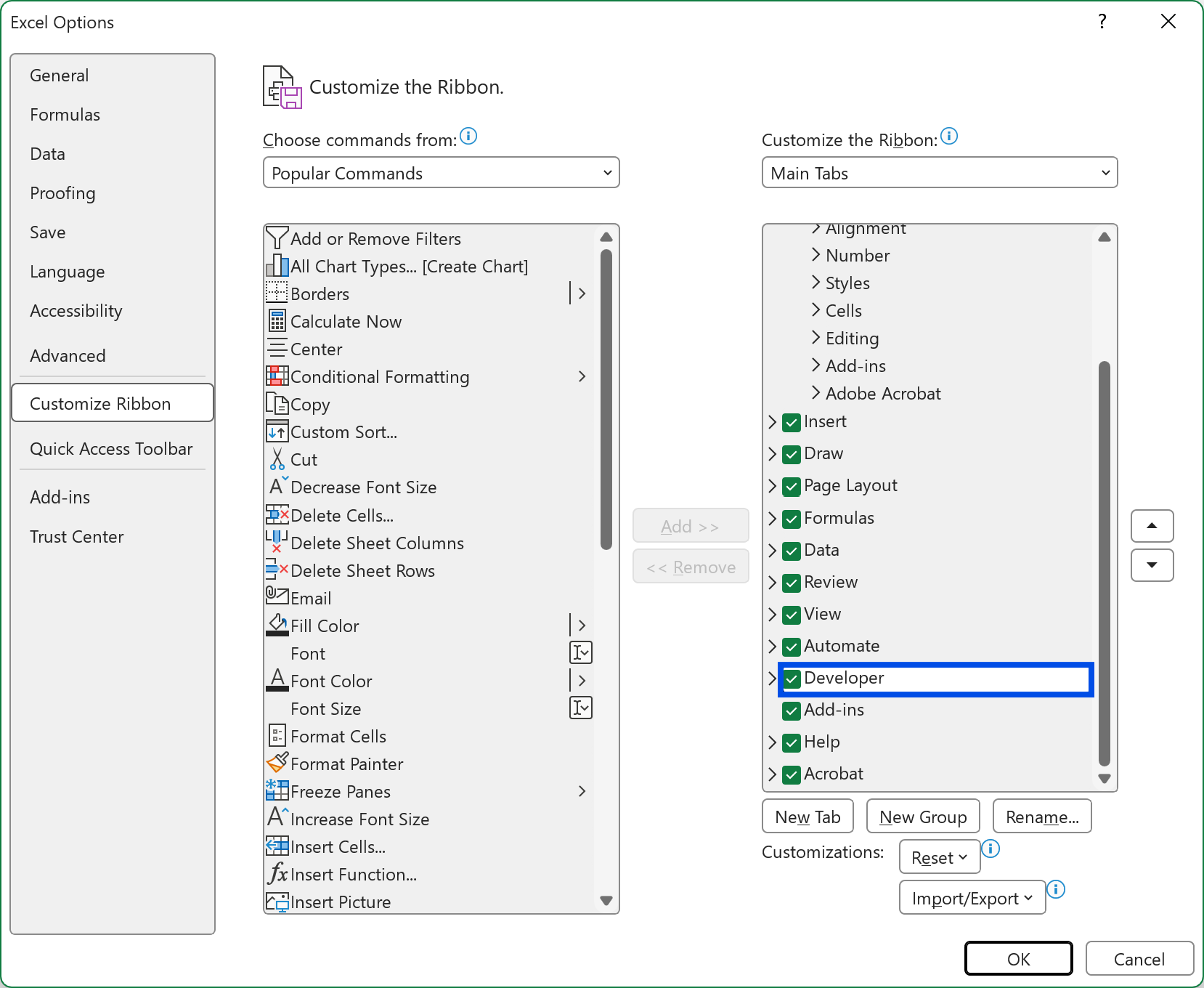
Go to File → Options → Customize Ribbon, tick Developer in the Main Tabs list and click OK. On a Mac, use Excel → Preferences → Ribbon & Toolbar.
Insert the checkbox
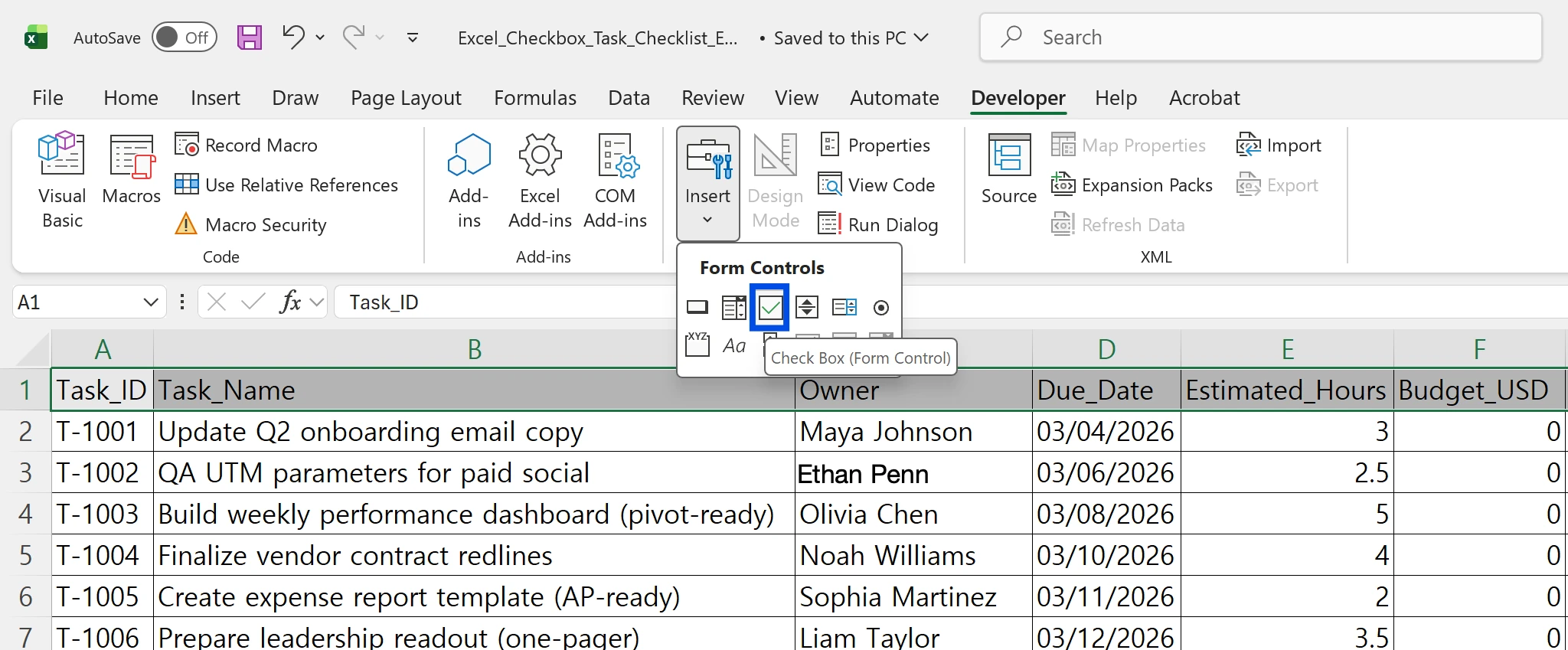
Go to Developer → Insert and choose Check Box under Form Controls, then click or drag on the sheet. Right-click and choose Edit Text to change or delete the "Check Box 1" label. The same menu offers an ActiveX checkbox; skip it unless you're writing VBA, since ActiveX controls don't work on a Mac and depend on macro security settings.
Link it to a cell
Right-click the checkbox, choose Format Control, open the Control tab and enter a cell in Cell link. As Microsoft's LinkedCell reference explains, changing the control puts its value in the cell, and changing the cell changes the control. Ticked is TRUE, unticked is FALSE. Hide the linked column, or give it a font color that matches the background, if you don't want the words visible.
The classic mistake is copying. A copied Form Control keeps the original link, so ten pasted checkboxes can all toggle the same C2. After copying, open Format Control on each one and fix its link.
Formulas that read checkboxes
Because the values are TRUE and FALSE, they work directly as conditions. With the three stages in columns F, G and H and order values in E:
- All three ticked:
=IF(AND(F2:H2),"Ready","") - Count of ticked boxes:
=COUNTIF(H2:H47,TRUE) - Count of unticked boxes:
=COUNTIF(H2:H47,FALSE) - Value of ticked rows:
=SUMIFS(E2:E47,H2:H47,TRUE), or=SUMPRODUCT(H2:H47*E2:E47)since TRUE multiplies as 1 - Progress:
=COUNTIF(H2:H47,TRUE)/ROWS(H2:H47), formatted as a percentage
To shade finished rows, select the data and choose Home → Conditional Formatting → New Rule → Use a formula to determine which cells to format, enter =$I2="Ready" and pick a fill or strikethrough. The $ in front of the column only is what makes every row check its own status cell.
Worked example: the shipping desk at Crestview Foods
Every morning the shipping lead at Crestview Foods' distribution center pulls the day's outbound orders into one sheet: order number, customer (Brightway Retail, Lakeview Distribution and others), carrier and order value in columns A to E. Each order has to be picked, packed and labeled before it goes on a trailer, and at 3 p.m. she tells Interstate Freight Lines how many orders are ready and what they're worth. Until this year that meant ticks on paper and a hand count.
In Microsoft 365 she rebuilt it like this:
- Typed Picked, Packed and Labeled in F1:H1, selected F2:H47 and chose Insert → Checkbox: 46 orders times three stages, 138 checkboxes, in one click.
- Entered
=IF(AND(F2:H2),"Ready","")in I2 and double-clicked the fill handle. - Added conditional formatting on A2:I47 with
=$I2="Ready"for a light green fill. - Put the ready count,
=COUNTIF(I2:I47,"Ready"), and the ready value,=SUMIFS(E2:E47,I2:I47,"Ready"), at the top.

Warehouse staff open the same workbook in Excel on their tablets and tick each stage as they go, and the green rows and the totals update on the office screen. At 3 p.m. the two numbers at the top are the whole carrier update, and filtering column I for blanks shows exactly which orders are stuck and at which stage. The next morning she copies the sheet, pastes the new orders and presses Delete once over F2:H47 to clear the ticks.
👉 How to Create a Drop-Down List in Excel and Dependent Lists
Going further
Show only what's left. In Microsoft 365, =FILTER(A2:D47,I2:I47="","All shipped") on another sheet lists only unfinished orders, and each row drops off as it's completed.
Progress bar. Put the progress formula in a cell and add Home → Conditional Formatting → Data Bars. Per-stage progress, one formula for each of F, G and H, shows where work is backing up.
Roll-ups by customer. The ticks are ordinary values, so a summary sheet can use =SUMIFS(Outbound!E:E,Outbound!B:B,A2,Outbound!I:I,"Ready") to show each sales rep which of their customers' orders ship today.
Version differences
In-cell checkboxes exist only in Microsoft 365, where they can be ticked on desktop, web and mobile, which makes them the right choice for a checklist people update on tablets. Form Control checkboxes can be created and used in Windows and Mac desktop Excel but not inserted or edited in Excel for the web. ActiveX checkboxes work only in Windows desktop Excel.
Common problems
- No Checkbox button on the Insert tab. You're on Excel 2021 or earlier, or Office needs updating. Update, or use Form Controls.
- A Form Control won't tick. It is probably an ActiveX control with Developer → Design Mode on. Turn Design Mode off or replace it with a Form Control.
- Delete doesn't remove a Form Control. It's an object, not cell content. Ctrl-click it to select it and press Delete, or use Home → Find & Select → Select Objects and drag across many.
- Sorting scrambled the checkboxes. Form Controls float over the cells and don't move with sorting. In-cell checkboxes do.
- COUNTIF returns 0.
"TRUE"in quotes looks for the text TRUE. UseTRUEwithout quotes.
FAQ
Q. Can I turn an existing TRUE/FALSE column into checkboxes?
Yes. Select it and choose Insert → Checkbox. TRUE cells become ticked boxes and FALSE cells empty ones.
Q. How do I make a checkbox bigger?
For in-cell checkboxes, increase the font size. Resizing a Form Control's frame doesn't enlarge the box itself, so in-cell checkboxes are the way to get larger boxes.
Q. Can a checkbox record when it was ticked?
Not by itself. Add a date column next to it and press Ctrl + ; to enter today's date when you tick.
Q. Do checkboxes survive opening the file in Google Sheets?
Google Sheets has its own Insert → Checkbox with the same TRUE/FALSE values. In-cell checkboxes, which need no linked cells, are the simpler kind for files that move between the two.
How inline AI builds checklists
One checkbox is easy; rebuilding the boxes, status formulas, formatting and totals every time the order list changes is where the time goes. inline AI builds the whole checklist in the open workbook in one request and, at 3 p.m., drafts the carrier email with the ready count and value. With outbound and inventory in ARP, pick, pack and ship status shows on every order without a checklist at all.
Hand your documents and your company’s work to inline AI.
Keep a file open, say what you need, and AI edits it or drafts a new one. Add the company AI OS and AI runs the rest of the work, ERP included.
Book a demo