
Blog
Excel Pivot Table: Build and Fix One in the AI Browser

An Excel pivot table turns thousands of order lines into a summary someone can actually read: sales by region, by month, by channel. In a growing distribution business that summary is requested every week, usually from a shared export that three people have already edited. Building it by hand is quick the first time and slow every time after, because the range grows, a header gets renamed, and the totals quietly start counting rows instead of adding amounts. In the AI Browser, you keep the workbook open in a tab and ask the AI beside it to build or fix the pivot table, then check the result before anyone else sees it.
Building a Pivot Table in the AI Browser
The scene
Say you run sales operations at Harbor Foods. In one tab of the AI Browser you have Q3_orders_export.xlsx, the shared export the team works from every Monday. Your manager wants monthly sales by region before the 10 a.m. meeting.
You type into the AI panel:
"Build a pivot table from the Orders sheet: Region in rows, Month in columns, sum of Amount in values. Put it on a new sheet called Summary."
What the AI does
The AI reads the open sheet before it touches anything. It checks for the things that break pivot tables: blank rows that cut the range short, missing or duplicate headers, and amount cells stored as text. If it finds a problem, it tells you what it found and where, for example that a block of amounts in column F is stored as text, and asks whether to convert them before continuing.
It then converts the source range to an Excel table so new rows are picked up later, inserts the pivot table on a new Summary sheet, places the fields you named, and sets the value field to Sum. When it is done, it reports the grand total next to the total of the source column so you can see at a glance that nothing was dropped or double counted.
What you check
Two things are worth a look before you share the file. First, compare the pivot's grand total with the source total the AI reported; if they differ, ask it which rows are missing. Second, look at the filter area. If someone left a region filtered out in an old version, the pivot will look complete and still be short.
How it stays safe
The AI edits the shared workbook with your permissions, not broader ones, and asks before overwriting a file the team depends on. Every request and edit is recorded in the audit log, so the team can see who changed the summary and when.
When the Same Pivot Is Needed Every Week
Fixing a pivot that stopped matching
Most pivot table problems are not about building one but about keeping it right. Two requests cover nearly all of them:
"This pivot is counting orders instead of summing Amount. Fix it and tell me why it happened."
"New rows were added below row 1,200 and the pivot doesn't show them. Fix the source so it updates on refresh."
The AI changes the summary method or the data source, refreshes the pivot, and explains the cause in one or two sentences: text in a number column, or a fixed range like A1:F1200 that no longer covers the data.
Writing up the summary
Once the totals match, you can ask the AI to draft a short summary for the meeting in Word or an email: region totals by month, the largest change from the previous month, and the source file and period. You check the figures against the pivot before sending it.
👉 Calculate Percentage in Excel: Rates, Growth and Share via AI
Doing It by Hand
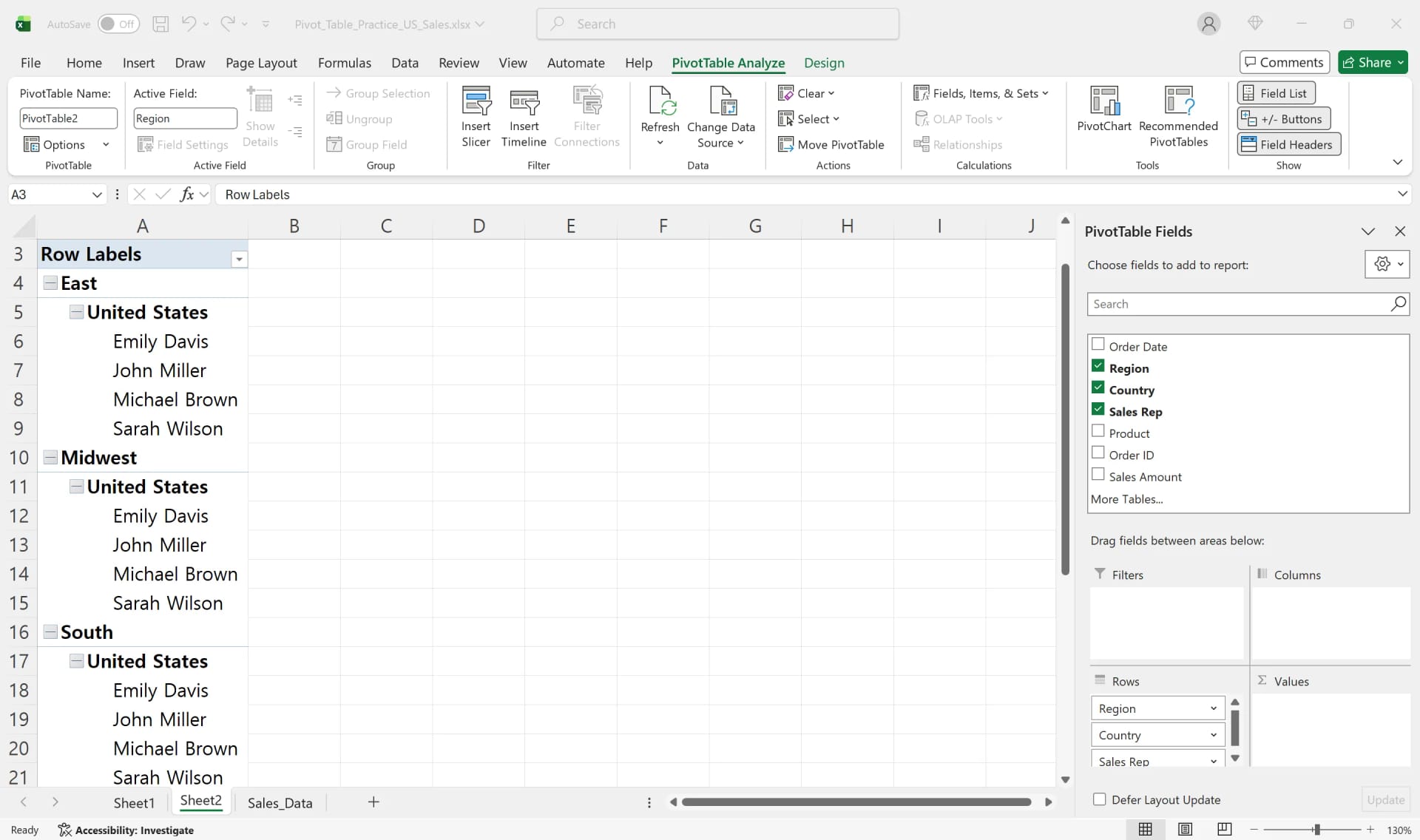
A pivot table is a summary that references your source data. Instead of writing SUMIF or AVERAGEIF formulas, you drag fields into the Rows, Columns, Values and Filters areas, and Excel does the aggregation. Rearranging the fields changes the view without touching the source.
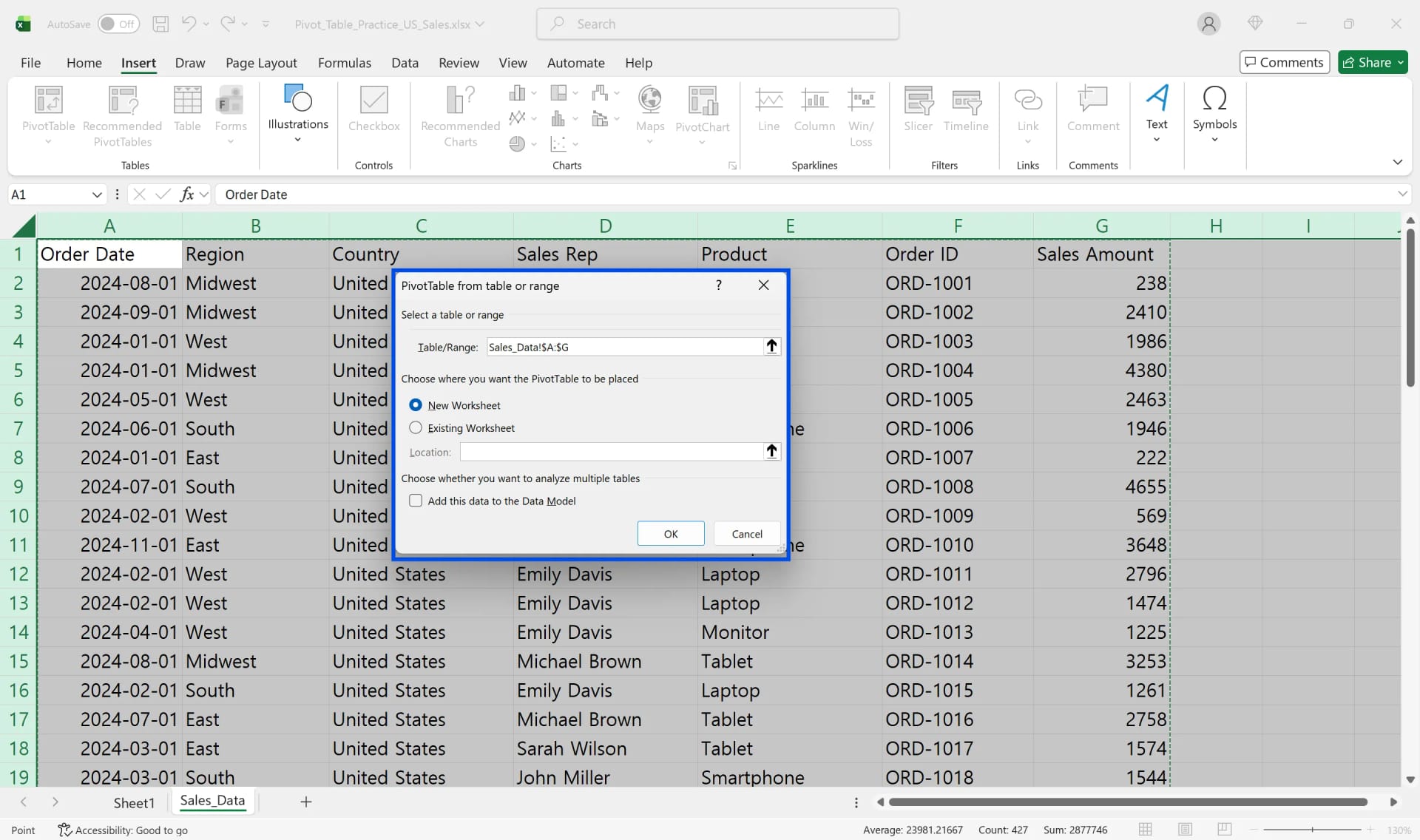
- Click any cell in the source data. Check that there are no blank rows or columns and that every column has a unique header.
- Go to Insert > PivotTable and choose New Worksheet.
- Drag fields into place, for example Region to Rows, Month to Columns and Amount to Values.
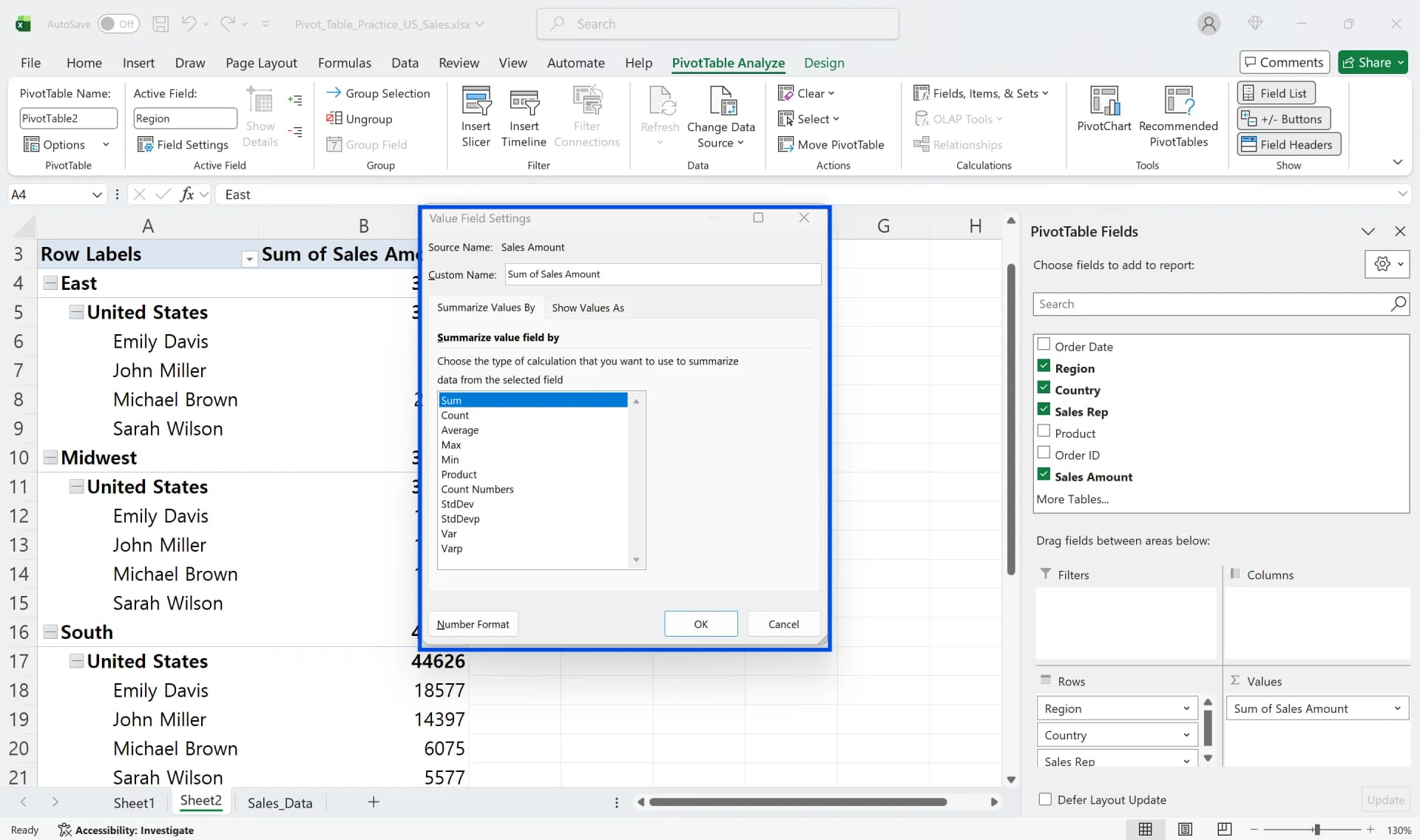
- If Amount shows as a count, click the value field, open Value Field Settings, and choose Sum.
When the pivot doesn't pick up new data
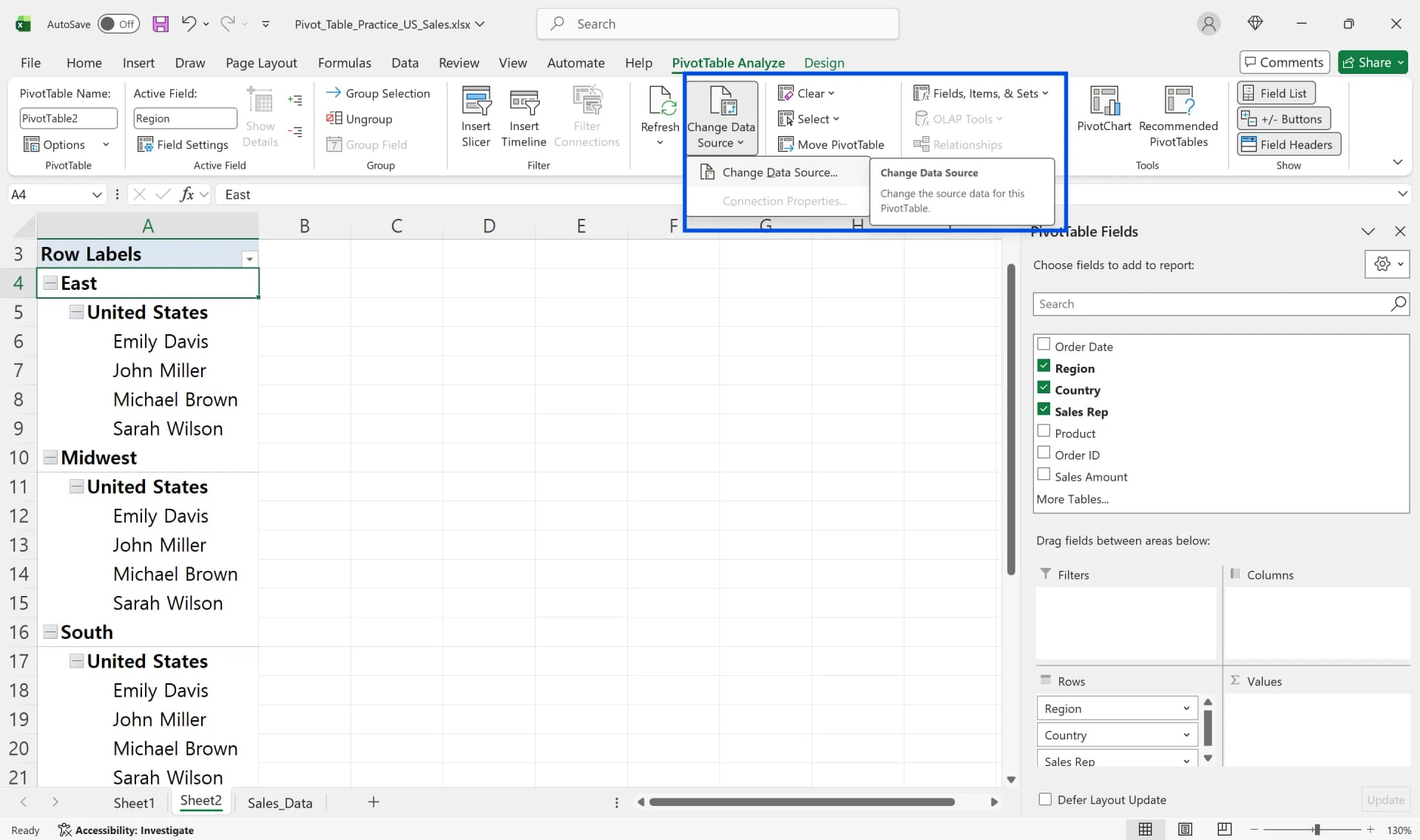
If the pivot was built on a fixed range, rows added below it are ignored. Click inside the pivot, go to PivotTable Analyze > Change Data Source, and extend the range. If only values inside the range changed, right-click and choose Refresh (Alt+F5, or Ctrl+Alt+F5 to refresh all). The lasting fix is to convert the source to a table with Ctrl+T before building the pivot, so the range expands on its own.
When the totals look wrong
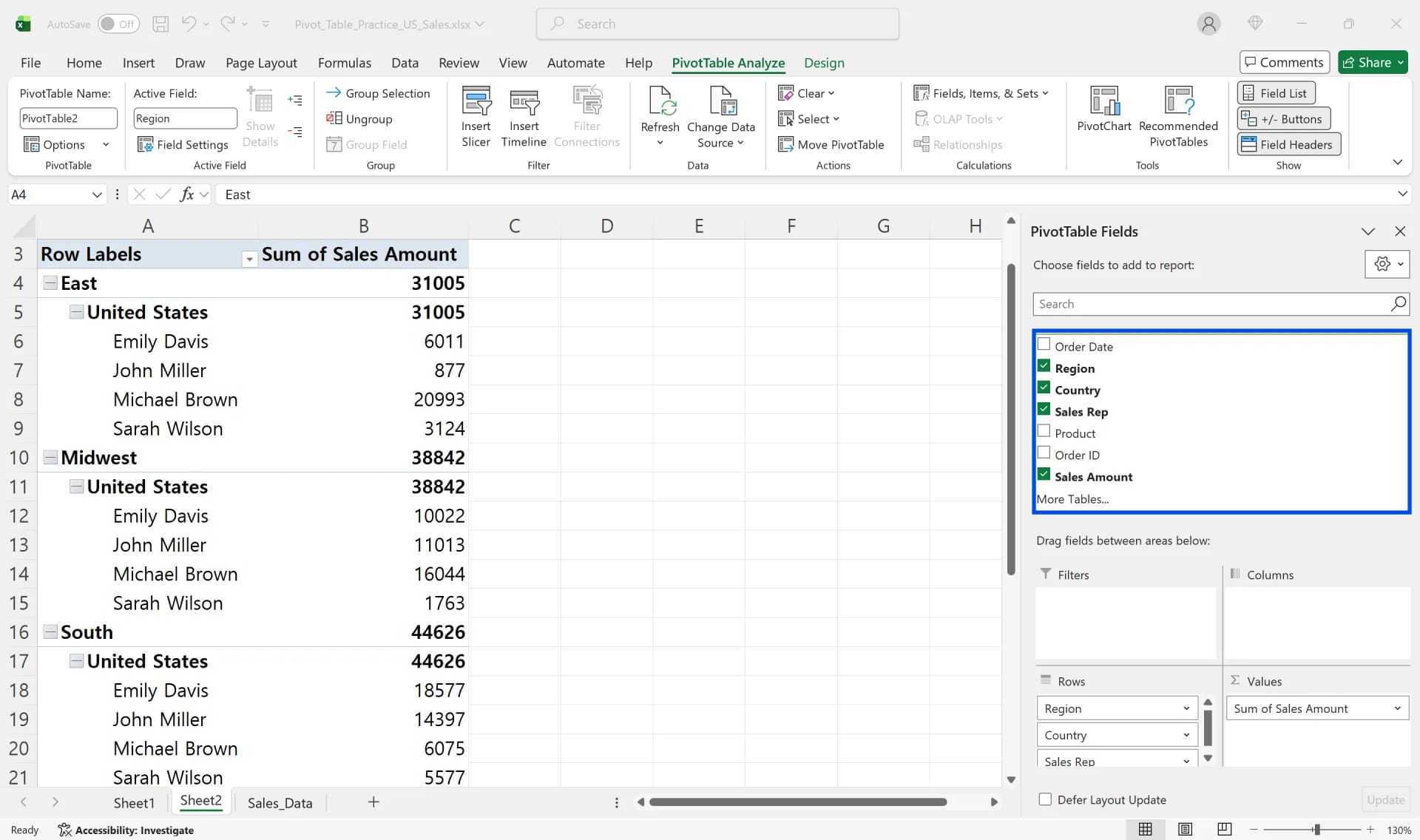
Numbers stored as text make Excel default to Count. Duplicate rows inflate totals, and an active filter or slicer shows only part of the data. Check those three before rebuilding anything.
Frequently Asked Questions
Q. How do I show percentages in a pivot table?
Click the value field, open Value Field Settings, and under Show Values As choose "% of Column Total" or "% of Grand Total". In the AI Browser you can ask for the same thing in one sentence, and the AI adds it as a second value column so the amounts stay visible.
Q. What if the AI builds the pivot from the wrong columns?
You see the result in the open file before you share it, and you can ask the AI to change it ("use Ship Date, not Order Date"). Edits are recorded in the audit log, so if a shared file was changed by mistake, it is clear what changed and who asked for it.
Q. Can the AI read order data I don't have access to?
No. The AI works with your account, so it reads the same files you can open and nothing beyond them.
Q. Where is our company data stored?
Company data is stored on AWS and is not used to train AI models. inline AI has an eZDR agreement with its model provider, so the provider stores neither prompts nor files.
Pivot Tables with inline AI
Building a pivot table by hand is fine once; keeping it correct as the shared file grows is where the time goes. In the AI Browser, the workbook stays open in one tab and the AI beside it builds the pivot, checks the source for blanks and text-formatted numbers, and fixes totals that stopped matching. It works within your company account, permissions and approval policies, and every action is recorded in the audit log.
In the AI Browser, this takes one request
inline AI OS is a work browser where your team keeps company files open and hands the task to the AI beside them. Book a free consultation to see how it fits your operations.
Book a free consultation