
Blog
How to Enable Excel Macros Safely, and When to Let AI Do the Job

Excel blocks macros by default because they run code, and macros in email attachments have long been a way to deliver malware. When you see "Security Warning: Macros have been disabled," Excel is asking whether you trust the file, and in recent versions, file origin, location and company policy can block it even after you click Enable Content. In many growing companies, the macro in question is a workbook someone built years ago to consolidate daily orders or build the month-end report. The person who wrote it has moved on, nobody is sure what it does, and IT has turned macros off. In the AI Browser, the workbook stays open in its tab and the AI beside it can explain what the macro does and carry out the same task without running the code.
Why Macros Are Blocked
Macros are VBA code saved in .xlsm files (.xlsx files can't contain them). Microsoft's defaults now block macros in files from the internet or email, and companies often enforce stricter rules through group policy. A macro that doesn't run usually means Excel is working as designed.

Before enabling any macro, ask three questions: where did the file come from, what does the macro do, and does it touch external systems or sensitive data?
Handling a Blocked Macro in the AI Browser
The setup: the order consolidation macro
At a food distributor, the sales desk uses a workbook with a macro that takes order sheets from three sales channels, combines them, removes duplicates, totals quantities by item and builds a shipping summary for the warehouse. It was written by an employee who left two years ago. After an IT security update, macros are blocked on company PCs and the button does nothing.
The sales desk lead opens the workbook in an AI Browser tab, with today's three order files in the next tabs, and types:
"This macro is blocked. Explain what it does, step by step. Then do the same thing for today's three order files without running the macro, and show me the shipping summary before saving anything."
What the AI does
- Reads the macro as text, without running it. It explains each step in plain language: which sheets it reads, how it decides duplicates, which columns it totals, where it writes the summary. It also points out risky behavior, such as a step that deletes rows from the source sheets or one that saves over the file without asking.
- Repeats the logic on today's files. It combines the three order files, applies the same duplicate rule, totals quantities by item and builds the summary in a new sheet.
- Fixes what the macro silently got wrong. The macro compared customer names exactly, so "Bluebell Market" and "Bluebell Market " counted as two customers. The AI reports the difference and uses a trimmed comparison, so you can see where the old summary would have been off.
- Waits for review. It shows the summary and the duplicates it set aside before writing anything to a shared file.
What the lead checks
The lead compares the summary with yesterday's output and reviews the duplicates. Sending the summary to the warehouse is a separate step.
How it stays safe
The AI doesn't execute VBA and doesn't change macro security settings or work around company policy. It acts with the lead's permissions, so it reads and writes only the files they're allowed to use. Building a summary sheet is low risk and runs immediately; sending it to the warehouse asks for confirmation first. Every request and change is recorded in the audit log.
Without the macro tomorrow
Because the AI read the macro and explained it in plain language, the routine no longer depends on code nobody can maintain. Tomorrow, open the workbook and the day's three order files and ask for "the same shipping summary as yesterday." The AI repeats the steps, including the trimmed name comparison, and shows the summary for review before anything is saved.
👉 How to Remove Duplicates in Excel Safely, with AI Checking First
Doing It by Hand
Unblock a file from email or the internet
Files saved from email attachments or websites are marked as coming from the internet, and their macros stay blocked even if settings allow macros. On Windows, right-click the file, choose Properties, tick Unblock if it's shown, apply, and reopen. Only do this for files you trust.
Use a Trusted Location
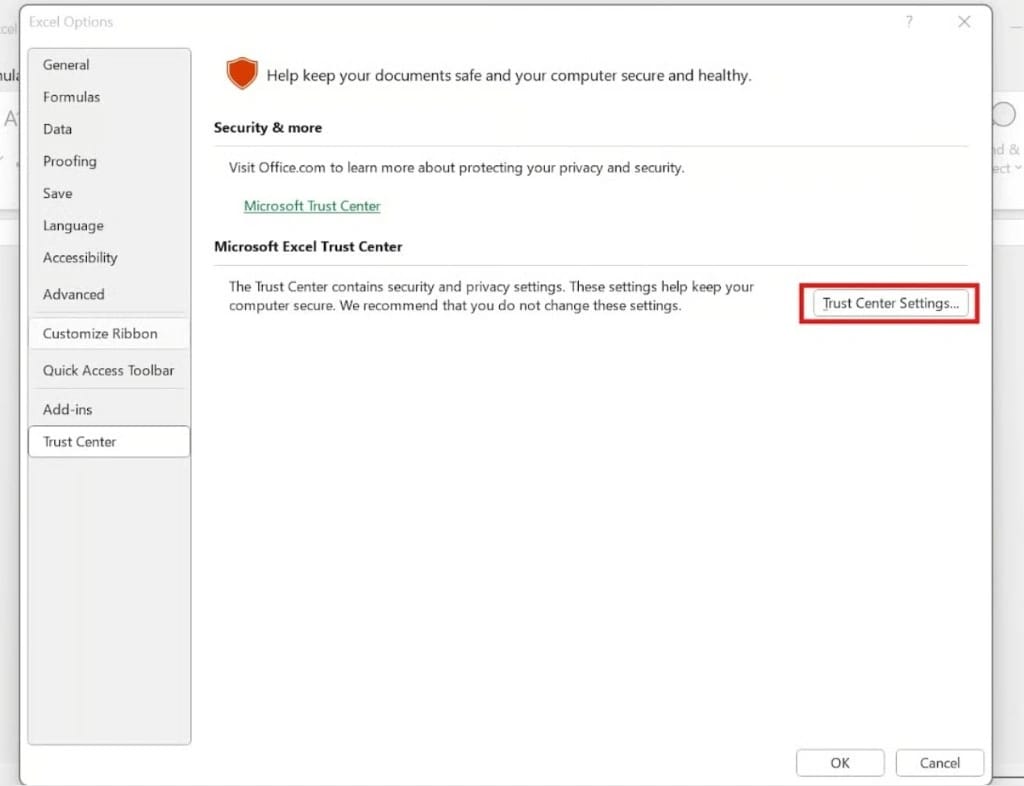
For macro files you use regularly, go to File > Options > Trust Center > Trust Center Settings.
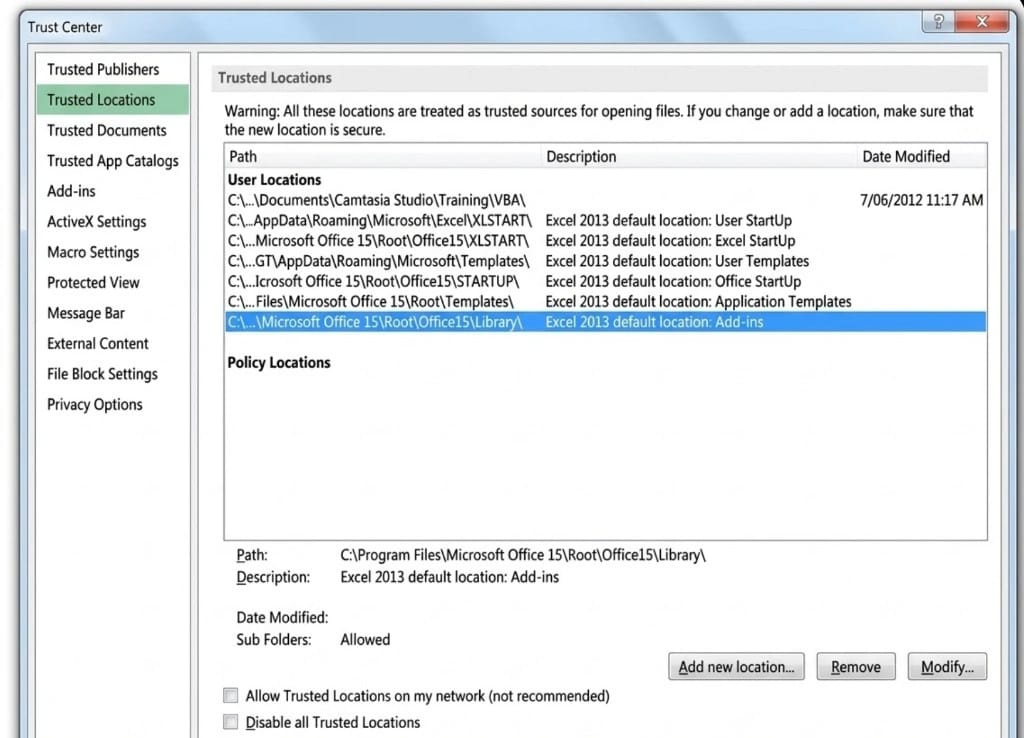
Under Trusted Locations, add the folder where the files live, and include subfolders if needed. Files in that folder run macros without a prompt, so keep the folder for files you control.
Macro settings on Windows and Mac
On Windows, Trust Center Settings > Macro Settings: Disable all macros with notification is the safest everyday choice. On a Mac, go to Excel > Preferences > Security & Privacy; prompts are generally stricter.
Company PCs
If macros stay blocked after you change personal settings, group policy is probably enforcing it. Don't try to bypass it; ask IT, or use an approved automation route.
Frequently Asked Questions
Q. I enabled macros but they still don't run. Why?
Settings are only one factor. The file must be .xlsm, and its origin, location and company policy all apply. Saving as .xlsx removes the macro code.
Q. Is it safe to keep macros always enabled?
No. Enable them only for files you trust, when you need them.
Q. Can the AI run my macro for me?
No. It reads the code as text to explain it, then carries out the same task with its own steps, inside your permissions, with actions above the risk threshold going to approval.
Q. Where is the workbook stored while the AI reads it?
Company data is stored on AWS and isn't used for AI training. inline AI has an eZDR agreement with its model provider, which stores neither prompts nor files.
Automation Without Macro Warnings with inline AI
Macro security exists for good reasons, and in a managed company environment the right answer to a blocked macro is often not to enable it. In the AI Browser, you keep the workbook open and ask the AI beside it what the macro does; it explains it, does the same job without running the code, and the routine can become an app with declared data access and version history. It works inside your company account and permissions, sends actions above the risk threshold to approval, and records every change in the audit log.
In the AI Browser, this takes one request
inline AI OS is a work browser where your team keeps company files open and hands the task to the AI beside them. Book a free consultation to see how it fits your operations.
Book a free consultation