
Blog
How to Remove Duplicates in Excel Safely, with AI Checking First

Excel's Remove Duplicates button deletes rows immediately, keeps the first occurrence, and decides what counts as a duplicate from the columns you tick. Get those columns wrong and you lose real data. That risk is highest exactly where duplicates are most common: a growing distributor merging order files from its web store, two marketplaces and a phone-order sheet into one list before shipping. The same order can arrive twice, and two different orders can look identical at a glance. In the AI Browser, the merged file stays open in its tab and the AI beside it finds and marks the duplicates for you to confirm before anything is removed.
How Remove Duplicates Decides What to Delete
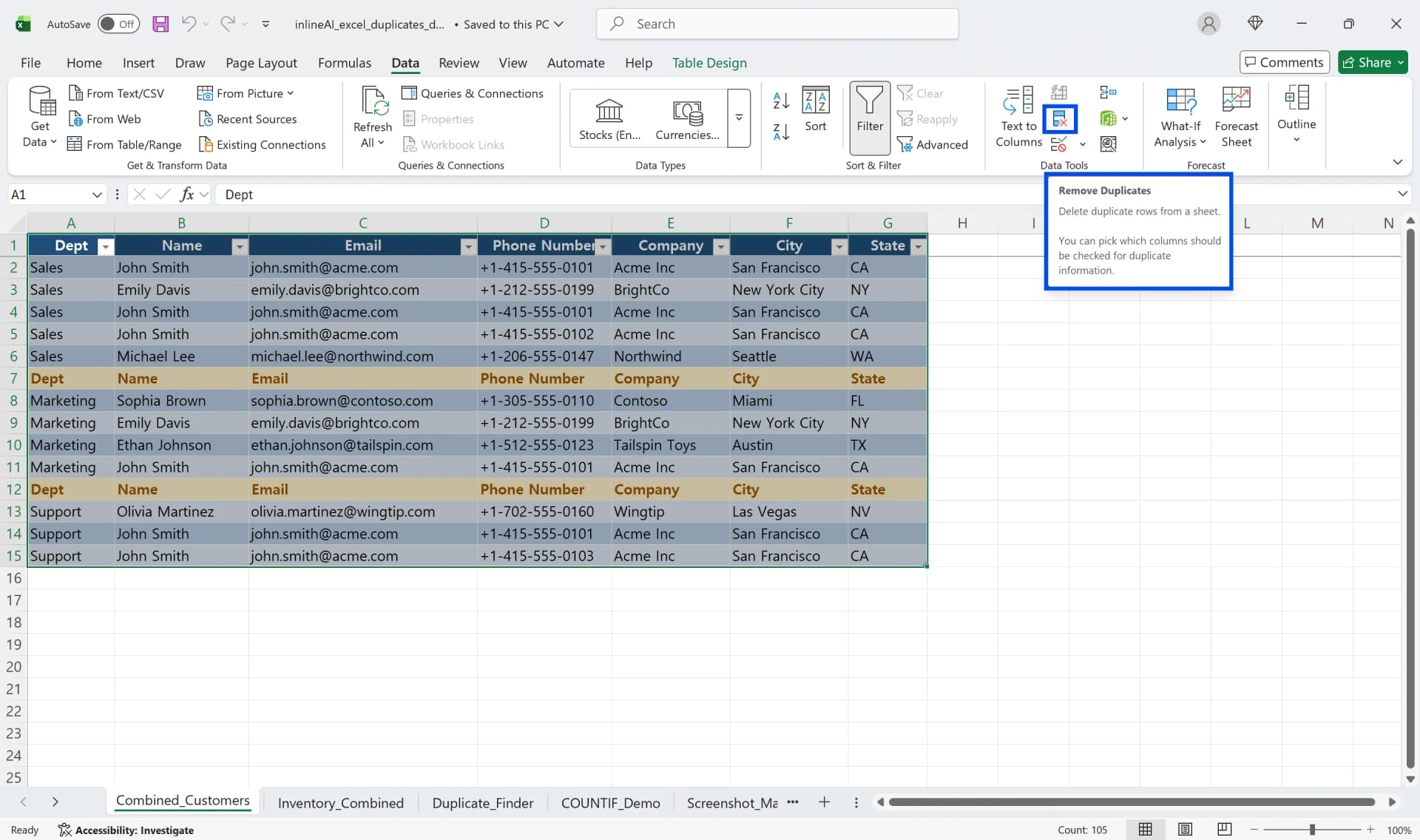
Remove Duplicates compares rows on the columns you tick in its dialog. If every ticked column matches, the later rows are deleted and the first is kept. It doesn't show you which rows it removed, only a count, and the change can't be recovered once the file is closed.
Three mistakes cause most of the damage:
- Header rows treated as data. When several files are pasted into one sheet, the repeated header rows inside the data get removed unevenly.
- Too few columns ticked. Checking only Customer Name deletes different orders from the same customer.
- No copy kept. Ctrl+Z works only in the same session.
Removing Duplicates in the AI Browser
The setup: one order list from four channels
An order coordinator at Green Farm, a produce distributor, merges the day's orders into one sheet each morning: the web store export, two marketplace reports and the phone-order sheet the sales desk keeps. Customers who don't get a confirmation quickly sometimes order again on another channel, and one marketplace re-sends orders that were edited. The sheet has several header rows pasted in the middle, and the channels format order numbers differently.
With the merged file open in an AI Browser tab, the coordinator types:
"Find duplicate orders in this sheet. Count rows as duplicates only when the customer, item code, quantity and delivery date all match. Don't delete anything yet: add a column that marks each duplicate and the row it duplicates, and list the header rows in the middle of the data."
What the AI does
- Cleans the comparison, not the data. It notes that order numbers and customer names are formatted differently per channel (extra spaces, different capitalization) and compares on normalized values, without changing the original cells.
- Finds stray header rows inside the data and lists them separately, so they don't skew the result.
- Marks, doesn't delete. It adds a Duplicate Of column pointing each duplicate to its first occurrence, and highlights the group.
- Separates near-misses. Rows that match on customer and item but differ in quantity or date are listed as "possible edits," not duplicates. These are usually changed orders, and deleting either one would be wrong.
- Summarizes. How many exact duplicates, how many possible edits, which channel they came from.
What the coordinator checks
The coordinator reads the possible edits, checks two of them against the marketplace's order page in another tab, and decides which version is current. Then:
"Make a copy of this sheet and remove the confirmed duplicates and the header rows from the copy."
The original stays intact, and the cleaned copy goes to picking.
How it stays safe
The AI acts with the coordinator's permissions. Marking and copying a working file runs right away, and the original is never overwritten without asking. Deleting rows from a shared list asks for confirmation first. Every request and change is recorded in the audit log.
Tomorrow's merge
The same channels send the same kinds of files every day. Open tomorrow's exports in tabs and ask the AI to create the merged sheet itself: one header row, order numbers normalized, duplicates and possible edits marked the same way as today. The coordinator reviews the marks instead of pasting four files together.
👉 How to Find Duplicates in Excel: Highlight and Review with AI
Doing It by Hand
Remove Duplicates from the Data tab
- Copy the sheet first (right-click the tab > Move or Copy > Create a copy).
- Select the range including the header row.
- On the Data tab, click Remove Duplicates.
- Tick My data has headers.
- Tick every column that has to match for two rows to be the same.
- Click OK and read the count of removed and remaining rows.
Find duplicates first with Conditional Formatting
Select the range, then Home > Conditional Formatting > Highlight Cells Rules > Duplicate Values. Choose Duplicate and a color. Nothing is deleted, and you can filter by color to see the duplicates together.
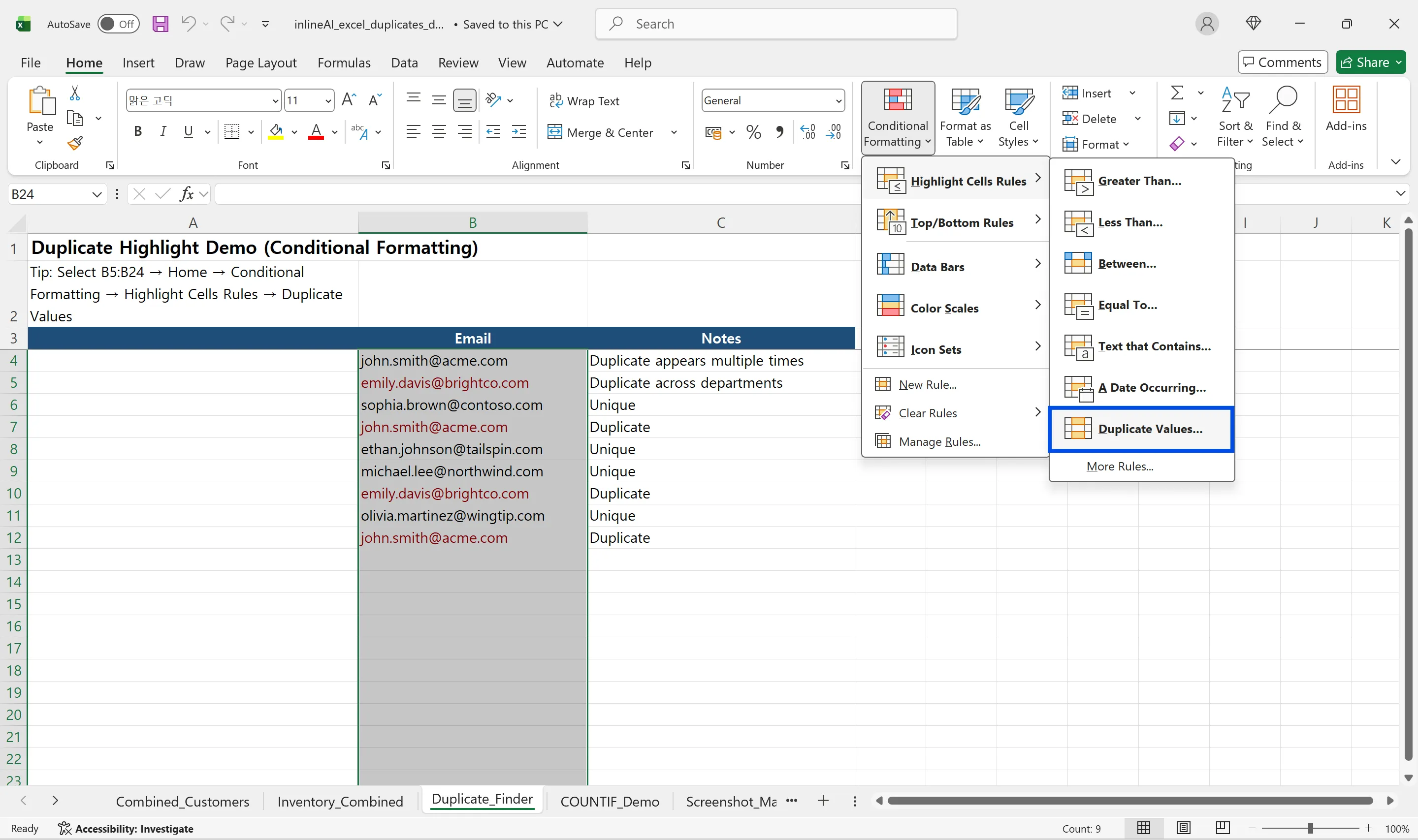
This rule checks one column at a time. For a duplicate based on several columns, join them in a helper column first (=B2&C2&D2) and highlight that.
Count duplicates with COUNTIF
=COUNTIF(D$3:D$16, D3) returns how many times each value appears. Lock the range with $ and leave the second argument relative. A result of 2 or more is a duplicate; filter on it to review before deleting.
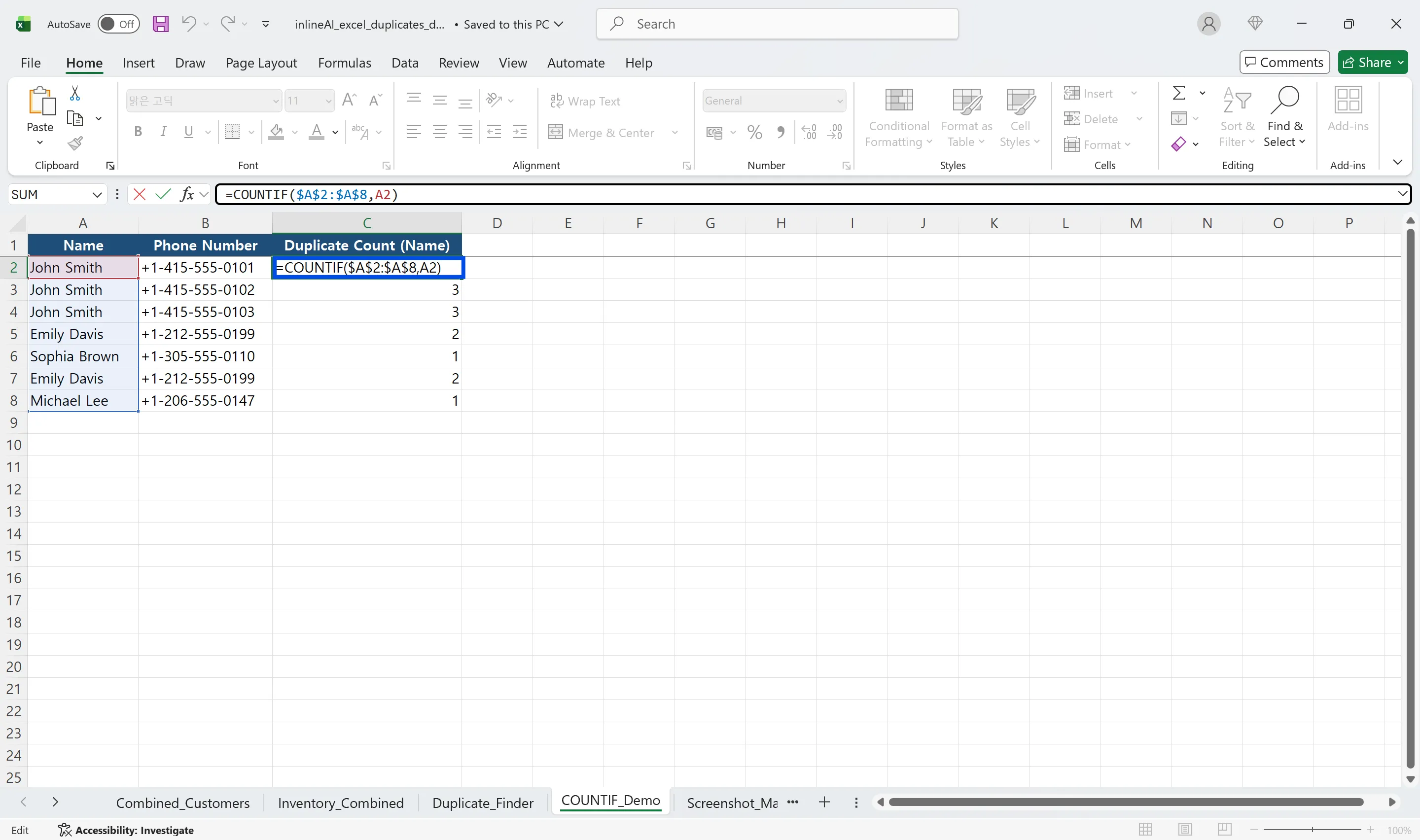
For several columns, use COUNTIFS: =COUNTIFS(B:B, B2, C:C, C2, D:D, D2).
Frequently Asked Questions
Q. Can I restore data after removing duplicates?
Only with Ctrl+Z in the same session. Work on a copy of the sheet.
Q. How do I remove duplicates based on several columns?
Tick all of those columns in the Remove Duplicates dialog. Only rows matching on every ticked column are removed.
Q. What if the AI marks two different orders as duplicates?
It only marks, it doesn't delete, until you confirm. Rows that differ in quantity or date are listed separately as possible edits. The audit log records what was marked and removed, and by whose request.
Q. Do our order files leave the company to be stored by the AI provider?
No. Company data is stored on AWS and isn't used for training. inline AI has an eZDR agreement with its model provider, so prompts and files aren't stored by the provider.
Safer Duplicate Removal with inline AI
Remove Duplicates is fast, but it deletes immediately and doesn't show what it removed, which is risky on an order list where two similar rows can be two real orders. In the AI Browser, you keep the merged file open and ask the AI beside it to mark duplicates and possible edits first, then remove only what you confirm, in a copy. It works inside your company account and permissions, sends actions above the risk threshold to approval, and records every change in the audit log.
In the AI Browser, this takes one request
inline AI OS is a work browser where your team keeps company files open and hands the task to the AI beside them. Book a free consultation to see how it fits your operations.
Book a free consultation