
Blog
Filter Data in Excel by Asking AI: Auto and Advanced Filter

An Excel data filter shows only the rows that meet a condition and hides the rest without deleting anything. The hard part is not the drop-down arrow; it is turning a real question into filter logic. "Unshipped Mid-Atlantic orders over $10,000, or anything for our two largest accounts" is an AND condition mixed with an OR, which Auto Filter cannot express and Advanced Filter makes you lay out in a criteria range. In a company the same question comes up every day, from sales, the warehouse and finance, against an order list with thousands of lines.
In the AI Browser, the employee keeps the order list open in a tab and asks the AI beside it for the rows they need, in the words they would use with a colleague.
Filtering data in the AI Browser
The scene: which orders need to ship this week
At Summit Trading, the operations lead starts each Monday with Open_Orders.xlsx, an export of every order line not yet invoiced. The warehouse needs a short list: orders due this week, still not shipped, for the Mid-Atlantic region or for the two key accounts, whatever their region.
He opens the file in a tab of the AI Browser and types:
"Show order lines with Status 'Not shipped' and Due Date this week, where Region is Mid-Atlantic or the customer is Bluebell Market or Green Farm. Copy the result to a new sheet called Warehouse with only order number, customer, item, quantity and due date."
What the AI does, step by step
- Reads the table and checks the columns it needs: Status, Due Date, Region, Customer. It notices that some due dates are stored as text and says so, since those rows would silently fall out of a date filter.
- Builds the condition as (Not shipped AND due this week) AND (Mid-Atlantic OR one of the two customers), using an Advanced Filter criteria range so the OR part works.
- Copies only the matching rows to a new Warehouse sheet with the five requested columns, leaving the original list untouched.
- Reports the count and anything doubtful, such as a customer name spelled two ways.
What the employee checks
The lead compares the count with what he expected, scans the Warehouse sheet for the key accounts, and fixes the text dates the AI pointed out before sending the sheet on.
How it stays safe
The AI sees only the order data the lead can see and works inside his own file. The request and the sheet it produced are recorded, so anyone can see where the warehouse list came from.
Sending the list to the warehouse
With the Warehouse sheet ready, he can ask the AI to save it as a separate file and draft a short email to the warehouse lead with the key-account orders listed first. He reviews the draft and sends it.
👉 How to Sort Data in Excel: Multi-Level Sorts and Fixes with AI
Doing it by hand
Turn on Auto Filter
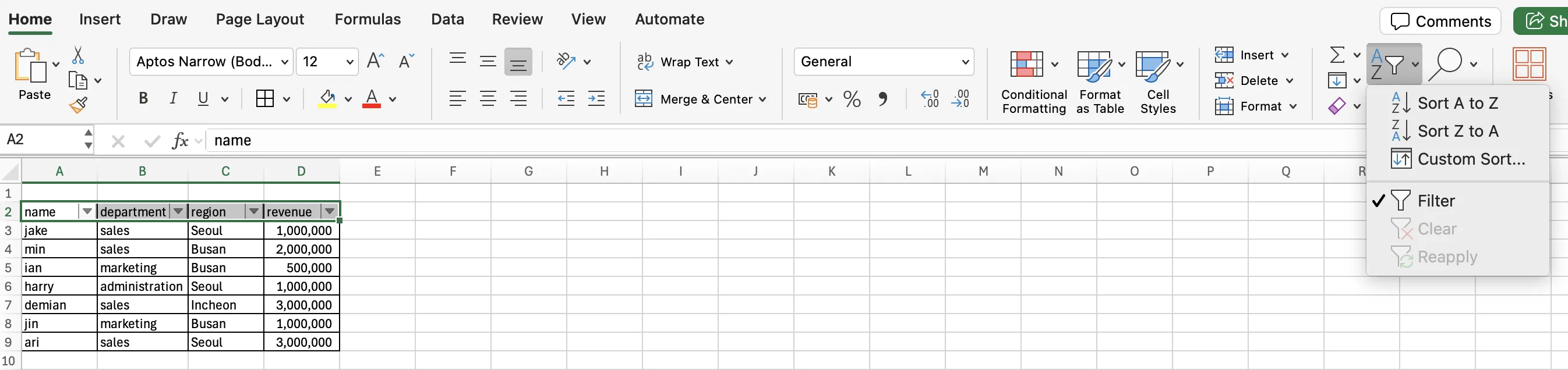
Click any cell in the table and go to Data → Filter, or press Ctrl + Shift + L. A drop-down arrow appears on each header.
Filter several columns (AND)
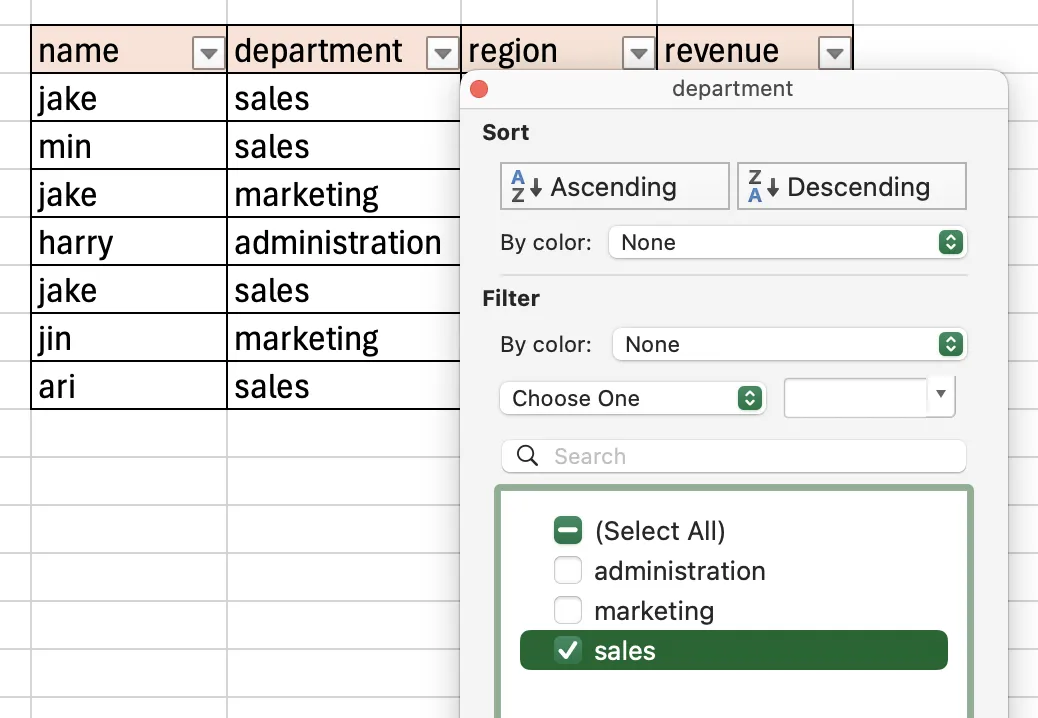
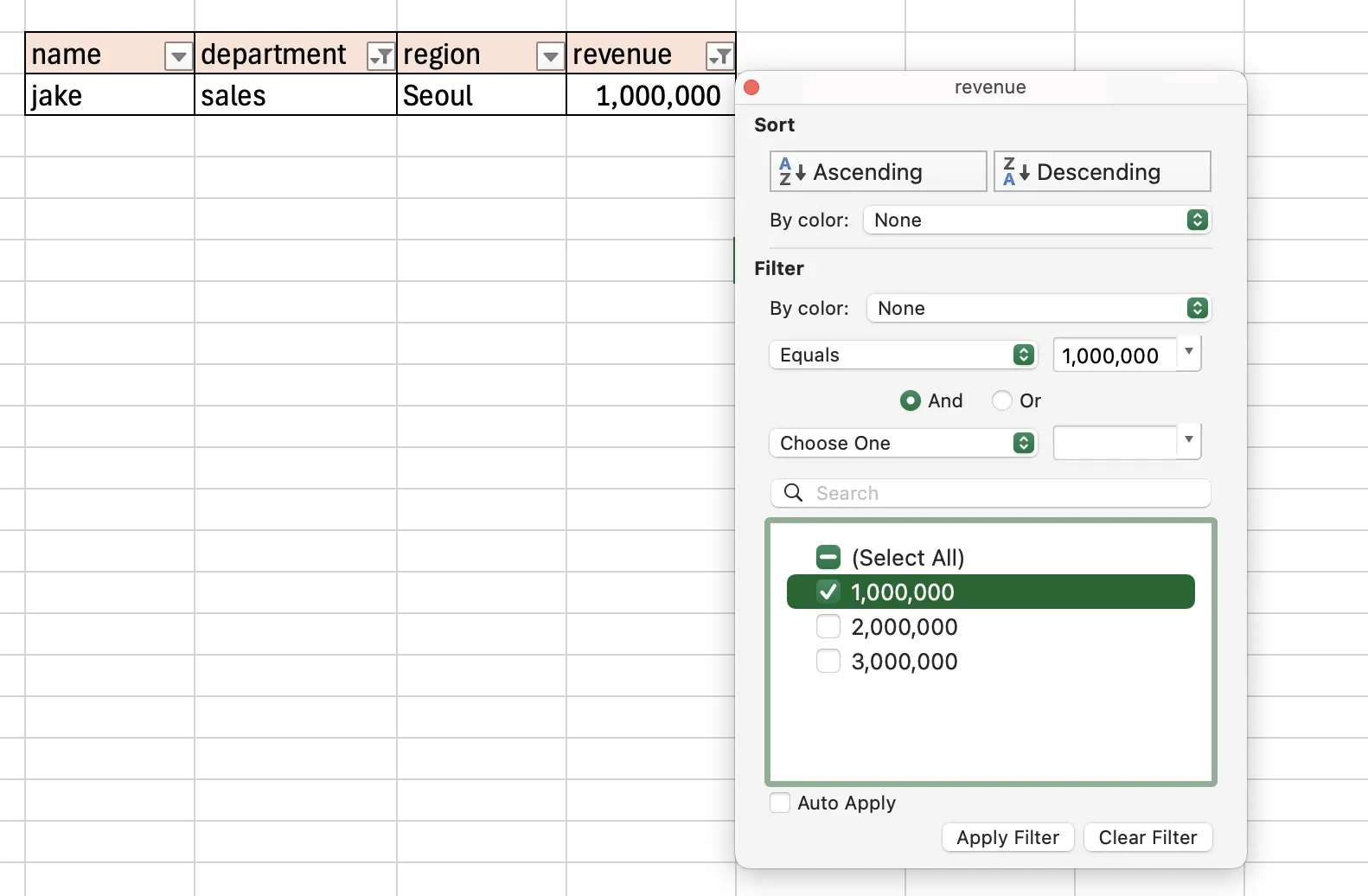
Filters on different columns combine as AND: Department = Sales and Revenue = 1,000,000 shows only rows that meet both.
Use Advanced Filter for complex conditions
Advanced Filter takes its conditions from a criteria range: a small table whose headers exactly match the data's headers. Conditions on the same row are AND.
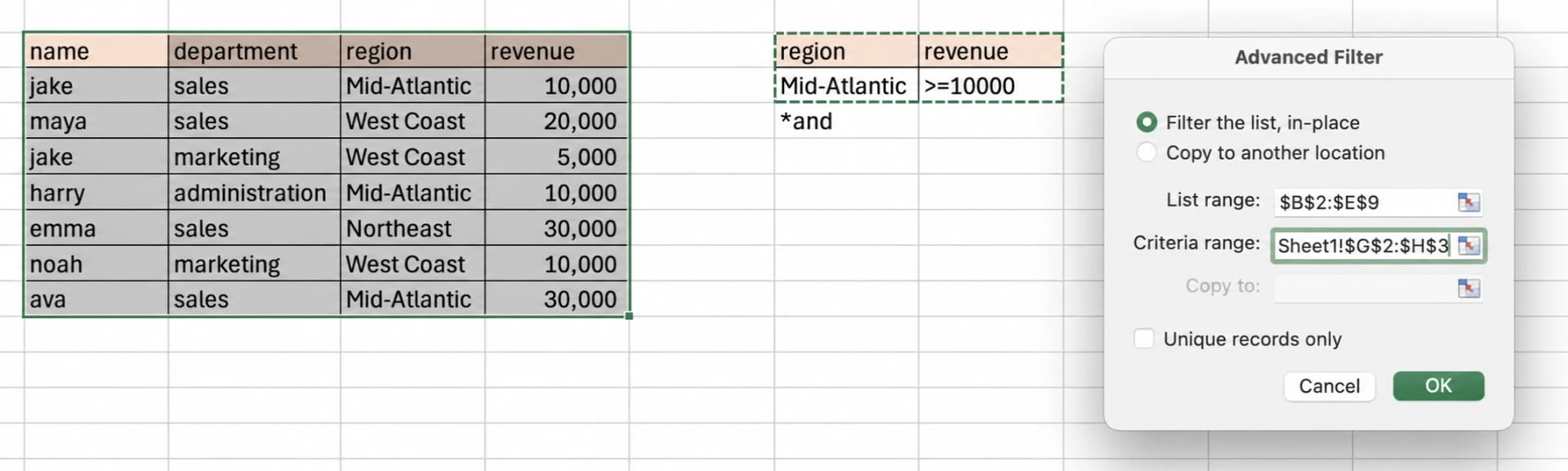
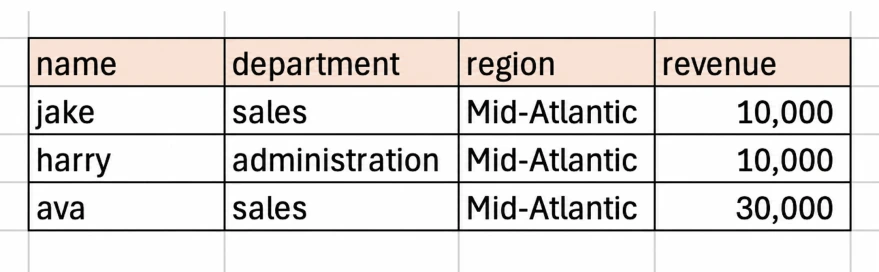
Conditions on different rows are OR, for example revenue of at least $20,000 on one row and Region = West Coast on the next.
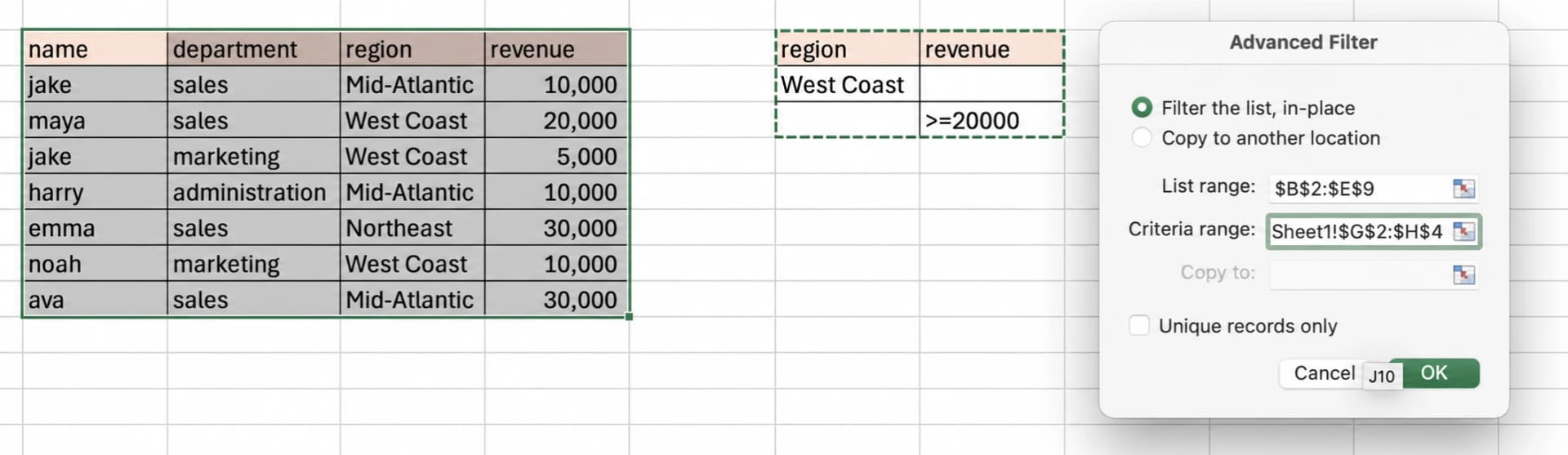
To extract the result instead of hiding rows: Data → Advanced, set the List Range and Criteria Range, choose Copy to another location and pick the destination. Keep the criteria range away from the data, with at least one blank row between them.
When filters don't work
- Merged cells, especially in the header row.
- Blank rows or columns, which Excel treats as the end of the table.
- Numbers or dates stored as text, which drop out of number and date filters.
Clear filters
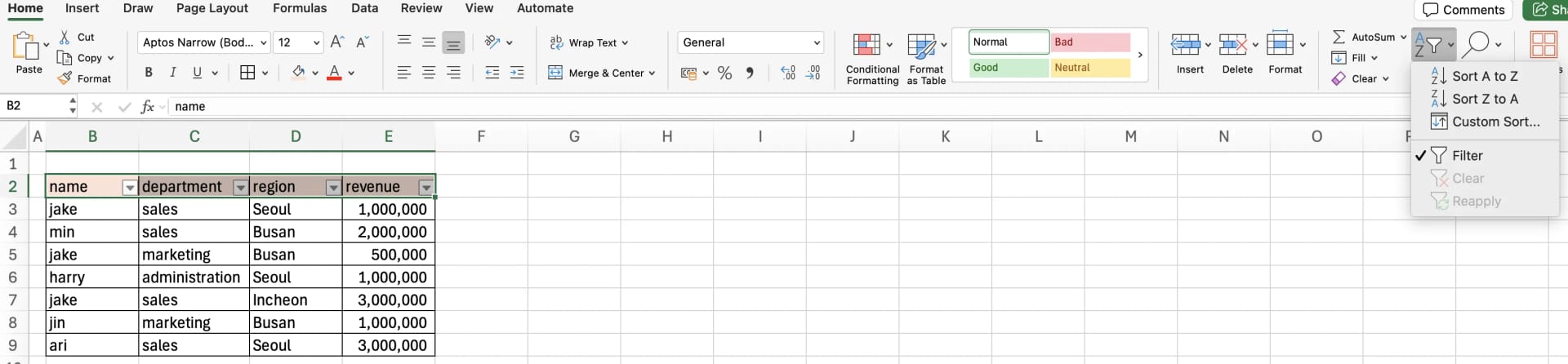
Press Ctrl + Shift + L again or use Clear under Sort & Filter. Clearing filters does not undo sorting, so keep an index column if the original order matters.
Excel filters: frequently asked questions (FAQ)
Q. How do I copy only the filtered rows?
Select the range, press Alt + ; to select visible cells only, then copy. Without that step, hidden rows can come along.
Q. Is it safe to edit values while a filter is on?
It works, but an edited row can vanish from view if it no longer matches. For important edits, clear the filter or copy the rows out first.
Q. What if the AI's filter misses rows?
It tells you the count and the rows it could not evaluate, such as text dates, before you use the result. Its criteria stay visible on the sheet, so you can check the logic.
Q. Does filtering through the AI send our order data anywhere?
Company data is stored on AWS and is not used to train AI models. An eZDR agreement means the model provider keeps neither prompts nor files.
Filtering data with inline AI
Auto Filter is quick for one condition; real questions mix AND and OR and need the result in a form someone else can use. In the AI Browser, the employee keeps the list open and asks the AI beside it for the rows they need, then checks the count and the cases it flagged. The work runs inside the company's accounts, permissions and approval policies, and every action is recorded in the audit log.
In the AI Browser, this takes one request
inline AI OS is a work browser where your team keeps company files open and hands the task to the AI beside them. Book a free consultation to see how it fits your operations.
Book a free consultation