
Blog
How to Find Duplicates in Excel: Highlight and Review with AI

Finding duplicates in Excel is a different job from removing them. Before you delete anything, you need to see where the duplicates are, how many there are, and whether two similar rows are really the same thing. That matters most with lists that feed other records, like a customer list. When every sales rep keeps their own customer sheet and accounting keeps another, the combined list has "Harbor Foods," "Harbor Foods Inc." and "HARBOR FOODS " as three customers, and Excel's Duplicate Values rule only catches exact matches. In the AI Browser, the combined list stays open in its tab and the AI beside it highlights exact and near-duplicates for you to review.
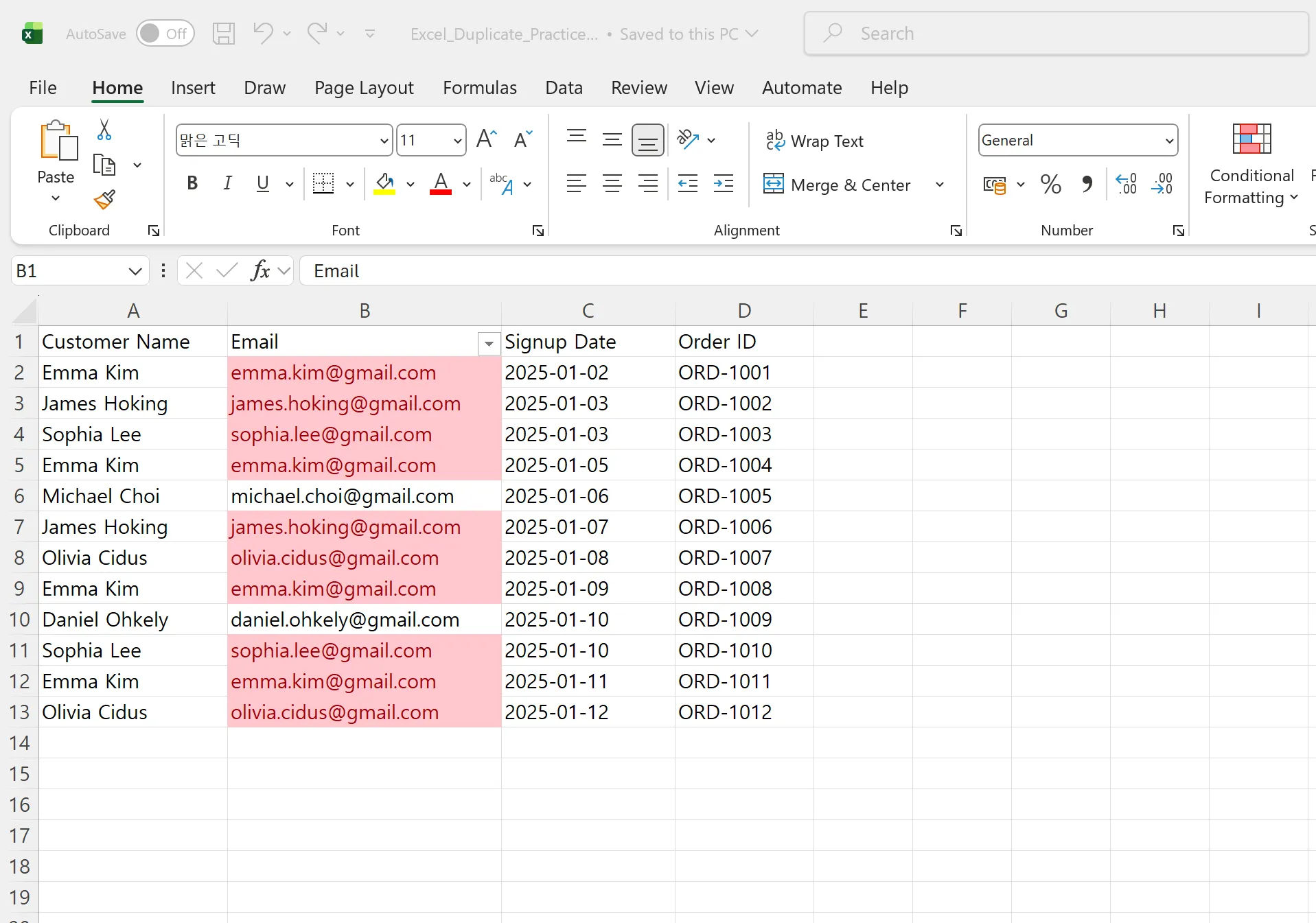
Finding vs. Removing
Highlighting duplicates with conditional formatting changes nothing in the data. You can then filter by color, sort the duplicates together and decide what to keep. Remove Duplicates, on the Data tab, deletes rows immediately. For a list that other records depend on, find and review first.
Excel's built-in rule compares cell values exactly. Trailing spaces, capitalization and "Inc." versus "Inc" all count as different values, so a combined list from several people almost always has more duplicates than the rule shows.
Finding Duplicates in the AI Browser
The setup: three customer lists, one company
A growing food distributor is cleaning up its customer records. Each of four sales reps has a customer sheet; accounting has a receivables list with tax IDs; the operations team pasted them into one workbook. The goal is a single clean list to compare against the company's customer records.
The operations manager opens the workbook in an AI Browser tab and types:
"Highlight customers that appear more than once in this combined list. Count spacing, capitalization and 'Inc.' or 'LLC' differences as the same name. Where a tax ID is filled in, match on that first. Don't delete or change anything; add a column with the group each duplicate belongs to."
What the AI does
- Matches on the strongest key first. Rows with the same tax ID are grouped together regardless of how the name is written.
- Normalizes names for comparison only. It ignores case, extra spaces and company suffixes when comparing, without editing the cells, and groups rows that match.
- Flags conflicts instead of merging them. Two rows with the same name but different tax IDs are marked as "same name, different entity," since they may be two companies. Rows with the same tax ID but different billing addresses are marked "check address."
- Adds a Duplicate Group column and applies a highlight to each group, so you can filter by color or sort by group.
- Compares with the master. Using ARP, which is connected inside the AI Browser, it checks which groups already exist as a customer record, and which would be new.
What the manager checks
The manager filters by the Duplicate Group column, goes through the conflicts first, and asks the sales rep about the two same-name entities. The groups that are clearly one customer are ready to consolidate.
How it stays safe
Highlighting and adding a column in a working file runs right away, within the manager's permissions. Merging customer records or editing a tax ID in the customer master is treated as high risk: the AI can prepare the change, and a person with that authority approves it. Every request and approval is recorded in the audit log.
Keeping the list from splitting again
The duplicates appear because each team keeps its own list. Once the clean list exists, open a rep's next sheet beside it and ask the AI to check new rows against it before they are merged, so a new spelling of an existing customer is caught before it becomes a new row.
👉 How to Remove Duplicates in Excel Safely, with AI Checking First
Doing It by Hand
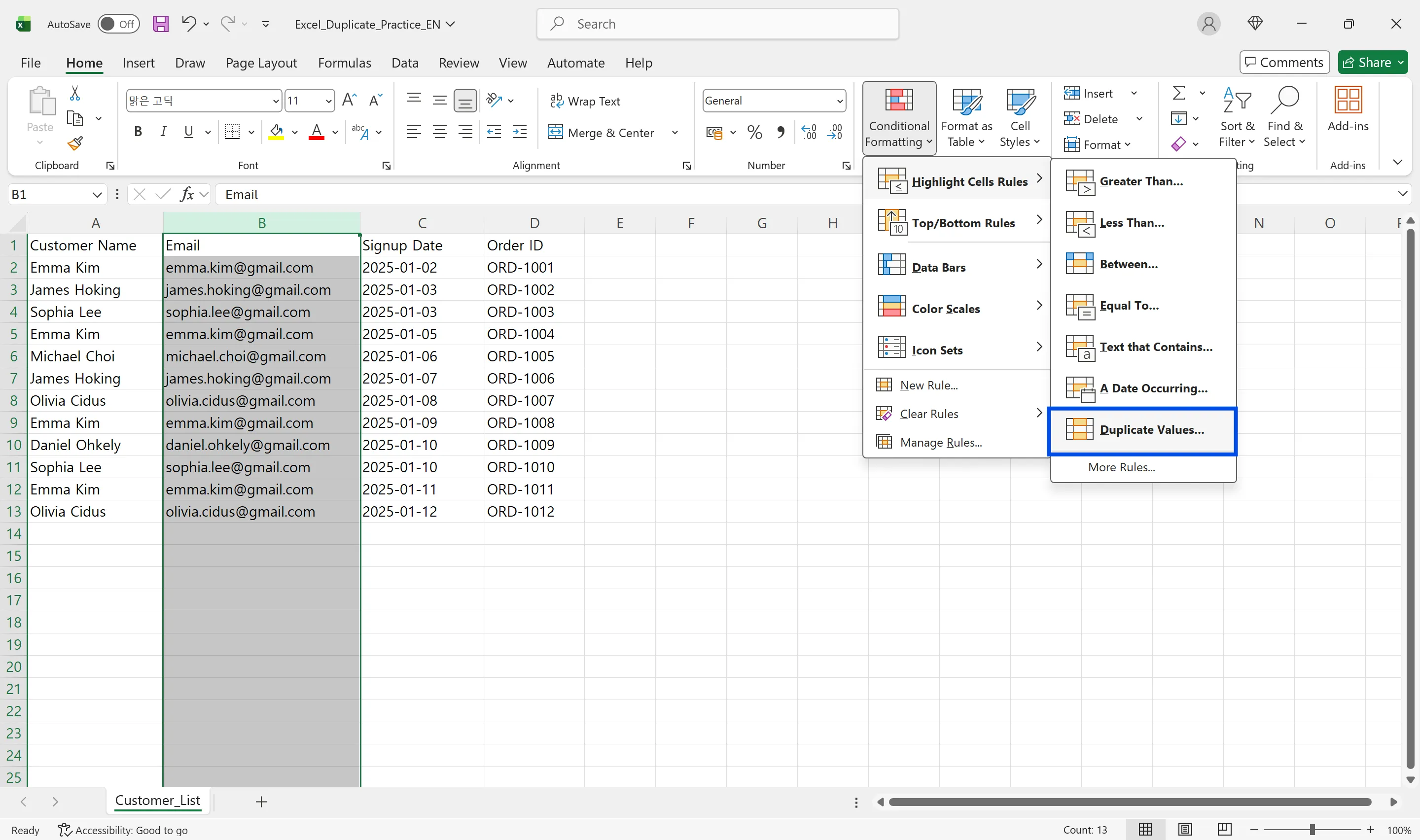
Highlight duplicates with conditional formatting
- Select the column (click the first cell, then Ctrl+Shift+Down Arrow).
- Home > Conditional Formatting > Highlight Cells Rules > Duplicate Values.
- Keep Duplicate, choose a format (or Custom Format), and click OK.
Use COUNTIF for more control
Conditional Formatting > New Rule > Use a formula to determine which cells to format:
- All duplicates:
=COUNTIF($B$2:$B$100,B2)>1 - Second and later occurrences only:
=COUNTIF($B$2:B2,B2)>1 - Duplicates across two columns:
=COUNTIFS($A$2:$A$100,$A2,$B$2:$B$100,$B2)>1
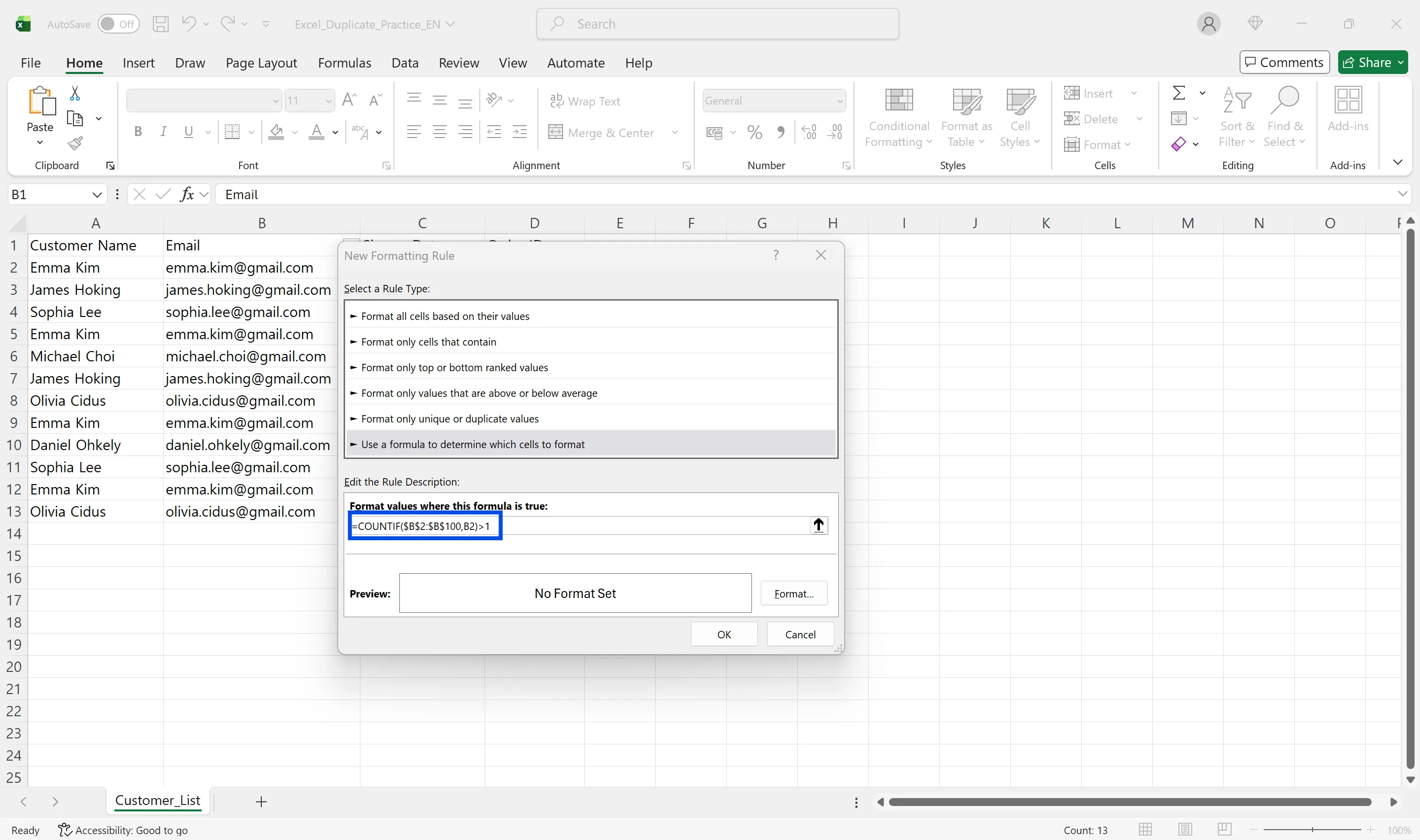
Lock the range with $ and keep the comparison cell relative. To catch spacing differences, compare a helper column with =TRIM(LOWER(B2)) instead of the raw names.
Filter and sort the duplicates
Turn on Filter on the Data tab, open the column's filter arrow and choose Filter by Color to show only highlighted rows. Sort A to Z to put identical values next to each other.
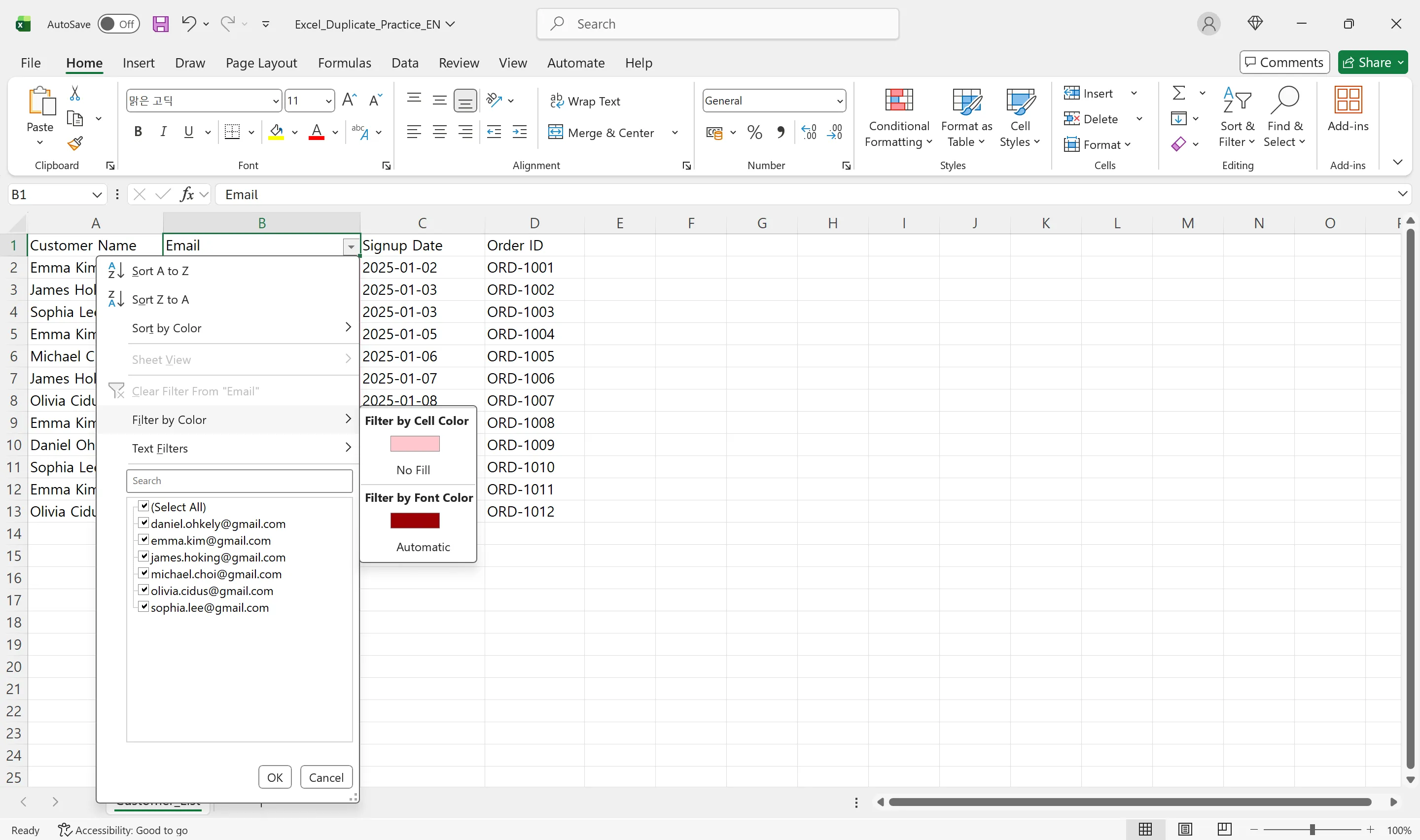
Convert the range to a table with Ctrl+T so filters and conditional formatting extend as rows are added, and work on a copy of the sheet.
Frequently Asked Questions
Q. Why doesn't Duplicate Values catch "Harbor Foods" and "Harbor Foods "?
The rule compares exact values, and a trailing space makes them different. Compare a TRIM/LOWER helper column instead, or ask the AI to normalize names for comparison.
Q. Can I delete highlighted duplicates all at once?
Conditional formatting only highlights. Filter by color and delete the rows, or use Remove Duplicates, after you've reviewed them.
Q. What if the AI groups two different customers together?
It groups by tax ID first and marks same-name, different-ID rows as a conflict rather than a duplicate. Nothing is deleted or merged without your decision, and changes to the customer master need an authorized approver.
Q. Where is our customer data stored?
On AWS. It isn't used for AI training, and inline AI has an eZDR agreement with its model provider, so prompts and files aren't stored by the provider.
Finding Duplicates with inline AI
Conditional formatting and COUNTIF find exact duplicates; the ones that cause trouble in a combined customer list are the near-duplicates and the same-name, different-company rows. In the AI Browser, you keep the list open and ask the AI beside it to group them, check them against the customer master, and leave the decisions to you. It works inside your company account and permissions, sends master data changes to an authorized approver, and records every action in the audit log.
In the AI Browser, this takes one request
inline AI OS is a work browser where your team keeps company files open and hands the task to the AI beside them. Book a free consultation to see how it fits your operations.
Book a free consultation