
Blog
How to Use VLOOKUP in Excel: Exact Match, Ranges and AI Help

VLOOKUP looks up a value in the leftmost column of a table and returns something from another column in the same row: a name from an employee number, a price from an item code. Its rules are few but strict. The range has to be locked, the match type has to be stated, and the column number counts from the start of the range, not the sheet. In a sales team, VLOOKUP usually lives in the quote sheet, where an item code fills in the description and price and a quantity picks the discount bracket, and that sheet gets copied and edited until nobody is sure which formulas still point at the right table. In the AI Browser, the quote sheet stays open in its tab and the AI beside it writes or explains the lookups for you.
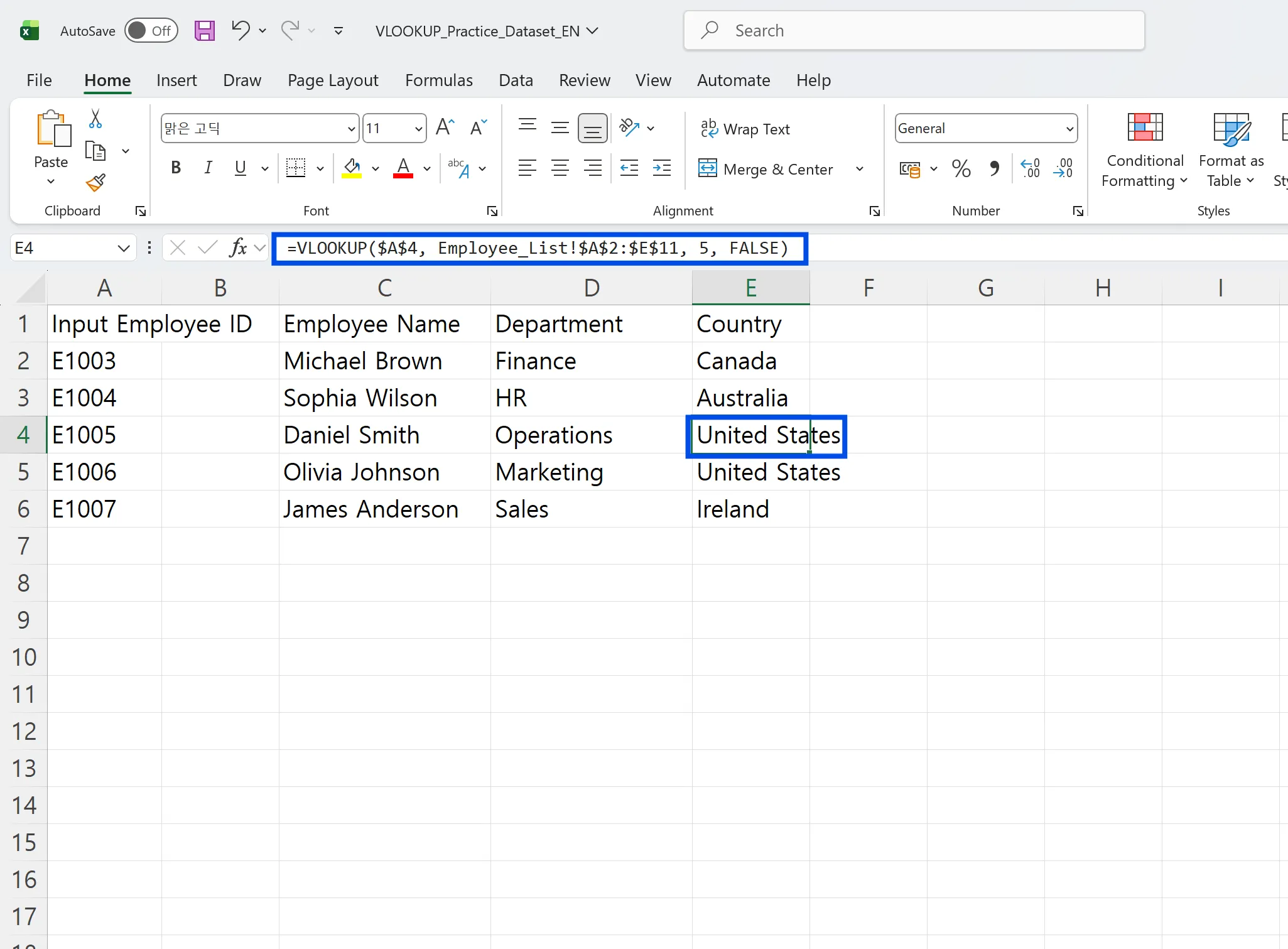
The Four Arguments
=VLOOKUP(lookup_value, table_array, col_index_num, range_lookup)
- lookup_value: what you're looking for, such as an item code.
- table_array: the table to search. The lookup column must be its first column. Lock it with $ so it doesn't shift when copied.
- col_index_num: which column of the table to return, counting from 1 at the table's left edge.
- range_lookup: FALSE (or 0) for an exact match; TRUE (or 1) for the largest value less than or equal to the lookup value. If you leave it out, Excel uses TRUE.
Use FALSE for IDs, codes and names. Use TRUE only for brackets, like volume discounts or tax bands, and only when the first column is sorted ascending.
Writing Lookups in the AI Browser
The setup: a quote sheet
A sales rep at Summit Trading, an industrial supplies distributor, builds quotes in a workbook with three sheets: the quote itself, a price list by item code, and a discount table by quantity bracket. A customer's request for twenty lines came in by email this morning. The rep opens the workbook in an AI Browser tab, with the request open in the AI email Inbox in the next tab.
The rep types:
"In the Quote sheet, fill Description and Unit Price from the Price List by item code, exact match. Fill Discount from the Discounts sheet by quantity, using the brackets. Lock the ranges so I can copy the rows down. Then add the twenty lines from the customer's email."
What the AI does
- Writes the item lookups. For Description and Unit Price it writes
=VLOOKUP($A5, 'Price List'!$A$2:$D$400, 2, FALSE)and the matching formula for column 4, with the range locked. - Checks the bracket table before using TRUE. An approximate match only works if the Discounts sheet's first column is sorted ascending. It confirms the order, then writes
=VLOOKUP($C5, Discounts!$A$2:$B$8, 2, TRUE). - Adds the lines from the email. It reads the item codes and quantities from the customer's request and fills the quote rows. Codes written differently from the price list (a missing dash, a customer's own part number) are listed separately, not guessed.
- Explains the result. For the two lines that return #N/A, it says why: one item isn't on the price list, one code has a trailing space.
- Checks prices against current prices. The price list sheet is a copy, so the AI compares the looked-up prices with current selling prices in ARP, which is connected inside the AI Browser, and lists any that differ without changing either one.
What the rep checks
The rep reviews the lines it couldn't match, picks the right items, and looks at the price differences. If the price list sheet is outdated, the rep uses the current prices; if a discount seems too deep, that's a conversation with the sales manager.
How it stays safe
The AI works with the rep's permissions and reads only the price and customer data they're allowed to see. Building the quote draft runs immediately. Sending the quote to the customer asks for confirmation first, and if the company has a rule that discounts beyond a certain level need a manager's sign-off, that rule applies here too. Every request and change is recorded in the audit log.
When quoting is daily work
If quotes always follow this pattern, the next one is a single request: open the workbook and the customer's email and ask the AI to create a new quote sheet from them. It reuses the same locked lookups, so every quote is built the same way and only the lines change.
👉 VLOOKUP Not Working? Fix #N/A, #REF!, #VALUE! with AI
Doing It by Hand: An Employee Lookup Example
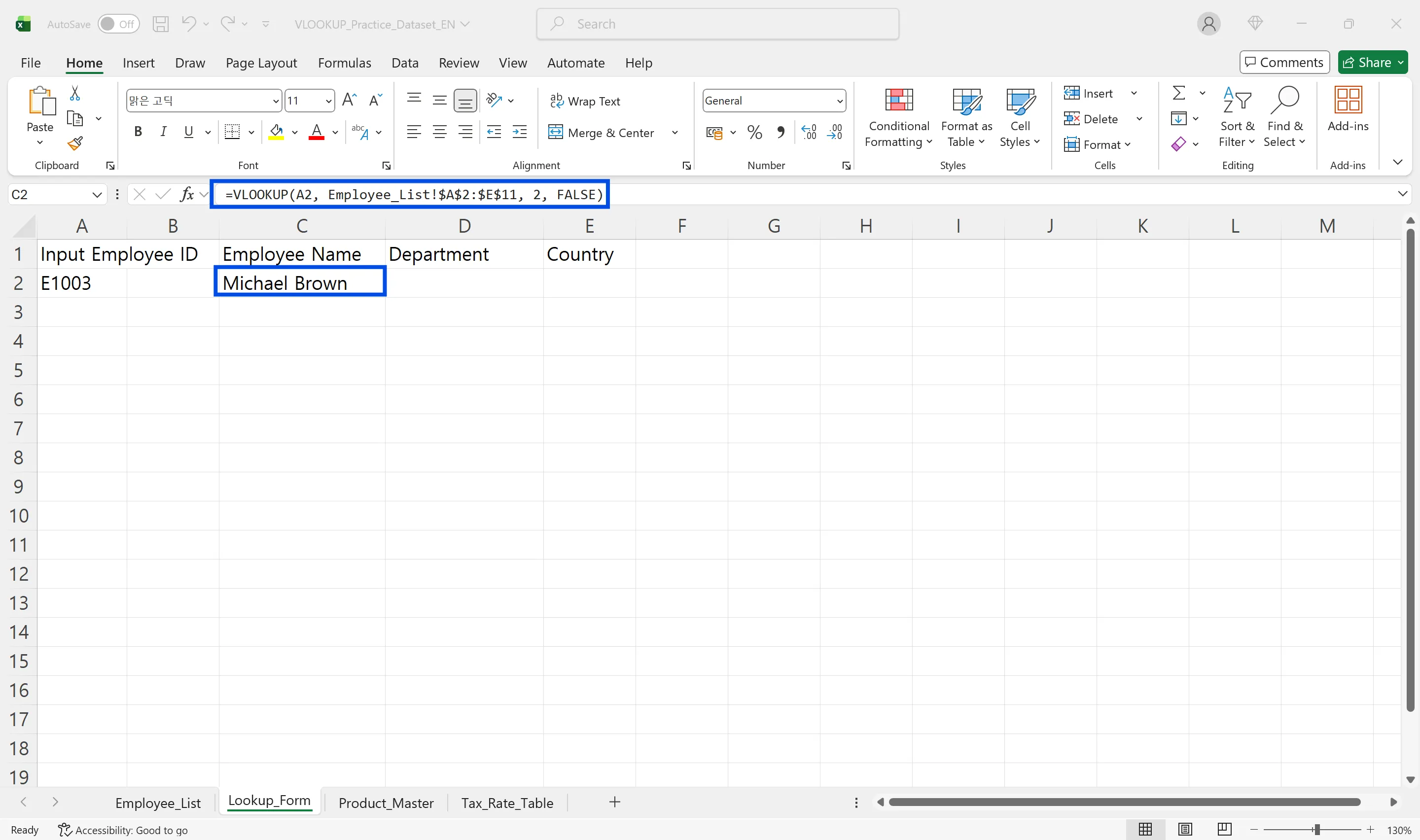
In this example, the Employee_List sheet holds employee number, name, department and phone number in columns A to D, and a Lookup_Form sheet shows a name and department when you enter an employee number.
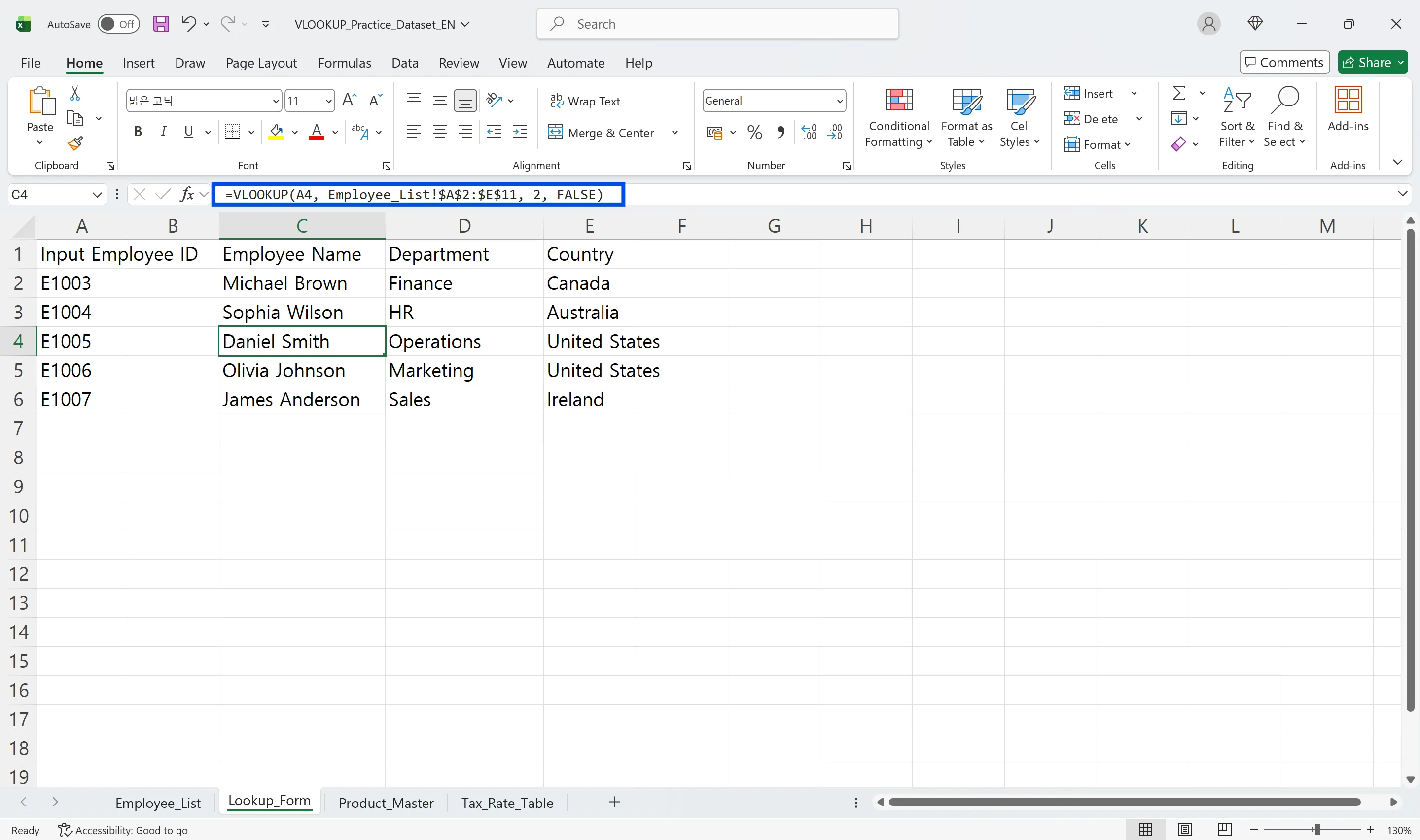
Return the name
In C4 of Lookup_Form: =VLOOKUP($A$4, Employee_List!$A$2:$D$11, 2, FALSE). The 2 returns the second column of the range, the name.
Return the department
In D4: =VLOOKUP($A$4, Employee_List!$A$2:$D$11, 3, FALSE).
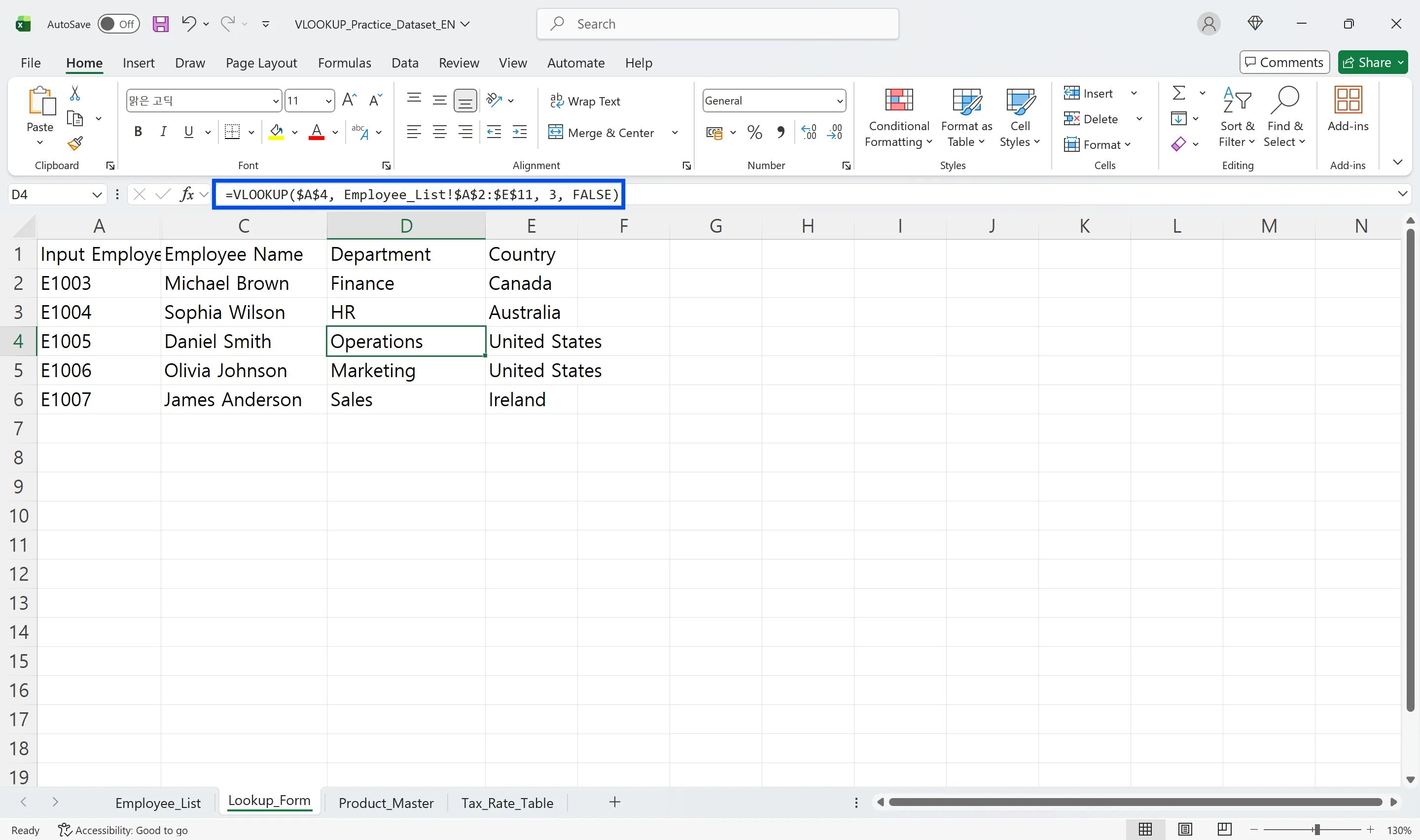
The sheet name followed by ! lets the formula read another sheet in the same workbook.
Three common mistakes
- Unlocked range. Copying the formula shifts the table down; lock it with $ (F4).
- Missing FALSE. Leaving out the fourth argument uses approximate match and can return a near value without warning.
- Wrong column number. If the range is C:F, column C is 1, not 3. Also, rows added below a fixed range fall outside it; a table (Ctrl+T) expands automatically.

Limits and alternatives
VLOOKUP can't return values to the left of the lookup column and returns only the first match. INDEX/MATCH or XLOOKUP look in any direction; a helper column joining two fields handles two criteria.
VLOOKUP FAQ
Q. Why do I get #N/A?
The lookup value doesn't exactly match anything in the first column, often because of spaces or a number stored as text. Use TRIM, or convert the types to match.
Q. When should I use TRUE?
Only for brackets, like discounts or tax bands, with the first column sorted ascending. Everything else uses FALSE.
Q. What if the AI writes a formula that points at the wrong table?
It shows each formula and explains what it references before you keep it, and the change can be undone. The audit log records the edit and who requested it.
Q. Are our prices sent to the AI provider for storage?
No. Company data is stored on AWS and isn't used for training. inline AI has an eZDR agreement with its model provider, which stores neither prompts nor files.
Lookups with inline AI
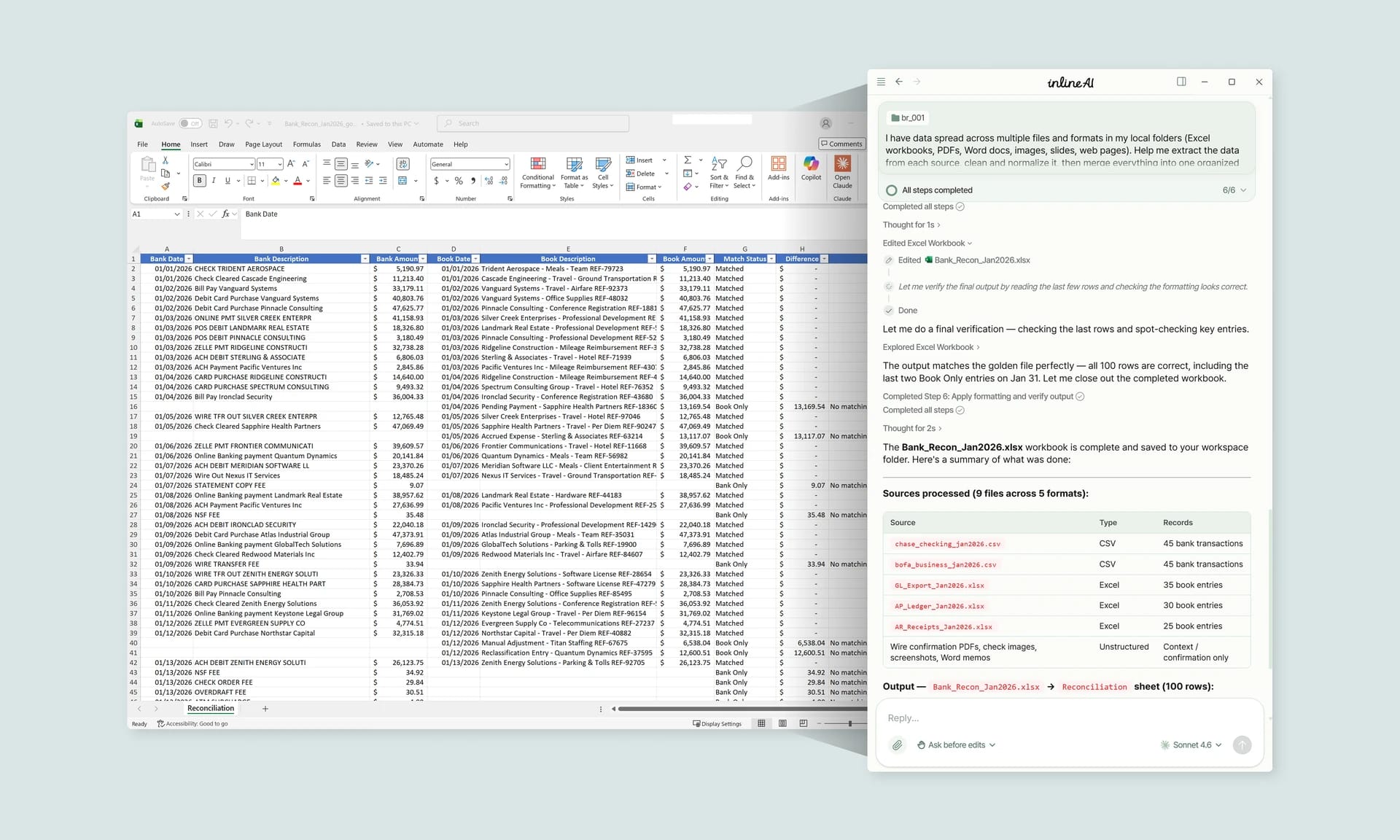
VLOOKUP is simple once the rules are clear; the friction is in copied workbooks where ranges have drifted, match types are missing and the price list is out of date. In the AI Browser, you keep the sheet open and ask the AI beside it to write or explain the lookups; it locks the ranges, checks bracket tables, and compares prices with the system of record. It works inside your company account and permissions, sends actions above the risk threshold to approval, and records every change in the audit log.
In the AI Browser, this takes one request
inline AI OS is a work browser where your team keeps company files open and hands the task to the AI beside them. Book a free consultation to see how it fits your operations.
Book a free consultation