Learn
Insert Footnotes and Endnotes in Word: Numbering and Formatting

A footnote is not a superscript number you type yourself with the source typed at the bottom of the page. Word treats the reference mark and the note text as a single linked object, and every command you need to insert footnotes and endnotes in Word sits in one place: the References tab. Hand-typed numbers fall out of sequence the moment you move a paragraph; footnotes inserted properly renumber themselves. On a thesis draft or a review report with dozens of citations, that difference decides whether the document survives editing.
This guide covers the difference between the two note types, how to insert each one plus the keyboard shortcuts, number formats and restart rules, editing the separator line and the footnote text style, and what to check when a footnote won't delete.
Footnote vs Endnote: What Actually Changes
Bottom of the page or end of the document
A footnote places the note at the bottom of the page that contains the reference mark. The reader glances down and sees the source, which suits short citations and brief clarifications. An endnote collects everything at the end of the document instead, so the body text runs uninterrupted and the notes are read afterwards.
The default numbering differs too. Footnotes start with Arabic numerals (1, 2, 3), endnotes with lowercase Roman numerals (i, ii, iii). Both can be changed later.
Which one to use in a thesis or report
In practice the submission guidelines decide for you. Departmental thesis templates often require footnotes, while many journals ask for endnotes throughout. For internal reports, ask whether the reader needs to verify the source on the spot. If the note points to a standard, a specification chapter, or a meeting minute number, a footnote is easier to check.
What matters either way is that the number in the body and the note text below are one automatically linked pair. Cut a paragraph and move it to a different section and the note travels with it. Add a new footnote earlier in the document and every number after it shifts by one. There is nothing to maintain by hand.
The footnotes group on the References tab
Everything related to notes lives on one ribbon tab.
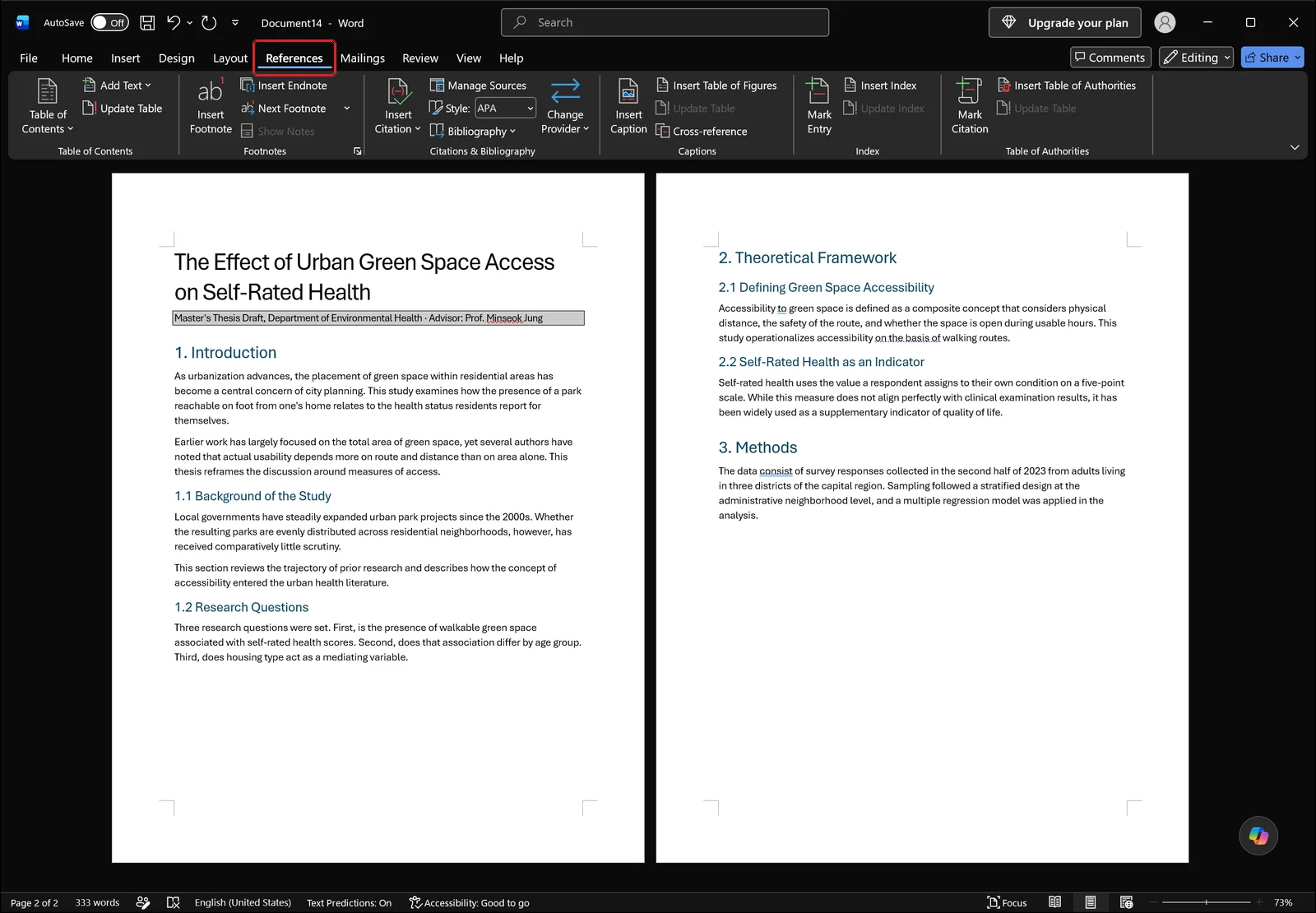
Open the References tab, and just to the right of the table of contents group you'll find the footnotes group. It holds Insert Footnote, Insert Endnote and Next Footnote side by side, with Show Notes dimmed until the document actually contains a note, and the small arrow at the bottom-right corner of the group opens the dialog box with the detailed settings. The citation and caption groups next to it build bibliographies and figure captions, which is separate work.
How to Insert a Footnote in Word
Put the cursor at the end of the sentence
Click at the end of the sentence you want to cite so the cursor sits there. Whether the mark goes before or after the closing period varies by style guide, so check your department or journal requirements first and stay consistent across the whole document. When several sentences share one source, place the mark at the end of the last one.
Click References, then Insert Footnote
With the cursor in position, click Insert Footnote on the References tab.
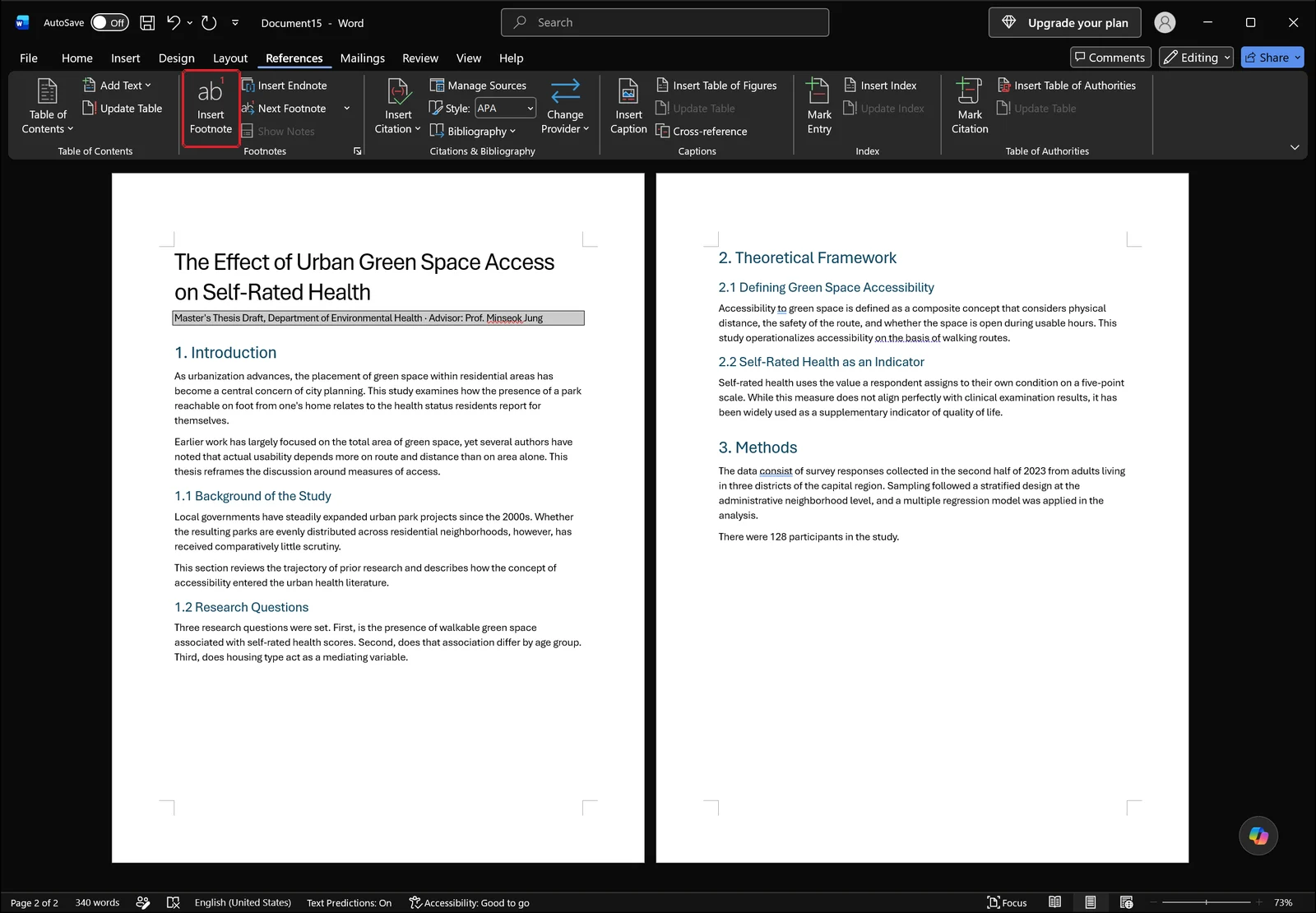
The superscript number appears in the body immediately and the cursor drops to the footnote area at the bottom of that page. No dialog box interrupts you, so you can start typing the note right away.
Type the source in the footnote area
Enter the citation following whatever style you're using — APA, Chicago, or a house format — for the order of author, title, year and page numbers. When you're done, click anywhere in the body to return. To re-read a note later, double-click the superscript number in the body and Word jumps to it; double-click the number in the note area to jump back.
Once you have several footnotes, the order is recalculated by position in the document. Insert a new note in a paragraph above footnote 3 and the new one becomes 3, while the old 3 becomes 4. You never edit a number yourself.
Shortcut: Ctrl+Alt+F
For documents with heavy citation, the shortcut is much faster. With the cursor placed, Ctrl+Alt+F does exactly what the Insert Footnote button does. On laptop keyboards you may need to hold Fn as well, depending on how the function key row is configured.
How to Insert an Endnote and Set Its Location
Click References, then Insert Endnote
Endnotes live in the same group. Put the cursor at the end of the sentence and click Insert Endnote.
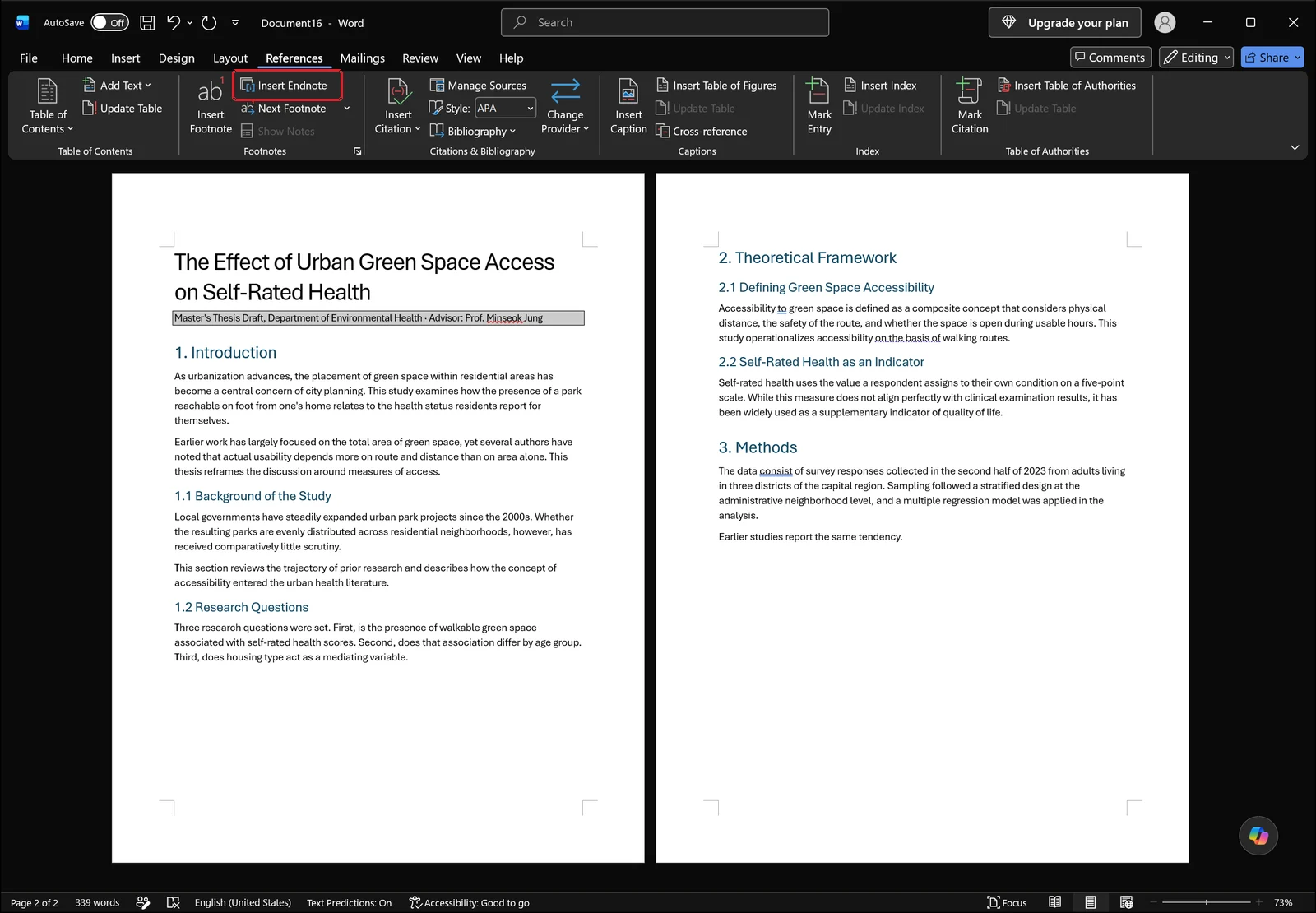
It sits directly beside Insert Footnote, which makes a mis-click easy, so it's worth noting where each button is before you start. Clicking it moves the cursor to the endnote area at the very end of the document.
End of document or end of section
By default endnotes collect at the end of the document. If you want them gathered per chapter instead, the Footnote and Endnote dialog box covered below has a location option that switches this to the end of each section. That setting only means anything if the document already contains section breaks.
Footnotes and endnotes can coexist in one file, and each type is numbered independently. Some writers use footnotes for explanatory asides and endnotes for source references. If you do split them, decide the rule before you start writing, or readers will not know which note type holds what.
Shortcut: Ctrl+Alt+D
The endnote shortcut is Ctrl+Alt+D. Remember F for footnote and D for endnote and you'll rarely need to return to the ribbon at all.
Number Formats and Restarting Numbering
Open the Footnote and Endnote dialog box
Number style, starting value and restart rules are all set in one place. Click the small arrow in the bottom-right corner of the footnotes group on the References tab.
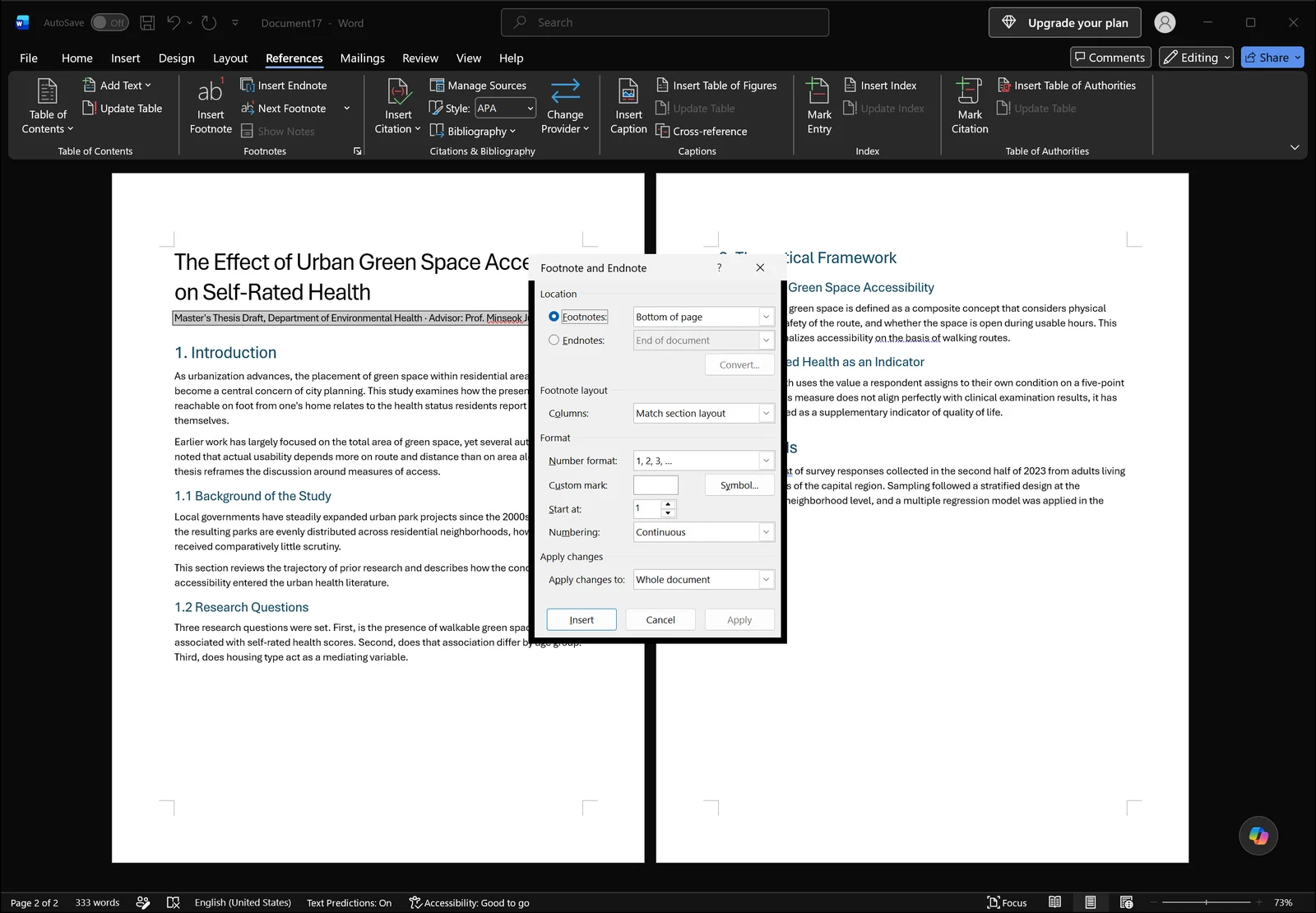
At the top, the Location section chooses whether you're working on footnotes at the bottom of the page or endnotes at the end of the document. Everything below applies to whichever one is selected, so pick the target first and adjust the format second.
Switch between 1,2,3 / i,ii,iii / a,b,c
In the Format area, the number format list offers Arabic numerals, Roman numerals, letters, and symbols such as *, † and ‡. The custom mark field lets you type a symbol for one specific note — useful for a single asterisked disclaimer. The Start at field lets you begin at something other than 1, which helps when a thesis was written as several separate files and merged later.
Restart numbering each page or each section
The Numbering option chooses between continuous numbering, restarting each section, and restarting each page. Continuous across the whole document is the default. To restart at 1 in every chapter, the document must already have section breaks between chapters. Choose "restart each section" in a document with only one section and nothing at all will change.
Insert the breaks first from the Layout tab (Breaks → Next Page), then apply this setting, and the first footnote of each chapter starts at 1.
👉 Numbered List in Word: Restart, Continue, and Turn Off Auto
Choose what the change applies to
Before closing the dialog, check the "Apply changes to" dropdown at the bottom. It controls whether the setting hits the current section only or the whole document, and skipping it is the usual reason a format change shows up in the first chapter and nowhere else. Click Apply to reformat existing notes, or Insert to apply the setting and drop a new note in at the cursor.
Don't build superscript numbers by hand
Footnote numbers are set in superscript automatically when they're inserted. The Home tab has a Superscript button too, but a number raised that way only looks the same — it is ordinary text with no link to any note.
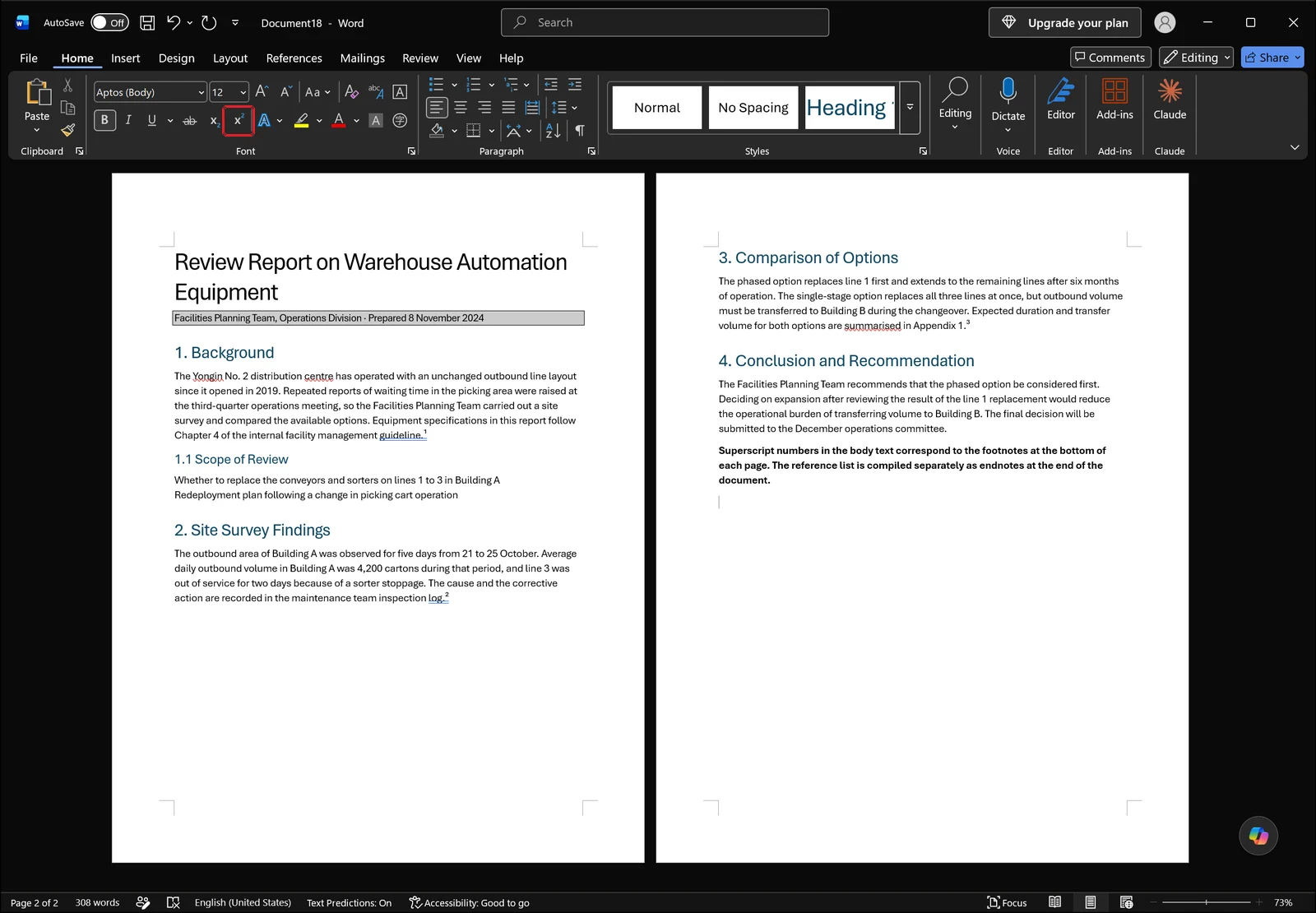
In the report shown below the ribbon, the small number after "internal facility management guideline" is a real footnote reference. Move that paragraph and the sequence recalculates. A number raised with the Superscript button stays frozen at whatever you typed and immediately contradicts the notes around it. If you inherit a document with hand-numbered citations mixed in, it's worth converting those spots into real footnotes before you edit anything else.
Editing the Separator Line and Footnote Text
Open the notes pane in Draft view
The short horizontal rule above the footnote area is the footnote separator. You cannot click it in Print Layout view. To edit it, switch to Draft on the View tab first.
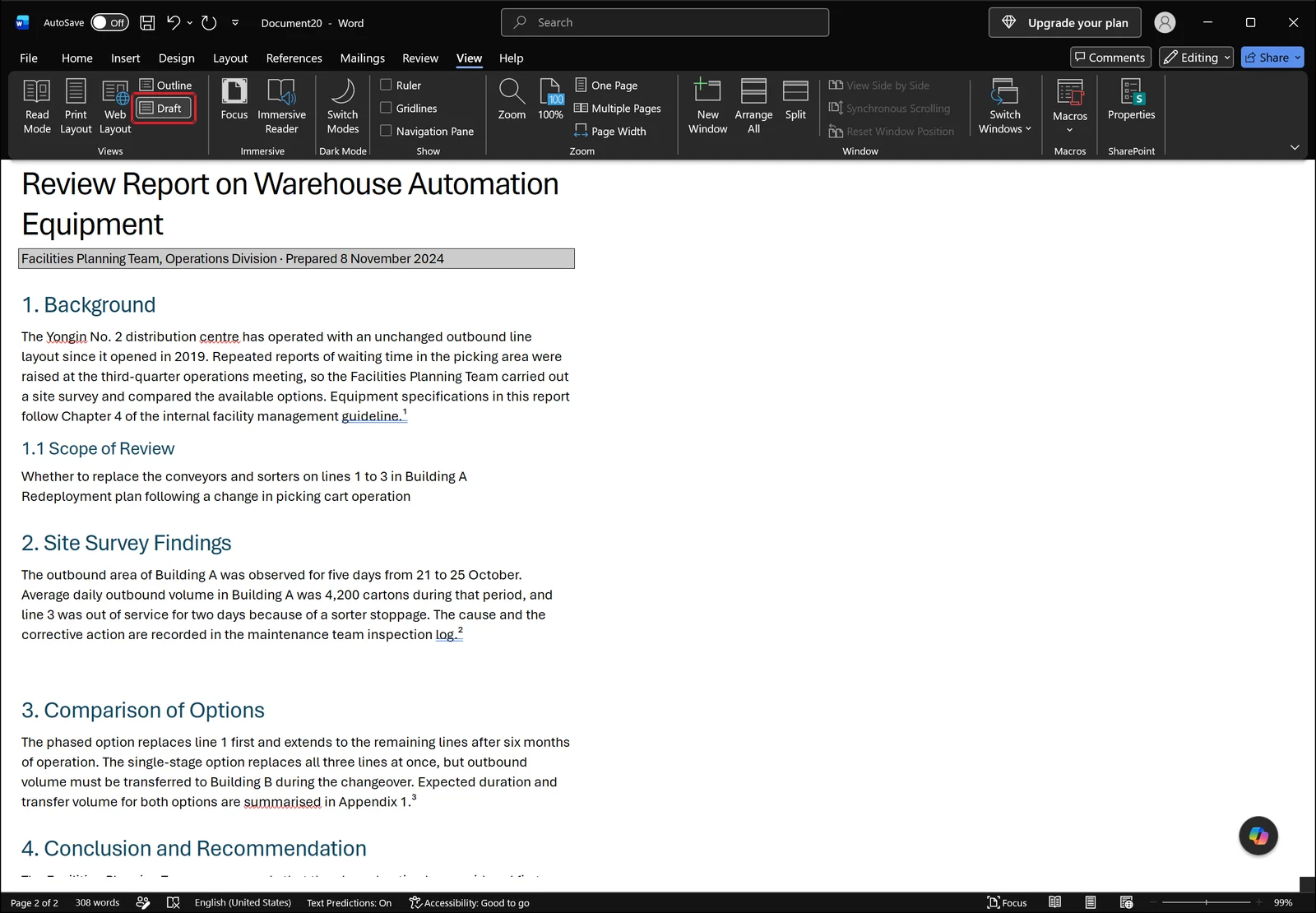
In Draft, page edges and margins disappear and the text runs as one continuous flow. Then go back to the References tab and click Show Notes, which opens a separate pane at the bottom of the window showing the note text.
Delete or replace the separator
The dropdown at the top of the notes pane selects what the pane displays. Choose the footnote separator and the editing area shows nothing but that line. Drag across it to select it and press Delete, and the separator is gone. If you'd rather change its length or weight than remove it, the usual approach is to delete the line here and draw a replacement with the border tools.
When you're finished, close the pane and return to Print Layout from the View tab to check the printed result. The separator is not a screen-only guide — it prints exactly as shown.
Change every footnote at once with the Footnote Text style
Dragging through notes one by one to change the font stops being practical somewhere around the thirtieth footnote. Note text carries the Footnote Text style, so modifying that style reformats every footnote in the document at once. Find Footnote Text in the styles list, open Modify, and set the font and size there.
For a one-off change to a single note, select the text and press Ctrl+D to open the Font dialog box.
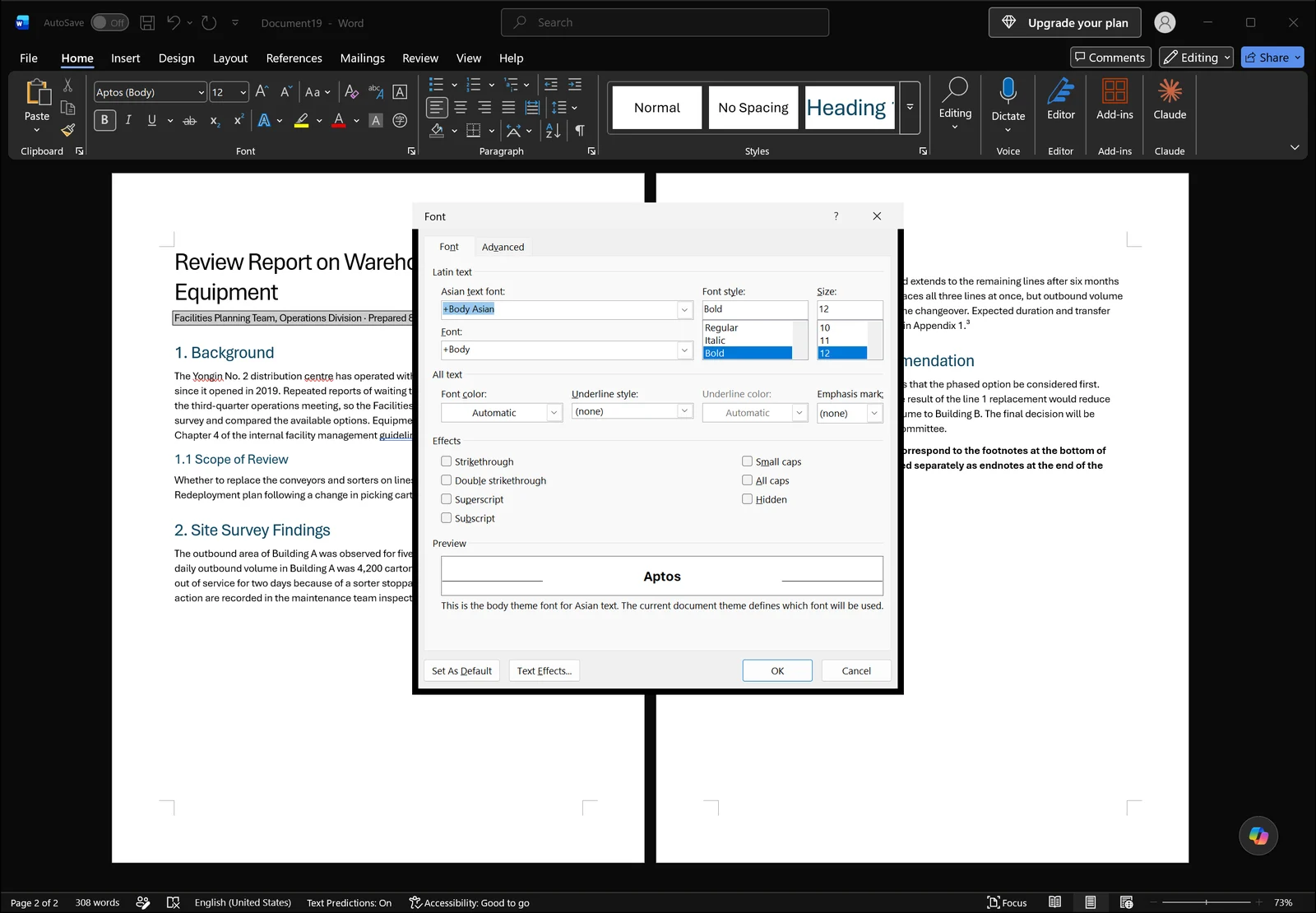
Pick a font and size and the preview area at the bottom shows the result before you commit. The effects check boxes include superscript, which is where you go to confirm or undo the raised position of a reference number.
Line spacing and indents
Thesis templates commonly ask for footnotes in a smaller size with tighter line spacing than the body. Set the paragraph options inside the Footnote Text style as well, and every new footnote picks them up automatically. If a long note keeps spilling onto the next page, reducing the line spacing is usually the first thing to try.
👉 How to Change Line Spacing in Word: 1.5, Exact pt, and Fixes
When a Footnote Won't Delete or Move
Delete the number in the body, not the text below
Almost every "my footnote won't delete" case comes down to deleting in the wrong place. Selecting the sentence in the footnote area at the bottom of the page and pressing Delete removes the text but leaves the number behind. What you get is an empty numbered note that still occupies the page.
To remove a footnote completely, select the superscript number in the body text and press Delete. The note text disappears with it and every following number shifts up by one automatically.
If it still won't go, check the state of the document. With Track Changes on in the Review tab, a deletion is recorded as a strikethrough and looks like it's still there; you have to accept the change for it to actually disappear. Documents with editing restrictions or files opened read-only won't allow the deletion either.
Jump between notes instead of scrolling
Hunting for one particular footnote in a fifty-page document by eye is a waste of time. Click the arrow next to Next Footnote on the References tab.
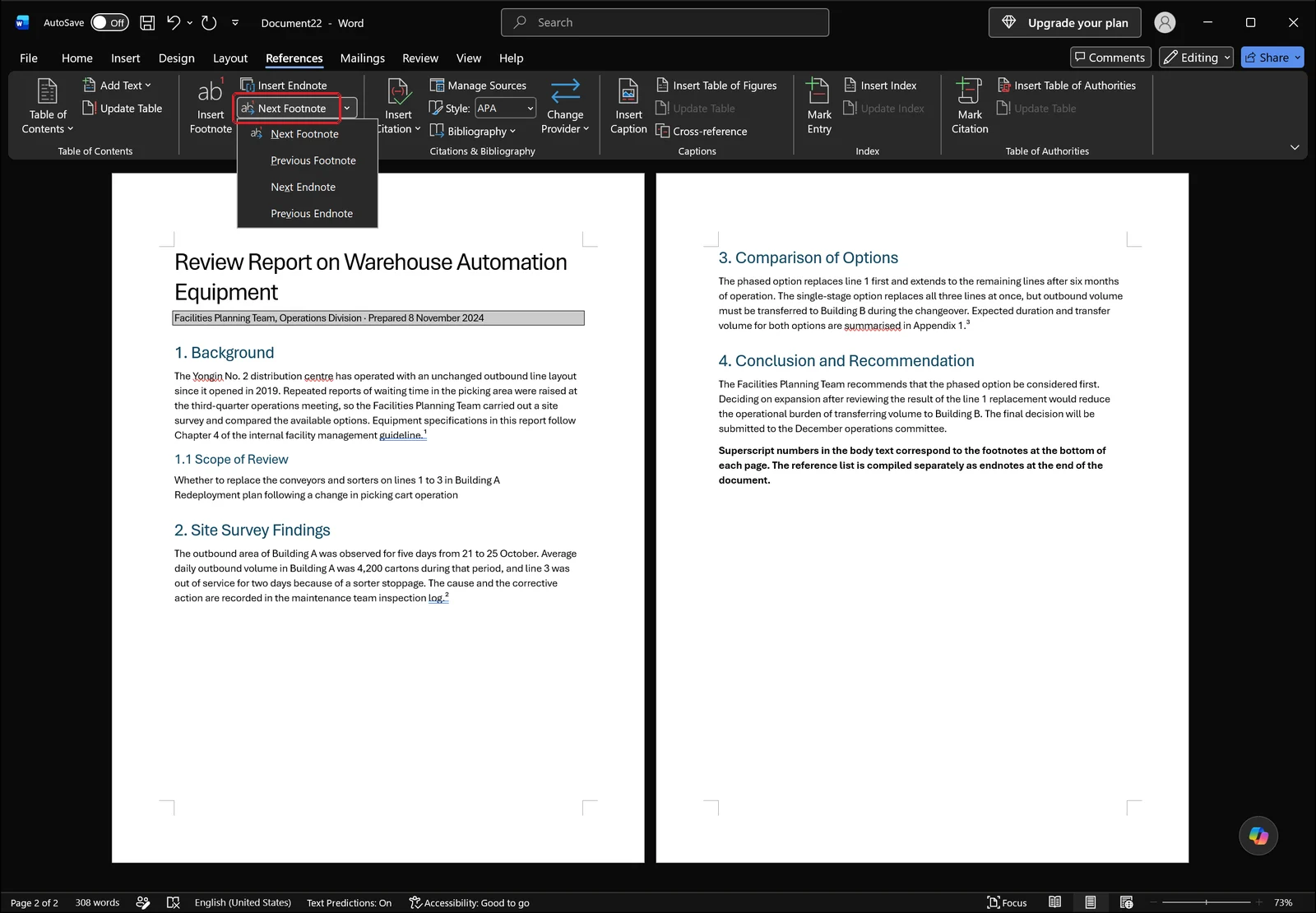
The list offers next footnote, previous footnote, next endnote and previous endnote. Stepping through notes this way is far faster than scrolling when you're proofreading citations, and it lets you review only footnotes or only endnotes.
Undoing a deletion you regret
If you deleted several footnotes and then realised one of them mattered, Ctrl+Z repeatedly walks the changes back. To jump back several steps at once, click the small arrow next to the undo arrow on the quick access toolbar.
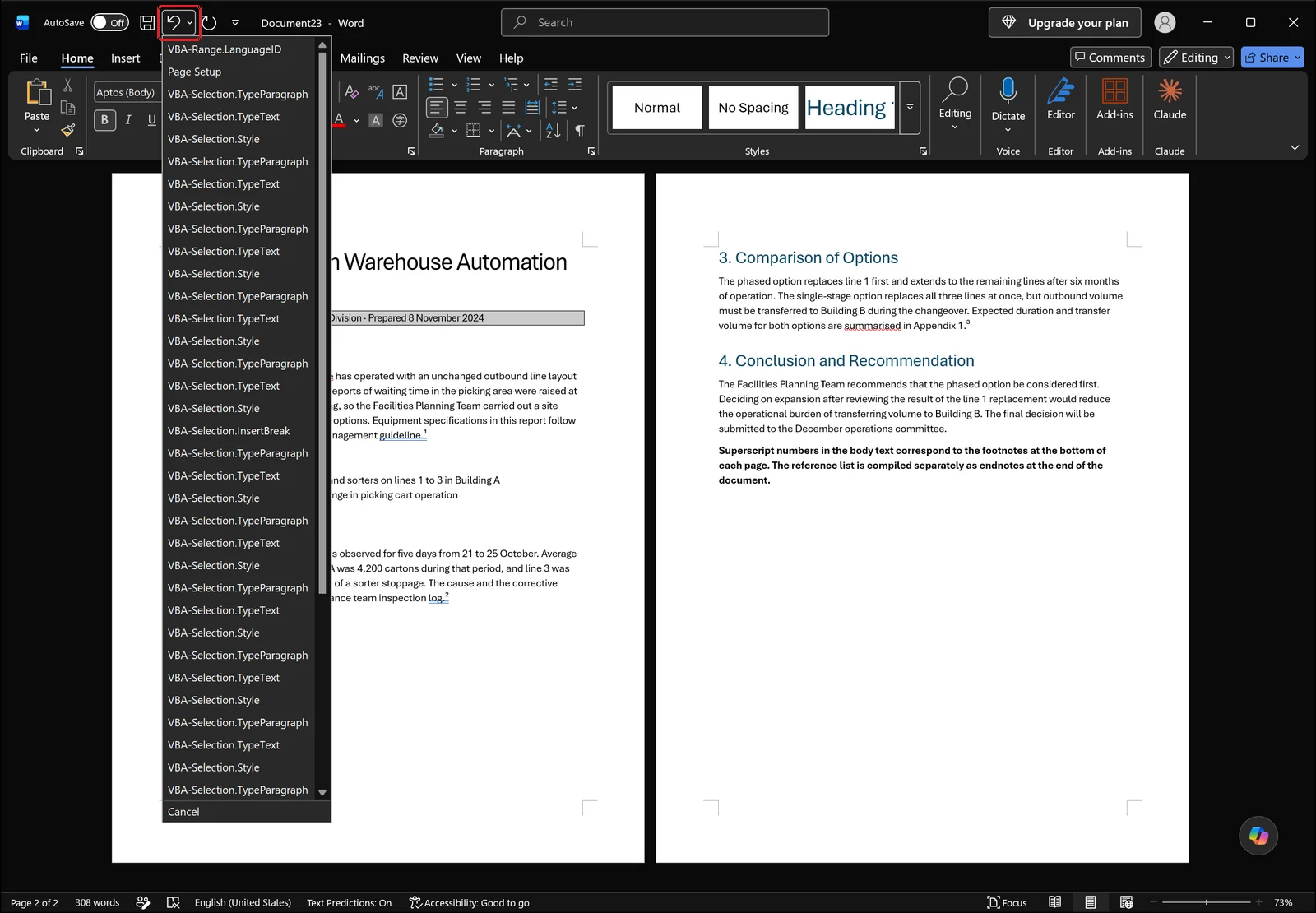
The dropdown lists the most recent editing steps, whatever they happened to be, and picking a point undoes everything below it in one go. You cannot cherry-pick a single action out of the middle — everything down to your chosen point is reversed — so think about whether any edits in between are worth keeping first.
Reuse a source with a cross-reference
When you cite a source again later, you don't have to create a second footnote repeating the same text. You can point at the earlier note's number instead, using Cross-reference... on the References tab.
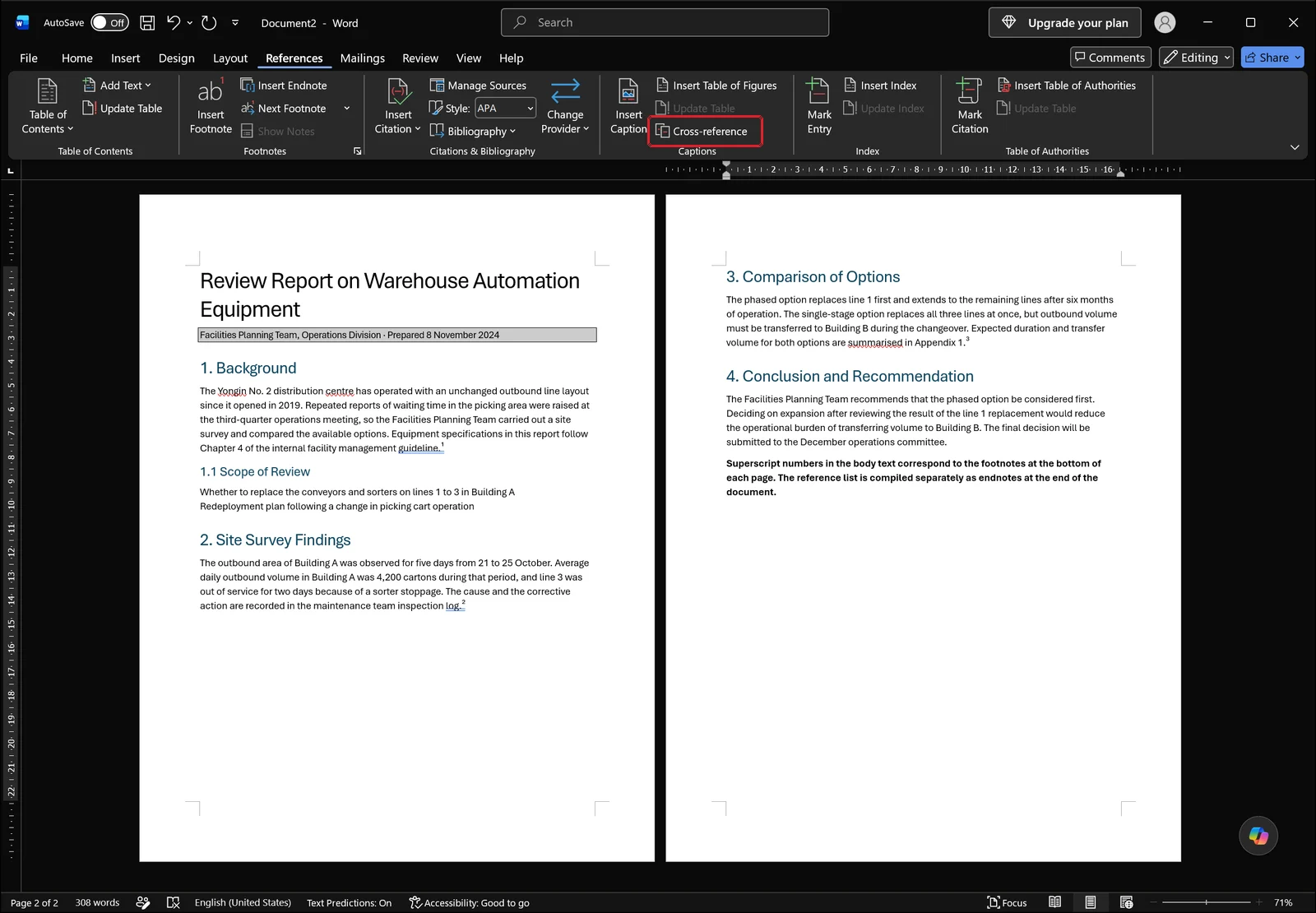
A number inserted this way is a field, so when an earlier footnote pushes the numbering along, pressing F9 updates the field to the new value. Typing "see note 3 above" by hand breaks the instant you add one more footnote; a cross-reference doesn't.
FAQ: Footnotes and Endnotes in Word
Q. What are the keyboard shortcuts?
Ctrl+Alt+F inserts a footnote and Ctrl+Alt+D inserts an endnote. With the cursor at the end of a sentence, either one takes you straight to the note area. On laptop keyboards you may need to hold Fn depending on your function key settings. To also set the number format or location, skip the shortcut and open the Footnote and Endnote dialog box from the small arrow at the bottom-right of the footnotes group.
Q. How do I restart footnote numbering at 1 in each chapter?
First insert section breaks between chapters from the Layout tab (Breaks → Next Page). Then open the Footnote and Endnote dialog box, set Numbering to restart each section, set "Apply changes to" to the whole document, and click Apply. Changing the setting without section breaks leaves the numbering running straight through.
Q. Can I delete the footnote separator line?
Yes. Switch to Draft on the View tab, click Show Notes on the References tab to open the notes pane, and choose the footnote separator from the dropdown at the top of the pane. Select the line that appears and press Delete. The line cannot be selected in Print Layout view, so the switch to Draft is not optional.
Q. Can I convert existing footnotes into endnotes all at once?
The Convert button in the Footnote and Endnote dialog box changes every footnote in the document into an endnote, or every endnote into a footnote, and there is also an option to swap the two. After converting, the number format follows the target type, so check it and reapply Arabic or Roman numerals if that isn't what you want.
Tidying Up Footnotes with inline AI
Everything above handles inserting notes and getting the formatting right, but it doesn't cover the part that takes the longest: reading a finished manuscript line by line to find hand-typed superscript numbers or citation entries that don't match the rest. inline AI is an AI agent that reads and edits the Word document already open on your PC, so you can ask in plain language for it to find footnote entries whose format differs from the others and correct them, and it works through the document for you. It runs on your own machine rather than uploading the file anywhere, so an unpublished thesis draft or an internal report stays where it is.
See what an agent could take over at your company in a 30-minute call.