
Blog
How to Freeze Rows and Columns in Excel with Freeze Panes and AI

Freeze Panes in Excel keeps header rows and key columns on screen while you scroll, so you always know which column you're reading and which item a row belongs to. The rule is simple: select the cell just below and to the right of what you want frozen. The sheets that need it most are the wide ones: an inventory report with thousands of items down the side and stock, safety stock and incoming quantities for several warehouses across the top. A planner who scrolls through it every week spends half the time scrolling back to the headers. In the AI Browser, the report stays open in its tab and the AI beside it sets up the view, and can also answer the question you were scrolling to find.

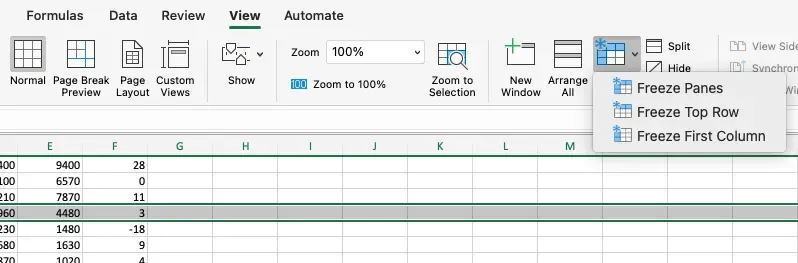
Freeze Top Row, First Column or Panes
| Option | What stays visible | Where |
|---|---|---|
| Freeze Top Row | Row 1 | View > Freeze Panes > Freeze Top Row |
| Freeze First Column | Column A | View > Freeze Panes > Freeze First Column |
| Freeze Panes | Every row above and column left of the selected cell | Select a cell, then View > Freeze Panes > Freeze Panes |
Only one freeze setting is allowed per sheet, and it affects the screen only. Printing headers on every page is a separate setting, Print Titles.
Setting Up the View in the AI Browser
The setup: a weekly inventory report
A purchasing planner at a food distributor reviews stock every Monday. The inventory report has a two-row header: warehouse names merged across the top, then On Hand, Available, Safety Stock and Incoming under each warehouse. Down the side are item code and item name, then several thousand rows. Someone saved the file last week with a freeze on the wrong row, so now the header scrolls away and an empty row stays stuck.
The planner opens the report in an AI Browser tab and types:
"Freeze the two header rows and the item code and name columns. Set the header rows to print on every page. Then show me the items where available stock in any warehouse is below safety stock."
What the AI does
- Reads the layout. It finds the header is two rows and that item code and name are in columns A and B, so the freeze point is C3. It notices the existing freeze on the wrong row and removes it first.
- Applies the freeze at C3, so rows 1 and 2 and columns A and B stay in view.
- Sets print titles to rows 1:2 and columns A:B in Page Setup, so every printed page shows the headers and item names.
- Answers the question. It compares Available with Safety Stock for each warehouse and returns the items below the level, with the shortfall and any incoming quantity, so the planner can see which ones are already covered by an open purchase order.
- Leaves the data unchanged. The list is a filtered view or a separate sheet, as you prefer; it doesn't edit the report.
What the planner checks
The planner scrolls once to confirm the freeze, then works from the list. For items that aren't covered by incoming stock, a follow-up request creates the next document:
"Create a purchase request sheet for the items with no incoming quantity, with the shortfall as the suggested quantity."
How it stays safe
The AI acts with the planner's permissions and reads only the files they can open. Changing the view and listing items runs immediately. The purchase request sheet is a draft; sending it on to purchasing asks for confirmation first. Every request and change is recorded in the audit log.
Next Monday
The freeze and print titles are saved with the file, so this report opens ready to read. When next week's export arrives as a fresh file, one request repeats the setup and the below-safety-stock list in the same format as this week's.
👉 How to Freeze the Top Row and First Column in Excel with AI
Doing It by Hand
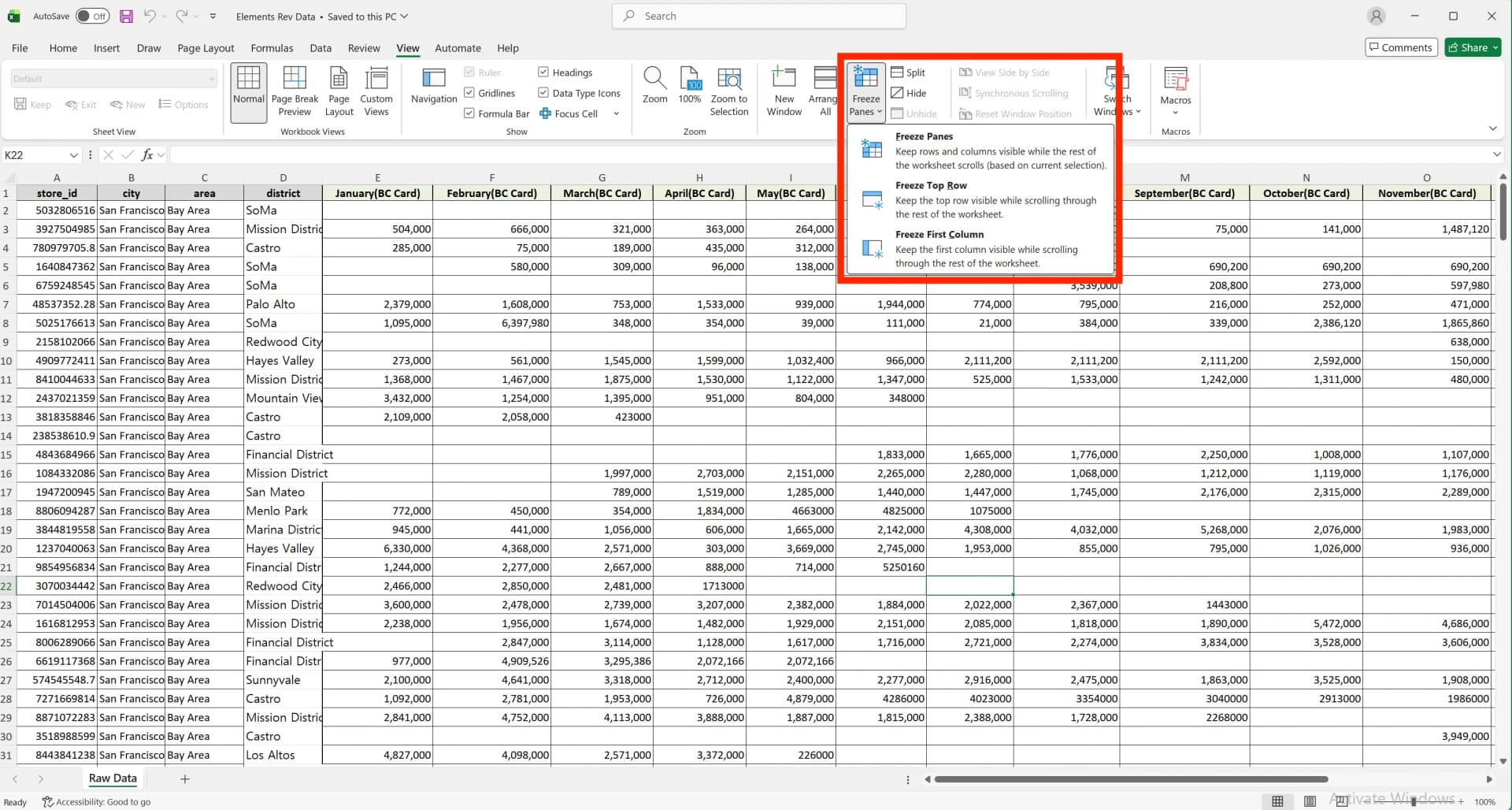
Freeze the top row
Go to View > Freeze Panes > Freeze Top Row. A thin grey line appears under row 1.
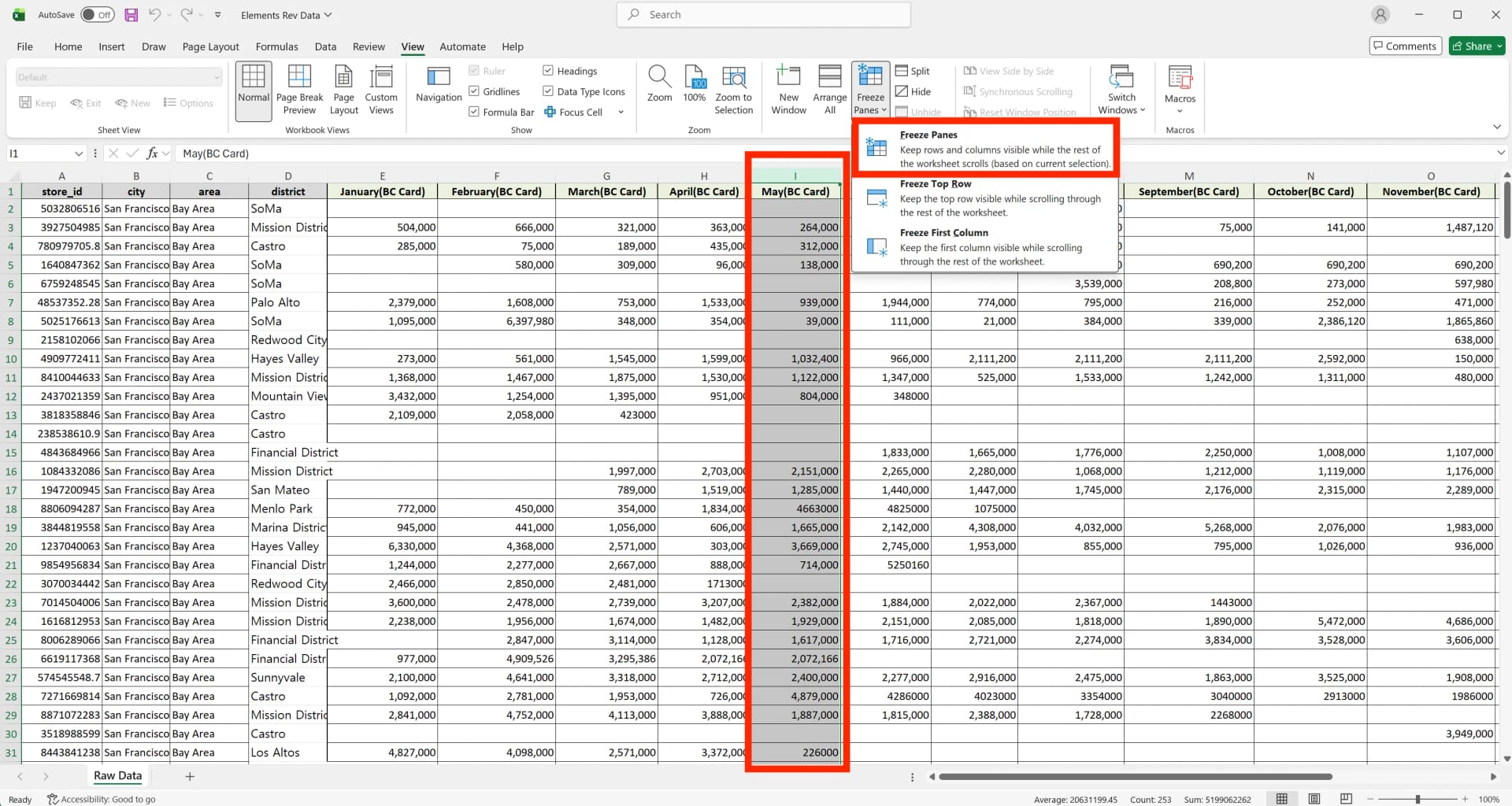
Freeze several rows
Click the row below the ones you want frozen (row 3 to freeze rows 1 and 2), then View > Freeze Panes > Freeze Panes.
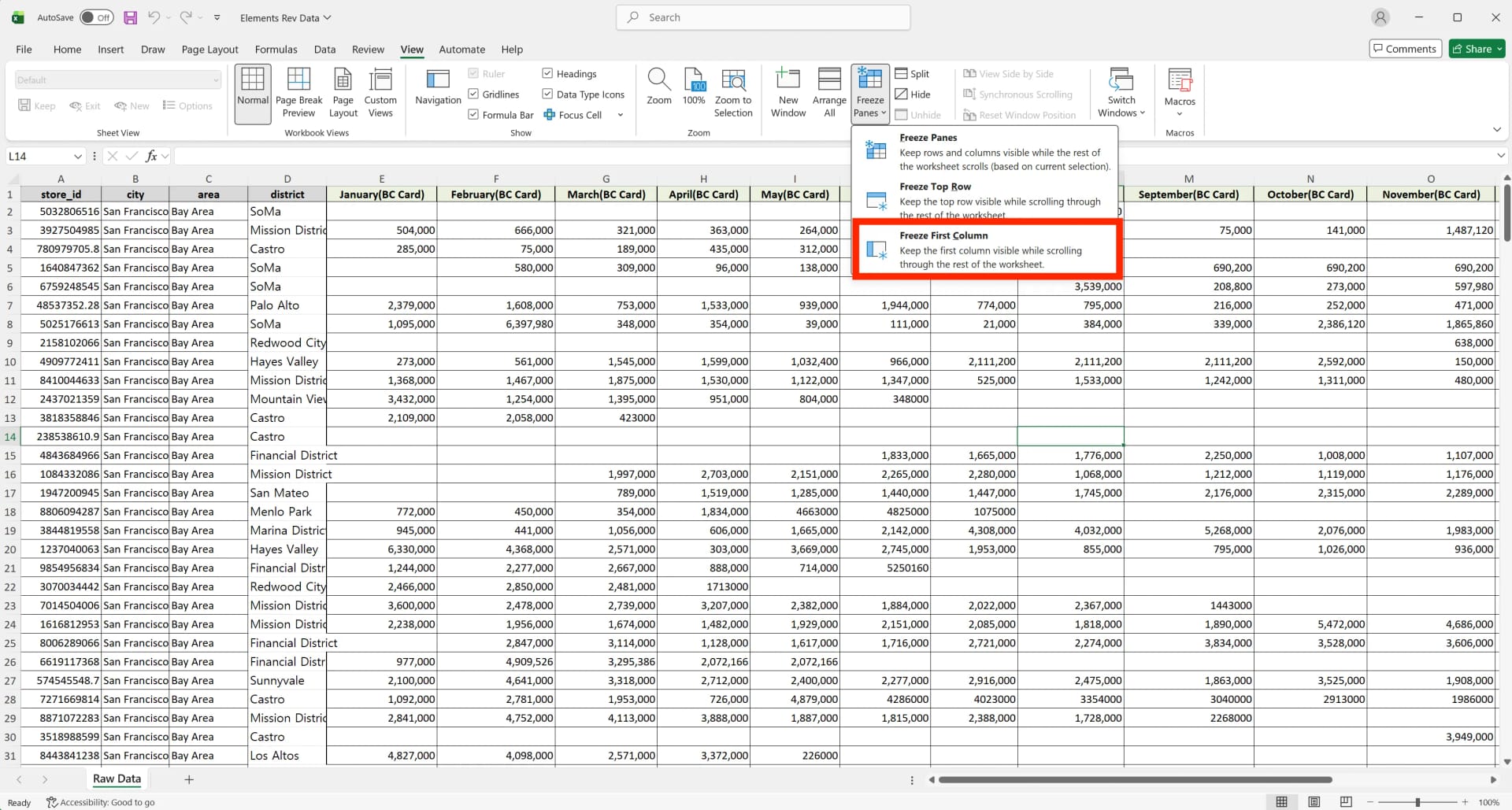
Freeze the first column
View > Freeze Panes > Freeze First Column keeps column A visible as you scroll right.
Freeze rows and columns together
Select the cell diagonally below and right of the area to freeze (B2 for row 1 and column A; C3 for rows 1–2 and columns A–B), then Freeze Panes.
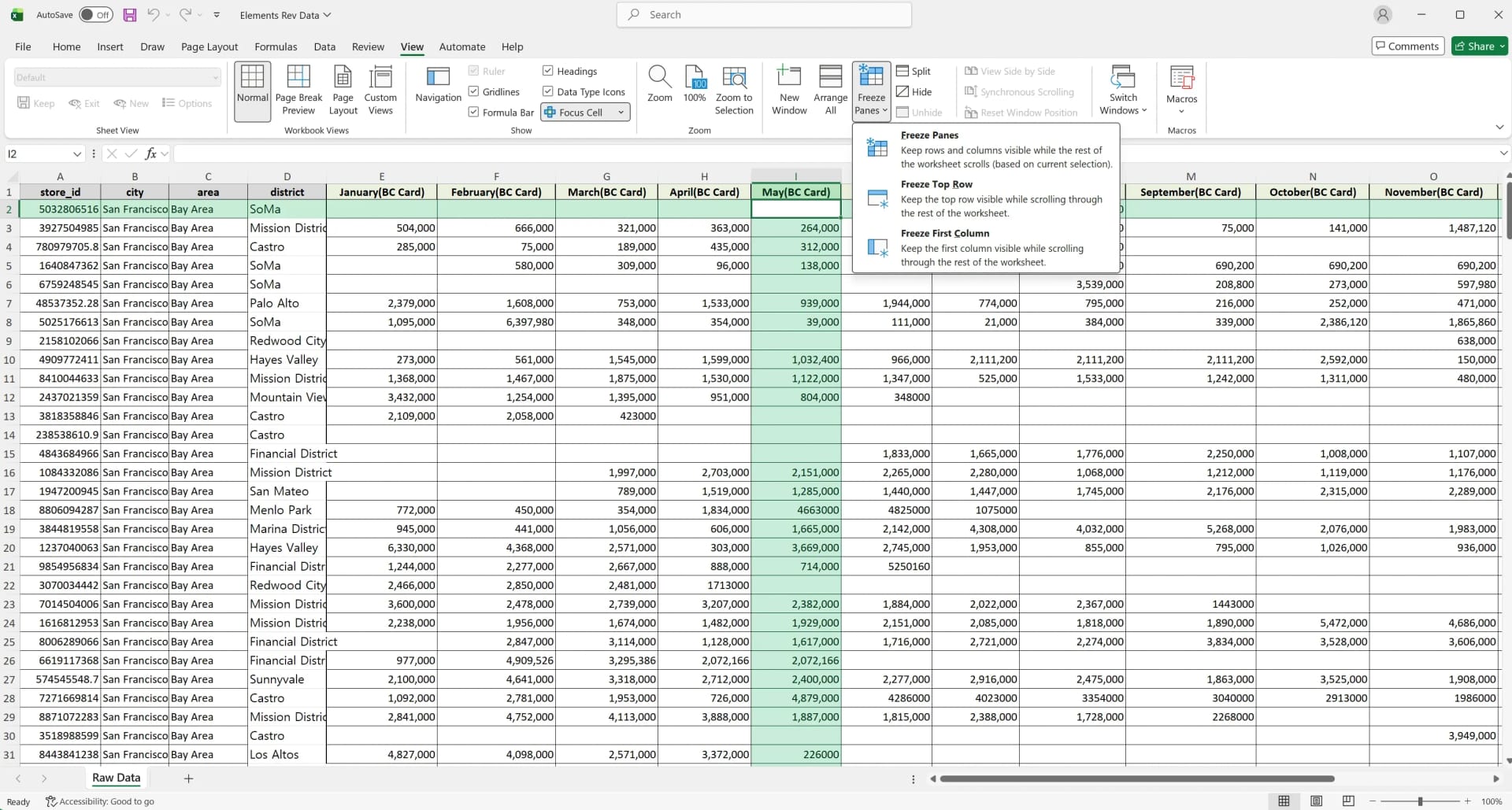
A horizontal grey line marks frozen rows, a vertical one frozen columns.
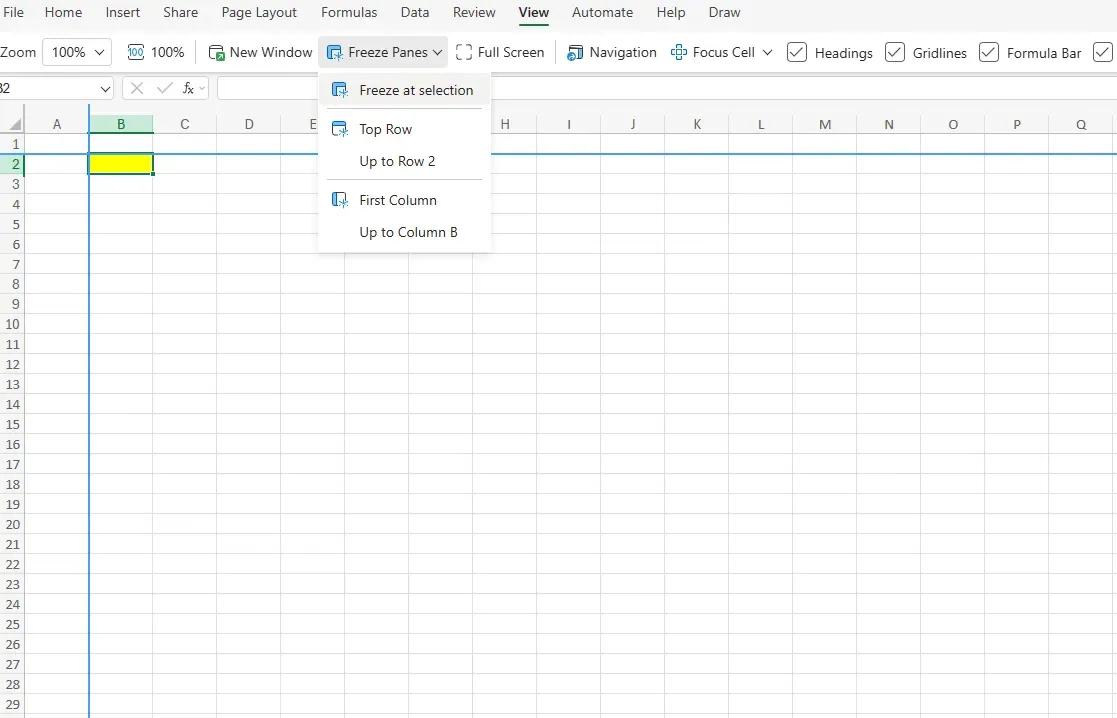
When the freeze looks wrong
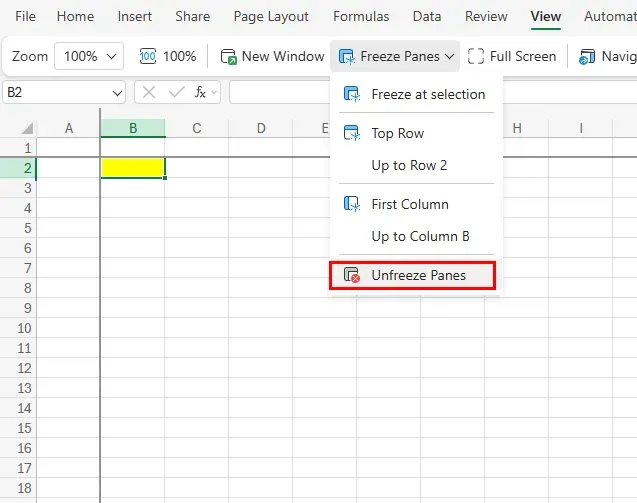
Choose View > Unfreeze Panes, select the correct cell, and freeze again. Set the freeze before applying filters. For two independently scrolling areas, use View > Split instead.
Repeat headers in print
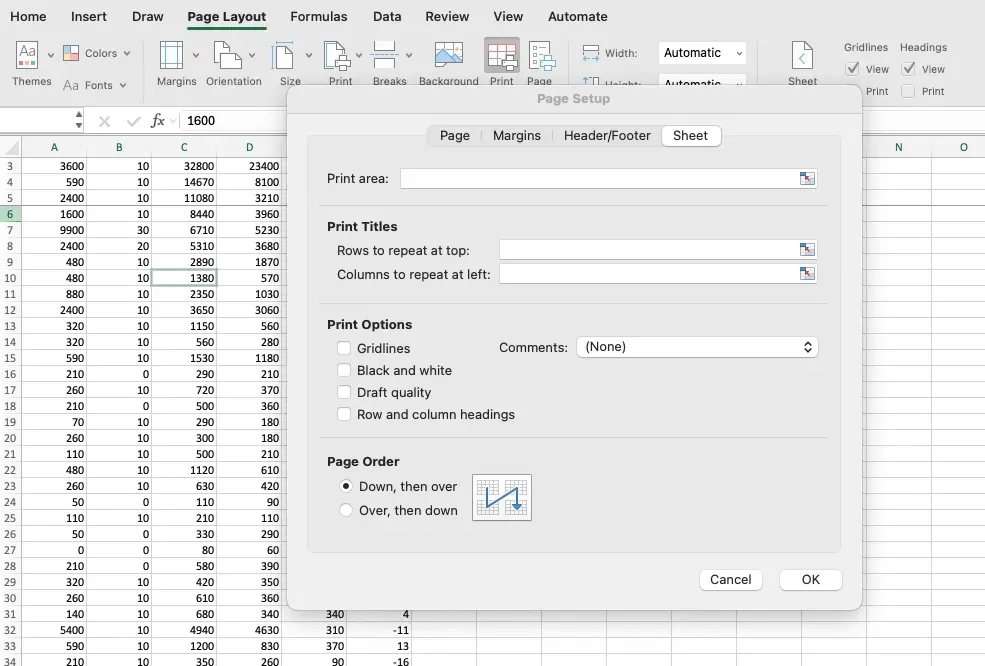
Page Layout > Print Titles, then on the Sheet tab set Rows to repeat at top (for example 1:2) and, if needed, Columns to repeat at left.
Shortcut and Mac
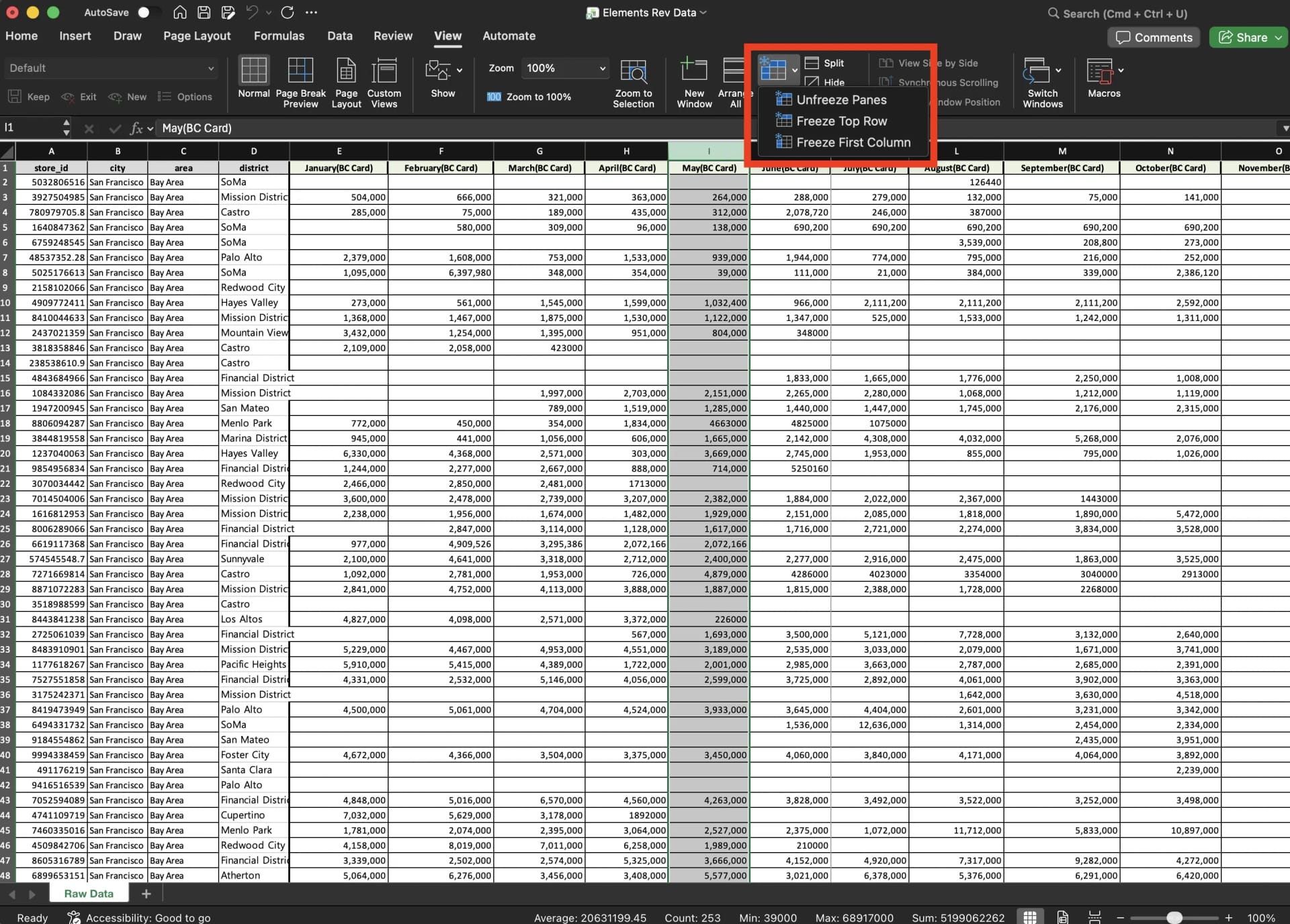
On Windows, press Alt, W, F, F in sequence. On a Mac the same options are under View > Freeze Panes, with no built-in shortcut, and Unfreeze Panes appears there when a freeze is active.
Frequently Asked Questions
Q. Can I freeze two separate areas in one sheet?
No. One freeze per sheet. Use Split, or separate sheets, for other layouts.
Q. Does Freeze Panes affect printing?
No. Use Print Titles for headers on every printed page.
Q. What if the AI freezes the wrong rows?
It tells you the freeze point it chose and why. Unfreeze takes one click, or ask it to move the freeze. View changes and every other edit are recorded in the audit log.
Q. Is our inventory data stored by the AI provider?
No. Company data is stored on AWS and isn't used for training. inline AI has an eZDR agreement with its model provider, which stores neither prompts nor files.
Wide Sheets with inline AI
Freeze Panes makes a wide sheet readable; it doesn't tell you which of several thousand rows needs attention. In the AI Browser, you keep the report open and ask the AI beside it to set the view and answer the question directly, then draft the next step for you to approve. It works inside your company account and permissions, sends actions above the risk threshold to approval, and records every change in the audit log.
In the AI Browser, this takes one request
inline AI OS is a work browser where your team keeps company files open and hands the task to the AI beside them. Book a free consultation to see how it fits your operations.
Book a free consultation