
Blog
How to Freeze the Top Row and First Column in Excel with AI


Freezing the top row and first column in Excel keeps the headers and the identifier column on screen as you scroll, so every number stays attached to its column and its row. Freeze Panes always freezes the rows above and the columns to the left of the cell you select. The catch is that it's set per sheet. A monthly settlement file from an online marketplace can have a dozen sheets, each with an order number down the side and sales, fees, shipping charges, adjustments and payout across the top, and the person reconciling it ends up freezing each sheet before doing the real work. In the AI Browser, the file stays open in its tab and the AI beside it sets the view on every sheet and helps with the reconciliation itself.
The Freeze Options
- Freeze Top Row: View > Freeze Panes > Freeze Top Row.
- Freeze First Column: View > Freeze Panes > Freeze First Column.
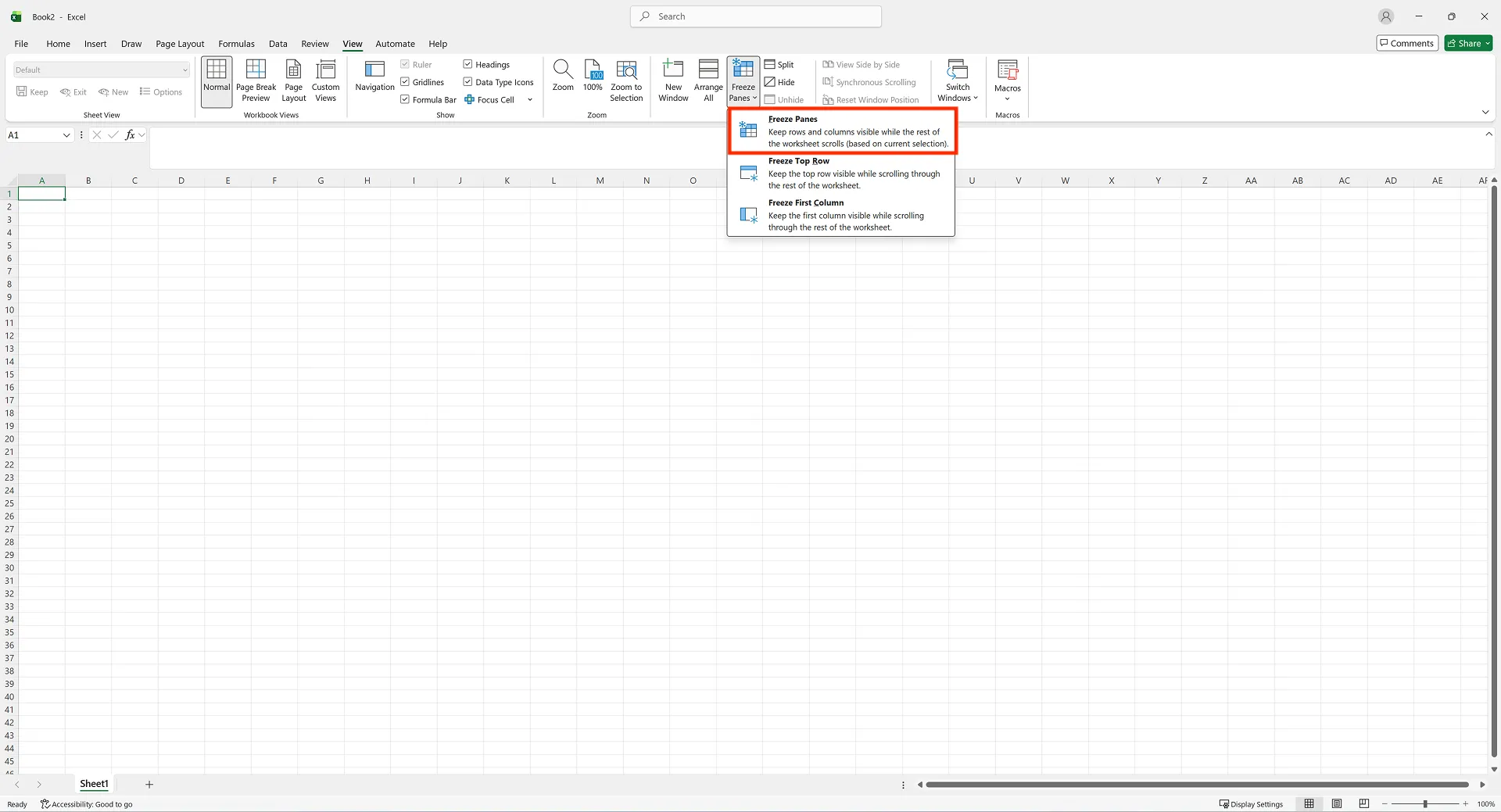
- Freeze Panes: select the cell below the rows and right of the columns to freeze, then View > Freeze Panes > Freeze Panes. B2 freezes row 1 and column A.
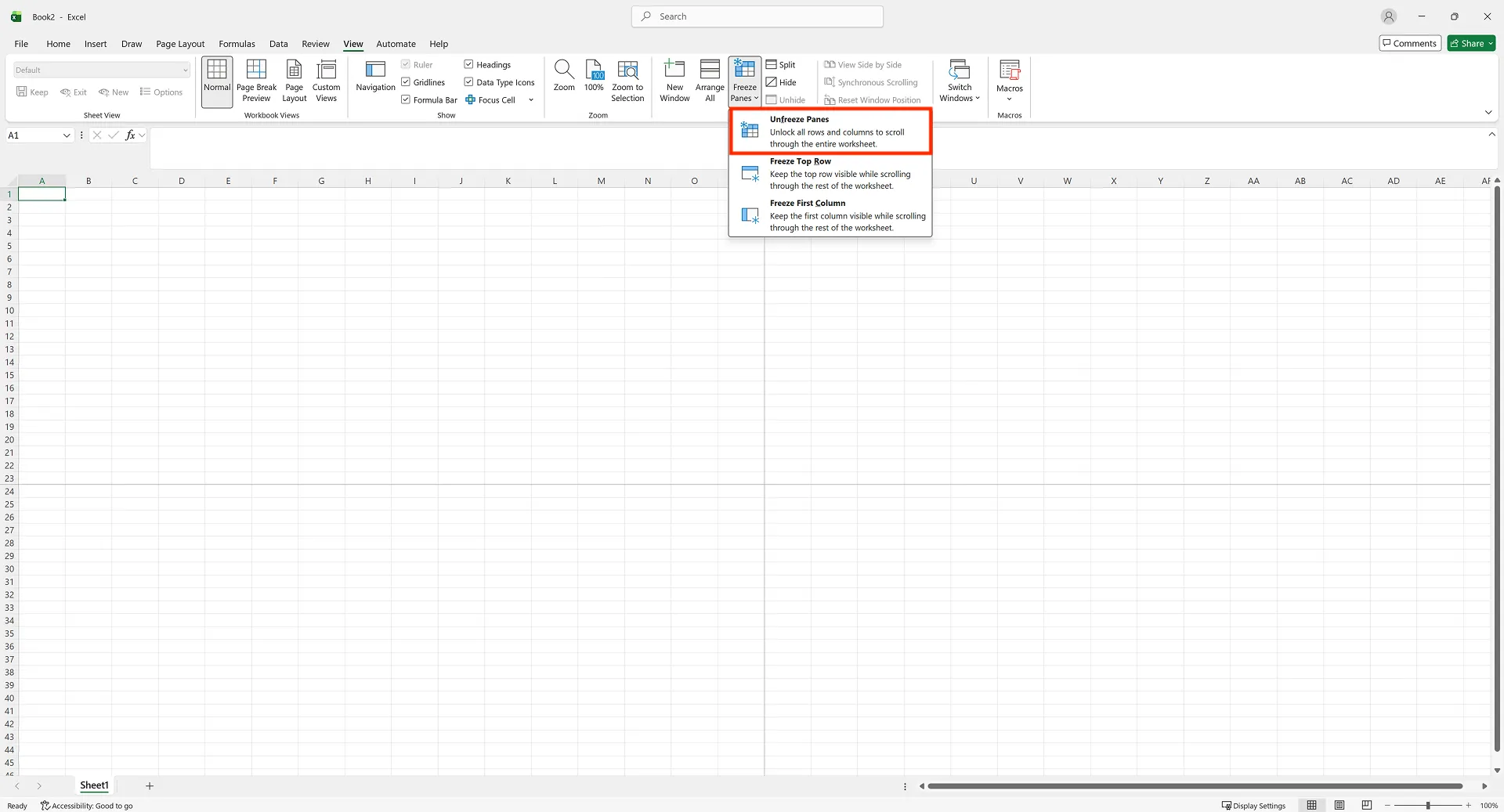
The setting applies to one sheet. Unfreeze Panes removes it.
Freezing and Reconciling in the AI Browser
The setup: a marketplace settlement file
An accounting clerk at a home goods distributor reconciles the monthly settlement from an online marketplace. The file arrives by email with one sheet per week plus a summary. Each sheet has order number in column A, then order date, item, sales amount, commission, shipping fee, returns and payout. The month's orders are in ARP, which is connected inside the AI Browser.
The clerk opens the attachment in an AI Browser tab and types:
"Freeze the top row and the order number column on every sheet. Then compare this settlement with our orders for the month and list every order where the payout differs from the sales amount minus the standard commission, or where an order is missing on either side."
What the AI does
- Freezes every sheet. It sets Freeze Panes at B2 on each weekly sheet and the summary, and removes an odd split view someone left on one sheet.
- Reads the settlement. It totals sales, commission, shipping and returns per order, so each order has one expected payout.
- Matches to orders. It looks up each order number in the month's order records and compares amounts. Orders that match after the standard commission are set aside.
- Lists the differences with a likely reason for each: an extra shipping charge, a partial return, a commission rate that doesn't match the contract, an order in the settlement but not in the order records, or the reverse.
- Doesn't post anything. It produces the list and leaves accounting entries to the clerk.
What the clerk checks
The clerk works through the difference list rather than the whole file. Unexplained commission differences go to the marketplace in an email the AI drafts in the AI email Inbox for the clerk to edit and send.
How it stays safe
The AI acts with the clerk's permissions and reads only the order and accounting data they're allowed to see. Freezing panes and listing differences runs immediately. Recording the settlement in the books or sending the email asks for confirmation and follows company approval rules. Every request and change is recorded in the audit log.
Settlement without the monthly scramble
Next month, open the new settlement file and ask the AI to repeat the same steps: freeze every sheet, compare with the month's orders, and create the difference list in the same layout as this month's. The clerk starts from the list, not from a dozen sheets.
👉 How to Freeze Rows and Columns in Excel with Freeze Panes and AI
Doing It by Hand
Freeze the top row
- Click the View tab.
- Select Freeze Panes.
- Click Freeze Top Row.
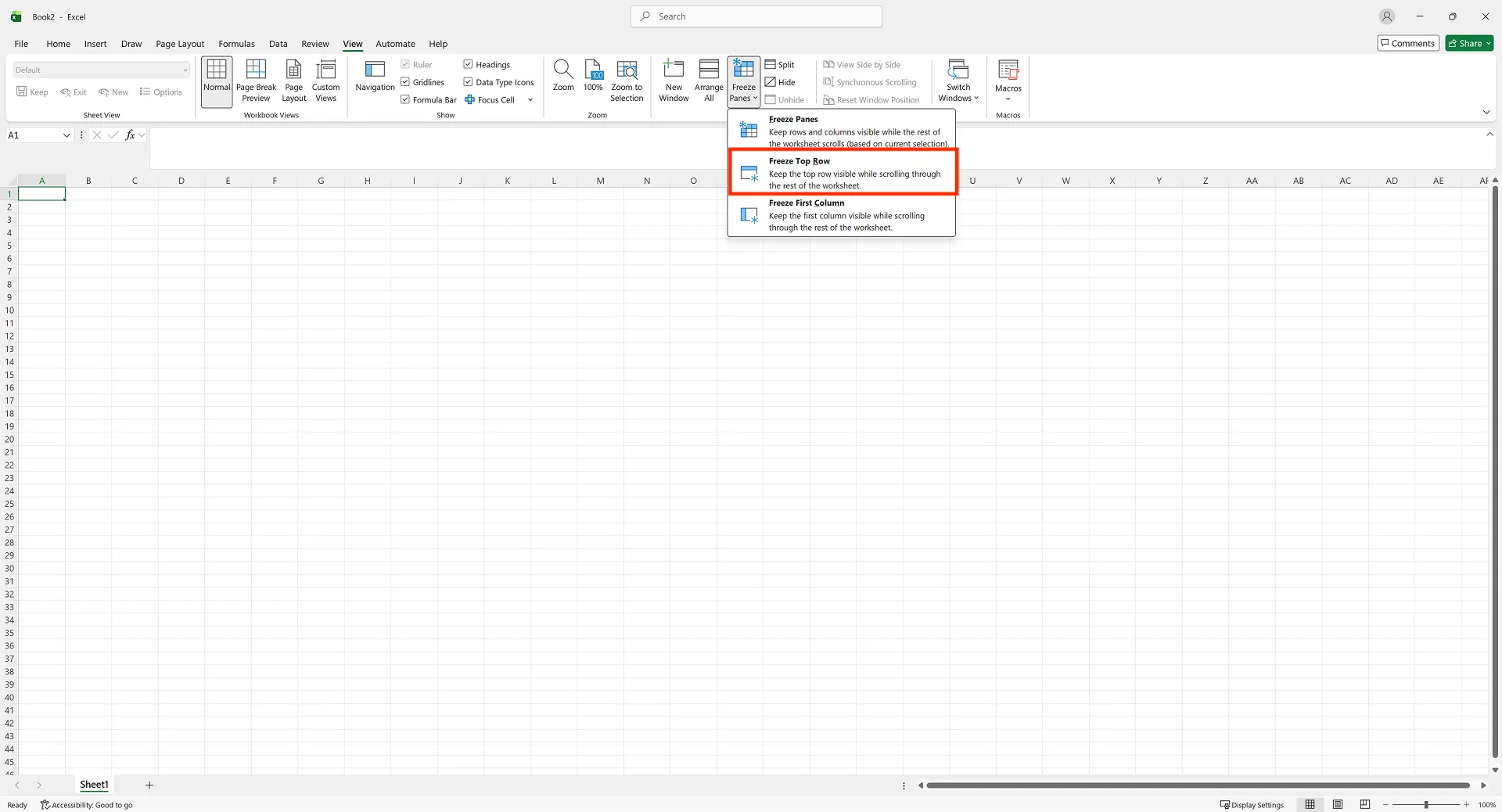
Freeze the first column
View > Freeze Panes > Freeze First Column.
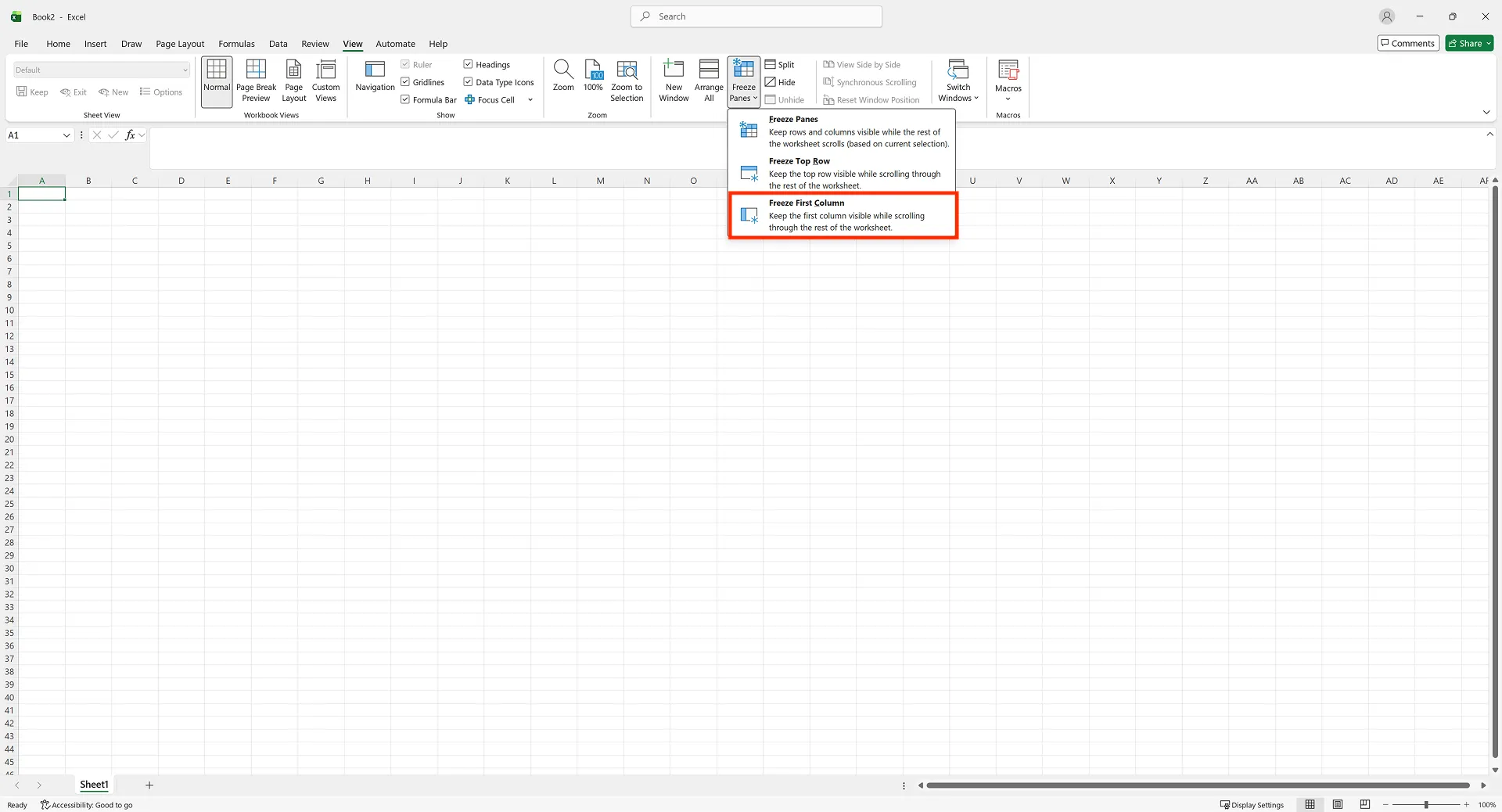
Freeze several columns, or rows and columns together
Select the cell just right of the last column to freeze (and below the last row), then View > Freeze Panes > Freeze Panes. To freeze rows 1–3 only, select a cell in row 4, column A.
Unfreeze
View > Freeze Panes > Unfreeze Panes. If the screen still looks divided, check whether Split is on.
When Freeze Panes is greyed out
Press Enter or Esc to leave cell edit mode. If the workbook is protected, remove the protection from the Review tab, if you're allowed to.
Freeze Panes vs. Split: Freeze keeps headers visible; Split divides the sheet into panes that scroll separately, for comparing distant parts of the same sheet.
Frequently Asked Questions
Q. The wrong rows or columns are frozen.
Freeze Panes freezes the rows above and columns left of the selected cell. Select B2 for row 1 and column A, and apply it again.
Q. Can I freeze every sheet at once?
Not in Excel itself; the setting is per sheet. Asking the AI to freeze every sheet applies it sheet by sheet for you.
Q. What if the AI matches a settlement line to the wrong order?
It lists each match with the order number it used, and nothing is posted until you confirm. The audit log records what was compared and changed.
Q. Is the settlement data stored by the AI provider?
No. Company data is stored on AWS and isn't used for training. inline AI has an eZDR agreement with its model provider, which stores neither prompts nor files.
Large Workbooks with inline AI
Freezing panes keeps a wide sheet readable, one sheet at a time; the work it supports, like matching a settlement against your orders, still takes hours. In the AI Browser, you keep the file open and ask the AI beside it to set up every sheet and find the differences that need your attention. It works inside your company account and permissions, sends actions above the risk threshold to approval, and records every change in the audit log.
In the AI Browser, this takes one request
inline AI OS is a work browser where your team keeps company files open and hands the task to the AI beside them. Book a free consultation to see how it fits your operations.
Book a free consultation