

Blog
How to Hide and Unhide Rows and Columns in Excel

To hide rows or columns in Excel, select their headers, right-click and choose Hide; to unhide them, select the rows or columns on both sides and choose Unhide. That is the whole procedure, and it takes two seconds. What takes longer is the cleanup when hiding is used for something it was never designed to do. A hidden row is still in the file: SUM still adds it, Copy still copies it, and anyone who receives the workbook can bring it back with one right-click. A price list sent to a customer with the Cost and Margin columns hidden, rather than deleted, has sent the cost and margin.
Below are the three ways to hide, every way to unhide (including the awkward row 1 and column A cases), what hidden data does to totals and copied ranges, and a step-by-step routine for sending a file with nothing hidden inside.
Three ways to hide rows and columns
According to the Range.Hidden reference on Microsoft Learn, hiding always applies to entire rows or entire columns. There is no way to hide a single cell, so if one value has to disappear from view, its row or column goes with it.
1. Right-click menu
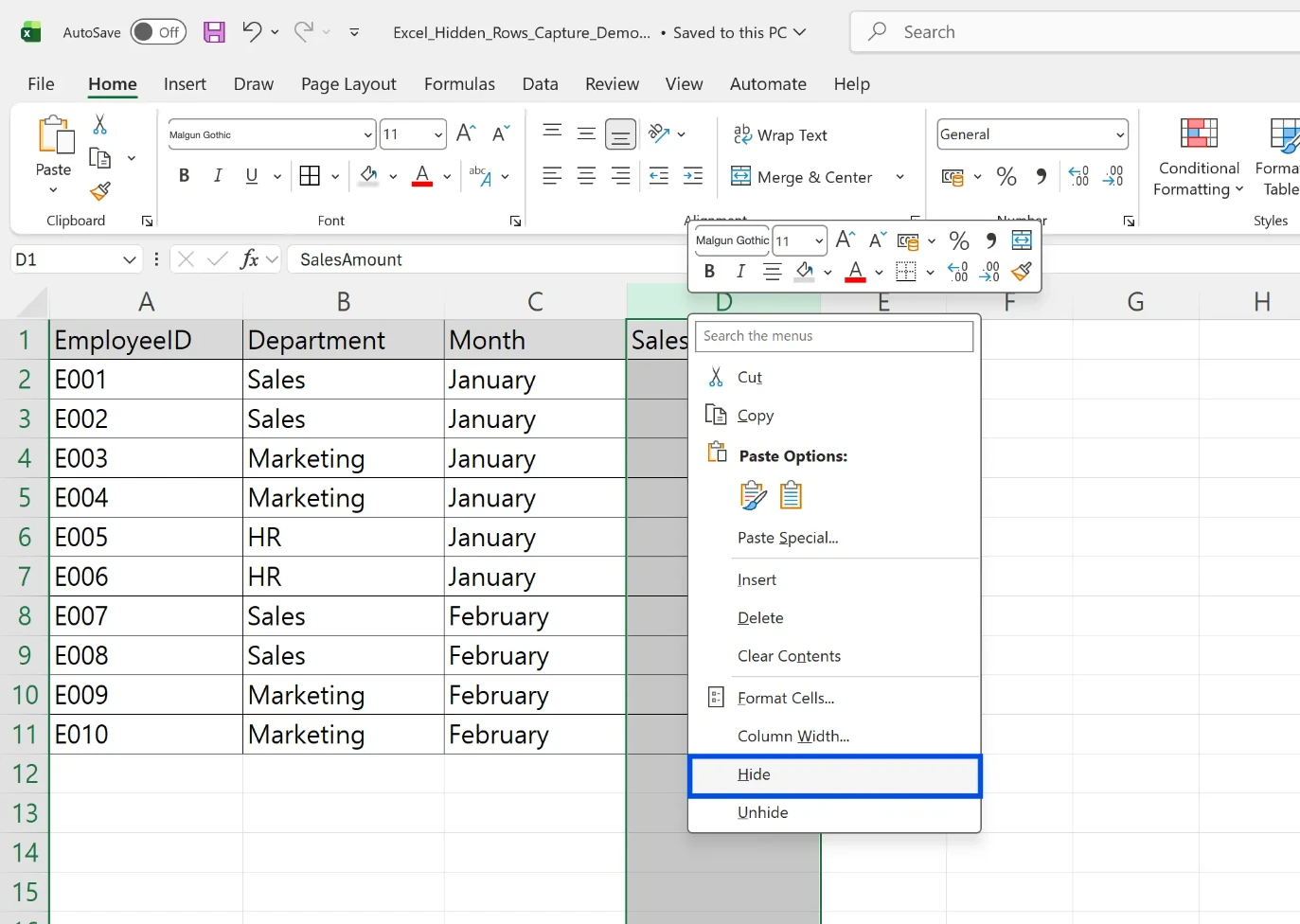
Click the row number or column letter you want to hide. Hold Shift to select a continuous block or Ctrl to add separate rows or columns. Right-click any selected header and choose Hide. If you right-click a cell instead of a header, Hide does not appear in the menu.
2. The ribbon
Go to Home > Cells > Format > Hide & Unhide and pick Hide Rows, Hide Columns or Hide Sheet. This route works with any cell selected; Excel hides the whole row or column that contains it.
3. Keyboard shortcuts
- Ctrl + 9 hides the selected rows.
- Ctrl + 0 hides the selected columns.
- Ctrl + Shift + 9 unhides rows.
- Ctrl + Shift + 0 unhides columns, but on many Windows PCs it does nothing because Windows reserves Ctrl + Shift for switching keyboard layouts. Turning off that layout-switching hotkey in Windows' advanced keyboard settings makes the shortcut work again. Otherwise, use the ribbon.
On a Mac, the right-click menu is the same and the shortcuts use Control instead of Ctrl: Control + 9 and Control + 0.
How to unhide rows and columns
Select both sides of the hidden block
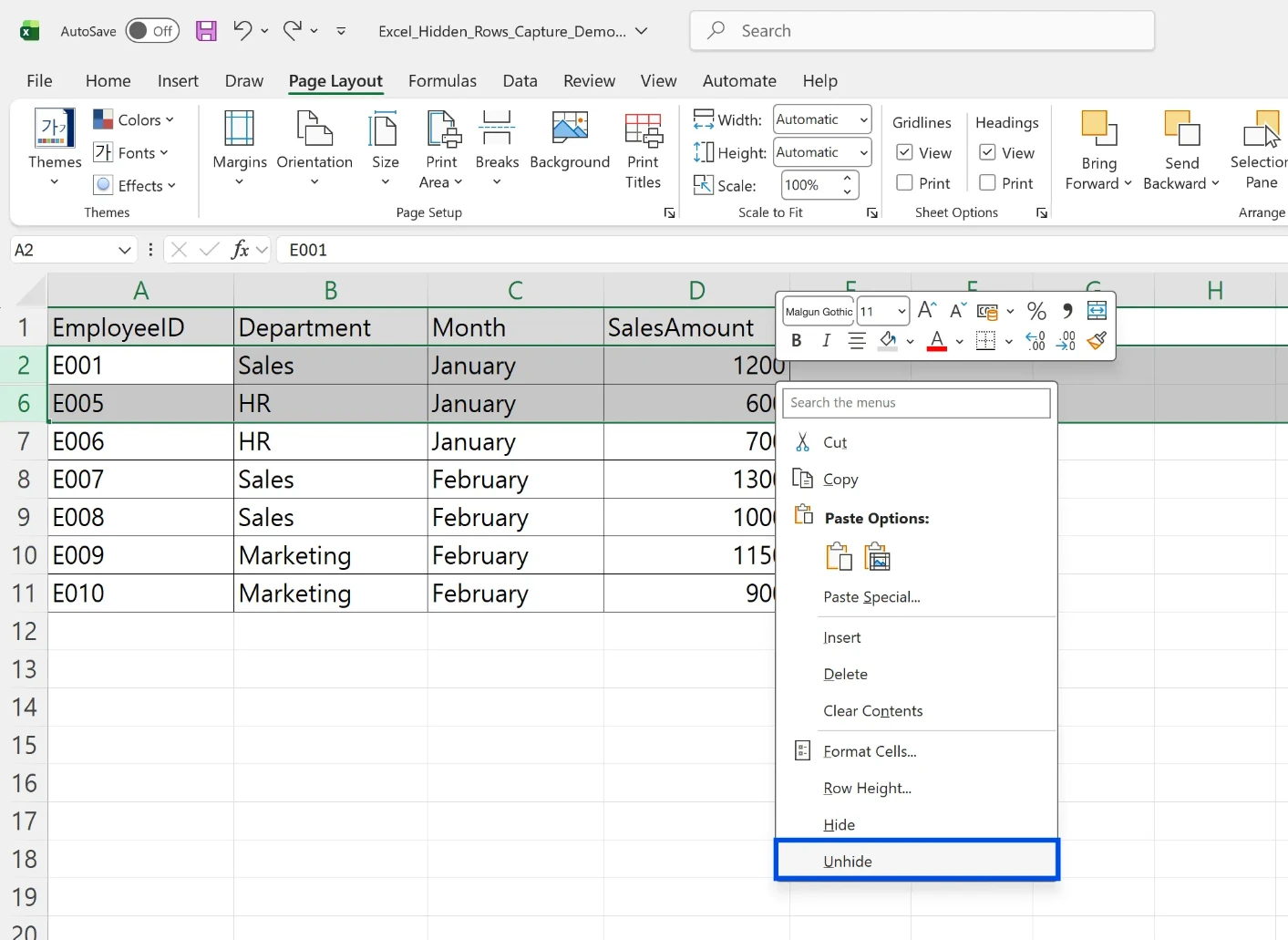
If row numbers jump from 2 to 6, rows 3 to 5 are hidden. Select rows 2 and 6 together, right-click and choose Unhide. The same works for columns: if the letters go from B straight to E, select B and E and unhide.
Unhide everything at once
When you don't know where things are hidden, click the Select All button in the top-left corner of the grid (or press Ctrl + A), right-click any row number and choose Unhide, then right-click any column letter and do the same.
Unhide row 1 or column A
There is nothing above row 1 or left of column A to select, so the usual method fails. Type A1 in the Name Box and press Enter, then go to Home > Format > Hide & Unhide > Unhide Rows (or Unhide Columns). If the row or column still doesn't appear, its height or width was set to a tiny value rather than hidden, which needs a different fix.
👉 Unhide All Columns in Excel (and Fix It When It Won't)
Hidden rows still count: totals and copying
SUM adds hidden rows
SUM totals every number in its range, visible or not. To total only what's on screen, use SUBTOTAL. Function number 9 skips rows hidden by a filter but still includes rows you hid manually; function number 109 skips both. If SUBTOTAL(9, D2:D9) and SUBTOTAL(109, D2:D9) give different results, there are manually hidden rows in the range.
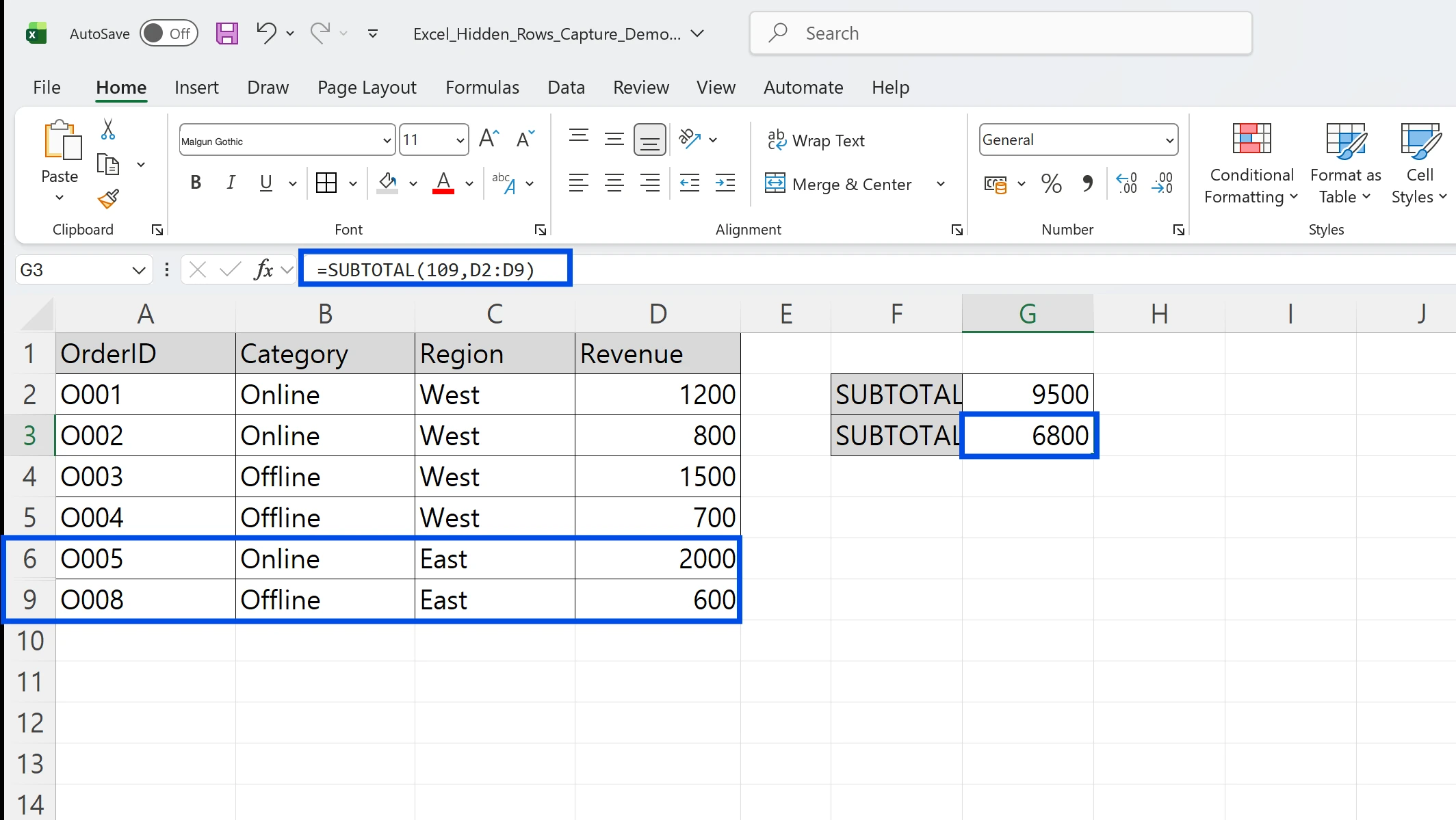
SUBTOTAL returns an error if the range contains one. The AGGREGATE function reference lists option 7 as "ignore hidden rows and error values", so AGGREGATE(9, 7, D2:D9) adds only visible, valid numbers.
If the data is formatted as an Excel table (Insert > Table), turn on Table Design > Total Row and choose Sum. Excel writes a SUBTOTAL 109 formula for you, so the total always matches what is visible.
Copy takes hidden rows along
Copying a range with hidden rows and pasting it elsewhere brings the hidden rows too. Select the range, press Alt + ; to select visible cells only, then copy. The menu route is Home > Find & Select > Go To Special > Visible cells only.
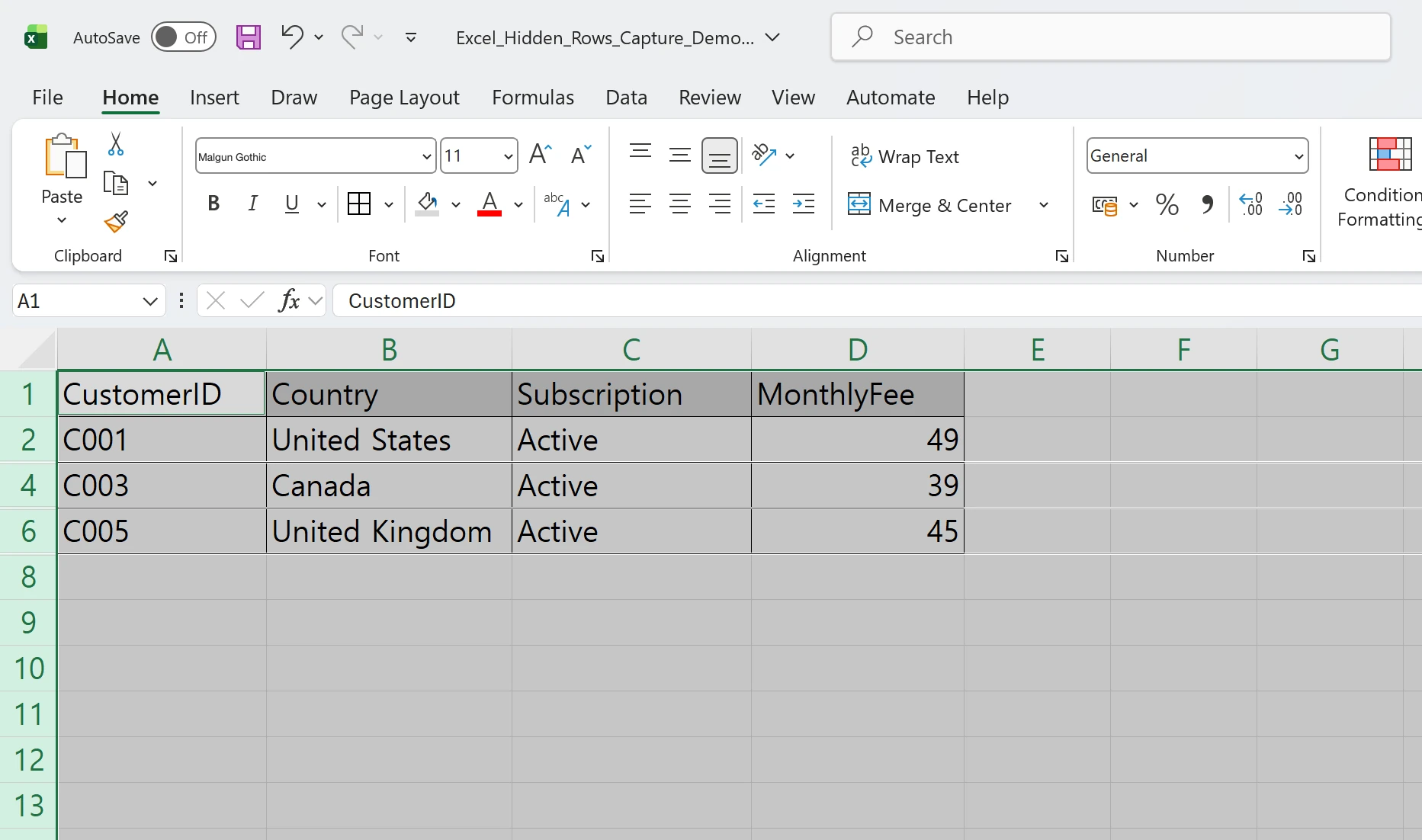
The reverse also bites: pasting into a range that contains hidden rows fills the hidden rows too. Unhide first, or paste into a clean sheet.
Hide, filter, group or hide the sheet?
| Method | What disappears | How it comes back | Best for |
|---|---|---|---|
| Hide rows/columns | Rows or columns you pick | Select both sides, Unhide | Tidying your own view |
| AutoFilter | Rows that fail a condition | Clear the filter | Looking at one segment, subtotals |
| Group (outline) | A grouped block | Click the + button | Reports you expand and collapse |
| Hide sheet | A whole worksheet | Right-click a sheet tab, Unhide | Helper and lookup sheets |
Grouping (Data > Outline > Group, or Shift + Alt + Right Arrow) puts plus and minus buttons in the margin, so everyone can see that something is folded away. In shared workbooks it is the more honest choice.
Sheets have a third state besides visible and hidden. The XlSheetVisibility reference describes "very hidden" sheets that users cannot unhide from the menu; only VBA can bring them back. An empty Unhide list therefore doesn't prove a workbook has no hidden sheets.
Find every hidden item with Document Inspector
Checking sheet by sheet is slow in a large workbook. Go to File > Info > Check for Issues > Inspect Document, tick Hidden Rows and Columns and Hidden Worksheets, and click Inspect. Excel reports whether anything is hidden anywhere in the file.
The Remove All button next to each result deletes the hidden content outright, and it can't be undone. Use it only on a copy. If a visible formula reads from a hidden column, removing that column turns the formula into #REF!, so convert such formulas to values first. Document Inspector also flags comments, document properties such as the author's name, and headers and footers, which are worth clearing from anything that leaves the company.
Worked example: a price list going to a customer
Here is the routine a sales coordinator at Northgate Supply follows before sending the Q4 price list to Brightway Retail. The source is the internal pricing workbook: item code, description, unit, customer price, unit cost and margin, eight rows of items being discontinued, and a sheet with last year's negotiated prices.
- See what's hidden. Select all and unhide rows and columns, then right-click a sheet tab to check for hidden sheets. Note where the cost, margin and discontinued rows are.
- Save a copy. Use Save As to create the customer file. All further steps happen in the copy.
- Convert formulas to values. If the customer price is calculated from unit cost, copy the price column and paste it as values. Otherwise deleting the cost column breaks every price.
- Delete, don't hide. Delete the cost and margin columns, the discontinued rows and the negotiated-price sheet.
- Reconcile. The item count and price total in the copy should equal the original minus the discontinued rows. A
SUBTOTAL(109, …)in the original, with those rows hidden, gives the comparison number directly. - Inspect and send. Run Document Inspector on the copy. When Hidden Rows and Columns and Hidden Worksheets both come back clean, save a PDF as well and send.
Steps 1 and 5 take the most time, especially in workbooks several people have edited. With five customers on different price tiers, it is five rounds of the same checks every quarter.
Common mistakes
- Reporting a total that includes hidden rows. Use SUBTOTAL 109 or a table Total Row wherever rows may be filtered or hidden.
- Sorting with rows hidden. Hidden rows stay where they are while visible rows move, so the order is scrambled once you unhide. Unhide everything before sorting.
- Hide is greyed out. The sheet is protected. Use Review > Unprotect Sheet first.
- Rows shrunk instead of hidden. A row with a very small height isn't hidden, so Unhide does nothing. Select it and type a normal row height.
Frequently asked questions (FAQ)
Q. Do hidden rows print?
No. Hidden rows and columns are left out of the printout. Rows that were only shrunk to a tiny height print as thin lines, so check Print Preview.
Q. Can I stop others from unhiding?
Yes. Hide the rows, then use Review > Protect Sheet with Format rows and Format columns unticked. For a file going to a customer, deleting the data from a copy is still the reliable option.
Q. How do I tell filtered rows from manually hidden ones?
Filtered rows turn the row numbers blue and show a filter button in the header. Manually hidden rows just skip numbers. Different results from SUBTOTAL 9 and SUBTOTAL 109 confirm manual hiding.
Q. A hidden sheet isn't in the Unhide list. Where is it?
It is set to very hidden. Open Developer > Visual Basic, select the sheet and change its Visible property to xlSheetVisible.
How inline AI checks hidden data before files go out
For teams that send pricing and sales files to customers every week, inline AI opens the workbook, lists every hidden row, column and sheet, and builds the customer copy with internal columns deleted and totals reconciled against the original. When quotes and price lists come straight from ARP, the file starts out with only the columns the customer should see.
Hand your documents and your company’s work to inline AI.
Keep a file open, say what you need, and AI edits it or drafts a new one. Add the company AI OS and AI runs the rest of the work, ERP included.
Book a demo