

Blog
Unhide All Columns in Excel (and Fix It When It Won't)

To unhide all columns in Excel, click the Select All button in the top-left corner of the sheet, right-click any column letter and choose Unhide. Every hidden column on the sheet, column A included, comes back. When it doesn't, clicking Unhide again won't help: the columns aren't hidden in the way Excel means it, or something is blocking the command. There are five usual causes, and each has a quick, specific fix.
This guide covers the standard method, the five causes in the order worth checking, a table you can scan in ten seconds, and a walkthrough of an inherited workbook where three of the causes turned up at once.
The standard way to unhide all columns
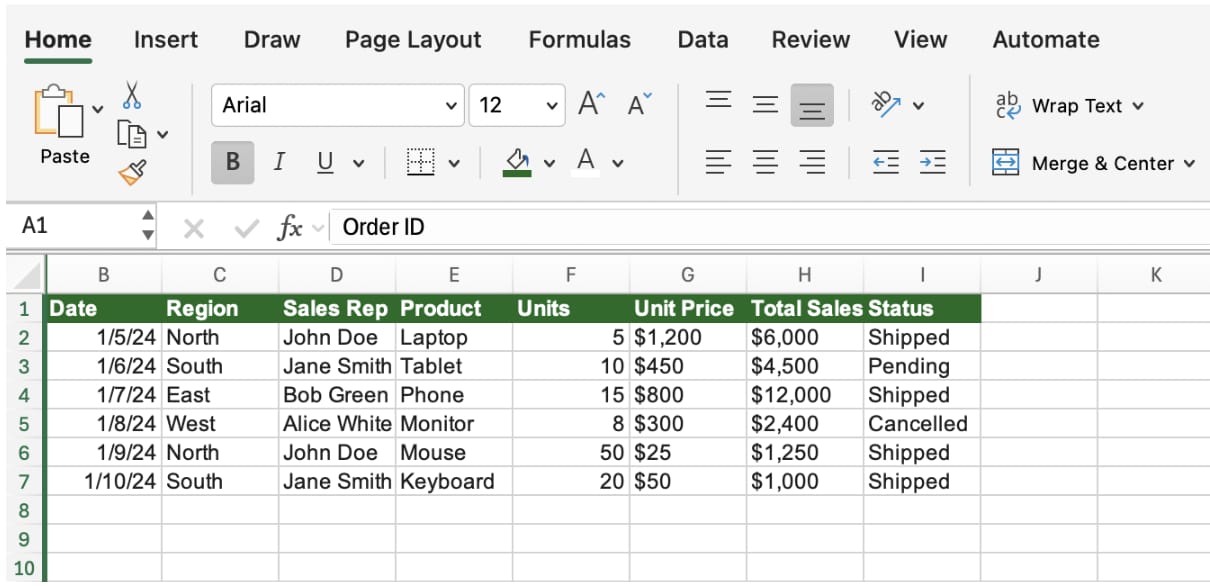
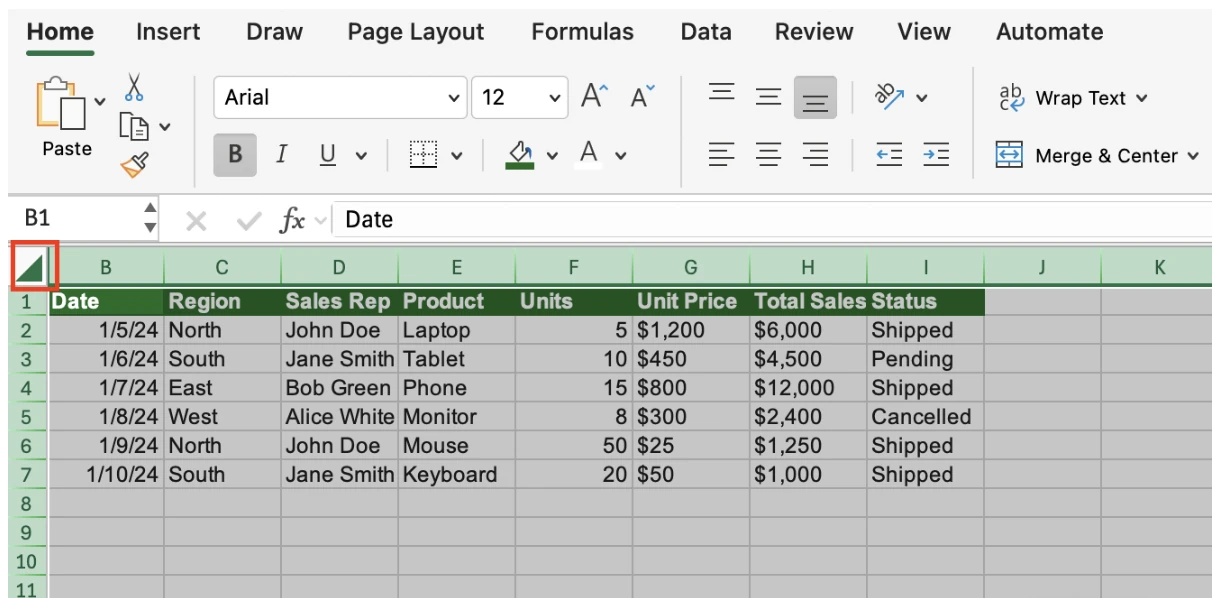
Step 1: Select the entire sheet
Click the triangle where the row numbers meet the column letters, or press Ctrl + A. Inside a data range, Ctrl + A selects only the range the first time, so press it twice or use the corner button.
Step 2: Unhide
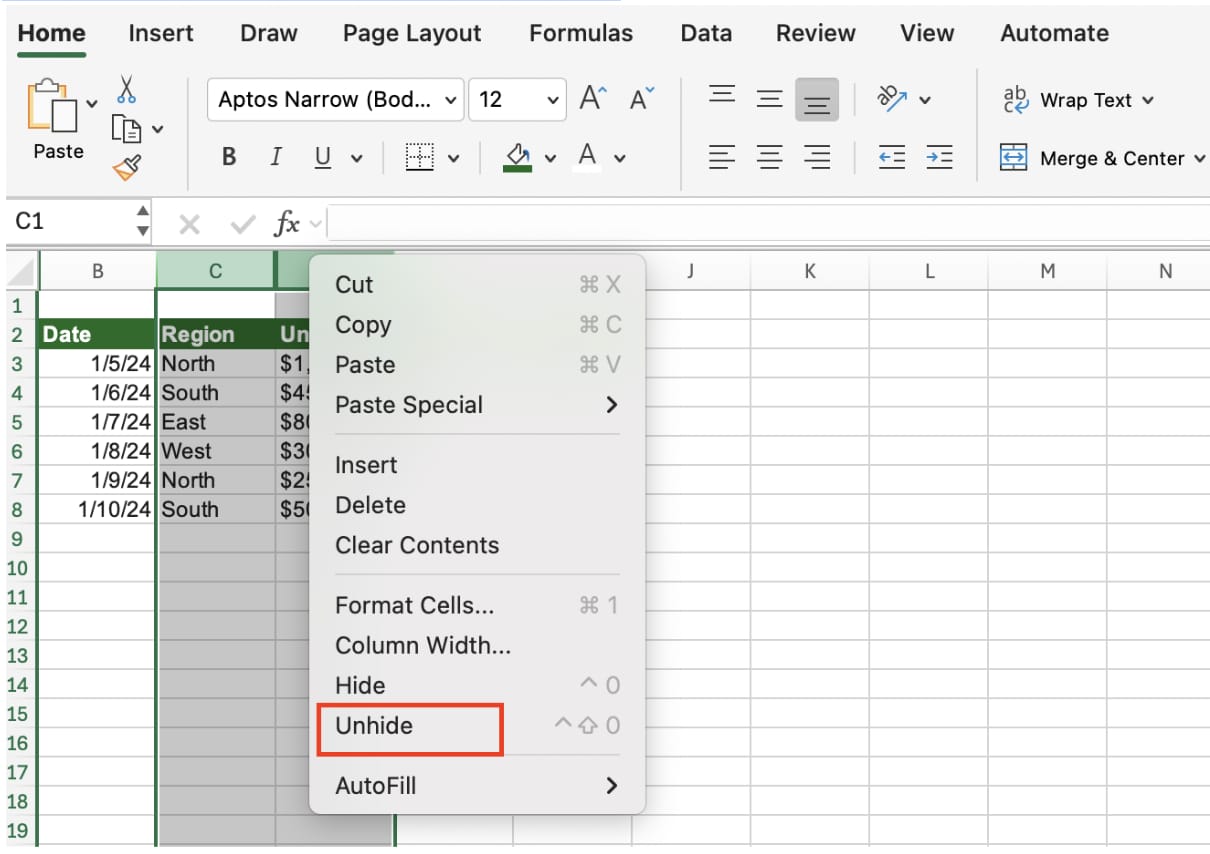
With everything selected, right-click any column letter and choose Unhide. On the ribbon it's Home > Cells > Format > Hide & Unhide > Unhide Columns. Because the whole sheet is selected, every hidden column comes back in one go.
Unhiding only one block
To reveal just one hidden block, select the column immediately to its left and the one immediately to its right, then Unhide. If D through F are hidden, select C and G. Selecting only one side does nothing.
When Unhide doesn't work: five causes
Cause 1: The column is tiny, not hidden
Hiding a column sets its width to exactly zero. If someone dragged a column border until the column was a sliver, say a width of 0.1, it vanished from view but Excel doesn't consider it hidden, so Unhide ignores it.
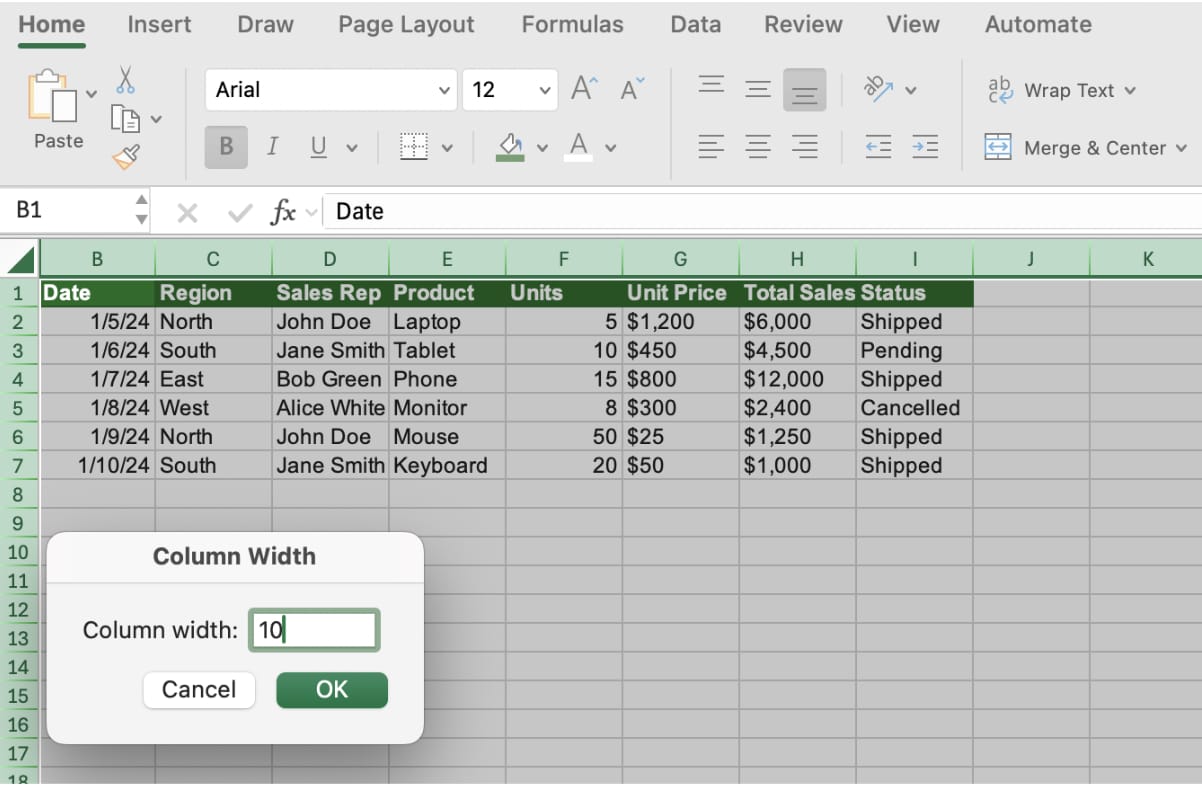
Set the width directly instead. Select the whole sheet, right-click a column letter, choose Column Width and enter 10. The ColumnWidth reference on Microsoft Learn defines one unit as the width of one character (the digit zero) in the Normal style font, so 10 fits ten digits, enough for most values. Because this resizes every column, use it on simple data sheets; on formatted templates, select only the vanished column. Alternatively, Home > Format > AutoFit Column Width sizes each column to its longest entry, which brings back any column that has content.
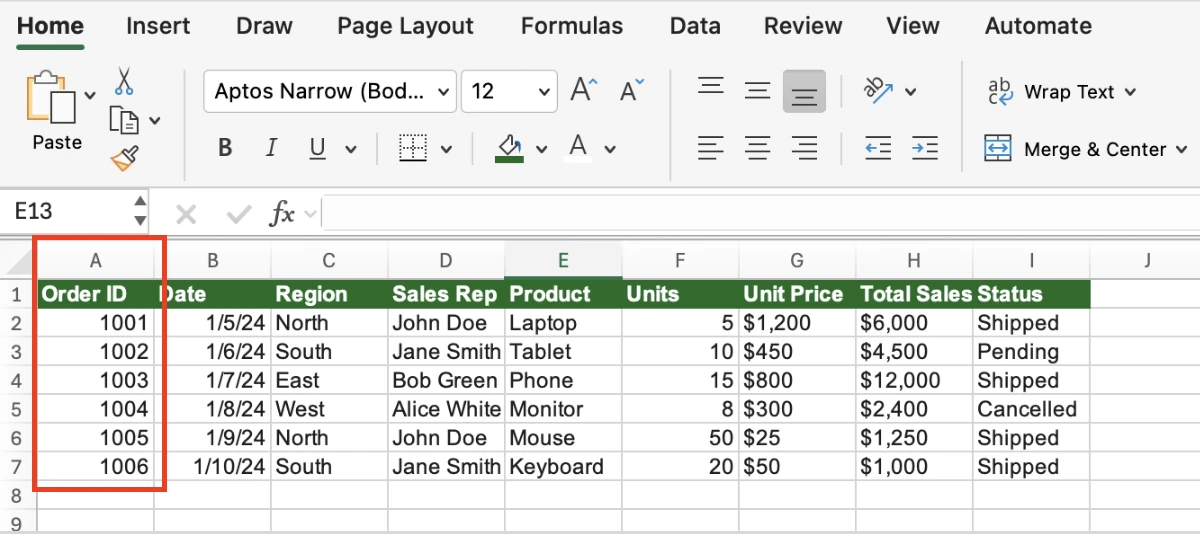
Cause 2: Frozen panes are hiding the left columns
If the file was saved with frozen panes while scrolled to the right, the columns left of the freeze line can be pushed out of view. Columns A through C look gone, and scrolling left doesn't bring them back. They aren't hidden, so Unhide does nothing. Go to View > Freeze Panes > Unfreeze Panes and they reappear.
Cause 3: The sheet is protected
On a protected sheet, Hide and Unhide are greyed out. The Worksheet.Protect reference shows that the option allowing users to format columns is off by default, so any protected sheet blocks changes to hidden columns unless the author deliberately allowed it. A padlock on the sheet tab, or Unprotect Sheet on the Review tab, confirms it.
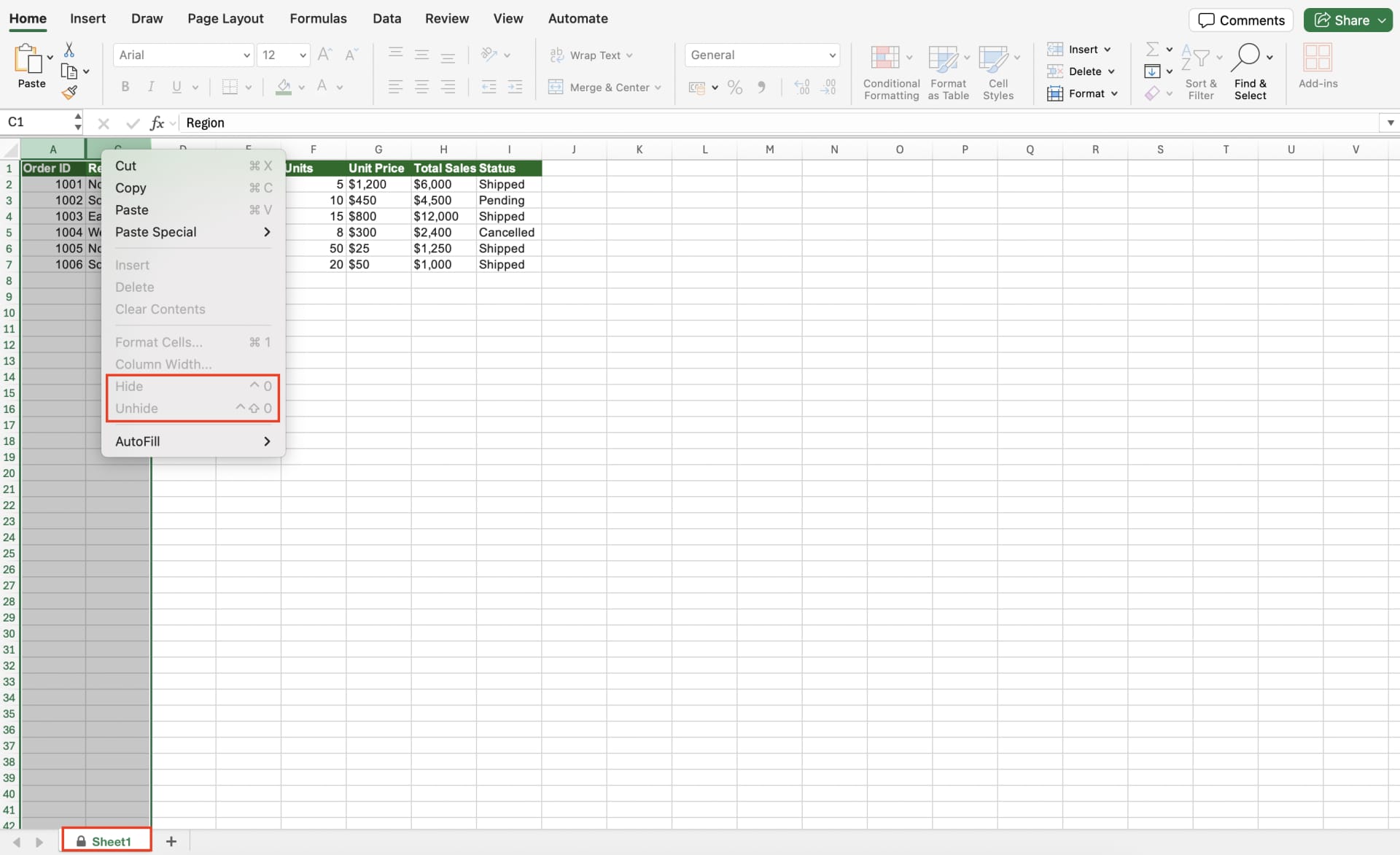
If you know the password, unprotect, unhide, and protect again with the same options. The same reference notes that sheet passwords are case-sensitive and that Microsoft can't retrieve a forgotten one, so the realistic routes are asking the author or working from an unprotected original.
👉 How to Unprotect a Sheet in Excel (and When You Can't)
Cause 4: A collapsed group
Small numbered buttons (1, 2) and a plus button above the column letters mean the columns are grouped and collapsed. Click the plus button, or the highest number, to expand. To remove the grouping, select the columns and choose Data > Outline > Ungroup.
Cause 5: Only column A is hidden
There is no column to the left of A, so the "select both sides" method can't work. Type A1 in the Name Box, press Enter, then use Home > Format > Hide & Unhide > Unhide Columns. If A still doesn't appear, it's Cause 1: from the same spot, open Home > Format > Column Width and enter a value.
Quick diagnosis table
| What you see | Cause | Fix |
|---|---|---|
| Double line between headers, Unhide works | Ordinary hiding | Select all, Unhide |
| Letters skip, Unhide does nothing | Column width near zero | Enter a column width or AutoFit |
| Left columns never scroll into view, thick freeze line | Frozen panes | Unfreeze Panes |
| Hide/Unhide greyed out, padlock on tab | Sheet protection | Unprotect, fix, re-protect |
| Plus button and level numbers above headers | Collapsed group | Expand or Ungroup |
Work down the table from the top. Inherited files often have more than one cause, so after each fix, scan the column letters again for gaps.
Before you delete anything: check what uses the column
Once a column is back, ask why it was hidden. Usually it's a helper column feeding a calculation, or internal data such as cost that someone didn't want on screen. Select a cell in it and choose Formulas > Trace Dependents. Blue arrows pointing to other cells mean formulas rely on that column, and deleting it would turn them into #REF!. Clear the arrows with Formulas > Remove Arrows.
Keeping columns from going missing again
If a column is regularly hidden and shown, group it instead (Data > Outline > Group). The plus and minus buttons make it obvious that something is folded away, which plain hiding doesn't.
When different readers need different column sets, save each as a named view under View > Custom Views. Hidden columns and filter settings are saved with the view, so switching between "full" and "customer" layouts takes one click. Custom Views is unavailable in any workbook that contains an Excel table; use grouping there.
In files shared through OneDrive or SharePoint, Microsoft 365 also has View > Sheet View, which lets each person sort and filter without changing what others see. If rows look different on a colleague's screen, check which sheet view each of you has selected; choosing Default returns to the shared state.
Walkthrough: an inherited AP reconciliation workbook
A buyer joining the purchasing team at Ridgeline Manufacturing inherits last month's accounts payable reconciliation. The column letters start at B, and they jump from G to K further along. Supplier codes should be in column A and invoice numbers in H through J.
- Select all and Unhide. H through J return; they were ordinarily hidden. Column A doesn't.
- Check column A's width. Typing A1 in the Name Box and opening Column Width shows 0.08. It was shrunk, not hidden.
- Set the width. Entering 12 brings the supplier codes back.
- Check the other sheets. On the supplier summary sheet, Hide and Unhide are greyed out and the tab shows a padlock. The previous owner supplies the password; the buyer unprotects, unhides, and protects again with the same options.
- Look for more slivers. Scanning each sheet's column letters turns up one more column with a width of 0.5, fixed the same way.
- Leave notes. A first sheet named "Read me" lists the sheets, which are protected, which columns are hidden on purpose and why.
Three different causes in one workbook is normal for files that have changed hands. Assuming a single cause is what makes this take an hour instead of ten minutes.
Frequently asked questions (FAQ)
Q. How can I tell a hidden column from a very narrow one?
A hidden column shows a double line between the neighboring headers and returns with Unhide. A narrow one doesn't; go to a cell in it via the Name Box and open Column Width to see a small non-zero value.
Q. What's the shortcut to unhide columns?
Ctrl + Shift + 0 on Windows, but it often does nothing because Windows uses Ctrl + Shift to switch keyboard layouts. Use the right-click menu or the ribbon. On a Mac it's Control + Shift + 0.
Q. I can't get the password for a protected sheet. Now what?
Microsoft doesn't recover sheet passwords. Ask the person who protected it, or use an earlier unprotected version of the file.
Q. The columns are missing only in files a supplier sends.
That's the state of their file, not your Excel settings. Frozen panes saved while scrolled and shrunk columns are the usual culprits; run through the table above and let the supplier know what you found.
How inline AI restores missing columns in one pass
For teams that inherit and exchange workbooks constantly, inline AI opens the file and reports, sheet by sheet, which columns are hidden, which are shrunk, and where protection or frozen panes are involved, then restores them in one pass. It also writes a short read-me sheet describing the workbook, ready for the next person.
Hand your documents and your company’s work to inline AI.
Keep a file open, say what you need, and AI edits it or drafts a new one. Add the company AI OS and AI runs the rest of the work, ERP included.
Book a demo