Learn
PowerPoint Hyperlink to Another Slide: Click-to-Jump Agenda

A PowerPoint hyperlink to another slide is not the same thing as a link to a web address. It points at a slide inside the same file, which means it keeps working with no internet connection and travels with the file when you move it to a different machine. Put one of these internal links on every agenda item and you can jump to any section during a presentation without tapping the arrow key fifteen times. Add a small "back to agenda" link on each content slide and you can move in both directions. This guide walks through the prep work, inserting the links, adjusting the color and underline, and what to check when a click does nothing.
When a Slide-to-Slide Hyperlink Is Worth Setting Up
Why agenda and menu slides need it
Past roughly twenty slides, moving strictly in order gets awkward. Someone asks a question about an earlier section and you either hammer the arrow key or pull up the slide list and hunt for the right thumbnail. If every agenda item already links to its section, the same jump is a single click.
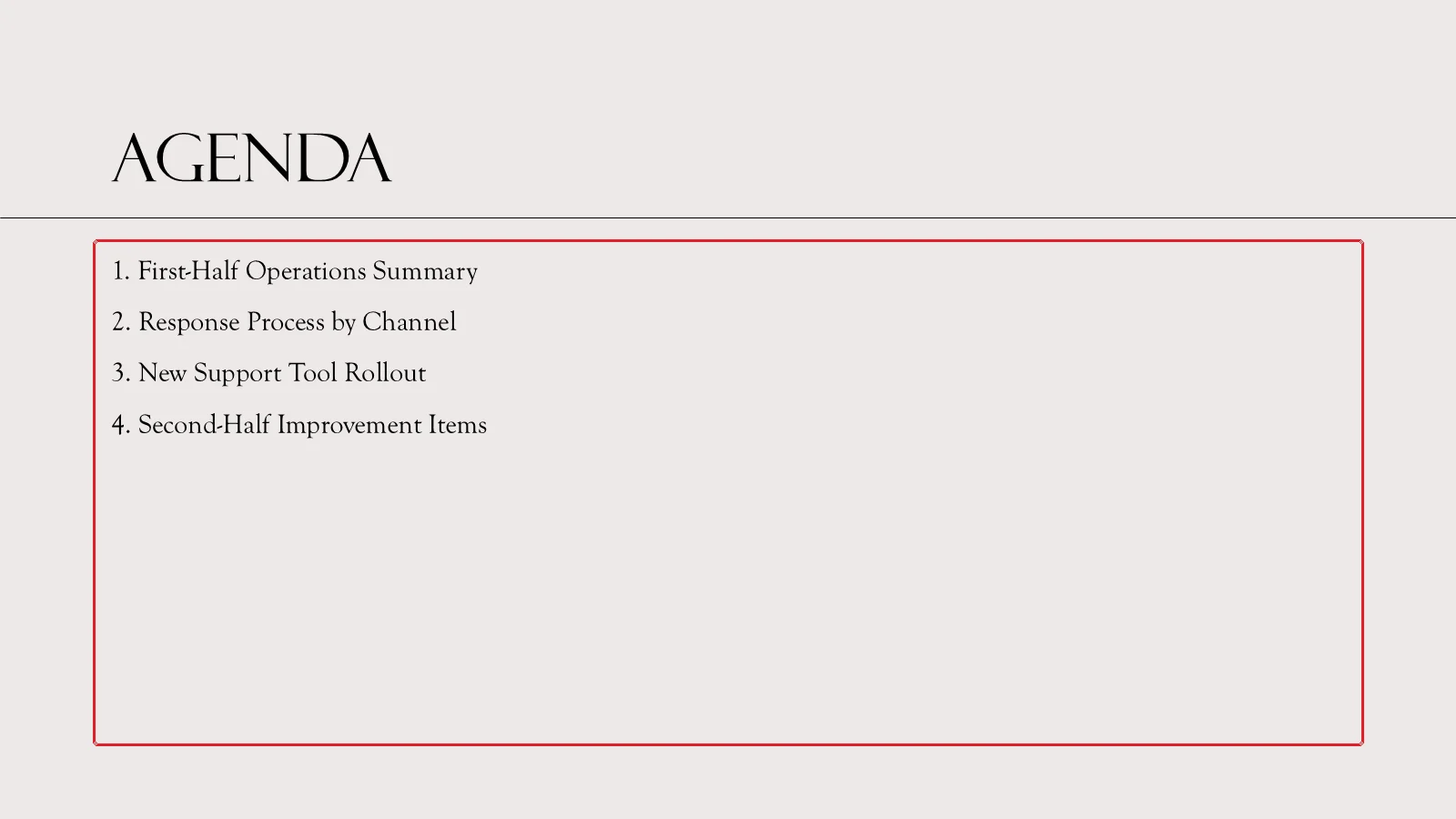
The slide above lists four items: First-Half Operations Summary, Response Process by Channel, New Support Tool Rollout, and Second-Half Improvement Items. Each of those four lines becomes a starting point for a link. What you link is an object that holds text, exactly like this body placeholder.
Place in This Document vs. a web link
The Insert Hyperlink dialog offers several link types, and the one you want is Place in This Document. Instead of storing a URL, it stores a reference to a slide in the current file. Nothing about it depends on a network, and copying the deck to a colleague's laptop does not break it.
One thing worth knowing up front, because it saves a lot of confused clicking: links do not fire in the normal editing view. A click there is treated as a text edit, so the only place to verify that a link actually moves is Slide Show.
Hyperlink, Action, and Zoom
PowerPoint splits "click to go somewhere" across three separate features.
| Feature | What you can apply it to | Behavior |
|---|---|---|
| Hyperlink | Text, shapes, pictures | Jumps to a slide in the same file or an external address. Responds to clicks only |
| Action | Shapes, pictures, text objects | Adds mouse-over behavior on top of click behavior, and offers targets such as Last Slide Viewed |
| Zoom | Inserted slide thumbnails | Places a slide or section as a thumbnail that expands as it navigates |
For text on an agenda slide, Hyperlink is the default choice. Reach for Action when a button needs finer control, such as a return button that should also respond to hover.
Before You Link: Slide Titles and Slide Order
Match agenda wording to slide titles
When you pick Place in This Document, the dialog shows a list of every slide you can jump to, identified by its title text. If your agenda item reads the same as the title on the destination slide, choosing the right target takes a second instead of a guess.
Use Outline View to confirm titles exist
A slide with an empty title placeholder shows up in that list as nothing more than "Slide 3", which is useless when four slides look similar. Checking titles before you start linking is faster than fixing targets afterward.
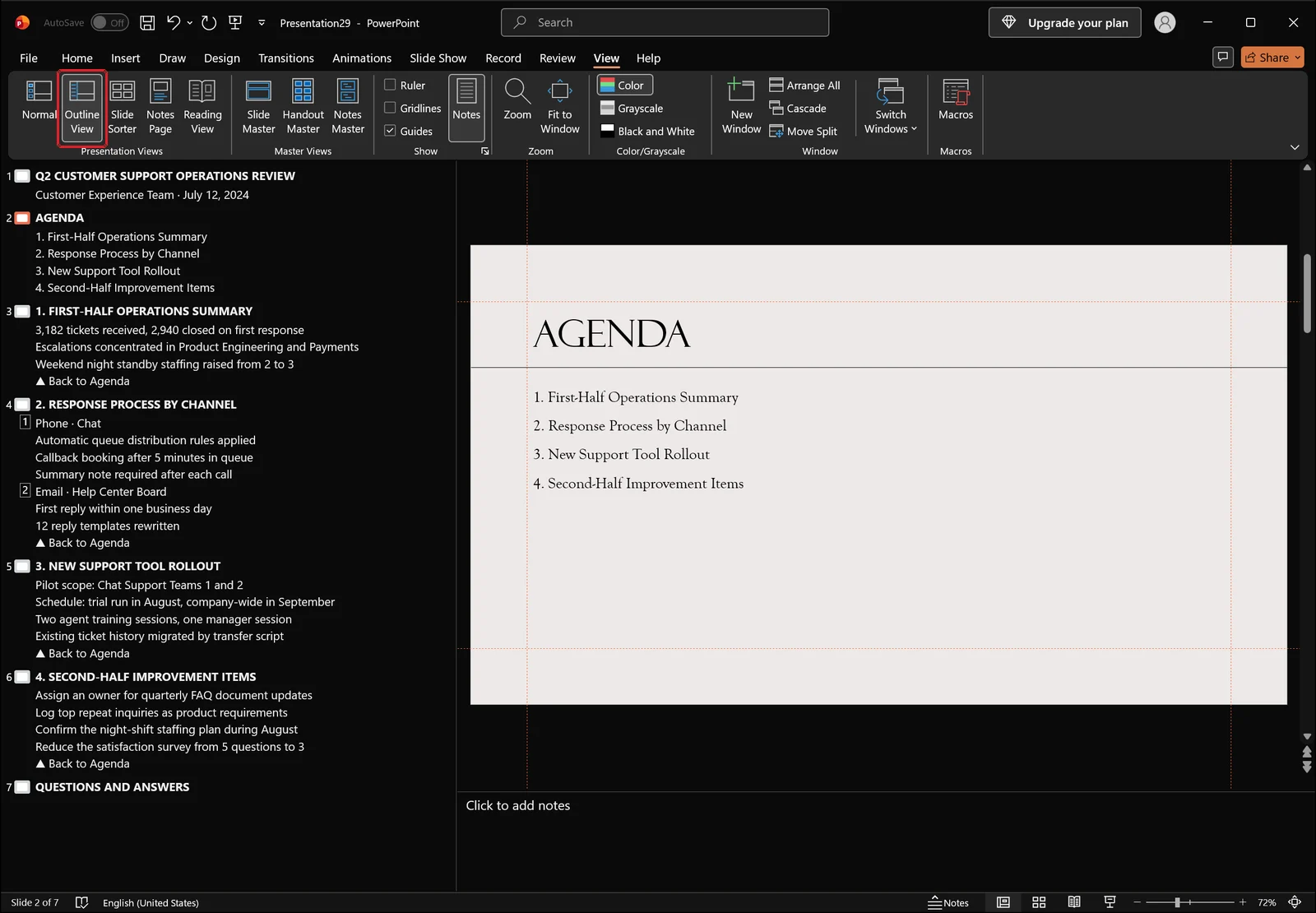
On the View tab, click Outline View. The left pane stacks every slide title from top to bottom, so a missing title appears as a blank line and you can type it in right there.
👉 Outline View in PowerPoint: Create Slides Fast from Text
Confirm slide numbers in Slide Sorter
Deciding in advance which slide each agenda item points to makes the linking itself much quicker.
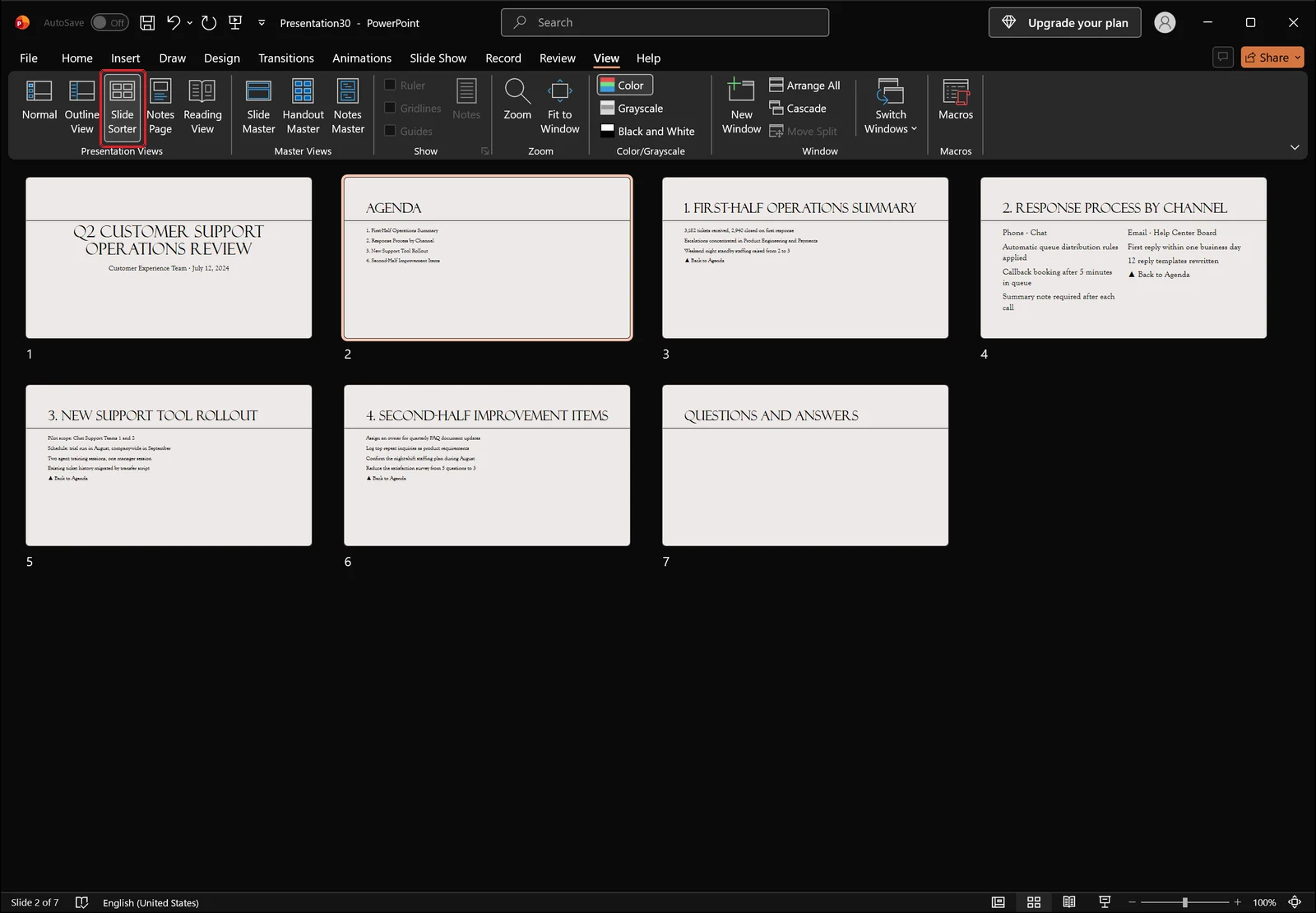
Slide Sorter on the View tab spreads the whole deck out as numbered thumbnails. Check that the order runs title, agenda, four content slides, then Q&A, and rearrange now if anything is out of place.
Internal links reference the slide object itself, not the slide number, so reordering slides after the links are in place normally leaves them intact. Deleting a destination slide is a different story: the link has nothing left to point at, so any agenda item aimed at a deleted slide has to be reassigned.
Linking Agenda Text to Another Slide
Choose what the click area will be
First decide what a viewer actually clicks. Drag-select just the words in a line and only those characters carry the link. Select the whole object and the entire object becomes one link.
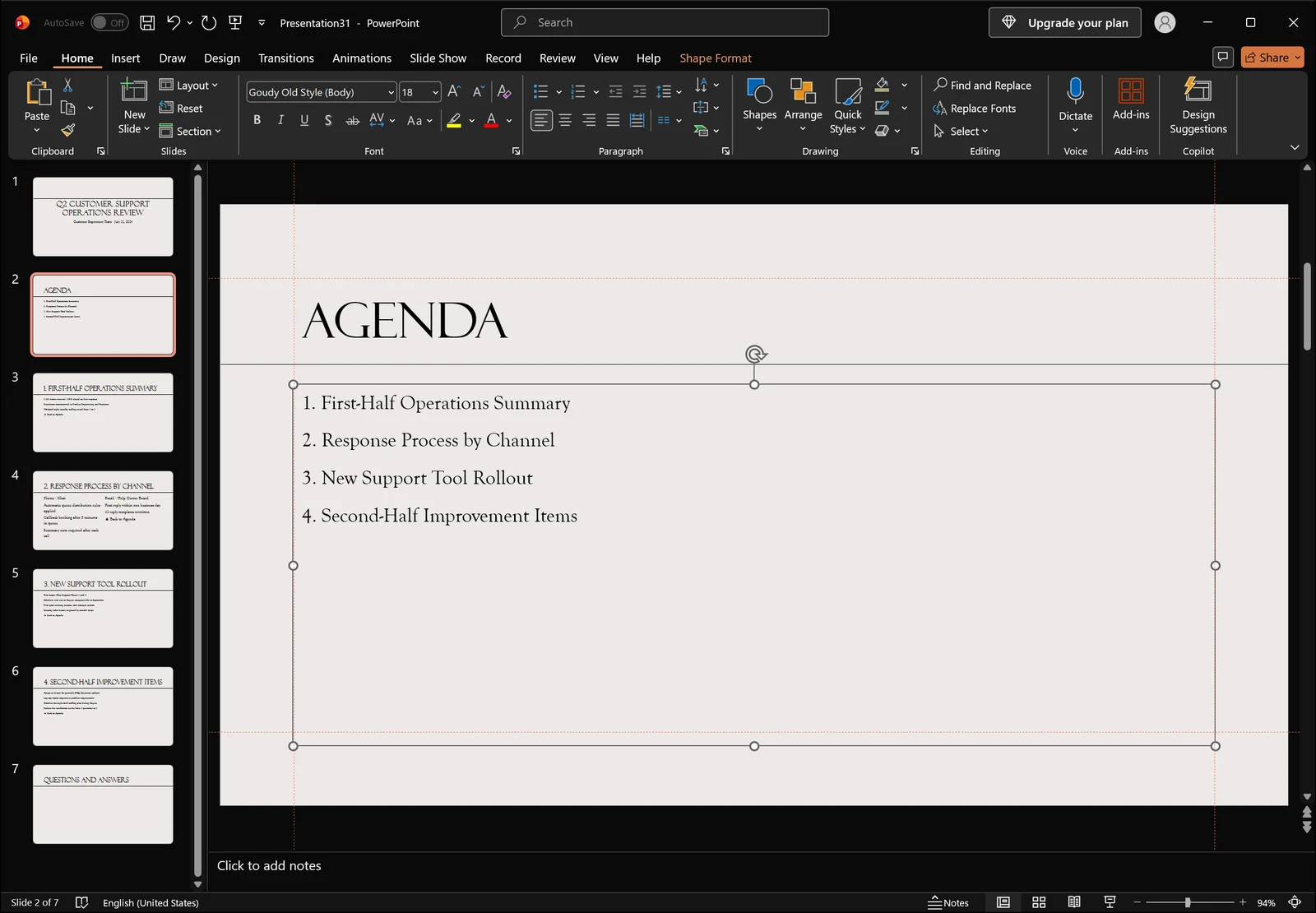
Clicking the agenda body placeholder gives you the border and handles shown above. If all four items live inside that single placeholder, linking with the whole object selected sends every line to the same slide. To send each item somewhere different, drag-select one line at a time and link it individually.
If you would rather not have to hit small text precisely while presenting, build each item as its own shape or text box and link the shape. Then anywhere inside the shape counts as a click.
Insert the link from the Insert tab
With the target selected, switch to the Insert tab.
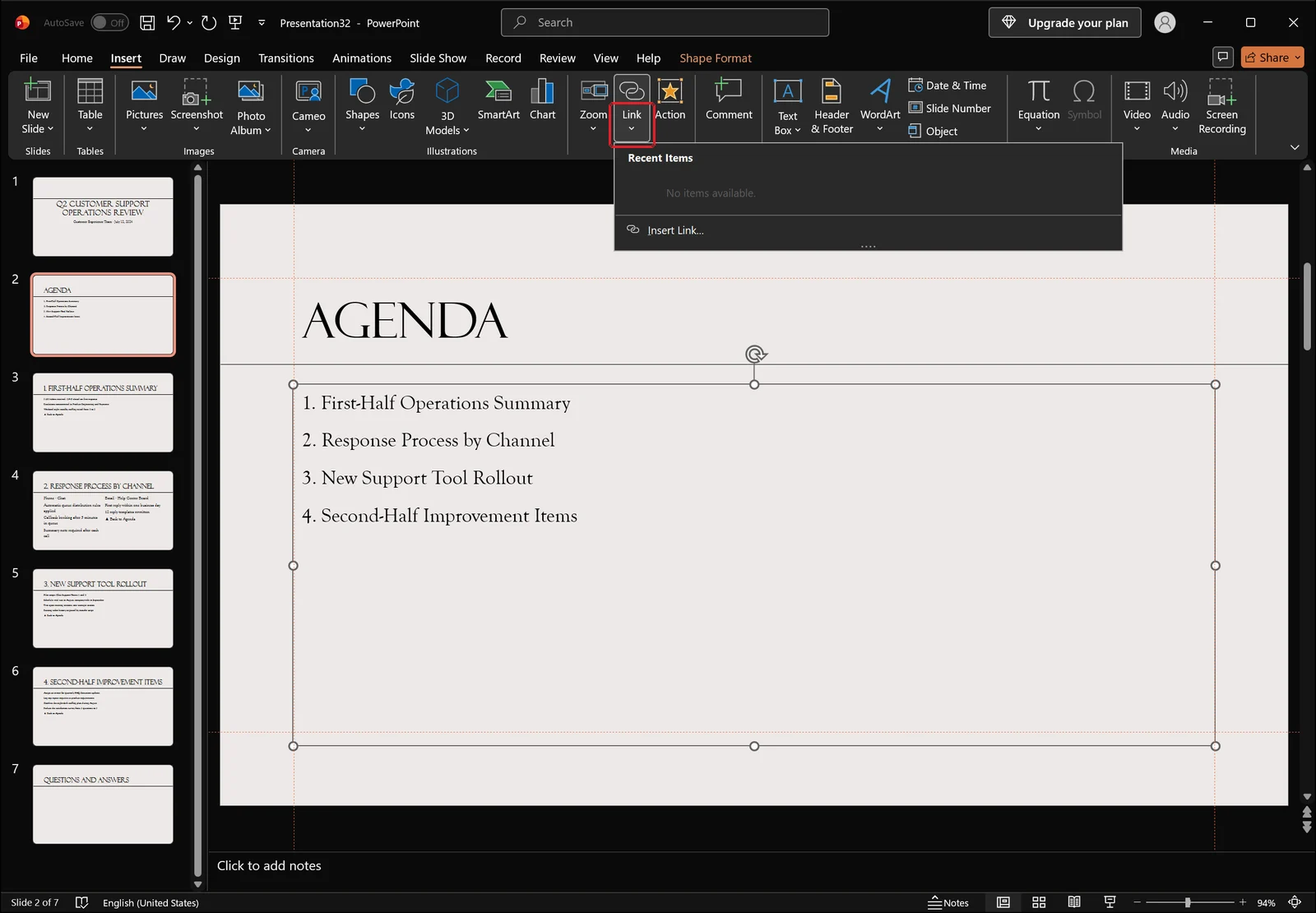
Click the arrow on the Link button and a dropdown opens. Recent items may be empty, in which case only a "no items available" note appears, so choose Insert Link underneath it to open the dialog. Ctrl+K opens the same dialog without touching the ribbon.
Pick the destination slide
In the dialog, select Place in This Document on the left. The right side lists First Slide, Last Slide, and every slide title in the file. Pick the title that matches your agenda item and confirm.
While you are in the dialog, the ScreenTip button lets you write the tooltip that appears on hover during a presentation. Something short like "Go to Section 3" makes it obvious to the presenter that a link is there.
Once you confirm, the linked text picks up an underline and switches to the theme's hyperlink color. That visual change is your confirmation that the link took. Repeat for the remaining agenda items.
Use Action when hover behavior matters
If you want a response to a mouse-over rather than a click, or a sound to play on navigation, a different command handles it.
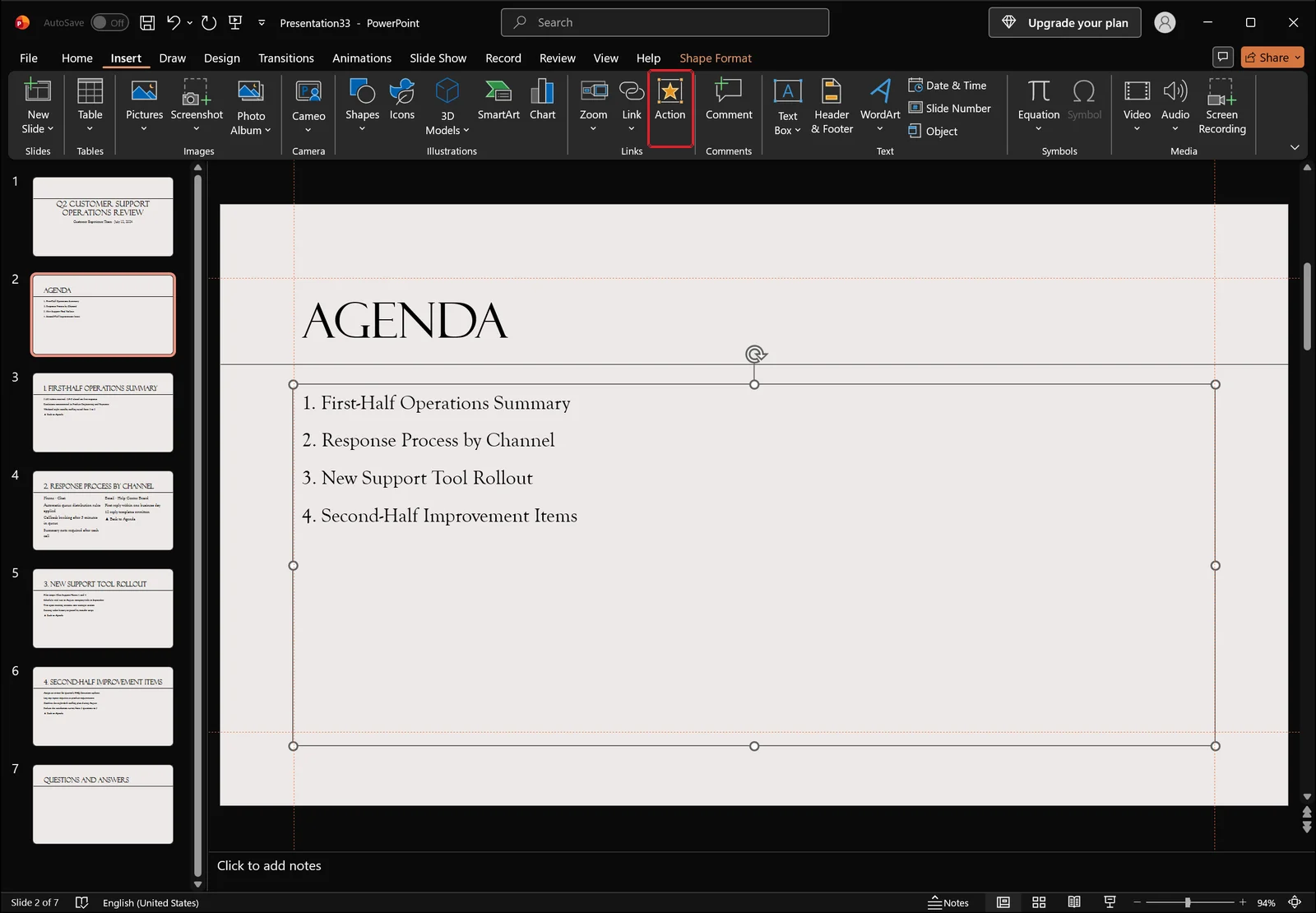
The Links group on the Insert tab holds Link, Action, and Zoom side by side. Select a shape, click Action, and you get separate settings for Mouse Click and Mouse Over, plus destinations such as Last Slide Viewed that a plain hyperlink does not offer.
Adding a Back-to-Agenda Link on Every Slide
Place a "Back to Agenda" text box
Links that lead out of the agenda only solve half the problem. To move freely during a presentation, each content slide needs a way back.
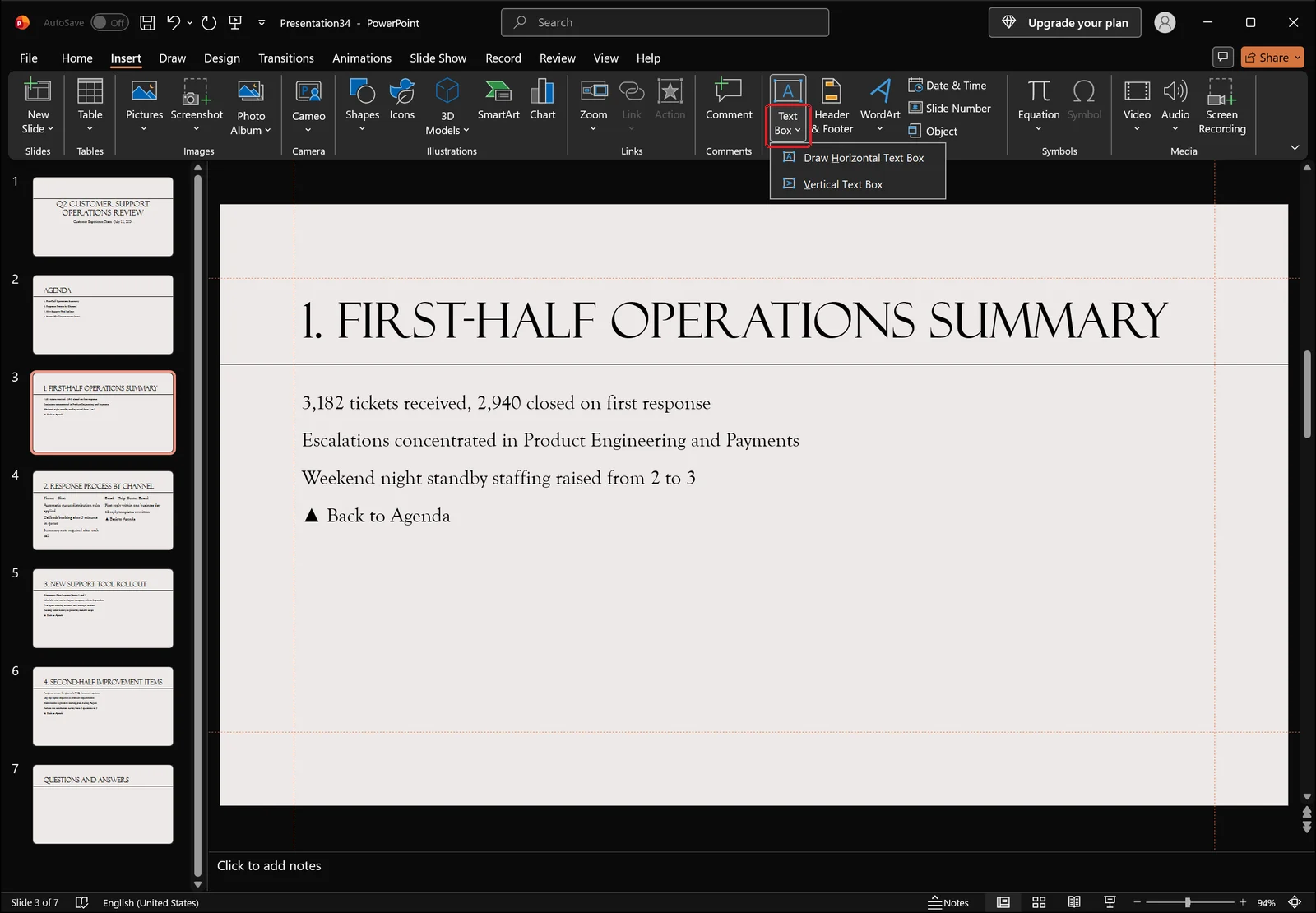
On the Insert tab, open Text Box and choose the horizontal text box option. Draw a small box in the lower-right corner of the slide and type something like "▲ Back to Agenda". Select the text box, press Ctrl+K, and point it at the agenda slide. Copy the finished text box and paste it onto the remaining slides: position, formatting, and the link all come along.
What to watch for with Slide Master
Putting the same button in the same spot on every slide sounds like a job for the Slide Master.
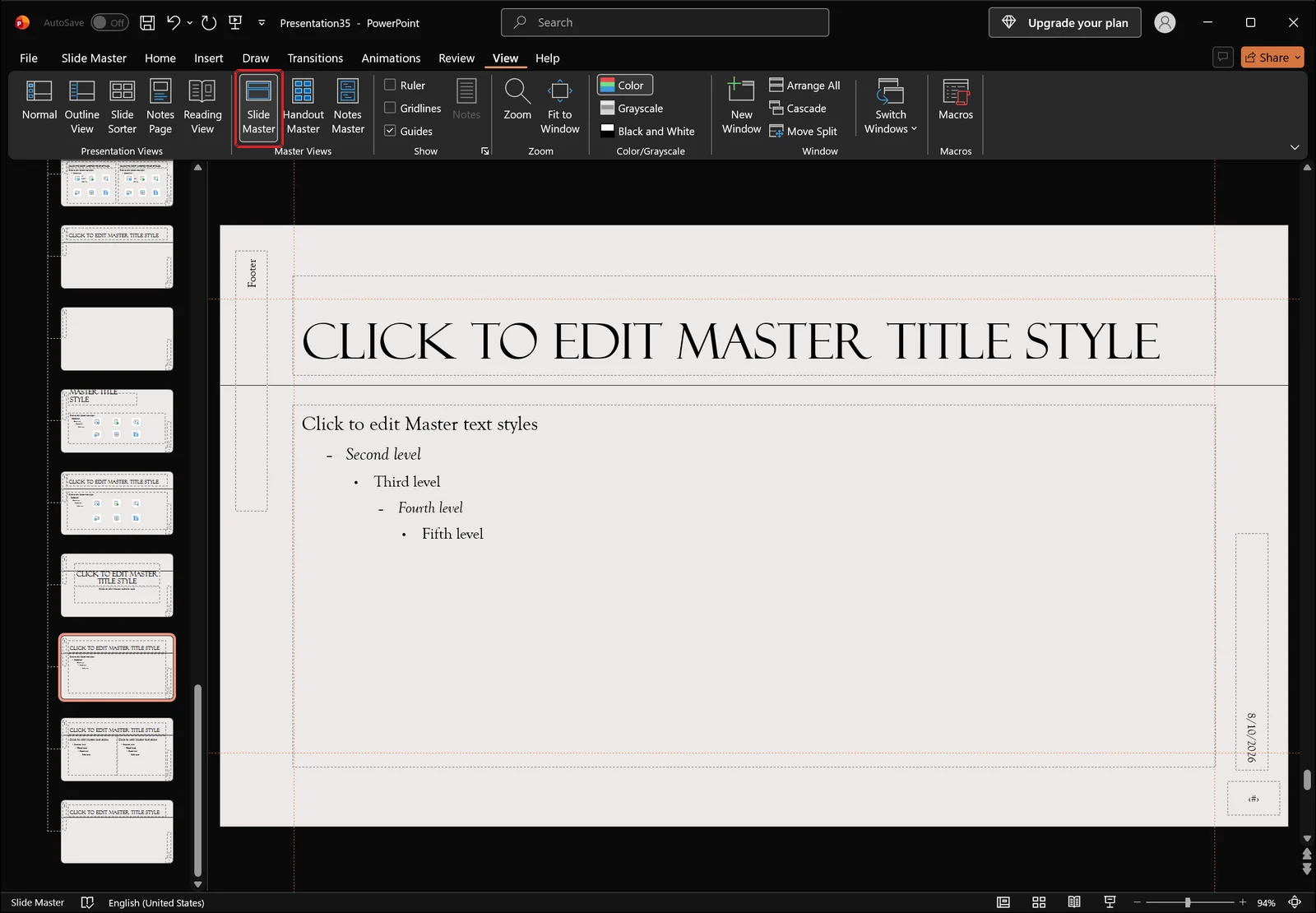
Slide Master on the View tab opens the master along with its child layouts in the left pane. Anything you place there appears in the same position on every slide using that layout.
The catch is that objects living on a master or layout are frequently not clickable during a slide show, because they are treated as part of the background. The reliable approach is to use the master to fix the button's position and styling, then copy the actual clickable link object onto each slide.
👉 How to Use Slide Master in PowerPoint: Format Every Slide
Where the return link points depends on the deck. If the agenda is always slide 2, target that slide directly. If a slide can be reached from several places, Action settings with Last Slide Viewed feels more natural. And when you need to drop straight back to the cover, target First Slide.
Changing Hyperlink Color and Underline, and Removing Links
Why the Font Color button does nothing
Select linked text, change the font color, and the color on screen often refuses to budge. Hyperlink text color is not controlled by the ordinary font color at all: it comes from the Hyperlink entry in the theme colors. The color a link turns after it has been followed is a separate entry, Followed Hyperlink.
To change either one, go to the Design tab and open the Colors button next to the theme gallery, then customize the color set and set Hyperlink and Followed Hyperlink to what you want. Because these are theme colors, the change applies to every link in the file. Giving individual links different colors is not something this route can do.
To drop the underline, link a shape instead
The underline on linked text is stubborn and does not respond well to formatting. If you want a clean agenda with no underlines, skip linking the characters. Draw a shape, apply the link to the shape, and type the text inside it. The text stays ordinary text, so color and underline are yours to control, and the click area becomes the whole shape.
Removing and editing links
To remove a link, right-click the text or object and choose Remove Hyperlink. To change only the destination, select the link, press Ctrl+K, and pick a different slide in the dialog. The same dialog has a button for removing the link outright.
There is no way to strip several links at once. Selecting every object on the slide does not turn it into a batch operation, so links come off one at a time.
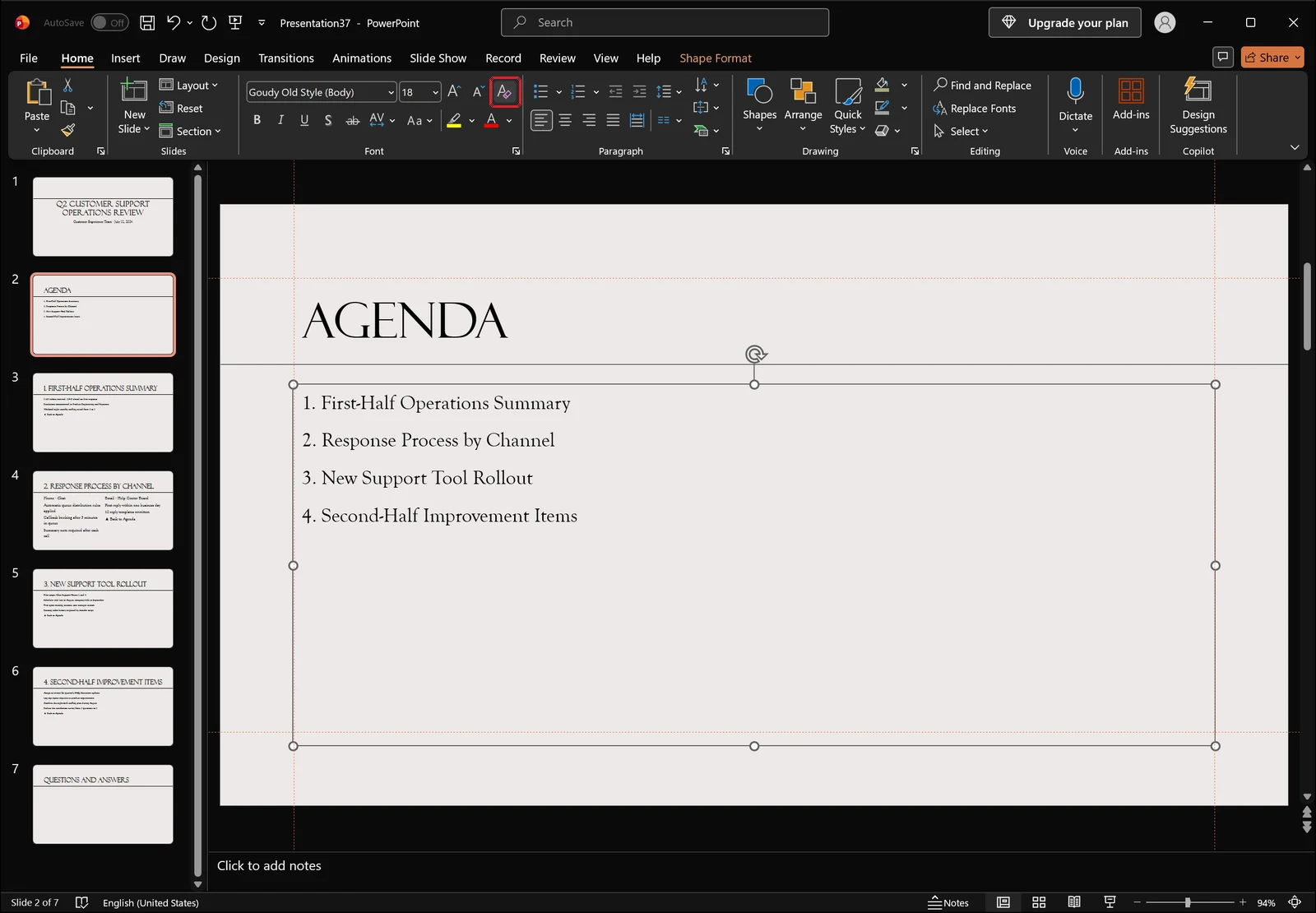
If you are planning to scrap the current styling and rebuild the agenda from scratch, the Clear All Formatting button in the Font group on the Home tab is faster. As above, the color and underline on the agenda items drop away and the text returns to default formatting. Keep in mind that this command resets character formatting only, so pair it with Remove Hyperlink when you want the links themselves gone.
When Clicking Does Nothing: Checks by Cause
You clicked in the editing view
By far the most common cause. Clicking a link in normal editing view just drops a cursor into the text. If you only want to confirm the destination while editing, hold Ctrl and click.
Test it in Slide Show
Actual behavior has to be checked in a slide show.
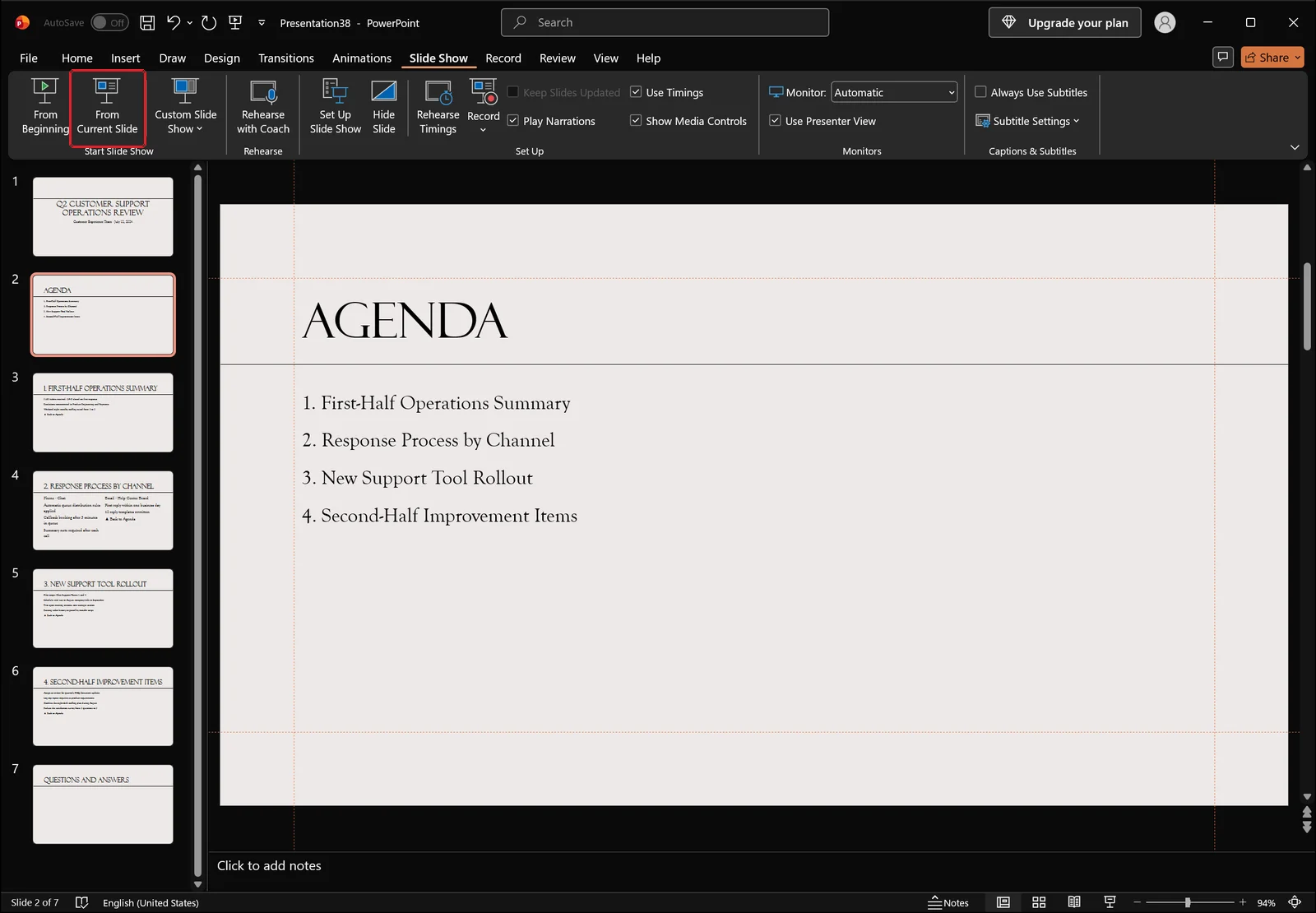
The Start Slide Show group on the Slide Show tab holds From Beginning, From Current Slide, and Custom Slide Show. With the agenda slide open, From Current Slide starts the show right there instead of at the title slide, which makes testing each link one after another much less tedious. The shortcuts are F5 for From Beginning and Shift+F5 for From Current Slide.
The Set Up Slide Show button in the same tab opens a dialog worth a look as well. If the show type is set to a kiosk mode, clicking anywhere on the screen no longer advances the deck and only link clicks register. If that was not intentional, this dialog is where to change it.
The destination slide was deleted
Delete the slide a link pointed to and clicking it either does nothing or lands somewhere unexpected. Slides copied in from another file can also carry links that still reference the original file. Either way, press Ctrl+K and reassign the target.
The link points to a hidden slide
Hyperlinks can jump to hidden slides without a problem. The wrinkle comes afterward: advancing from that slide skips the next hidden slide, which can make the sequence feel odd. For an appendix slide you show once and leave, add a return link on that slide too.
Another object is covering the link
A transparent shape or an oversized background image sitting on top of a link swallows the click.
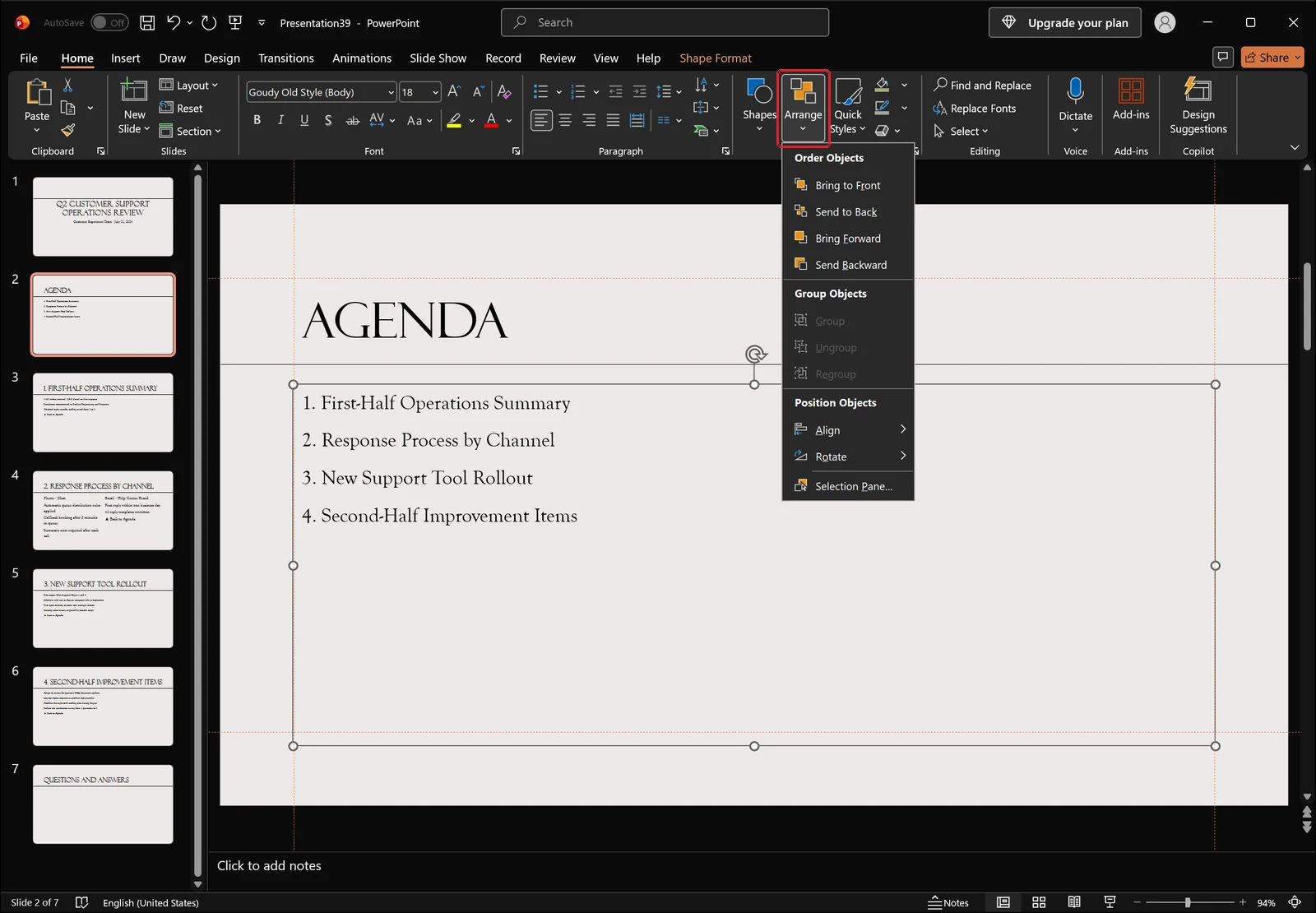
Select the linked object, open Arrange in the Drawing group on the Home tab, and apply Bring to Front. Clicks reach the link again. When you cannot tell what is stacked on top of what, the Selection Pane in the same menu lists the objects in order.
FAQ: PowerPoint Hyperlinks to Other Slides
Q. Why won't my hyperlink respond in the editing view?
A click there is handled as text editing, not link navigation. Run the deck with F5 for From Beginning or Shift+F5 for From Current Slide and the jump works normally. To check a destination without leaving edit mode, Ctrl+click the link.
Q. Does reordering slides break the hyperlinks?
Internal links reference the slide object rather than its number, so moving slides around generally leaves them working. Deleting a destination slide does break the link. Slides pasted in from another file may still point at that original file, so it is worth clicking through them once.
Q. How do I change hyperlink color and remove the underline?
The Font Color button will not do it. Open the Colors button on the Design tab, customize the color set, and set the Hyperlink and Followed Hyperlink entries. For text with no underline at all, link a shape instead of the characters and type the text inside the shape.
Q. Can I remove several hyperlinks at once?
There is no batch removal, so links come off one object at a time, either by right-clicking and choosing Remove Hyperlink or by using the remove button in the Ctrl+K dialog. If there are a lot of them, running Clear All Formatting on the Home tab and then re-adding only the links you still need can be quicker.
Cutting Deck Prep Time with inline AI
Linking an agenda means opening the dialog once per item and picking a destination each time, and removing links means going object by object. The linking work itself is fine to do by hand, but the preparation in front of it does not have to be. inline AI is a document agent that runs locally on your PC: it can read your Word and Excel files directly and, from a plain-language request, pull together the tables and figures you need for the deck or tighten up agenda wording. Nothing is uploaded to a cloud service, so internal performance data and customer records stay on your machine.
See what an agent could take over at your company in a 30-minute call.