Learn
Add Speaker Notes in PowerPoint: Notes Pane to Presenter View

Shrinking your script to 8pt and tucking it into the bottom corner of a slide is not a safe hiding place. Anything sitting on the slide goes up on the projector at full size, no matter how small it looks on your laptop. The proper way to add speaker notes in PowerPoint is to store the script in a separate area attached to each slide, one that only you can read while you present. This guide covers three ways to open the notes pane, how to write and trim a script that matches your speaking time, how to enlarge note text for every slide at once, how to read notes on stage with Presenter View, and what to do when notes go missing or need to be stripped out before you share the file.
What Speaker Notes Are, and Why the Audience Never Sees Them
Where notes actually live
Every slide carries its own notes area. It is not a separate scratch file, it is saved inside the presentation itself, so moving the deck to another machine brings the notes along with it. Copy a slide into a different deck and its notes come too.
Notes, slide text, and comments are three different things
Two features get confused with notes. The first is a text box you draw directly on the slide. The second is a review comment. Text box content is part of the slide, so it projects like everything else. Comments are for collaboration and never appear in Presenter View.
The body placeholder on a slide belongs to the audience. Paste your talking script into it and people read ahead of you while the slide turns into a wall of text. Everything you would actually say out loud belongs in the notes instead.
Where notes appear and where they don't
Notes show up in exactly three places on screen: the notes pane under the editing area, Notes Page view, and the Presenter View screen during a show. Add printouts made with the Notes Page layout and that is the full list. The slide show output going to a projector or second display never includes them.
Three Ways to Open the Notes Pane
The Notes button on the View tab
The most reliable route is the ribbon. On the View tab, in the Show group, click Notes and a notes pane opens beneath the slide. It is a toggle, so clicking it again closes the pane.
Watch out for a similarly named command on the same tab. Notes Page, in the Presentation Views group, is a different thing entirely: it replaces the whole editing area with a print preview layout. Keep the two straight.
The status bar and the divider line
The status bar at the bottom of the window also has a control for showing notes. If you cannot find it, right-click anywhere on the status bar and turn the item on from the list that appears.
You can also drag the divider between the slide and the notes area upward. When the pane is collapsed the divider sits flush against the bottom edge and is easy to miss, so the ribbon button is the easier starting point.
Making a cramped pane usable
By default the notes pane shows two or three lines, which is not enough to write against. Drag the divider up and you can see the whole script while you type.
Enlarging the pane shrinks the slide in the editing area, but nothing about the slide changes. Font sizes and object positions stay exactly where they were; only the screen split moves.
👉 Outline View in PowerPoint: Create Slides Fast from Text
Writing and Trimming Your Script Slide by Slide
Type sentences, not fragments
Click into the notes pane and start typing. Select a different slide in the thumbnail pane and the notes swap to that slide's script automatically.
Length is a function of speaking pace. Most people deliver around 130 to 150 words per minute at a comfortable rate, so if a slide is meant to take one minute, aim for roughly that many words in its notes.
Keywords on the slide, sentences in the notes
Once the notes hold your script, the slide itself can lose weight. Leave only what the audience needs to scan, and push every explanatory sentence down into the notes.
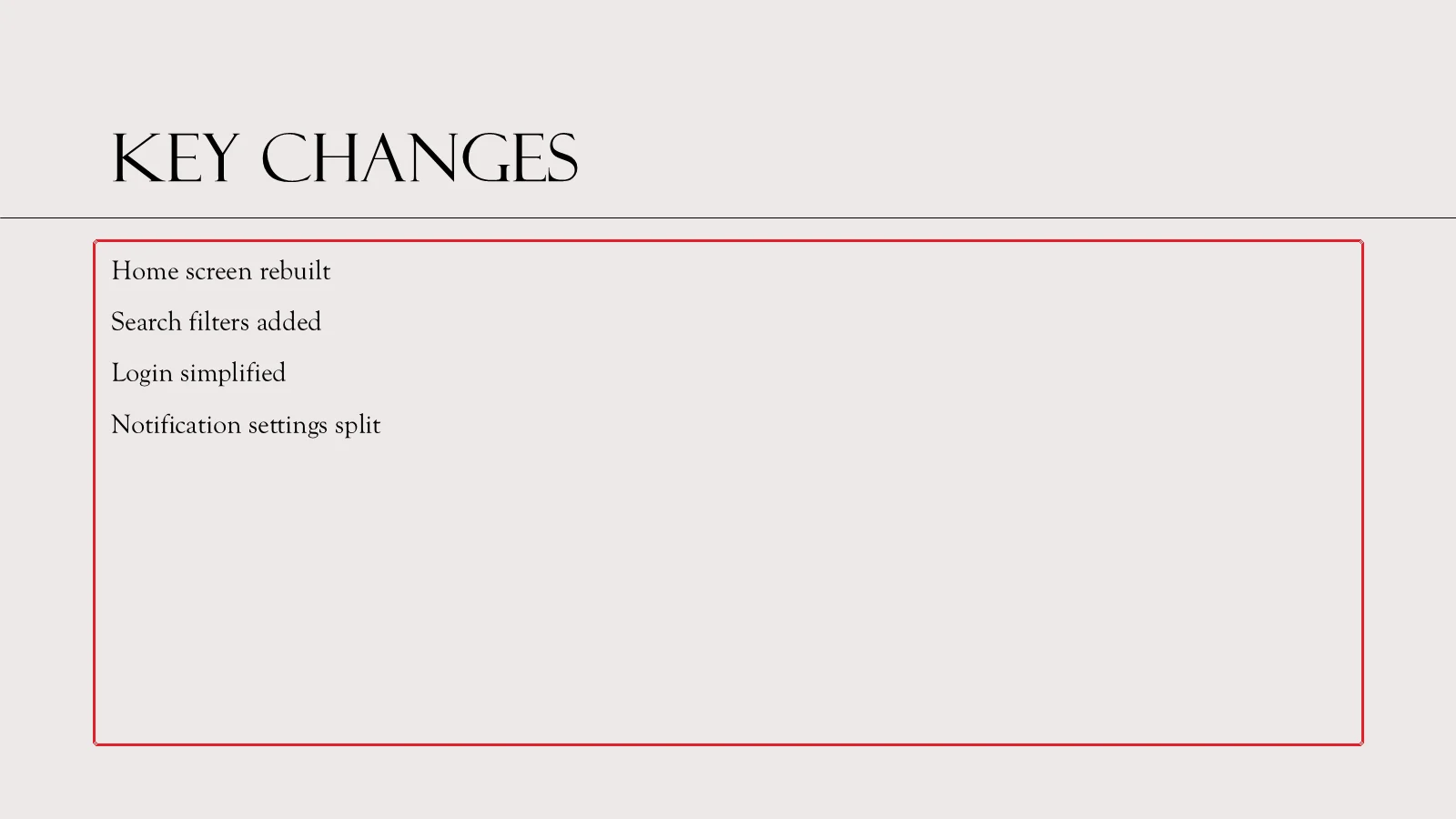
Each of the marked lines is a noun phrase, not a sentence. The order you cover them in, and the background behind each change, live in the notes. The slide stays light and the explanation stays with you.
Check the real length in Notes Page view
The notes pane is too narrow to judge how much you have written. Notes Page view lays out the same slide the way it would print, so whatever you type there is shown at printed size.

On the View tab, in the Presentation Views group, click Notes Page. The editing area turns into a portrait page laid out the way it would print.

The top half holds a reduced image of the slide and the bottom half is the notes block. In the screenshot above that block is still empty, so it shows the "Click to add text" prompt. Click the prompt and type, and you can see at a glance whether the script fits inside the block: whatever overflows it will be cut off in print too, so trim it here.
One caveat: formatting is often flattened on the Presenter View screen. If a line genuinely needs emphasis, mark it with a line break or square brackets rather than relying on bold.
Return to Normal view
When the script is done, go back to editing.
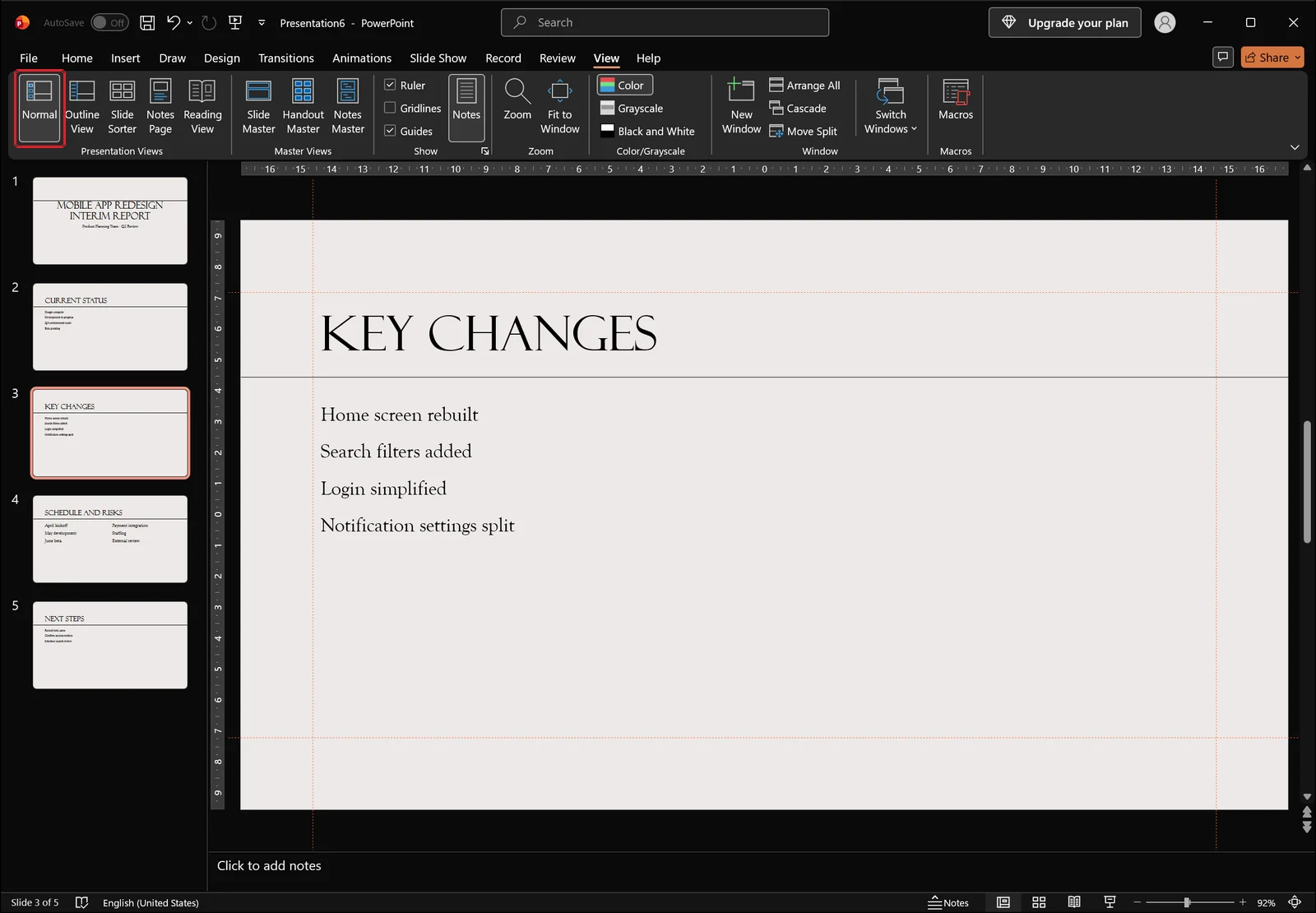
Click Normal at the left end of the Presentation Views group and you are back to the thumbnail pane, the slide, and the notes pane underneath. In the screenshot the selected slide has no notes yet, so the pane shows the "Click to add notes" prompt; click there to keep writing.
Notes Text Too Small? Fix It Once in Notes Master
Open Notes Master from the View tab
If notes print too small to read, resizing them slide by slide leaves you with an inconsistent handout. The place to change the baseline for every slide at once is Notes Master.
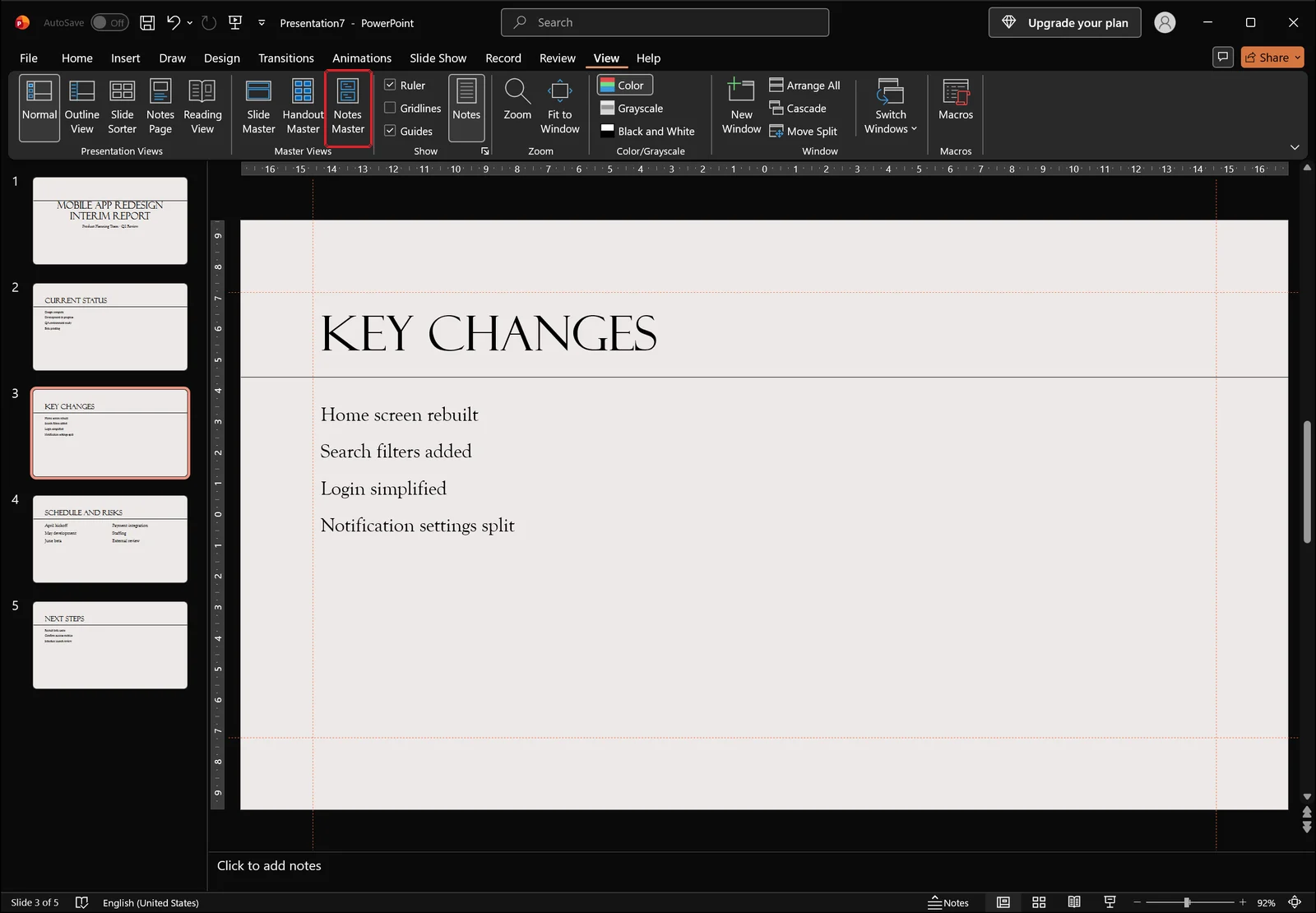
On the View tab, in the Master Views group, click Notes Master. The window switches to a dedicated view for editing the notes page layout.
Change the font and size of the notes placeholder
Click the border of the notes text placeholder in the lower half of the page to select it, then set the font and size on the Home tab. Set it to 12pt here and every slide's notes page follows.
That size applies to Notes Page view and to notes printouts. Text size on the Presenter View screen is a separate setting adjusted during the show itself. People often mistake the two for one control and keep editing the master with no effect on stage, so keep them apart in your head.
Tidy up headers, footers, and the slide image
The master also shows placeholders for the header, date, footer, and page number. Clear the check boxes on the ribbon for anything you do not want, and the printout comes out cleaner.
Turning off the slide image removes the thumbnail from the notes page and leaves only the script. If the goal is a page you hold in your hand and read from, dropping the image buys you room for larger text.
Close the master and confirm
Close the master view to return to editing. Click Notes Page on the View tab again and check that the new text size carried across all the slides.
👉 How to Use Slide Master in PowerPoint: Format Every Slide
Presenting with Presenter View
Confirm Use Presenter View on the Slide Show tab
With the notes written, the next question is how to read them while you talk. The settings sit on the Slide Show tab.
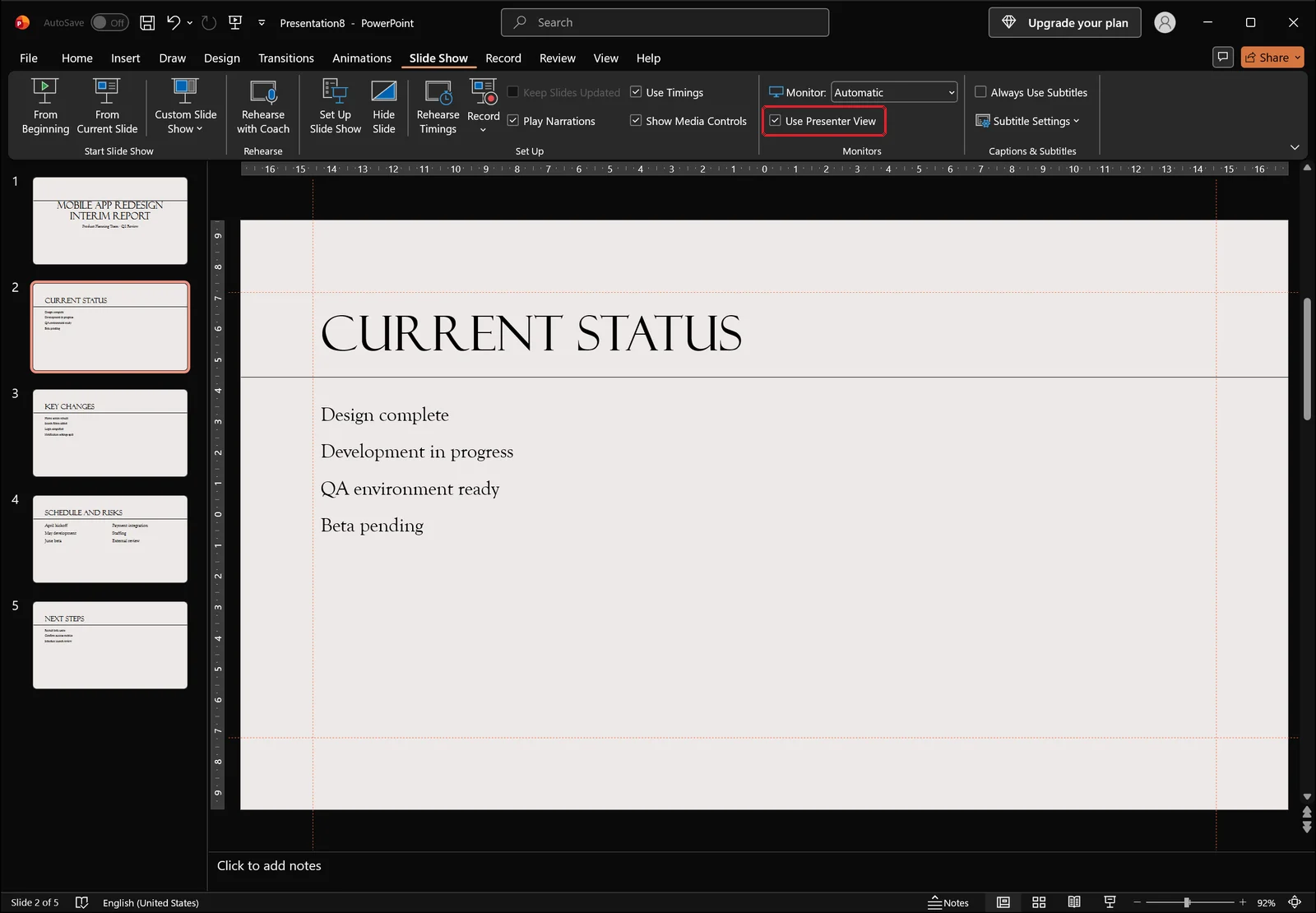
When Use Presenter View in the Monitors group is checked and two displays are connected, PowerPoint splits the output automatically. Your laptop gets the notes, a timer, and a preview of the next slide, while the projector gets the slide alone. The monitor dropdown to the left of the check box decides which display carries the show.
See every option at once in Set Up Show
The same settings are also collected in a dialog box.
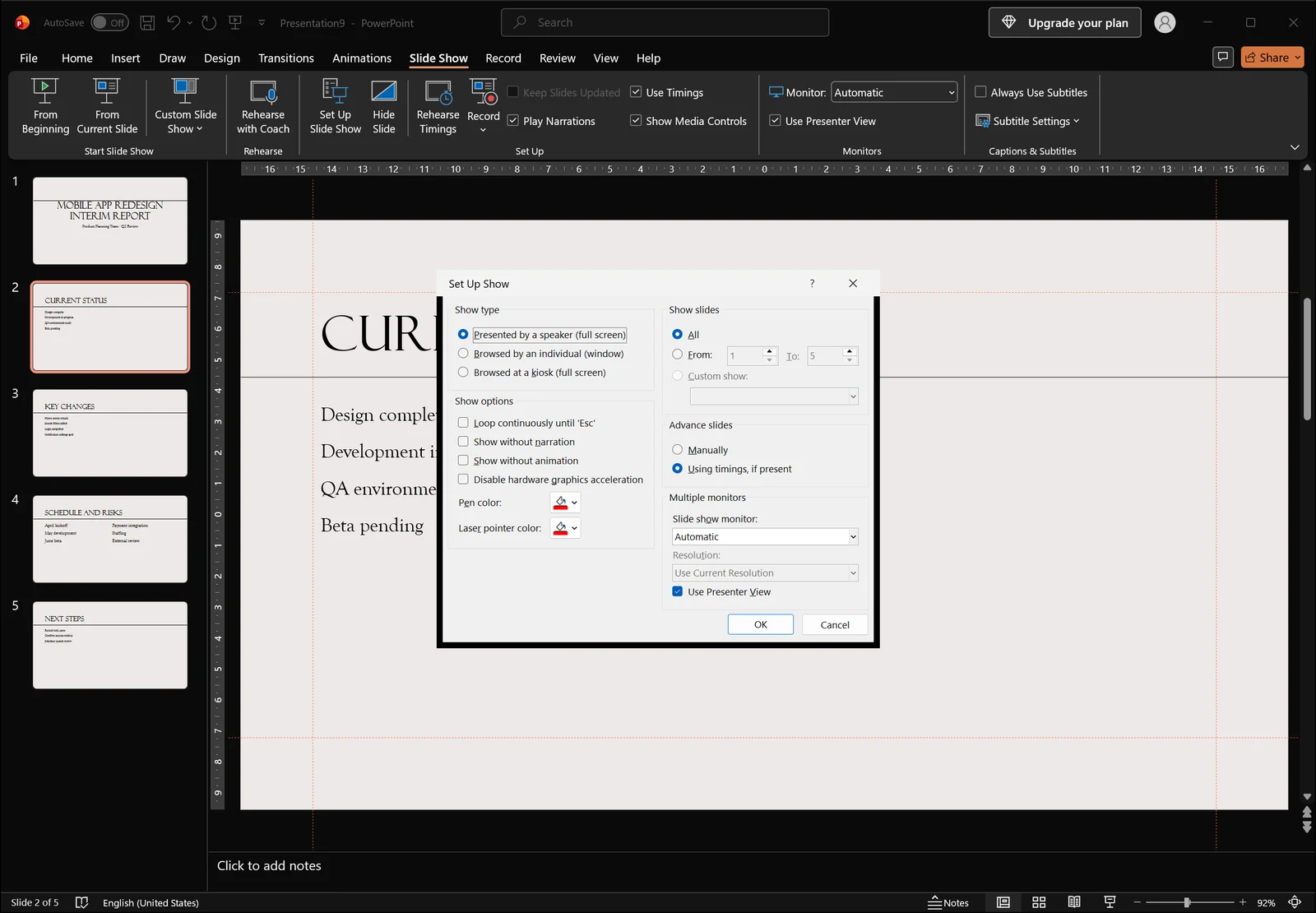
At the top left you choose the show type: presented by a speaker in full screen, browsed by an individual, or browsed at a kiosk. The show options section covers items like pen and laser pointer color, the slides section limits the range you want to run, and the multiple monitors section at the bottom repeats the monitor dropdown and the presenter view check box, so you can verify from here what you turned on in the ribbon.
Rehearse from the slide you are working on
While you polish a script, you often need to run one slide again rather than the whole deck. Select that slide in the thumbnail pane and start the show from the current slide instead of from the beginning, using the Start Slide Show group on the same tab. It saves a lot of clicking when you are reworking slide three for the fifth time.
Enlarge notes during the show and watch the next slide
The notes panel sits on the right of the Presenter View screen, with buttons underneath for making the text larger or smaller. If the confidence monitor is far from where you stand, tap the enlarge button once or twice before you begin.
Above the notes is a thumbnail of the next slide. Seeing what comes next while you finish the current point makes it much easier to build a natural transition.
You can rehearse on a single monitor too. Start the show, then press Alt+F5, or right-click the show screen and choose the option to show Presenter View.
Reversed displays are a common venue problem. If the audience is looking at your notes, use the display settings at the top of the Presenter View screen to swap Presenter View and the slide show between the two screens.
When Notes Won't Show, or Need to Be Removed
A quick checklist when the pane looks empty
If you know you wrote notes but cannot see them, it is almost always one of four things: the notes pane is collapsed, you are in a view that has no notes pane such as Reading View, the script went into a text box on the slide instead of the notes, or you are looking at a different slide than you think.
Check in that order. Confirm you are in Normal view, click Notes in the Show group to open the pane, and if it is still empty, switch to Notes Page view to see whether that slide actually holds any text.
Do not mistake comments for notes
Sometimes the script ended up in a comment instead. Comments are a separate feature on the Review tab, they appear in a side pane, and they never show up in Presenter View. Comments are for review feedback like "please double-check this figure." Your delivery script belongs in the notes.
Clearing notes on one slide
To wipe a single slide's notes, click into the notes pane, press Ctrl+A to select everything, and press Delete. Selecting the notes block in Notes Page view and deleting it does the same job.
Check for leftovers before you share the file
Sharing the deck after the meeting is where notes become a liability. Lines like "these numbers are not final yet" are exactly the kind of thing that should not travel outside the room.
To remove all of them at once, go to the File tab, open Info, run Check for Issues > Inspect Document, inspect the presentation notes item, and click Remove All. The action cannot be undone, so keep the original and run the inspection on a copy.
Speaker Notes in PowerPoint FAQ
Q. Can the audience see my speaker notes?
No. Notes never appear on the slide show output sent to a projector or a second display. They appear only in Presenter View, in Notes Page view, and on notes printouts. The exception is a script typed into a text box on the slide itself, which projects like any other slide content, so check where you actually typed it before you present.
Q. I only have one monitor. Can I still practice with notes?
Yes. Start the slide show and press Alt+F5, or right-click the show screen and choose the option to show Presenter View. It opens on a single display. Splitting the audience screen from your notes during a real presentation, however, requires two displays.
Q. How do I print my speaker notes as a script?
On the File tab, go to Print and change the layout setting to Notes Pages. Each page prints a reduced slide with the notes underneath. If the text comes out too small, enlarge the notes text placeholder in Notes Master first, then print.
Q. Can I delete the notes from every slide at once?
Yes. File > Info > Check for Issues > Inspect Document, inspect the presentation notes item, and click Remove All. The removal cannot be undone, so keep a copy of the original before running it.
Writing presentation notes with inline AI
The steps above settle where notes live and how to display them, but writing and trimming twenty slides' worth of script is still manual work. Clicking between slides, rewriting sentences, and cutting the length to fit a time limit is where most of the hours go.
inline AI is a desktop AI that runs on your PC and can open a PowerPoint file directly, read the body text and notes on each slide, and edit them. Ask it in plain language, such as "write a one-minute script into the notes of each slide based on the body keywords," and it saves the modified file.
Because the work happens on your own machine, an unreleased interim report never has to be uploaded to an outside server.
See what an agent could take over at your company in a 30-minute call.