
Blog
Lock Cells in Excel: Protect Shared Templates with AI

Locking cells in Excel is the standard way to stop people from typing over formulas, but on its own it does nothing. Every cell is already marked Locked, and none of them are protected until someone turns on sheet protection. In a company, that gap shows up in shared files: a quote template that ten sales reps copy every week, an order sheet where the unit price is a lookup, a stock count sheet that warehouse staff fill in. One overwritten formula and the totals quietly go wrong for everyone who copies the file afterwards.
Setting protection up correctly means unlocking the input cells, locking the rest and protecting the sheet, file by file. In the AI Browser, the employee keeps the template open in a tab and asks the AI beside it to do that work, then checks the result before it is saved.
Locking cells in the AI Browser
The scene: a quote template that keeps breaking
At Summit Trading, the sales team works from Quote_Template_2026.xlsx. Reps fill in the customer, item code and quantity; the unit price, discount, tax and total are formulas that pull from a price sheet. Twice last month a rep typed a price straight into the Unit Price column, and the quote went out with a number that did not match the price list.
The sales coordinator opens the template in a tab of the AI Browser and types into the AI panel:
"On the Quote sheet, unlock the yellow input cells for customer, item code and quantity. Lock every formula cell, including unit price, discount and total. Then protect the sheet so people can only select unlocked cells."
What the AI does, step by step
- Reads the sheet structure. It finds which cells hold formulas, which hold constants and which are shaded as input cells, and notes that the whole sheet is still marked Locked by default.
- Lists the plan before changing anything. For example: unlock B4:B6 and B10:B29 and D10:D29; keep E10:H29 and H31:H34 locked because they contain formulas; allow only "Select unlocked cells."
- Flags anything that does not fit. If a yellow cell actually contains a formula, or a formula cell has a hard-typed number in it, the AI points it out instead of guessing.
- Applies the settings to the open file once the coordinator confirms: Format Cells protection for each range, then Protect Sheet with the chosen options.
What the employee checks
The coordinator clicks a few input cells to confirm they still accept entries, tries one formula cell to confirm it is blocked, and reads the AI's summary of which ranges were changed. If the template has a password policy, the coordinator sets the password personally; the AI does not invent one or keep it.
How it stays safe
The AI edits the template only because the coordinator can edit it, and it asks for confirmation before replacing a master template the whole team copies. The ranges it locked and unlocked, and who confirmed them, are recorded, so the next time a price looks wrong it is clear when the protection changed.
When the same rule applies to many files
Most teams have more than one template that needs this treatment: order forms, stock count sheets, delivery checklists. The coordinator opens the next one in a new tab and gives the same instruction. The AI proposes the input and formula ranges for that file, and she confirms them one template at a time.
👉 How to Unprotect an Excel Sheet: Passwords, Permissions and AI
Why locked cells are still editable
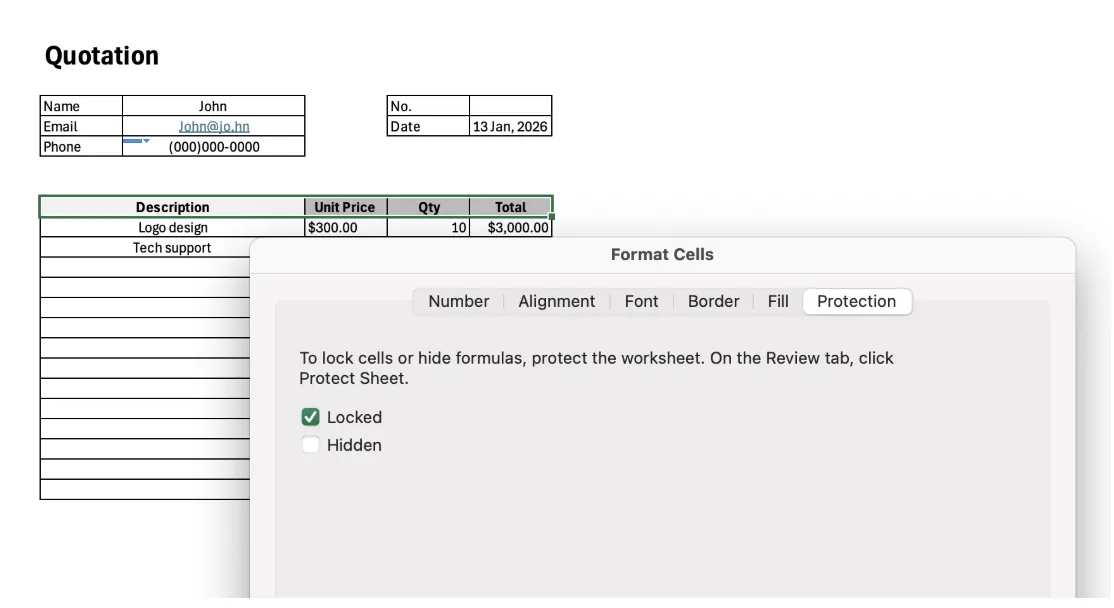
Excel protection works in two steps, and both have to be done:
- Cell locking marks which cells should be protected. Every cell starts out Locked.
- Sheet protection is what actually enforces it. Until it is on, locked cells can be edited freely.
That leads to the three usual complaints:
- "I locked the cells, but they can still be edited." Sheet protection was never turned on.
- "After protecting the sheet, I can't edit anything." The input cells were never unlocked, so they were protected along with everything else.
- "Protection disappeared after I shared it." Copying single sheets into a new workbook, pasting into another template or converting to Google Sheets can drop protection settings.

Doing it by hand
Step 1: Unlock all cells
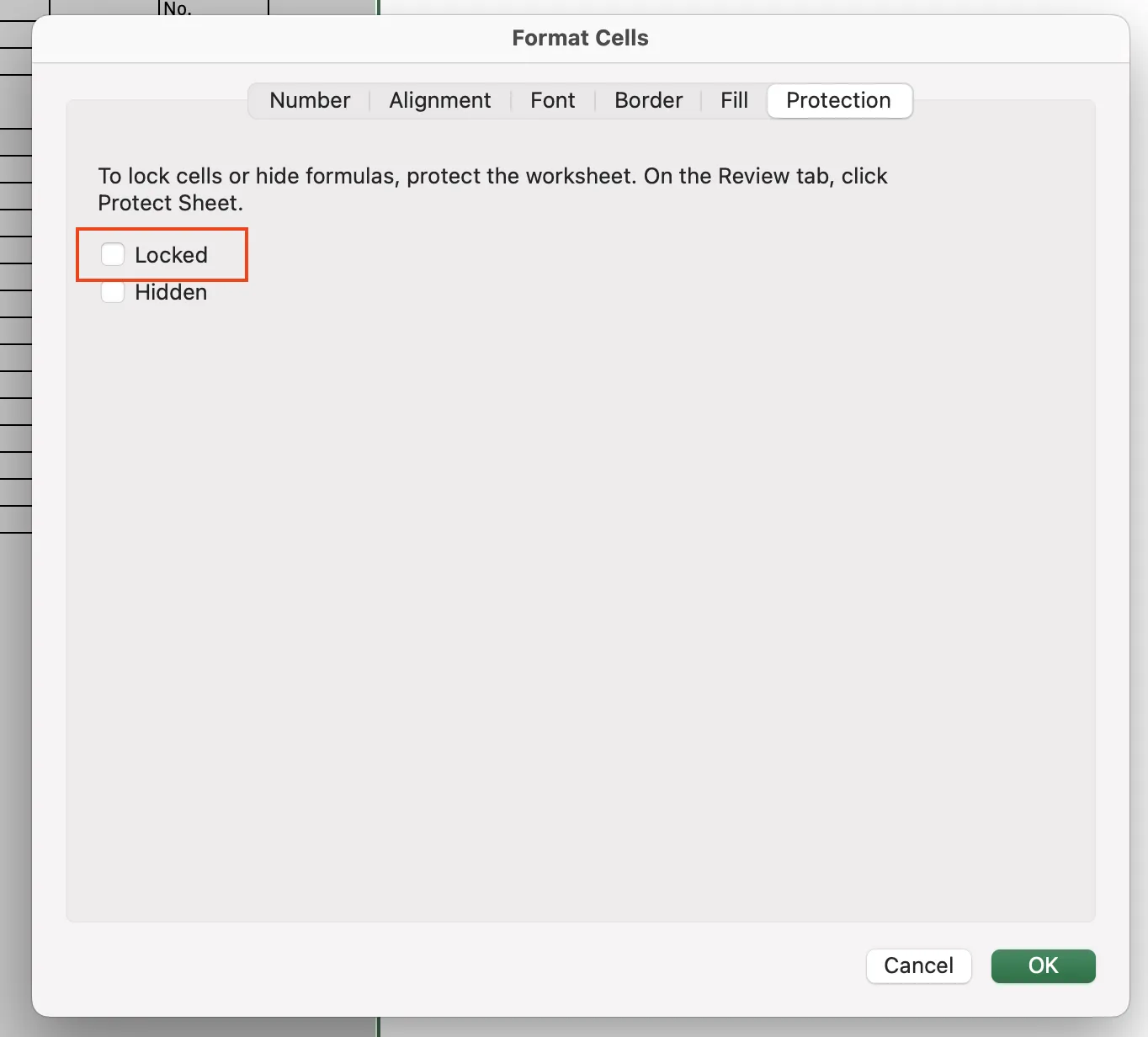
Select the whole sheet with Ctrl + A, open Format Cells → Protection and clear Locked.
Step 2: Lock only the cells that must not change
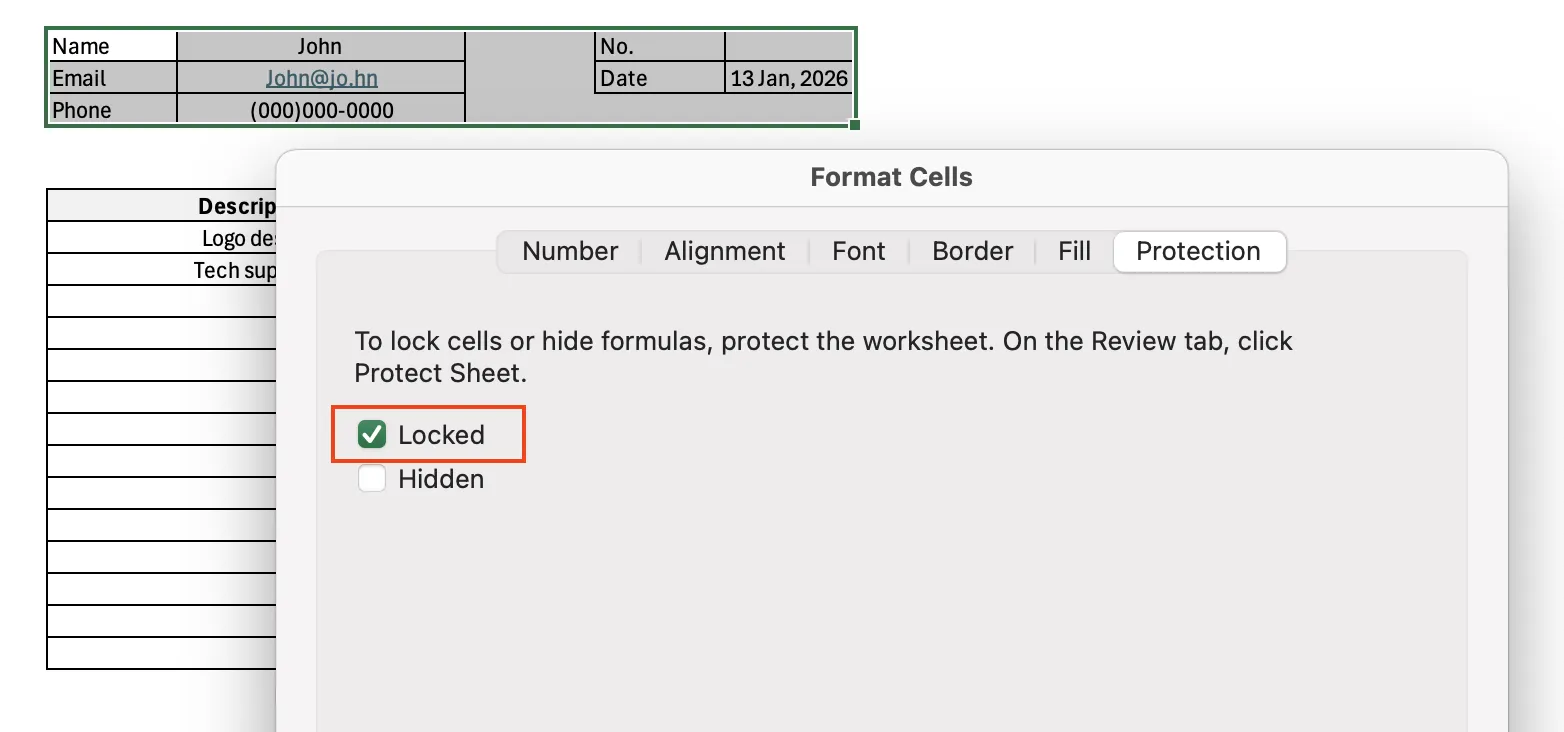
Select the formula and reference cells, open Format Cells → Protection again and check Locked.
Step 3: Protect the sheet
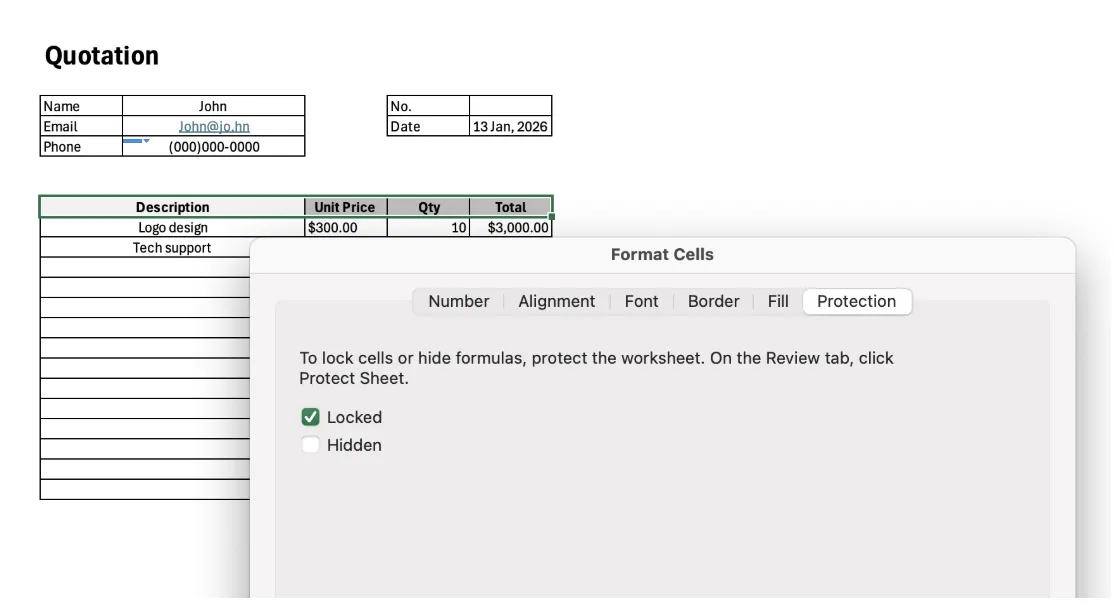
Go to Review → Protect Sheet and choose what users may do. For input-only sheets, allowing just Select unlocked cells is the safest choice.
A few habits that save trouble
- Passwords: Excel sheet passwords are close to impossible to recover. Keep them with whoever owns the template, not in a rep's notes.
- Mark input cells visually: a fill color or border on unlocked cells cuts down on "why can't I type here?" questions.
- Duplicate the whole file, not single sheets, when you make a copy, so protection carries over.
Excel cell locking: frequently asked questions (FAQ)
Q. Why can people still edit cells I locked?
Locking only marks the cells. Turn on Review → Protect Sheet and the lock takes effect.
Q. What if the AI locks the wrong cells?
It shows the ranges before applying them, and you confirm. If something still looks off afterwards, ask it to undo the change or unlock a specific range; the earlier state and the change are both in the audit log.
Q. Can the AI protect a file I don't have edit access to?
No. It works with your permissions, so a template you can only read stays read-only for the AI too.
Q. Where is our company data stored?
Company data is stored on AWS and is not used to train AI models. An eZDR agreement with the model provider means it stores neither prompts nor files.
Protecting shared templates with inline AI
Unlocking inputs, locking formulas and protecting the sheet is simple once, and tedious across every template a team shares. In the AI Browser, the employee keeps the file open and asks the AI beside it to set up the protection, reviews the ranges it proposes, and confirms. The work runs inside the company's accounts, permissions and approval policies, and every change is recorded in the audit log.
In the AI Browser, this takes one request
inline AI OS is a work browser where your team keeps company files open and hands the task to the AI beside them. Book a free consultation to see how it fits your operations.
Book a free consultation