Blog
How to Unprotect an Excel Sheet: Passwords, Permissions and AI

When you can't unprotect an Excel sheet, the cause is usually not the password. Excel has three separate kinds of protection, sheet, workbook and file encryption, and shared files add a fourth layer: whether you have edit permission at all. A greyed-out Unprotect button is often a view-only link, not a lock. In a company this comes up with controlled templates, like the monthly expense or budget sheet finance sends to every department with only the input cells open. Someone needs to change a locked cell, the person who set the password has moved on, and the question becomes who is allowed to unlock it. In the AI Browser, the workbook stays open in its tab and the AI beside it works out which layer is blocking you and what the right route is.
Three Kinds of Protection
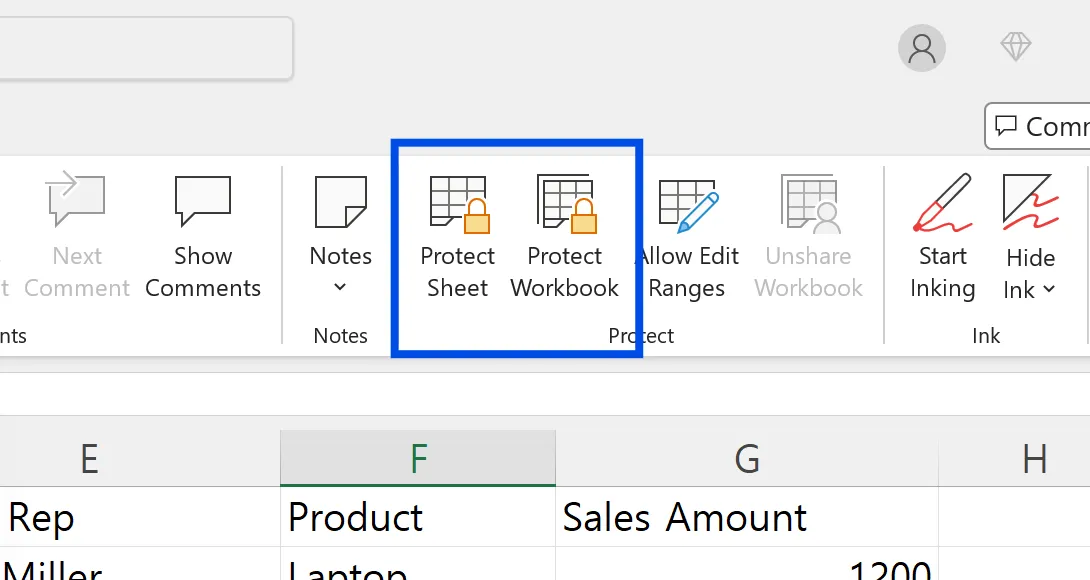
| Protection | What it blocks | Where to remove it |
|---|---|---|
| Sheet protection | Editing or formatting cells on a sheet | Review > Unprotect Sheet |
| Workbook protection | Adding, deleting, moving or renaming sheets | Review > Protect Workbook |
| File encryption | Opening the file at all | File > Info > Protect Workbook > Encrypt with Password |
If the file won't open, it's encrypted. If you can't add or move sheets, it's workbook protection. If only certain cells are blocked, it's sheet protection. Sheet protection prevents accidental edits; it is not a security control for confidential data.
Unprotecting a Sheet in the AI Browser
The setup: a locked budget template
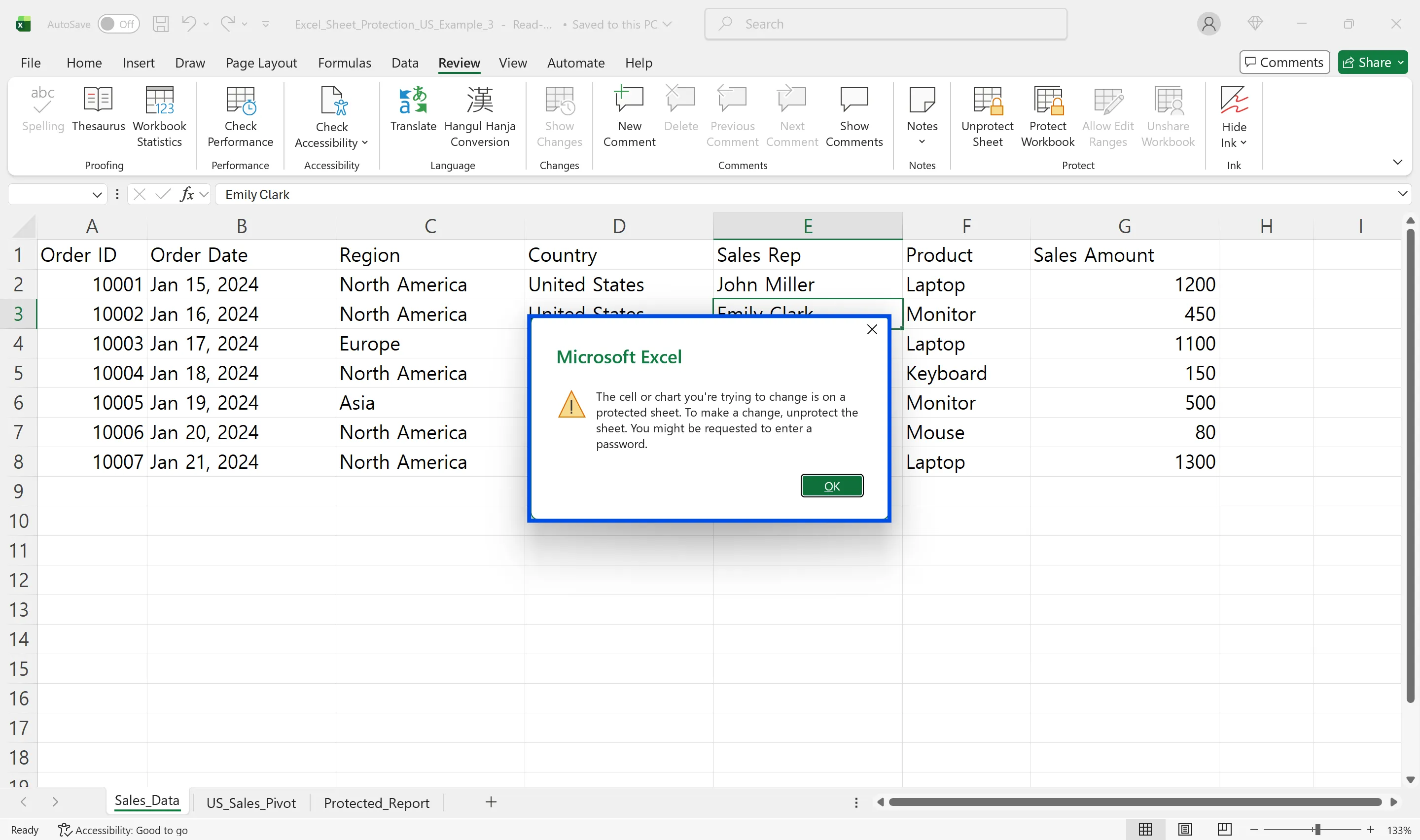
At a mid-sized manufacturer, finance sends each department a budget template every quarter. Only the input cells are unlocked; the formulas and account codes are protected. The production manager needs to add a line for a new piece of equipment, and the row they need is locked. The template's password was set by a colleague who has since moved to another team.
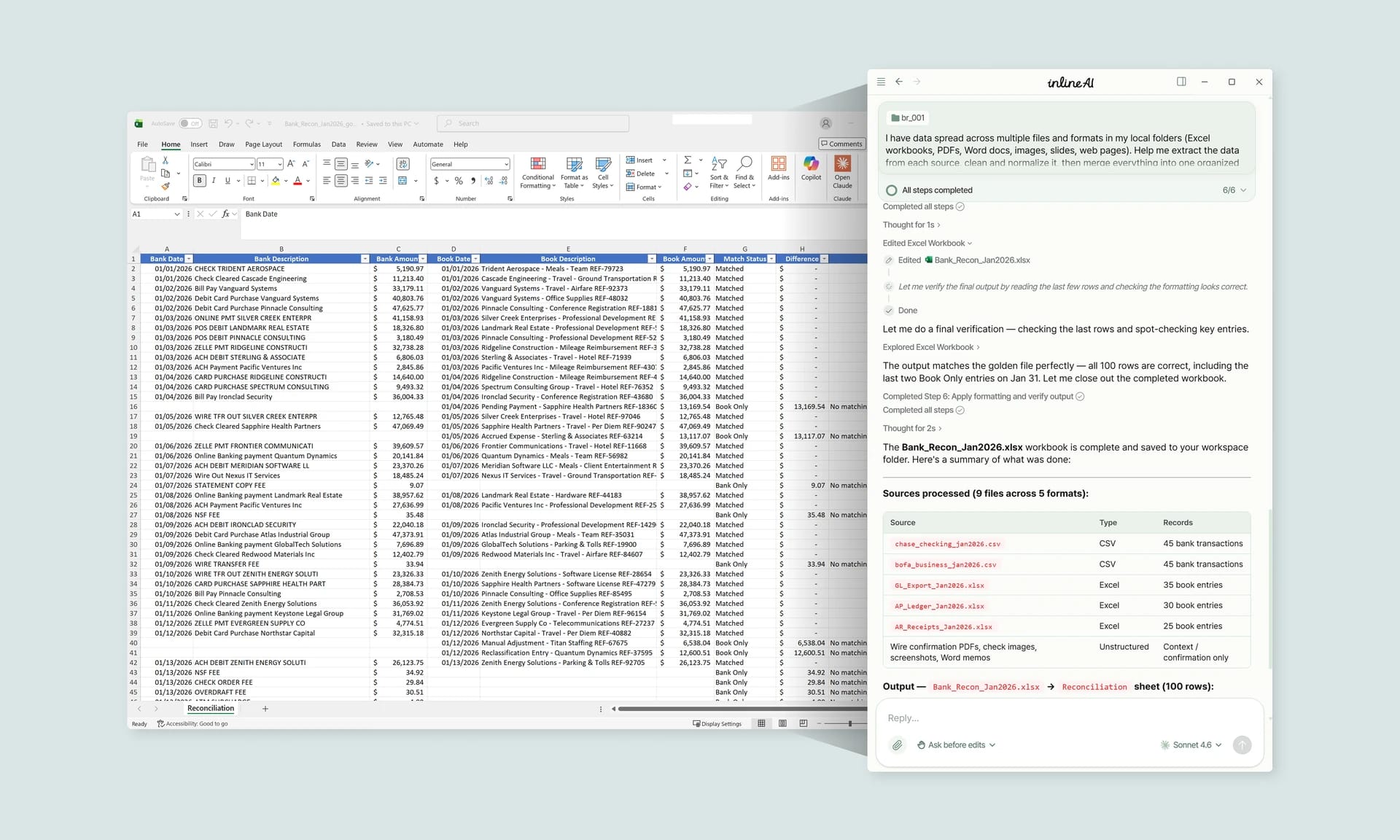
The production manager opens the workbook from the shared finance folder in an AI Browser tab and types:
"Why can't I edit row 24? I need to add an equipment line. Can you unlock just that row and keep the formulas protected?"
What the AI does
- Identifies the layers. It reports that the sheet is protected, the workbook structure is also protected, and the manager opened it through a view-only link from the finance folder. The view-only link is why the Unprotect button is greyed out.
- Checks permissions. The manager doesn't have edit rights on finance's master template, only on their department's copy. The AI opens the department copy instead.
- Doesn't bypass protection. The password is unknown, and the template belongs to finance. Removing protection from a controlled finance template is above the company's risk threshold, so the AI prepares a request to the template owner: which sheet, which row, and why, rather than working around the lock.
- Offers the narrow fix. Once finance approves and unlocks it, or provides the password, the AI can unlock only the cells needed for the new line and reapply protection with the same settings, so the formulas stay locked.
- Records it. The request, the approval and the change are all recorded in the audit log.
What the manager checks
The manager confirms the line was added in the right place and that the totals include it. Finance sees exactly which cells changed in their template, and why.
How it stays safe
The AI can only do what the manager's account is allowed to do. It doesn't open files the manager can't open, doesn't remove protection from files they don't own, and doesn't use tricks to strip passwords. Anything above the risk threshold, such as unlocking a controlled template, goes to the owner or an approver. Everything is recorded in the audit log.
Setting up protection on your own templates
Sheet protection is a workaround for a real need: letting each person edit only their part. On a template you own, the AI can set that up properly: "Unlock only the input columns, protect everything else, and allow sorting and filtering." It applies the protection, lists which cells stay editable, and the change is recorded like any other edit.
👉 Lock Cells in Excel: Protect Shared Templates with AI
Doing It by Hand
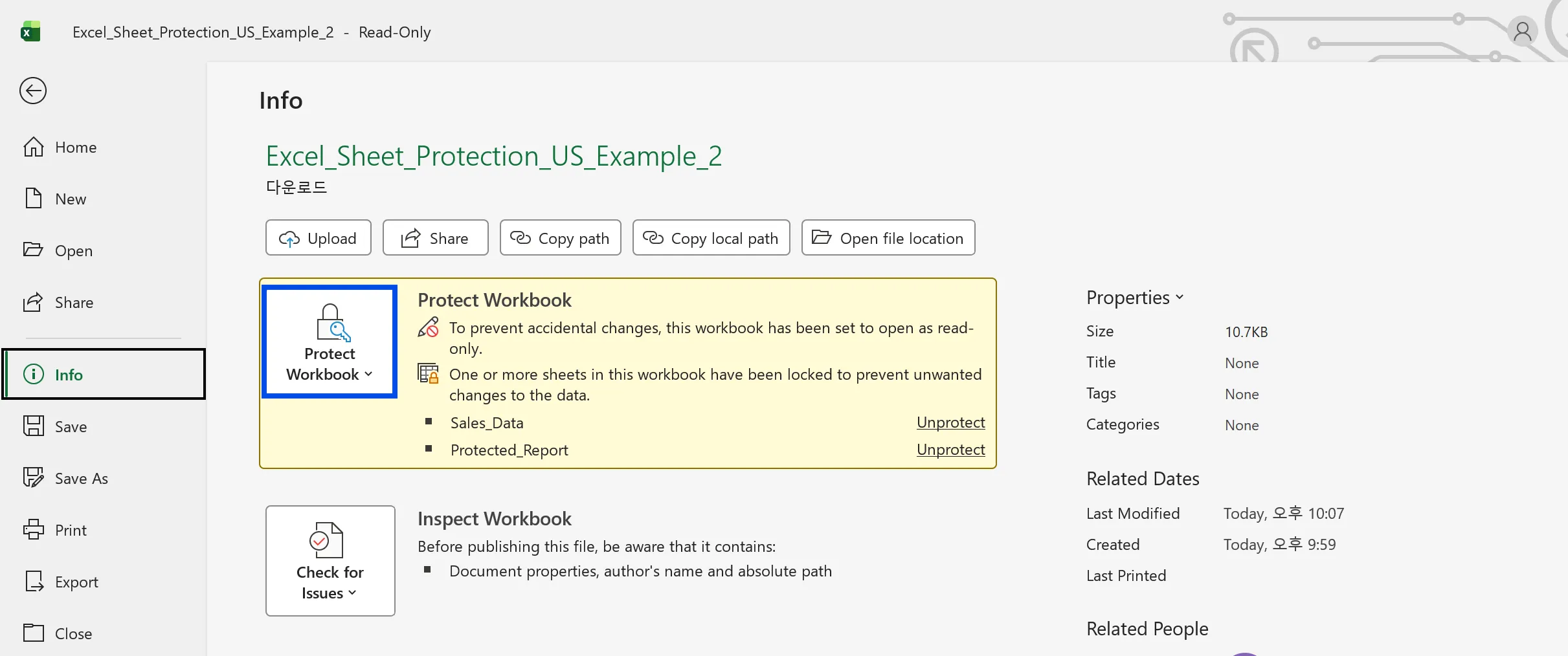
If the Unprotect button is greyed out
- You opened the file read-only, or through a view-only OneDrive or SharePoint link. Ask for edit access, or save your own editable copy if you're allowed to.
- Workbook protection is applied first. Remove it from File > Info or Review > Protect Workbook.
- The file is marked as final. Choose Edit Anyway if you have rights to.
If the password doesn't work
Check Caps Lock and the keyboard input language. If the file was damaged during a sync conflict, restore an earlier version from OneDrive or SharePoint version history. Older .xls files can behave differently; save as .xlsx and try again. Company data loss prevention or rights management settings can also restrict editing regardless of sheet protection.
If the password is forgotten
Ask the file's owner or your IT team. Workarounds that edit the file's internal structure to remove sheet protection exist, but use them only on files you own or are explicitly authorized to manage, and never on a controlled company template without the owner's agreement. They don't remove file encryption.
Macros and refresh
In macro-enabled files, check File > Options > Trust Center if an unlock macro won't run. If PivotTables or queries refresh into a protected sheet, enable Allow using PivotTable and Allow using AutoFilter in the protection settings.
Protect only what needs protecting
Unlock the input cells first (Format Cells > Protection, clear Locked), then apply Review > Protect Sheet. For confidential data, use file encryption or access control instead of sheet protection.
Frequently Asked Questions
Q. Can the AI unlock a sheet without the password?
It won't bypass protection on a file you don't own or aren't authorized to manage. It identifies what's blocking you and, where the file belongs to someone else, sends the request to the owner or an approver.
Q. Why can't I unprotect a sheet in a shared file?
With a view-only link the button is disabled. You need edit permission on the file first, then sheet and workbook protection can be removed.
Q. Who can see that a template was unlocked?
The audit log records who asked, who approved and what changed, so the template's owner can review it.
Q. Where is the workbook stored?
Company data is stored on AWS and isn't used for AI training. inline AI has an eZDR agreement with its model provider, which stores neither prompts nor files.
Protection and Permissions with inline AI
Most "can't unprotect" problems are a permission or a different protection layer, and the forgotten-password ones are really a question of who owns the file. In the AI Browser, you keep the workbook open and ask the AI beside it what's blocking you; it identifies the layer, works only within your permissions, and sends anything that needs the owner's say to approval. Every request and change is recorded in the audit log.
In the AI Browser, this takes one request
inline AI OS is a work browser where your team keeps company files open and hands the task to the AI beside them. Book a free consultation to see how it fits your operations.
Book a free consultation