
Blog
Merge Cells in Excel Without Breaking Data, Using AI


"Why won't Excel let me sort this?" is usually a merged-cells question. Merge Cells in Excel makes a header or a region label look tidy, but it changes the grid underneath: the merged block becomes one cell, sorting refuses to run, filters skip rows, and formulas that expect one value per row start returning odd results. In a company the problem multiplies, because the report with the merged headers is rarely used by the person who made it; it is passed to purchasing, finance or the warehouse, and each of them needs to sort and filter it.
Fixing it means finding every merged range, unmerging it, filling the blanks it leaves behind and redoing the layout. In the AI Browser, the employee keeps the report open in a tab and asks the AI beside it to do exactly that.
Unmerging a shared report in the AI Browser
The scene: a weekly sales report nobody can sort
Every Monday, a sales manager at Harbor Foods sends Weekly_Sales_by_Region.xlsx. The region name in column A is merged down across each region's customers, and the two title rows are merged across all columns. The purchasing lead wants to sort by quantity to see which items to reorder, and Excel says the cells need to be the same size.
She opens the report in one tab of the AI Browser and types into the AI panel:
"Unmerge every merged cell on this sheet. In column A, fill each empty cell with the region name above it. For the title rows, keep the same look with Center Across Selection instead of merging."
What the AI does, step by step
- Finds the merged ranges. It lists them: the title block A1:H2 and fourteen region blocks in column A, with how many rows each one spans.
- Checks for hidden data first. When cells were merged, only the top-left value survived. The AI reports whether any merged block still covers a cell that holds a value, so nothing is lost without anyone noticing.
- Unmerges and fills down. Column A gets the region name on every row, so each row can stand on its own when sorted or filtered.
- Rebuilds the title layout with Center Across Selection, so the report looks the same but every cell stays independent.
What the employee checks
She sorts by quantity and filters one region to confirm both work, spot-checks that the region names line up with the right customers, and reads the AI's summary of which ranges changed. Because the edit is to her own copy, it runs without any extra approval.
How it stays safe
If the report is a file she can only read, the AI cannot change it and works on a copy she can edit instead. Overwriting a file other teams depend on asks for confirmation first, and the ranges that were unmerged are recorded.
Sending the cleaned version back
If the merges should stop at the source, she can ask the AI to save the unmerged layout as a new copy of the report and draft a short note to the sales manager explaining what changed and why sorting now works. She reads the note, adjusts it and sends it herself.
What merging actually does to a sheet
Merge Cells combines several cells into one. It is quick and the result looks clean, which is why it ends up in so many reports. The cost is structural:
- Sorting and filtering fail, because Excel needs every row to have the same cell layout.
- Formulas and pivot tables misbehave, because a merged block holds one value, not one per row.
- Automation struggles, including scripts and AI tools that expect one record per row.
- Data disappears on merge. If several cells hold values, only the top-left one is kept. Excel warns you, but it is easy to click past.
Doing it by hand
Merge cells
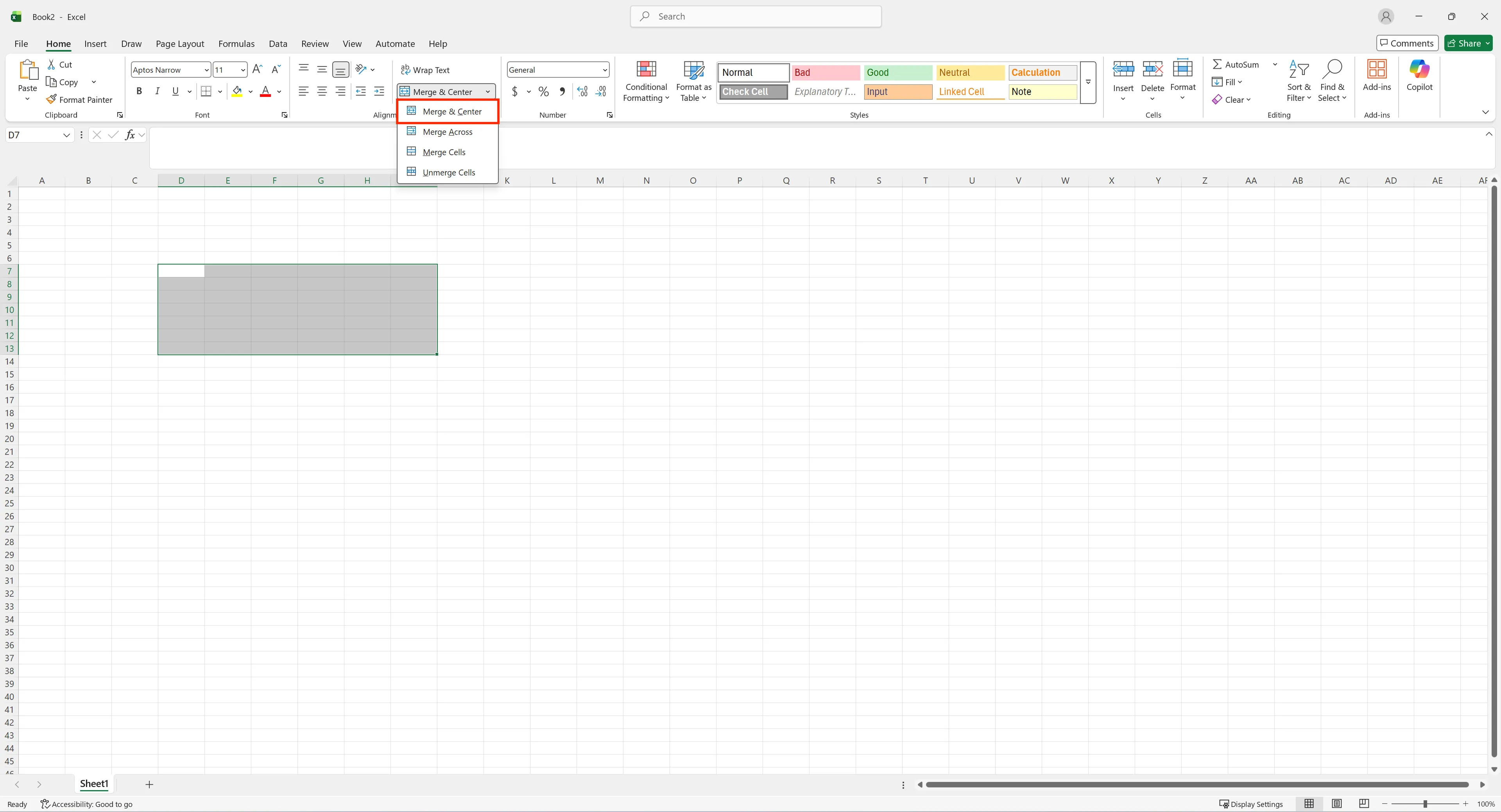
Select the range, go to Home → Merge & Center, and pick Merge & Center, Merge Across or Merge Cells.
Unmerge cells
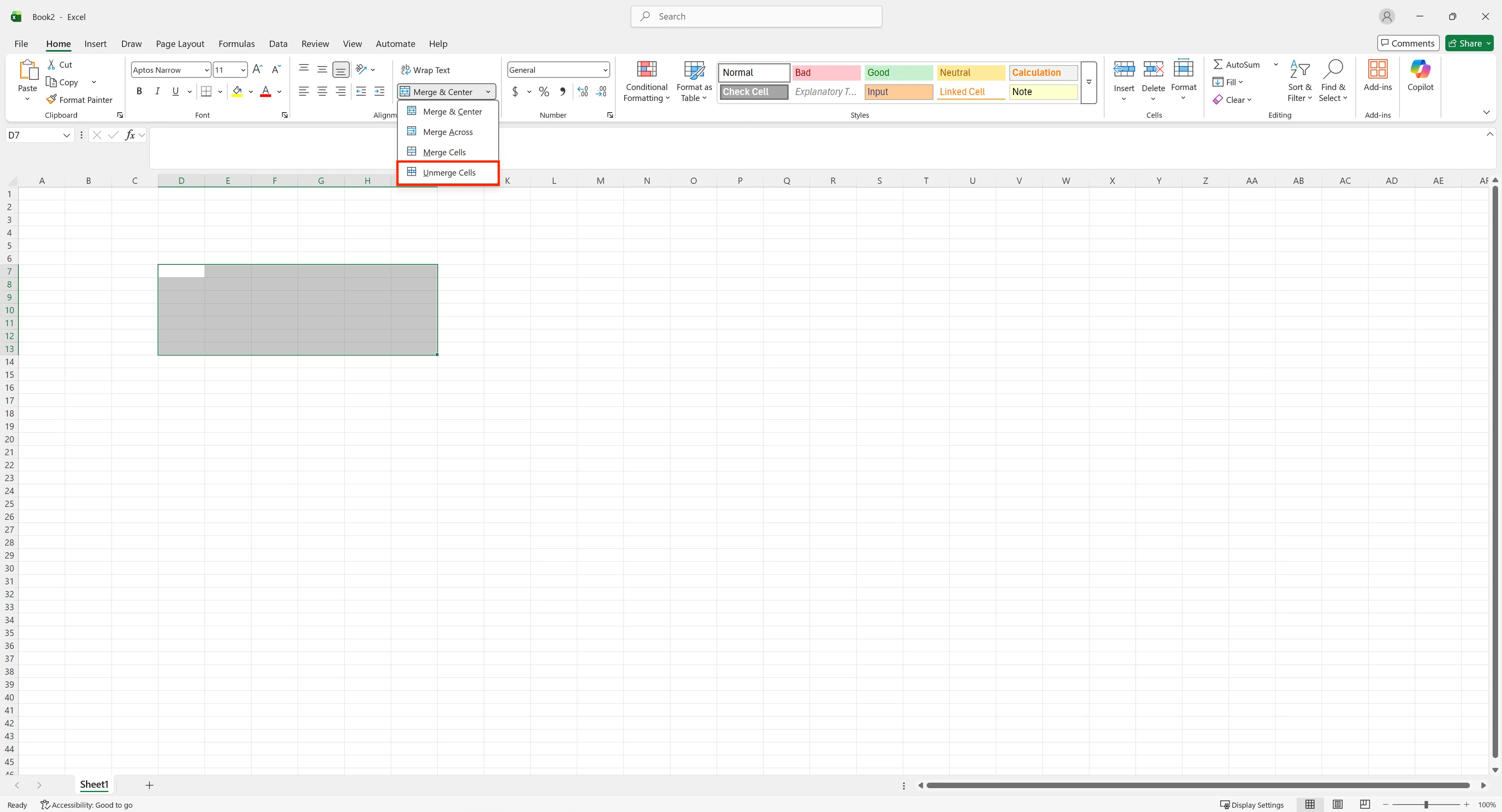
Select the merged cell, open Home → Merge & Center and click Unmerge Cells. Unmerging restores the grid but not the values deleted when the cells were merged, and the freed cells stay empty until you fill them.
Use Center Across Selection instead
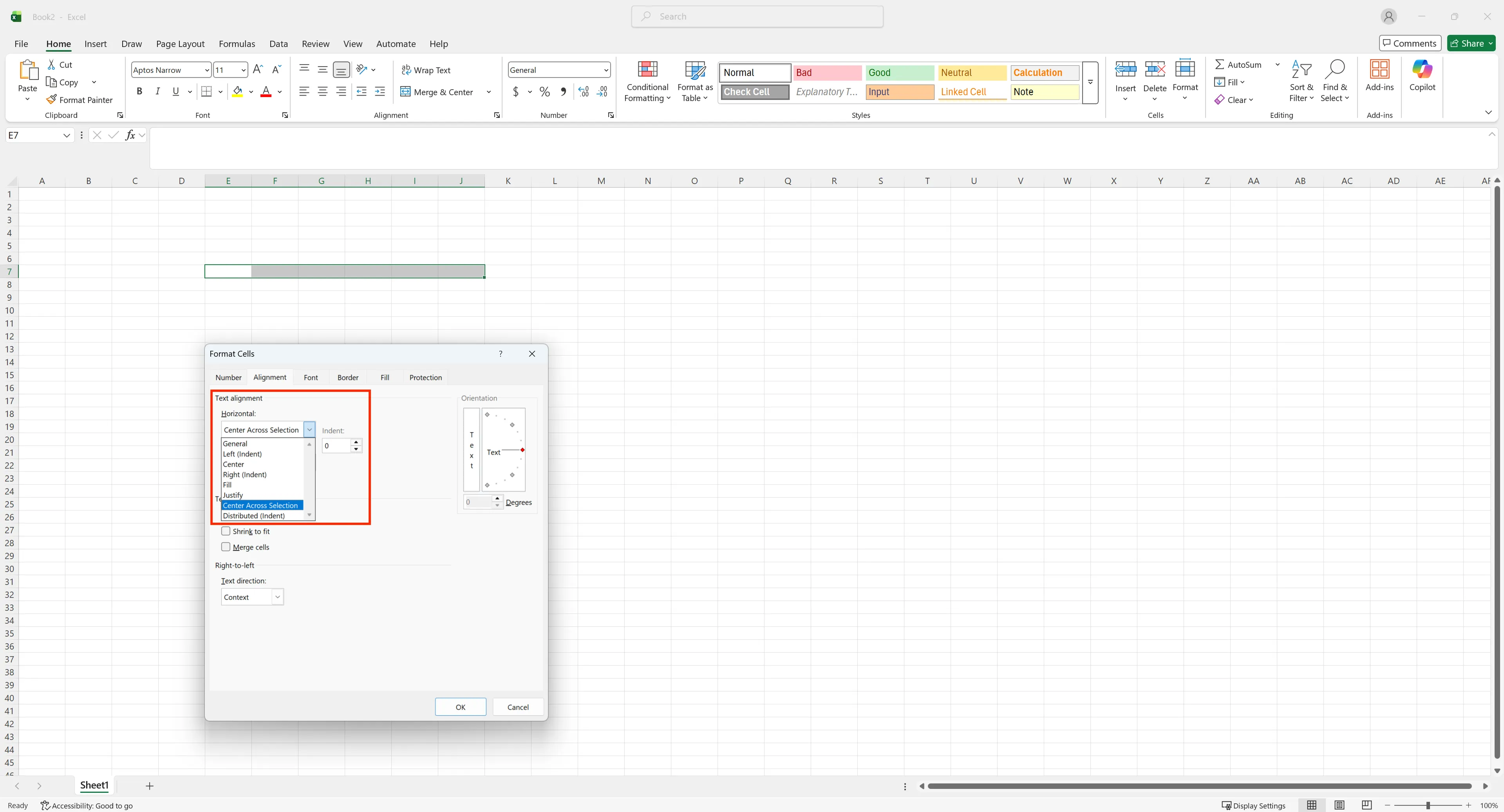
Select the range, open Format Cells → Alignment, and set Horizontal to Center Across Selection. It looks almost identical to a merged header, while each cell stays independent.
When you really want to combine values
If the goal is to put the contents of several cells into one, merging is the wrong tool. Use CONCAT or TEXTJOIN in a separate column and keep the original values where they are.
👉 Combine Two Columns in Excel Without Losing Data, With AI
Merge cells in Excel: frequently asked questions (FAQ)
Q. Why can't I sort or filter a sheet with merged cells?
Sorting and filtering need the same cell layout on every row. A merged block breaks that layout, so Excel refuses or skips rows. Unmerge and fill the blanks first.
Q. Can the AI bring back values lost when the cells were merged?
No. Excel deletes them at the moment of merging. The AI can tell you which merged blocks exist and whether any still hide a value, but a deleted value has to come from an earlier version of the file or the source data.
Q. What if the AI fills a region name into the wrong rows?
It shows the ranges before it changes them, and you sort and filter to check afterwards. The change is recorded, so it can be traced and reversed.
Q. Is our report data used to train AI models?
No. Company data is stored on AWS and is not used for training, and an eZDR agreement means the model provider stores neither prompts nor files.
Cleaning up merged cells with inline AI
Unmerging by hand is easy for one block and slow for a report full of them, especially when the blanks need filling afterwards. In the AI Browser, the employee keeps the report open and asks the AI beside it to unmerge, fill and reformat, then checks the result by sorting and filtering. The work runs inside the company's accounts, permissions and approval policies, and every change is recorded in the audit log.
In the AI Browser, this takes one request
inline AI OS is a work browser where your team keeps company files open and hands the task to the AI beside them. Book a free consultation to see how it fits your operations.
Book a free consultation