

Blog
How to Move Columns in Excel Without Overwriting Data

To move a column in Excel without overwriting anything, select the column, hold Shift and drag its border to the new position, or cut it with Ctrl + X, right-click the destination column and choose Insert Cut Cells. Both insert the column and push the others aside. A plain drag, without Shift, does something different: it replaces whatever is at the destination, and every formula that pointed at the replaced cells turns into #REF!.
That difference matters most in jobs that repeat. A shipping team that uploads orders to a carrier portal, or a buyer who loads supplier price lists into a company template, rearranges the same data into someone else's column order every day. Below: the two safe methods, a way to reorder many columns in one step, the formula checks to run afterwards, and a worked example matching a carrier's upload template.
Why a plain drag is risky
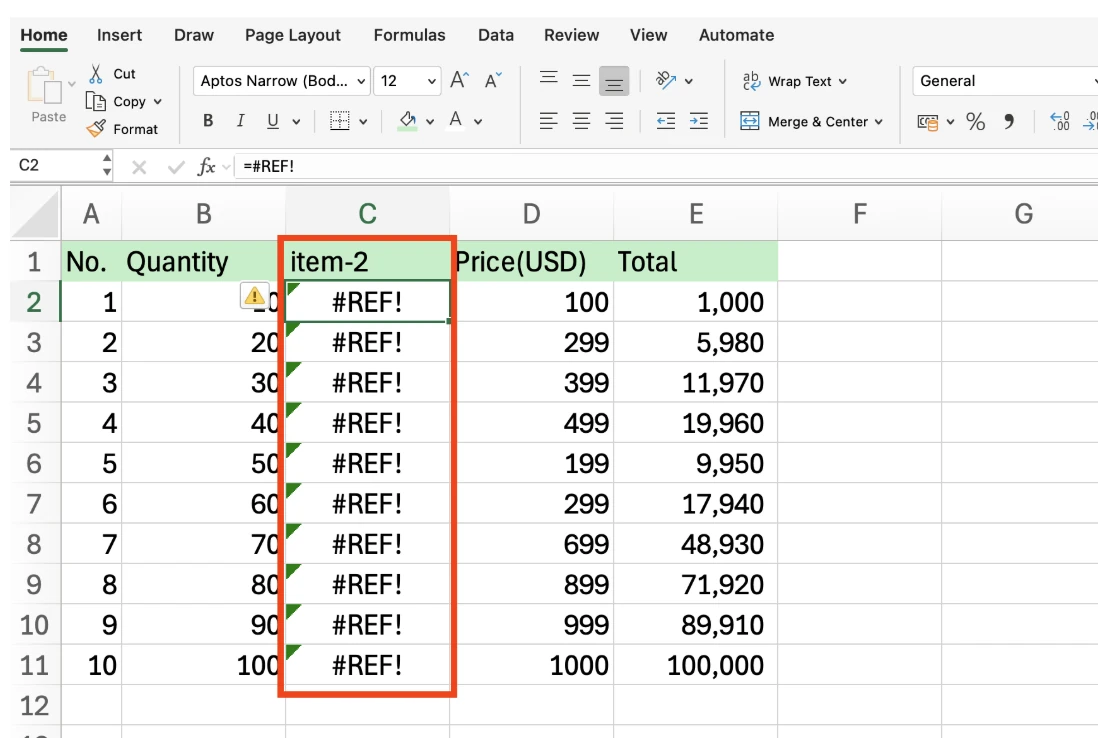
Select a column and drag its border onto another column, and Excel treats it as a move. If the destination holds data, Excel asks whether you want to replace it; click OK and the destination values are gone, while the original position is left empty.
Formulas suffer next. Any formula that referred to the overwritten cells loses its target and shows #REF!. Ctrl + Z fixes it before you save. After saving and closing, you're digging for an earlier version.
Method 1: Shift + drag
The quickest option for short moves.
- Click the column letter to select the entire column.
- Hover over the edge of the selection until the pointer becomes a four-headed arrow.
- Hold Shift and drag. A thick vertical bar between columns shows where the column will be inserted.
- Release the mouse button first, then Shift. Letting go of Shift first turns the insert into an overwrite.
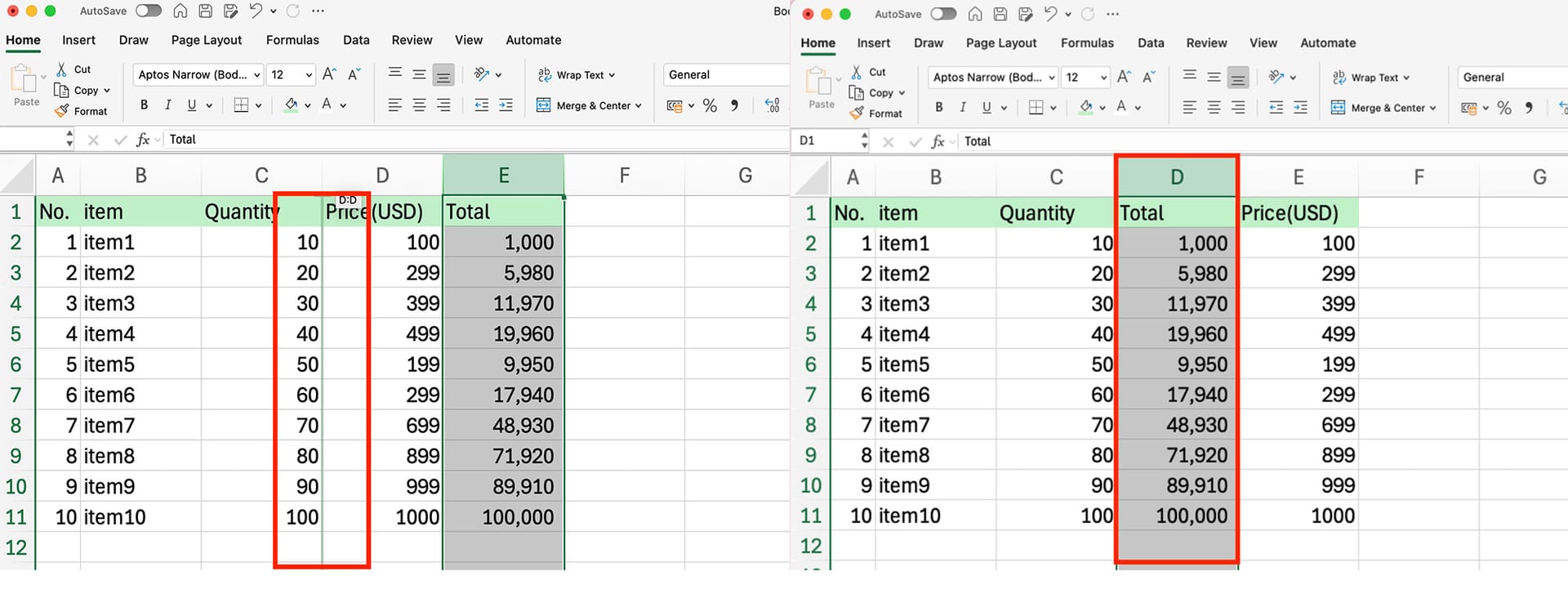
Hold Ctrl + Shift while dragging to insert a copy and leave the original where it was. To move several columns at once, select adjacent column letters with Shift first, then drag the block the same way.
Method 2: Insert Cut Cells
Safer for long distances or a shaky touchpad.
- Select the column letter and press Ctrl + X. A marching border appears.
- Right-click the column letter to the right of where the column should go. To place it between B and C, right-click C.
- Choose Insert Cut Cells, or press Ctrl + Shift + =.
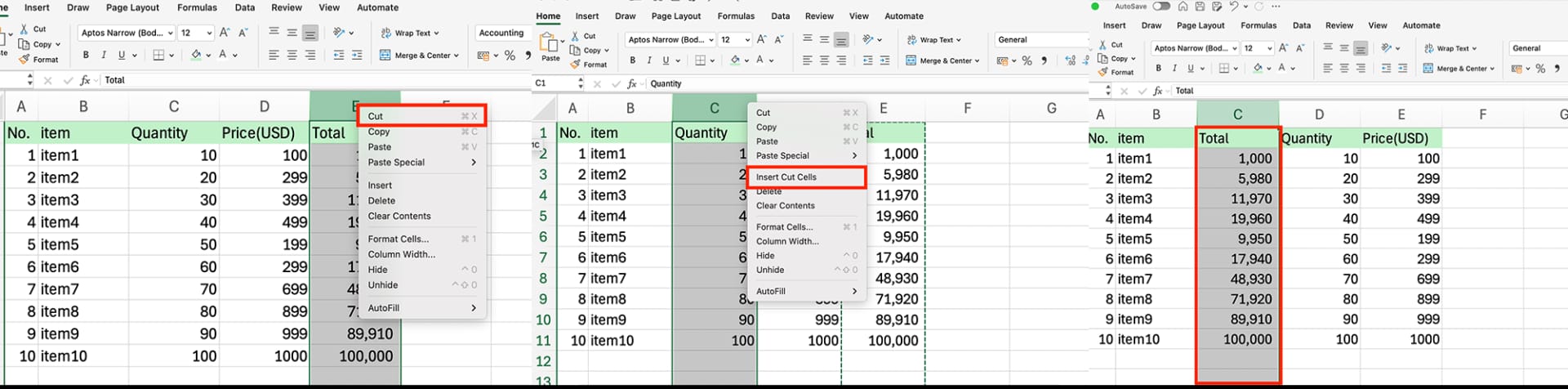
The Range.Insert reference on Microsoft Learn describes insertion as shifting other cells away to make space, which is why nothing is lost. Pressing Ctrl + V instead pastes over the destination, so always pick Insert Cut Cells.
Moving a column with only the keyboard
There's no single "move column" shortcut, but a sequence works: click a cell in the column, press Ctrl + Space to select the whole column, Ctrl + X to cut, arrow over to the column that should end up to its right, Ctrl + Space again, then Ctrl + Shift + =. On large sheets this avoids the auto-scroll that drops a dragged column in the wrong place.
Reordering many columns at once
One or two columns are easy. Ten columns into a carrier's required order is where one-at-a-time moves go wrong. Sort the columns instead of the rows:
- Insert a blank row directly above the header row.
- In that row, type the target position for each column: 1 above Recipient, 2 above Phone, 3 above Address, and so on.
- Select the whole table including the number row and open Data > Sort.
- Click Options and choose Sort left to right.
- Sort by the number row, smallest to largest, and click OK.
- Delete the number row.
The Range.Sort reference documents this orientation setting: Excel can sort by columns as well as by rows. If you produce the same layout often, hide the number row instead of deleting it and reuse it on the next file.
CHOOSECOLS for a reordered copy
In Microsoft 365 and Excel 2024, a formula can build the new layout while the source stays untouched: =CHOOSECOLS(Orders!A1:H300, 3, 1, 5, 2) returns the third, first, fifth and second columns in that order. Leave out any column the template doesn't want. Paste the result as values before sending it anywhere.
Power Query for a daily file
For a file that arrives in the same shape every day, open it in Power Query (Data > From Table/Range), drag the column headers into order or use Home > Choose Columns, then Close & Load. Tomorrow, swap the source file and Refresh.
👉 How to Split Cells in Excel: Text to Columns, TEXTSPLIT
Check your formulas after moving columns
Cell references follow; column numbers don't
Formulas that point at moved cells update automatically when you move by drag or by cut. Hard-coded column numbers don't. In VLOOKUP, the VLOOKUP reference defines the third argument as the position of the column within the lookup range. Reorder the columns inside that range and the same number now returns a different field: price lookups quietly start returning quantities. XLOOKUP and INDEX/MATCH reference the return column by address, so they keep working.
A four-step check
- Before moving, note key totals: total quantity, total value.
- After moving, compare the same cells.
- Open Find (Ctrl + F), set Look in to Formulas, and search for
#REF!. - On sheets with VLOOKUP or HLOOKUP, spot-check a few rows against the source.
If other workbooks link to this one, open them before moving columns so their references update too. Links in closed workbooks aren't adjusted. Data > Workbook Links lists them.
When a column won't move
- Merged cells across the column or destination block the move. Unmerge, move, re-merge if needed.
- Non-adjacent columns selected with Ctrl can't be dragged or cut together. Move them one at a time, or use the left-to-right sort.
- A protected sheet blocks inserting and deleting columns, so moves fail too. Unprotect first.
- Part of a table selected. In a formatted table, select the full column header before dragging.
Common mistakes
- Dragging a few cells instead of the whole column. Only those cells shift; the rows below stay put, and records split across rows. Always click the column letter.
- Cut, then plain paste. Ctrl + X followed by Ctrl + V overwrites. Use Insert Cut Cells.
- Hidden columns inside the selection. They move too. Unhide first so you can see what's travelling.
- Moving with a filter on. Results are hard to verify with rows hidden. Clear filters, move, reapply.
Worked example: matching a carrier's upload template
Every afternoon, a shipping coordinator at Lakeview Distribution uploads the day's shipments to Interstate Freight Lines. The internal export has Order ID, Customer, SKU, Quantity, Recipient, Phone, Address and Internal Notes. The carrier's template wants Recipient, Phone, Address, SKU, Quantity, Order ID, and nothing else.
- Copy. Leave the export as it is and create an upload copy.
- Delete extras. Remove Customer and Internal Notes from the copy.
- Number row. Insert a row above the headers: Recipient 1, Phone 2, Address 3, SKU 4, Quantity 5, Order ID 6.
- Sort left to right. One sort puts every column in template order.
- Rename headers to the carrier's names (Consignee, Consignee Phone, Delivery Address).
- Reconcile. Row count and total quantity match the export; five random rows show the same recipient and address as the source.
Saved as a template with the number row hidden, the next day starts at step 4. Dragging ten columns one at a time takes five minutes or more, and one slip means starting over; the sort takes under a minute and can't overwrite anything. With three carriers and three templates, keep one such file per carrier.
Frequently asked questions (FAQ)
Q. I overwrote a column and saved. Can I get it back?
If the file is on OneDrive or SharePoint, open File > Info > Version History, open the version from before the change and copy the column back. For local files, use a backup or an earlier copy from email.
Q. My VLOOKUP results changed after I moved columns.
The column index is hard-coded, and the range's column order changed. Switch to XLOOKUP or INDEX/MATCH so moves don't affect the result.
Q. Does this work for rows too?
Yes. Select row numbers and Shift + drag, or cut and use Insert Cut Cells on the destination row.
Q. Is there a way to change the display order without moving source columns?
Build the view elsewhere with CHOOSECOLS, or use a PivotTable and arrange the fields in the order you need.
How inline AI matches files to each template
For teams that send the same data in a different layout to every carrier, warehouse or customer, inline AI opens the export and the template side by side, maps the column names, produces one correctly ordered file per destination, and checks row counts and quantities against the source. With ARP, order and shipment data already live in one place, so fewer files need rebuilding by hand.
Hand your documents and your company’s work to inline AI.
Keep a file open, say what you need, and AI edits it or drafts a new one. Add the company AI OS and AI runs the rest of the work, ERP included.
Book a demo