
Blog
Reference Another Sheet in Excel: Let AI Build the Links

To reference another sheet in Excel, you write =SheetName!Cell, and that part is easy. What goes wrong in a company workbook is everything around it: one sheet per warehouse or branch, a summary sheet that several people maintain, a sheet renamed by someone who did not know forty formulas depended on it, and a lookup range that shifted when a row was inserted. The result is a summary full of #REF! and numbers nobody quite trusts.
Building and repairing those links means reading every formula and knowing which sheet each one should point to. In the AI Browser, the employee keeps the workbook open in a tab and asks the AI beside it to write the formulas, trace the broken ones and explain what each link does.
Building cross-sheet references in the AI Browser
The scene: a stock summary across three warehouses
Swift Freight runs three warehouses for its distribution customers. The operations analyst keeps Stock_Weekly.xlsx, with one sheet per warehouse (East, West, Central) and a Summary sheet that management reads every Monday. Last week someone renamed the West sheet to "West (new)", and the Summary column for West turned into a wall of #REF!.
The analyst opens the workbook in a tab of the AI Browser and types:
"On Summary, fill columns C to E with each item's on-hand quantity from the East, West (new) and Central sheets, matched by item code in column A. Use XLOOKUP and show 0 when an item isn't stocked there. Then find every #REF! in the workbook and tell me what it used to point to."
What the AI does, step by step
- Maps the workbook. It lists the sheets, finds the item code and on-hand columns on each warehouse sheet, and notes that the West sheet has an extra column the others don't.
- Writes the formulas on the Summary sheet, for example
=XLOOKUP($A5,'West (new)'!$A:$A,'West (new)'!$F:$F,0), with the ranges locked so they survive being copied down. - Traces the broken references. It reports where the
#REF!errors were, which sheet name they used to reference, and whether replacing the old name fixes them or whether the source column itself is gone. - Checks the totals, comparing the Summary total for each warehouse with the sum on that warehouse's own sheet, and lists any item codes that appear on a warehouse sheet but not on the Summary.
What the employee checks
The analyst reads the formula the AI wrote for one row, compares two or three items by hand, and reviews the list of item codes missing from the Summary before deciding whether to add them. The AI explains, it does not decide which items belong on the report.
How it stays safe
The AI reads only the sheets and files the analyst can open. Overwriting a workbook other teams rely on asks for confirmation first, and the formulas written and cells changed are recorded.
Leaving a note for the next person
Once the formulas are in, the analyst can ask the AI to add a short Notes sheet that says which column on each warehouse sheet feeds the Summary and what to update if a sheet is renamed again. The AI writes it into the workbook; she reads it and fixes anything unclear.
👉 How to Use VLOOKUP in Excel: Exact Match, Ranges and AI Help
Doing it by hand
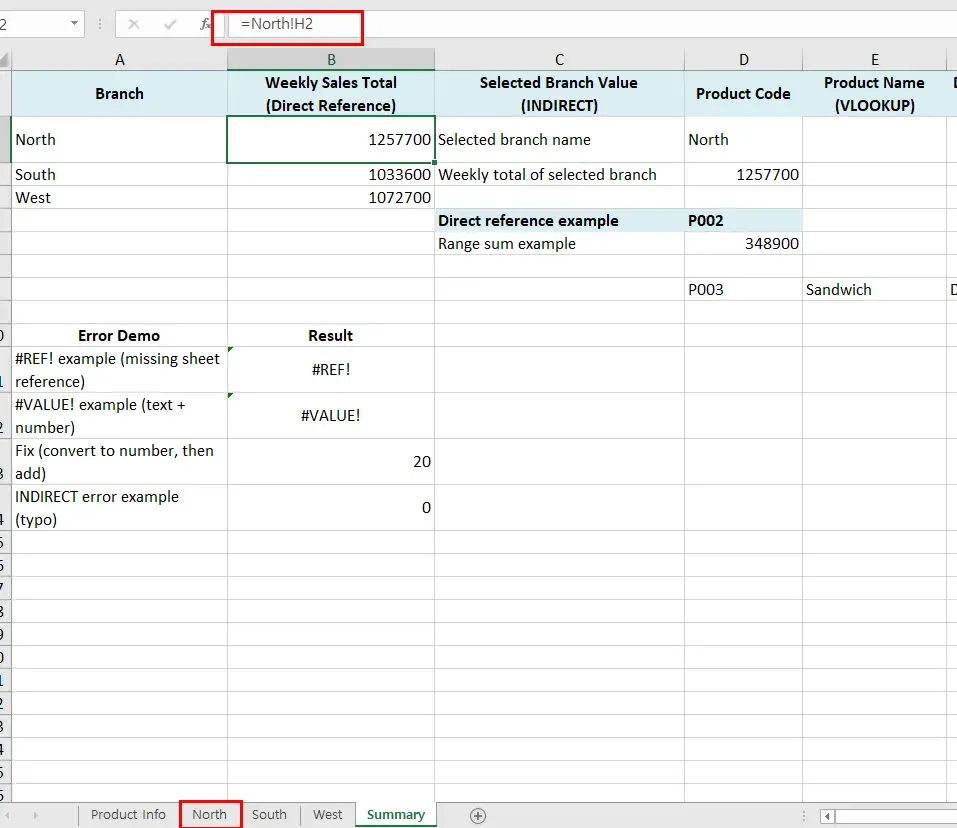
Direct references
The basic form is =SheetName!CellAddress. Click the target cell, type =, switch to the other sheet, click the cell and press Enter.
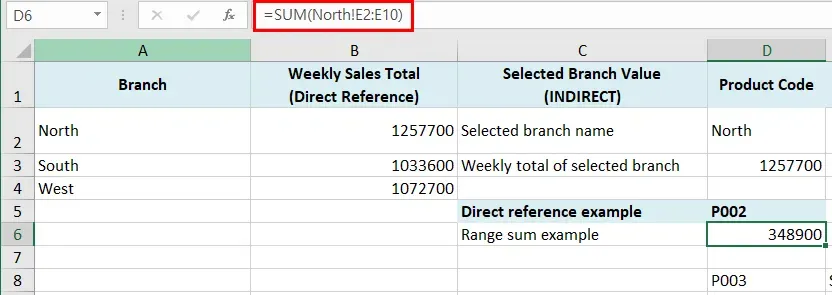
Ranges work the same way, usually inside a function: =SUM(North!E2:E10). Sheet names with spaces need single quotes: ='West (new)'!A1.
INDIRECT for switching sheets
=INDIRECT(A1&"!B2") reads B2 from whichever sheet is named in A1. Put a drop-down list in A1 and users can switch between branches or months.
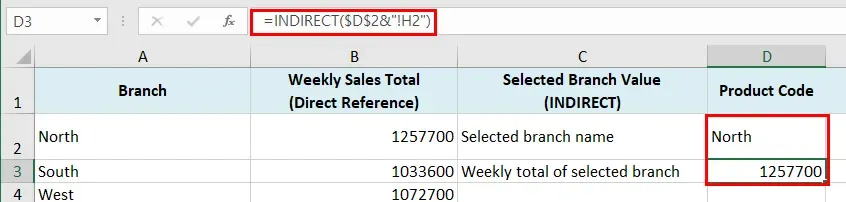
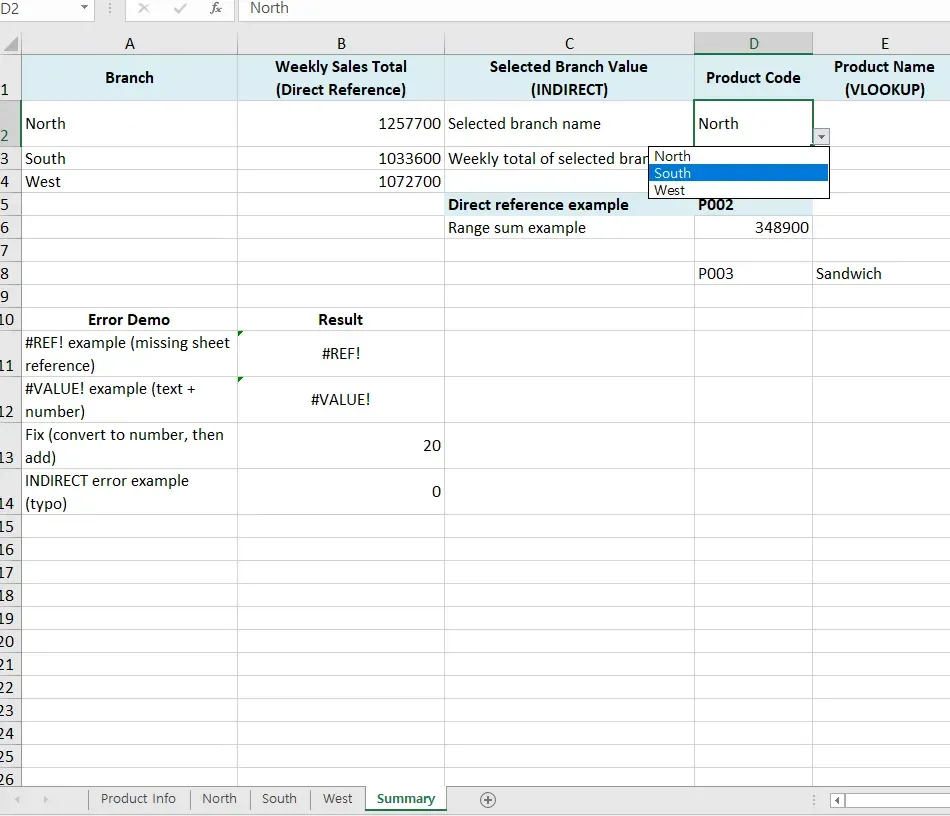
INDIRECT is volatile, so it recalculates constantly and can slow large workbooks, and a misspelled sheet name returns #REF!.
VLOOKUP and XLOOKUP across sheets
=VLOOKUP(A2, ProductInfo!A:C, 3, FALSE) finds the code in A2 on the ProductInfo sheet and returns the third column. Lock fixed ranges with $. In Microsoft 365 and Excel 2021 or later, XLOOKUP is more robust because it does not break when columns are inserted.
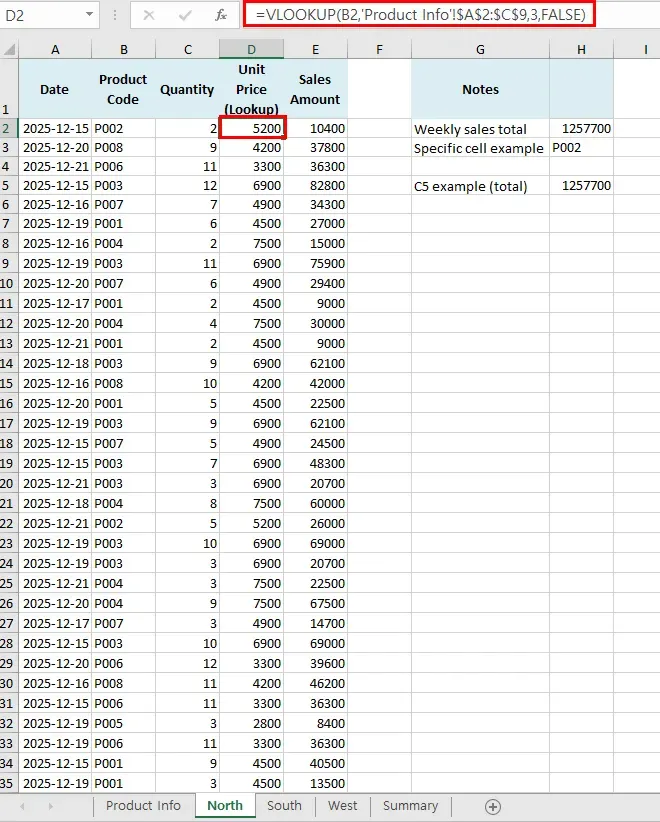
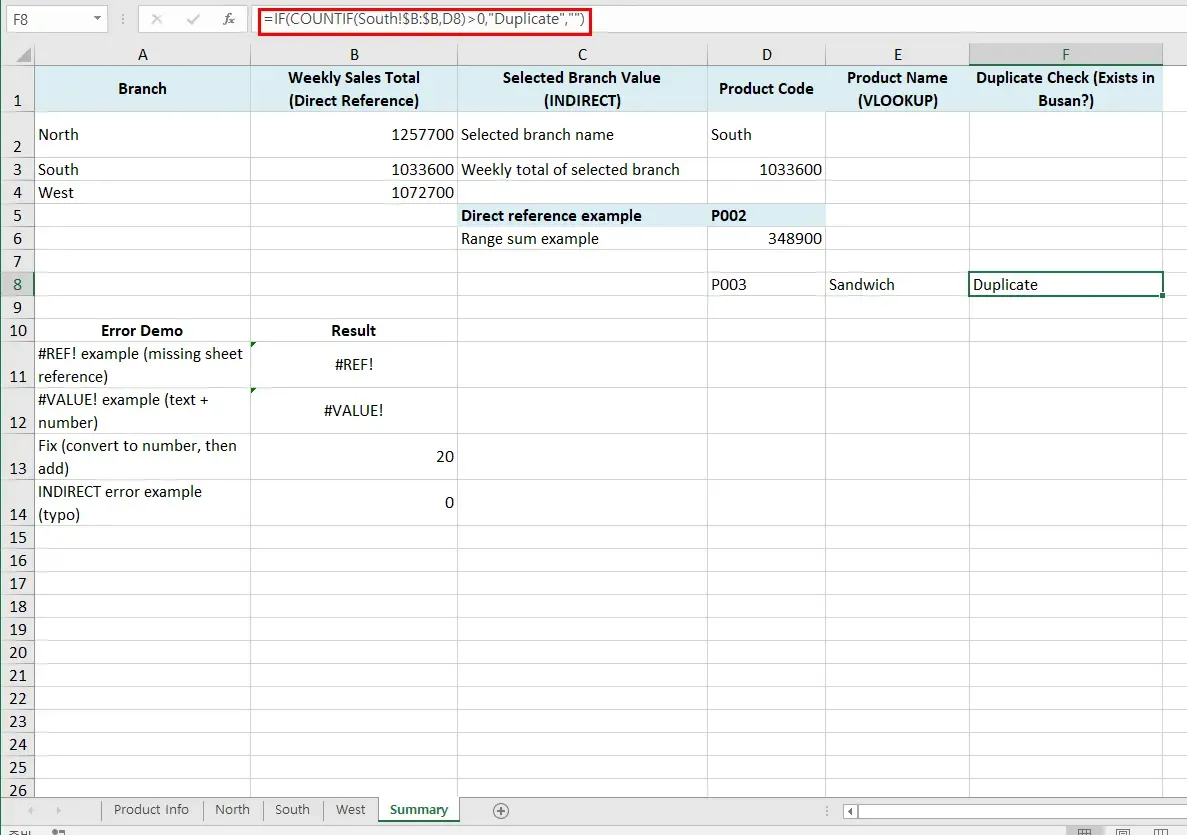
To check whether a value also appears on another sheet, use =IF(COUNTIF(Sheet2!A:A, A1)>0, "Duplicate", "").
Sums across several sheets
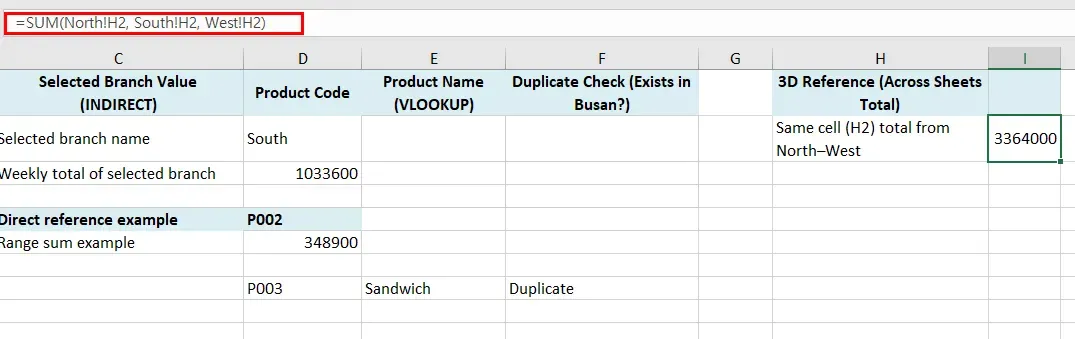
For a few sheets, add them up: =North!A1+South!A1+West!A1. For a run of consecutive sheets, a 3D reference is cleaner: =SUM(North:West!A1). It includes every sheet between the first and last, so a sheet dropped into the middle changes the result.
Fixing #REF! and #VALUE!
#REF! means the target is gone: a deleted or renamed sheet, or deleted rows or columns. Undo immediately if you just made the change; otherwise fix the formula, or use Ctrl + H to replace the old sheet name across the workbook.
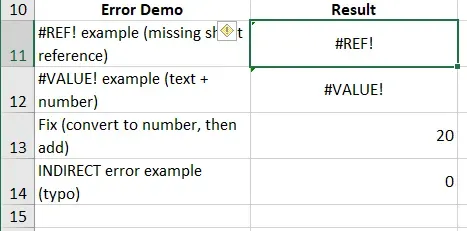
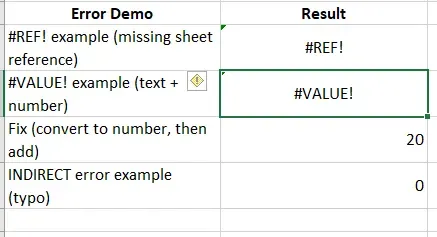
#VALUE! means the wrong type of data: text in a calculation, dates stored as text, or INDIRECT returning a range where one value was expected. VALUE() and TRIM() fix most cases.
Links for navigation
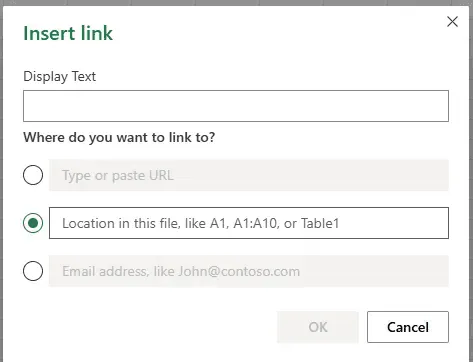
To jump between sheets rather than pull values, press Ctrl + K, choose Place in This Document and pick the sheet and cell.
Excel cross-sheet references: frequently asked questions (FAQ)
Q. Why did my formulas turn into #REF! overnight?
Someone deleted or renamed a sheet, or deleted the rows or columns the formula pointed to. Find the old name and replace it, or rebuild the reference.
Q. What if the AI matches the wrong column?
It tells you which column it used on each sheet before writing formulas, and you check a few rows by hand. The formulas stay visible in the cells, so nothing is hidden.
Q. Can the AI pull data from workbooks I can't open?
No. It reads only what your account is allowed to read.
Q. Is the workbook used to train AI models?
No. Company data is stored on AWS and is not used for training, and an eZDR agreement means the model provider keeps neither prompts nor files.
Linking sheets with inline AI
Cross-sheet formulas are simple one at a time and fragile across a workbook that many people edit. In the AI Browser, the employee keeps the workbook open and asks the AI beside it to write the references, trace the broken ones and check the totals, then reviews what it changed. The work runs inside the company's accounts, permissions and approval policies, and every change is recorded in the audit log.
In the AI Browser, this takes one request
inline AI OS is a work browser where your team keeps company files open and hands the task to the AI beside them. Book a free consultation to see how it fits your operations.
Book a free consultation