

Blog
How to Split First and Last Names in Excel

To split first and last names in Excel, use Data > Text to Columns with a space delimiter for a clean list, Flash Fill (Ctrl+E) for a quick one-off, or formulas when the list keeps changing: =TEXTBEFORE(A2," ") for the first name and =TEXTAFTER(A2," ",-1) for the last name in Excel for Microsoft 365, or LEFT, RIGHT and FIND in older versions. The method matters less than the exceptions. Real contact lists mix middle names, initials, suffixes like Jr., "Last, First" entries and stray spaces, and those rows are what make columns misalign.
A contact list exported from years of orders is a typical case: it has to be split into First Name and Last Name before it can feed a mail merge, a CRM import or a shipping system. Splitting 400 names by hand takes an afternoon and introduces typos. With the steps below, the formulas handle the regular rows and you only touch the handful that break the pattern.
Before you split
Keep the original column untouched and build results in new columns to the right, so a bad formula never costs you data. Sort the name column once and scan it: how many rows have a middle name or initial, how many have a suffix, how many are written "Last, First", and how many aren't people at all ("Accounts Payable", "Receiving Dock"). Those counts tell you which method to use.
Clean spacing first. =TRIM(A2) removes leading and trailing spaces and collapses double spaces to one. Almost every misaligned split traces back to an extra space.
Method 1: Text to Columns
For a list where every cell is exactly one first name, one space, one last name:
- Select the name column.
- Choose Data > Text to Columns.
- Pick Delimited, then Next.
- Tick Space as the delimiter (and Treat consecutive delimiters as one if spacing is messy).
- Set Destination to an empty column so the original isn't overwritten, then Finish.
Microsoft's Text to Columns steps are the same in every current version. The catch: a row with a middle name produces three columns, so its last name lands where everyone else's is blank. Text to Columns works well on clean lists and poorly on mixed ones.
Method 2: Flash Fill
Type the first person's first name in the cell next to their full name, move to the next row and press Ctrl+E (or Data > Flash Fill). Excel recognizes the pattern and fills the column. Repeat in the next column for last names. Microsoft's Flash Fill article uses exactly this example of separating first and last names.
Flash Fill is fast but writes values, not formulas, so it won't update if the source changes. It also applies its guess to rows that don't fit the pattern, so scan the results. Giving it two or three examples, including one with a middle name, improves its guess. If no preview appears, check that Automatically Flash Fill is turned on under File > Options > Advanced.
Method 3: LEFT, RIGHT and MID with FIND
These work in every version of Excel. FIND returns the position of the first space; the other functions cut around it.
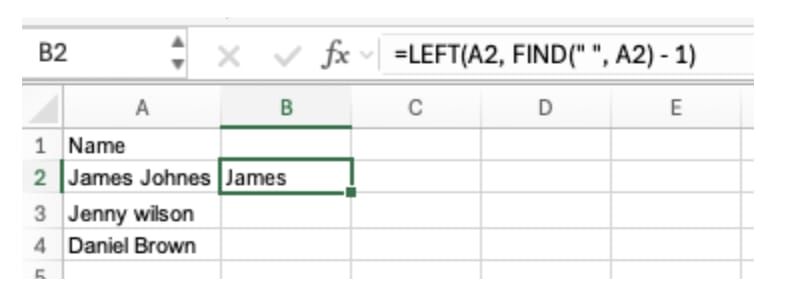
First name with LEFT
=LEFT(A2,FIND(" ",A2)-1) returns everything before the first space. For James Johnes, that's James.
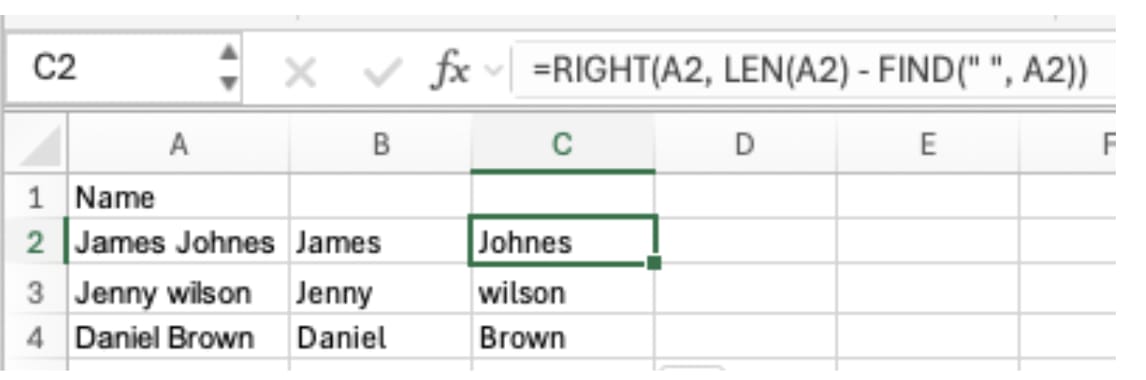
Last name with RIGHT
=RIGHT(A2,LEN(A2)-FIND(" ",A2)) takes the total length minus the space position from the right. Johnes, wilson and Brown fill column C.
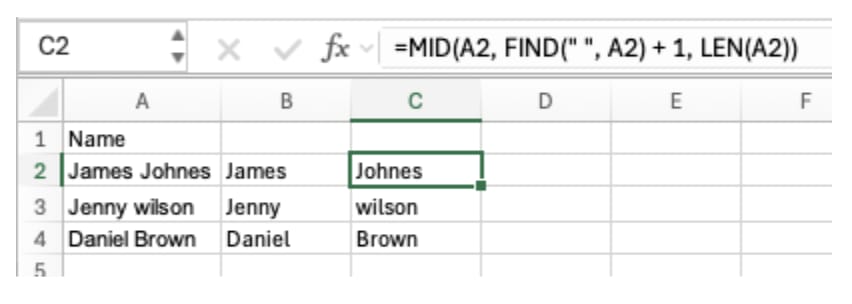
Last name with MID
=MID(A2,FIND(" ",A2)+1,LEN(A2)) starts one character after the space and takes the rest. The result matches RIGHT, and because you set the start position yourself, MID is the easier one to adapt for middle names.
All three return #VALUE! when a cell has no space, such as a single-word entry or a typo. Wrap them in IFERROR so the row shows the original value or a blank, then filter for those rows and fix them by hand.
Method 4: TEXTSPLIT, TEXTBEFORE and TEXTAFTER
In Excel for Microsoft 365 and Excel 2024, =TEXTSPLIT(A2," ") spills each part of the name into its own column. Microsoft's TEXTSPLIT reference describes it as the formula version of the Text to Columns wizard; set the fourth argument to TRUE to ignore consecutive delimiters. The Excel team introduced it alongside TEXTBEFORE and TEXTAFTER in its text and array functions announcement, noting that the same job previously took combinations of SEARCH, FIND, LEFT, RIGHT and MID.
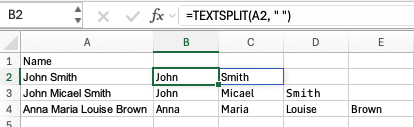
TEXTSPLIT has the same weakness as Text to Columns: a name with a middle name spills into an extra column, so last names end up in different columns on different rows. For a fixed two-column result, TEXTBEFORE and TEXTAFTER are steadier:
- First name:
=TEXTBEFORE(A2," ")returns everything before the first space. - Last name:
=TEXTAFTER(A2," ",-1)returns everything after the last space, because a negative instance number counts from the end. - Middle part: whatever sits between, which you can get with
=TEXTBEFORE(TEXTAFTER(A2," ")," ",-1)when a row has three parts.
Handling the exceptions
Middle names and initials
Decide where they belong before you split. Most mailing lists keep the middle initial with the first name ("John A.") and the last name alone ("Smith"). Splitting on the last space, as TEXTAFTER with -1 does, gives you exactly that.
Suffixes
"Robert Lee Jr." split on the last space gives a last name of "Jr.", which is wrong. Remove suffixes into their own column first: filter for rows ending in Jr., Sr., II, III or IV, move the suffix out, then split the rest.
"Last, First" entries
Rows written "Brown, Daniel" need the comma as the delimiter instead: =TEXTAFTER(A2,", ") for the first name and =TEXTBEFORE(A2,",") for the last. Filter for cells containing a comma and handle them as a group.
Two-word last names
Names like Van Der Berg or de la Cruz split on the last space give "Berg" and "Cruz". No formula can tell these apart from middle names reliably, so filter for rows with three or more parts and check them against the person's email signature or business card.
Entries that aren't people
"Purchasing Dept" and "Accounts Payable" will split into nonsense. Filter them out before splitting and keep them as company-level contacts.
Worked example: a customer contact list
The sales operations coordinator at Northgate Supply needs to load 420 customer contacts into a new CRM that wants First Name, Last Name and Suffix in separate columns. Column A holds entries like "Jane Brown", "John A. Smith", "Robert Lee Jr.", " Maria Lopez", "Brown, Daniel" and "Accounts Payable".
- Clean spacing. Column B gets
=TRIM(A2). - Set aside non-people. A filter for words like Dept, Payable and Receiving finds nine rows, which go to a separate company-contacts sheet.
- Handle commas. Fourteen "Last, First" rows are flipped with TEXTBEFORE and TEXTAFTER on the comma.
- Pull suffixes. Six rows ending in Jr. or III get their suffix moved into the Suffix column.
- Split the rest. TEXTBEFORE for first names, TEXTAFTER with -1 for last names.
- Review the three-part names. Filtering for rows with two spaces shows 31 names. Twenty-eight are middle initials and are correct. Three are two-word last names, fixed by hand.
- Convert to values. Copy the result columns and Paste Values so the CRM import doesn't receive formulas, then check for blank first or last names before uploading.
Steps 2 through 6 took most of the time, and the formulas handled 380 rows in seconds. That split is typical: the work is in finding the rows that break the pattern.
👉 How to Split Cells in Excel: Text to Columns, TEXTSPLIT
Version notes
Text to Columns, LEFT, RIGHT, MID and FIND work in every version. Flash Fill arrived in Excel 2013. TEXTSPLIT, TEXTBEFORE and TEXTAFTER are in Excel for Microsoft 365 (Windows and Mac) and Excel 2024; in Excel 2021 and earlier they return #NAME?. If you share a file built with them, paste the results as values first.
FAQ
Q. Why did my split columns misalign?
Some rows had extra spaces or more name parts than others. TRIM first, decide how to treat middle names and suffixes, and split those groups separately.
Q. How do I put the names back together?
=B2&" "&C2 joins first and last with a space. For several columns, TEXTJOIN with a space delimiter skips blanks automatically.
Q. Which method is best for a list that updates every week?
Formulas. TEXTBEFORE and TEXTAFTER, or LEFT/RIGHT with FIND, recalculate when new rows arrive. Text to Columns and Flash Fill have to be rerun.
Q. Can Excel tell which part is the last name in "Wang Wei"?
No. Some names put the family name first, and no formula can know that. Check the order against the contact's signature or card and handle those rows as their own group.
How inline AI cleans contact lists
Splitting names is quick; finding the rows that break the pattern is what takes the afternoon. inline AI splits first name, last name and suffix directly in the open contact list and flags the rows that need a person, such as two-word last names or entries that aren't people, and keeping customer contacts in ARP's sales module means the list doesn't need rebuilding before every import.
Hand your documents and your company’s work to inline AI.
Keep a file open, say what you need, and AI edits it or drafts a new one. Add the company AI OS and AI runs the rest of the work, ERP included.
Book a demo