
Blog
Excel Date Format Not Changing? Fix Dates by Asking the AI

When an Excel date format won't change, the cell is usually not holding the date you think it is. It is either a real date shown as a serial number like 45823, or text that only looks like a date and therefore won't sort, filter or subtract. Files from outside the company make this worse: one sales channel exports 2025-06-15, another 06/15/2025, a third 20250615, and they all end up in the same column. In the AI Browser, you open the file and ask the AI beside it to turn the column into real dates, and it tells you which rows it converted and which it couldn't read.
Fixing Dates in the AI Browser
The scene
At Green Farm, the order desk combines order files from three sales channels into orders_week42.xlsx every Monday. The Order Date column is a mix of real dates, text dates and eight-digit numbers, and the Promised Date column came through as serial numbers. The operations manager wants the orders sorted by date and a column showing how many days each order has left before its promised date.
You type into the AI panel:
"Convert Order Date and Promised Date to real dates in yyyy-mm-dd format. Then add a Days Left column counting from today to the promised date, and sort by Order Date."
What the AI does
The AI scans each column and groups the values by how they are stored: real dates, text in a recognizable format, eight-digit numbers, and anything ambiguous. Ambiguity is the important part. A value like 03/04/2025 could be March 4 or April 3 depending on which channel sent it, so the AI checks the other rows from the same source to infer the order, and if it still can't tell, it lists those rows and asks.
It then converts the values to real dates, applies one format to both columns, adds =B2-TODAY() for Days Left, and sorts. At the end it reports how many values it converted from each form and leaves any it couldn't convert unchanged and marked, so nothing is silently guessed.
What you check
Look at the list of ambiguous rows first, if there is one, and confirm the day/month order for that channel. Then spot-check a few converted dates against the original channel file. Negative numbers in Days Left are orders already past their promised date, which is usually the reason the report was requested in the first place.
How it stays safe
The AI edits the workbook with your permissions. It doesn't change the original channel files unless you ask, and it can't reach files your account can't open. Every step is recorded in the audit log.
Next Monday's File
The channels send the same formats every week, so the day/month order you confirmed this time still applies. Next Monday, open the new combined file and ask the AI to apply the same conversion; it reports anything that doesn't fit the pattern from last week, such as a channel that changed its export format.
👉 How to Sort Data in Excel: Multi-Level Sorts and Fixes with AI
Doing It by Hand
Dates showing as numbers
Excel stores dates as serial numbers counting from January 1, 1900. June 15, 2025 is 45823. If you see the number, the value is a real date in the General or Number format.
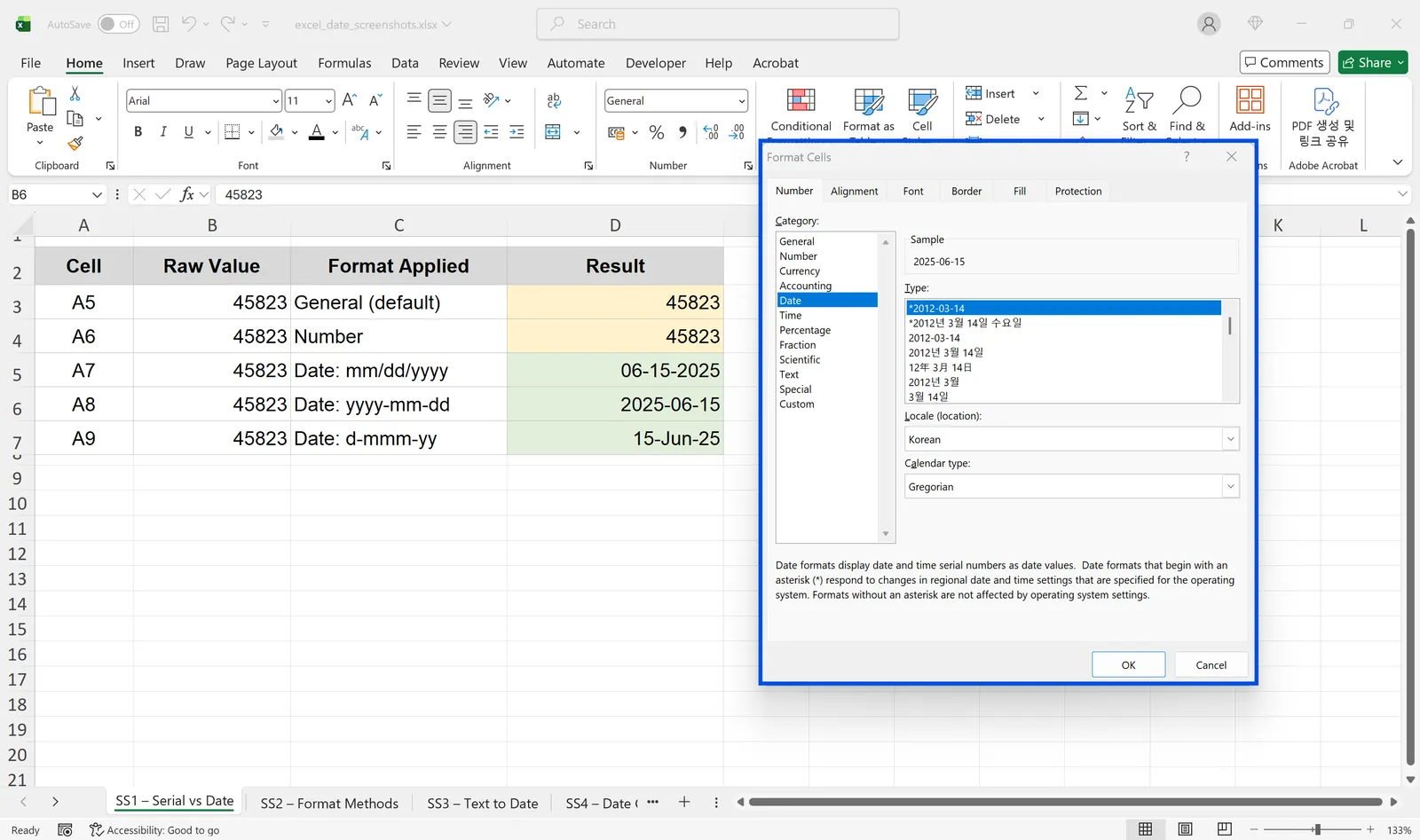
Select the cells, press Ctrl+1, choose Date, and pick a format such as yyyy-mm-dd or mm/dd/yyyy. This changes only the display.
TEXT for a fixed display string
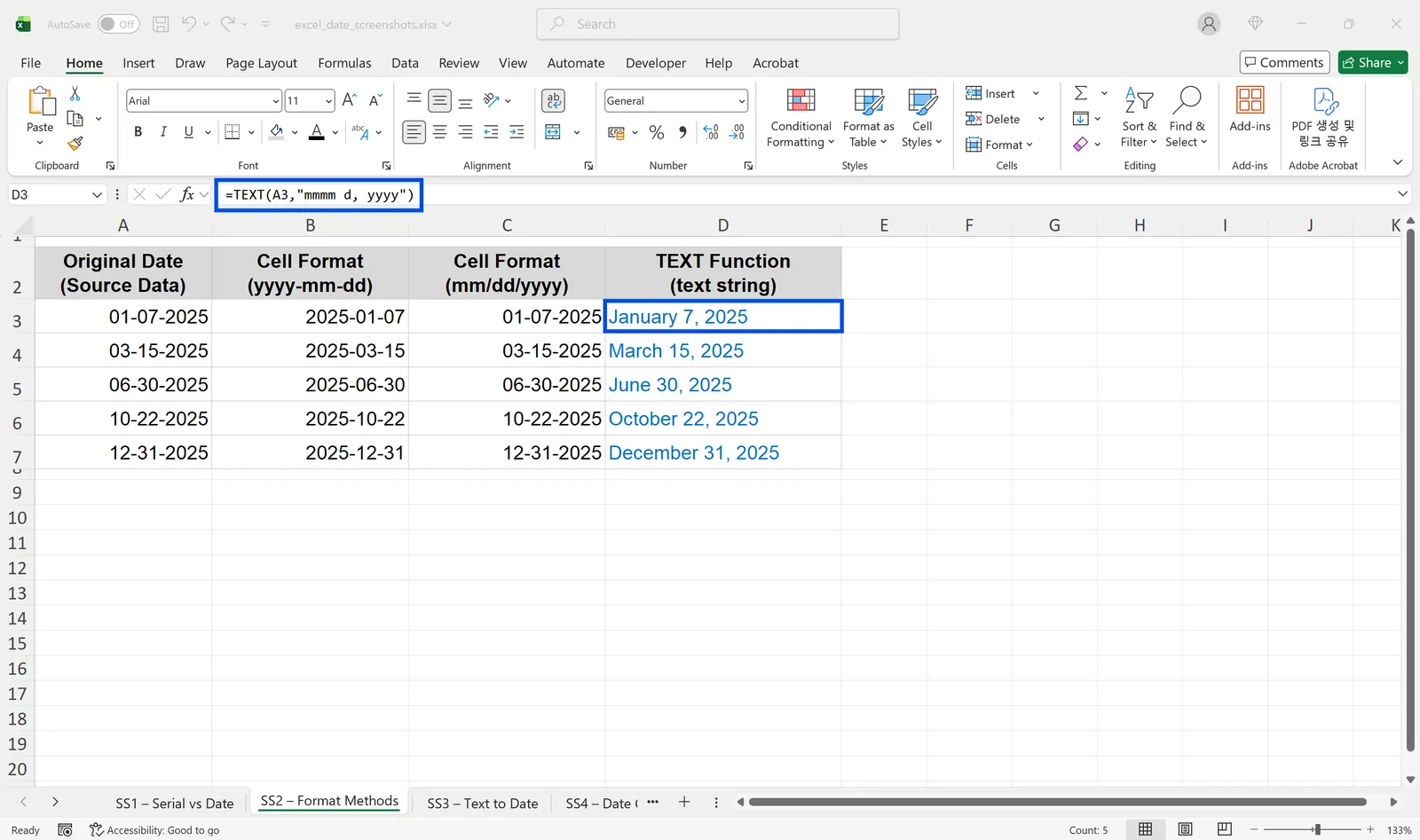
=TEXT(A3,"mmmm d, yyyy") turns 01-07-2025 into January 7, 2025. The result is text, so keep a separate column for calculations. To join formatted dates with other text, see how to combine two columns in Excel.
Converting text dates
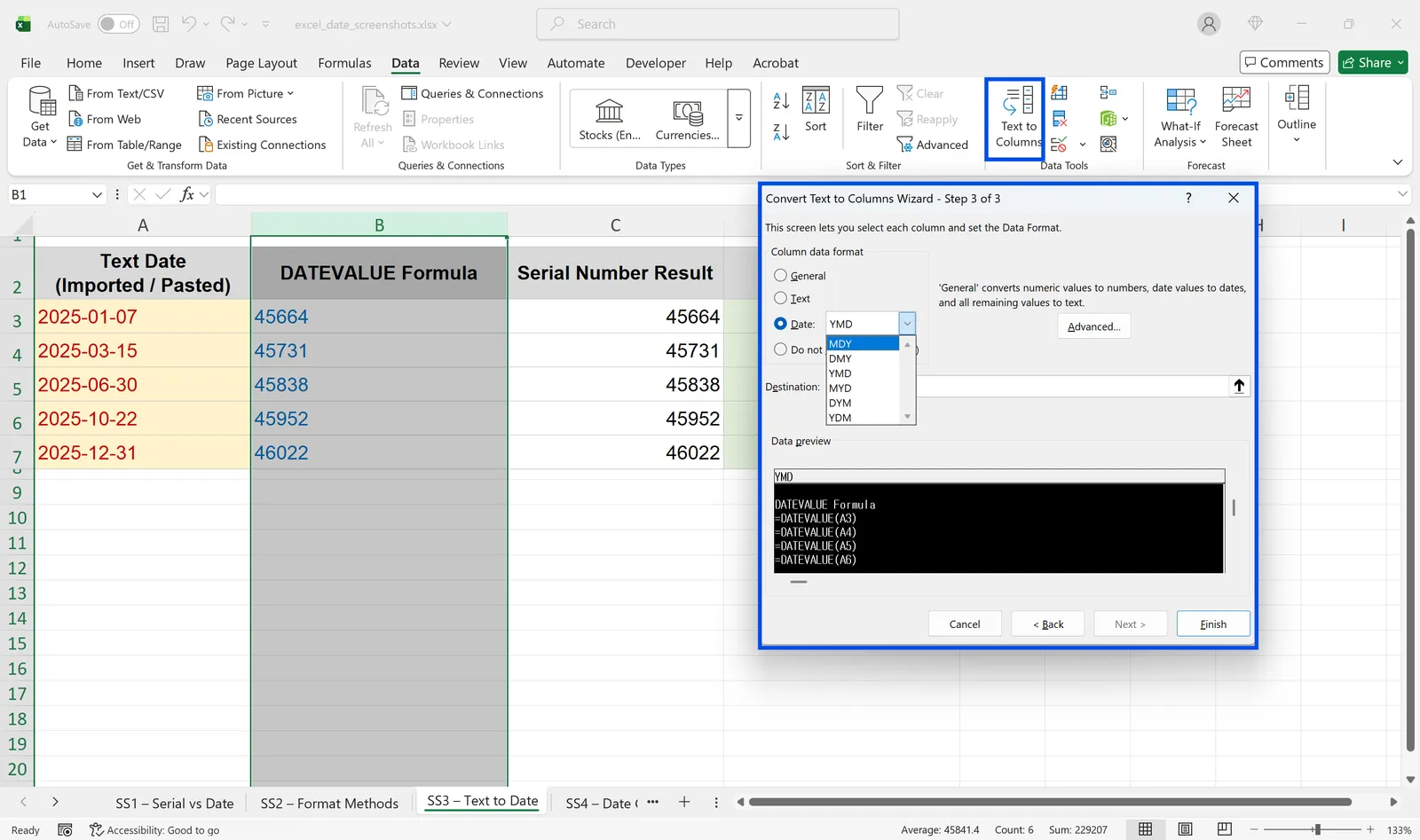
Left-aligned dates or a green triangle in the corner mean the value is text. =DATEVALUE(A2) converts a text date into a serial number; apply a date format afterward. For a whole column, or values like 20250615, use Data > Text to Columns and set the column format to Date in step 3.
Differences between dates
=B2-A2 returns the days between two dates. =DATEDIF(start, end, unit) returns days ("D"), months ("M") or years ("Y"), plus "MD" and "YM" for remainders. It doesn't appear in autocomplete but works when typed.
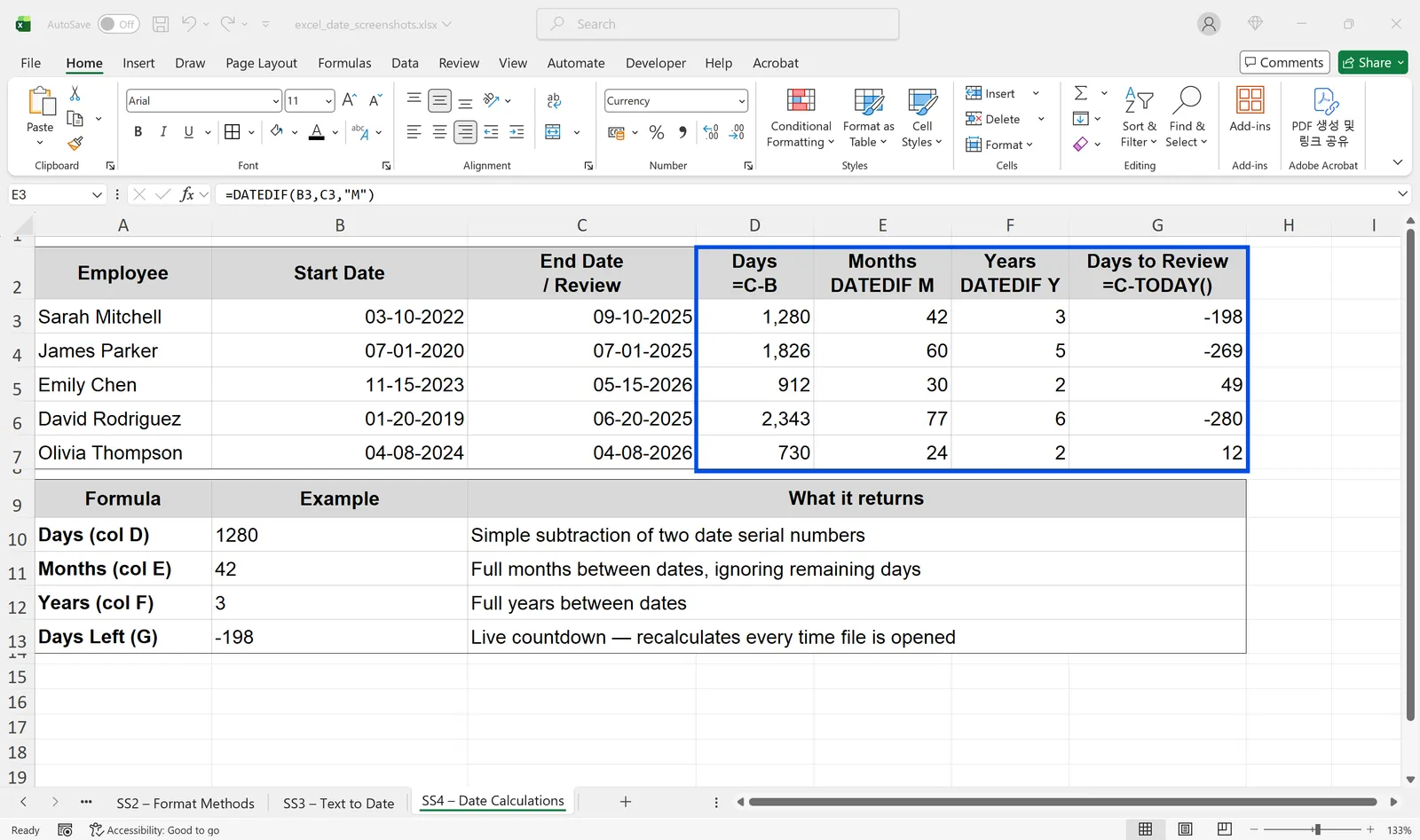
Use TODAY() as the end date for values that update every time the file opens, such as =B2-TODAY() for days left until a deadline.
Dates that won't sort
A column that mixes text dates and real dates sorts in two groups. Convert the text dates, apply one format to the whole column, and sort again. Filters and calculations follow the same rule.
Frequently Asked Questions
Q. Why does the same file show different date formats on different computers?
Some date formats follow the computer's regional settings. To fix the display everywhere, apply a custom format like yyyy-mm-dd with Ctrl+1, or use TEXT for display columns.
Q. Why doesn't DATEDIF autocomplete?
It is a legacy function kept for compatibility and isn't listed, but typing =DATEDIF( with start date, end date and unit works.
Q. What if the AI reads a date the wrong way round?
It lists values it can't resolve with confidence instead of guessing, and you can tell it the day/month order for a source. Every change is in the audit log, so a wrong conversion in a shared file can be traced and corrected.
Q. Where is the order data stored when the AI works on it?
Company data is stored on AWS and is not used to train AI models. Under an eZDR agreement, the model provider stores neither prompts nor files.
Clean Dates with inline AI
Format Cells, DATEVALUE and Text to Columns fix dates one pattern at a time, and channel files bring new patterns every week. In the AI Browser, the AI beside the file converts mixed date formats to real dates, asks about ambiguous ones, and adds the calculations you need. It works within your company account, permissions and approval policies, and every action is recorded in the audit log.
In the AI Browser, this takes one request
inline AI OS is a work browser where your team keeps company files open and hands the task to the AI beside them. Book a free consultation to see how it fits your operations.
Book a free consultation